Trainer and instructor availabilityKnow who’s free before you assign.
Cademy checks each trainer’s working hours, time off, Google or Outlook busy times and the other courses they teach while you schedule. Hover a date that needs a trainer to see who’s free, and assign them from there. If you pick someone who isn’t free, Cademy shows the reason and who is free instead, and leaves the decision with you.
Cademy calls them facilitators: your trainers, instructors, assessors and speakers. Availability is built into the Courses calendar of Cademy’s training management system, on every plan, Free included.
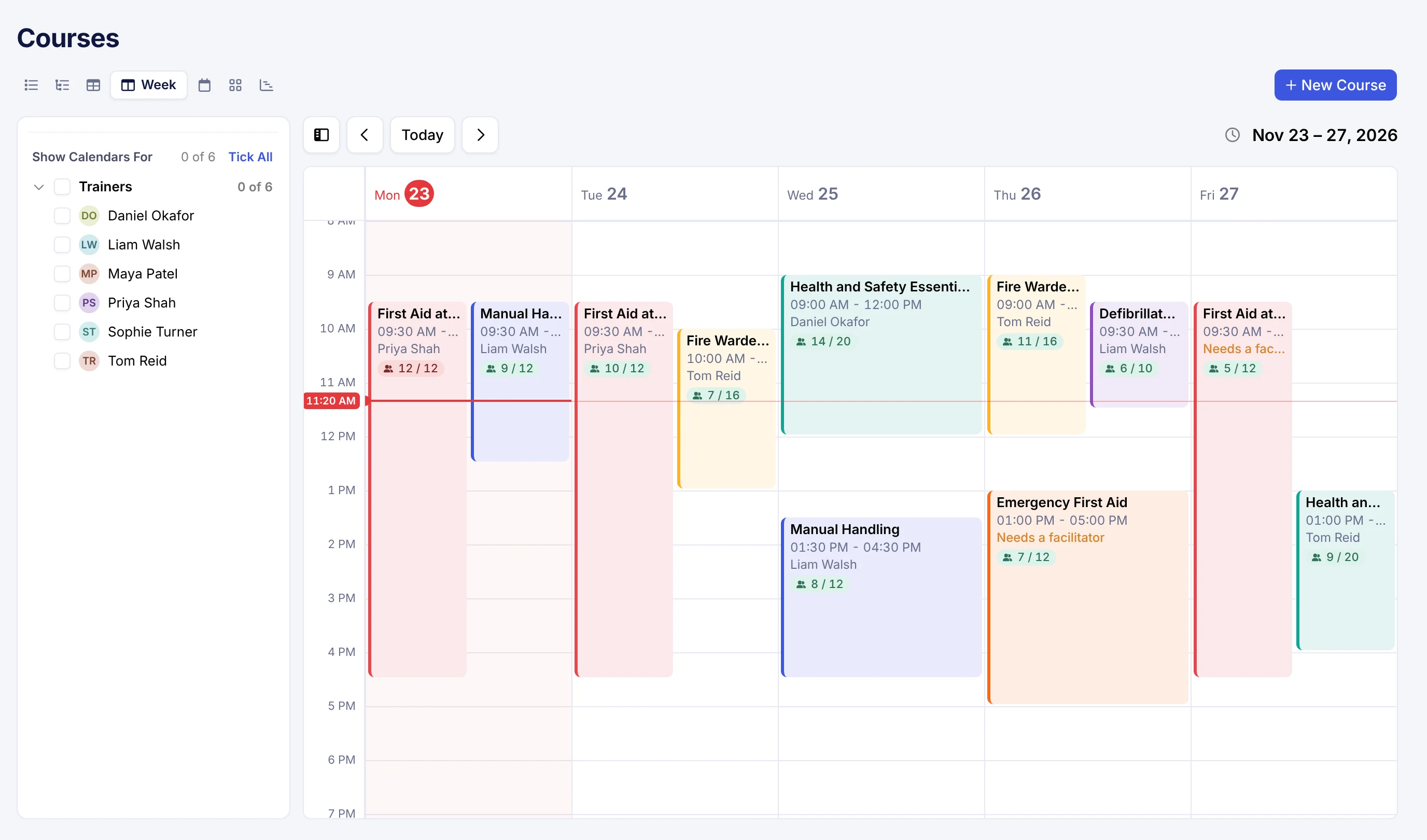
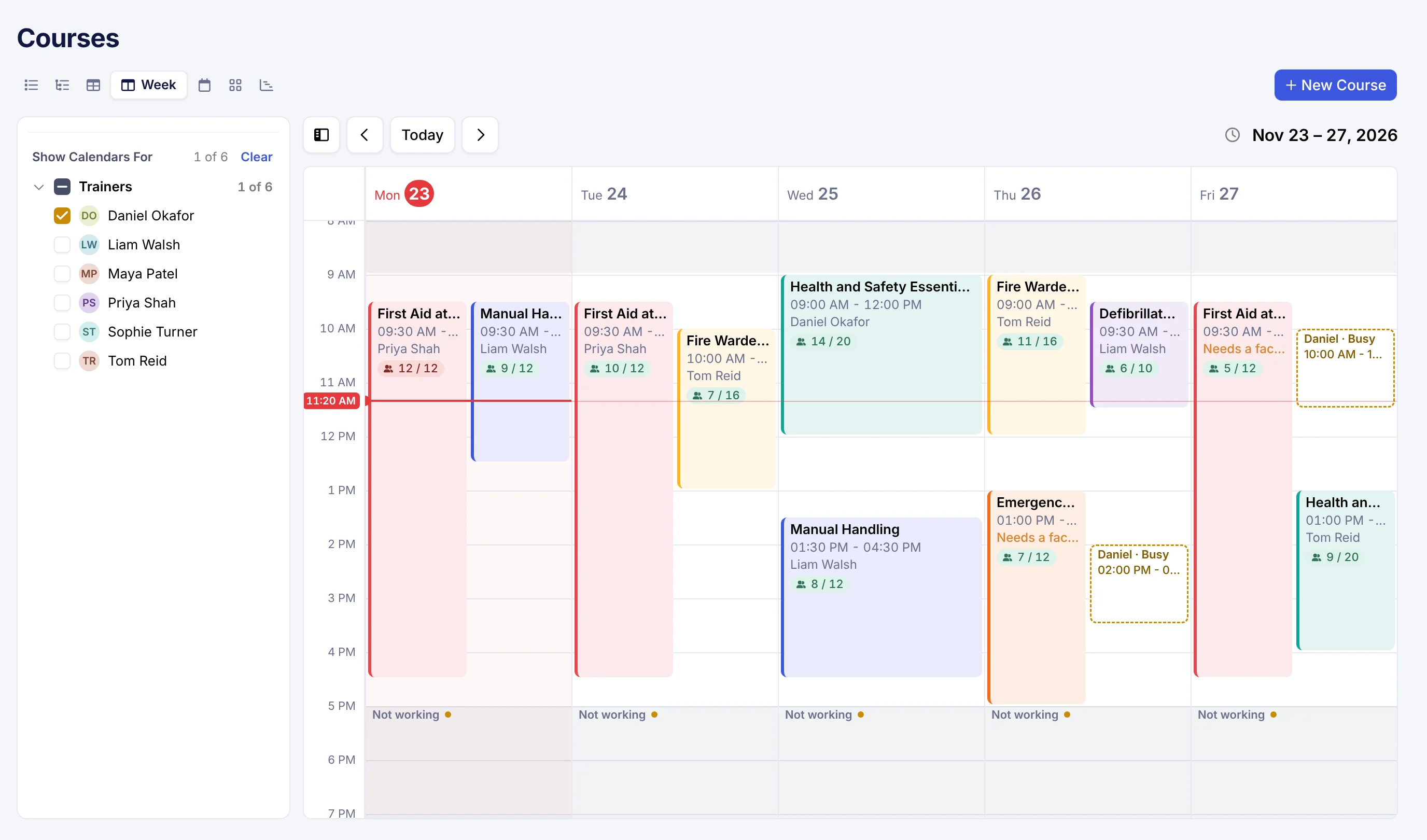
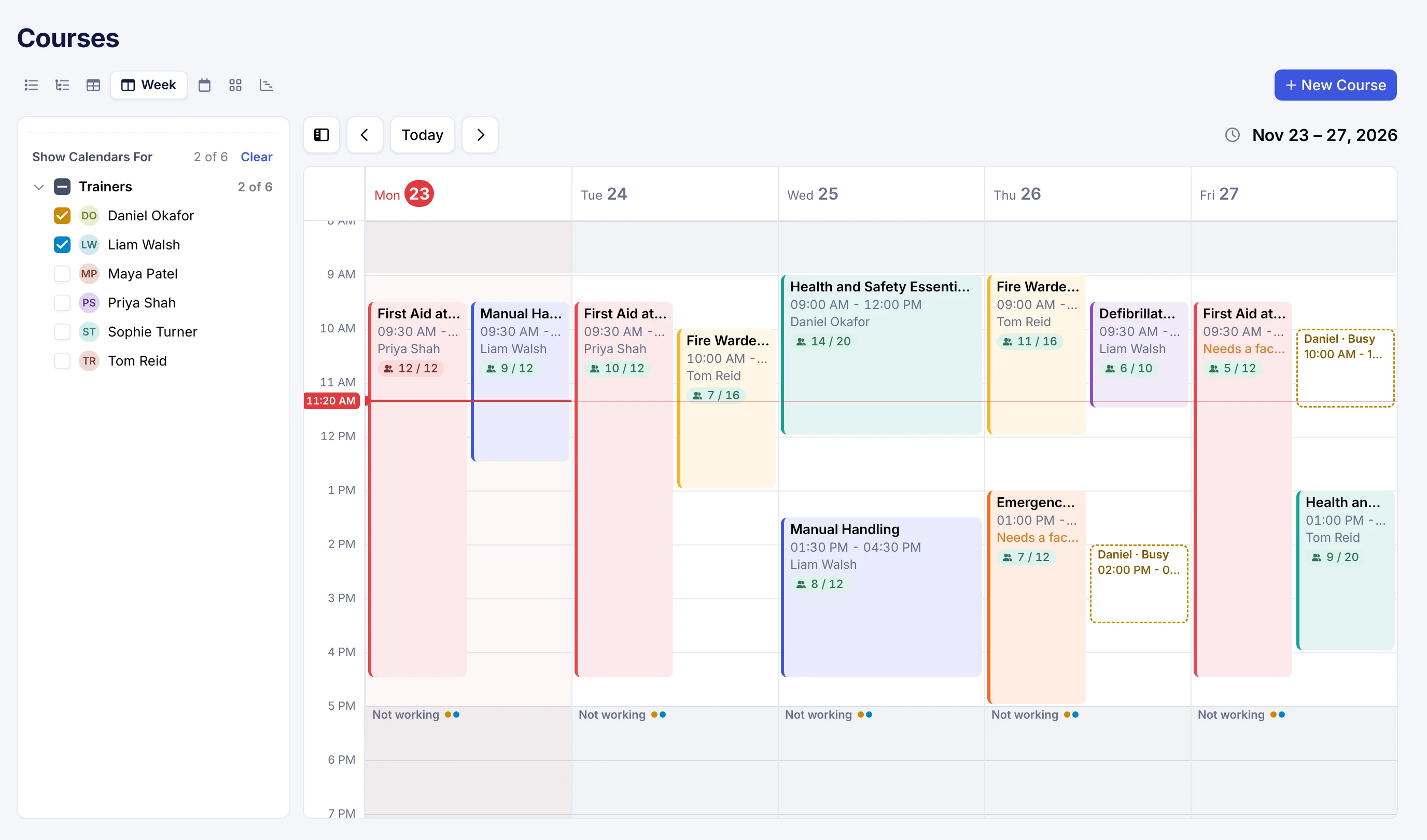
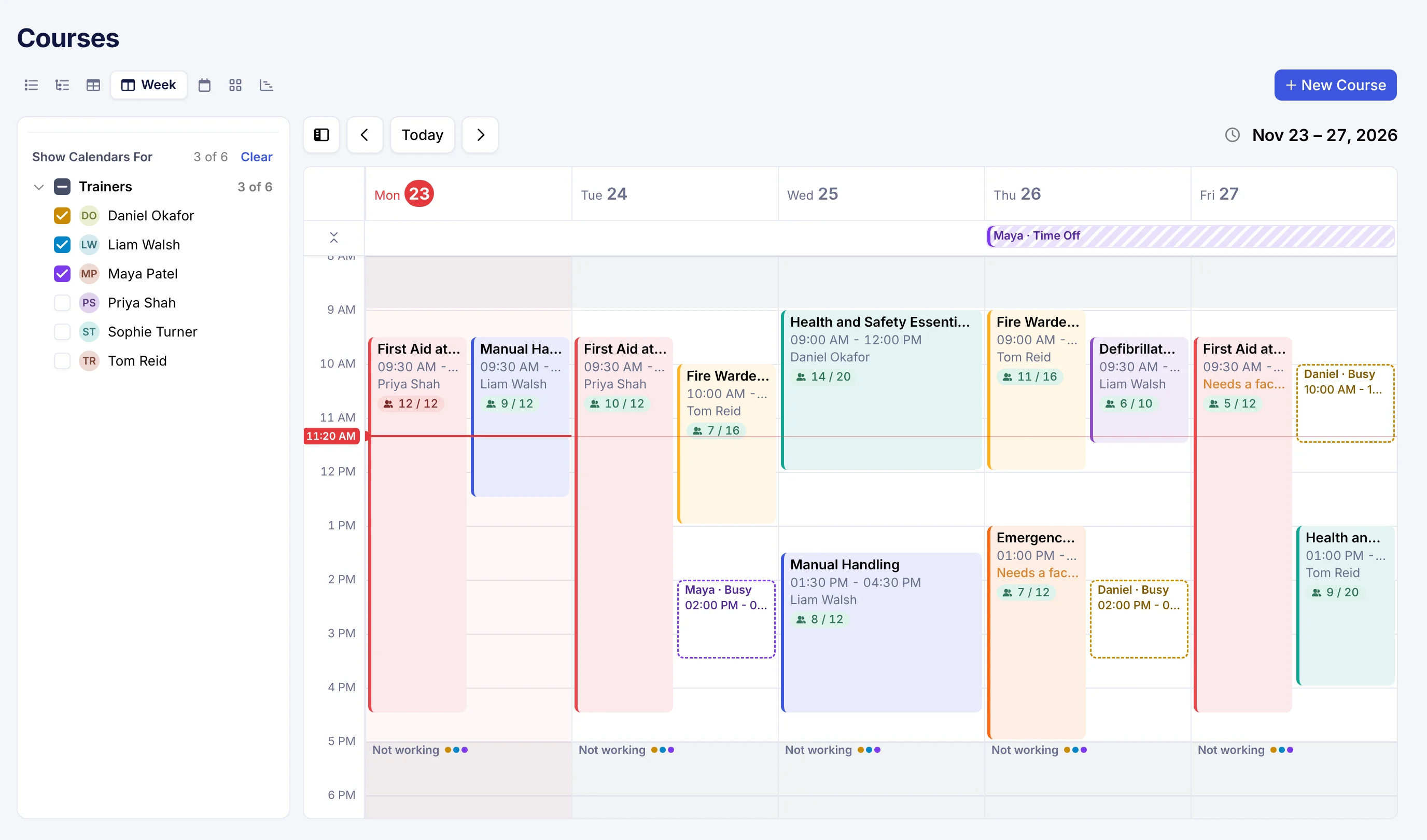
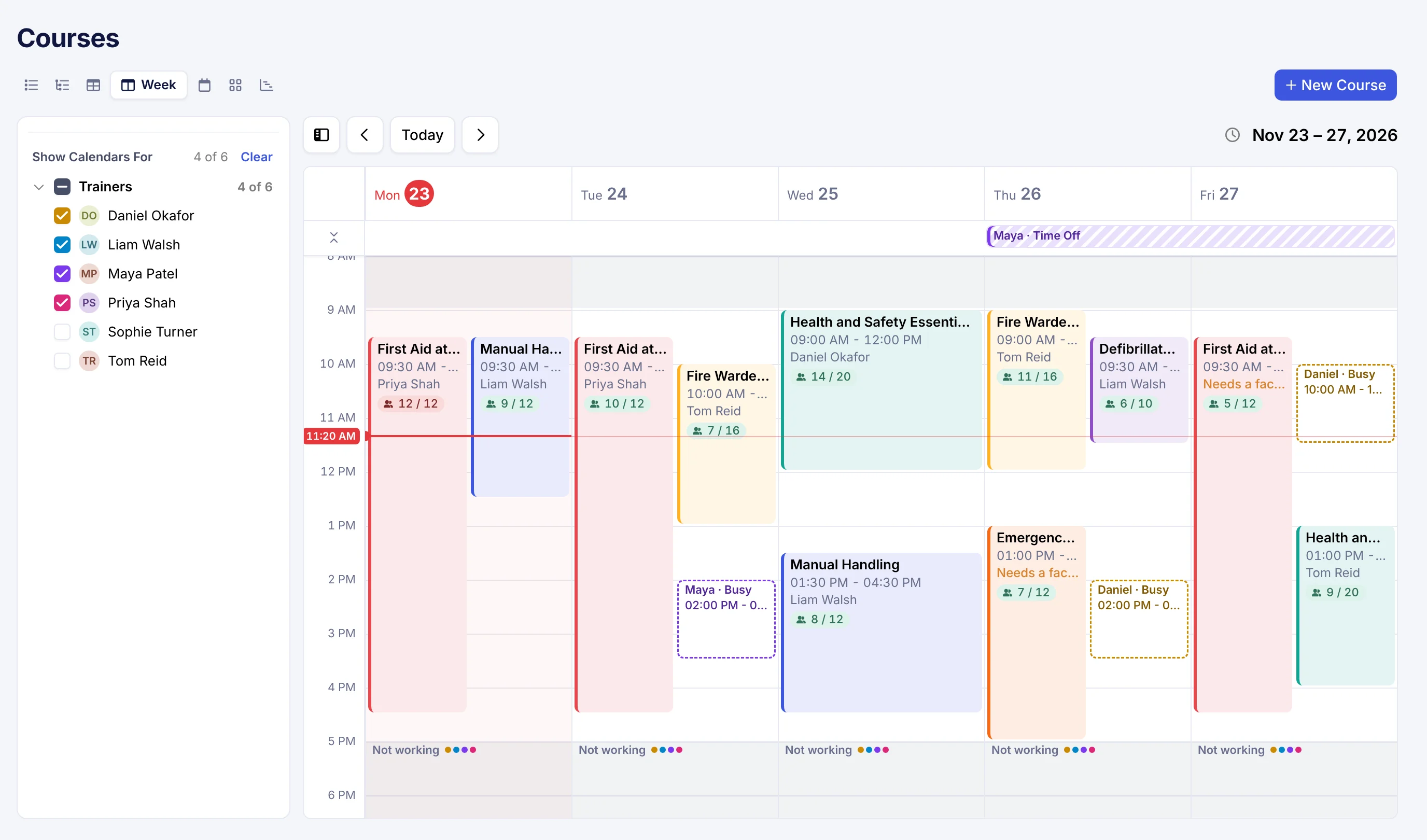
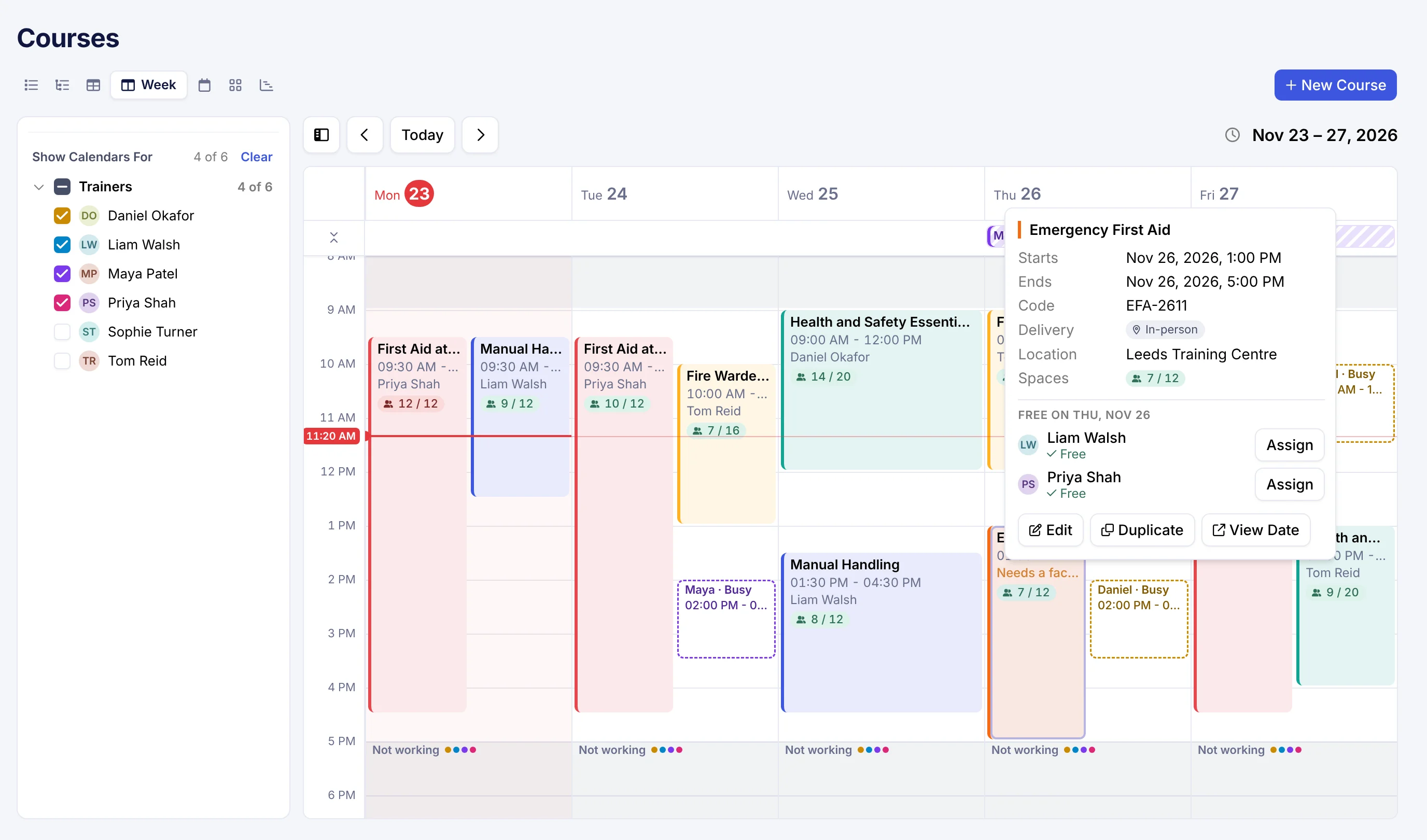
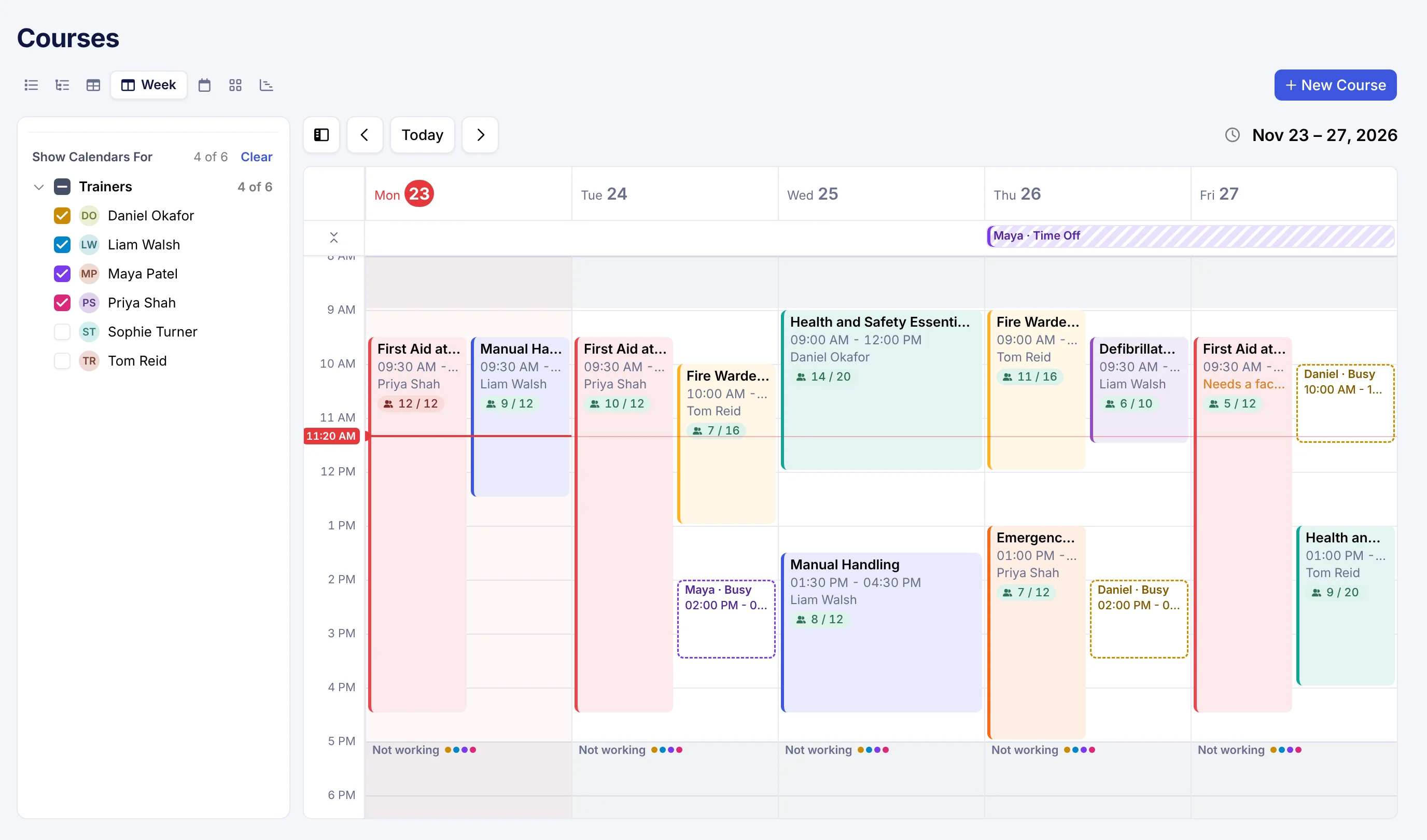
See each trainer’s time next to your course dates.
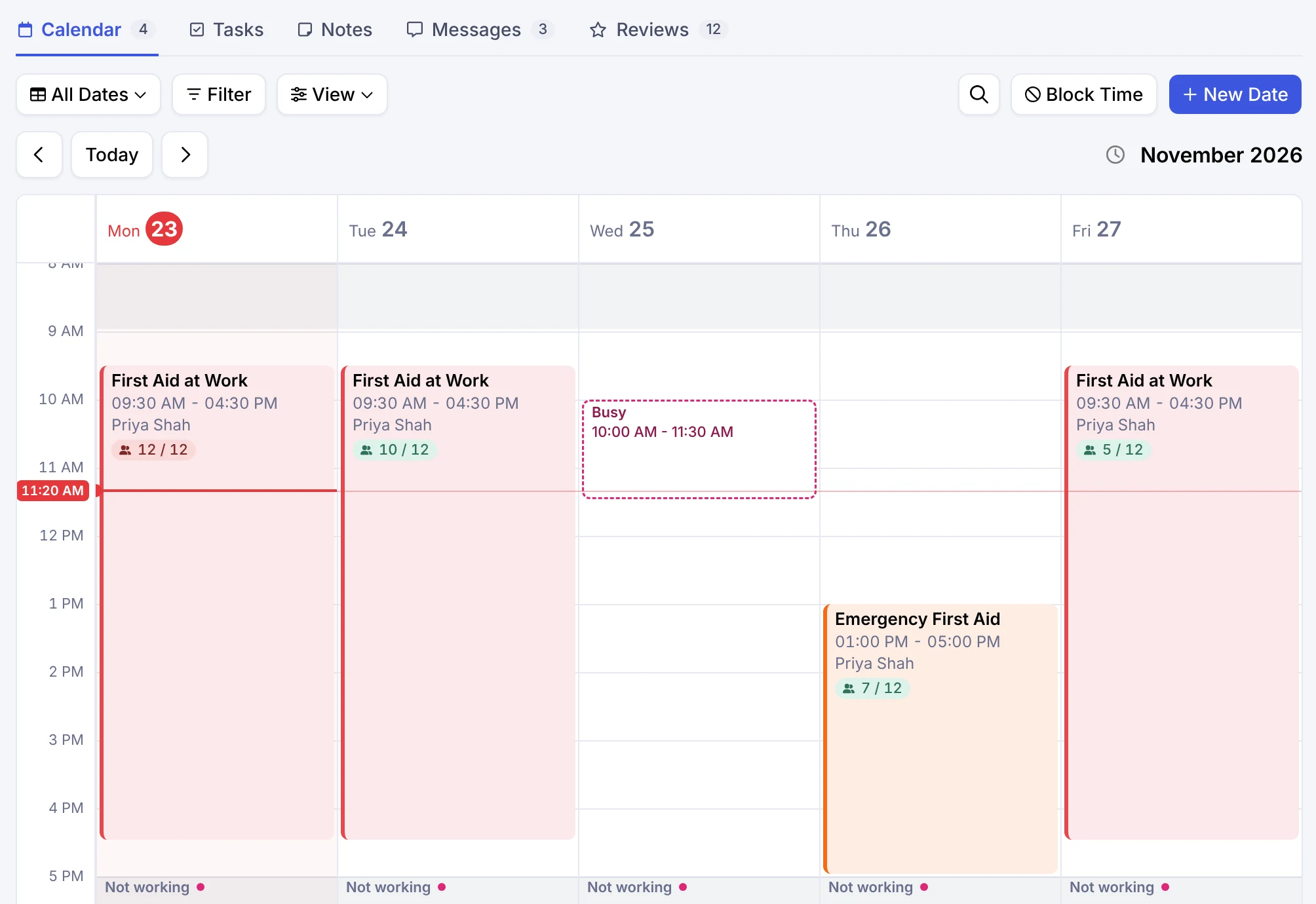
Tick up to 10 people under Show Calendars For. In Week, the hours outside each person’s working day are shaded, and their blocked and busy time sits next to your course dates. Month shows their days off. On the Timeline, grouped by facilitator, each trainer has a row, and dates that still need someone wait in a Needs a Facilitator row at the top.
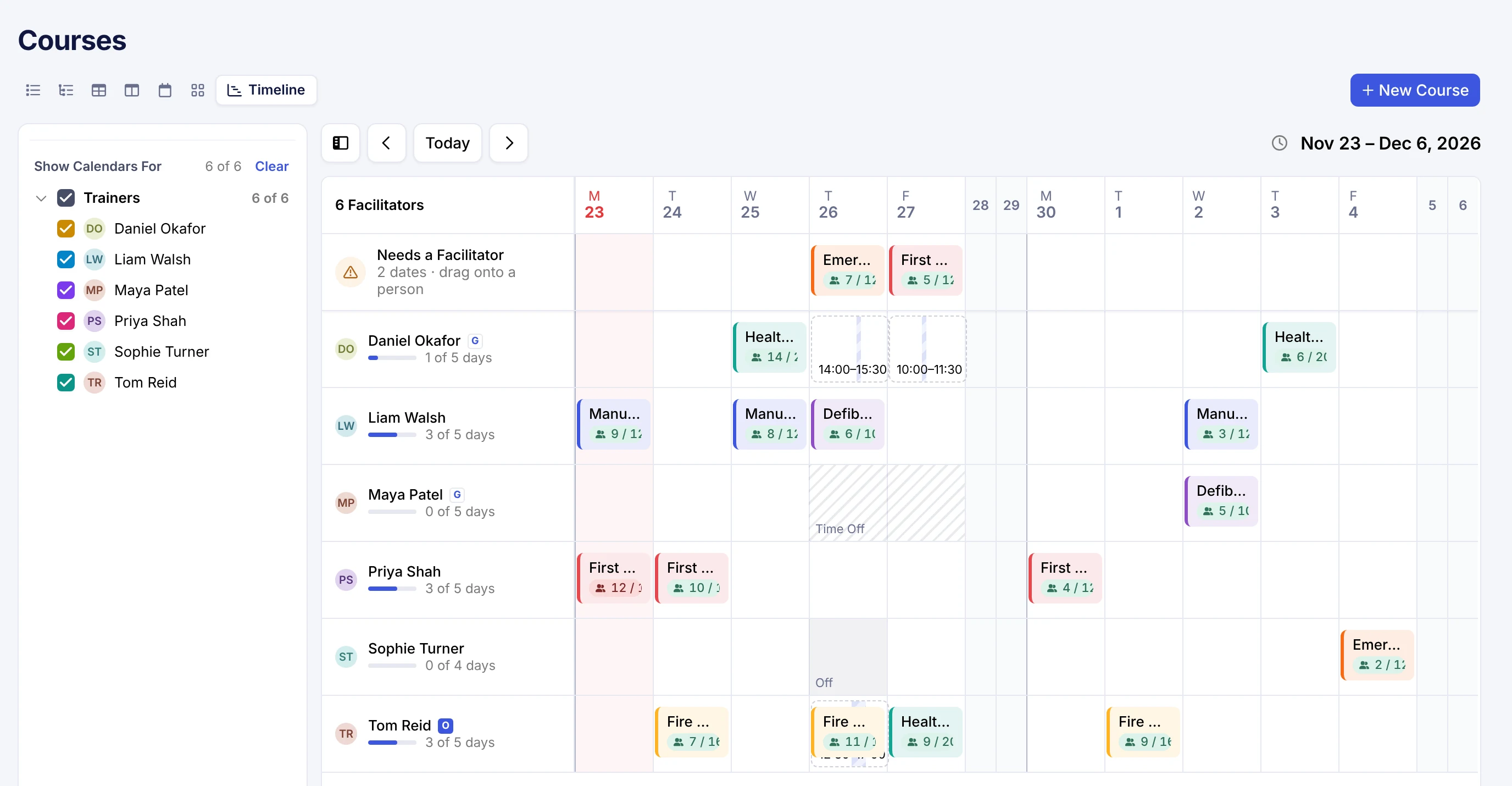
On the Timeline
- A Needs a Facilitator row at the top for every date still waiting for a person
- One row per trainer, grouped by user group or sorted Most Free First
- A bar beside each name that counts the working days they teach or have blocked
- Drop a date on someone’s row to give it to them
In Week and Month
- Show Availability turns on working hours, blocked time and Google or Outlook busy times
- Hover any date for its times, spaces left and location
- Saved views keep your layout, display choices and filters
- Every calendar layout
Where a trainer’s availability comes from.
Each session of a date is checked at its own times, so a course with three sessions is checked on each of them.
If you pick someone who isn’t free, Cademy tells you why.
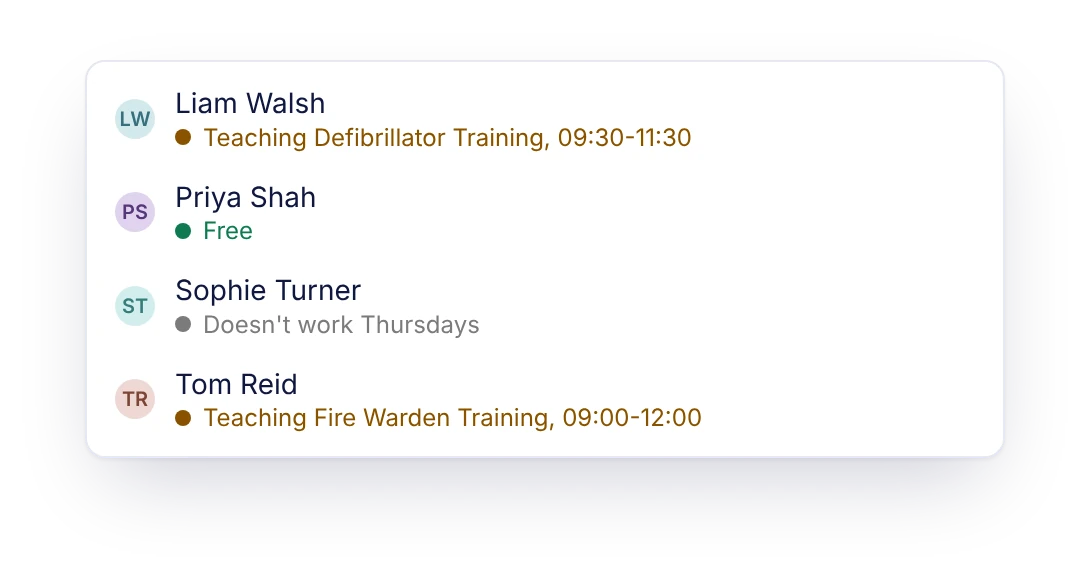
In the date editor, each name in the facilitator picker has a note under it: Free, Time Off, outside working hours, Busy in Google, or the course they’re already teaching. If you pick someone who isn’t free, a warning gives the reason and a See Who’s Free link. Save it anyway if that’s the right call, for example when the trainer has agreed to move their own plans.
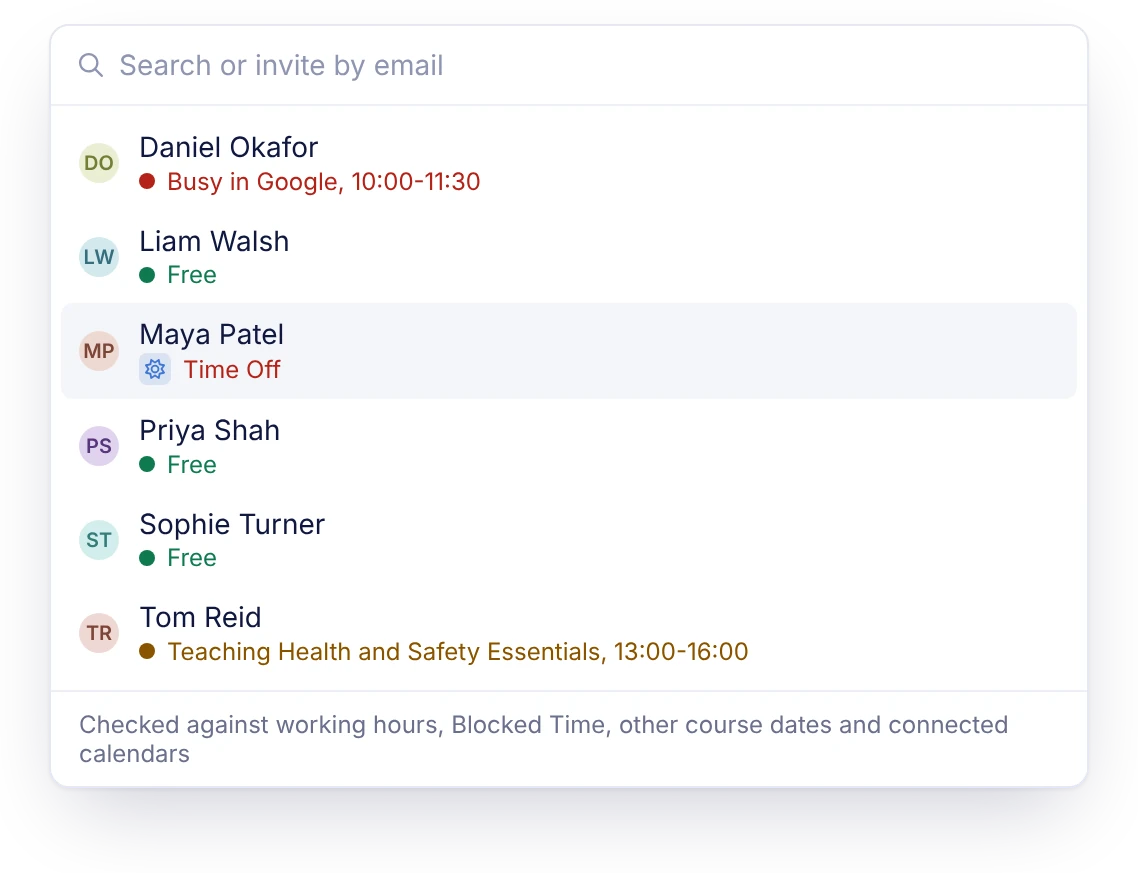
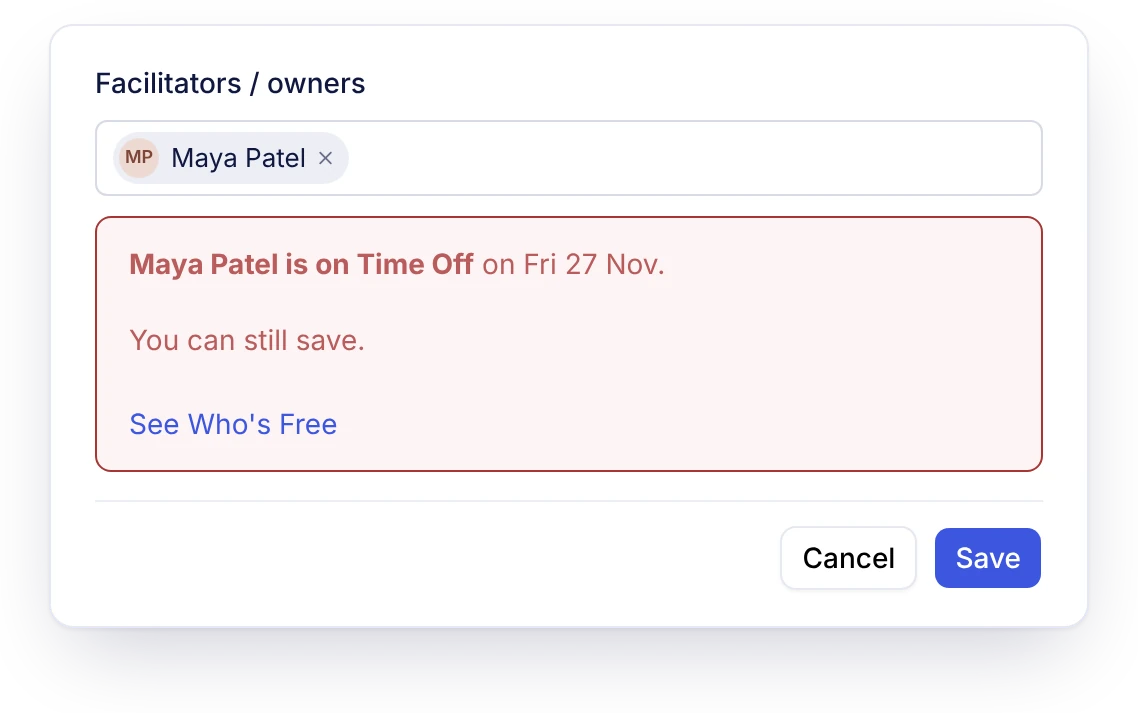
Dragging a date onto someone who’s away
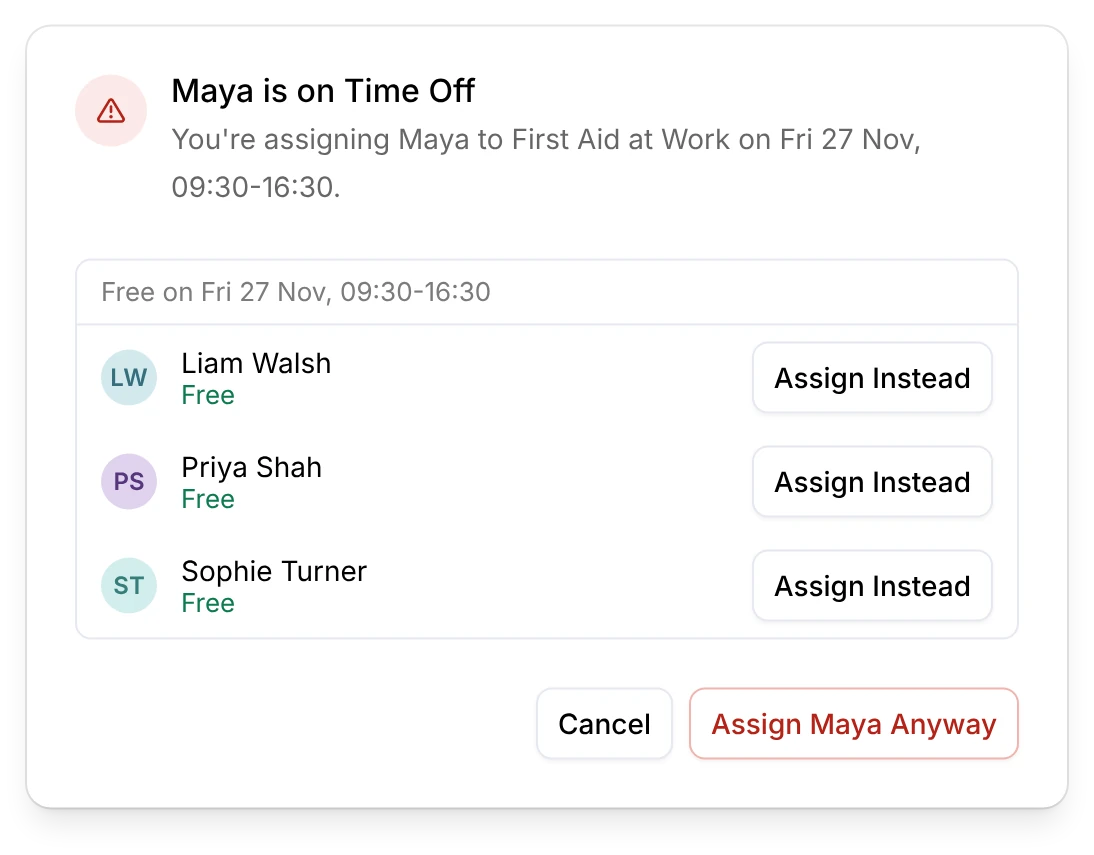
On the Timeline, if you drop a date on a trainer who isn’t free, or add several dates at once in the course editor, Cademy asks before it assigns them. It lists who is free at those times, with Assign Instead beside each name, and Cancel leaves the date where it was.
Connected calendars share busy times only.
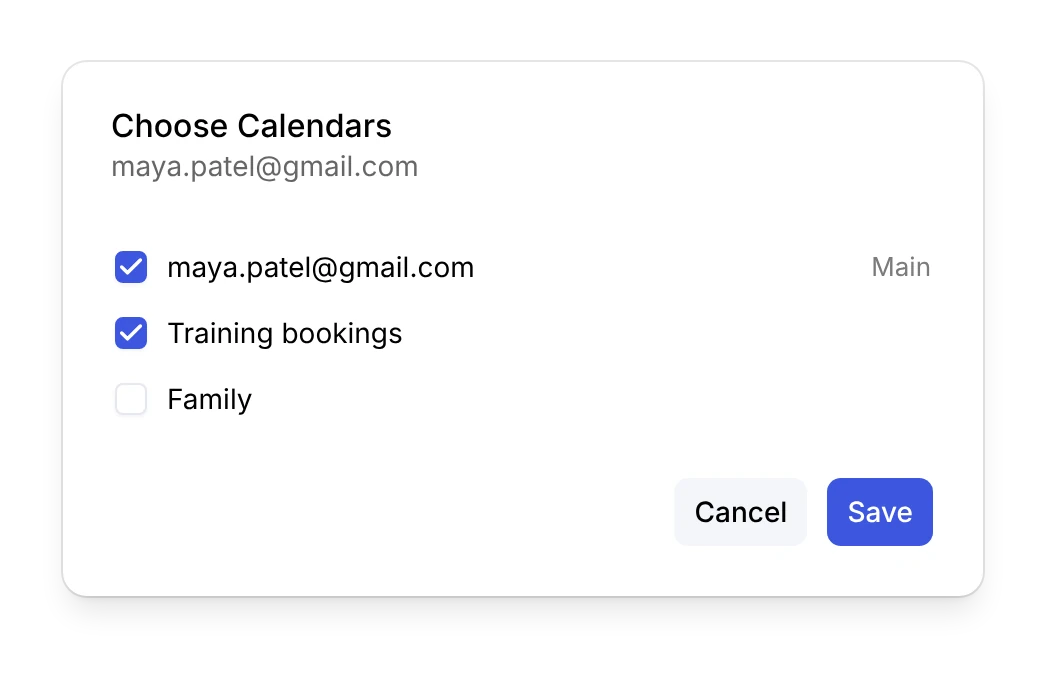
When a trainer connects Google or Outlook, Cademy reads when they’re busy and which calendars they have. Event titles and details never reach Cademy, and nothing is written to their calendar, so associate and freelance trainers can connect a diary full of other clients’ work without sharing what’s in it.

For the trainer
- Only the trainer can connect, choose calendars, reconnect or disconnect
- Several accounts, such as a personal Gmail and a work calendar, with up to 50 calendars each
- Busy and out of office count as busy, and tentative stays tentative
For the people scheduling
- Colleagues see a block’s reason, such as Time Off, without its title or notes
- System Admins see whether a calendar is connected, never what’s in it
- If a connection drops, the note reads “Google not checked” and the other checks carry on
To send course dates out to a shared Google or Outlook calendar as well, a System Admin connects the Google Calendar app. How the Google Calendar app works
Every trainer gets their own calendar.
Under My Profile, the Calendar tab shows the dates a person is assigned, by month, by week or as a list of upcoming and past dates. A Get Set Up card on their Home page takes them through adding a photo, working hours, a calendar connection and time off. They can get an email when they’re given a date and when it changes.
System Admins
- See every course and date
- Manage anyone’s working hours and blocked time
- Set the Block Time reasons
Course Owners
- Add and move the dates they manage
- Assign facilitators with the same checks
Facilitators
- Set their own hours and block their own time
- See the dates they’re assigned

Scheduling and managing facilitators has never been easier. Organising courses actually feels effortless now.
Replacing the trainer spreadsheet.
| A trainer spreadsheet | Cademy | |
|---|---|---|
| Working hours | A column, if someone keeps it up | Each person’s hours, breaks and time zone |
| Time off | Emailed in, then typed up | Block Time, with a reason colleagues can see |
| A trainer’s own diary | Not visible | Busy times from Google or Outlook, details private |
| Already teaching | Found by cross-checking tabs | Flagged at the real session times |
| Who’s free instead | A round of phone calls | Listed in the warning, ready to assign |
| The booking and register | Somewhere else | On the same date |
About trainer availability.
How do I see which trainers are available before assigning a course date?
Open Courses in Week, Month or Timeline and tick the trainers you want under Show Calendars For, up to 10 at a time in Week and Month. Their working hours, blocked time and Google or Outlook busy times show beside your course dates. Hover a date that still needs a facilitator to see who appears free, and assign them from the pop-up.
Does Cademy stop me assigning a trainer who isn’t free?
It flags it rather than blocking it. The facilitator picker shows why each person isn’t free, and picking one of them shows a warning that names the reason, with See Who’s Free. You make the call and can still save the date. If you drag a date onto someone who isn’t free, Cademy asks first and lists who is free, with Assign Instead beside each name.
What can Cademy see when a trainer connects Google Calendar or Outlook?
Only when they’re busy. Cademy asks Google for free/busy and calendar-list access and Outlook for basic calendar reading. Event titles and details never show in Cademy, and nothing is written to the trainer’s calendar. Only the trainer can connect, change or disconnect it.
Can trainers block out time off, travel or a provisional hold?
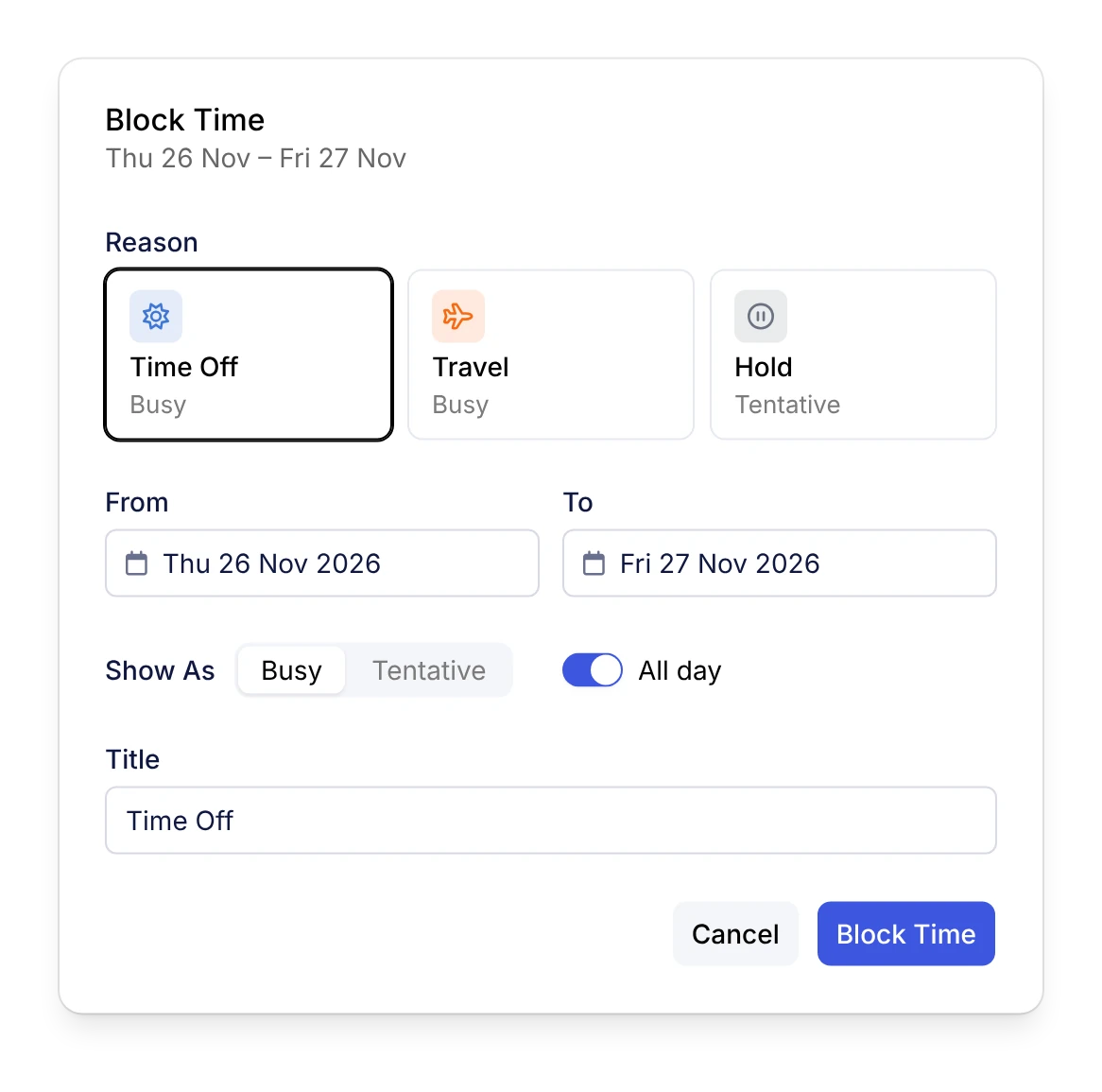
Yes. Block Time takes a reason, the dates, all day or set hours, and whether it shows as Busy or Tentative. The reasons start as Time Off, Travel and Hold, and a System Admin can add your own. Colleagues see the reason, and the title and notes stay with the trainer and System Admins.
Does it check whether a trainer is already teaching another course?
Yes. It checks the other course dates they teach, whether they’re assigned directly or through a block, a course or a user group, at each session’s real times. For a date with several sessions the hint says how many overlap, for example Busy on 1 of 3 sessions.
Can each trainer have their own working hours and time zone?
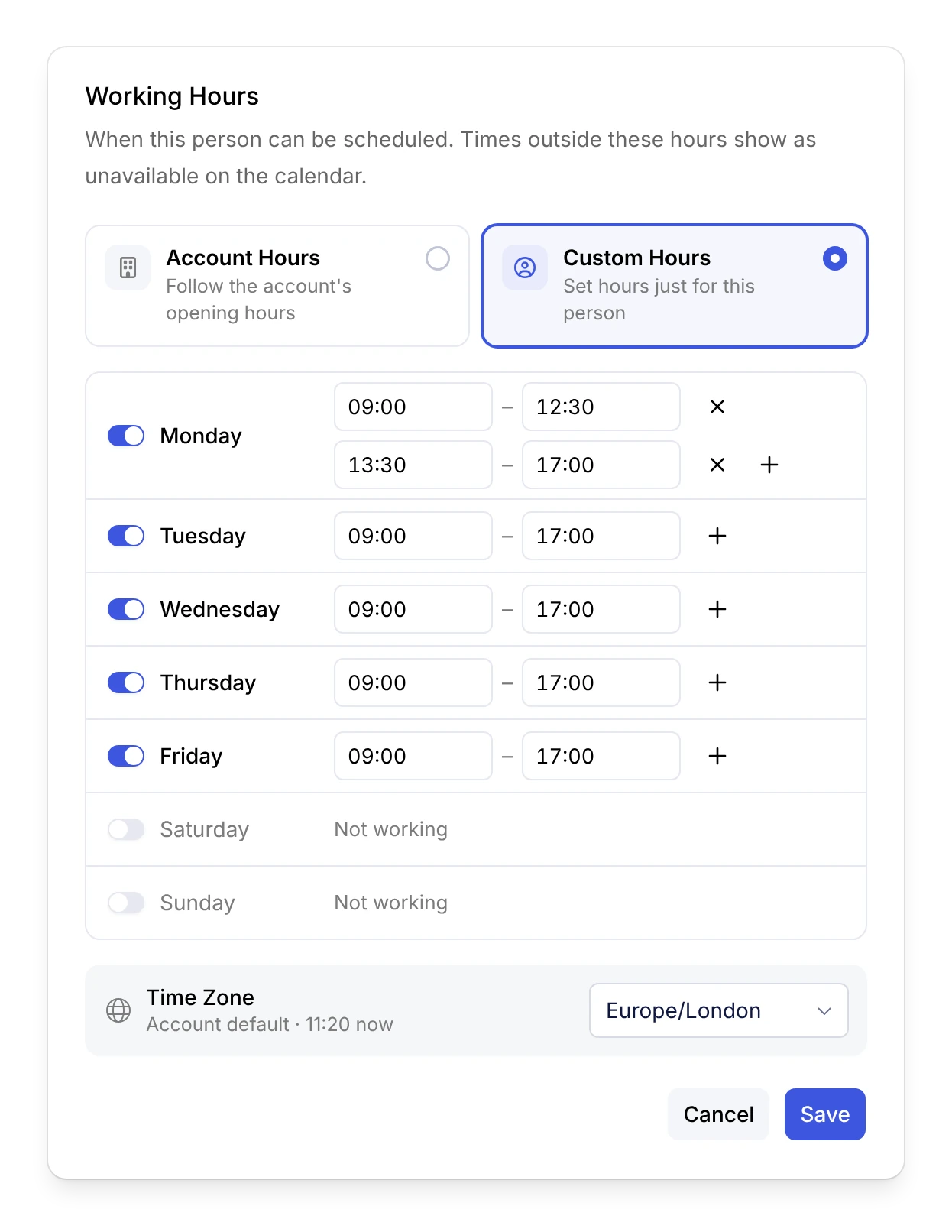
Yes. Use the account’s opening hours, or give a person custom hours with several ranges a day for breaks and their own time zone. Custom hours take priority, and a System Admin can set them for anyone.
How many trainers can I compare at once?
Up to 10 in Week and Month. On a Timeline grouped by facilitator, the same list picks the rows, which you can group by user group or sort with Most Free First.
Which plans include trainer availability?
Every plan, Free included. Working hours, Block Time, Google and Outlook busy times and the warnings are part of the Courses calendar for every Cademy account.
Give next month’s dates to the right people.
Start on the Free plan and invite your trainers, or book a call and we’ll set it up with your own courses.
No card needed. Every plan includes trainer availability.