📆 The New Course Calendar and Facilitator Availability
See your training schedule, find a free facilitator and move course dates.
You have a free room on Thursday and enough interest to run another first aid course. Who’s free to teach it?
The new Courses calendar in Cademy brings your course dates, venues and facilitator availability together. You can spot gaps in your schedule, fill dates that still need a facilitator and move a course straight on the calendar. Team members can see the dates they’re assigned to and share when they’re available.
The redesigned Courses calendar
Week, Month and Year views
- Week puts overlapping sessions side by side, so you can see at a glance what’s running at the same time. Multi-day courses have their own space above the timed grid.
- Month shows how your dates are spread out. A multi-day course stretches across the days it runs.
- Year is a wall planner for your training programme. Match the short codes to the legend and see which months have room for more dates.
Scroll through Week, Month or Timeline, or jump to a date from the mini calendar. Those three views let you narrow or hide weekends. You can also highlight public holidays for selected regions. Explore all the Courses layouts.
Dates Table for bookings and capacity
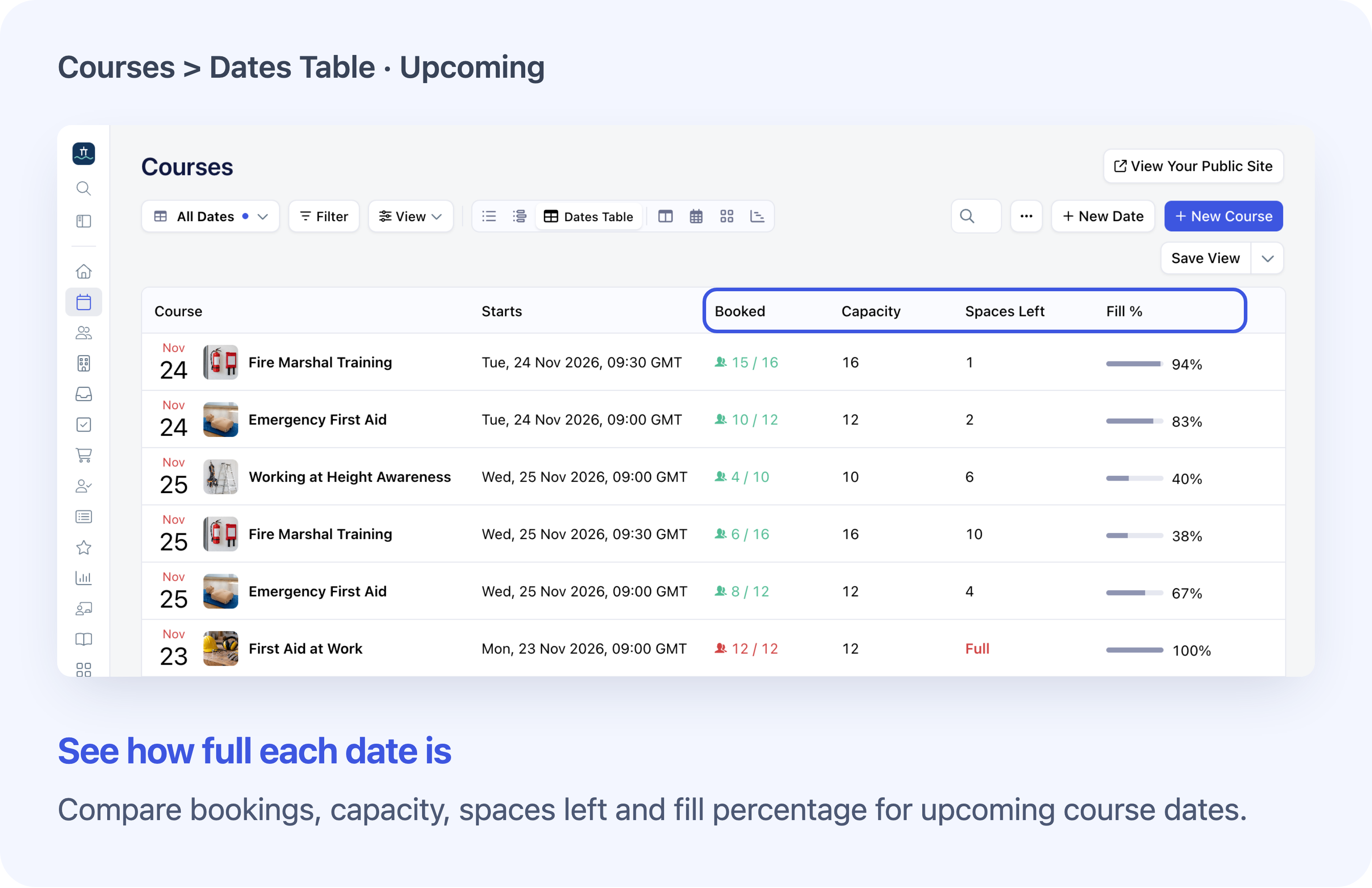
Dates Table lets you compare course dates in rows. Sort by Spaces Left or Fill % to see which dates have room. Dates List shows dates as cards. By default, both show upcoming dates soonest first and past dates most recent first.
The Courses layout shows the courses themselves, including on-demand courses.
Custom cards and saved views
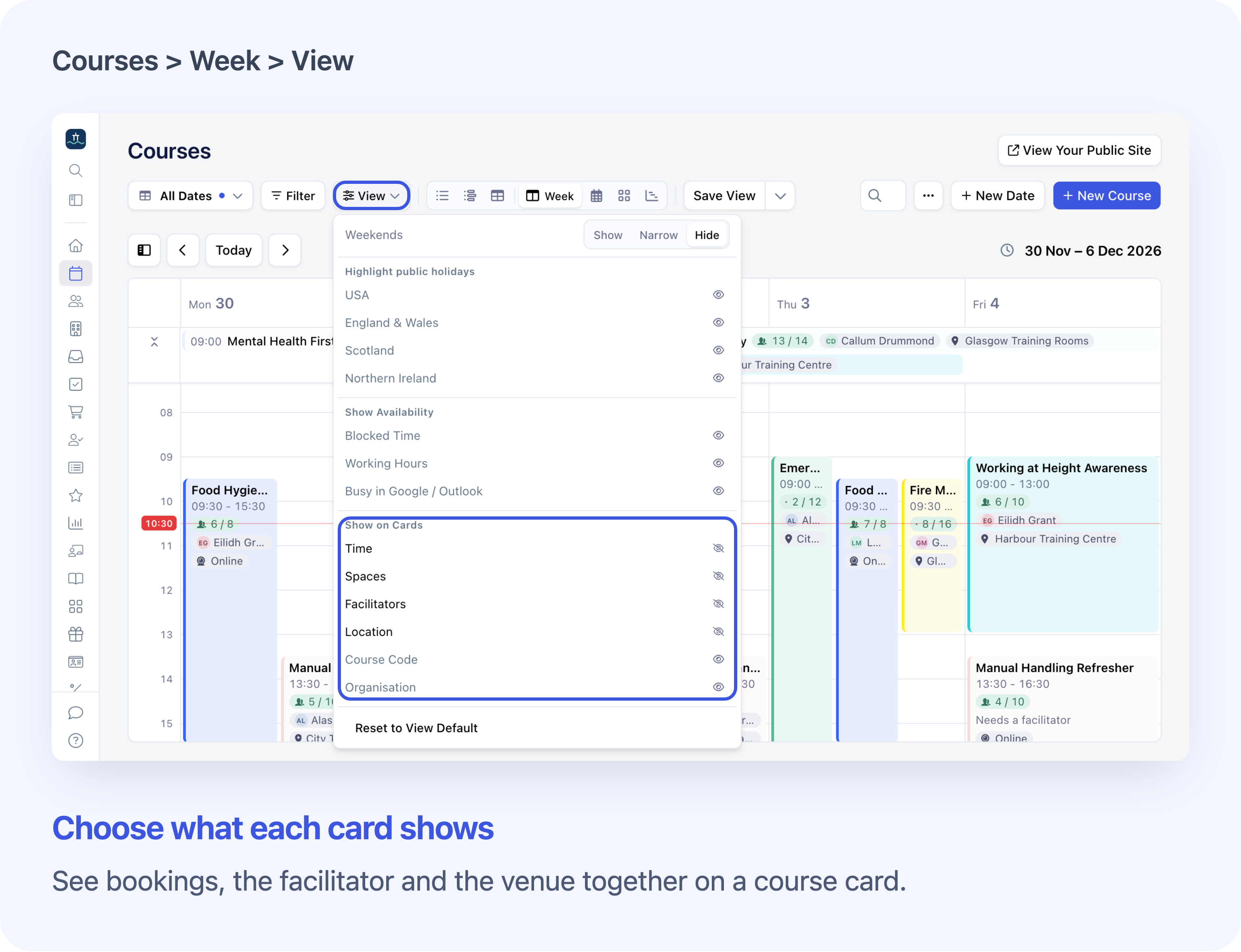
Put Facilitators and Location on calendar cards, or keep Booked and Spaces Left visible in Dates Table to see which courses are filling up.
Save a view with its layout, display choices and filters. Use it for yourself, or have a System Admin share it with the team. Learn about filters and saved views.
Working Hours, Block Time and team reasons
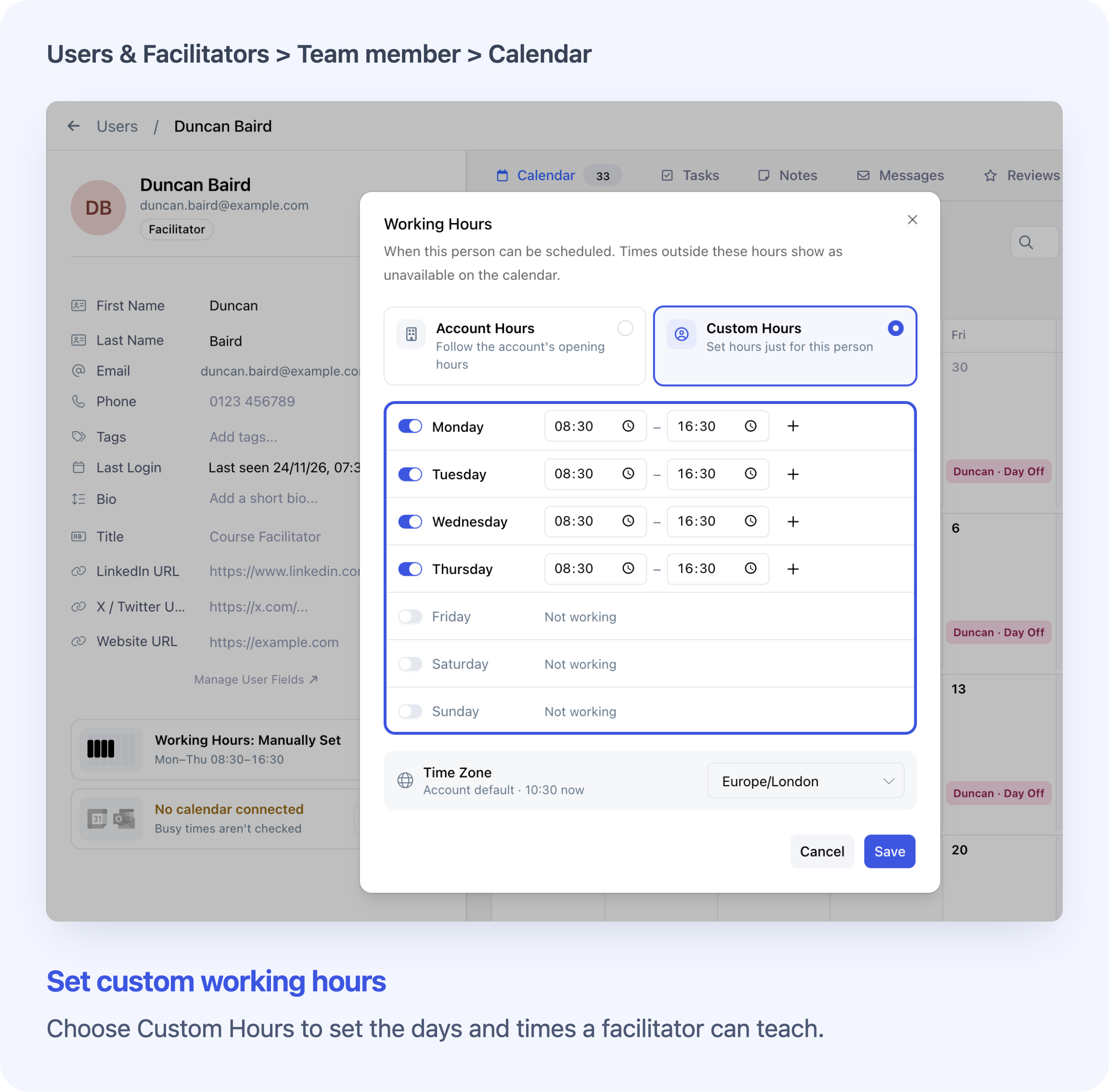
- Use Working Hours to follow your business’s hours or set your own teaching days, hours and regular breaks.
- Block Time covers exceptions such as a day off, a train journey or a provisional booking. Mark a block Busy or Tentative. Add or edit it on your own calendar. If you manage course dates, you can also start from a slot in Courses.
- Blocked Time reasons let System Admins set choices that make sense for their team. Cademy starts with Time Off and Travel as Busy, and Hold as Tentative. System Admins can change those defaults or add reasons. See how to manage reasons.
Personal Google and Outlook calendars
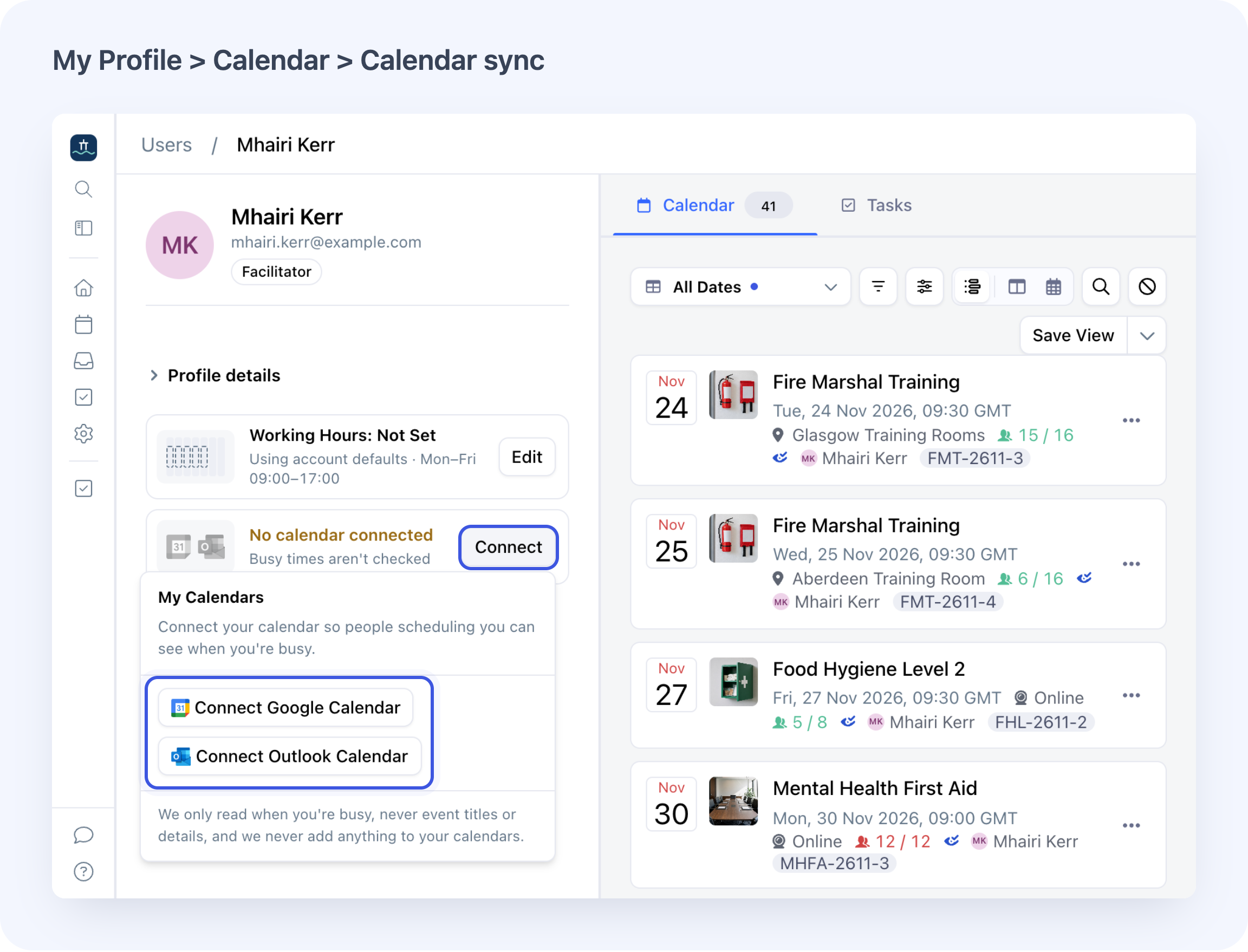
Connect Google or Outlook from your profile and choose which calendars to check. Your colleagues can plan around times marked busy. Event titles and details stay private. You can change your choice, reconnect or disconnect from your profile. Connect a personal calendar.
Facilitator and venue planning
Timeline grouped by facilitator or location
Group Timeline by Facilitator to see who’s teaching. A fresh Timeline opens at 2 Weeks. Needs a Facilitator keeps dates that still need an individual assignment together at the top. Group facilitators by user group or sort them by Most Free First. The bar beside a facilitator counts working days with teaching or blocked time.
Group by Location to see what’s scheduled at each venue, or choose None for a single timeline. Zoom from three days to a quarter depending on how far ahead you’re planning. Explore Timeline and facilitator rows.
Working hours, time off and busy times on the calendar
Choose who to check under Show Calendars For. See their working hours, blocked time and busy times from connected Google or Outlook calendars alongside your course dates.
Use Week to find time within the working day and Month to spot days off. In a Timeline grouped by Facilitator, each selected facilitator’s row shows teaching dates and availability together. See the calendar’s availability options.
Find a free facilitator from the calendar
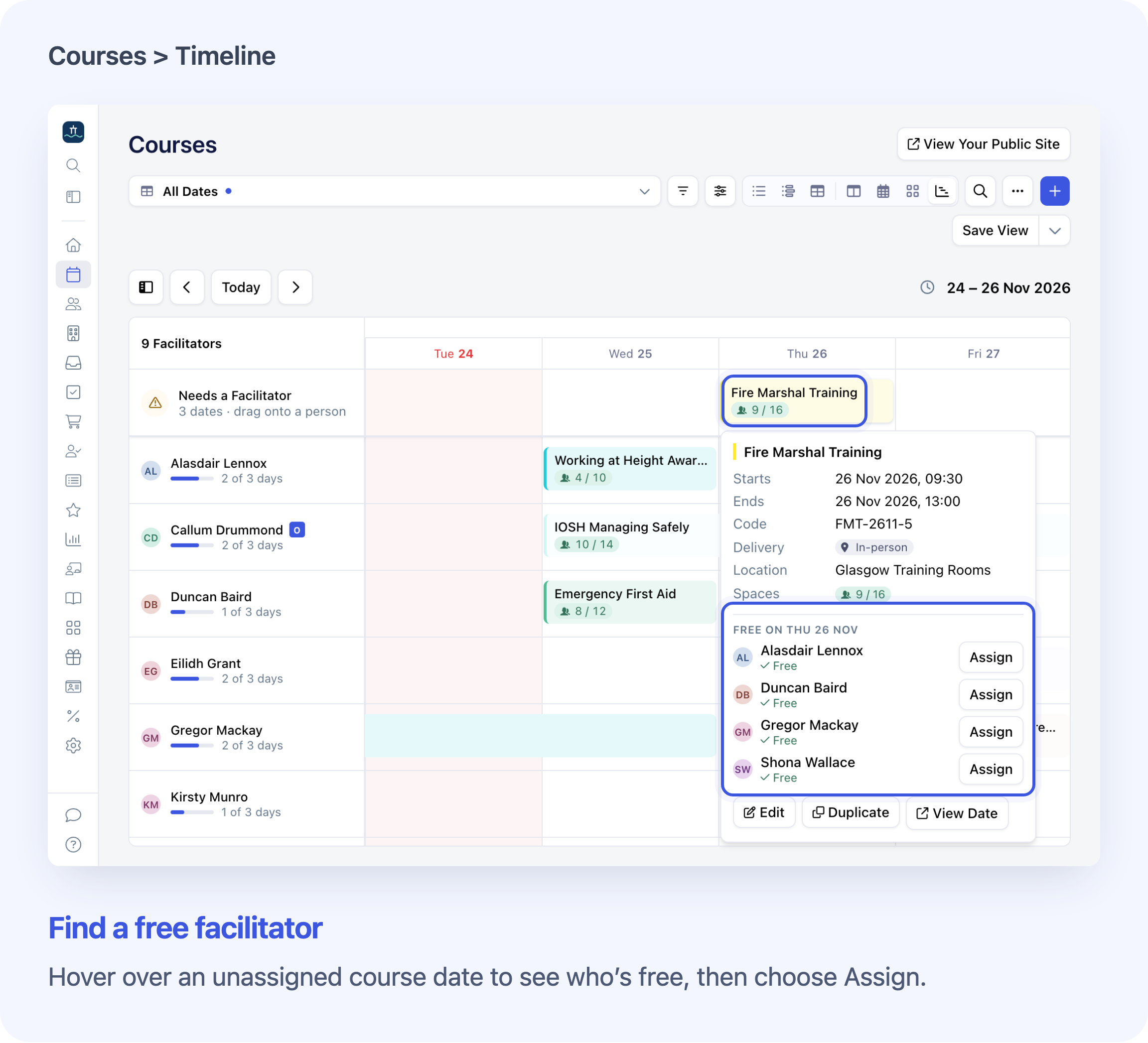
Hover over a date that needs a facilitator to see which selected people appear free. If you can manage the date, you can assign someone straight from the pop-up. It also shows details such as spaces and location, with options to open, edit or duplicate the date where you have access.
Clash warnings before you assign a facilitator
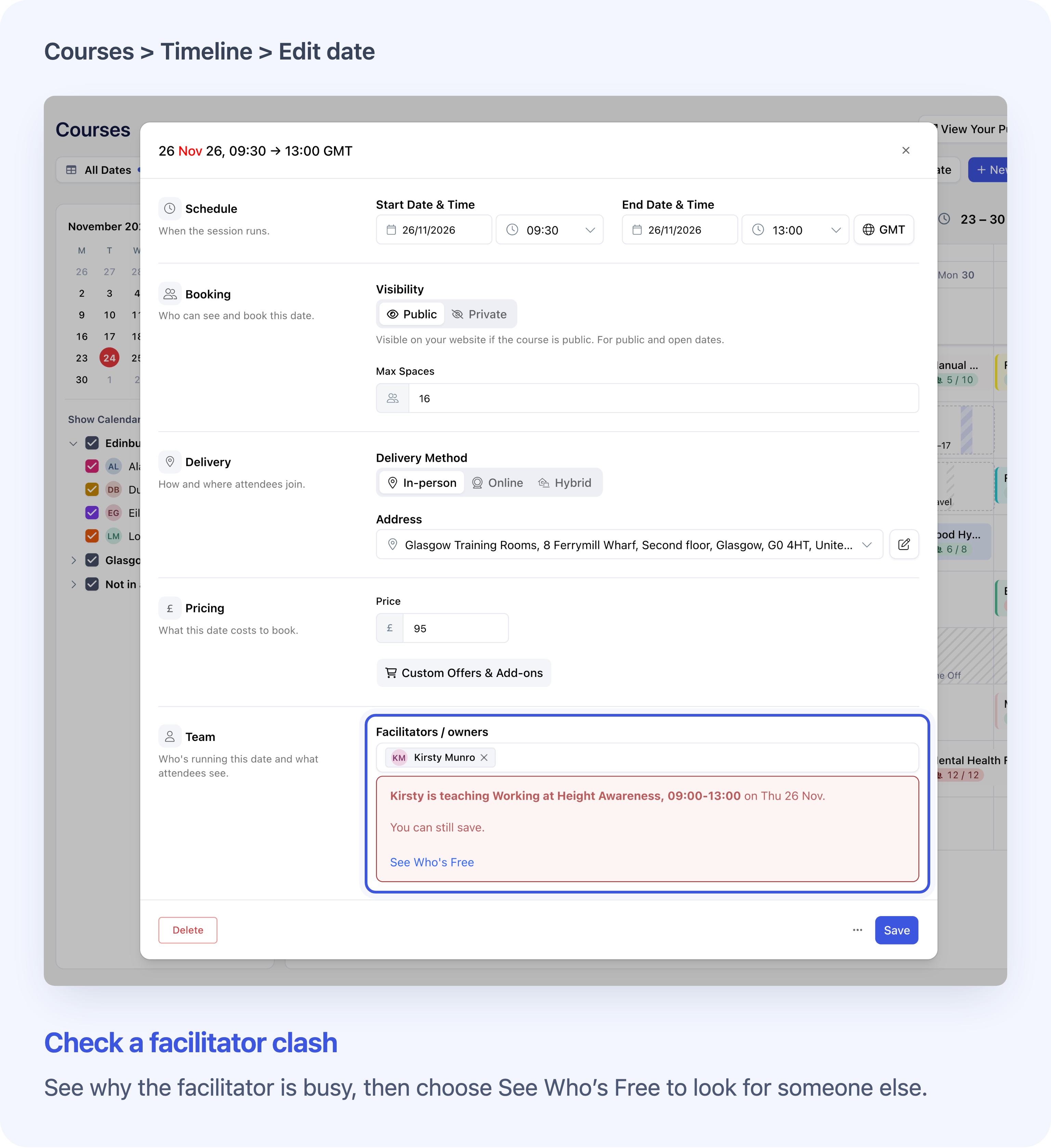
When you choose a facilitator, Cademy checks their teaching dates, working hours, blocked time and connected calendars. It can flag someone who’s busy, has a tentative hold or is outside their working hours. Someone can appear free with a note that Google or Outlook couldn’t be checked. Check with them before relying on that time.
If there’s a clash, See Who’s Free helps you find someone else. You can keep the assignment if you’ve confirmed they can teach. Warnings can also appear when you move a date or add several dates at once. Learn how availability checks work when you assign someone.
Create and reschedule dates on the calendar
Add a course date from an empty slot
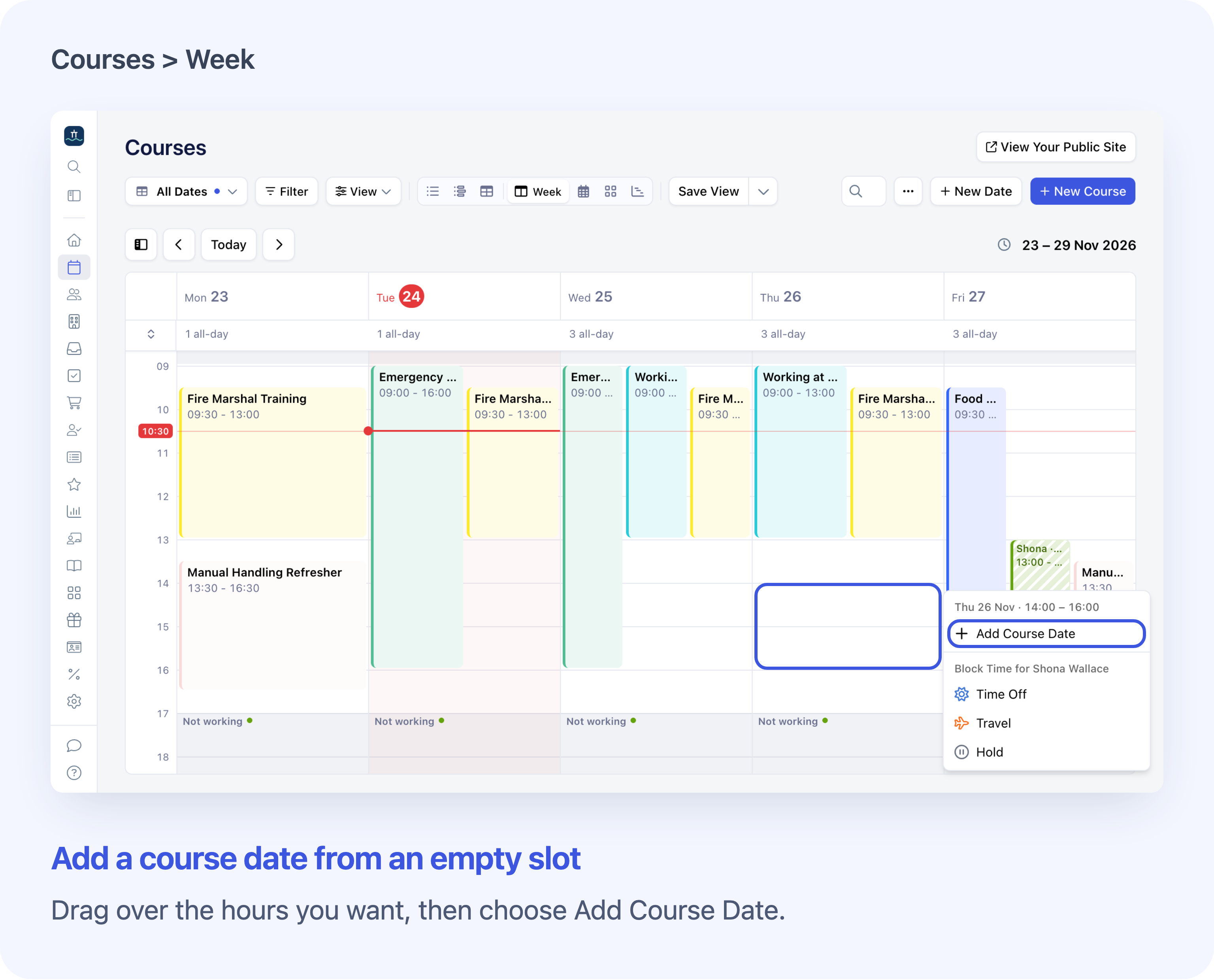
Start a new date from an open slot. The editor opens with the selected day or time filled in. A Timeline row can also fill in the facilitator or venue.
Drag to move, resize or reassign a course date
Drag a standalone date in Week to move it to another day or time. Drag the bottom edge to change when it finishes. Moving a date in Month keeps the same time in the course’s time zone. In Timeline, moving it to a different row can also change the facilitator, venue or delivery method.
Moved confirms a move was saved. End time changed confirms a resize. If Cademy flags a clash, you can cancel or choose another facilitator when one is offered. Bookings stay with the date. For a course that’s booked as a block of sessions, make changes in the date editor. Read about moving dates, Undo and email notifications.
Each team member’s own calendar
Personal Calendar and Home shortcuts
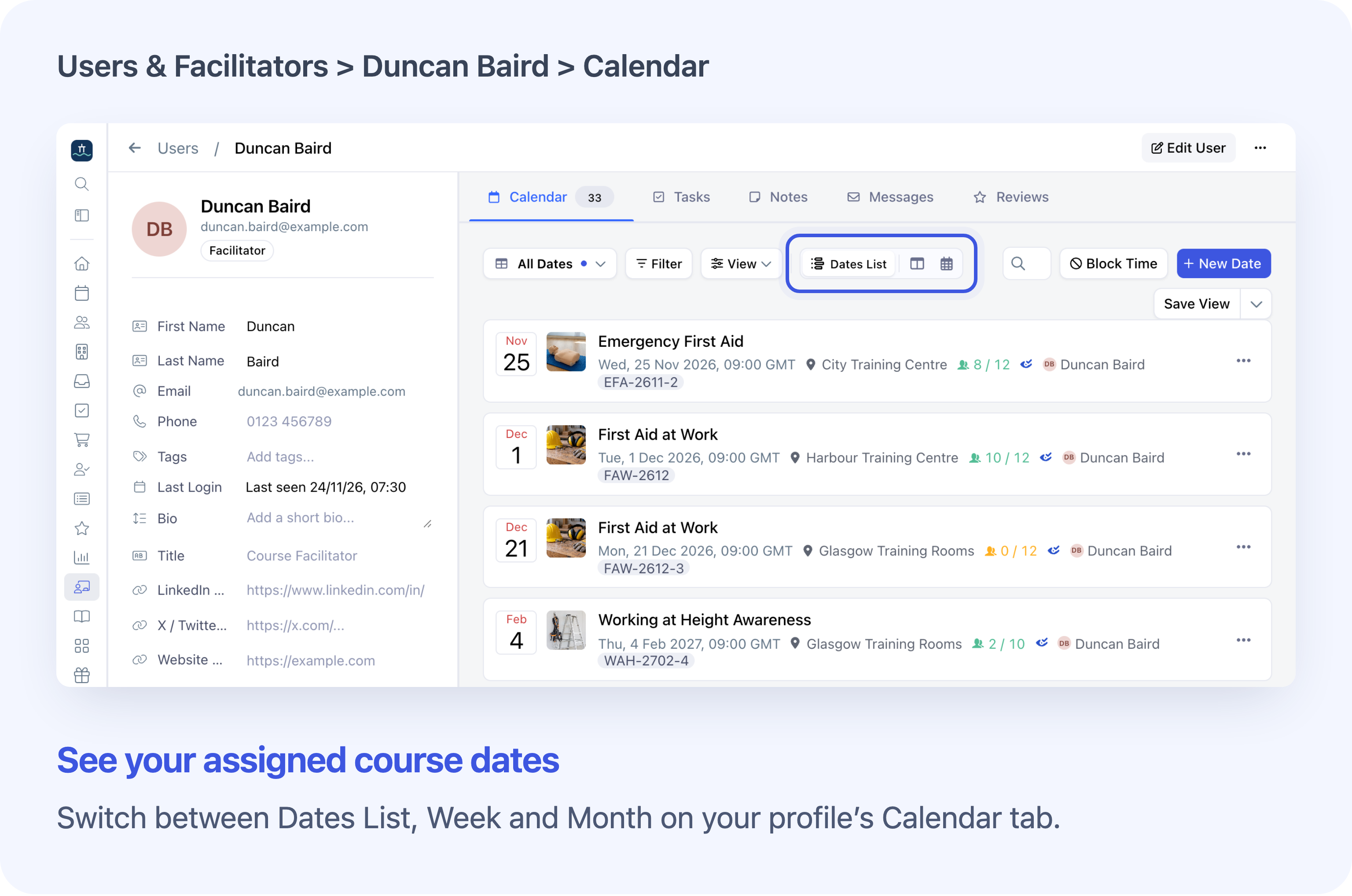
My Profile → Calendar brings the dates assigned directly to you into one place. See your month, look closer at the week, or scan upcoming and past dates as a list.
View My Calendar on Home takes you straight there from Upcoming Courses. The Home card with your name on it also gives you quick access to working hours, calendar connections and time off. Explore your own Calendar.
Once the update is enabled for your account, open Courses in the Admin Dashboard and pick a layout.
Frequently asked questions
Who can see and change course dates?
System Admins can see the business’s courses and dates. Course Owners and Facilitators see what their assignments give them access to. System Admins and Course Owners can add or move dates they can manage. System Admins can also open another team member’s Calendar and manage their working hours or blocked time. Compare team roles.
What happens to people already booked when I move a date?
Their bookings stay on the date. Assigned facilitators, including members of an assigned group, may get an email depending on their notification settings. A change of facilitator can send its own email. Send participants a separate email about the change from Registrants. A System Admin can email the bookers from Orders. See who gets emailed when a date changes.
Can I undo a course date move?
Undo is available for about eight seconds after Moved. Look for Move undone before relying on the restored details. If Undo fails or the button has gone, restore the details in the date editor and check the save. A successful undo can send another facilitator email.
Why can’t I see availability on the Courses calendar?
In Week or Month, choose up to ten active people in Show Calendars For and check the layers under View → Show Availability. If you’ve selected more than ten active people, clear a few to bring the availability back.
Who can see details of my blocked time?
Colleagues checking your availability can see a blocked time reason, such as Time Off. You and System Admins can see the block’s title and notes.
Can I send course sessions to a shared Google or Outlook calendar?
A System Admin can do that through Apps → Calendar Sync.