🛸 Course Registration Rules
Decide who can book by location, organisation or earlier training.
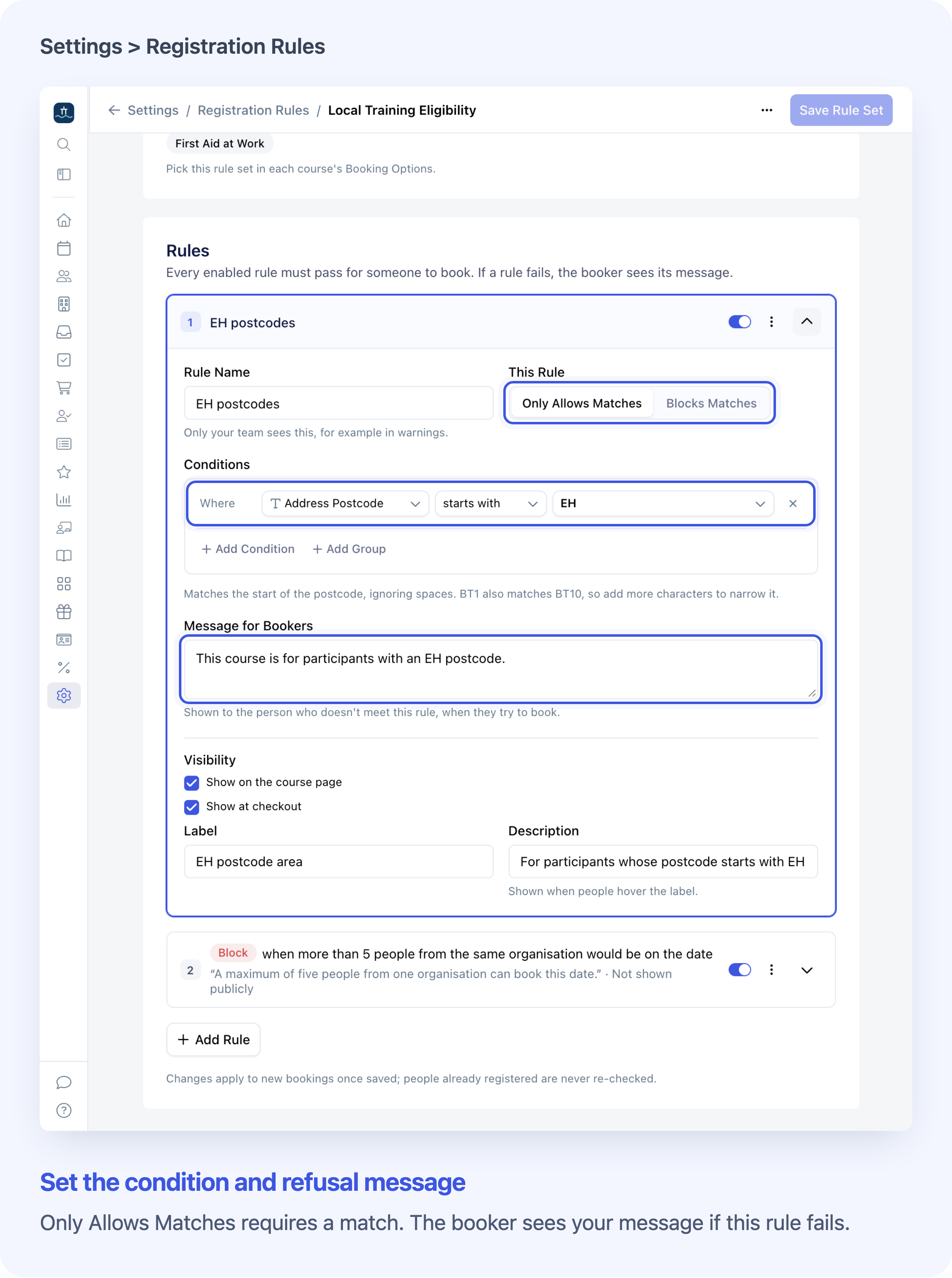
Decide who can book a course or a specific date using Registration Rules. Check each participant’s details, require earlier training, or limit how many people from one organisation can join a course date.
A rule set is a reusable collection of these checks. Create one in Settings → Registration Rules, then select it on the courses or dates that need it. For example, a funded course could accept only participants from a particular state and allow up to five people from each organisation.
Registration Rules are available on Teams and Custom & Enterprise. A booking is checked when the rule set that applies contains an enabled rule.
Choose who can book by contact details, address or organisation
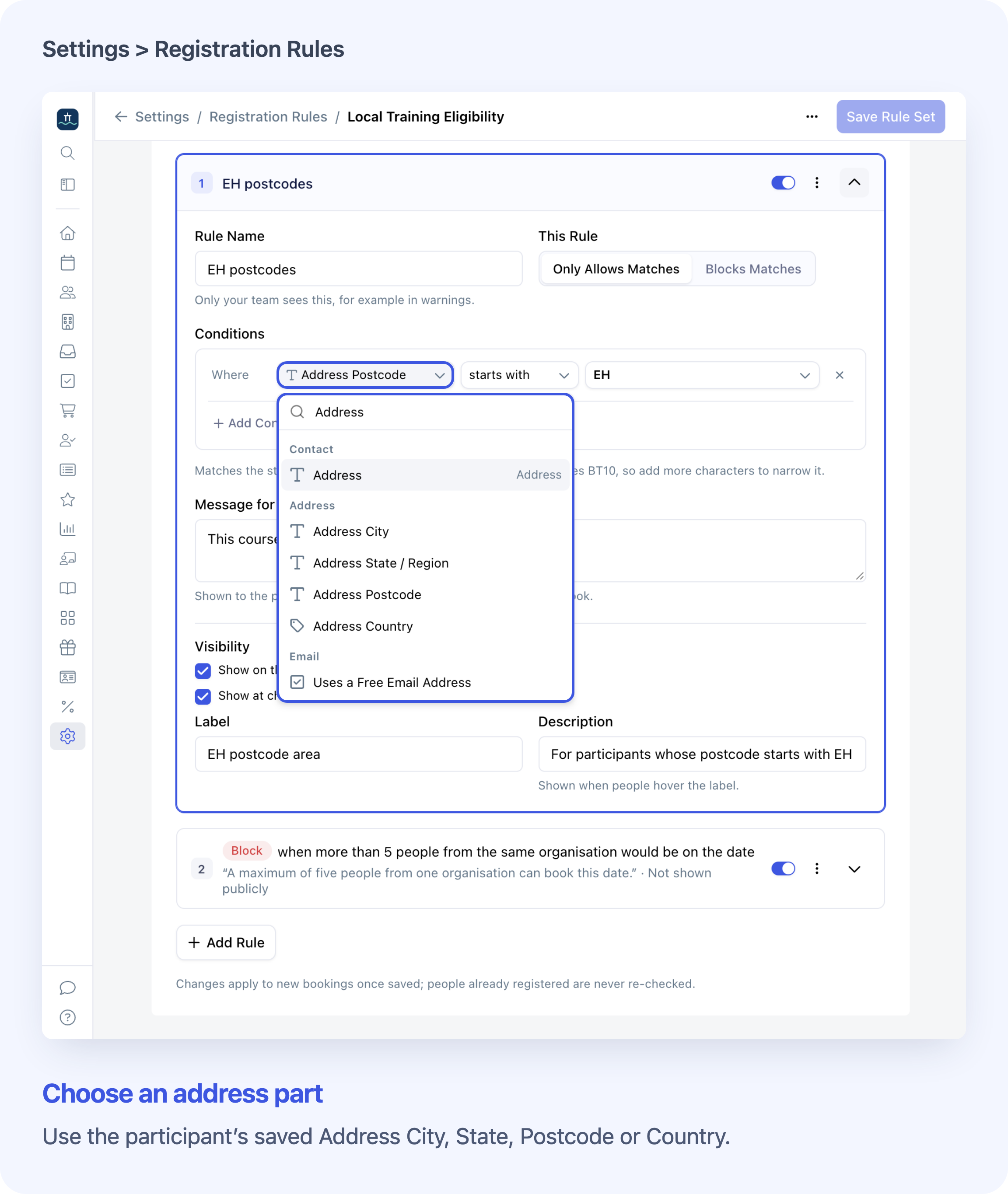
Rules can use supported Contact fields, Contact Tags, built-in address details, email domains, free-email checks, organisations and Organisation Tags.
For example, you could accept participants whose postcode starts with EH, require a saved State dropdown to match Queensland, or allow people from a selected organisation. A free-email check identifies recognised free-email providers; it does not prove where someone works.
Each rule has one of two effects:
- Only Allows Matches: participants must match its conditions to book.
- Blocks Matches: participants who match its conditions cannot book.
Use And, Or and condition groups to combine checks inside a rule. Every enabled rule in the set must pass. If you add a location rule and a prerequisite rule, participants must satisfy both.
Require completion of an earlier course
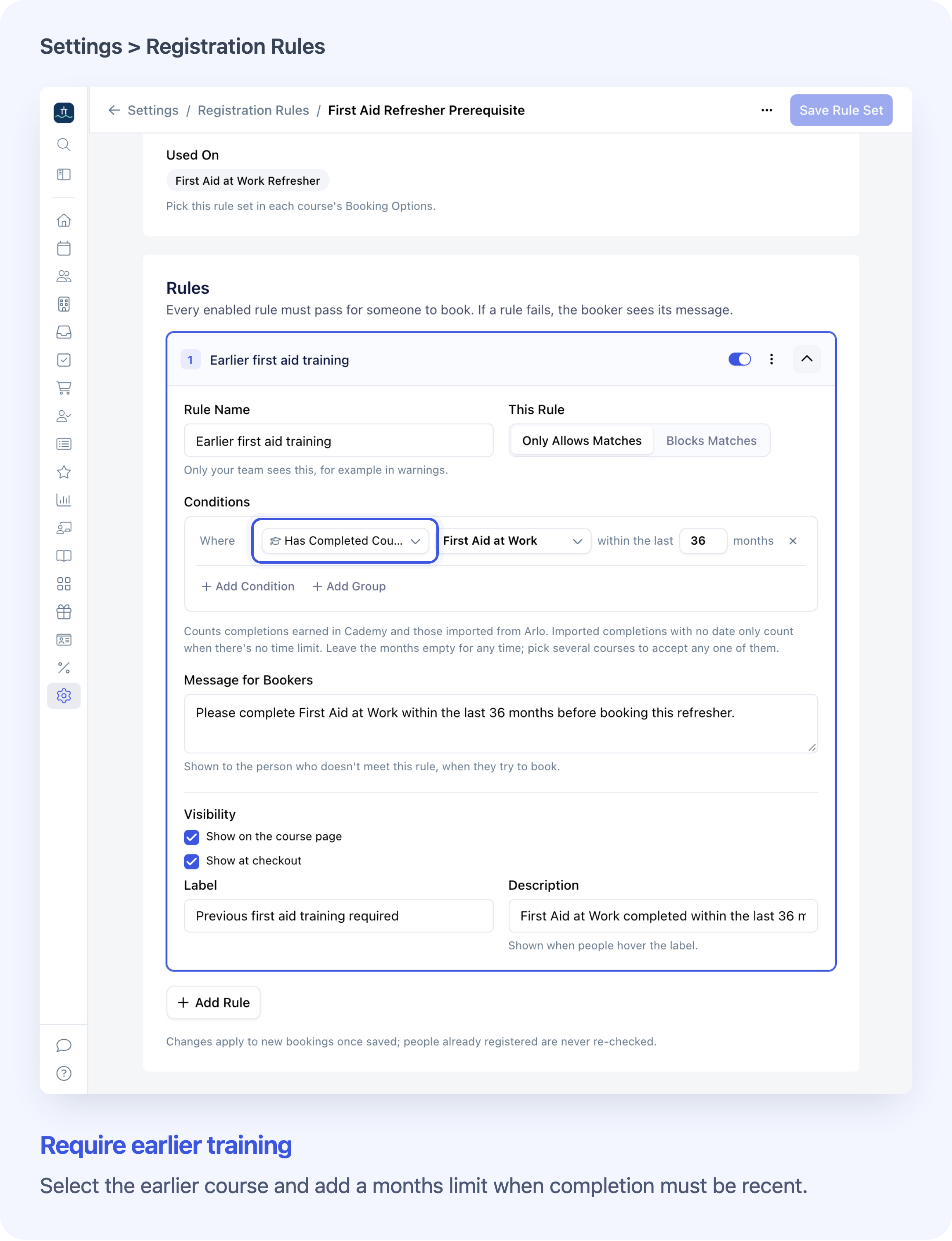
The Has Completed Course condition checks the participant’s own completion records in your Cademy account. For a refresher, you could require completion of First Aid at Work within the last 36 months.
Leave the month limit empty to accept a completion from any time. Selecting several courses accepts any one of them. To require two different courses, join separate conditions with And, or use separate enabled rules.
The booker’s own training does not qualify the other people they book. Imported completion records without a completion date count only when there is no time limit.
Limit places from one organisation on each date
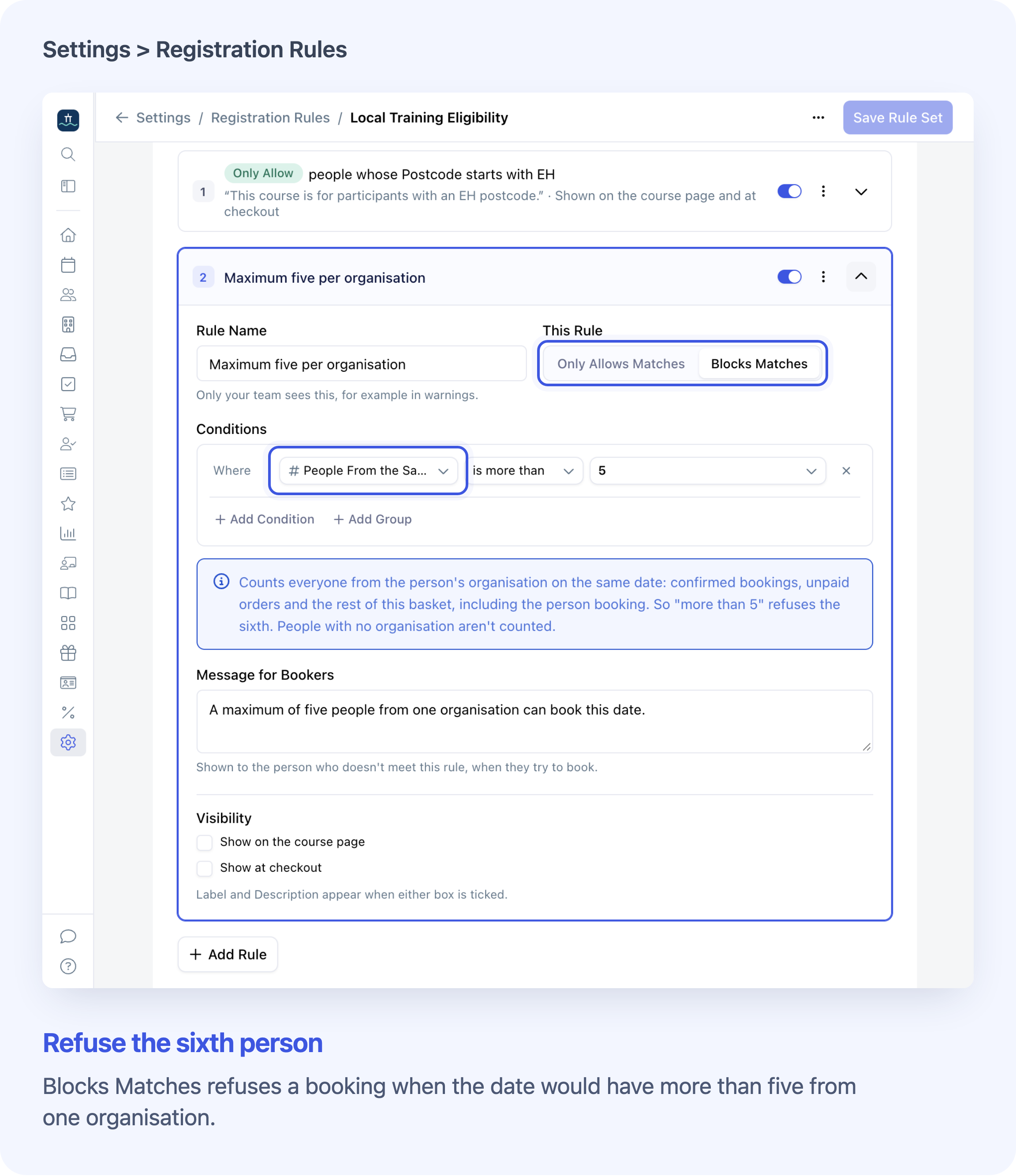
Use People From the Same Organisation to limit how many places one organisation takes on a date. This is useful when you want several organisations represented on a funded session.
The count includes the person being booked, earlier participants in the same basket and relevant existing places, including unpaid orders and unnamed places. A block and its sessions share the count. A blank organisation field does not necessarily exclude someone: Cademy can use their saved organisation or, where applicable, the booking organisation. People with no organisation after those checks are excluded.
This is a limit for the date being booked, alongside its overall capacity. It does not apply to on-demand courses, which have no dates.
Apply a rule set to a course
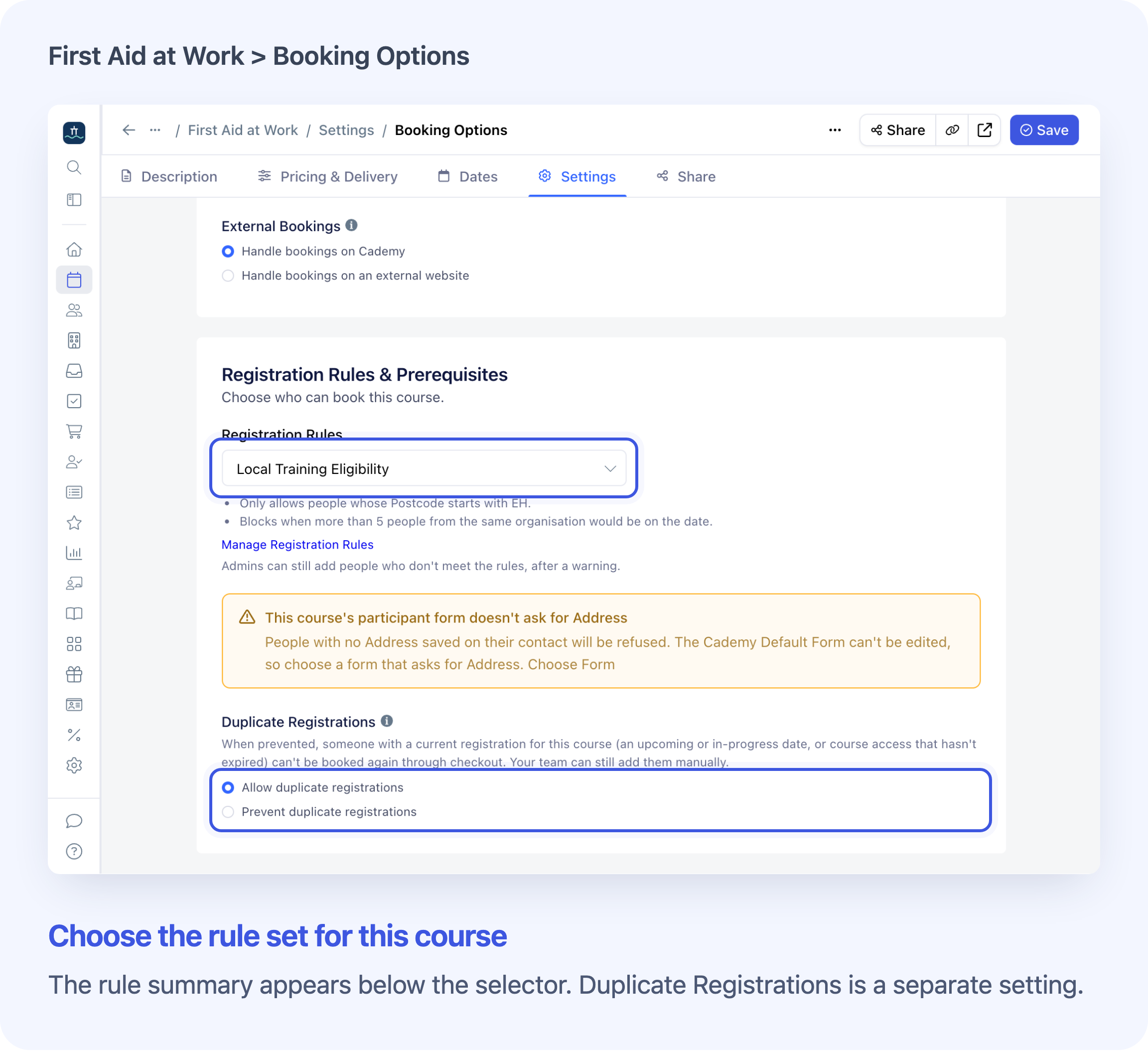
A System Admin creates and manages sets in Settings → Registration Rules. A Course Owner can select an existing set on a course they can edit. Creating, editing and selecting sets requires an eligible plan.
Open the course editor’s Settings → Booking Options and choose a set under Registration Rules & Prerequisites. This sets the default for dates that follow the course. A set can contain several rules.
Check that the participant forms collect the Contact answers your rules need. A saved answer may already be available, but a new participant needs a way to supply it. Cademy warns when the forms are missing relevant fields. Course-specific Registration fields are different from saved Contact fields and cannot be used in these rules.
Editing a shared set affects future bookings on the courses and dates that use it. Duplicate the set when a course needs its own version. To pause one rule, disable it and save the set. To remove the set from one course, choose None and save that course.
The Activity Log records when rule sets are created, edited or archived.
Read the full Registration Rules guide for setup, supported conditions and form checks.
Set Registration Rules for individual course dates
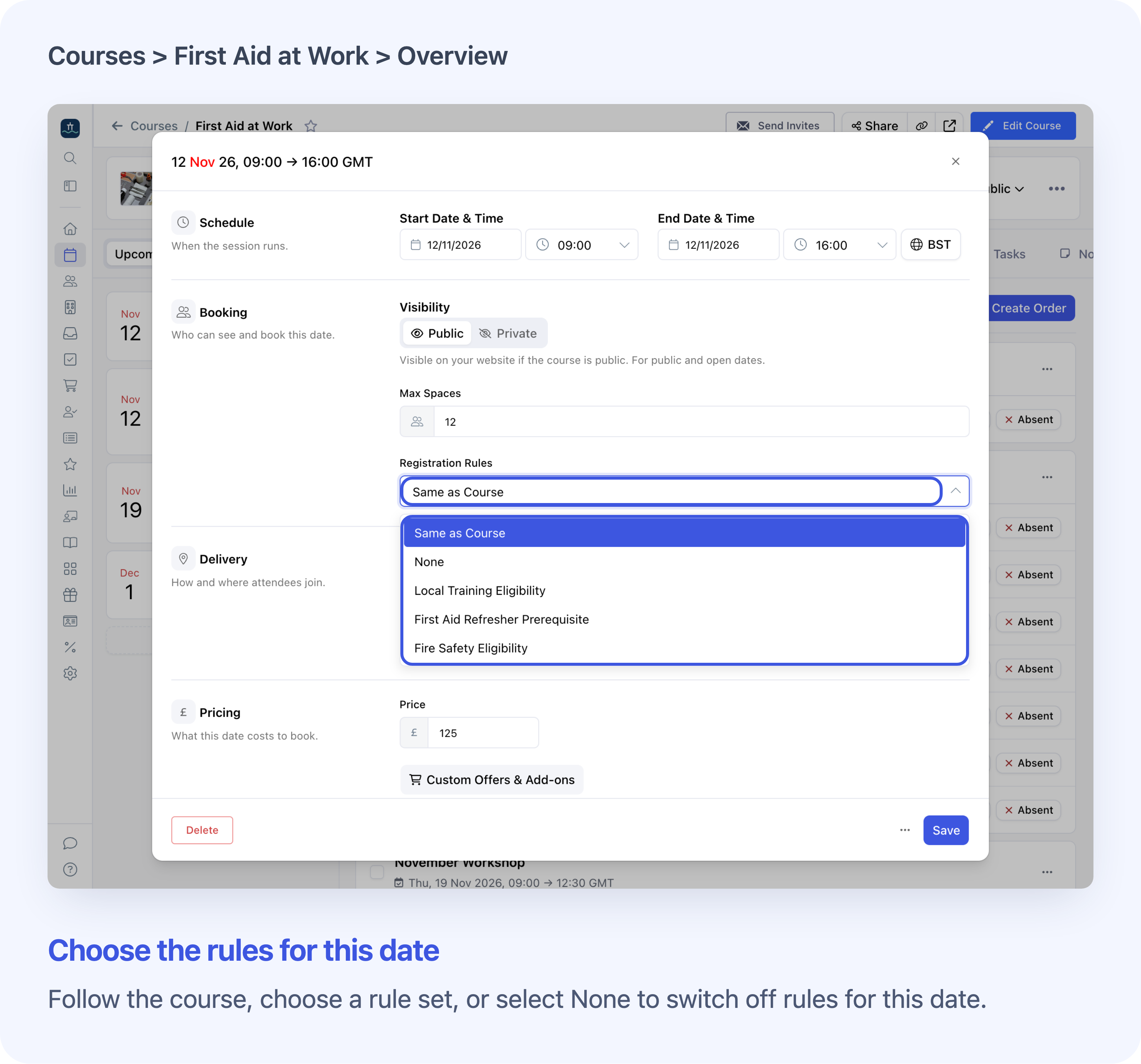
Update, 13 November 2026. One course listing can now use different booking rules for different dates. For example, a Queensland date can accept participants based in Queensland and a New South Wales date can accept participants based in New South Wales.
Open the date or block editor and go to Booking → Registration Rules. Keep Same as Course, choose a saved rule set, or select None to turn rules off for that date or block. For a separately bookable session, choose Same as Block to use its block’s rules. Dates without their own choice continue to follow their block or course.
See how to set Registration Rules for a course date or session.
Show booking requirements before checkout

Each rule can have a public Label and Description, with separate Show on the course page and Show at checkout choices. Use them to explain requirements before someone tries to book. Checkout shows the notices for the rules that apply to the date being booked, when those notices are enabled.
Write the refusal explanation separately in Message for Bookers, including what the customer should do next. Hiding a public notice does not turn off an enabled rule.
Explain refusals to bookers and let staff make exceptions
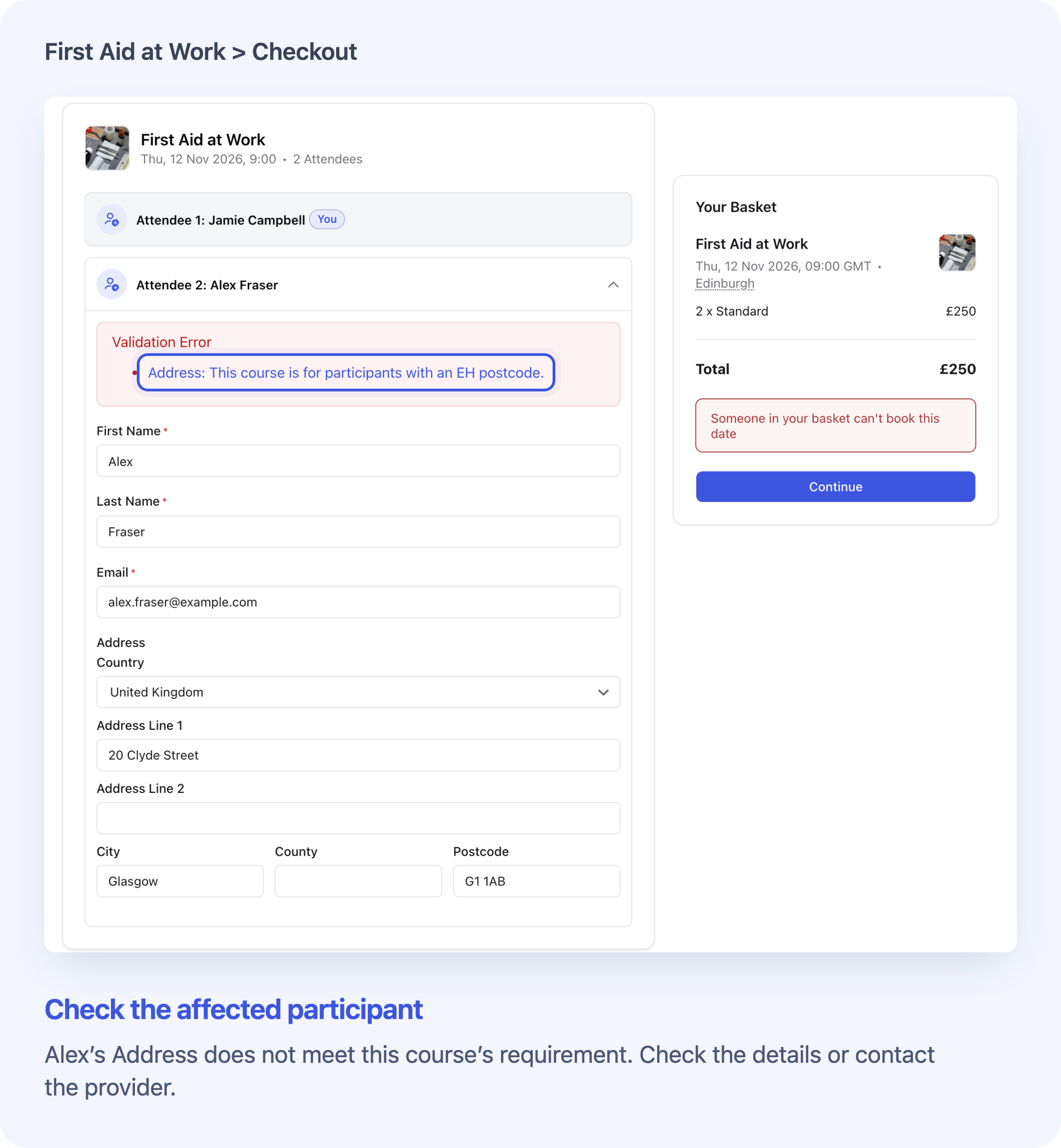
At checkout, Cademy checks each participant on Your Details and checks again when the order is created. On a group booking, one eligible participant does not qualify everyone else.
Bookers can correct inaccurate details or remove the affected participant. If a rule fails at the final check, such as an organisation reaching its limit while someone is booking, Edit Basket lets the booker review the people or places and try again.
Checks also apply when the booker adds, invites or replaces a participant, or takes a place themselves after booking. An email-only invitation uses stored details. Adding someone with their full details can supply missing answers, but cannot override a genuine prerequisite or organisation limit.
Review rule warnings when staff add or move people
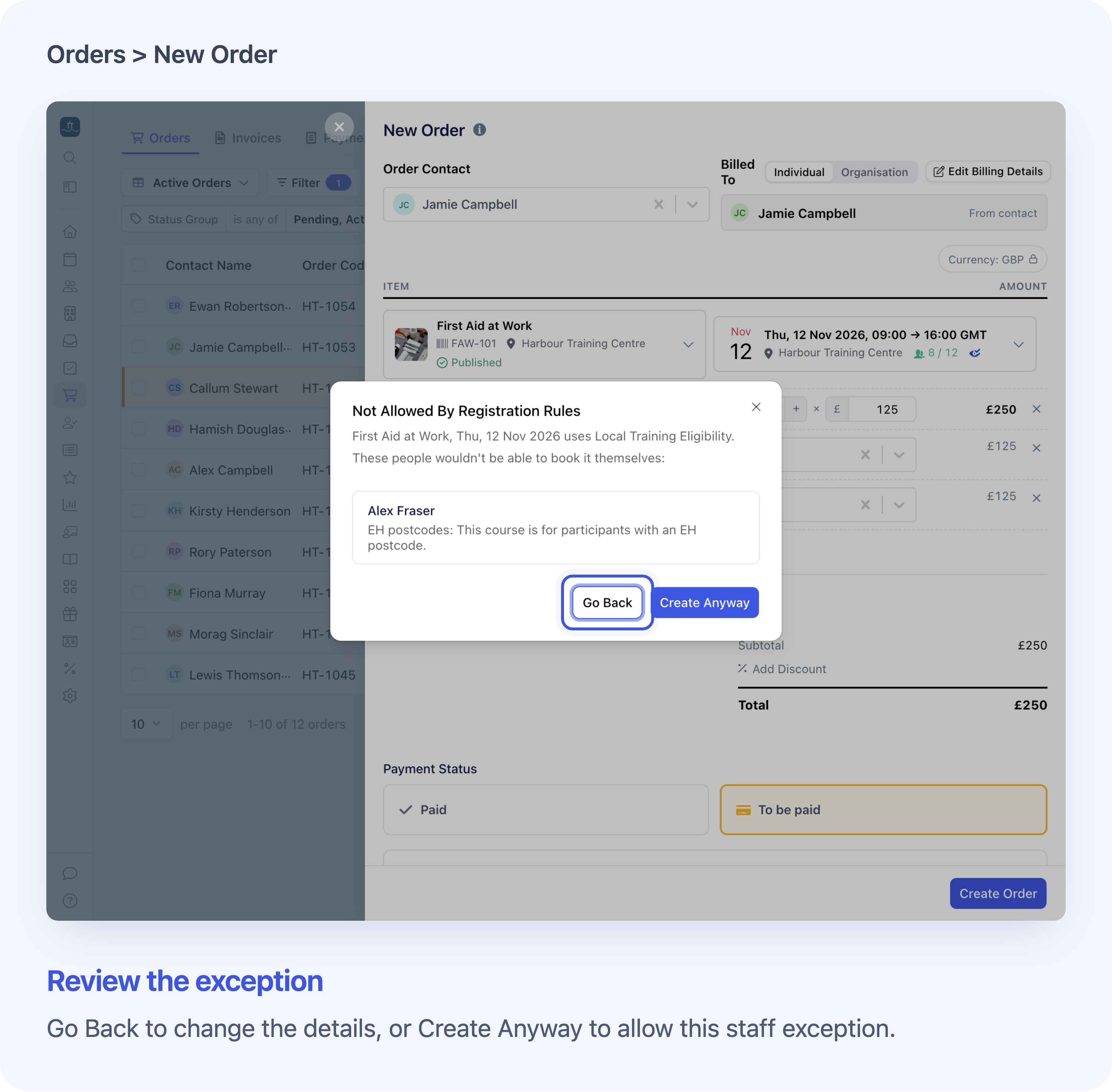
Staff creating an order, adding or replacing a participant, moving a person onto a course or date, or accepting a request can see Not Allowed By Registration Rules.
Choose Go Back to review the details, or Create Anyway to make an explicit exception. The exception applies to that action. It does not change the rule set or remove other booking restrictions. Bookers do not have this override.
Give discounts based on the booker’s details
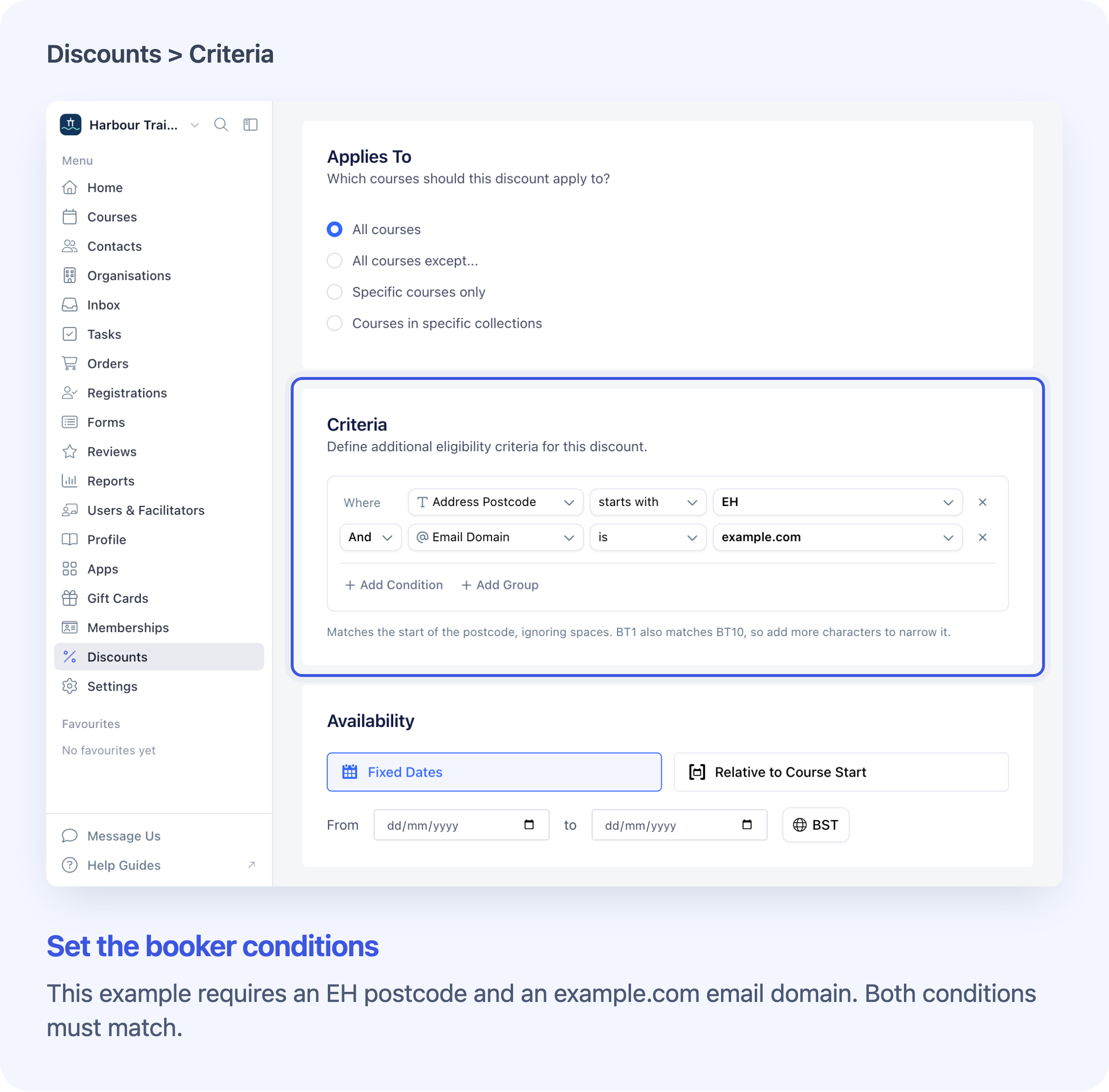
Discounts now offer more criteria on every plan, including supported Contact fields, built-in address details, email domain, free-email checks and organisation. Existing basket-total, place-count and tag criteria remain available.
For example, an automatic discount can apply when the booker’s State is Queensland, or when they belong to a selected organisation. Cademy rechecks discounts when the order is created, so an offer that no longer qualifies is removed.
These criteria check the booker for the whole booking, rather than each guest. An eligible booker can qualify a group booking even when guests have different details. Discounts do not offer completed-course prerequisites or per-date organisation headcounts.
Read how to create a discount or promo code for the full procedure. A discount does not grant permission to book; the participants still need to meet any Registration Rules.
Frequently asked questions
Will this change courses I already run?
Creating a set does not apply it automatically. Choose it on each course or date that needs it. Saving or changing rules does not cancel or recheck existing registrations.
Which course types can use Registration Rules?
On set dates, Blended course and On-demand online course can use them. On-request courses are excluded, and changing a course to On-request clears its selected set. The organisation headcount condition does not apply to on-demand courses.
Why can’t someone book when their details look right?
Check the affected participant’s own details against every enabled rule. Check And versus Or, any prerequisite time limit and whether the form collects the required Contact answer. For example, a missing postcode does not match a condition requiring an EH postcode. Whether the participant is refused depends on the rule’s And/Or conditions and whether it allows or blocks matches. Follow the form warning and the guide’s form checks when an answer cannot be supplied.
Can someone edit their details after booking?
When the booker edits the same participant, Cademy refuses newly failed rules. It allows an unrelated correction when a rule was already failing before that edit. Changing the participant’s email triggers the full check. A learner’s own Edit Your Details and My Profile updates do not rerun booking eligibility.
Are waitlists, imports and rescheduling checked?
Joining a waitlist does not check eligibility. A later checkout does, and staff converting a waitlist place can receive the Admin warning. Imported bookings and registrations, and learner self-rescheduling, do not run Registration Rules, so check eligibility separately where needed. Purchases completed on external booking websites use that website’s checks.
Do rules apply to bookings created through integrations?
Yes, when the integration creates an order through Cademy’s Public API. Each participant must meet the course’s rules or the order is refused. This API order route supports on-demand courses, so per-date organisation limits do not apply.
Does this replace Duplicate Registrations or lesson access settings?
No. Duplicate Registrations is the separate, all-plan setting for repeat bookings. The choice now sits in the course editor under Settings → Booking Options → Registration Rules & Prerequisites. Booking approval, applications and members-only access remain separate controls. Lesson access rules control when enrolled learners can open lessons. Registration Rules decide who can book.
How do I stop using a shared rule set?
On a course, choose None to clear its default set. A date with its own set keeps that choice. To remove a shared set everywhere it is used, archive it. The confirmation shows the affected courses and how many dates use the set. Dates using the archived set go back to following their block or course. An archived set stays viewable and read-only.
Will rules stop working if I change plans?
Rules already selected on courses or dates keep applying after a downgrade. Creating, editing or selecting sets still needs Teams or Custom & Enterprise, so changing plans is not a way to switch off existing checks.
What should I check before opening bookings?
Use a course and test people you control to check matching and non-matching participants through public checkout. Include a group booking if organisation limits matter. An Admin exception does not prove a participant can book publicly. Test bookings create real records and may send emails; follow Test a Course Before Launch for the right test and cleanup route.