🔒 Choose When Lessons Open and Who Needs to Finish Them
Set opening rules, make lessons optional or hide them for selected learners.
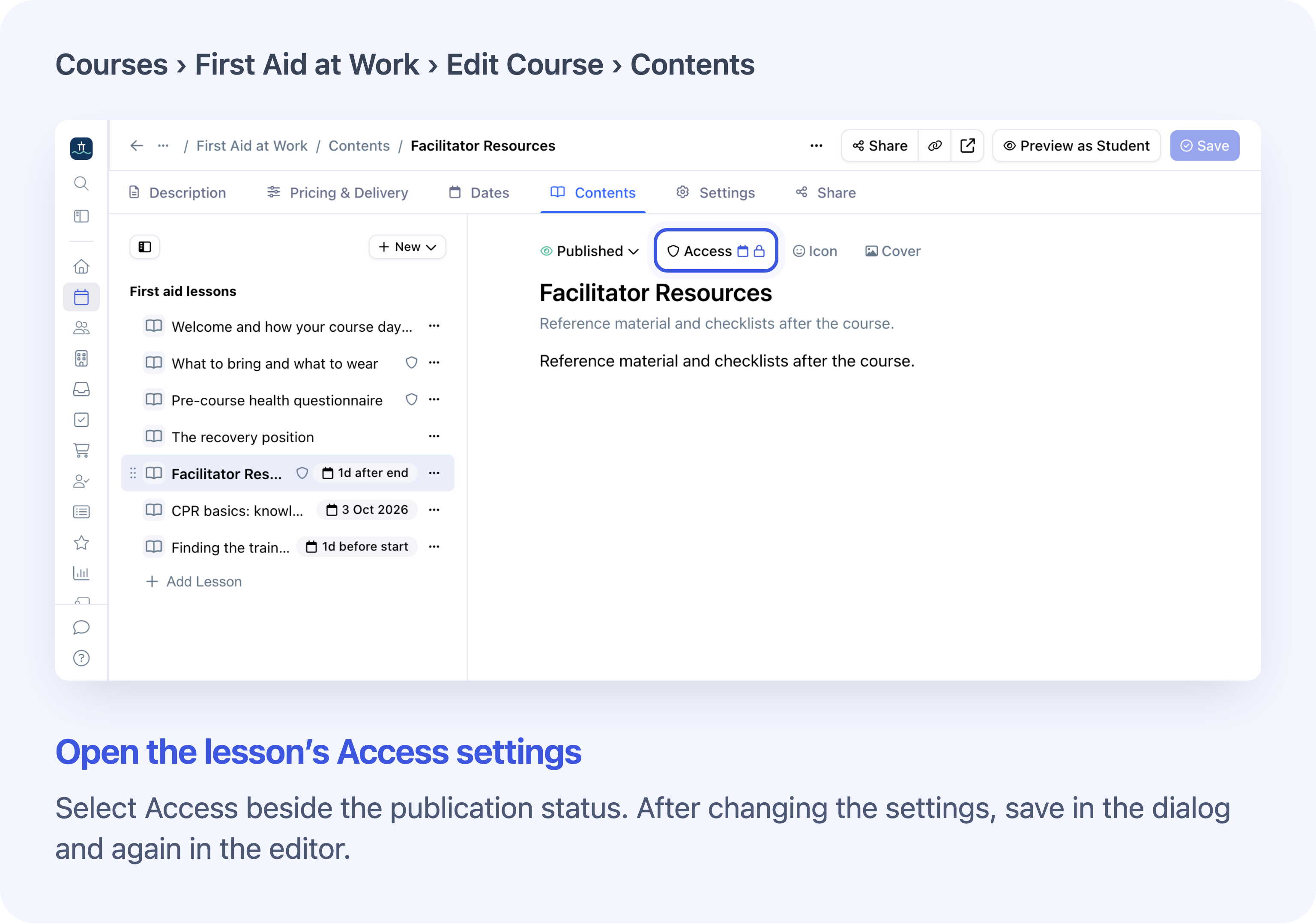
You can choose when an online lesson opens and which learners need to finish it. For example, let everyone start a first aid course, keep the resources locked until learners pay and attend, and let returning learners skip preparation they’ve already done.
In Cademy Admin, open a course from Courses, then go to Edit Course → Contents and select Access on the lesson. A System Admin or Course Owner with access to the course can do this on on-demand and blended courses with lessons built in Cademy. Save in the dialog and again in the editor. Learners need course access and a published lesson.
See your lesson rules in Contents
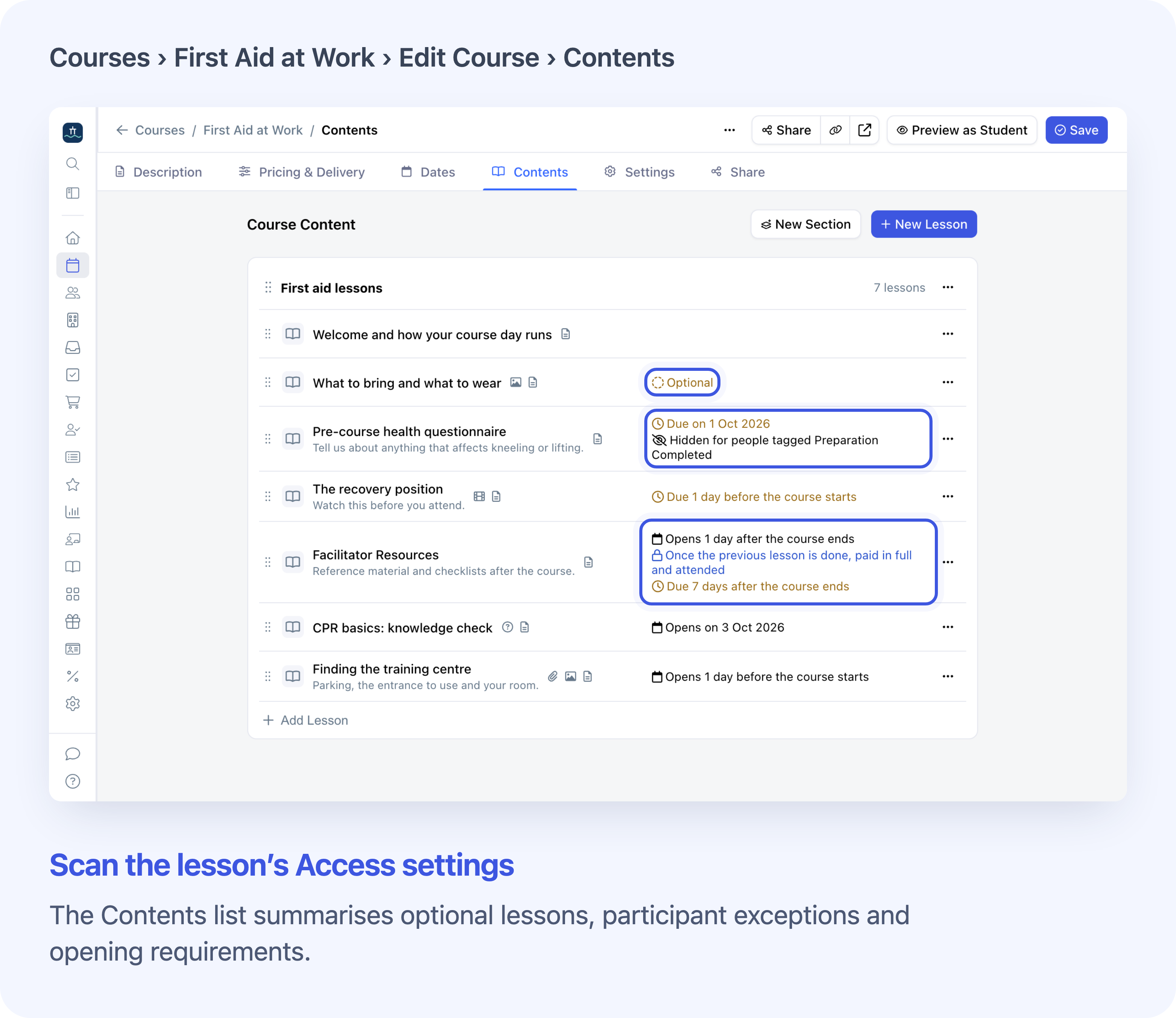
The lesson’s Schedule button is now Access. It brings the opening schedule, deadline and completion choices into one place. Existing times and deadlines keep working, and lessons are required by default. Icons on Access show the types of rules set. In Contents, the Access column summarises the rules for each lesson.
Open lessons on a schedule
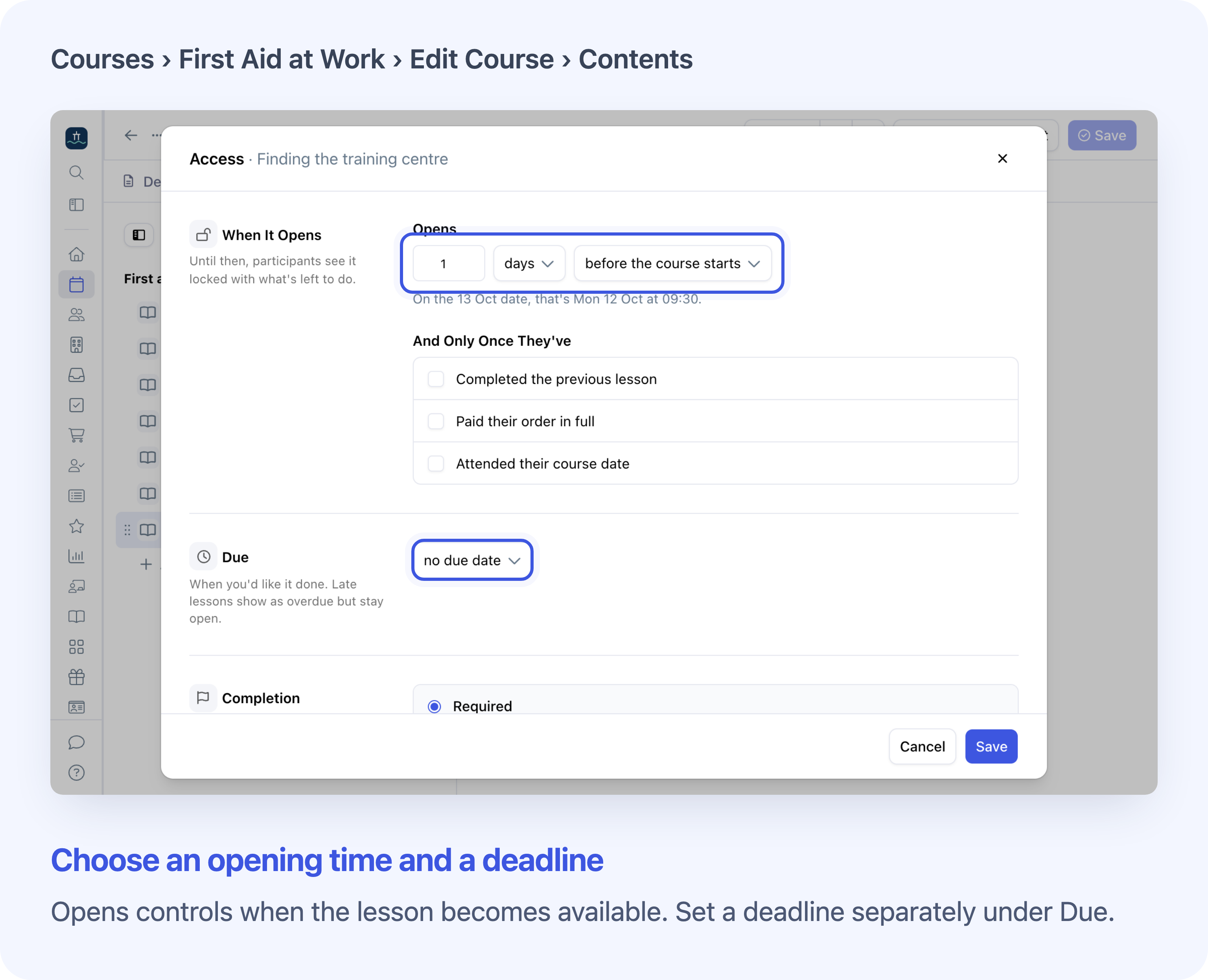
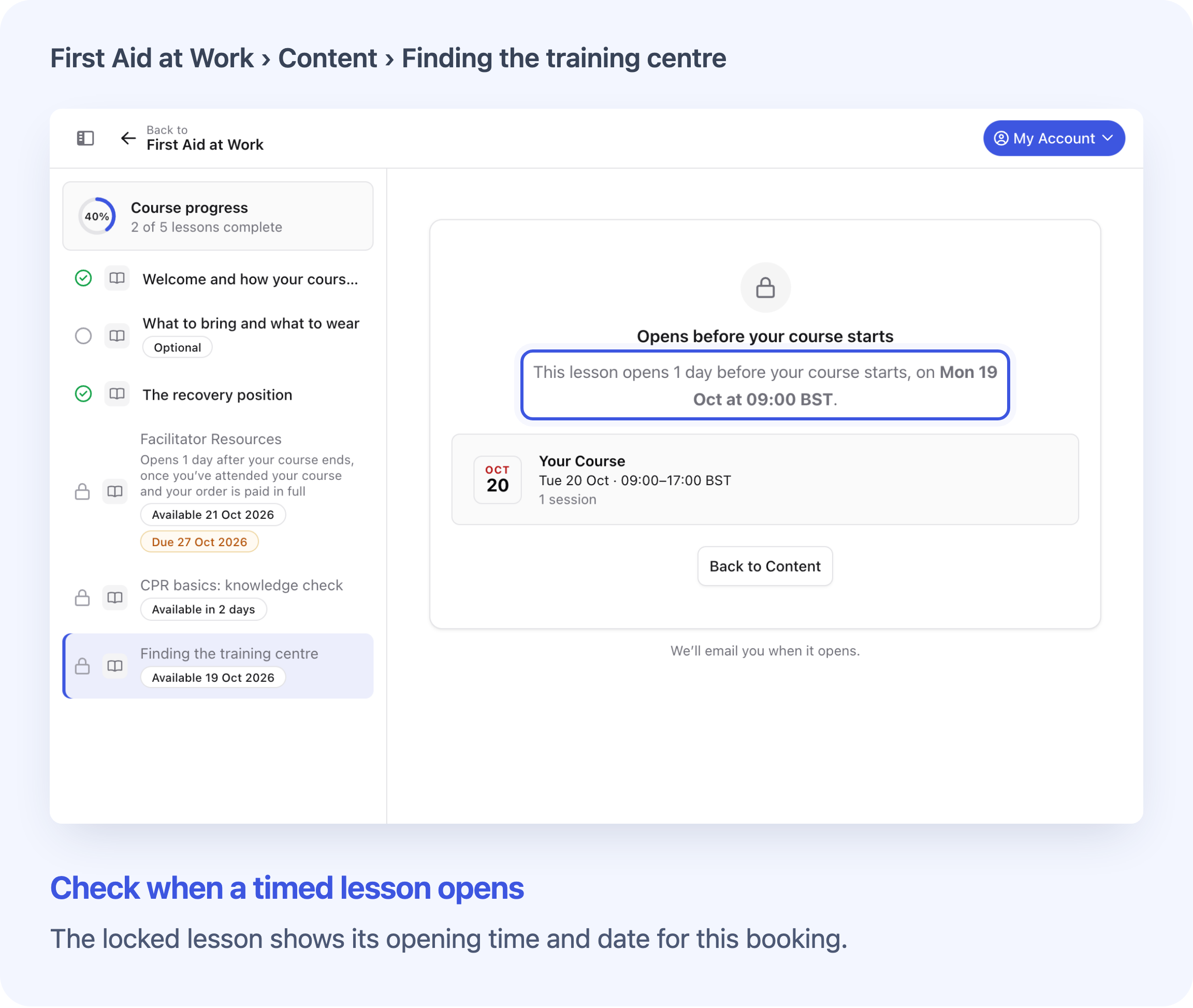
Choose straight away, a set date or a delay after enrolling under Opens. On a blended course, you can also set the time around the start or end of the learner’s booked date. Admin previews the next course date. Learners see the time for the date they booked.
Set a deadline
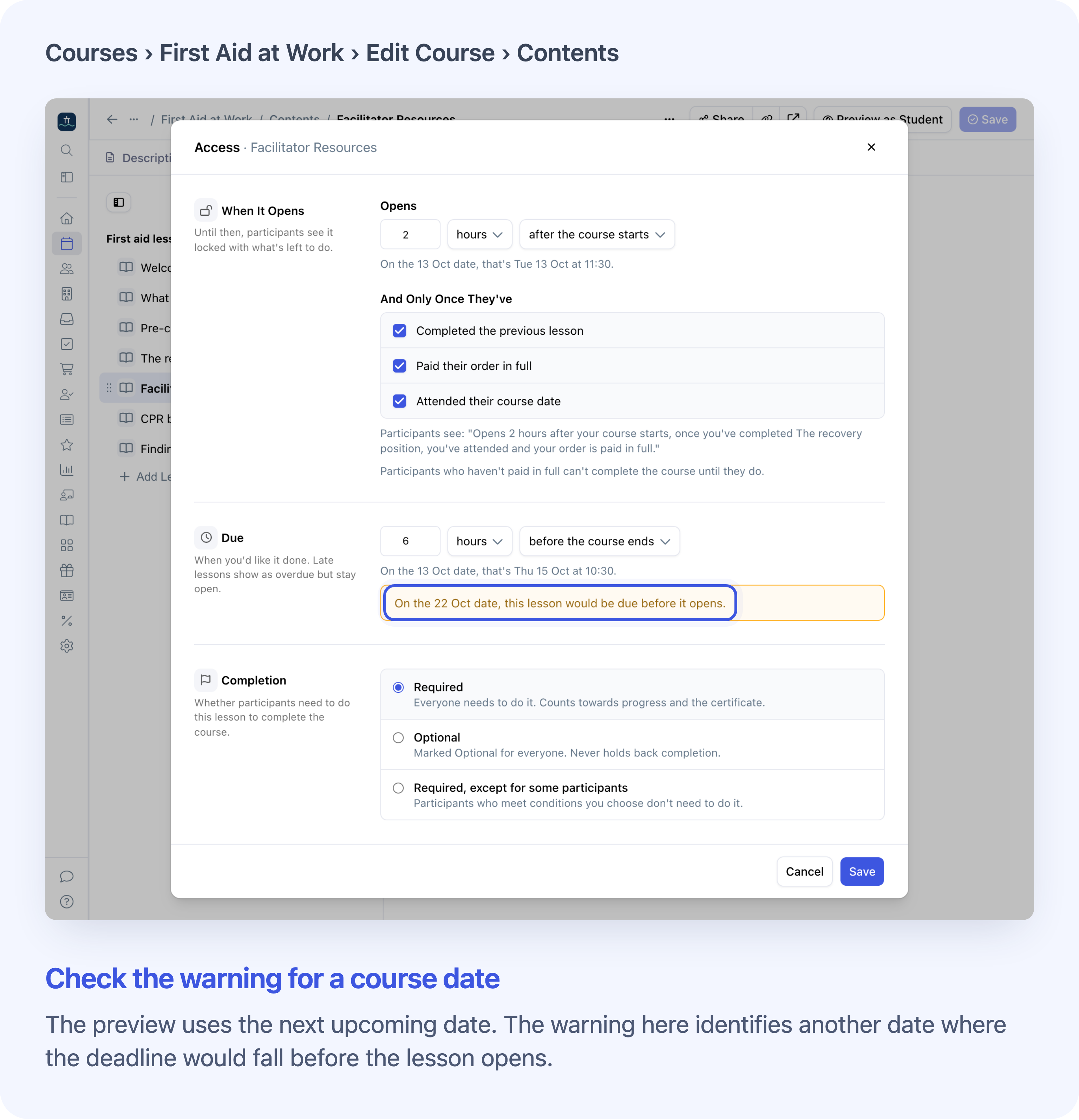
Use Due for the date you want the work finished. The lesson shows as overdue if it’s unfinished after the deadline. Learners who otherwise have access can still open it. See lesson dates and reminders.
Choose what a lesson waits for
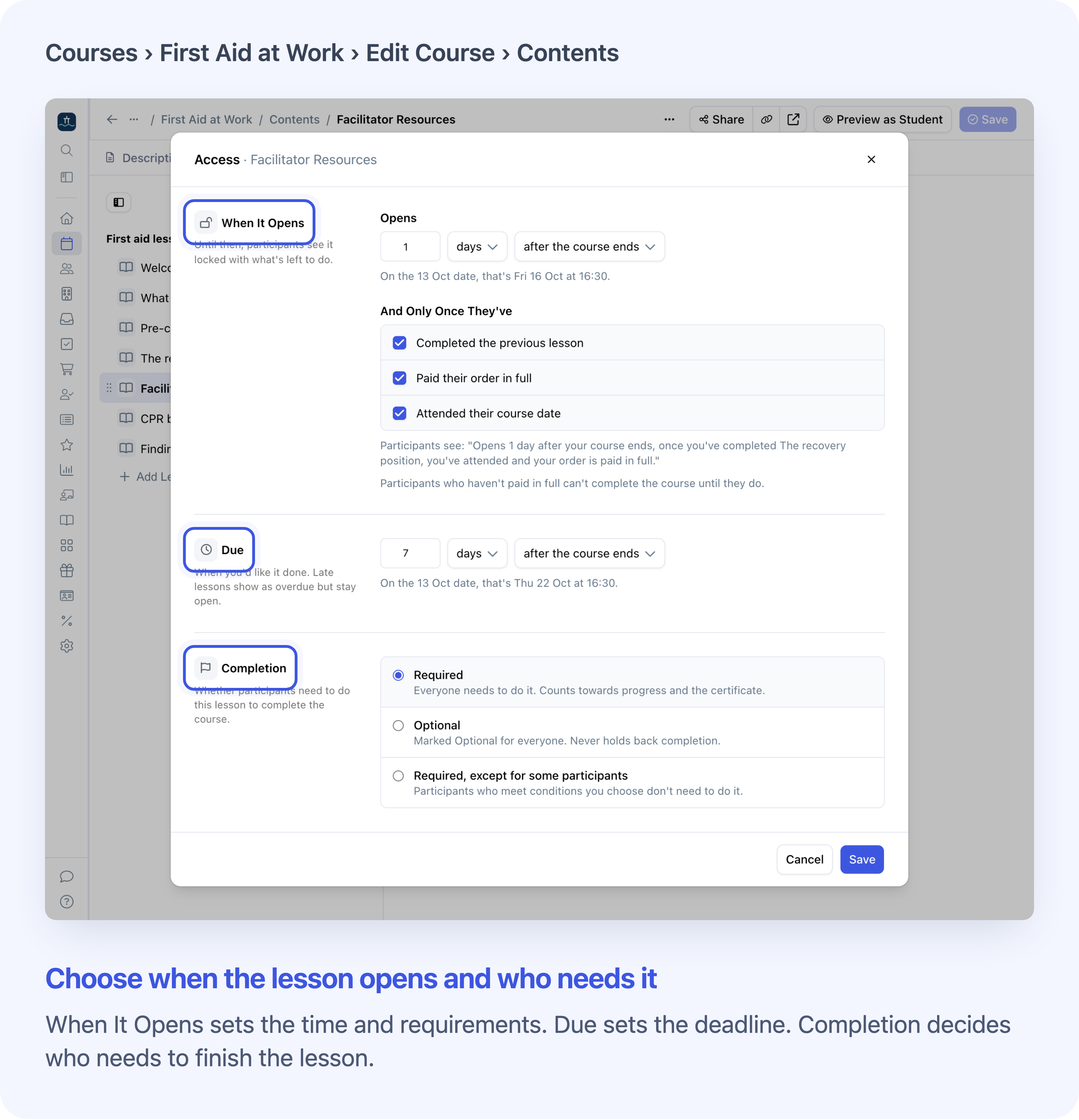
Tick the checks you need under And Only Once They’ve. A lesson can wait for several checks and a release time. Learners must meet every selected check and wait until the opening time. An earlier quiz or form can still keep the lesson locked.
Make learners finish lessons in order
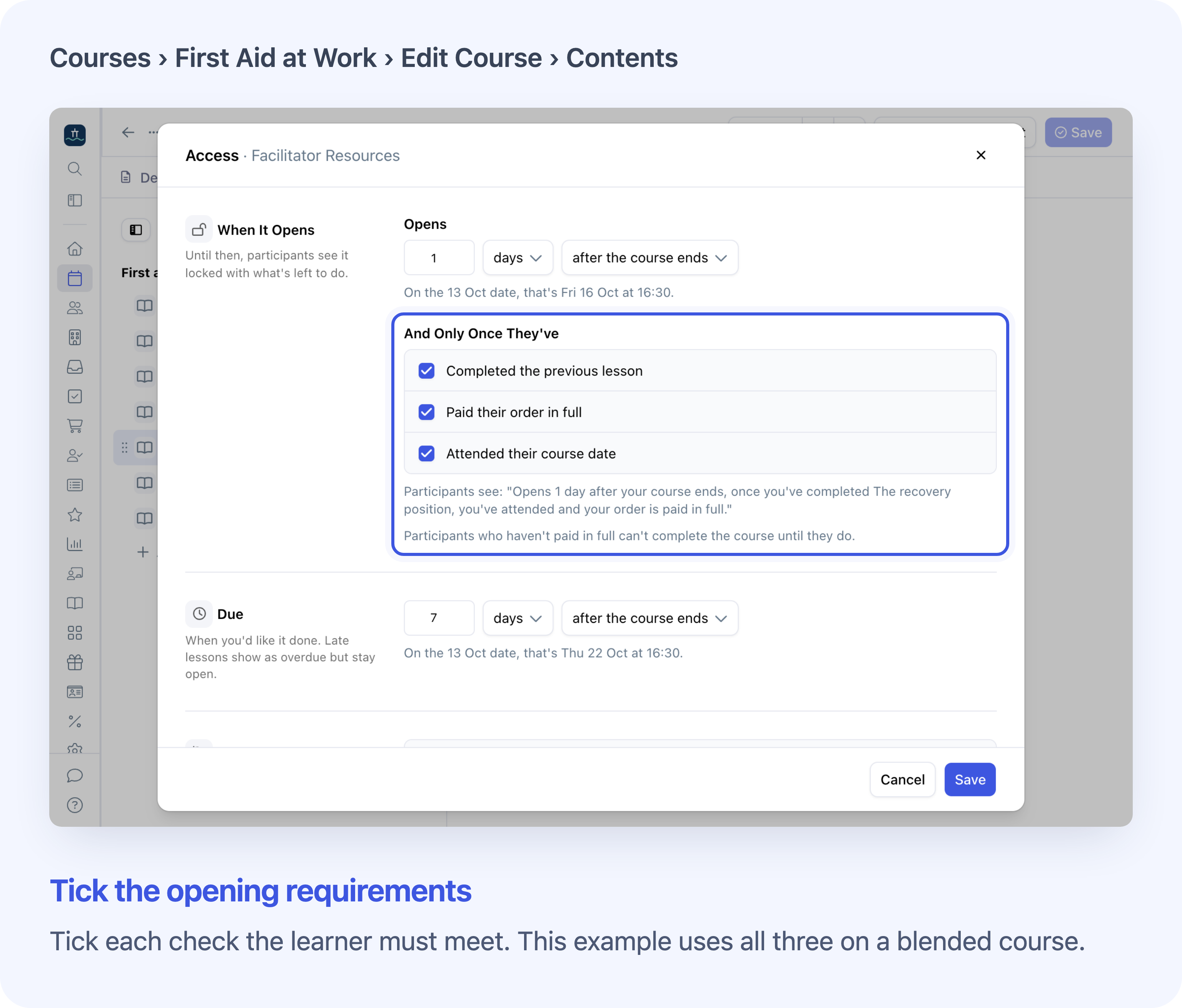
Tick Completed the previous lesson on the lesson that should wait. Cademy checks the nearest earlier published lesson that’s required for that learner, even across sections. It skips drafts and lessons that are optional or hidden for them. If none qualifies, the check is already met.
Wait for full payment
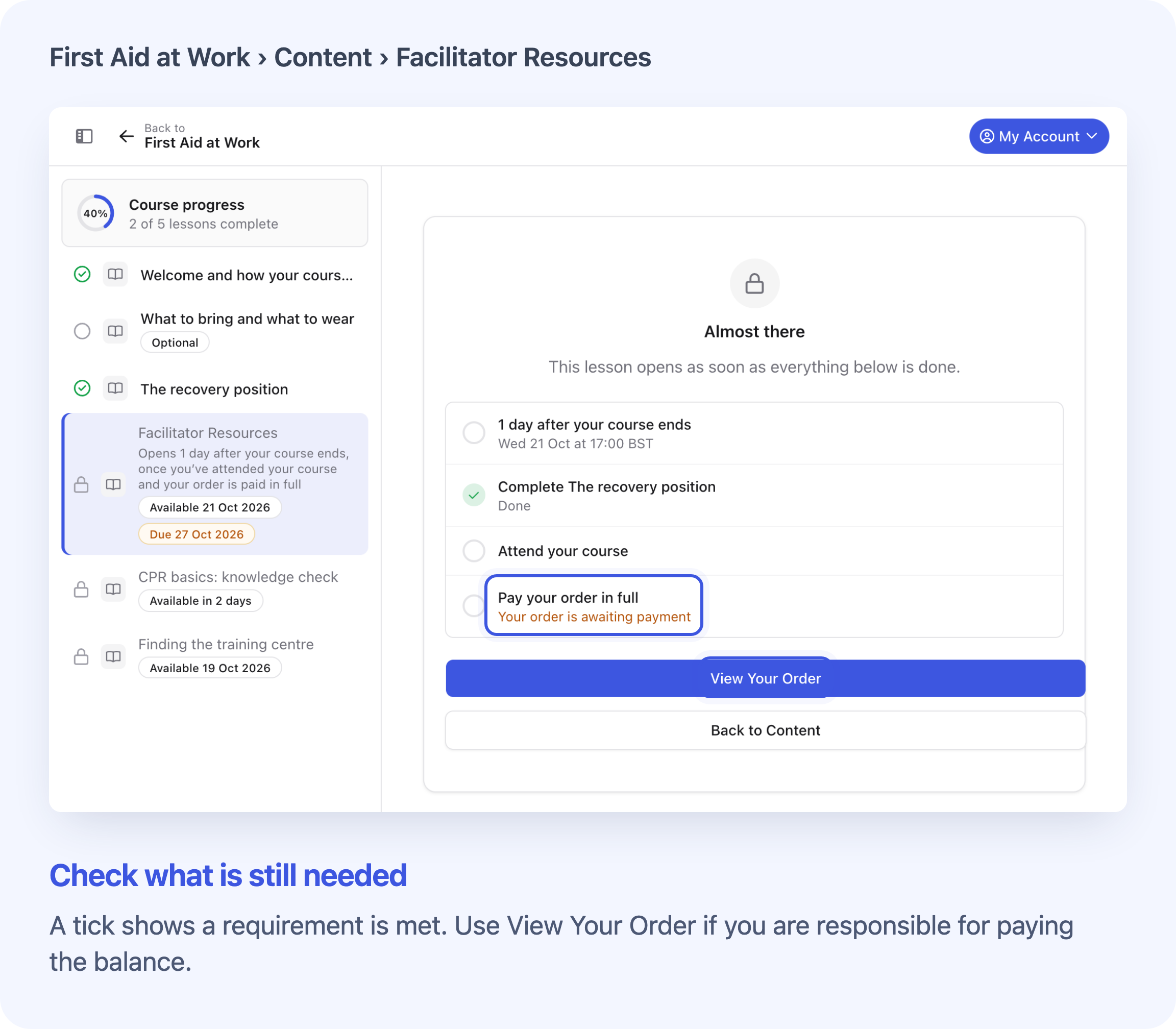
Tick Paid their order in full to hold back a lesson until the balance is paid. If the lesson counts, the lock can delay course completion and an automatic certificate. If your payment settings let learners start on a deposit, first instalment or eligible invoice, they can open the welcome lesson while resources wait. View Your Order opens the payment page when payment is outstanding and there’s a linked order.
Wait until learners attend
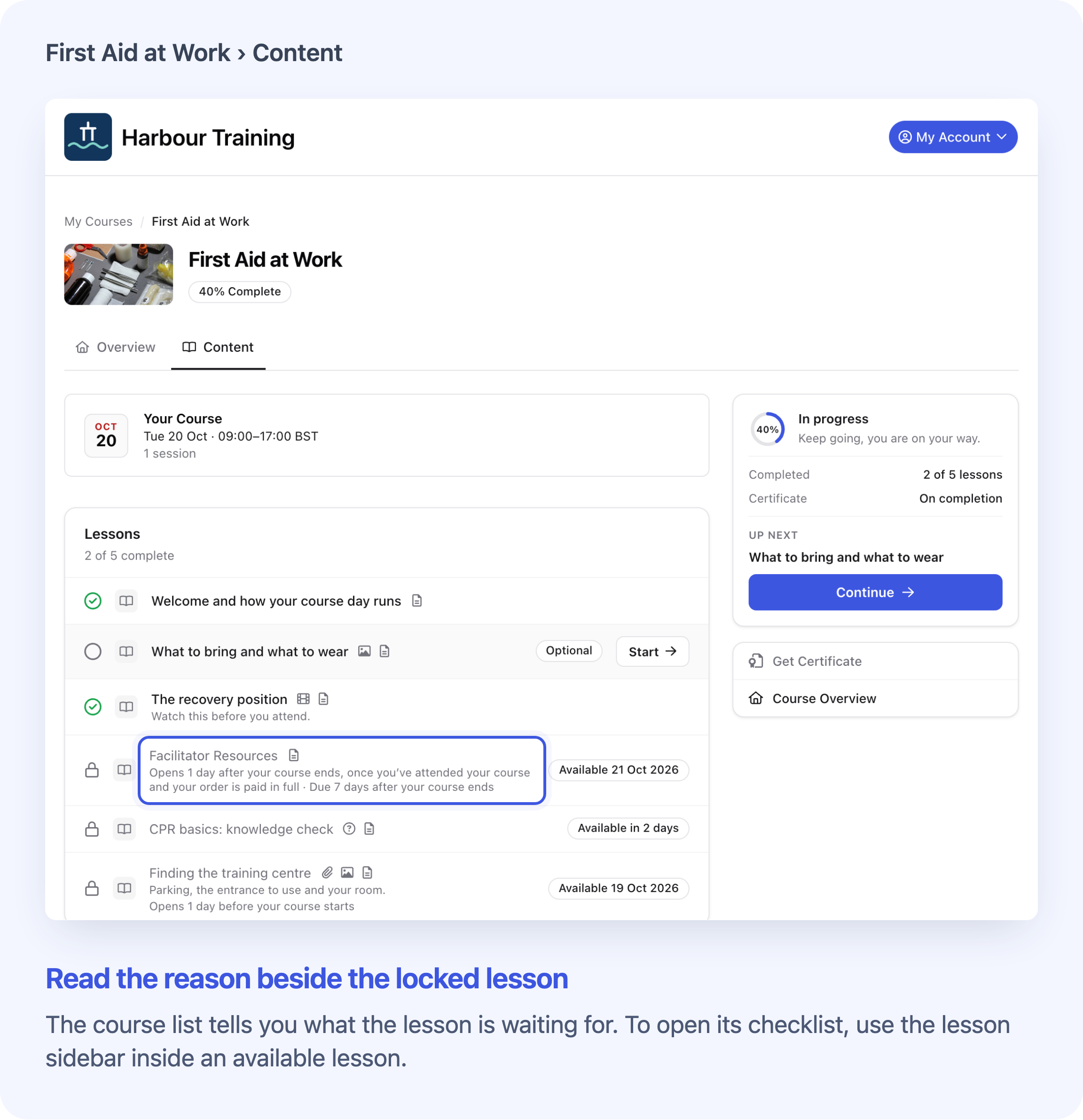
On a blended course, tick Attended their course date. If the booking has two required sessions, mark the learner Attended for both. The learner needs a valid booked session to meet this check. In the example shown, resources open one day after the course ends, once earlier work, attendance and payment are complete.
See why a lesson is locked on a phone
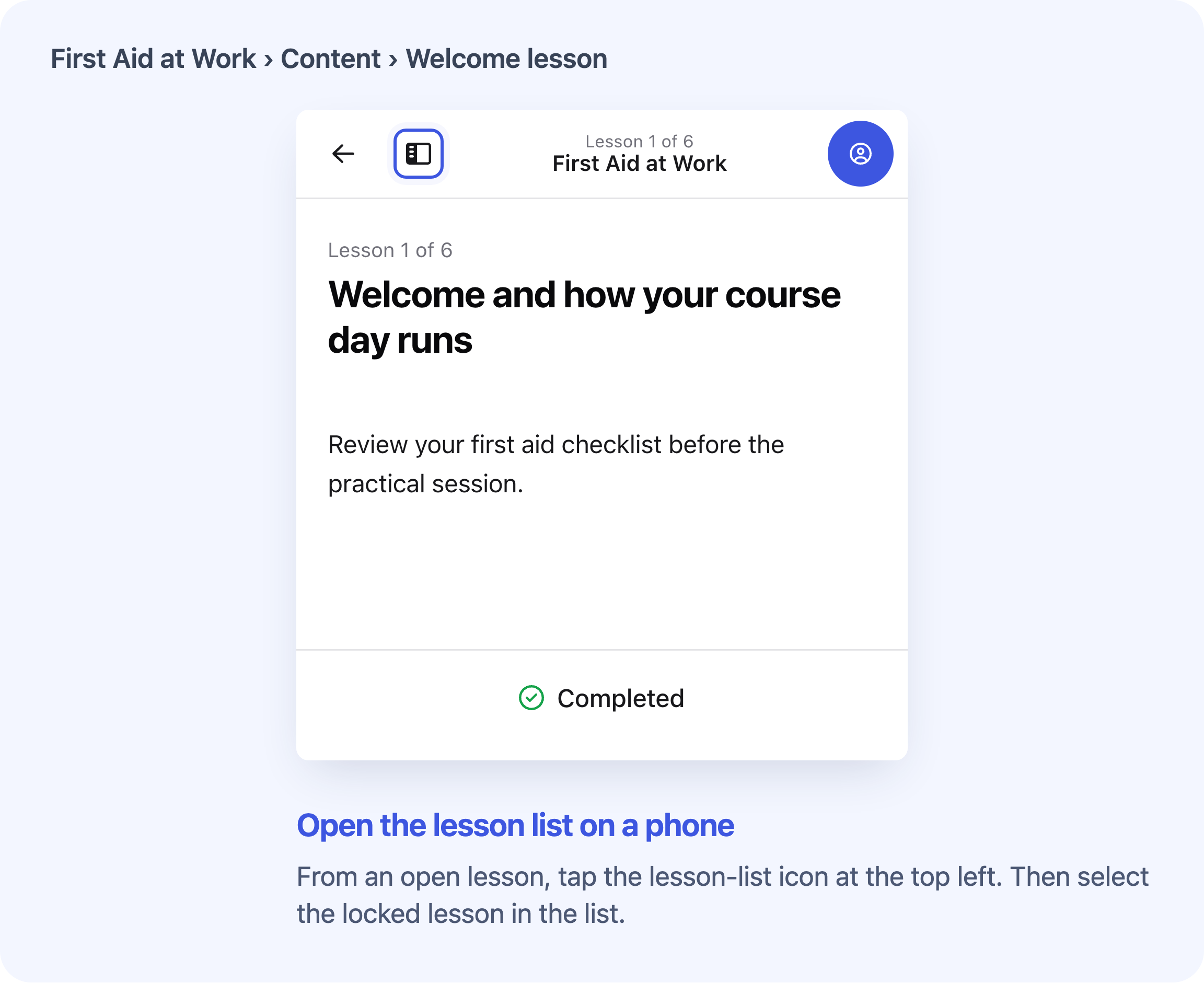
In Content, read the reason beside the locked lesson. To see more, open an available lesson, tap the lesson-list icon and choose the locked lesson. Opening requirements such as payment can show a checklist. A lesson waiting only for its opening time can show a date or a message. If no lesson is available, check the reason in Content.
Make a lesson optional for everyone
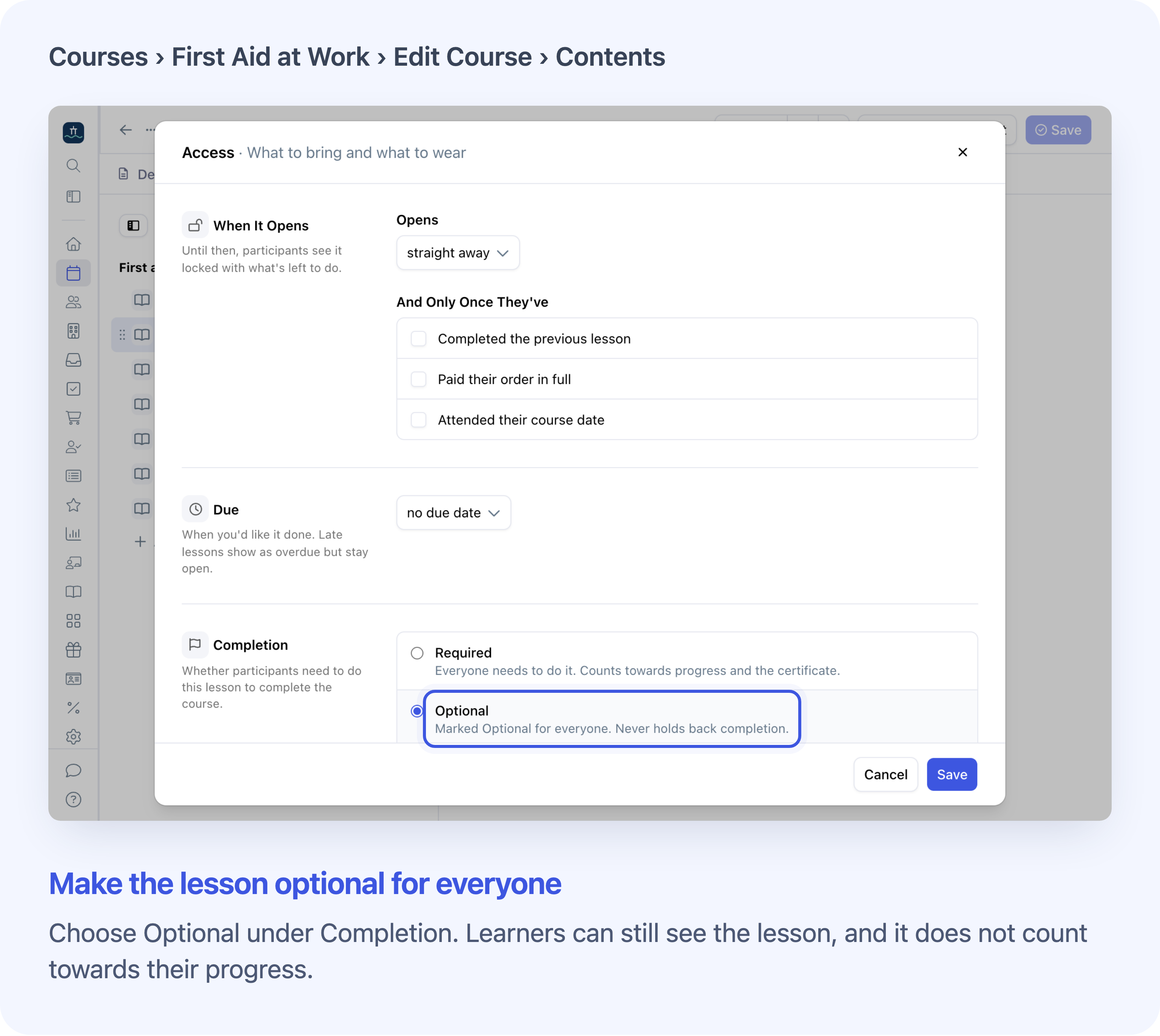
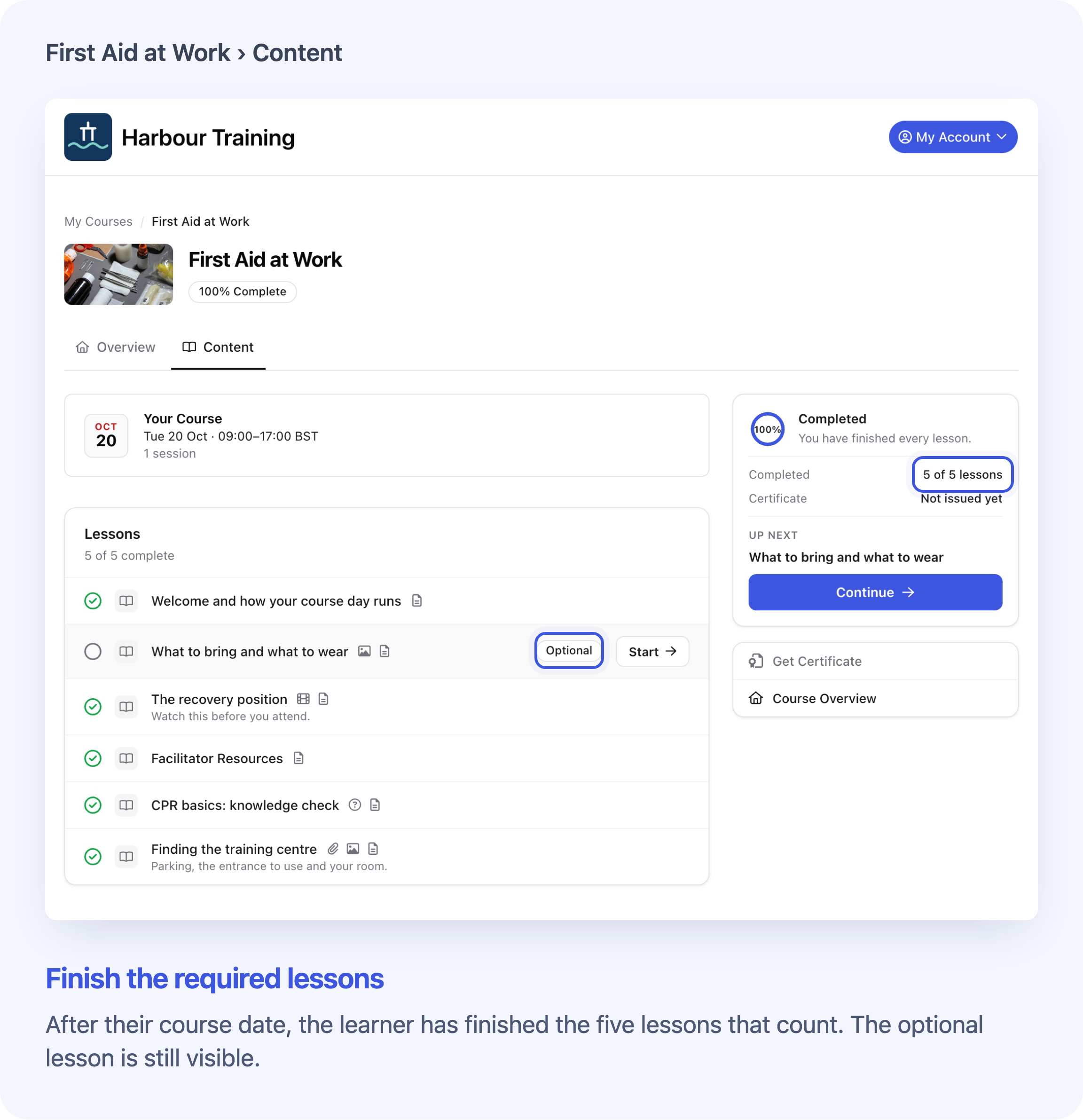
Choose Optional under Completion. Learners can still open the lesson when it’s available, and it stays out of their progress total. An optional lesson can still have opening rules and a deadline. Keep core lessons Required.
Let selected learners skip a lesson
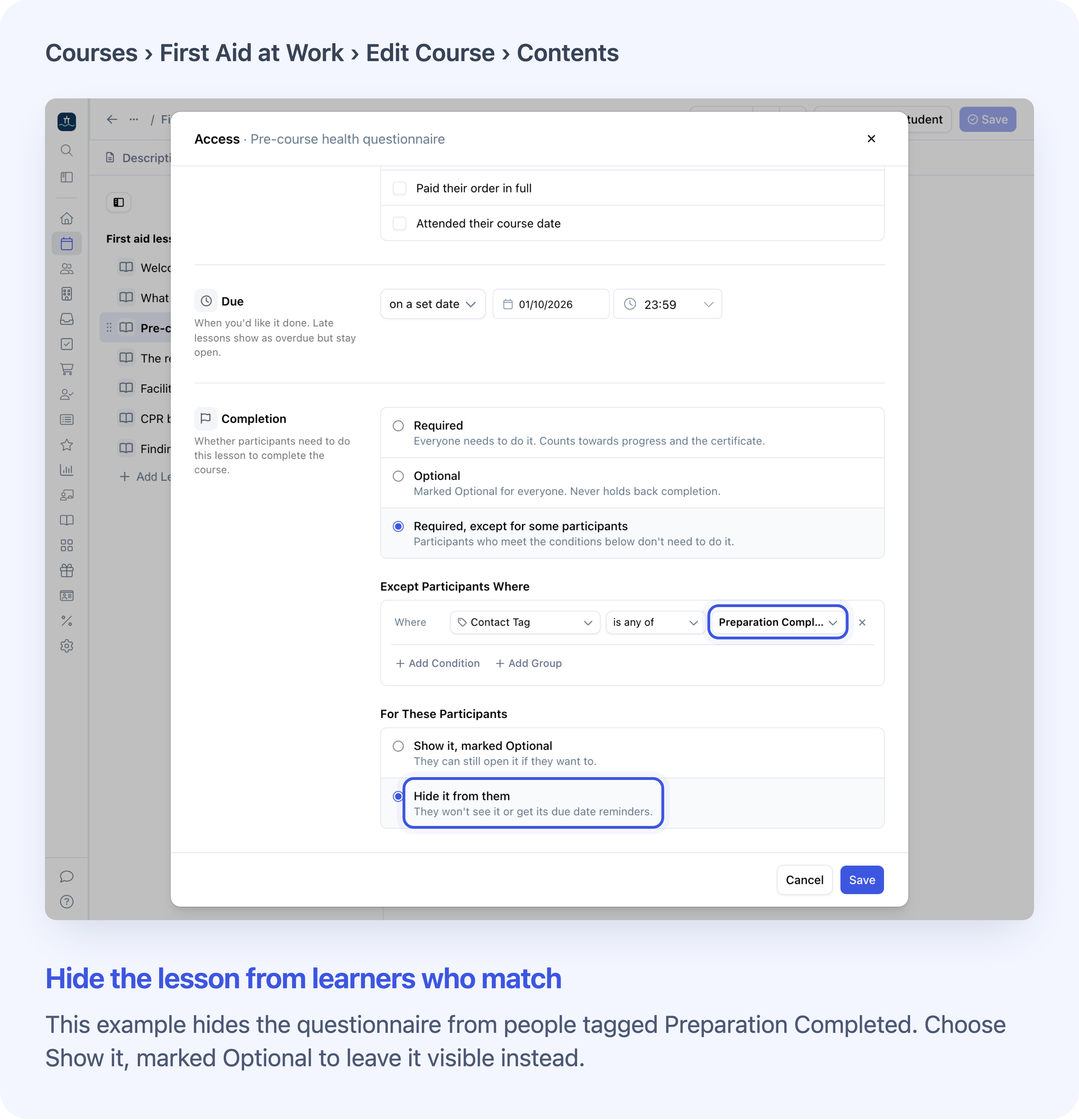
On Teams or Custom & Enterprise, choose Required, except for some participants. Record previous training with a contact tag such as Preparation Completed, then select that tag in the rule. Choose Show it, marked Optional for a recap or Hide it from them to remove the lesson from their view. Other learners still need to finish it. The other plans can set opening rules and make lessons optional for everyone.
Compare who can see the lesson
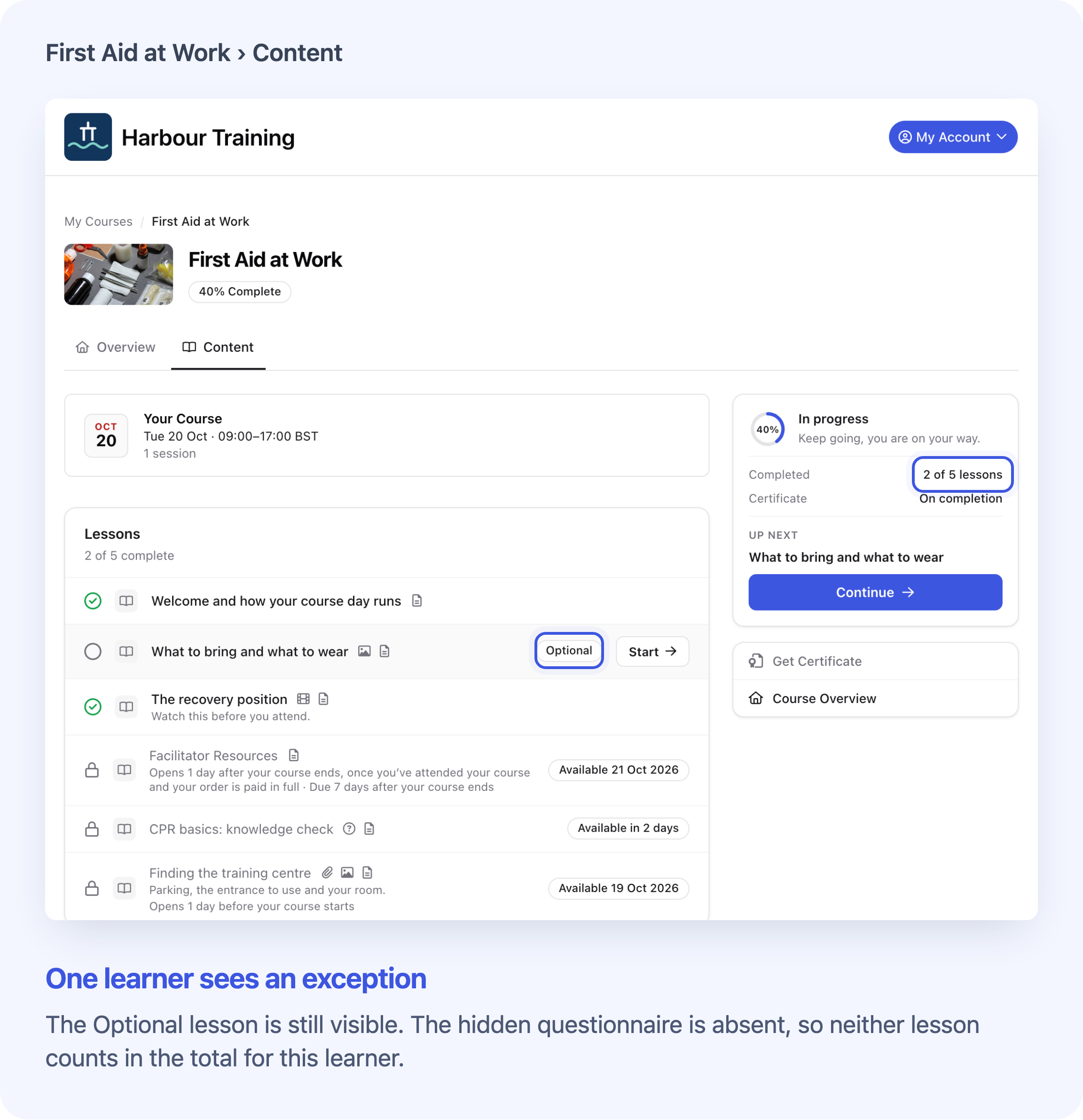
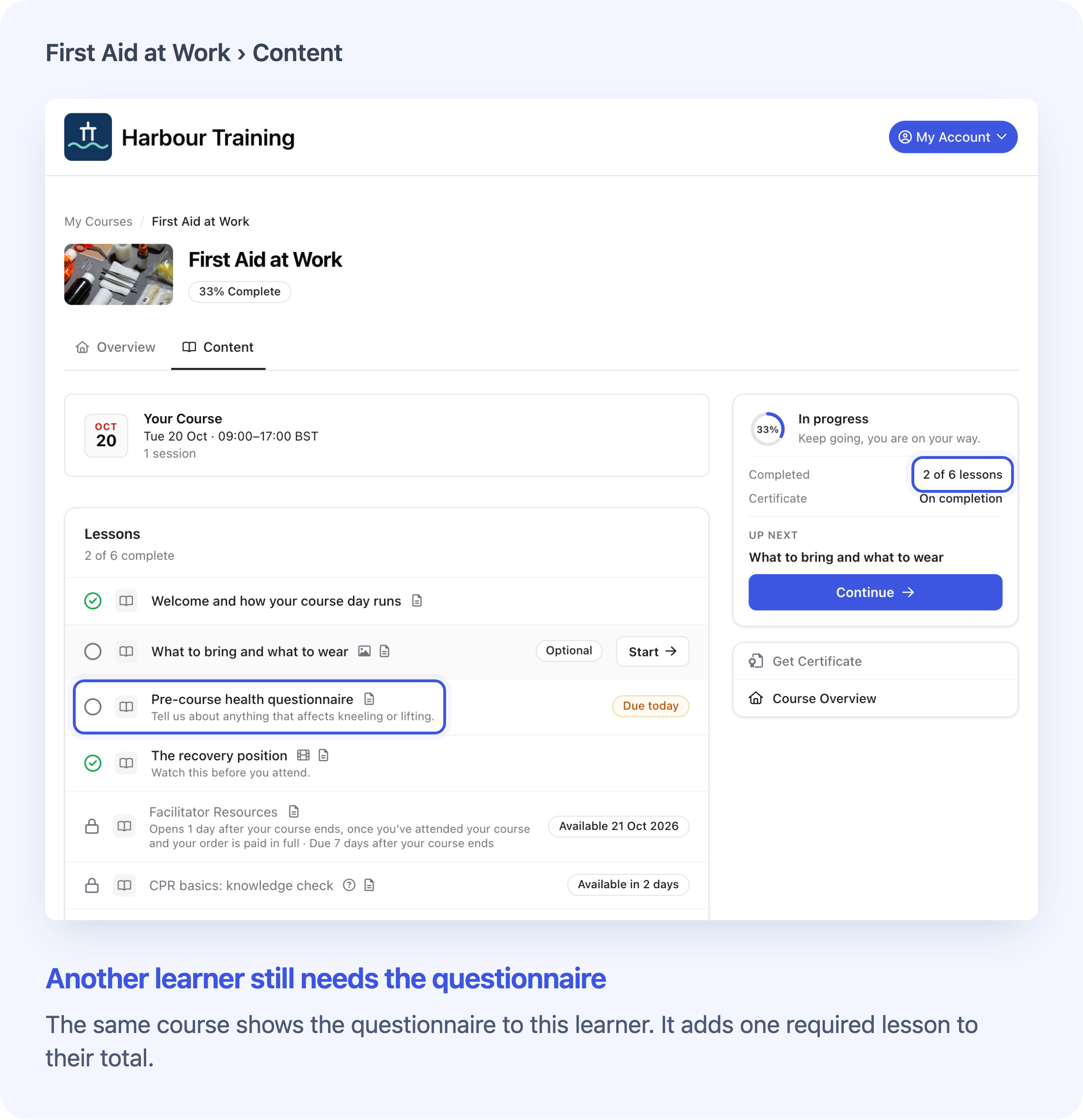
A lesson marked Optional stays visible. A hidden lesson stays out of the learner’s course, even if they have its direct link. If every lesson in a section is hidden for that learner, the section disappears too.
Choose who can skip a lesson
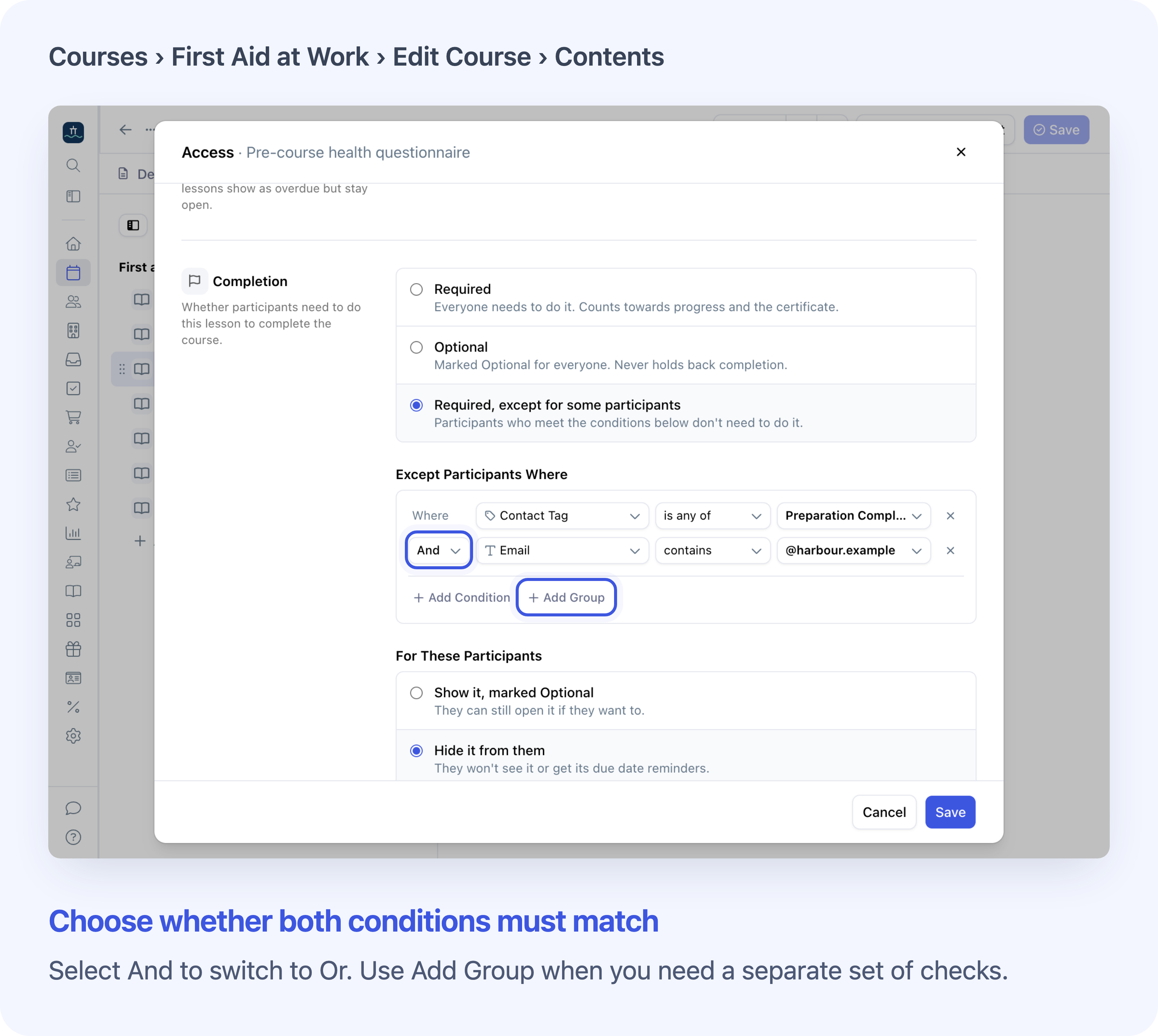
Match a Contact Tag, a contact field, an Organisation Tag or the Offer the learner booked. On a group booking, the rule uses each learner’s own details. For organisation tags, it uses the order’s organisation if the learner has none.
Use And when all checks must match and Or when any can match. Select Add Group to combine a separate set of checks. For example, give an exception to learners with the preparation tag, or to learners who match both a work email and an organisation tag.
See which lessons count towards progress
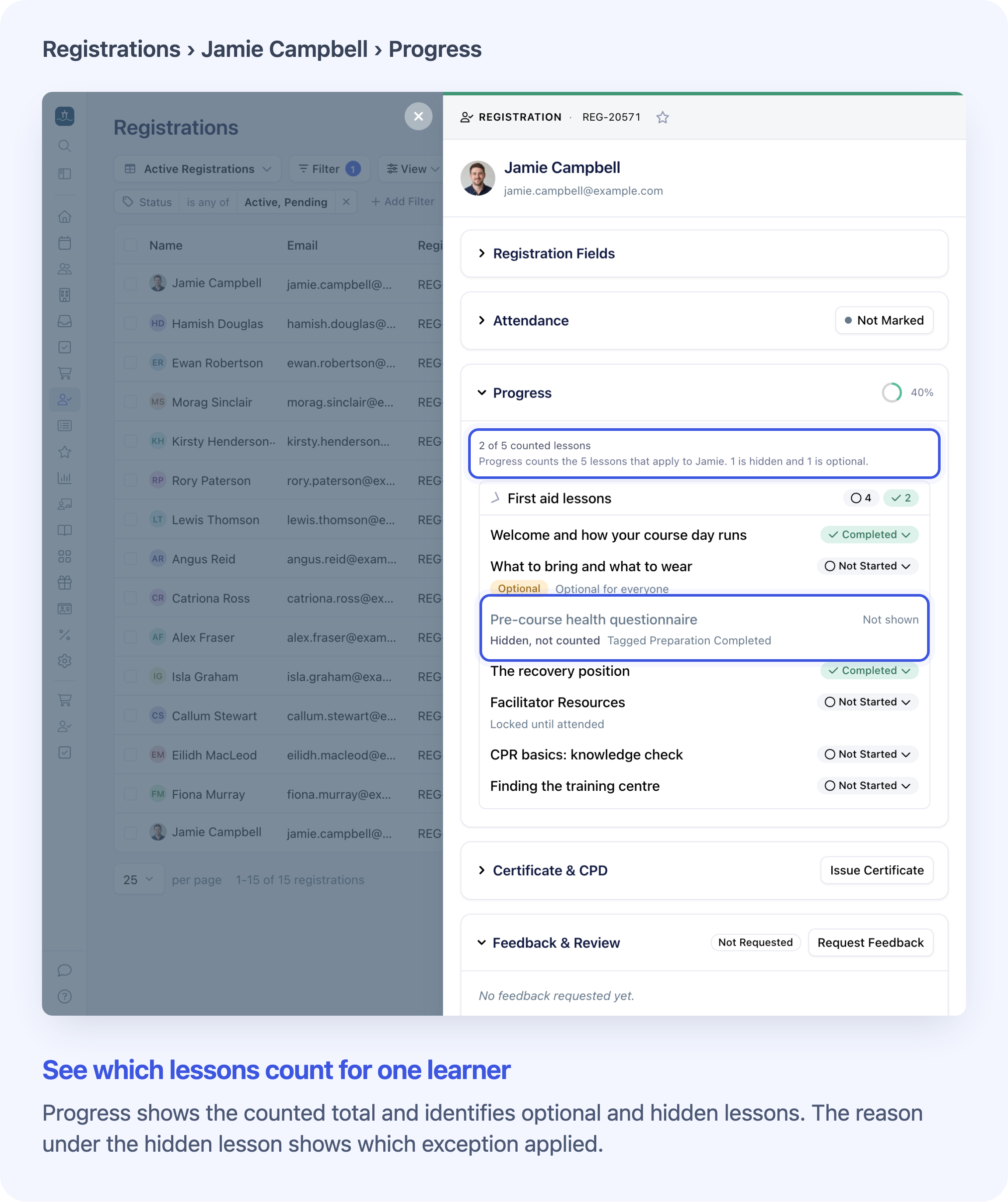
Open the learner’s Registration and expand Progress. Only published lessons required for that learner count towards lesson progress and the lessons needed for an automatic certificate. Blended courses also require attendance. Automatic certificates follow the course’s certificate settings.
Saving a new completion rule or publishing or unpublishing a lesson with an exception can update progress for learners already enrolled. If a learner now meets the completion requirements, Cademy can trigger actions you’ve set up, such as issuing a certificate. If an unfinished lesson starts counting again, progress can drop and the course can move out of Completed. Saved work and certificates already issued stay with the learner.
See the full lesson access setup guide.
Frequently asked questions
What happens if a learner has no order or gets a partial refund?
A learner added or imported without an order meets the full-payment check. A fully paid order later partly refunded also meets it, provided the learner still has course access. Other checks still apply.
Why is a lesson still locked after the opening checks are met?
Check whether an earlier visible lesson has a quiz or form set to lock later lessons. That can still apply when the earlier lesson is optional. Hiding that earlier lesson for the learner removes its gate.
Can learners reopen a completed lesson after I add a lock?
A completed lesson skips its own opening checks. The learner still needs course access, a visible lesson and any earlier quiz or form gate cleared.
Will learners get an email when a lock clears?
If a check is still unmet when the scheduled opening email is due, Cademy skips it. Clearing the lock later doesn’t send a catch-up email. Cademy skips both opening emails and deadline reminders for lessons hidden from the learner. Visible optional lessons can still get a deadline reminder if eligible.
How do I let someone skip a lesson they completed on another course?
Add a tag to the learner’s contact to record the earlier training, then use that tag in the lesson rule. Cademy checks the tag.
Can I use a course add-on to decide who can skip a lesson?
For a booking-based rule, choose the learner’s booked price Offer. Course add-ons are outside this rule.
What if I change a contact tag after someone starts?
Open Progress on their Registration or ask them to reopen Content. This refreshes which lessons count for them.
What if every lesson is optional or hidden?
Attendance can complete a blended course when no lessons count for the learner. An on-demand course with no required lessons does not complete automatically. Once a course is complete, finishing an optional lesson keeps the learner’s completed progress.
What happens if I move off Teams or Custom & Enterprise?
Existing participant exceptions still apply. You can switch a lesson to Required or Optional for everyone. Editing the exception requires Teams or Custom & Enterprise.
How can I test a lesson rule?
Test with a signed-in learner. Preview as Student bypasses lesson access rules. To test payment, use a learner with a linked order.
What happens when I copy a lesson?
A copied lesson carries its access settings. Before publishing it, check the lesson order, any booked offer in the rule and the date options in the destination course.