🧩 Track SCORM Progress and Scores
See how far learners got in a SCORM package and who may need a follow-up.
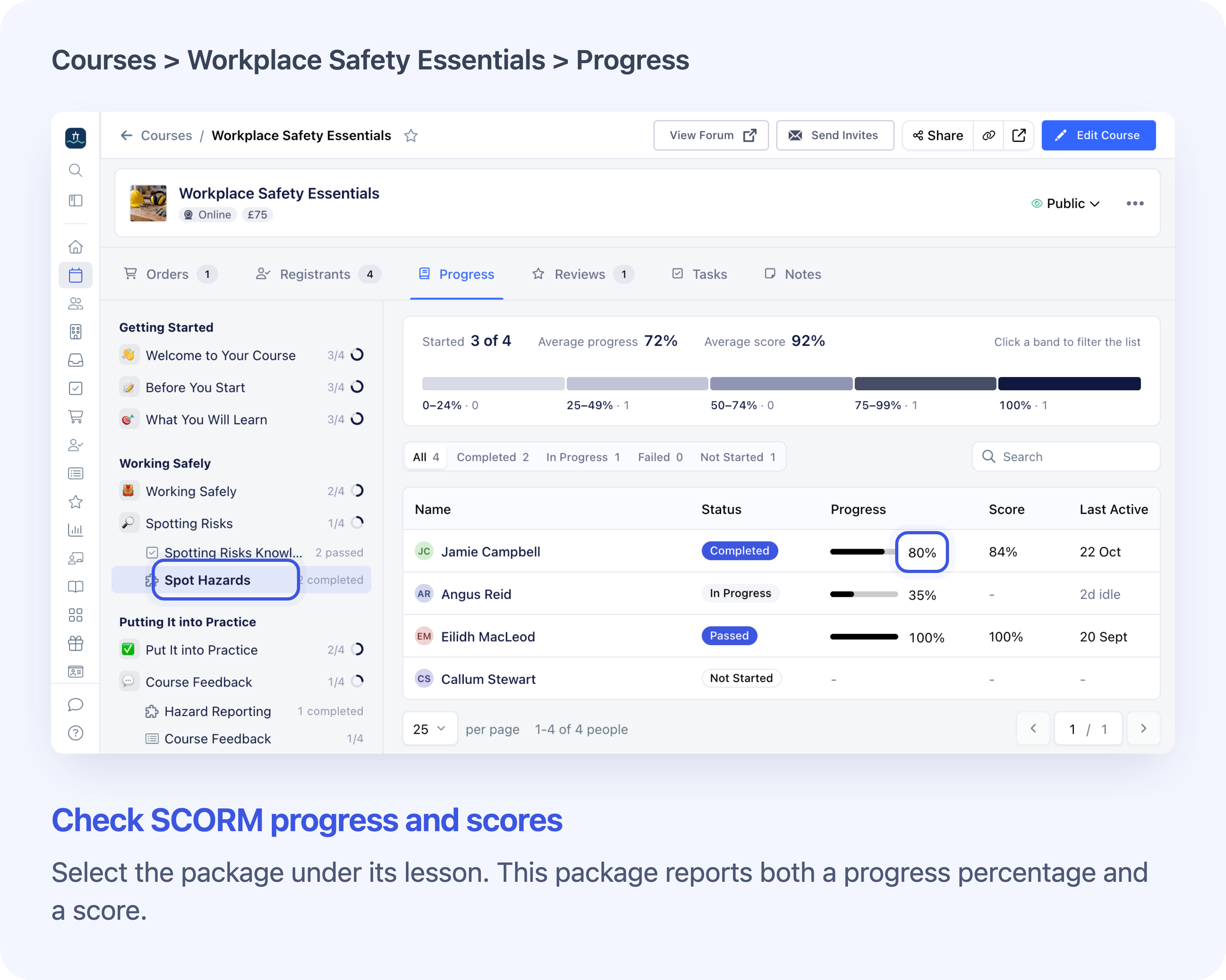
Cademy now shows each learner’s saved result for a SCORM package, a piece of interactive learning content in a lesson. Course providers can check who has finished the package, see progress percentages and scores where available, and find learners who may need a follow-up.
In Cademy Admin, open an on-demand or blended course and choose Progress. Each SCORM package has its own report and completed count under its published lesson, including when several packages share one lesson. Select a package to see its results. System Admins can use the report across their account. Course Owners and Facilitators can use it for the courses or dates they can access. Open Cademy Admin
Check SCORM results for one blended course date
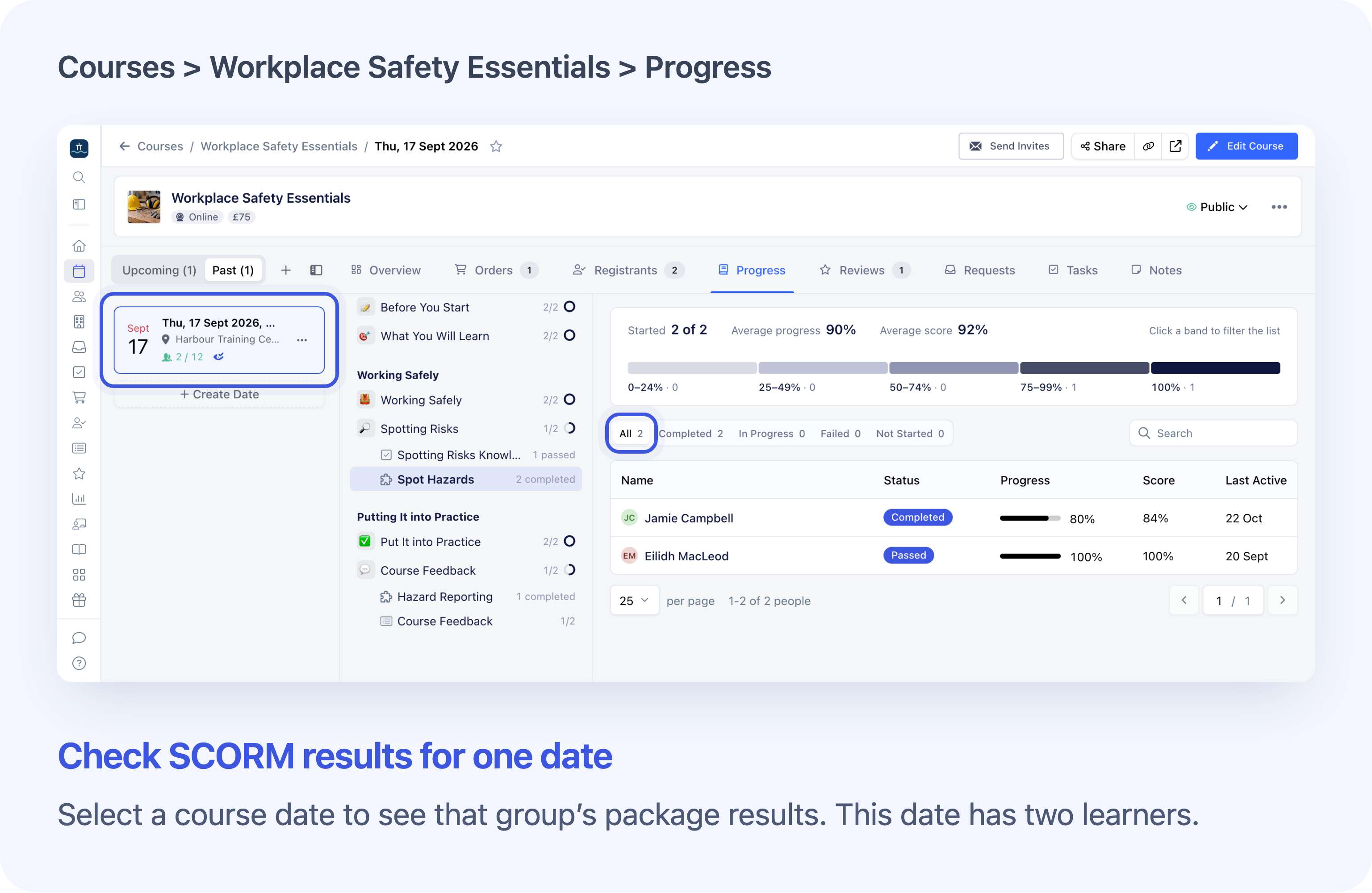
Choose a date from the course date list to check a single group before its live session. The package’s completed count, chart and learner table all follow the selected date. If the list is hidden, choose View All Dates to open it. Select the same date again to return to the course-wide view for the registrations you can access. A learner registered on more than one date can appear more than once.
Filter SCORM results by status, progress or score
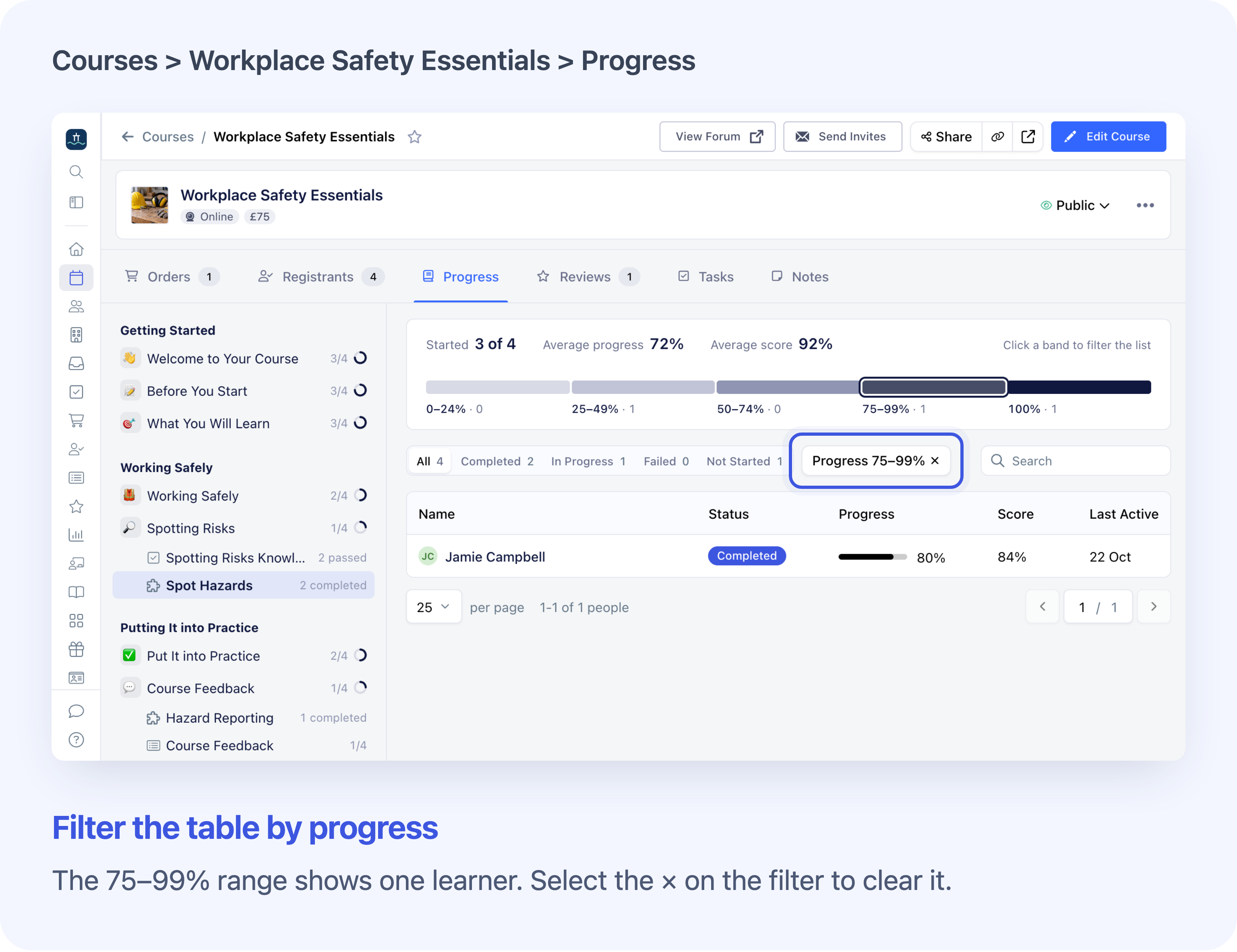
Choose In Progress, Not Started or Failed to see who may need a follow-up. The Completed filter and the count beside the package both include learners with a Passed result. Each row shows the learner’s own status. The In Progress filter also includes Browsed results. Combine a status with a chart range to narrow the table further. Search by name or email, or select a column heading to sort.
Last Active shows when the package last saved. For learners in the In Progress group, it shows days since that save. The label turns amber after more than 14 days. Search changes the summary and status counts. A status or chart filter only narrows the learner table. The count beside the package still covers the selected course or date. Choose All to clear the status filter.
See progress percentages, question counts and scores
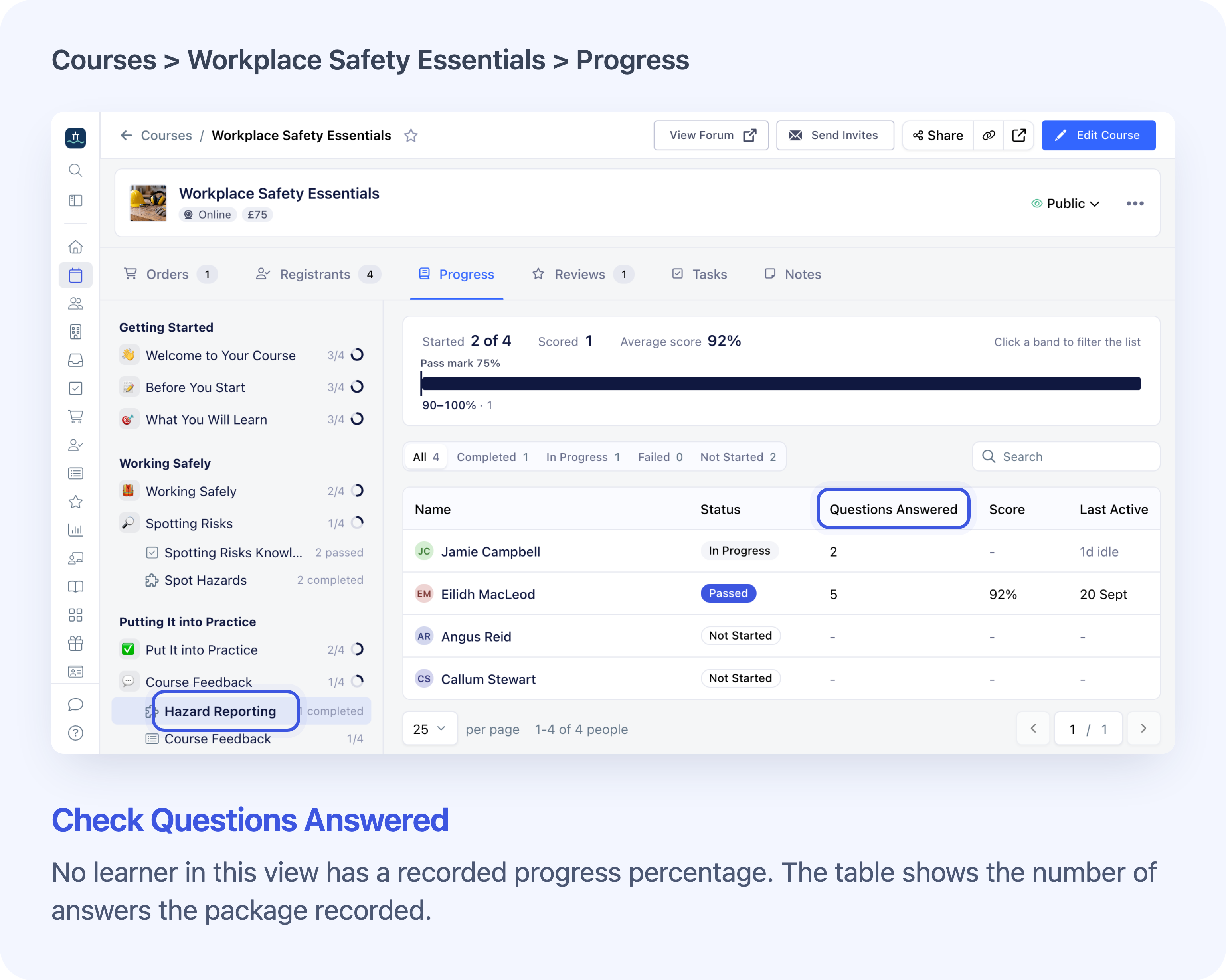
Cademy can read progress percentages from compatible Articulate Rise packages. If nobody in the selected course or date has a readable percentage, the report shows Questions Answered. It shows how many questions the package recorded. The column is based on the course or date, so searching for one learner keeps the same column. Score appears as a percentage when the package supplies a readable score. Individual answers stay private.
The summary shows how many learners started. With progress percentages, it shows Average progress and a chart of progress ranges. Without percentages, Scored shows how many learners have a score, and the chart groups those scores. When scores are available, the score chart can also show the package’s pass mark. Average score uses only learners with a score, and Average progress uses only learners with a percentage.
Check a SCORM result in one learner’s Registration
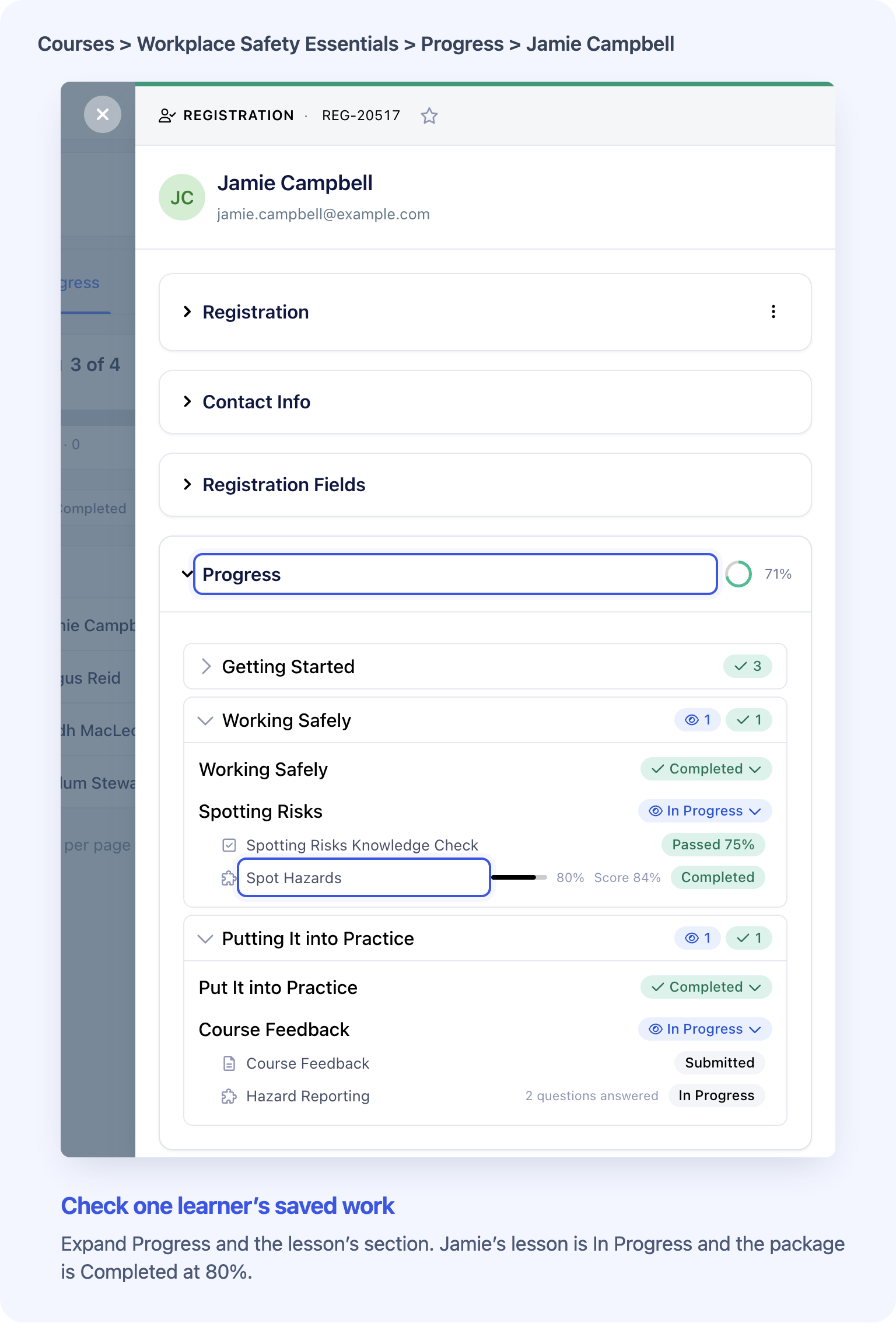
Select a learner in the report, or open their Registration from Registrants. A Registration is the learner’s place on the course. Expand Progress and the relevant section to see the package’s saved status and figures beneath the lesson. The read-only row shows the current package result, with a progress percentage or question count and a score where available. Use the lesson status or overall course status to check completion at those levels.
For the full steps, see Check a Learner’s SCORM Progress and Scores.
Frequently asked questions
Why can a package show Completed below 100%?
The package can mark a learner Completed when they meet its completion rule before reaching the end. Cademy shows the saved status and progress separately. Once all required work is complete, the learner uses the lesson’s completion button to finish the Cademy lesson. You can still see a saved package result after staff reset the lesson status.
Why is a result missing from the course report?
Check the course date, clear Search and remove active filters. The report excludes draft and cancelled registrations. For older attempts, check the learner’s Registration. It can show a saved result that is missing from the course report. If the report fails to load, select Try Again.
Why is the package missing from a learner’s Registration?
Check that the package is still in a published lesson. When the lesson has a recorded start and the package has no saved result, the row shows Not Started. With neither a lesson start nor a saved package result, the row can be absent. The course report still lists eligible learners with no saved result as Not Started.
What does a dash mean in the SCORM report?
Cademy has no progress percentage or score to show in that cell. A saved 0% appears as 0%. An older attempt can have a status or score without a saved progress percentage. In Questions Answered, a dash can also mean the package recorded zero answers.
Can I export SCORM results or save a filtered view?
The SCORM report has no export or saved views. You can search and filter the results while viewing the package. Reopening the report from its link selects the package and starts with fresh filters.
Do I need to set anything up?
For an existing SCORM package in a published lesson, open its report in Progress. The figures come from the progress the package has saved. Preview as Student uses temporary progress. To test that results save, sign in as a registered test learner and use the package. Then check their Registration in Admin. To add content, use a SCORM 1.2 package. Your account needs the Teams plan or a Custom & Enterprise agreement that includes SCORM. Add SCORM Learning Content