🖨️ Print Course Results and Answers
Keep quiz answers, attendance and progress together in one learner PDF.
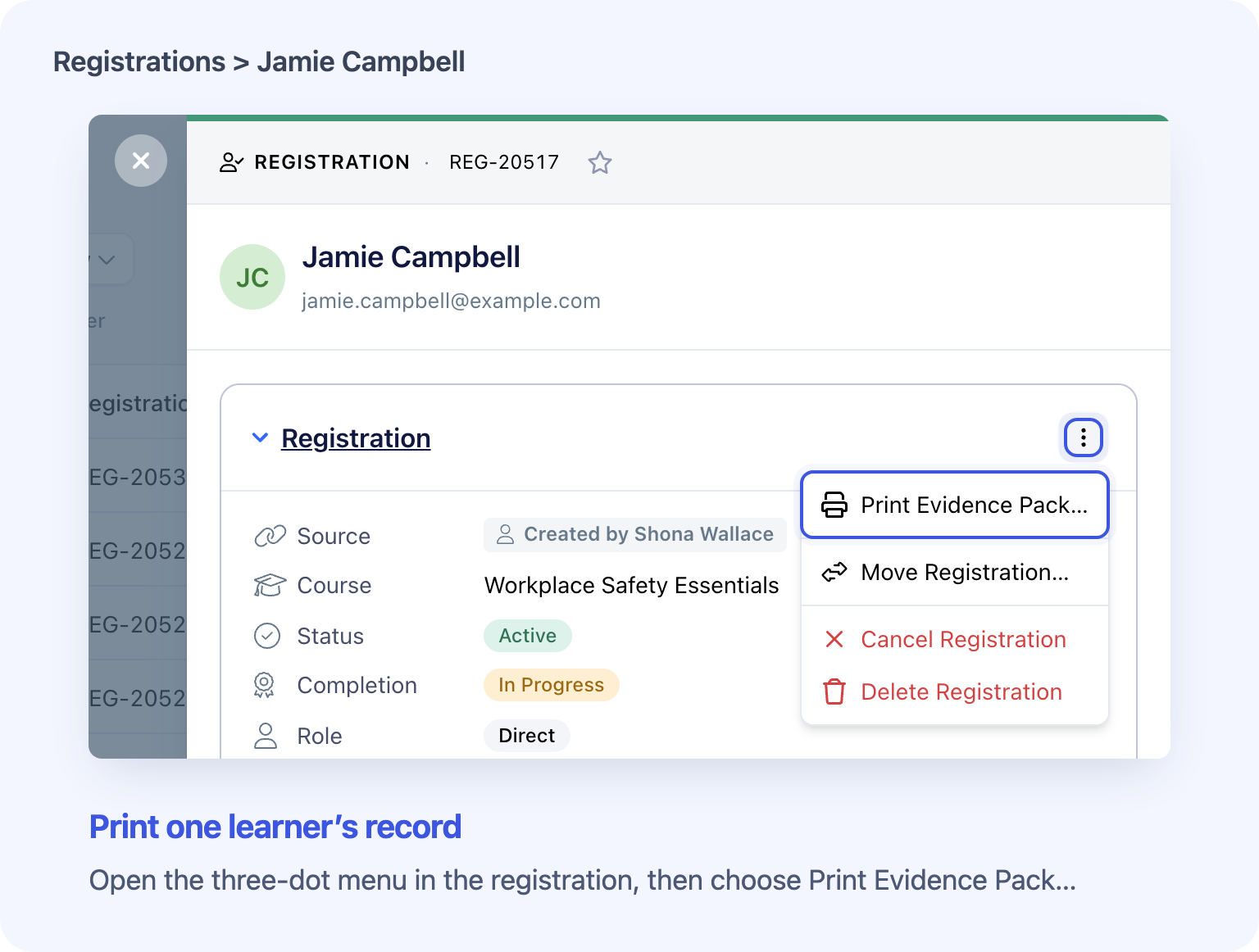
Print from the learner’s registration.
You can now print one learner’s course results and answers, or save them as a PDF. Bring quiz results, submitted answers, assessor feedback, lesson progress and attendance into one document for a learner’s file or an awarding-body review.
Cademy calls this an evidence pack. It belongs to one registration, meaning one person’s place on a course or course date. Open the learner in the course’s Registrants tab, then choose Print Evidence Pack… from the registration’s three-dot menu. Choose the contents and select Print to use your browser’s print or save-as-PDF options.
Choose what goes into the learner’s PDF
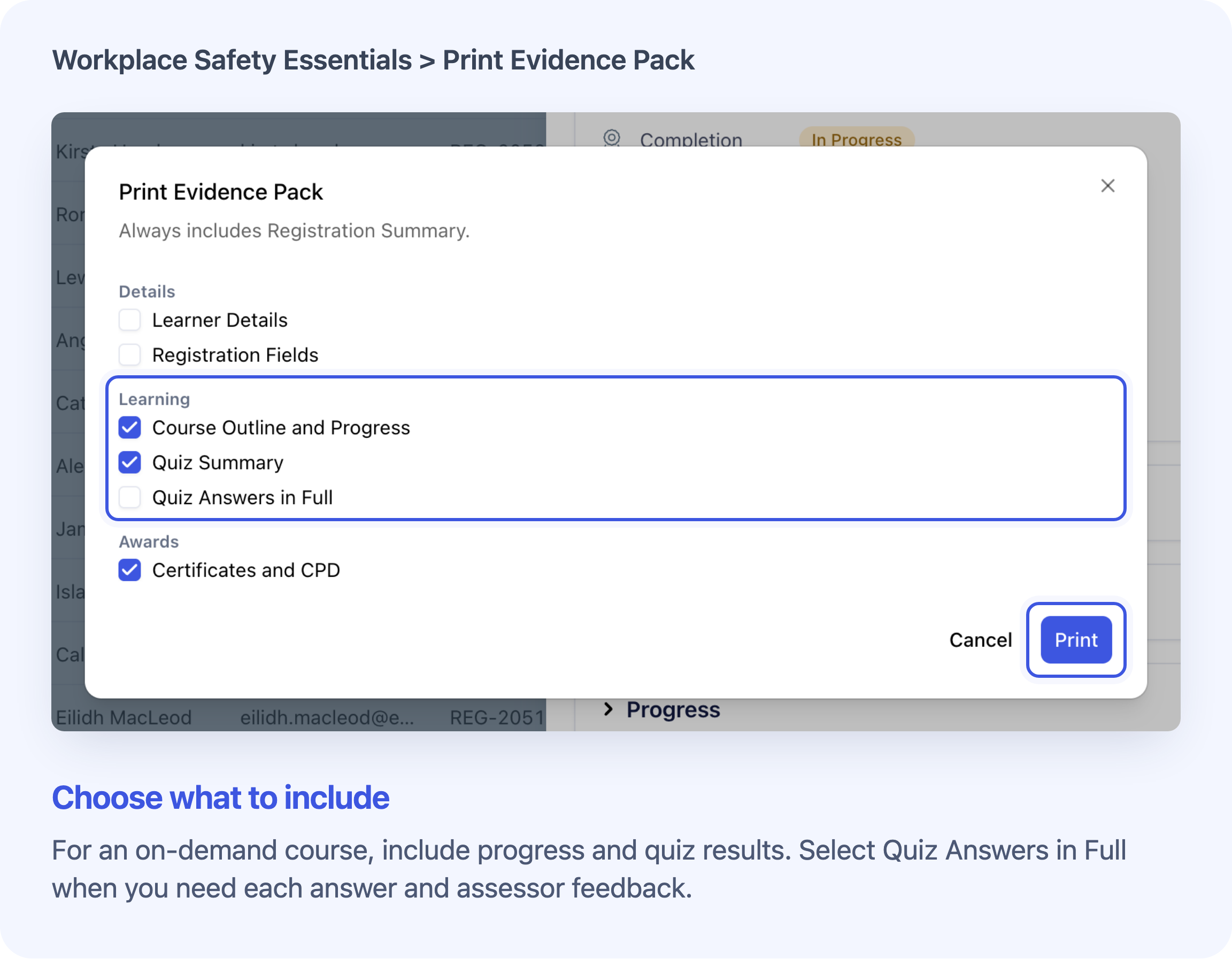
Choose the sections needed for this learner’s record.
Every pack carries your provider name and, if you have one, your logo. It identifies the learner, course and registration, and shows when the document was generated. The registration summary includes status and recorded completion details, including when the course was completed and whether completion was automatic or set by a staff member, where recorded.
For a registration with a course date, course details and attendance are included too.
Choose the optional sections to add learner details, registration fields, lesson progress, a quiz summary, full quiz answers, and certificate or CPD awards. You can prepare a short results record or include the supporting evidence you need.
Learning sections appear for on-demand and blended courses. Quiz sections appear when the published course contains quizzes.
On first use, Learner Details starts with Name and Email. Course Outline and Progress, Quiz Summary, and Certificates and CPD are also selected where they apply. Quiz Answers in Full and Registration Fields start off, so select them when you need them.
Select and order the learner details and registration fields
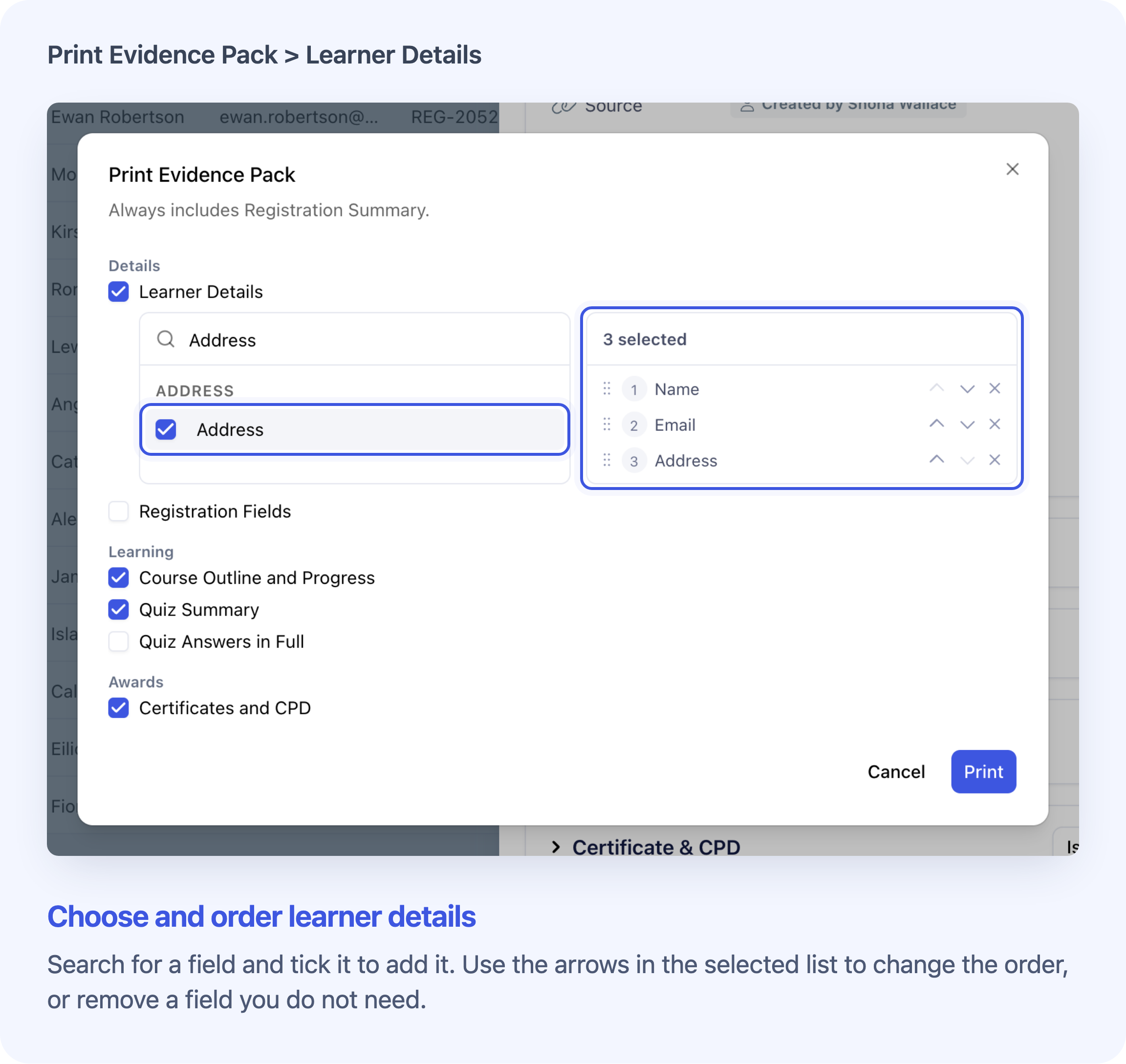
Include the saved details your learner file needs.
Choose which fields appear and arrange them in the order you want. For example, include a learner’s address and date of birth, or a custom registration field for a practical assessment result. The pack uses the values already saved on the records.
After you generate a pack, Cademy remembers your choices in that browser for the same provider account. You can change them for the next learner; they are not shared team templates.
See lesson completion and active time
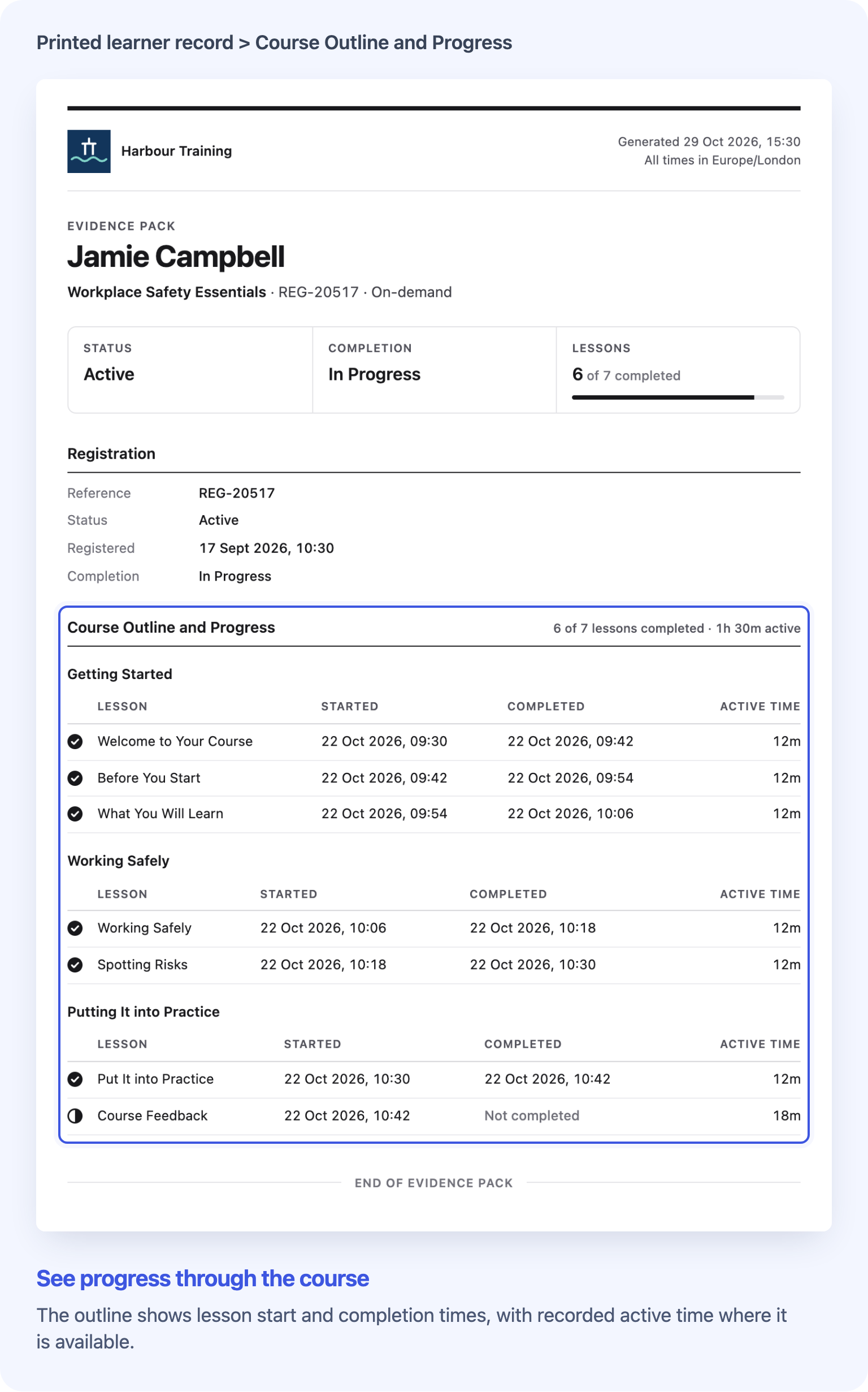
See completed and unfinished lessons, with recorded dates and active time.
Course Outline and Progress shows the learner’s progress through the current published lessons, in course order and grouped into sections. You can see which lessons were started or completed, the recorded dates and times, and active time for each lesson where available.
The section also shows how many lessons have been completed and the total recorded active time across the listed lessons. In the example, Jamie has completed six of seven lessons and has 1 hour 30 minutes of recorded activity. Course Feedback has been started but is still unfinished.
This gives you a record of progress through the course alongside the test results. Active time is the activity recorded in Cademy, rather than the elapsed time between starting and finishing a lesson. Older learning may have no active-time records; missing records do not prove that no learning took place.
Review quiz scores and submitted answers
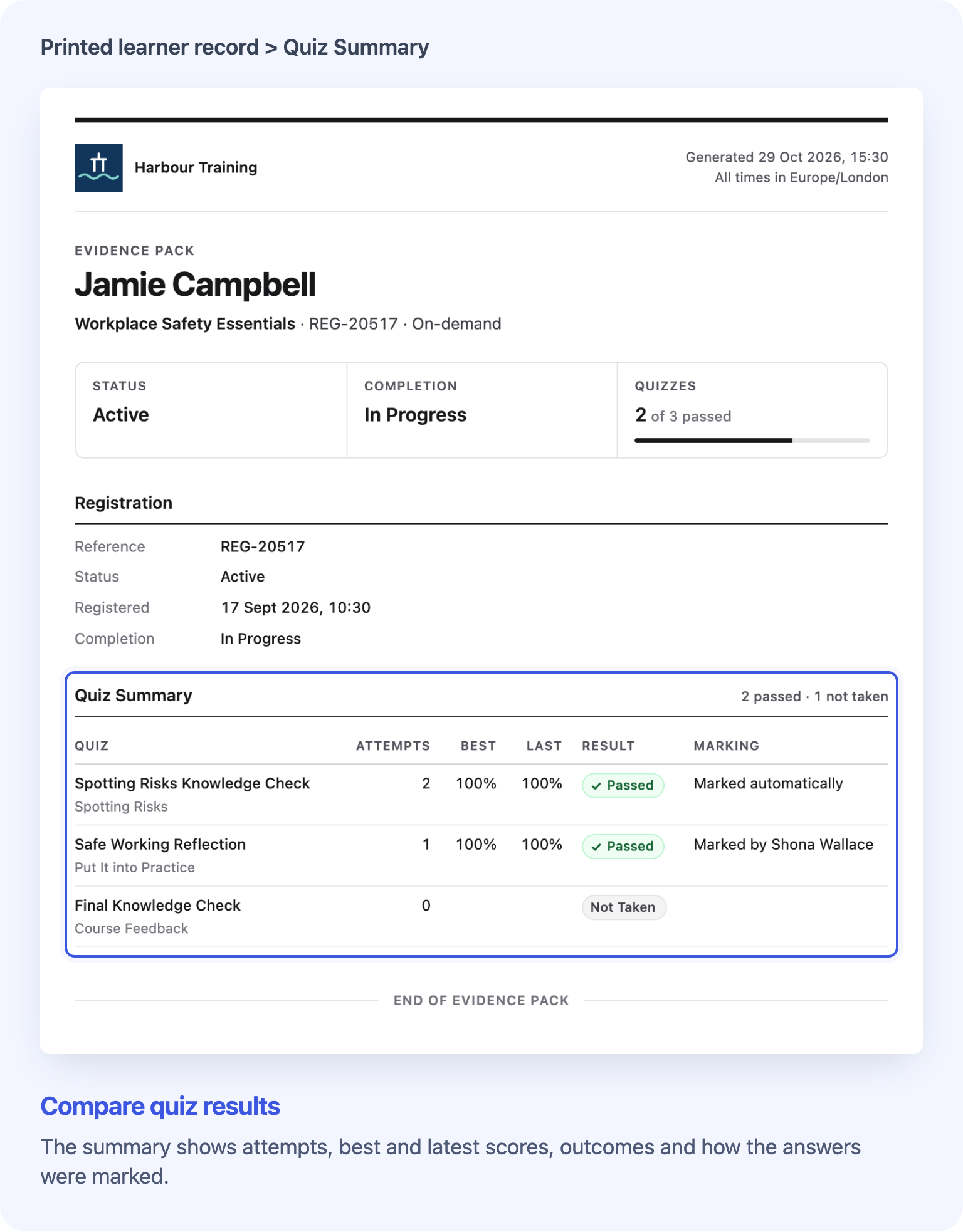
See quiz results, retakes and marking information together.
Quiz Summary gives you one row per quiz in the current published course. It shows the number of submitted attempts, the best marked score and the latest submitted attempt’s score if that attempt has been marked.
The result distinguishes Passed, Not Passed, Awaiting Marking and Not Taken. A quiz is Passed if a recorded attempt passed; otherwise, the latest submitted attempt determines its result. Marking information shows automatic marking or the staff member who marked the work, where recorded. Some older marked work without a saved pass/fail result can show Marked.
Use the summary to see the learner’s results and retakes without reading every answer. Add Quiz Answers in Full when you also need the submitted work behind those results.
Include quiz answers, marks and assessor feedback
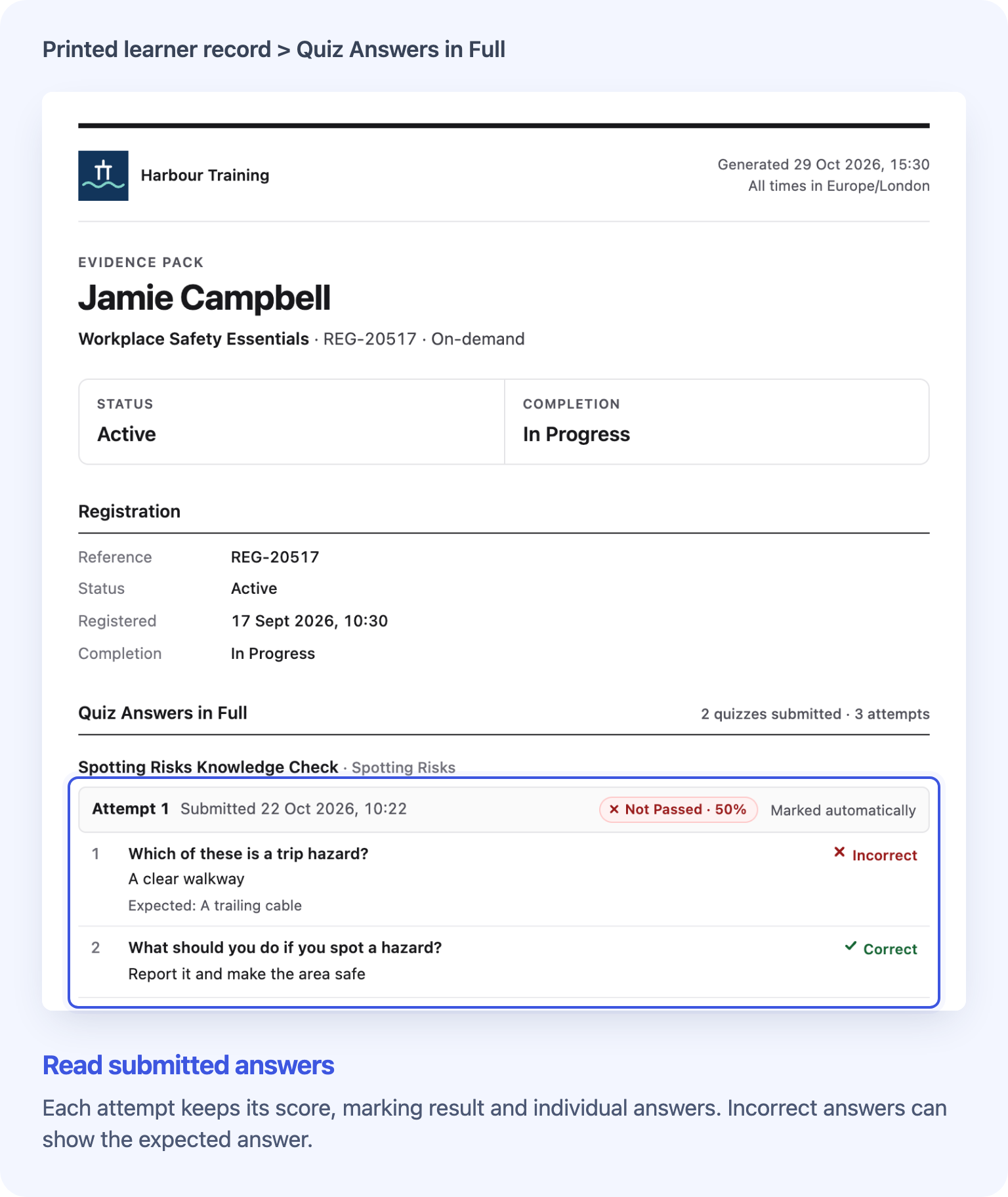
Review submitted attempts alongside the learner’s answers.
For quizzes in the current published course, Quiz Answers in Full includes submitted attempts saved on this registration, including earlier attempts. It shows the learner’s answers, recorded marks and expected answers where available. Saved drafts are left out.
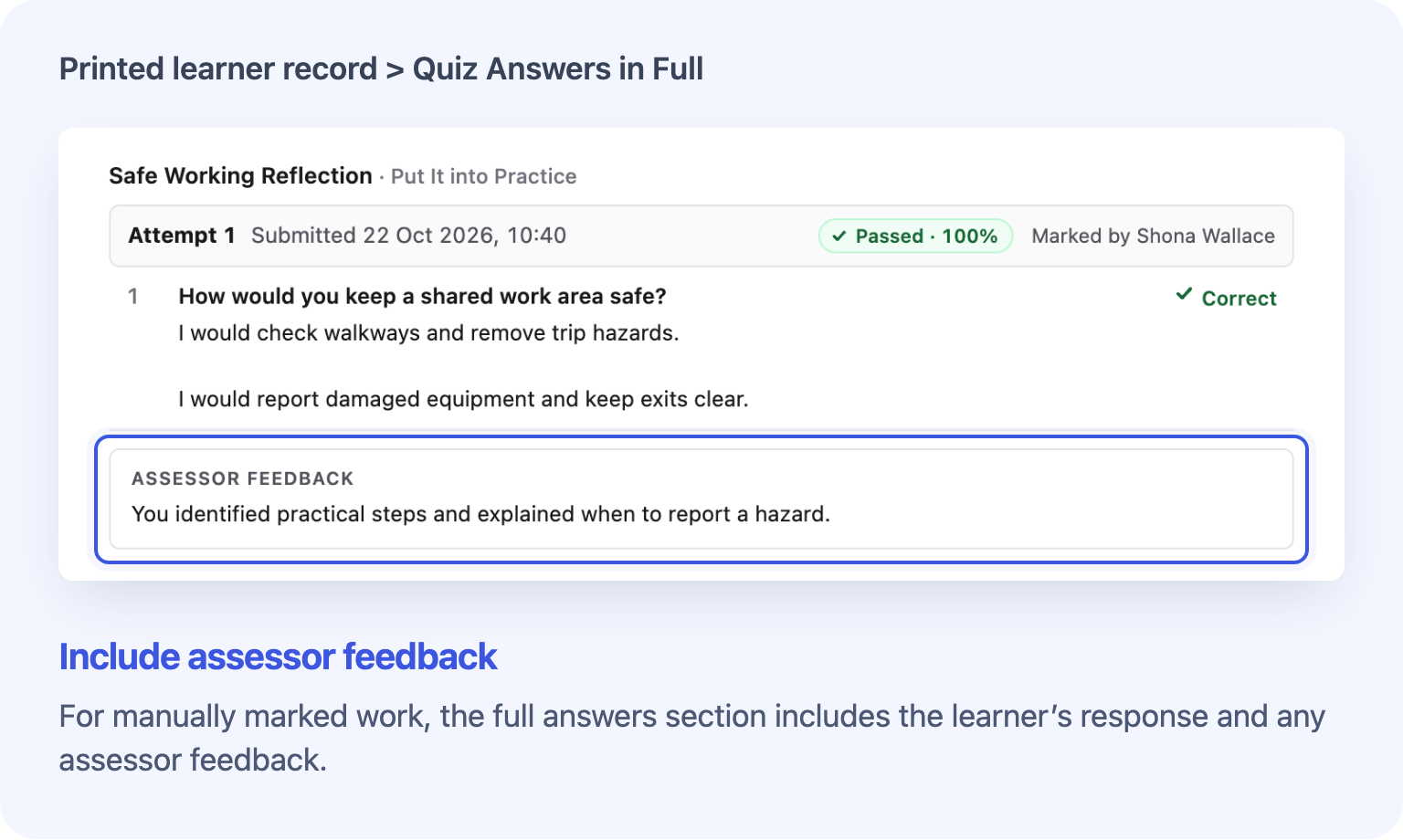
Keep written responses and assessor feedback with the results.
Long-text answers keep their wording and paragraph breaks. Assessor feedback appears with the relevant attempt. Work awaiting marking is identified, so an unmarked submission is not presented as a failed test.
The pack uses the current published course outline and current question wording. It is not a historical copy of the course as the learner first saw it; deleted questions or lessons may be absent.
Include course dates and attendance
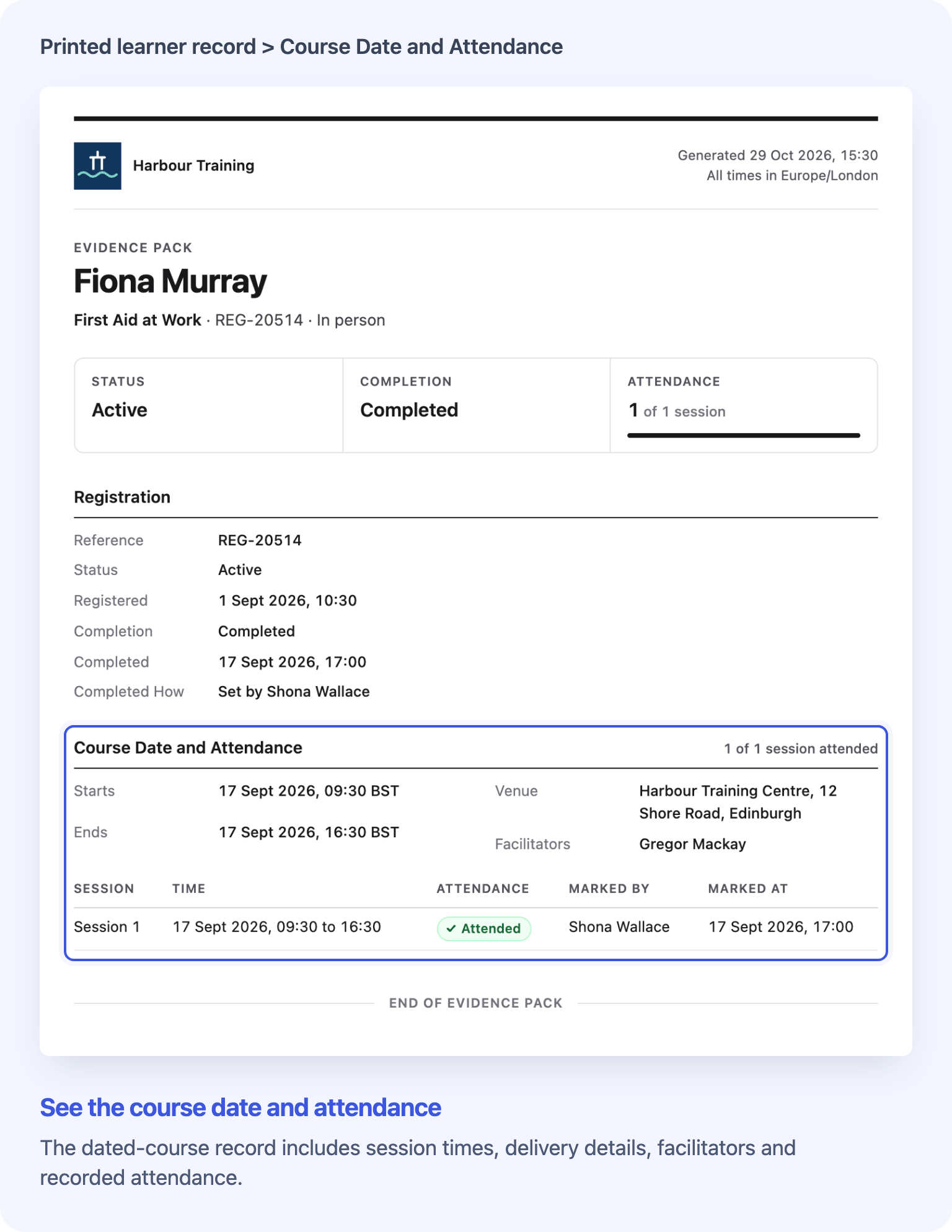
See when the course ran and the attendance recorded for each session.
For dated registrations, the pack brings together the course dates and times, timezone, venue or online delivery, and assigned facilitators. A course booked as a block lists its sessions.
Each session shows the latest attendance mark, with who recorded it and when, where those details are available. A session without a mark says Not recorded. The pack shows current venue details and assignments, rather than a history of earlier changes.
Include certificate and CPD details
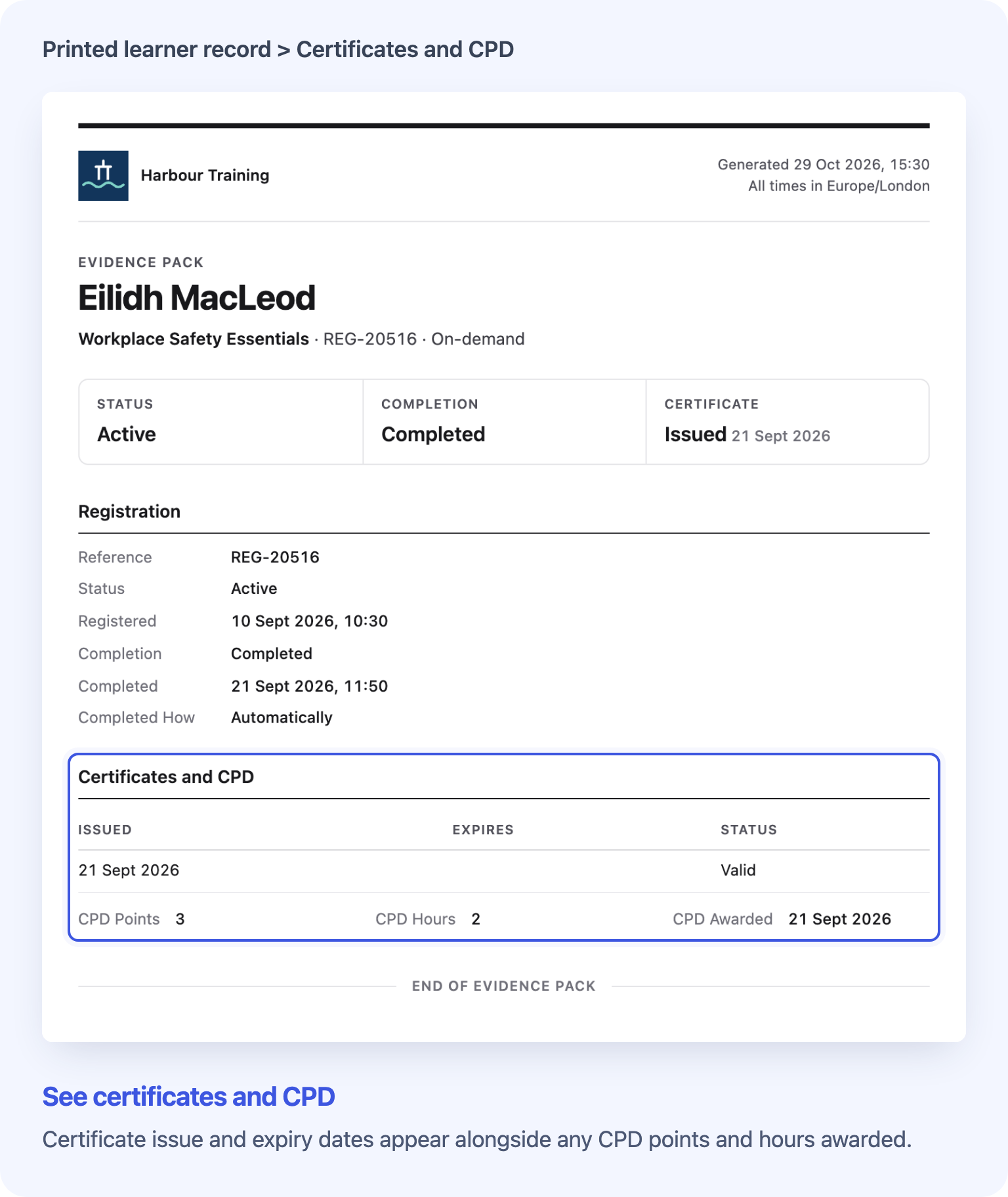
Keep certificate dates and CPD awards with the learner’s course record.
Certificates and CPD adds the certificate records linked to the registration, with issue dates, expiry dates where recorded, and whether a certificate is valid, expired or revoked. The pack also includes the registration’s current continuing professional development (CPD) award, showing recorded points or hours and the award date.
This lets a reviewer see the award details alongside completion, progress and assessment evidence. These are recorded awards; generating the pack does not issue a certificate or award CPD. The pack lists certificate details rather than attaching the certificate PDFs. If it finds no linked certificates, it shows No certificates issued. Check the original record if you expect an older certificate to be there.
Frequently asked questions
Who can print an evidence pack?
Staff who can open the registration can print it. The feature has no separate plan requirement. It is available for active, completed and cancelled registrations; learners do not generate packs from their course view.
Can I print several learners at once?
Each pack covers one registration. If someone took the same course more than once, open the registration you need. For a class list or sign-in sheet, use Print or Download a Class List.
Does the PDF include uploaded assignments, forms and certificate files?
Uploaded quiz answers show file names, not the files themselves. Lesson form responses, internal notes and sign-off lines are not included. The awards section lists certificate details, rather than attaching certificate PDFs. Gather any additional documents separately.
What if an older certificate is missing?
Some older certificates may not appear when their link to the registration cannot be resolved. Check the learner’s certificate record separately if you need a complete award history.
Does Cademy save or email the PDF automatically?
No. Save the PDF through your browser and share it yourself. Cademy does not keep an archive of generated packs, and printing does not change the learner’s results, attendance or completion.
Will an awarding body accept the pack?
Check what the recipient requires. The pack brings together the records held in Cademy; it does not guarantee that those records meet a particular awarding body’s evidence requirements.
For the full instructions and examples, read Print a Learner’s Course Results and Answers.