⭐ New Favourites in Your Sidebar, Standardised Filters and Improved Saved Views and more
Favourite records and views, use the same filters and save your list settings.
Favourites is a new feature in Cademy. Add the courses, dates, contacts and saved views you use most to your sidebar, then open them with one click.
We’ve also standardised the filters across the Admin Dashboard and improved saved views. Your saved views can keep sorting, columns and supported layouts as well as filters, so you can return to the list settings you need.
⭐ New Favourites in your sidebar
Keep the course date you’re preparing for, a customer’s order or a contact you use regularly in Favourites. Your shortcuts stay in the left sidebar, ready to open while you work on other pages.
You can favourite courses, course dates, Contacts, organisations, forms, orders, registrations and saved views. Saved views include Reports views, built-in views and views within a course, organisation or form.
Click a record’s star to add it. For a view, choose Add to Favourites from its menu. You can rename your shortcuts, choose icons or emojis, and drag them into the order you want.
A favourite for a view within a course, organisation or form opens that record, its tab and the selected view.
Your Favourites are personal to you. If you use more than one business account, each account has its own list.
🔎 Find your Favourites in Search
Your Favourites also appear in Search, above Recent. Open Search using the magnifying glass at the top of the sidebar, Cmd + K on a Mac or Ctrl + K on Windows.
Type part of a favourite’s name to find it. For example, type Fiona to find Contact · Fiona Murray. If you’ve renamed a favourite, search for the name you gave it.
See Favourite Records and Views in Your Sidebar for the full guide.
🎛️ Standardised filters across the Admin Dashboard
The Filter controls use the same layout across Courses, Contacts, Organisations, Tasks, Orders and other list pages. Search for a filter, choose what you want to see, and the list shows the matching records.
The filters you’ve chosen stay visible above the list. You can change or remove them there.
For example, choose Awaiting Payment on Orders to find unpaid orders. Add a course-start date filter to focus on training that starts soon. On Registrations, filter by certificate expiry date to find learners who may need refresher training.
For more detailed searches, Advanced Filter lets you combine and group conditions. Use AND when records must match all conditions, or OR when any one is enough.
💾 Saved views now remember sorting, columns and layouts
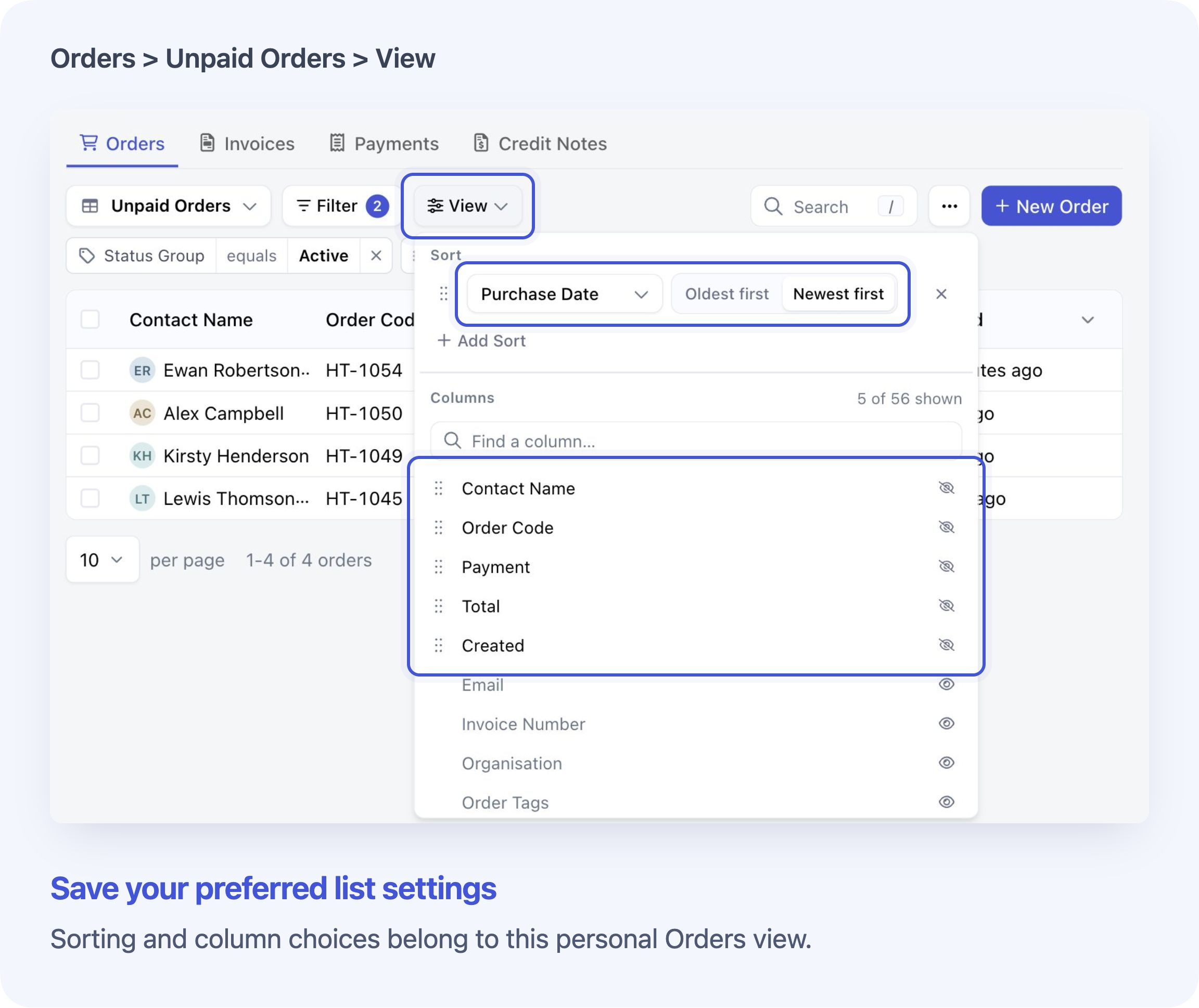
Saved views keep more of your list settings. They save filters, sorting, and which columns you show, including column order and widths. Layout and grouping choices are saved on pages that support them.
For example, save an Orders view for chasing payments, with the filters and columns you need. Open that view again and those settings are ready to use.
The records can change. A saved view shows the records that match your filters when you open it.
👥 Save a view for yourself or share it with your team
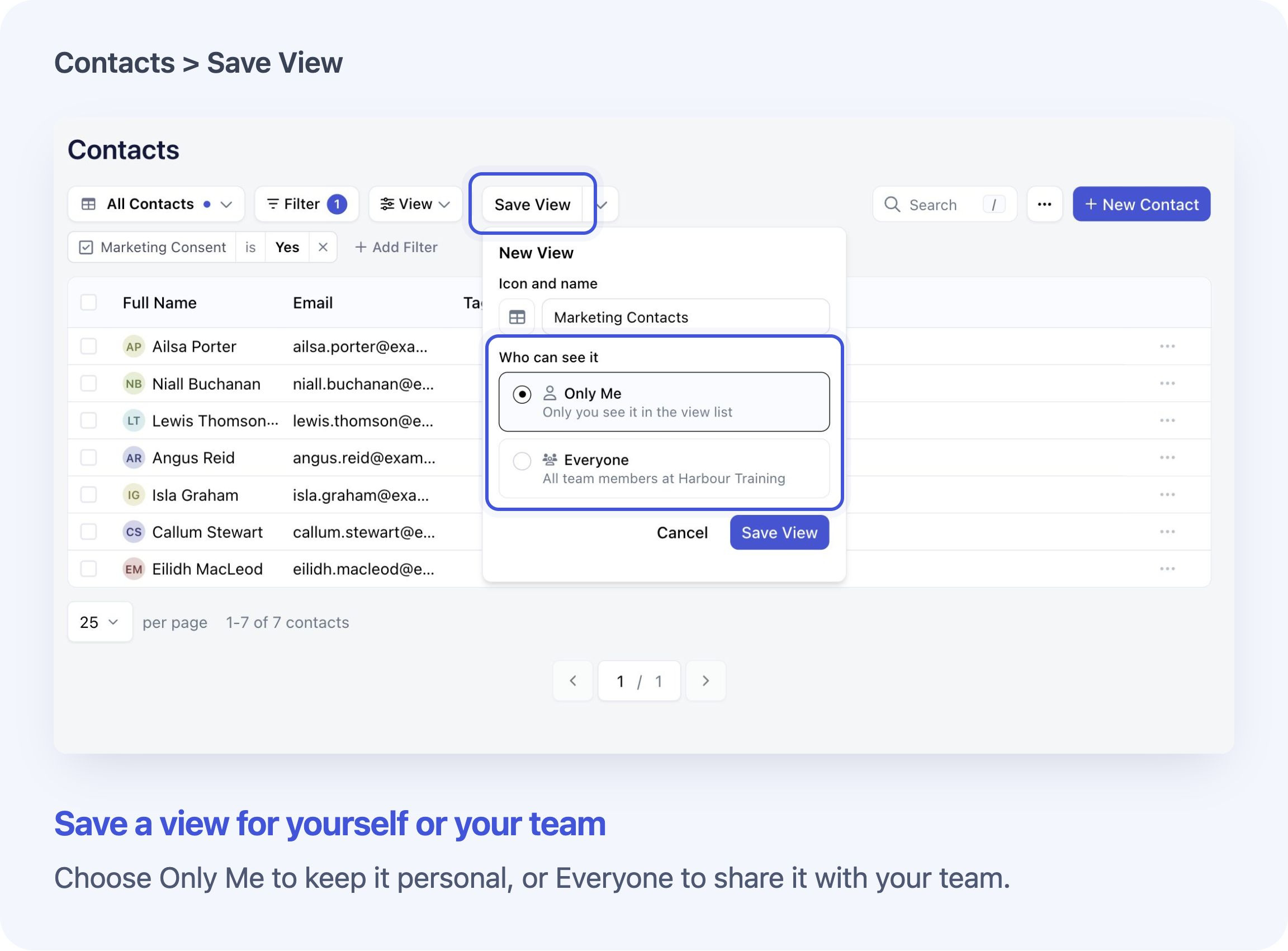
Choose Only Me to save a view for yourself. System Admins can choose Everyone to share a view with the team. You can add an icon or emoji too.
You can rename, copy or update views you have permission to edit. Changes you save to a Shared view affect everyone who uses it. Save a separate personal view if the changes are just for you. Built-in default views cannot be overwritten.
Sharing a view does not add it to your teammates’ Favourites. Each person chooses their own favourites.
If you favourite a saved view, save any changes before leaving the page. Otherwise, the favourite will open the last saved settings.
See Filter, Sort and Save Views for the full guide.
📅 Course layout choices have moved to the left
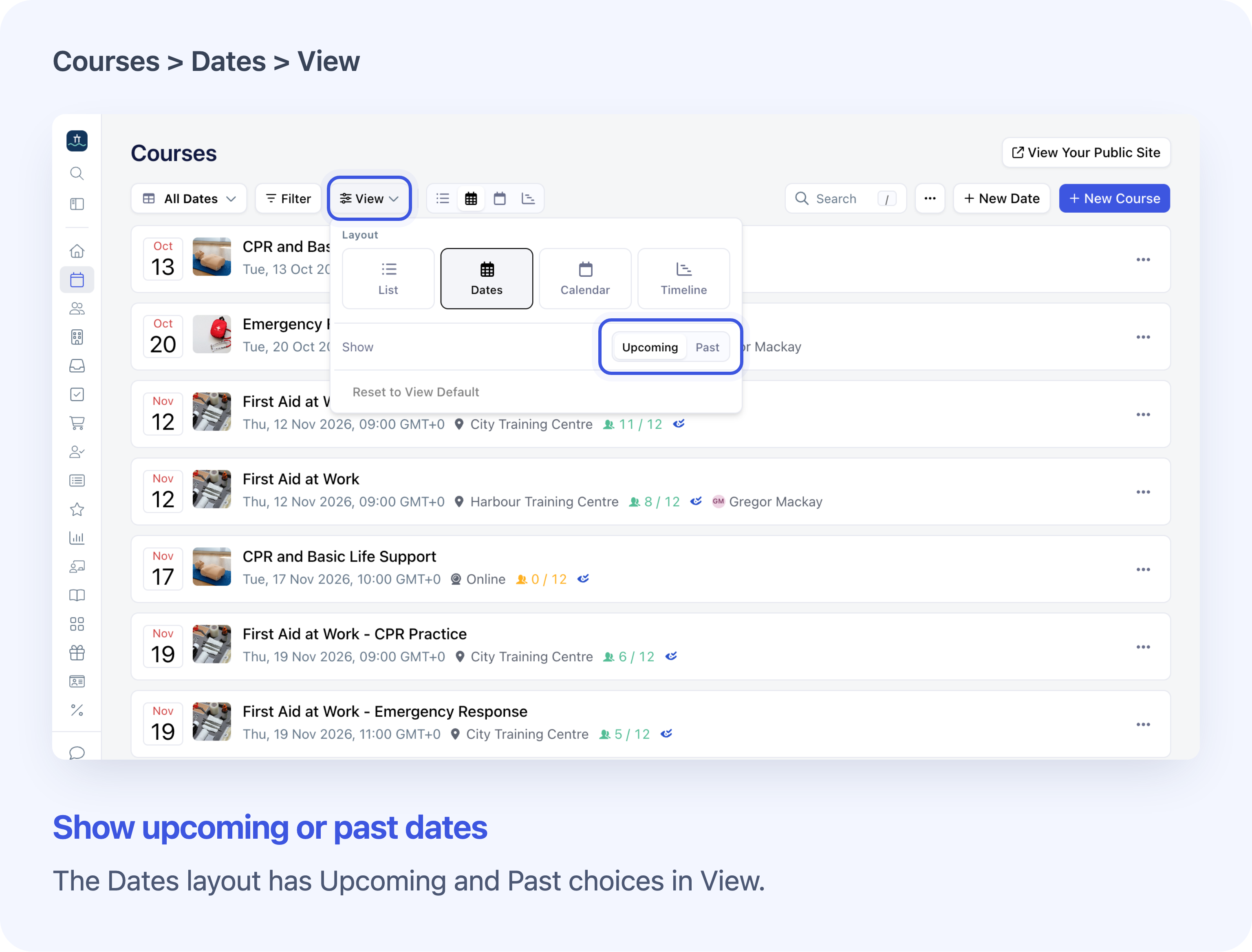
On Courses, the layout choices are on the left. Choose List, Dates, Calendar or Timeline. Calendar also has month, week and year options.
Use View for sorting, columns and other display settings.
List shows courses. Dates, Calendar and Timeline show course dates and use a separate set of saved views. Check which view is selected when you switch between course and date layouts.
See Find Courses in List, Date and Calendar Layouts for the full guide.
Good to know
- Favourites are available on every plan. You can save up to 50 per team member, per business account.
- A favourite does not change your access. You still need permission to open the record or view.
- A date filter such as the next 30 days moves with the current date.
- Certificate filters on Registrations use the latest issued certificate that has not been revoked.
Frequently asked questions
Favourites
What is a favourite? Does it make a copy of my record?
A favourite is a shortcut. It opens the original record or a saved view. It does not create a second course, contact, order or list.
What can I add to Favourites?
Courses, course dates, Contacts, organisations, forms, orders, registrations and saved views. Saved views can be built-in, shared with your team or personal to you. They can also belong to a tab within a course, organisation or form.
Individual tasks, team members, invoices, payments, memberships and settings cannot be added as record favourites. You can still favourite a saved view on a supported list, such as My Tasks or an Invoices view.
How do I add a record to Favourites?
Open the record and click its star. On a course, contact, organisation or form, the star is beside its name at the top of the page. For an order or registration, open its row and use the star in the panel header. A filled star means it is in your Favourites.
How do I favourite a saved view? Do I need to make a new one?
Open the dropdown showing the selected view’s name. Find the view, open its three-dot menu and choose Add to Favourites. You can favourite an existing built-in, shared or personal view. You do not need to make a copy first.
If you want a different set of filters or columns, save those settings as a view before favouriting it.
Is favouriting a course the same as favouriting a course date?
No. A course favourite opens the course. A course-date favourite opens that course with one particular date selected. To favourite a date, select it first, then click its star.
A date favourite stays linked to that date. It does not move to the next date when the course runs again.
What happens if I favourite a view inside a course or form?
It opens that record, its tab and the selected view. For example, a view favourited from a course’s Registrants tab returns to that course’s learners, rather than the main Registrations page.
The same view can be favourited within two different courses. Each shortcut opens the course where you added it.
Can I rename my favourites or put them in a different order?
Yes. Open a favourite’s three-dot menu, choose Rename, enter a name and press Enter. This changes only your shortcut’s name, not the record or saved view. Search uses your shortcut’s name too.
On a desktop, drag favourites into the order you want. To restore a shortcut’s original name, choose Rename again, clear the name and press Enter.
Will removing a favourite delete the record or saved view?
No. Remove from Favourites removes only your shortcut. The original record or saved view stays in place. You can add it to Favourites again later.
Removing a favourite and choosing Delete View are different actions.
Can my colleagues see my Favourites?
No. Each team member has their own list. A shared view can be available to the team, but each person chooses whether to add it to their own Favourites.
Will my Favourites be there on another computer? What if I use two business accounts?
Your favourites, names and order are saved for your user in that business account. They follow you when you sign in to the same account in another browser or on another computer.
If you switch to a different business account, it has a separate favourites list.
How many favourites can I have? Do I need a paid plan?
Favourites are included on every plan. Each team member can have up to 50 favourites in each business account. If your list is full, remove a shortcut you no longer need before adding another.
Why can’t I see a star or open a favourite?
The record must support Favourites, and your role must allow it. System Admins can favourite all supported record types. Course Owners and Facilitators can favourite courses and dates they can access. Forms require Course Owner or System Admin access. Contact, organisation, order and registration stars require System Admin access.
A favourite does not give you extra access. If a shortcut stops opening after your role or course assignment changes, ask a System Admin to check your access. Also check that you are in the right business account.
What happens if the record or saved view is deleted?
A favourite does not keep a backup. A deleted contact or saved view cannot be reopened; after you try to open it, its shortcut can turn grey. You can still remove that shortcut.
If a course date is removed, its favourite can open the course without that date selected. Remove the old shortcut and favourite the correct date. An archived course is different: its favourite can still open the archived course page.
Saved views
What is the difference between a favourite and a saved view?
A saved view keeps the filters and display settings for a list. A favourite gives you a shortcut to open it. Saving a view does not automatically put it in your sidebar; choose Add to Favourites if you want it there.
What does a saved view remember?
It remembers filters, sorting, visible columns, column order and widths. It also remembers layout, grouping and other display choices where that page supports them.
It does not save the Search text, the results page you are on or the particular calendar date you are looking at.
Will my saved view always show the same records?
No. It shows the records that match its filters when you open it. An unpaid-orders view changes as orders are paid or new unpaid orders arrive.
A date filter such as Next 30 days moves with today’s date. A fixed date range stays tied to the dates you chose.
Will a favourite remember filter changes I haven’t saved?
No. The shortcut opens the view’s last saved settings. Click Save View after changing filters, sorting or columns if you want to keep them.
If you are using a built-in view or a shared view you cannot edit, save your settings as a new personal view and favourite that instead.
Why is Save View missing after I type in Search?
Search text is separate from the view. Typing in Search does not change the saved view or make Save View appear. Change a filter or display setting to save a different view setup.
How do I keep a view to myself or share it with my team?
Choose Only Me when saving a view for yourself. Every admin role can create a personal view on a list they have access to.
Only System Admins can choose Everyone to share a view. Sharing does not give colleagues access to records their role cannot open, or add the view to their Favourites.
If I change a shared view, does it change for everyone?
Changes you save to a shared view affect everyone who uses it. Only System Admins can edit shared views.
For a change that is just for you, use Save as New View… and choose Only Me, or duplicate the view to make a personal copy.
Can I change one of Cademy’s built-in views?
You can adjust its filters and display settings while using it, but you cannot overwrite the built-in version. Save your settings as a new view, or choose Duplicate to make a personal copy.
Does sending someone a view link share the view with them?
No. A link opens a view the person already has permission to use. It does not change Only Me to Everyone or give access to a restricted page. It also does not include unsaved changes or your Search text.
Does deleting a saved view delete the records in it?
No. Delete View removes the saved filters and display settings, not the courses, contacts, orders or other records it showed.
Deleting a shared view affects everyone who uses it. A deleted view cannot be restored from the view menu. If you only want to remove your sidebar shortcut, choose Remove from Favourites instead.
Filters and course layouts
Do filters or sorting change my records?
No. Filters choose which records you see. Sorting changes their order, and column settings change the information shown. These choices do not edit or delete the records themselves.
Why can’t I find a record I know exists?
Check the selected view, its filters and any text in the list’s Search box. Switching views does not clear that Search text. Also check your business account, access and whether you are on a main list or a tab within a particular record.
On Courses, List shows courses. Dates, Calendar and Timeline show scheduled dates. Check the calendar period too. A course with no scheduled dates will not appear as a calendar event.
Why do my saved views change when I switch course layouts?
Course-list views and course-date views are separate. List uses course views; Dates, Calendar and Timeline use date views. A Contacts view or Orders view is also separate from a Courses view.
Why does a saved calendar view reopen at a different month?
The calendar period is not part of the saved view. The same browser can remember it separately. Check the displayed month or year, then choose the period you need or select Today.
A saved calendar view keeps its supported layout and display settings, rather than fixing the calendar to one date.