🤖 Cademy MCP: Use Cademy in Claude and ChatGPT
Ask Claude or ChatGPT to manage your courses in Cademy.
You can now connect Cademy to Claude, ChatGPT and other AI apps. Then ask your AI app in plain English, by typing or speaking:
- "Which facilitators are available to teach Manual Handling on Thursday?"
- "Email everyone on the First Aid waitlist about the new date."
- "Which course made the most revenue this year?"
Your AI app looks up the answer in your Cademy account. Before it sends emails, changes registrations or handles money, it shows you what will happen and waits for you to confirm.
This is called Cademy MCP, and it works on every Cademy plan, including Free.
New to Cademy? Cademy is an all-in-one platform for training providers. Sell courses, take bookings, deliver online learning and manage your learners in one place. Start for free, then connect your AI app.
What is Cademy MCP?
MCP (Model Context Protocol) is an open standard that lets AI apps connect to other software. Cademy MCP connects your AI app to your Cademy account, so it can do much of what you do in the Admin dashboard: find information, prepare changes and make them when you confirm.
In Cademy, you'll find it under Settings → Connected AI Apps.
What you can do with Cademy MCP
Your AI app can look up almost anything you can see in the Admin dashboard, such as courses, course dates, registrations, orders, invoices and certificates. It can also make most everyday changes, such as registering learners, accepting booking requests, creating orders and sending invoices. Orders, invoices and payments are for System Admins only.
Here are some examples.
Check facilitator availability and schedule course dates
Ask which facilitators are available on a day. Cademy checks their working hours, the course dates they're already teaching, their time off and their connected Google or Outlook calendars. Then ask your AI app to assign someone, add a course date or copy a course.
- "Who's available to teach in Leeds on Thursday 3 December?"
- "Add a course date for 20 people and assign Harry."
- "Copy our Manual Handling course and call it Manual Handling Refresher."
Email your waitlist about a new course date
Ask your AI app to find the right people, such as everyone on a course waitlist, everyone who booked in the last three months or everyone whose certificate expires soon. It can write the email for you.
Before anything is sent, you see how many people will get it, the first 50 names and the email itself. Nothing is sent until you confirm.
Emailing contacts, a waitlist or the people who placed orders needs a System Admin. A Course Owner can also email the waitlist of a course they own.
Mark attendance and issue certificates
At the end of a course, tap the mic in the Claude or ChatGPT app on your phone and ask:
- "Mark everyone as attended except Ruth."
- "Email them their certificates."
- "Ask today's group for feedback."
Facilitators can do this for the course dates they're assigned to.
Move, add or cancel registrations
Ask your AI app to move a learner to another course date, or to add or cancel a registration.
If the new course date has a different price, only a System Admin with the Money permission turned on can make the move. You'll see the difference before you confirm.
Get revenue and registration reports as charts
Ask about your registrations, revenue, unpaid invoices, expiring certificates or form responses. Your AI app can show the answer as a table or chart, or make a PDF or slides. It can also export a list from Cademy to a spreadsheet.
Revenue and invoice information is only available to System Admins.
Import registrations from a spreadsheet
Attach a spreadsheet of names and ask your AI app to register them on a course date. It shows you which contacts are new and which already exist in Cademy. Nothing is imported until you confirm.
Permissions and safety
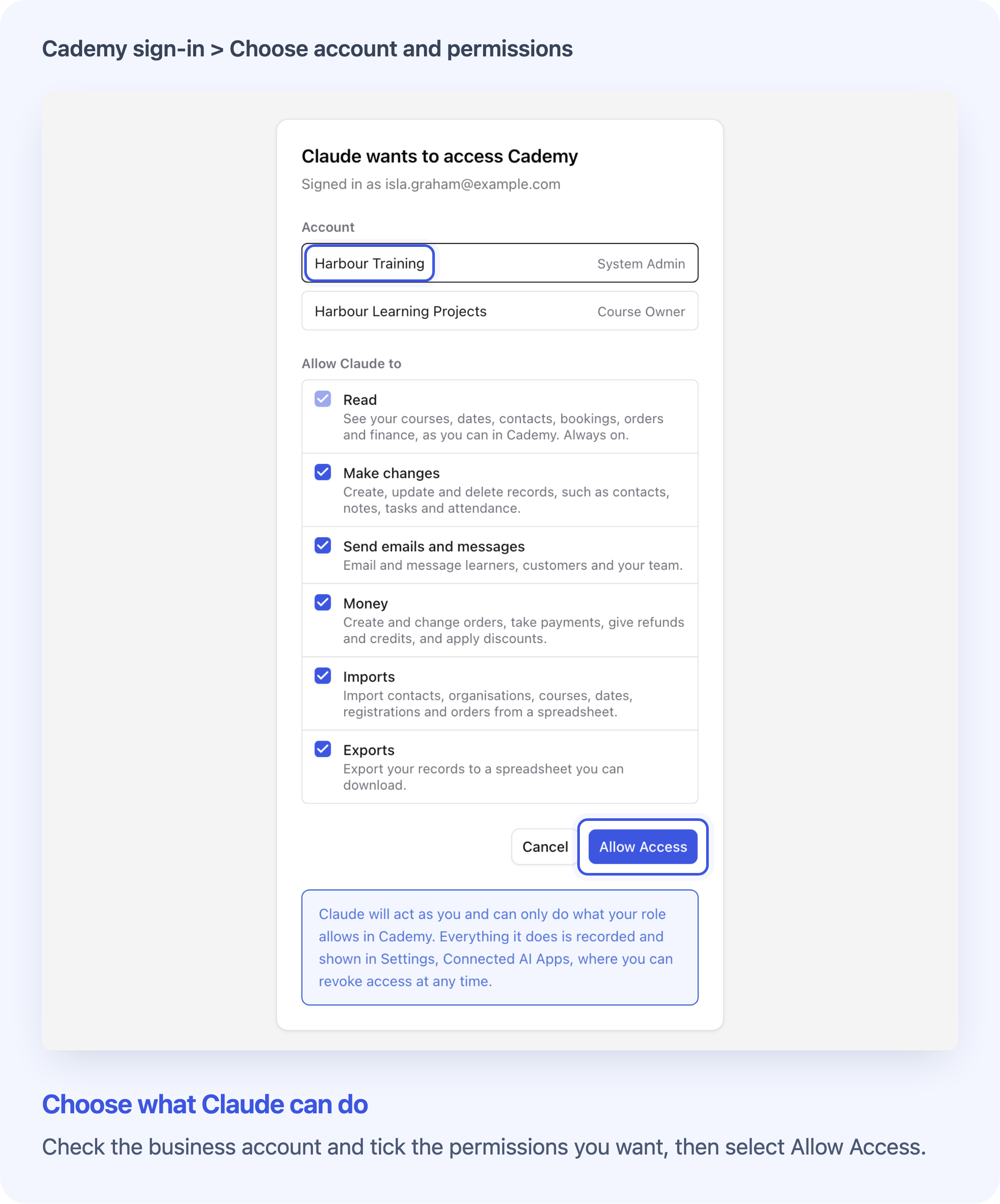
- It has the same access as you. Your AI app can only see and do what your Cademy role allows. For example, a Facilitator's AI app only sees the course dates they're assigned to.
- You choose what it can do. When you connect, you choose whether it can make changes, send emails, handle payments, import and export. Turn them all off to only let it look things up.
- It asks before important changes. Before it sends emails, changes registrations or handles money, it shows you what will happen. Nothing changes until you confirm. Small edits, such as correcting a spelling, are saved straight away.
- It can't give refunds. It can only prepare a refund. A System Admin then checks and confirms it in Cademy.
- You can see what it did. Under Settings → Connected AI Apps, you can see what each AI app did and remove its access at any time.
Some things can only be done in the Admin dashboard, such as most account settings, integrations, payment settings, team members and passwords.
Which AI apps work with Cademy MCP
Cademy MCP works with Claude, ChatGPT, Codex and other AI apps that let you add a custom connector. We recommend Claude or ChatGPT on a paid plan. Some free plans limit connectors or don't allow changes.
You don't need the most expensive AI model. Cademy MCP works well with faster, cheaper models too.
How to connect Cademy to Claude or ChatGPT
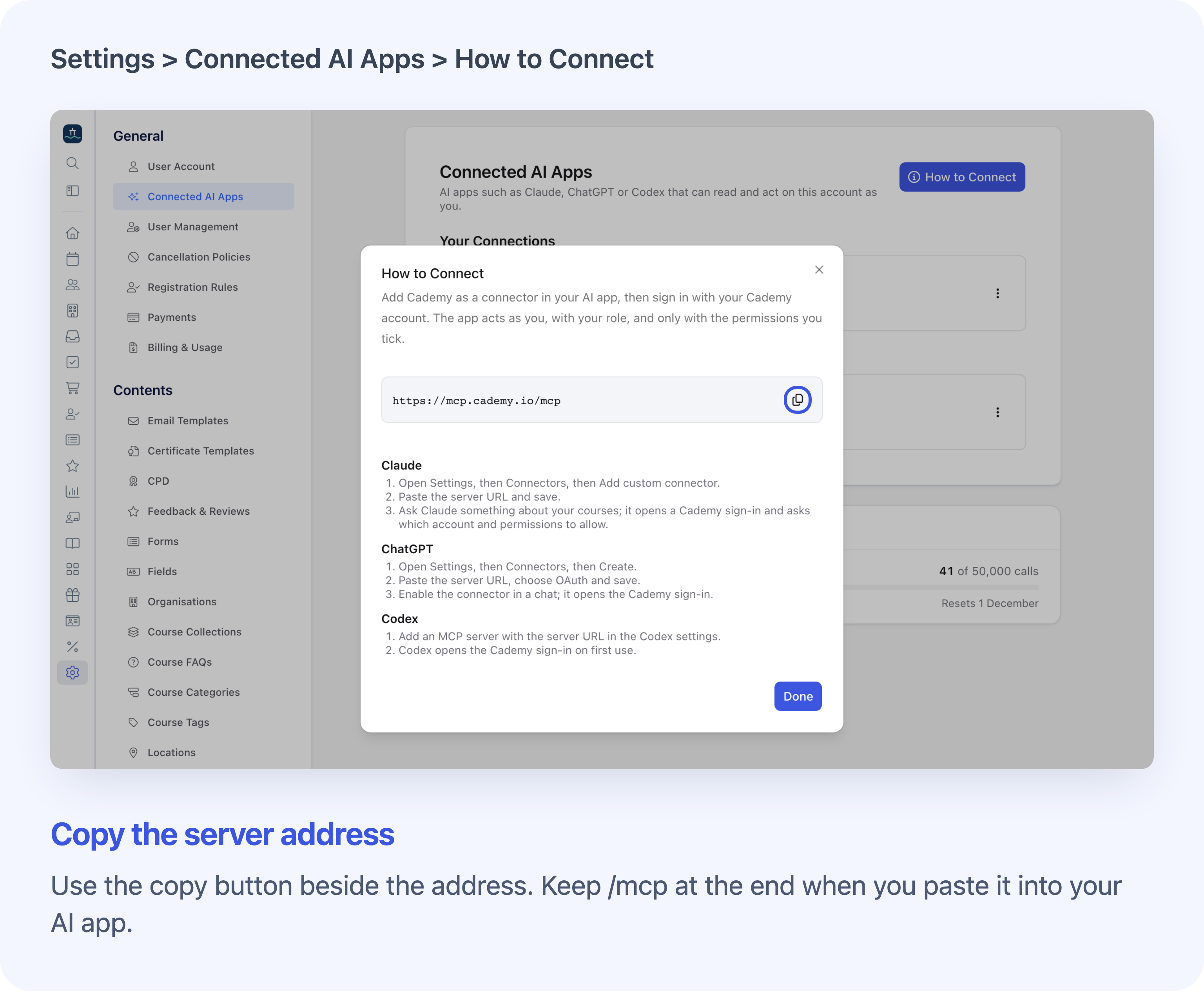
- In Claude or ChatGPT, add a custom connector and paste
https://mcp.cademy.io/mcp. - Sign in to Cademy and choose what your AI app can do.
- Start a chat and ask.
You don't need an API key or a developer. See the step-by-step guide for Claude, ChatGPT and other AI apps.
Frequently asked questions
Does Cademy MCP cost extra?
No. It's included on every Cademy plan, including Free. Each plan includes a number of AI app requests a month: 5,000 on Free, 50,000 on Pro and 250,000 on Teams. One question can use several requests. You can check your usage under Settings → Connected AI Apps. See plans and pricing.
Do I need a paid Claude or ChatGPT plan?
We recommend one. Free plans may only allow one connector or may not let the AI app make changes. Check your AI app's plan.
Does it work with Gemini or Copilot?
You can add Cademy to any AI app that supports custom MCP connectors. If your app asks for a client ID and secret, contact Cademy Support. We recommend Claude or ChatGPT.
Will it send emails I didn't ask for?
It only sends the emails you ask for, and shows them to you first. When it changes something, Cademy can still send its usual automatic emails, such as a confirmation to the learner. The preview shows you which emails will go out.
Can my facilitators use it?
Yes. Each person connects with their own Cademy login, and their AI app has the same access as them. A Facilitator can check their course dates and mark attendance, but can't see other courses, orders or invoices.
Who can see my learners' information?
Your AI app can see the Cademy information your role allows, such as names, emails and registrations. The company behind the AI app handles it under its own terms. Check that this fits your data protection rules before you connect.
How do I remove an AI app's access?
Go to Settings → Connected AI Apps, open the app's menu and choose Revoke…. Access stops within a minute. Changes it already made stay in Cademy.
Is this the same as the Cademy API?
No. The API is for developers and needs an API key. Cademy MCP uses your normal Cademy login and works in a chat. Read about API keys.
Can it create lessons and quizzes?
No. Lessons, quizzes, certificate designs and uploading files are done in the Admin dashboard.