
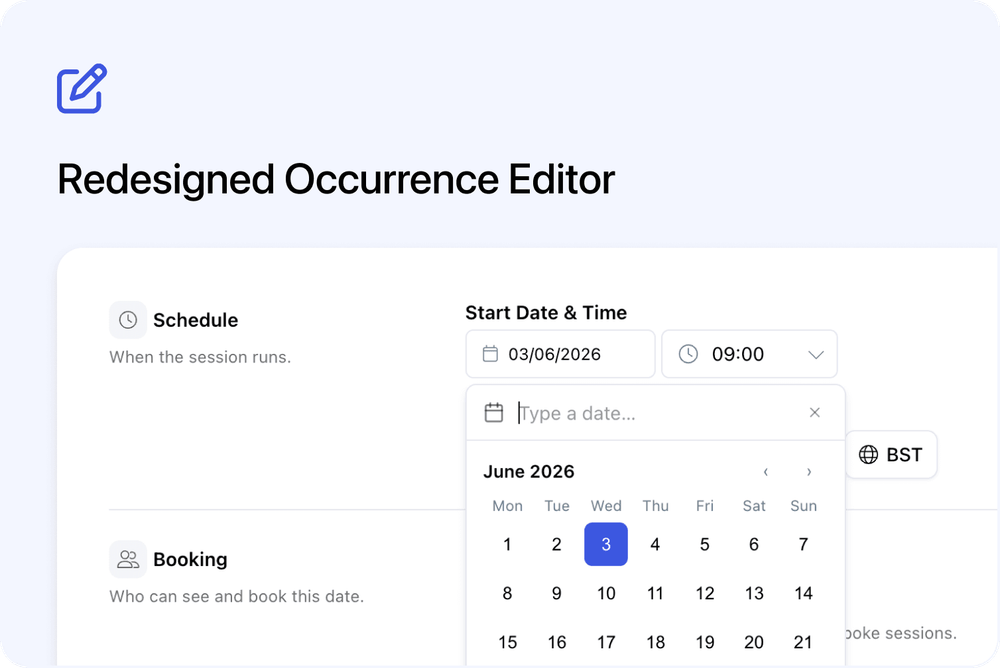
We’ve redesigned the occurrence editor dialog to make course dates easier to create and edit.
The new layout is cleaner, more structured, and easier to scan. Settings are now grouped into clear sections, so you can move through the date setup more naturally.
What’s changed
🧭 Cleaner layout
The occurrence editor now has a refreshed design with clearer sections and dividers.
Settings are grouped into areas such as:
- Schedule
- Booking
- Delivery
- Pricing
- Team
- Other
- Custom fields
This makes the dialog easier to read and helps you find the setting you need faster.
📅 Improved date picker
The date picker has been improved.
You can still choose a date from the calendar, but you can also type a date to jump to it more quickly.
This is helpful when creating or editing dates that are further in the future.
🔒 Clearer Public and Private visibility options
The visibility setting has been redesigned.
You can now choose between clearer Public and Private options in the Booking section.
When a date is set to Private, you can also link it to an Organisation.
This is useful for in-house or client-specific course dates.
👉 Read more about In-House Courses for Organisations
🧩 Custom fields for occurrences
The occurrence editor now includes a Custom fields section.
This lets you save extra information on a specific course date, such as:
- Session budget
- Parking directions
- Admin contact details
- Minimum places needed
- Room setup notes
- Caterer information
👉 Read more about Custom Fields for Courses and Occurrences
Why this matters
The redesigned occurrence editor makes it easier to manage course dates.
It gives you a clearer place to update the schedule, booking settings, delivery details, pricing, team members, internal details, and custom occurrence fields.
It also makes the new private Organisation link easier to find when setting up in-house course dates.
Good to know
This applies to occurrences
This update applies to the occurrence editor used for course dates.
It does not change the public course page or learner booking experience.
Where to find it
Open a course from the Admin dashboard.
You can find the redesigned dialog when creating or editing a date from the course dashboard or from the occurrence cards on the course dashboard.