📅 Schedule Lessons Around Course Dates
Set preparation and follow-up lessons around each learner’s booked date.
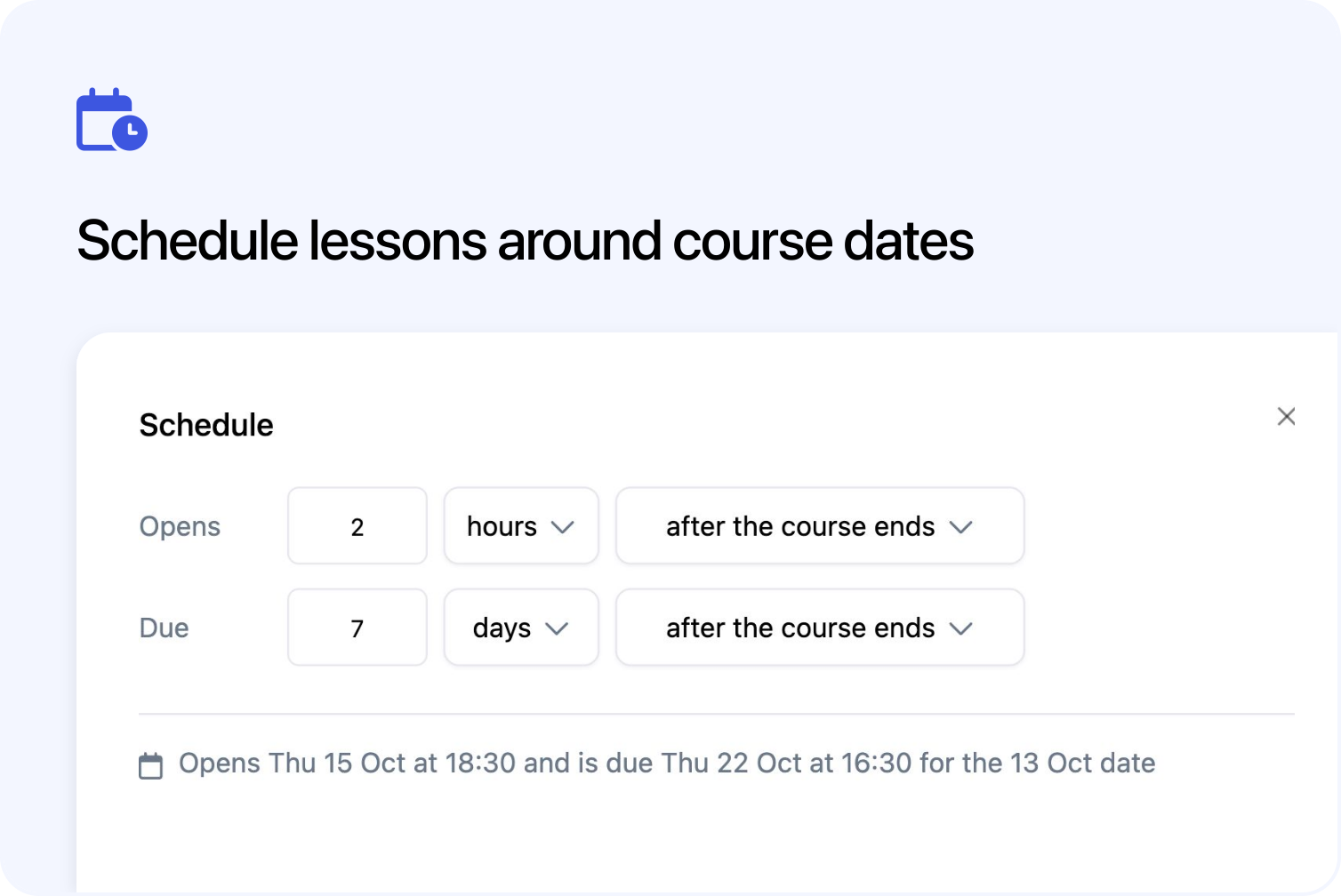
You can now schedule online lessons around each learner’s booked course date in Cademy. Set preparation work before a session or release follow-up learning afterwards, using the same lessons for people attending on different dates.
This is available on blended courses, which combine scheduled sessions with online lessons hosted in Cademy. The update also adds hours-based timing after enrolling, clearer learner dates and changes to lesson notifications.
Open lessons and set deadlines before or after a course date

Both Opens and Due offer four course-date options: before the course starts, after the course starts, before the course ends and after the course ends. Choose days or hours for each, using whole-number amounts up to 365 days or 8,760 hours.
For example, make preparation due one day before the learner’s session, or open follow-up work two hours after it finishes. Days keep the course date’s local clock time across seasonal clock changes; hours count elapsed time.
The rule follows each learner’s booking. Changing the relevant start or end time, or moving a learner to another date of the same course, changes their calculated lesson dates. Moving a Registration also resets attendance and learning progress, so check the moving guide first.
For a block of sessions, the start is the first session’s start and the end is the final session’s end. You cannot select a different session within that block as the timing point.
Schedule lessons in hours after enrolling

On-demand and blended courses can also use hours for opening times and deadlines after enrolling, alongside days. This suits a short delay between enrolment and the next lesson. For a learner booked through an Order (the purchase record), timing starts from its recorded paid date, or its created date if no paid date is recorded. For learners added without an Order, it starts when their place on the course is created, not when they first open a lesson.
Existing fixed-date and days-after-enrolling choices remain available.
Preview lesson dates and check for conflicting deadlines

The Schedule dialog shows how a course-date rule applies to the next upcoming date. If there is no upcoming date, you can still save the rule without a preview. Saved timing summaries also appear in Contents.
Some combinations that put a deadline before opening are blocked. Other clashes affecting particular dates show a warning that still allows saving. Not every combination can be checked, especially when mixing enrolment-based and course-date timing.
Show learners their booked date and lesson timings

The learner’s course outline shows their booked date in Your Course, alongside opening and due-date information for published lessons they can access. A locked lesson explains when it opens, with the calculated date, time and timezone.
Learners on different dates see their own timings, even when they share the same course content. The learner guide explains where to find these details.
Include manually added and imported learners in lesson reminders

Future lesson notifications are prepared for each learner’s Registration, their place on a course. This includes group-booking participants and eligible learners added manually or imported without an Order. Relevant date changes, learner moves and lesson-timing edits update those future reminders.
The emails name the lesson and link to it. Sending checks the learner’s current timing and access, and skips cancelled registrations and completed lessons. A recorded email address and enabled account email sending are required.
Turning off a registration or import confirmation does not turn off lesson notifications. Opening notifications are checked hourly and deadline reminders daily; hours-based deadlines do not add an hourly countdown email. Adding a learner after an opening or deadline has passed does not create a retrospective notification for that moment.
Preview scheduled lessons without learner locks

Preview as Student lets you review scheduled lesson content even if you are also enrolled on the course. It does not apply learner release restrictions or track progress. To check the actual opening times and deadlines, use a real test learner’s registration.
System Admins and Course Owners with access to the course can manage these settings in the lesson’s Schedule dialog in the course editor. See Lesson Drip Feeds, Schedules & Due Dates for the complete setup and timing rules.
Frequently asked questions
What if a learner has no booked date?
Lessons whose opening depends on a course date stay locked with Awaiting Date. Course-date deadlines have no calculated date until a booking is assigned. Assigning a date establishes the timing; it does not necessarily open the lesson immediately.
Does a deadline stop the learner accessing the lesson?
No. A due date is a completion deadline, not an access expiry. A late booking can leave an incomplete lesson already Overdue. Course-access limits and any earlier-lesson requirements still apply.
Can I set a different scheduling rule for one learner?
No. Rules belong to the lesson. Their calculated dates differ according to each learner’s booking or enrolment, but there is no individual lesson-schedule override.