🧹 Cancel Orders Without Sending Emails and Delete Orders or Registrations
Skip cancellation emails and remove test or duplicate booking records.
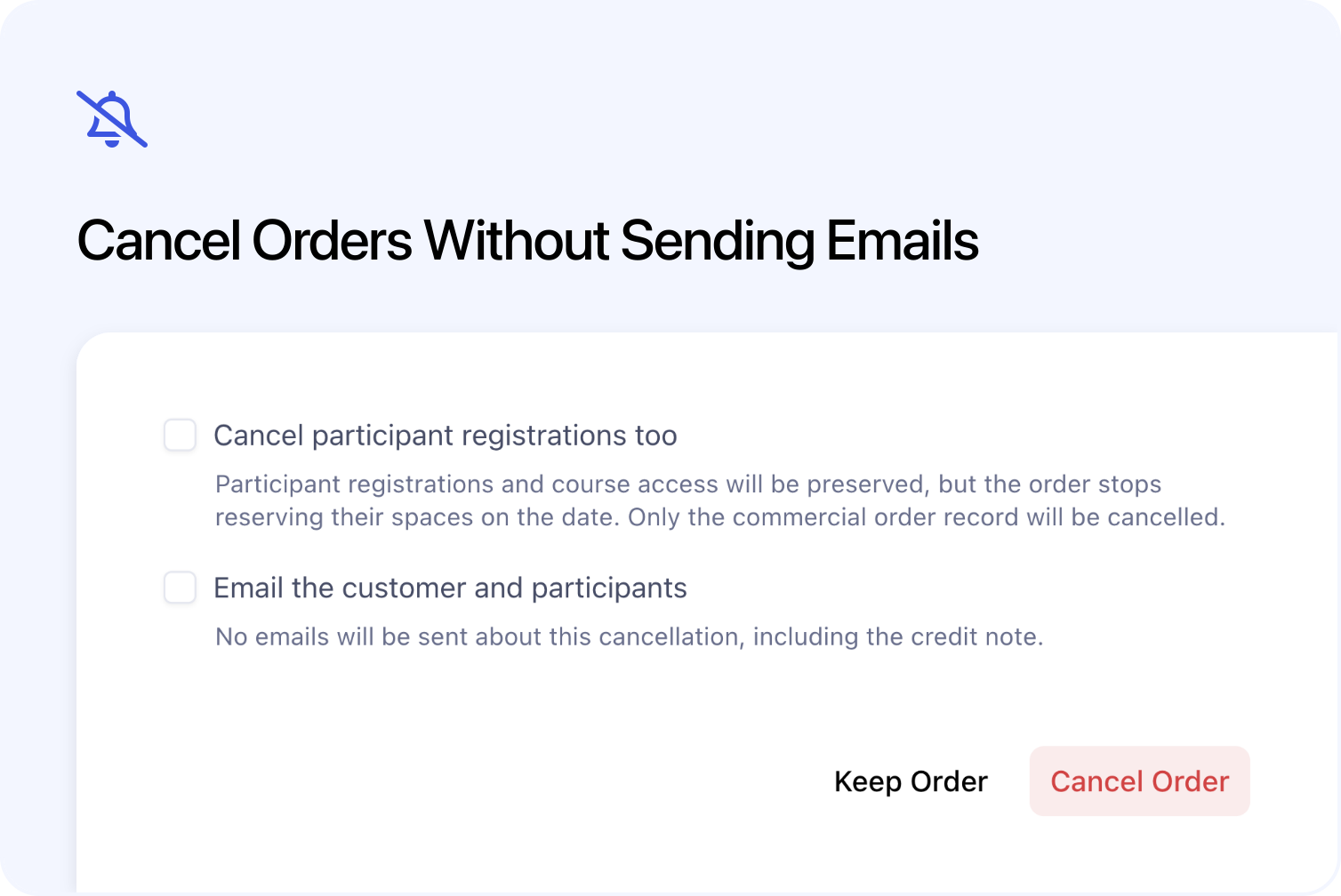
You can now cancel an order without sending Cademy’s cancellation emails, choose whether customer emails are sent when removing items from an order, and delete eligible orders or registrations created by mistake.
These actions serve different purposes. Cancel keeps a record of a genuine booking that will not go ahead. Delete removes a test, duplicate or mistaken record that should not have existed. An order records a purchase; a registration is one person’s place on a course.
Cancel an order without cancellation emails
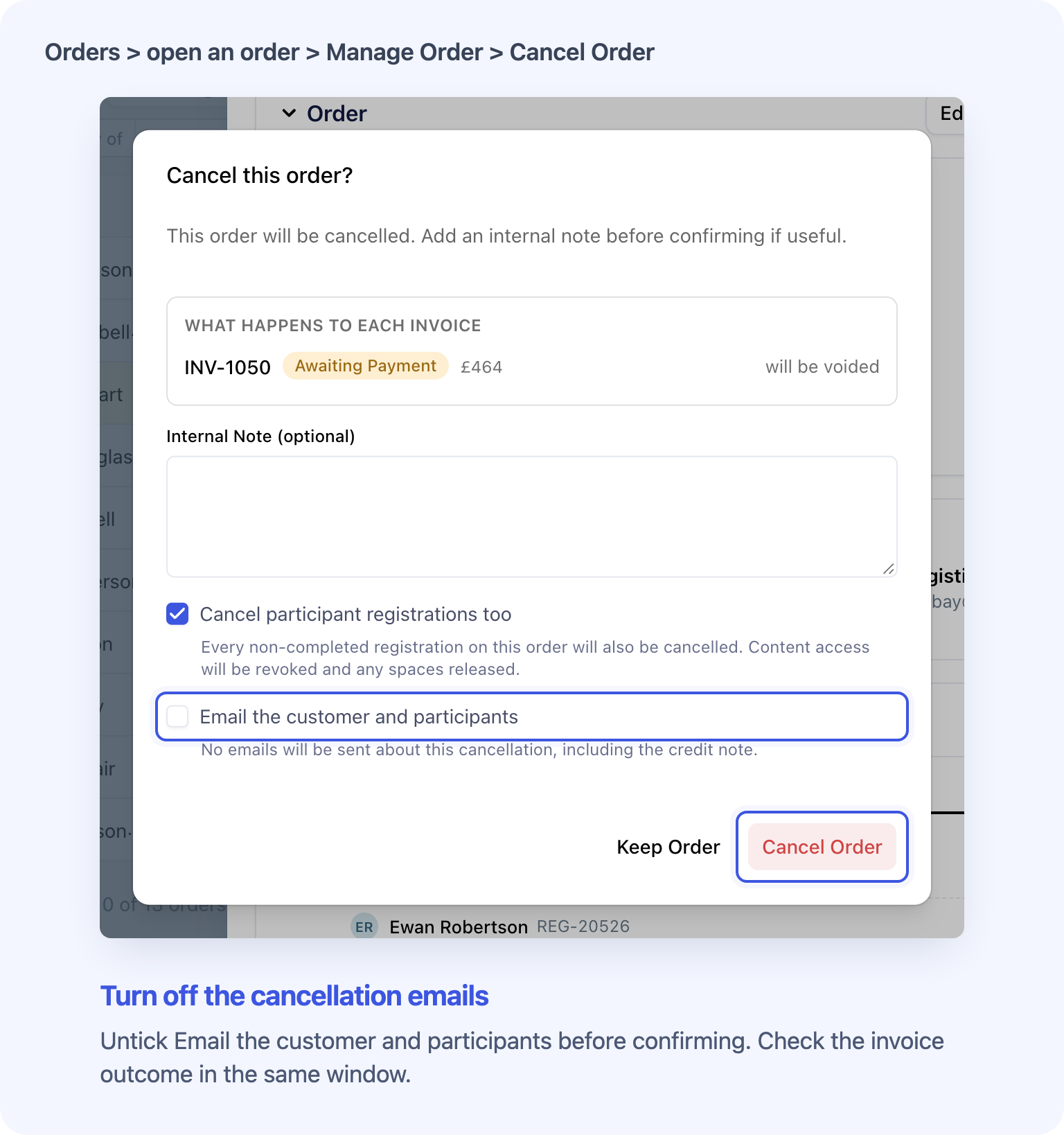
If you have already told the customer about a cancellation, you can cancel the order without sending another cancellation message from Cademy. This also helps when an imported order was already cancelled in your previous system.
In Orders, open the order and select Manage Order → Cancel Order. Untick Email the customer and participants to skip Cademy’s cancellation emails to the customer, participants and admin recipients. Any credit-note email created by that cancellation is skipped too.
The box starts ticked each time you open the cancellation window. Your email choice applies to that cancellation only. Leave it ticked when you want the usual notifications.
The financial choices still apply. Refunds and credit notes are processed according to what you select. Turning off an email does not turn off the refund or change the amount retained.
See whether an order was cancelled without emailing
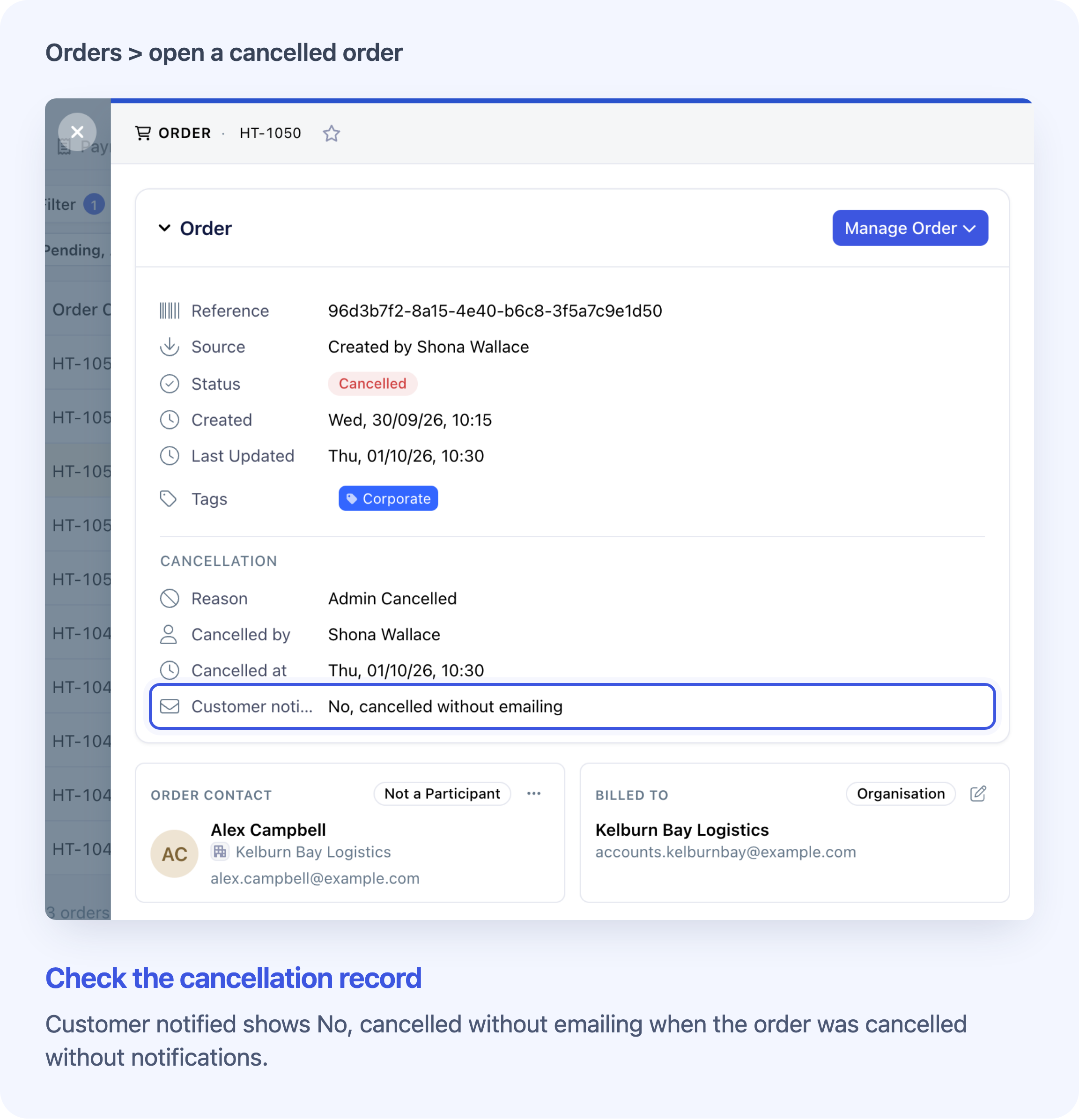
After cancelling with the email box unticked, the order’s cancellation details show Customer notified: No, cancelled without emailing. Your team can check the recorded choice when reviewing the order later.
This extra row appears when you cancel without sending cancellation emails. It is not added to ordinary cancellations with notifications enabled.
See Cancel an Order or Refund a Payment for the full cancellation and refund options.
Control customer emails when removing items from an order
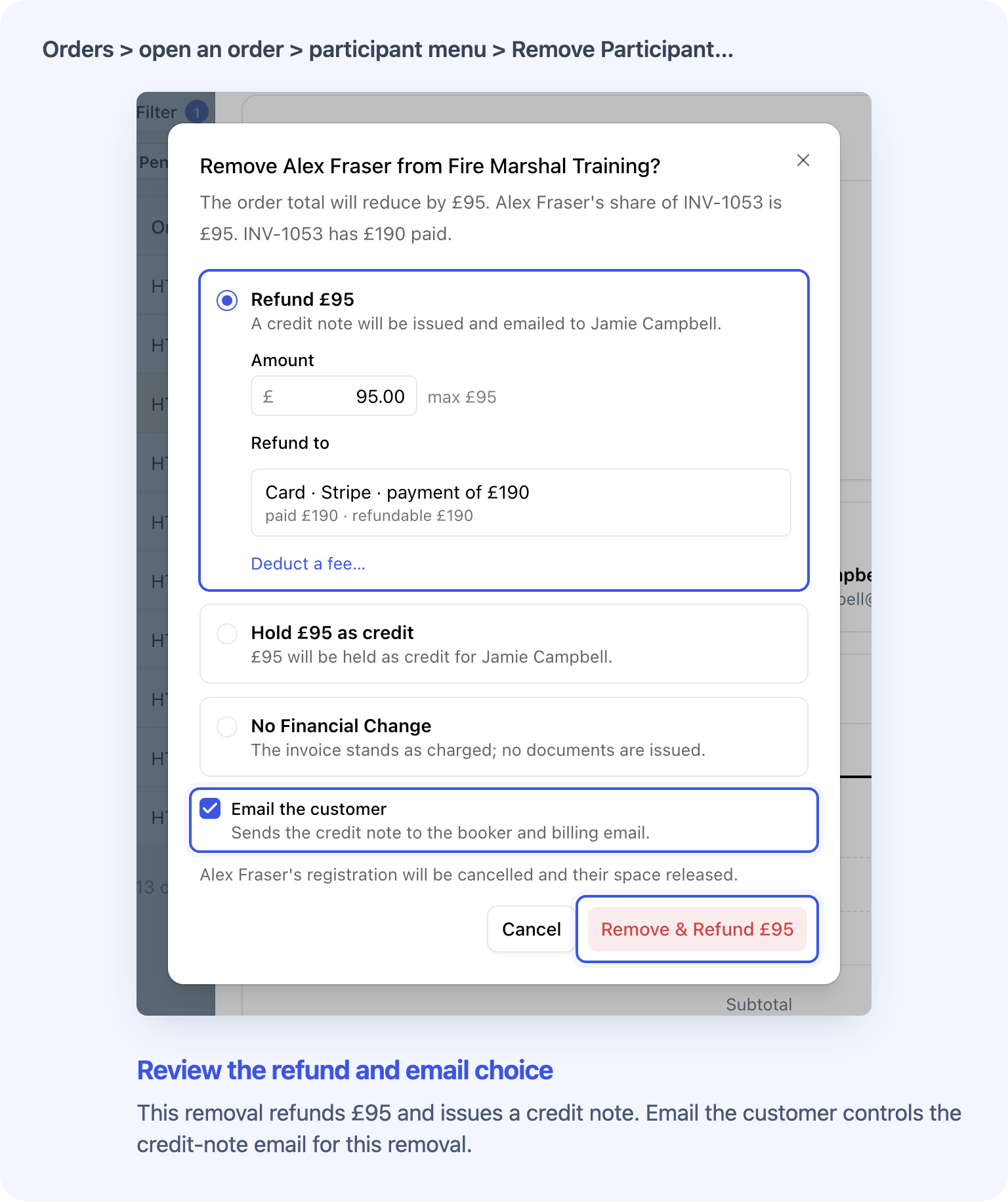
When removing a space, participant, course or custom item from an order, Email the customer lets you choose whether to send the resulting credit-note email. A credit note records a reduction in the amount charged.
Untick the box to skip that email while still applying the removal and your selected refund or customer-credit outcome. Leave it ticked to send the credit note as usual. The picture shows the shared choice on a participant removal.
If you choose No Financial Change, there is no credit-note email choice because that outcome creates no credit note.
Choose whether to email a replacement invoice
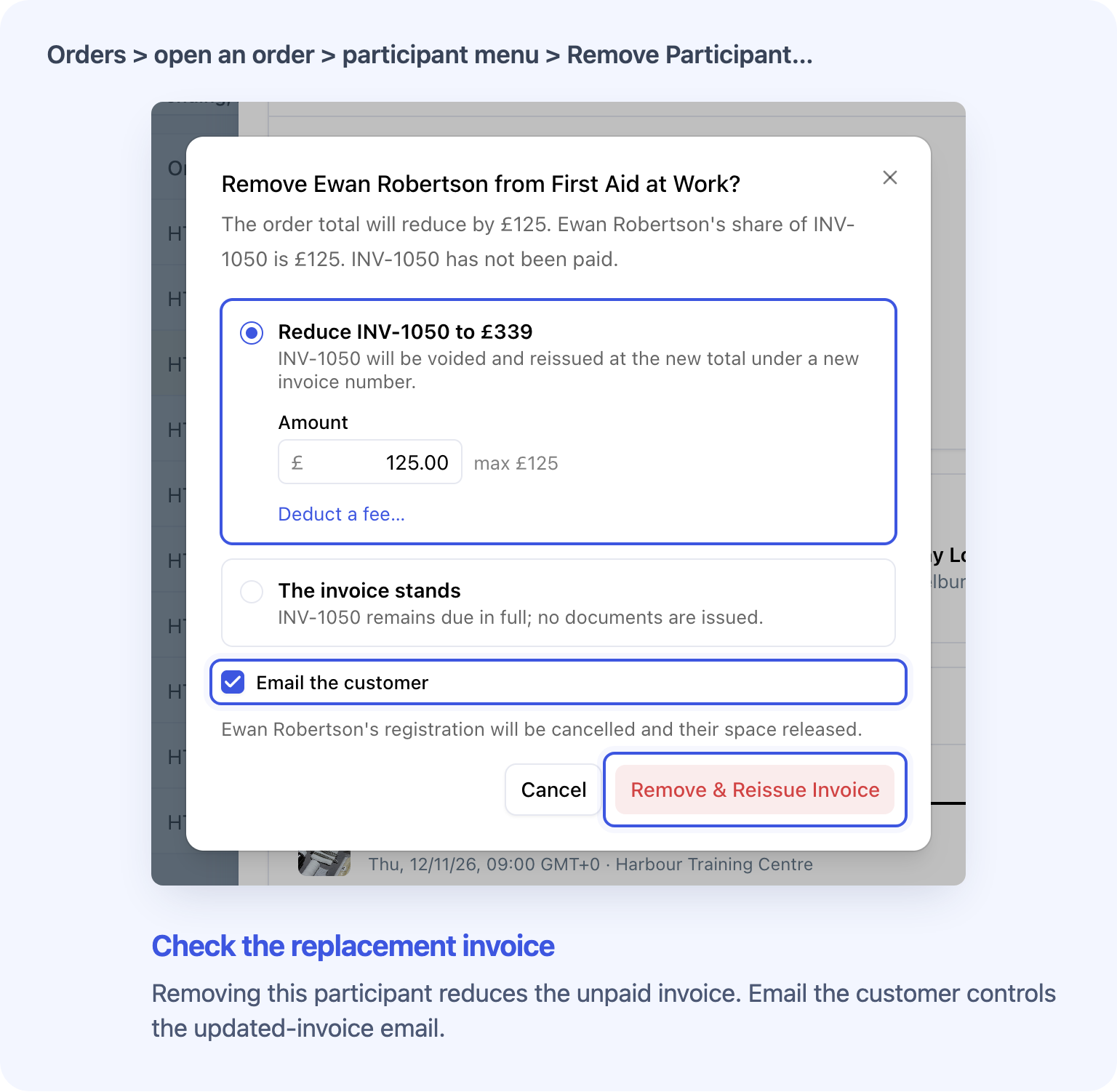
The same Email the customer choice covers a replacement invoice when a removal changes an unpaid invoice. Unticking it skips the updated-invoice email; the replacement invoice is still created.
If the old invoice has open payment requests, unticking the box cancels those requests without creating replacements. Leaving it ticked allows eligible requests to be recreated for the new invoice. Check how you will collect any remaining amount before confirming.
Other invoice edits retain their own email controls.
See Change an Existing Order and Manage Credit Notes and Customer Credit for the detailed financial outcomes.
Delete test or duplicate orders
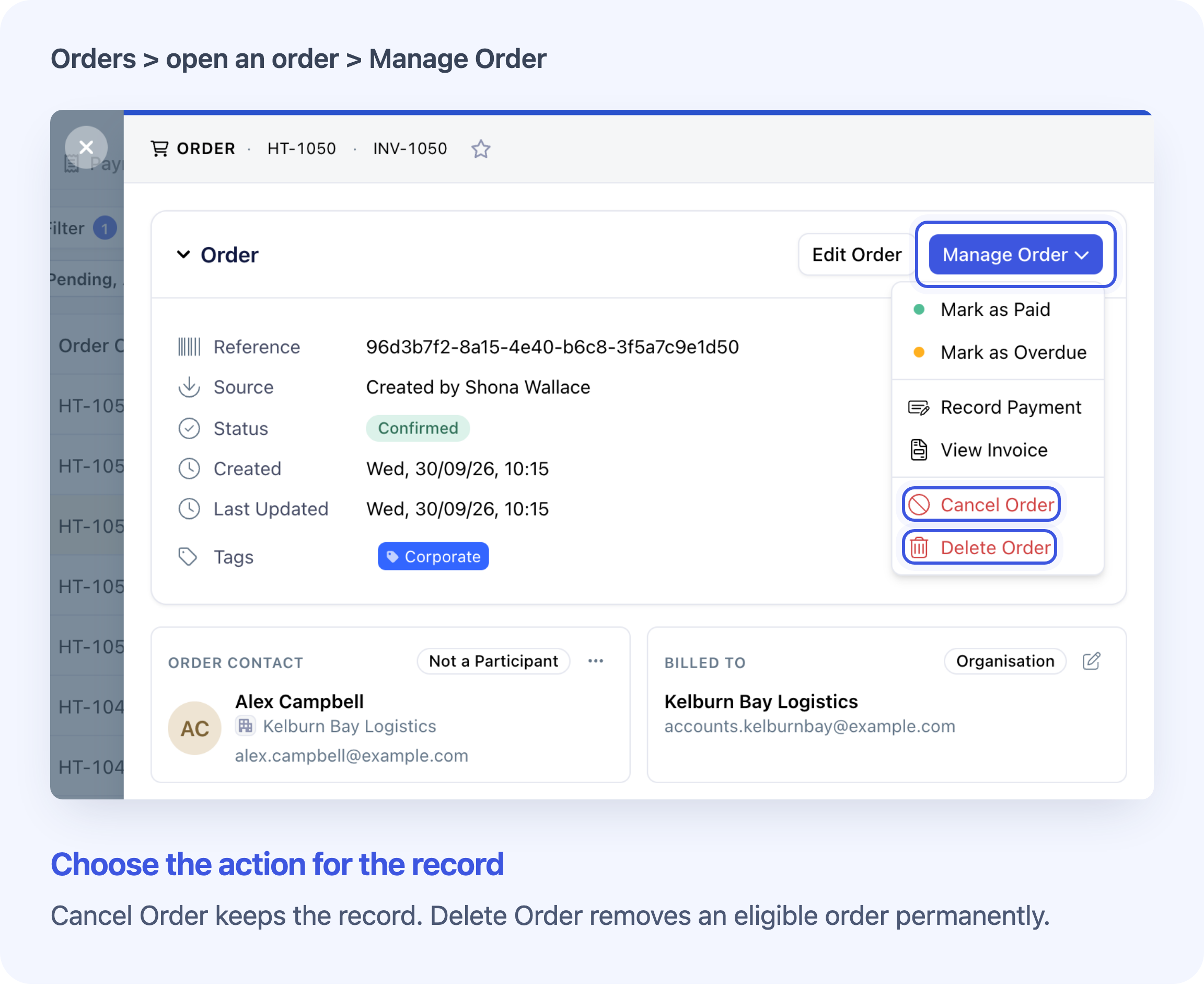
Delete Order removes an eligible test, duplicate or mistaken order from Cademy’s normal lists, reports and the learner’s account. It also removes the registrations belonging to that order and releases the course spaces they used.
For example, you can remove an unpaid test order created while checking your booking process. The action is available from Orders → open the order → Manage Order, including on eligible orders that are already cancelled. Order actions require System Admin access.
For a genuine booking that will not go ahead, use cancellation to keep its history.
Review the order before confirming deletion
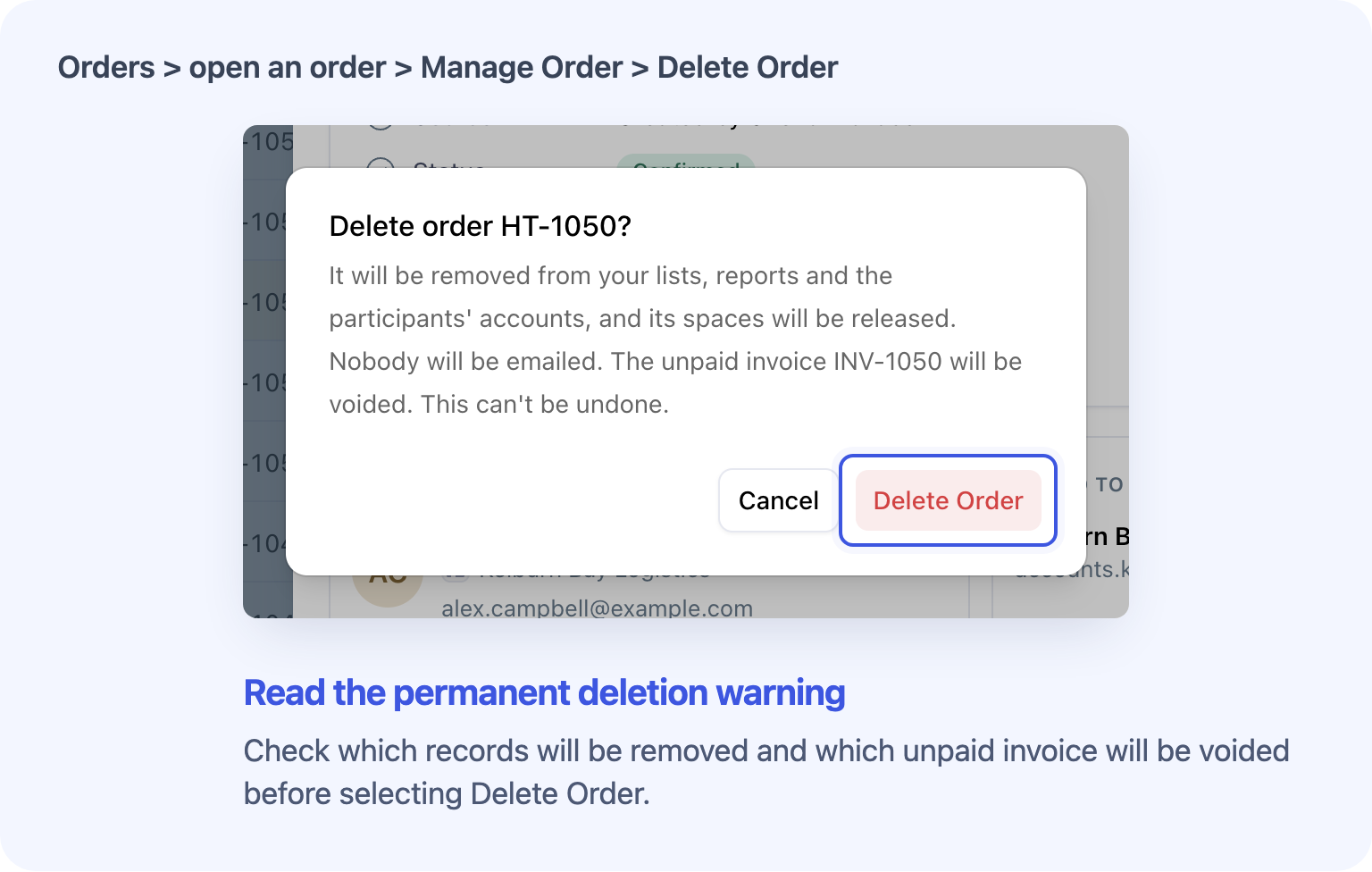
The confirmation explains the effect on the order, registrations, spaces and unpaid invoices. You can select Cancel to leave the record in place. Once you confirm Delete Order, there is no restore action.
An active order is cancelled without Cademy cancellation emails before being removed. Unpaid issued invoices are voided, so they are no longer due; those voided invoices remain in the invoice list. Draft invoices are removed. Deletion does not erase accounting history.
Orders with payment history cannot be deleted
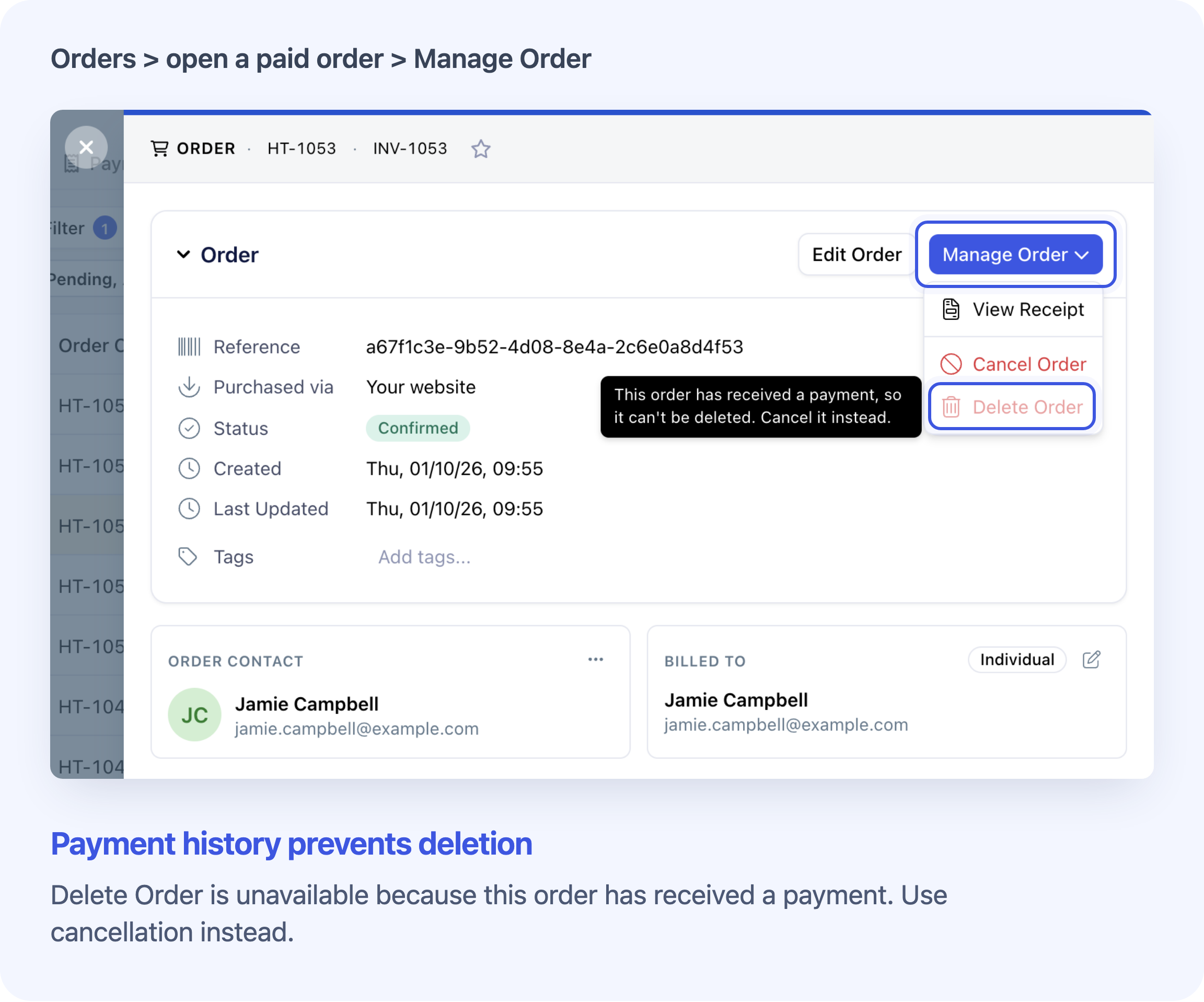
Free orders and unpaid orders can be deleted only if they have never received a payment or had customer credit applied.
Card, PayPal, recorded manual and gift-card payments count. So do deposits, instalment payments already received and applied customer credit. Refunding the money does not make an order eligible for deletion. Keep that financial history and cancel the order instead.
Delete standalone course registrations
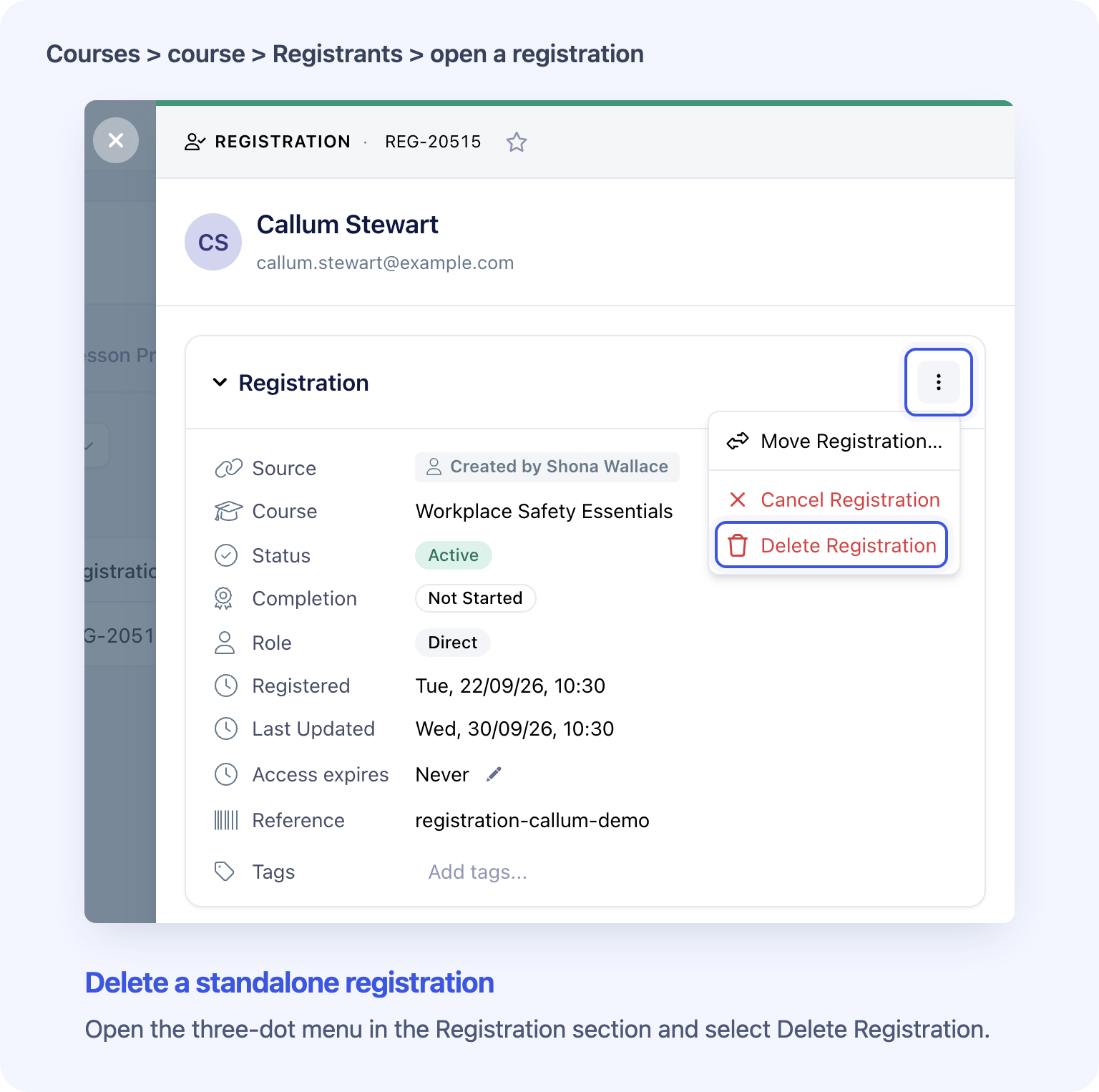
Delete Registration removes a test, duplicate or mistaken course place that was added manually or imported without an order. Open the course’s Registrants tab, open the registration and look in the Registration section’s three-dot menu.
System Admins, Course Owners and Facilitators can use it for registrations they have access to. A registration created by an order has no Delete Registration action; handle that place through its order instead.
Confirm permanent registration deletion
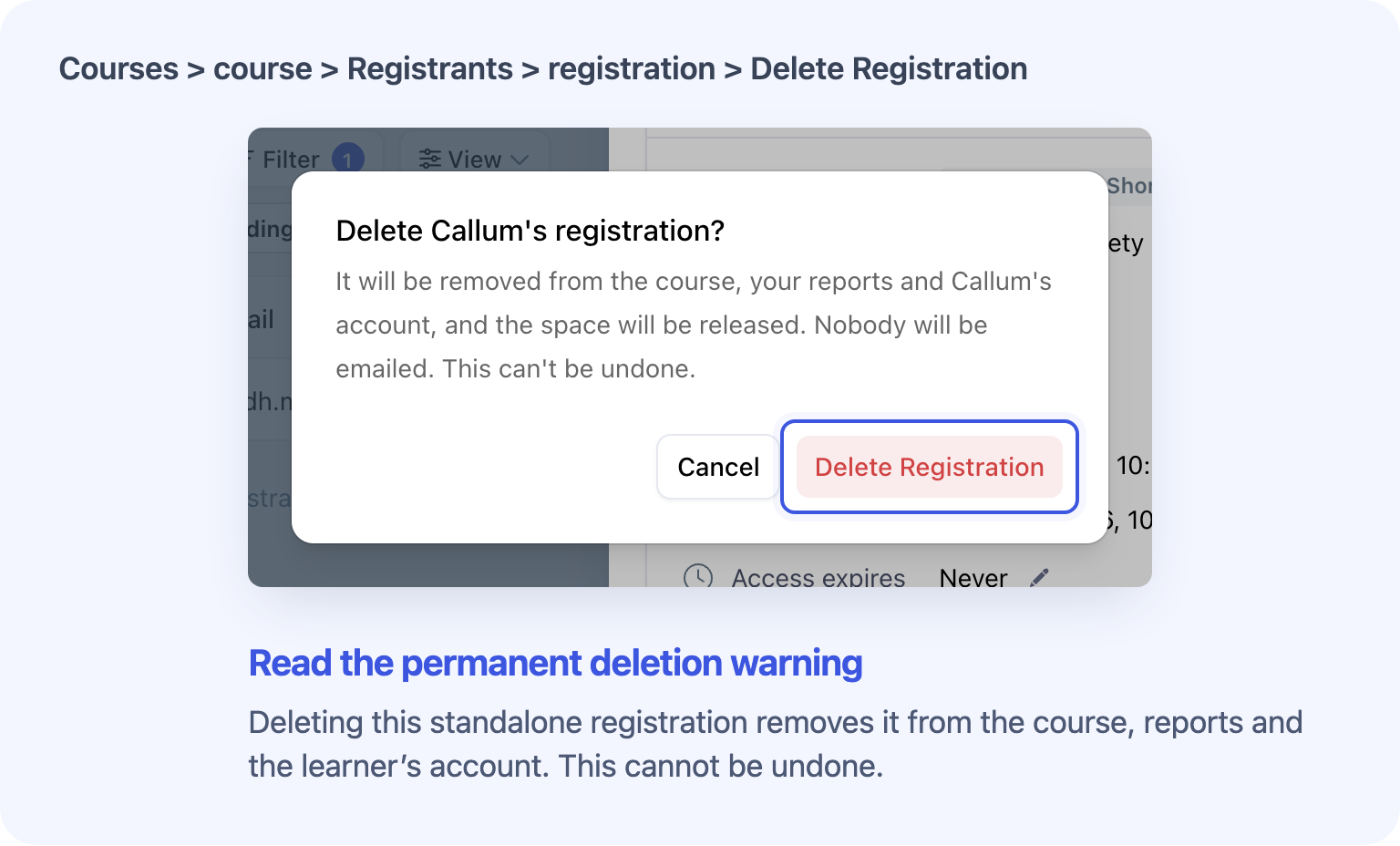
The confirmation names the registration and explains what will be removed. Confirming removes it from the course, reports and the learner’s account, releases its space where applicable, and sends no Cademy cancellation email.
Deletion is available even when a standalone registration is already cancelled or completed, or has attendance, progress or an issued certificate. Existing certificate links remain valid. Use cancellation to retain genuine training history; deletion is not a way to revoke a certificate.
These controls are available on all Cademy plans, within the access rules above. See Delete Test or Duplicate Orders and Registrations for the full steps and limits.
Frequently asked questions
Does unticking the email box stop every email?
It skips the relevant Cademy cancellation and credit-note emails. Stripe may still send its own refund receipt. Releasing a space can also trigger a waitlist email to another person. Emails already sent cannot be recalled.
What if a payment is still pending?
Deleting an order does not cancel an open payment attempt with the payment provider. If you need to stop a pending payment, ask Cademy Support to check it before deleting the order.
Can I delete just one participant’s registration from an order?
No. Delete Registration is for standalone places. Use the order’s participant-removal options for one person, then review the financial and email choices. Deleting an eligible order removes the order and its registrations together.
What remains after deletion?
The contact’s stored details are kept. Voided invoices remain in the invoice list, and already-issued certificate links keep working. Deletion does not undo changes in connected systems; for example, an existing HubSpot deal remains. Check those records separately.
Can I restore something I deleted by mistake?
No. There is no restore action. Check the customer or participant, course and record reference before confirming.
Can I delete a whole import or several records at once?
No. Deletion is one record at a time, and imported orders must meet the same payment-history rules. Cancel without sending cancellation emails for genuine imported bookings that need cancelling; deletion is for records that should not have existed.
Does this change emails when learners cancel their own bookings?
No. Learner self-cancellation keeps its usual notifications. The cancellation email checkbox is an Admin order action.
Can I cancel an order but keep the participants’ access?
If you need to keep their access, contact Cademy Support before cancelling. Do not rely on unticking Cancel participant registrations too to preserve it. The email choice controls notifications and does not itself preserve registrations or course access.