📊 Lesson Progress and Learning Activity
Check lesson completion, quiz answers and learners who need a follow-up.
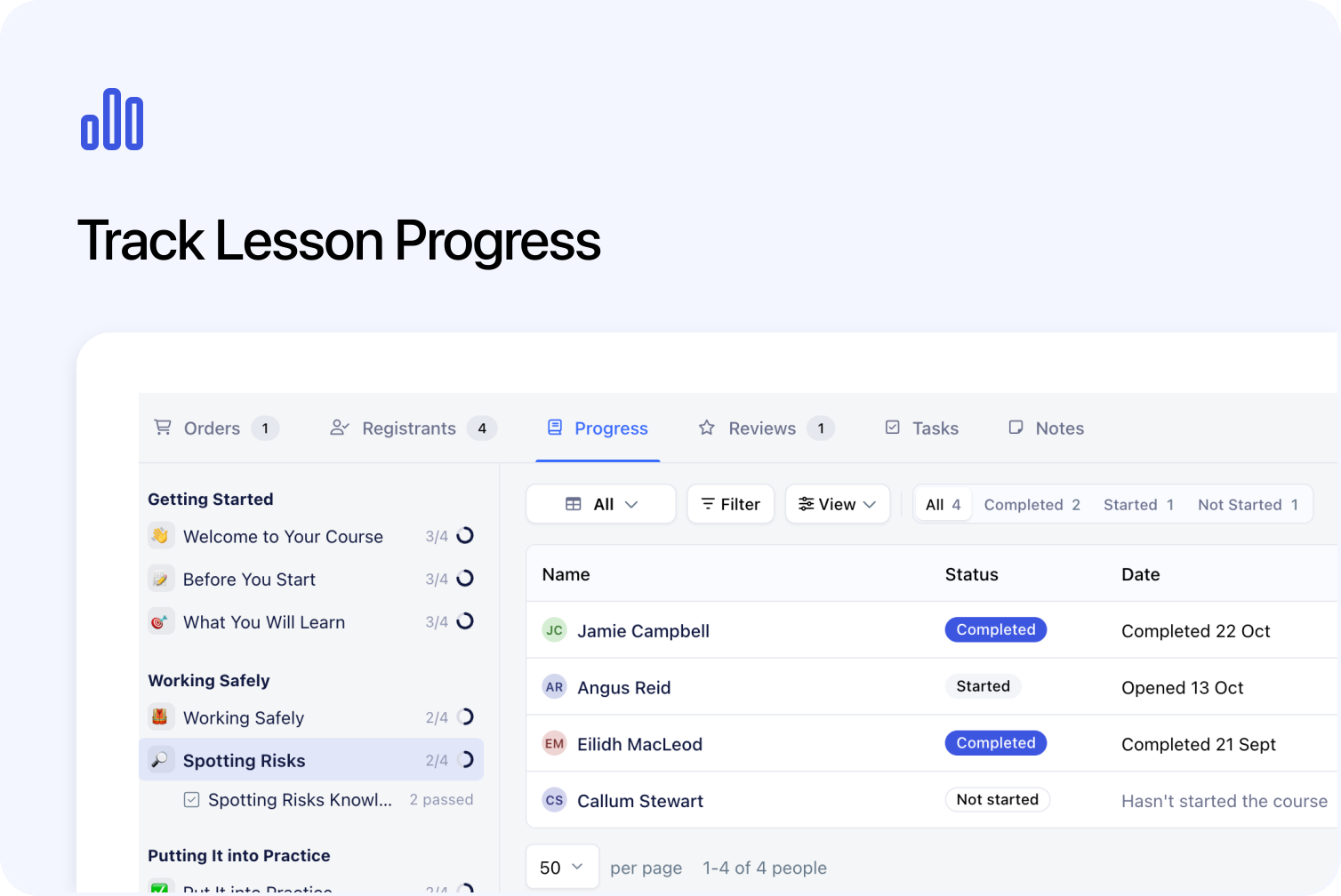
Cademy’s refreshed Progress tab shows who has started or completed each lesson, how learners performed in quizzes and the responses to lesson forms. New learning columns and ready-made views on Registrants help you find people who are active, have completed a course or may need a follow-up.
These tools are available for on-demand and blended courses. Open a course in the Admin dashboard and choose Progress or Registrants. For blended courses, check the selected course dates so you are looking at the right group.
See who has completed each lesson
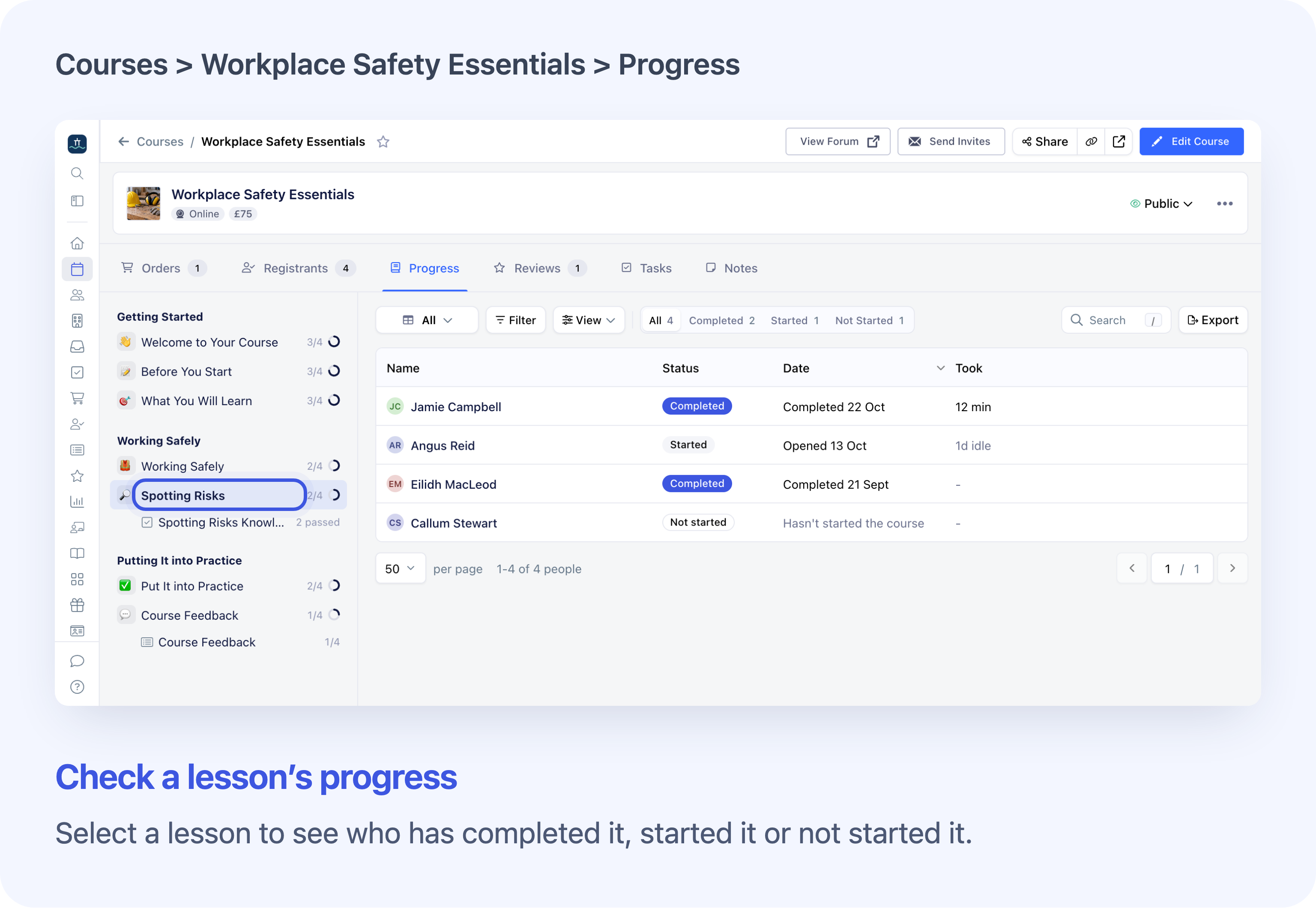
Choose a lesson to see each learner’s progress.
The course outline groups published lessons by section, with quizzes and forms beneath the lesson they belong to. Select a lesson to see everyone’s status, when they opened or completed it, and recorded time where available. Collapse sections or resize the outline to suit your screen. Its layout is remembered, and the outline and results scroll separately.
Use Completed, Started or Not Started to focus the list. For example, before a blended training session, check who has completed the preparation lesson and who still needs to start it.
You can search, filter and save views for that course, open a learner’s individual progress from their row, or export the matching lesson results. Selecting a status tab replaces the current filters with that view’s rules and keeps your Search text. The selected lesson or quiz has its own link, so you can reopen or share that selection with colleagues who have access.
Full guide: View Lesson Progress.
Review quiz results and submitted answers
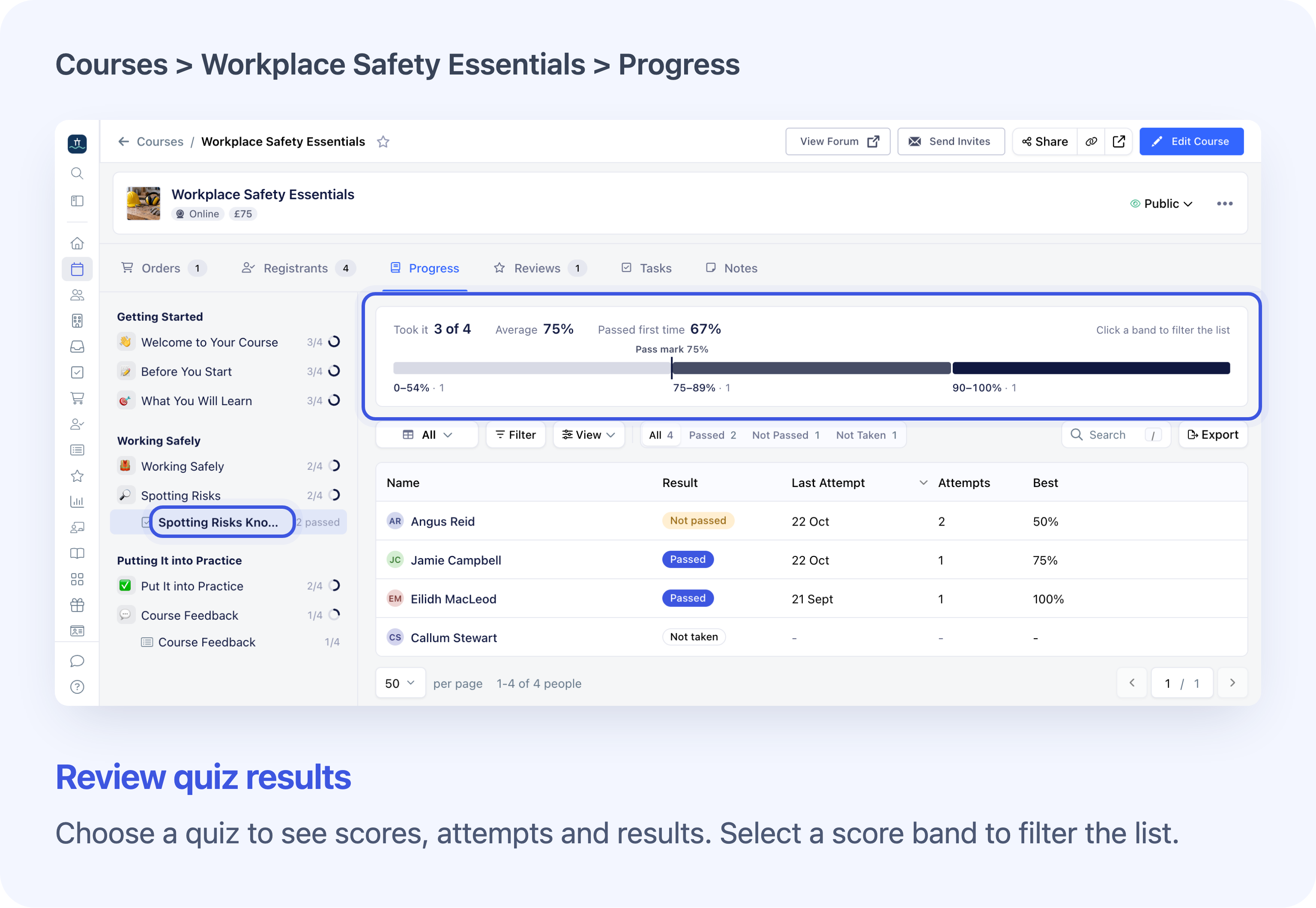
See quiz results across the course, then open a learner’s answers.
Select a quiz beneath its lesson to see each learner’s best marked score, attempts and latest attempt date. The summary shows how many learners took it, their average best marked score and the first-attempt pass rate among learners with marked work.
Click a score band to see the learners in that range; click it again to clear it. You can also choose Passed, Not Passed or Not Taken. Not Passed also includes learners who are out of retakes. The summary follows the course dates and Search, but stays unchanged when you apply result or score filters to the table.
Find quizzes waiting to be marked
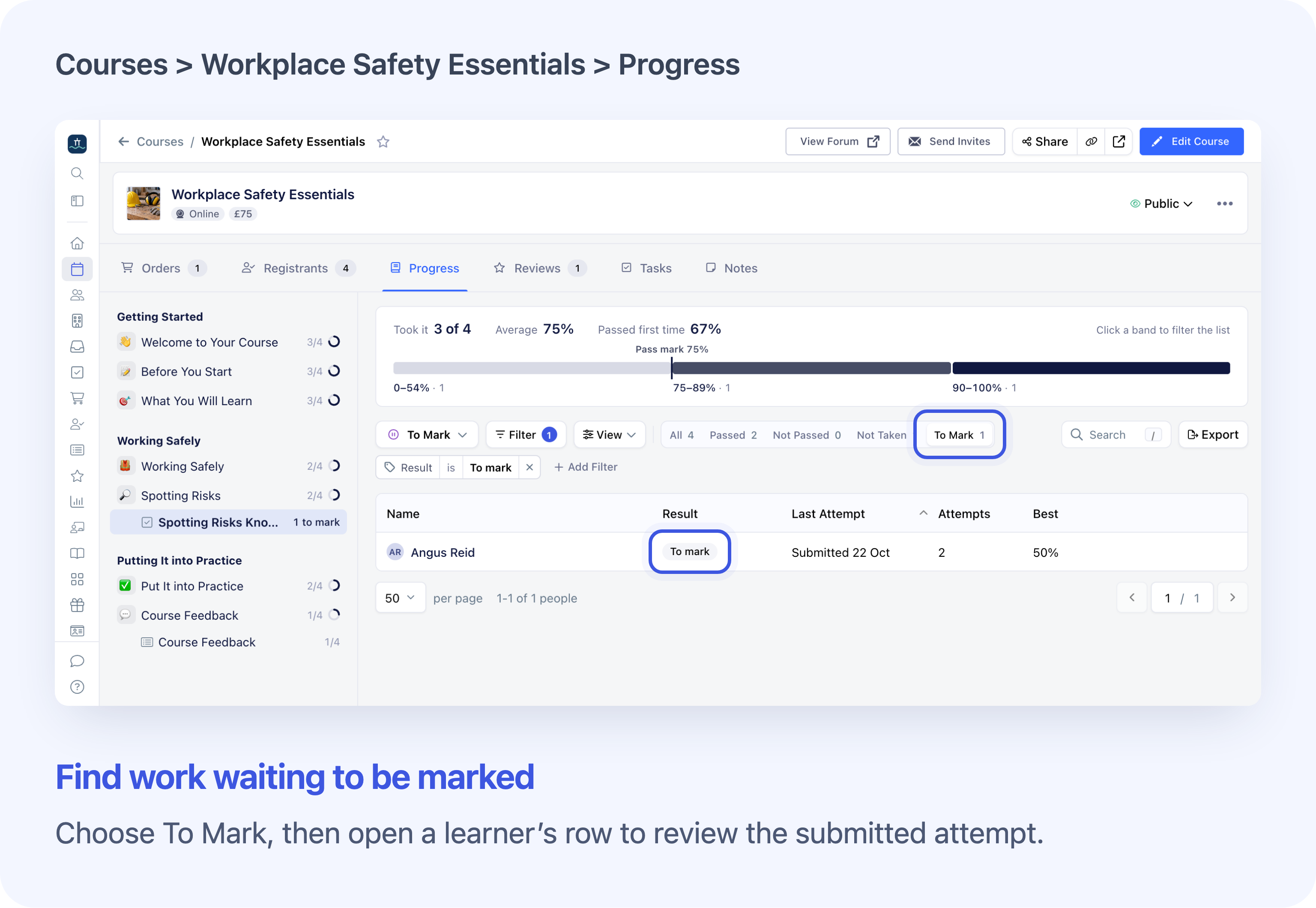
To Mark shows learners whose submitted quiz work needs a result.
For manually marked quizzes, To Mark highlights learners awaiting a result. Open a learner’s row to review their submitted work. The same review is available from their Registration’s Progress section and manual quiz conversations in Inbox.
Mark quiz answers and give feedback
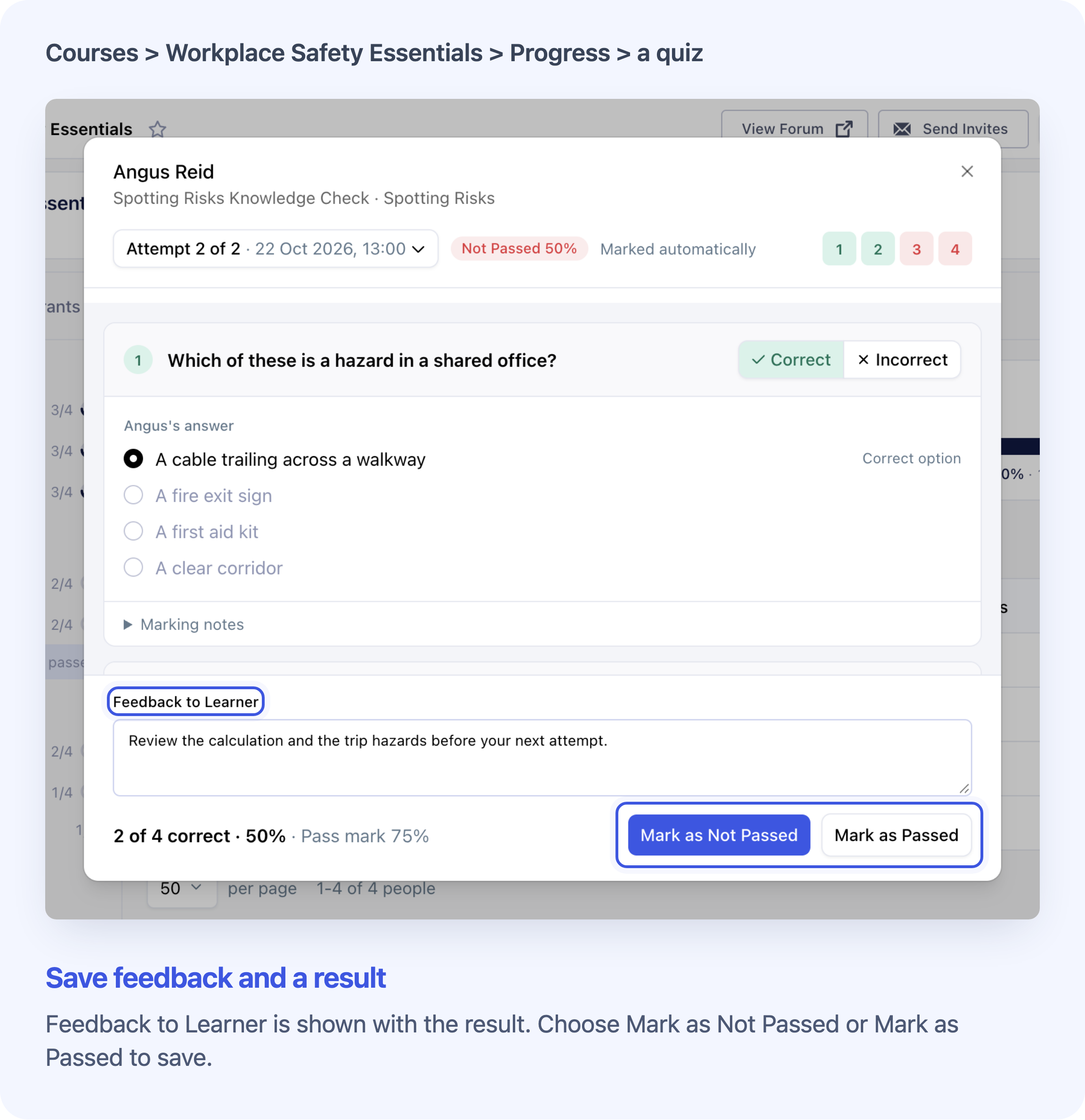
Review the answers and feedback before saving the overall result.
Read the answers, move between questions and switch between submitted attempts. You can also review an automatically marked result, as shown above.
Mark each answer Correct or Incorrect, add feedback, then choose Mark as Passed or Mark as Not Passed to save the selected attempt. Review every question first: unmarked questions count as incorrect when saved. Your overall pass/fail decision can differ from the score.
Saving a manual response linked to an Inbox conversation sends the learner a result email. Saving it again sends another, so check the selected attempt and feedback before confirming.
Export quiz results or individual answers
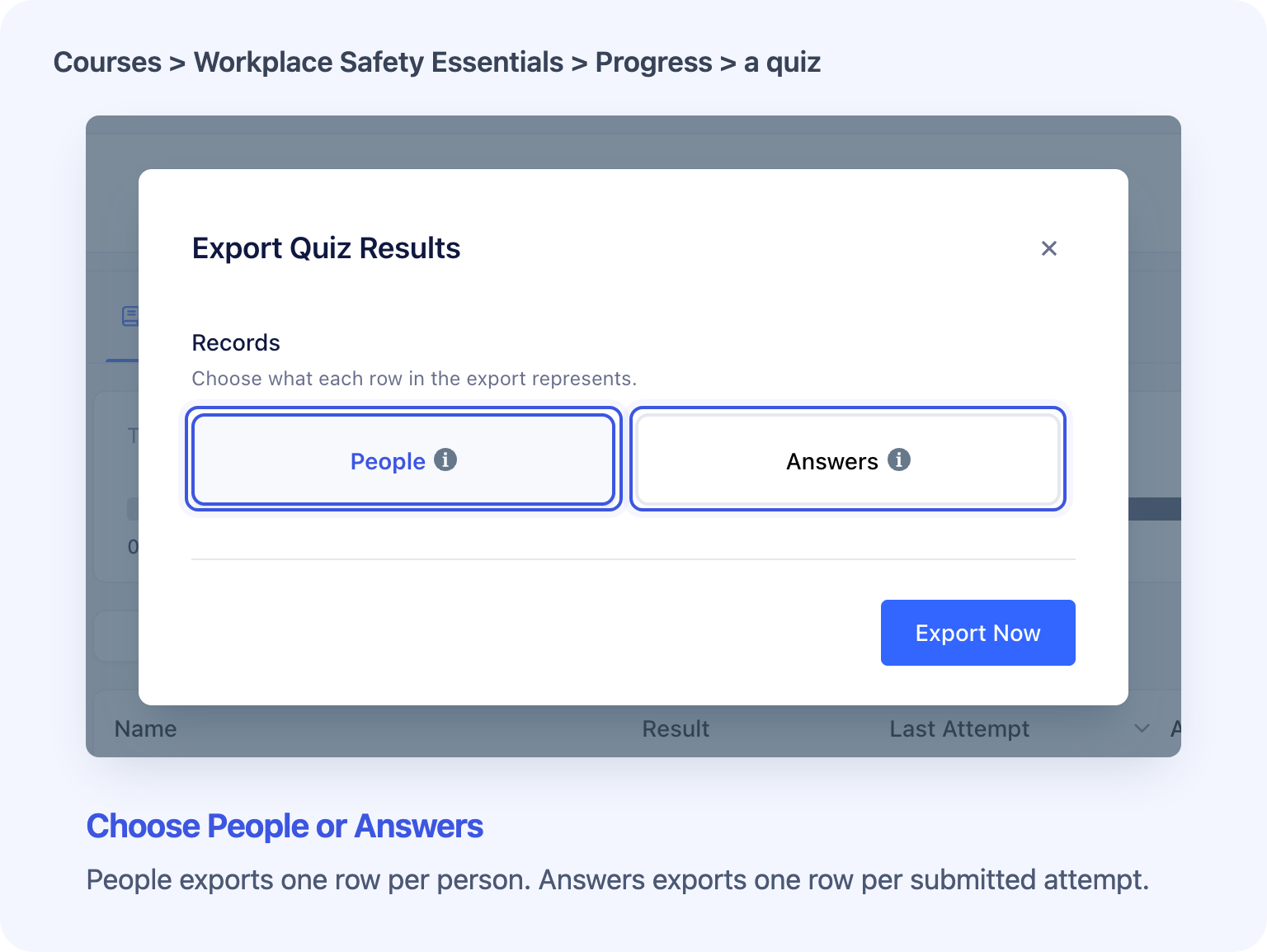
Choose a learner summary or one row for each submitted attempt.
Quiz exports now offer two record types:
- People: one row per matching learner, using the result columns shown in the table.
- Answers: one row per submitted attempt, including answers, question marks, result, score and feedback. File-upload answers contain file names rather than the files.
Filters select the learners; an Answers export includes their earlier submitted attempts too. It uses the quiz’s current questions, so export before editing or removing questions if you need to retain those records. Lesson and quiz Progress exports cannot be scheduled.
Full guide: View Quiz Results and Mark Answers.
Read lesson form responses from Progress
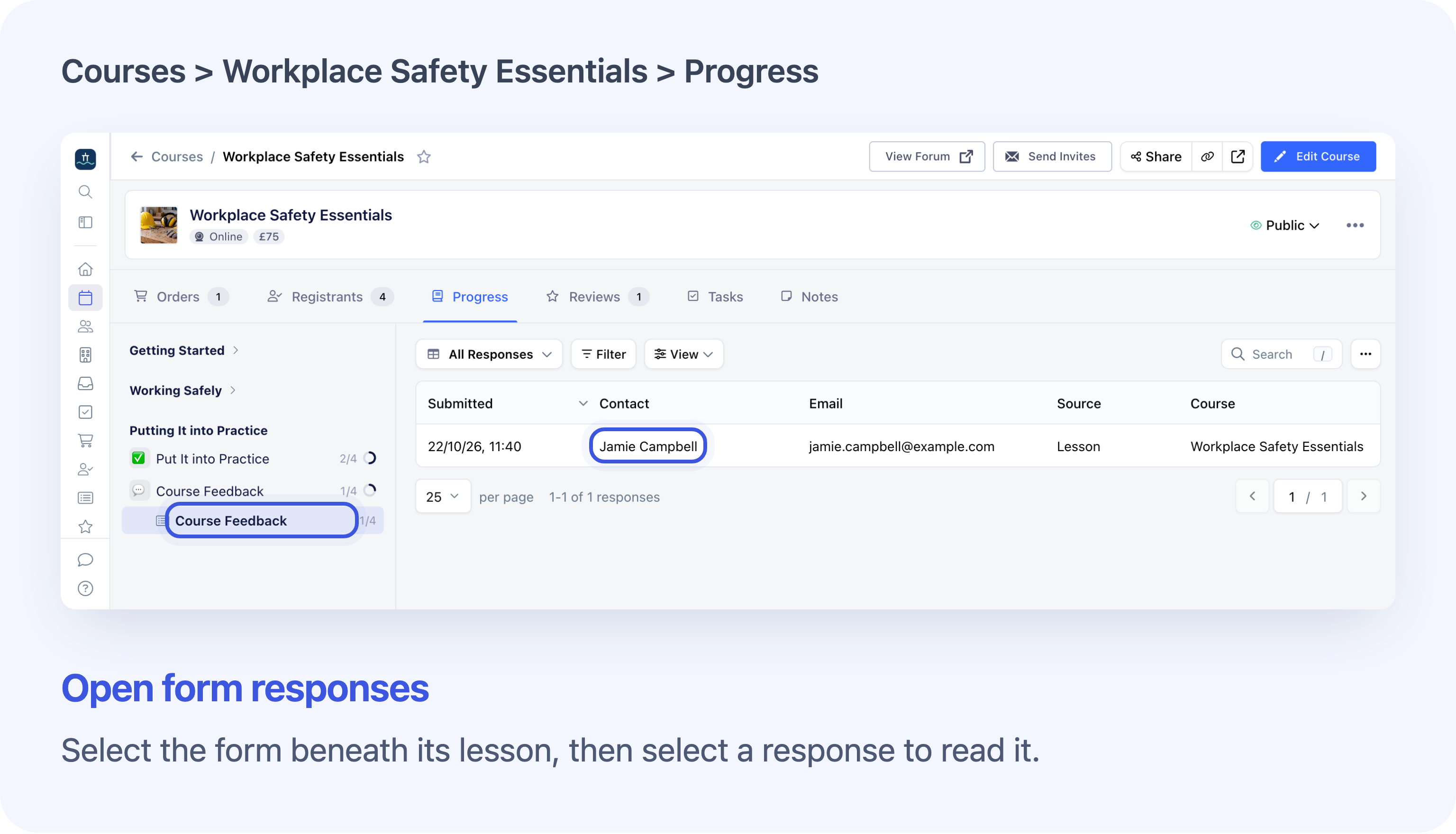
Open a lesson form to read responses from the selected course and dates.
Forms now appear beneath their lessons in the Progress outline. Select one to read responses, open individual submissions, filter the list or export answers.
The list follows the course and selected dates. It can include responses to the same form sent through a feedback email, as well as through a lesson. System Admins and Course Owners can use this view; Facilitators do not see forms in Progress.
Full guide: View and Manage Form Responses.
Review one learner’s quizzes and forms
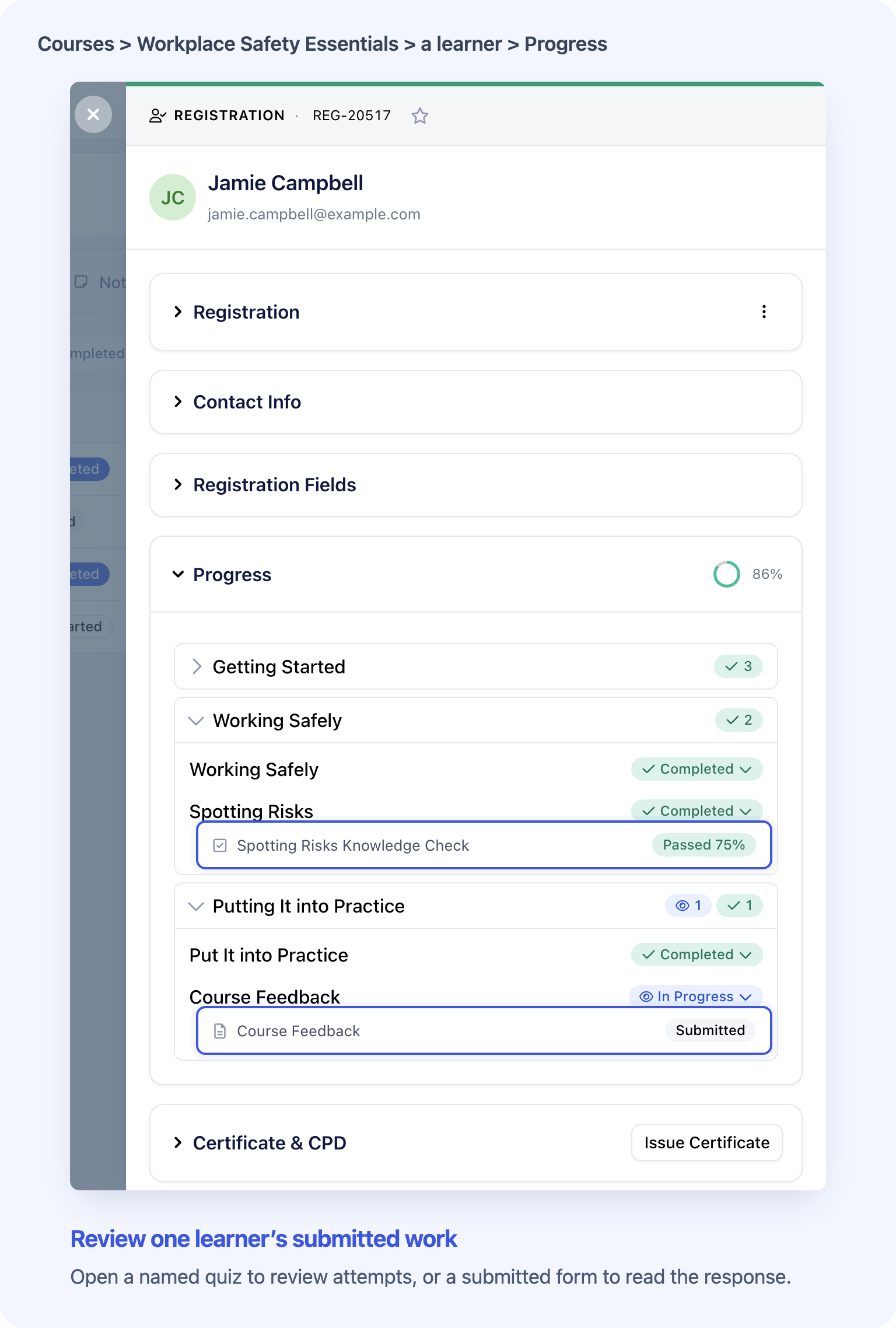
See named quizzes and forms alongside the learner’s lesson progress.
Open a learner’s registration and expand Progress. Quiz rows now name the quiz and show its latest result, with earlier scores where there are multiple attempts. Select the quiz to review its submitted attempts. Submitted forms appear by name. System Admins and Course Owners can open the response.
Find learners by progress and recent activity
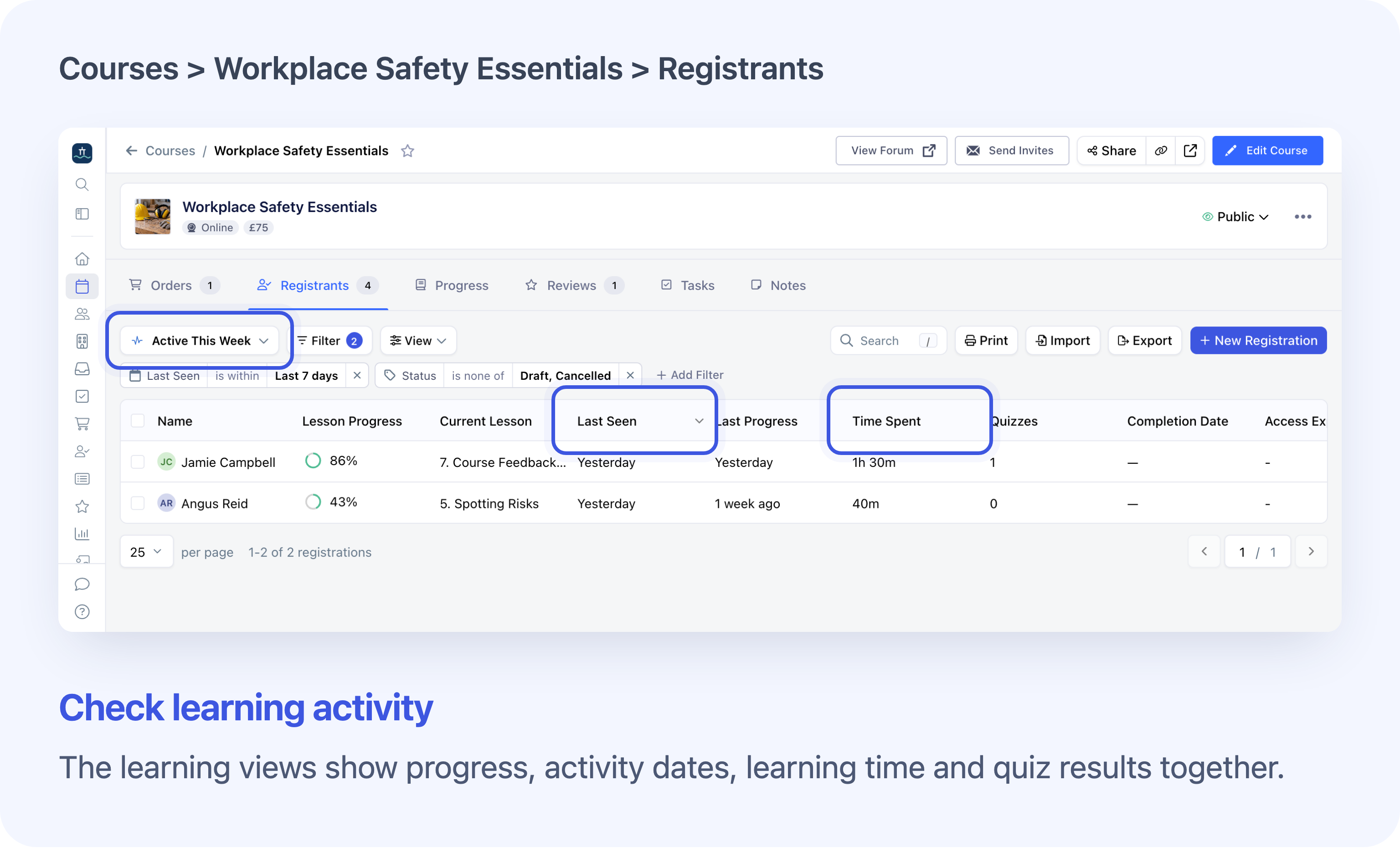
Bring learning progress and activity into your course’s Registrants list.
New learning columns bring useful details beside each person’s course registration:
- Current Lesson: their position in the published lessons, with an Overdue badge when the current lesson’s deadline has passed.
- Last Seen: their most recent recorded lesson activity in this course.
- Last Progress: the last recorded change to lesson progress.
- Time Spent: recorded active learning time.
- Quizzes: the recorded passed count against the course’s published quiz total.
- Time to Complete: elapsed time from registration to course completion, shown for currently completed registrations.
Choose the columns you need under View → Columns. Last Seen, Last Progress, Time Spent and Quizzes are also optional columns on the main Registrations page, where they are not shown by default; Current Lesson, Time to Complete and the learning views belong to the course’s Registrants tab.
Use ready-made views to find learners for follow-up
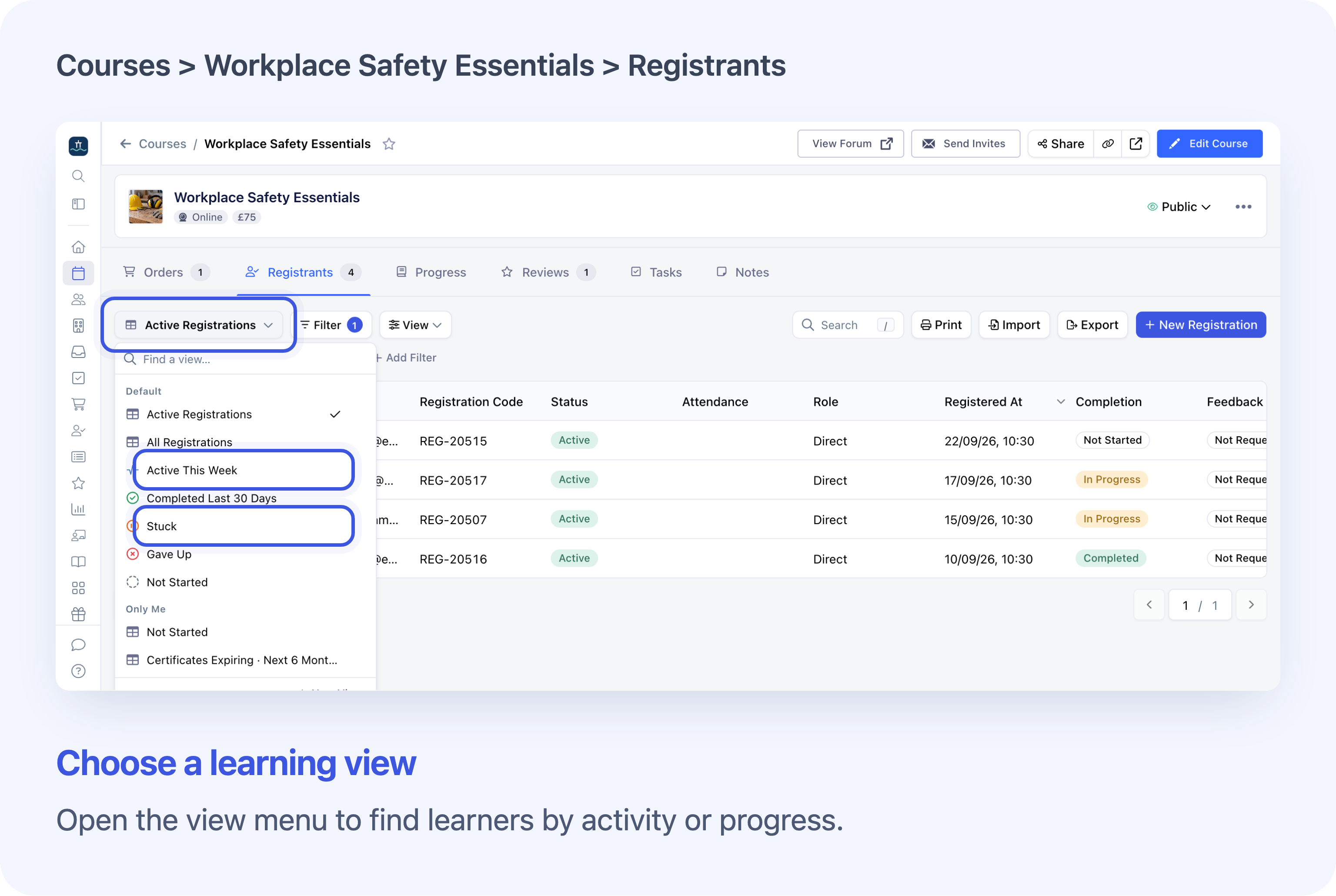
Start with a ready-made learning view and check its visible filter rules.
- Active This Week: recorded lesson activity within the last seven days.
- Completed Last 30 Days: a first course completion date within the last 30 days.
- Stuck: no recorded progress change for 30–60 days.
- Gave Up: no recorded progress change for more than 60 days.
- Not Started: the registration’s Completion is Not Started.
These views exclude Draft and Cancelled registrations. Stuck and Gave Up also exclude completed registrations and expired access. The labels describe recorded activity, so check the learner’s situation before deciding how to follow up. A missing Last Progress date does not match either inactivity range.
Choosing a view does not send a message or change anyone’s progress. You can select the intended learners and use Send Email when you are ready to contact them.
See how long learners take to complete a course
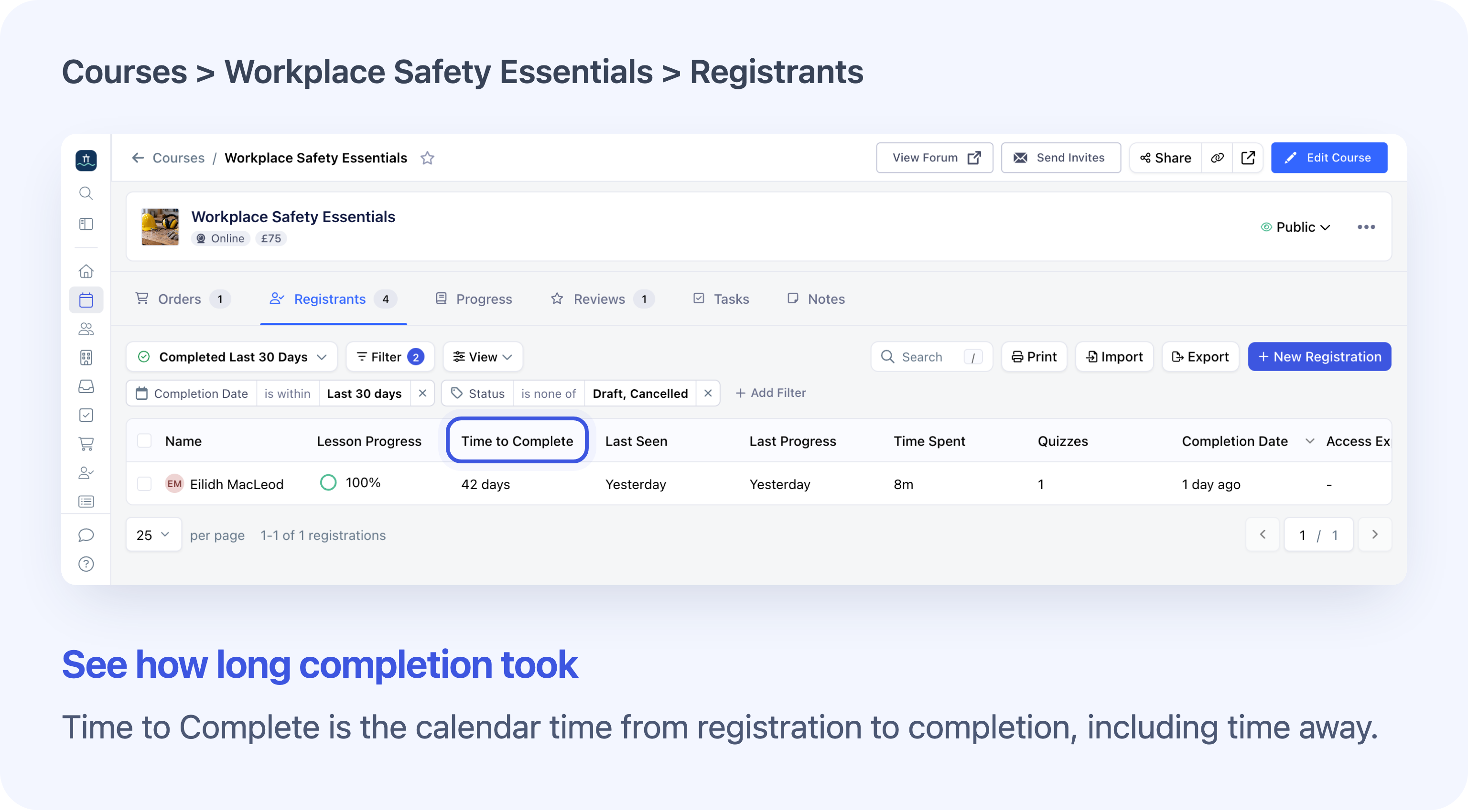
Time to Complete shows elapsed time from registration to course completion.
Completed Last 30 Days replaces Current Lesson with Time to Complete. Use it to see the calendar time learners needed to finish, including time away from lessons. It is different from Time Spent, which records active learning time.
Follow up with learners on a particular lesson
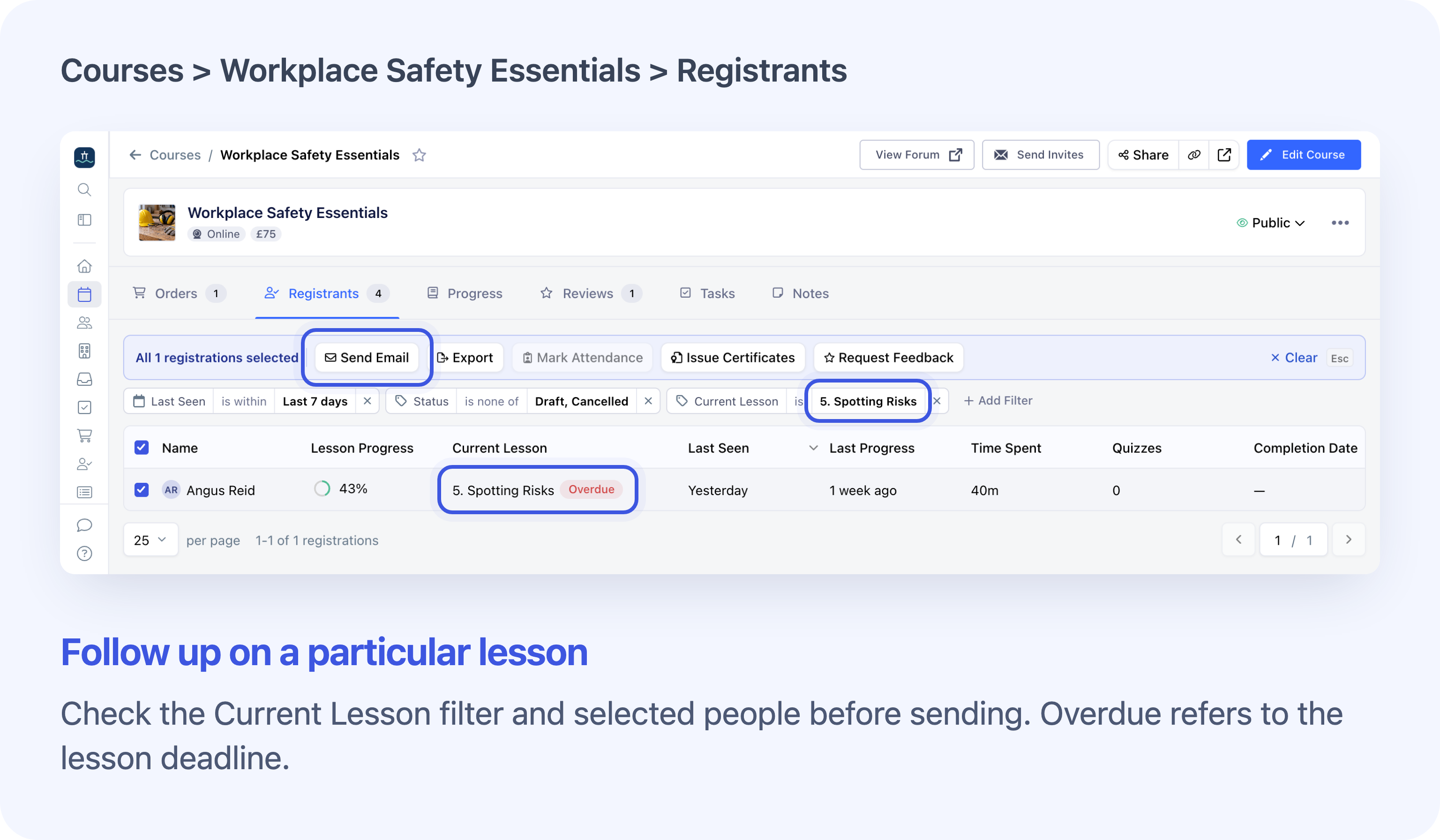
Filter by Current Lesson, check the matching learners and select the people to contact.
Filter Current Lesson or Current Lesson Status, then select the matching learners for an action such as Send Email or Request Feedback. Select All respects the matching filtered group, including when results span pages. Mark Attendance also requires a selected course date. The Overdue badge means the current lesson’s deadline has passed; it does not mean the learner has been inactive.
Save your own rolling date filters
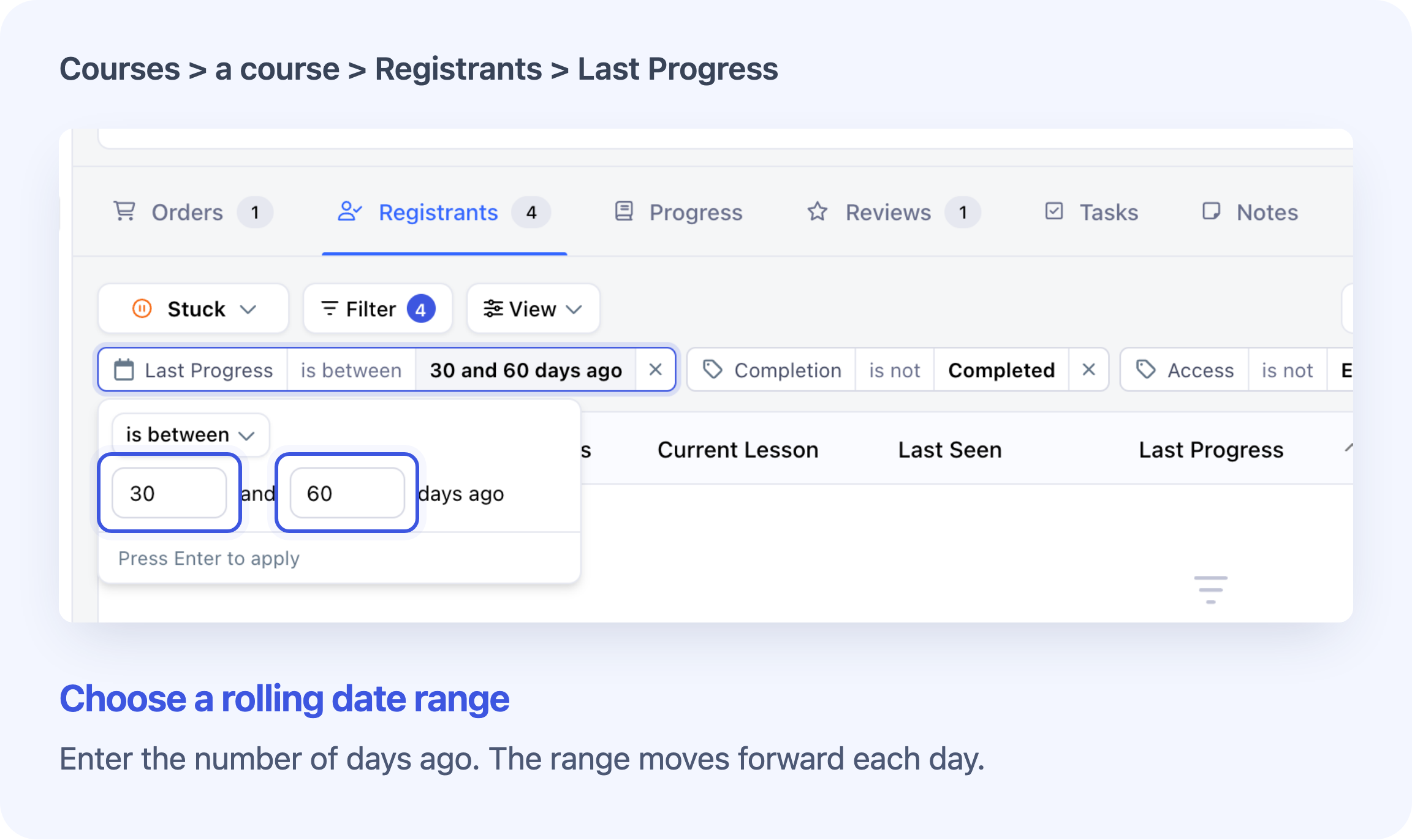
Set a period that moves with the date, then save your own view.
Date filters now support more than N days ago and between N and M days ago. For example, change Last Progress to more than 14 days ago, check the other rules, and save a view for your regular follow-up. The period moves forward automatically; you do not need to change fixed dates each week. These date choices also work on other lists, such as Orders. Your course’s selected Registrants view is remembered for your next visit.
Full guide: Find Learners by Progress and Activity.
Save and favourite lesson or quiz views
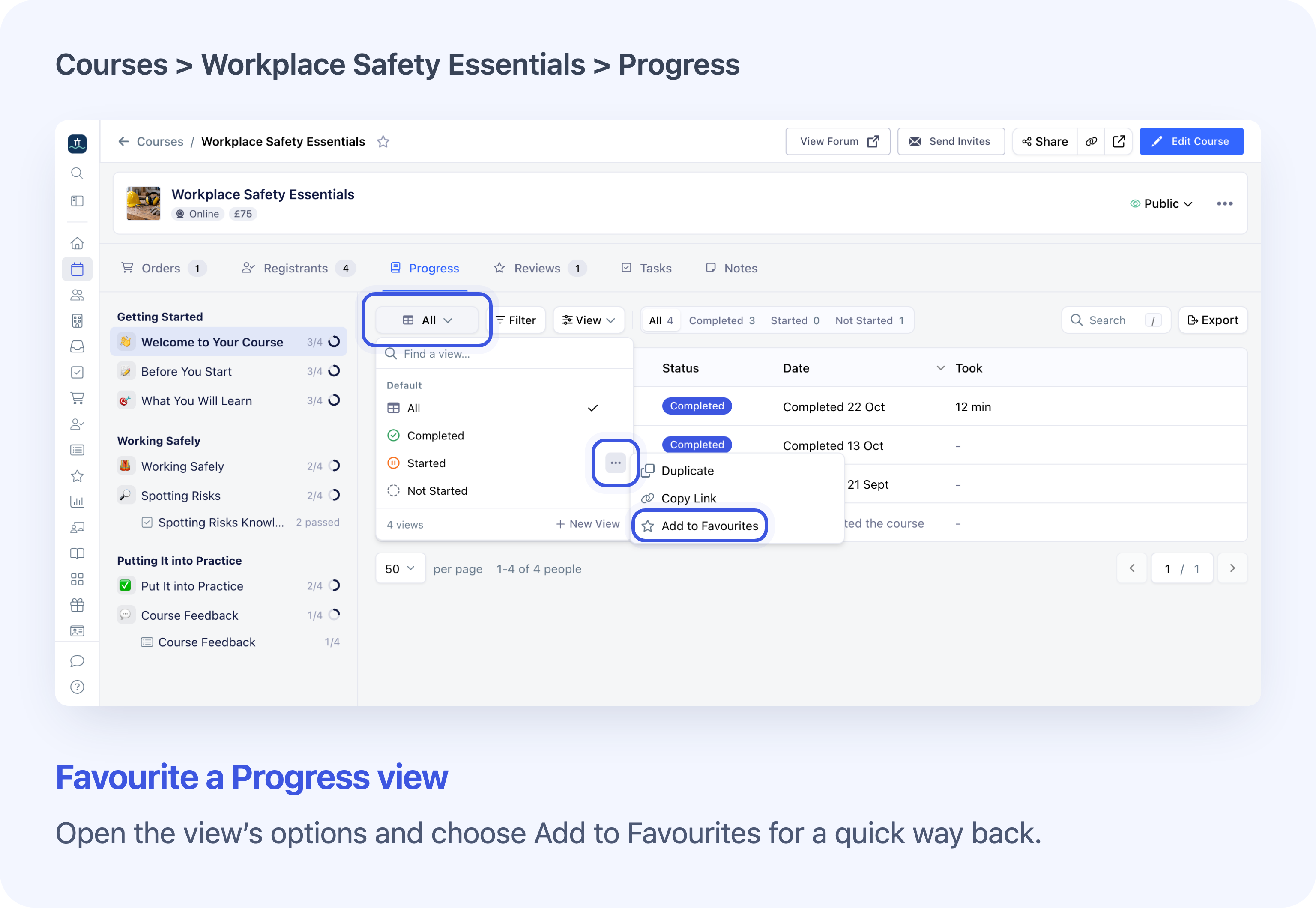
Add a Progress view to Favourites for a quick way back.
Save the filters and columns you need for repeat checks, then add the view to Favourites from its options menu. Lesson views and quiz views are kept separately for each course. Opening a favourite returns to that course’s view, but may select its first lesson or quiz; check the selected item before reviewing results.
Use course tabs on a phone
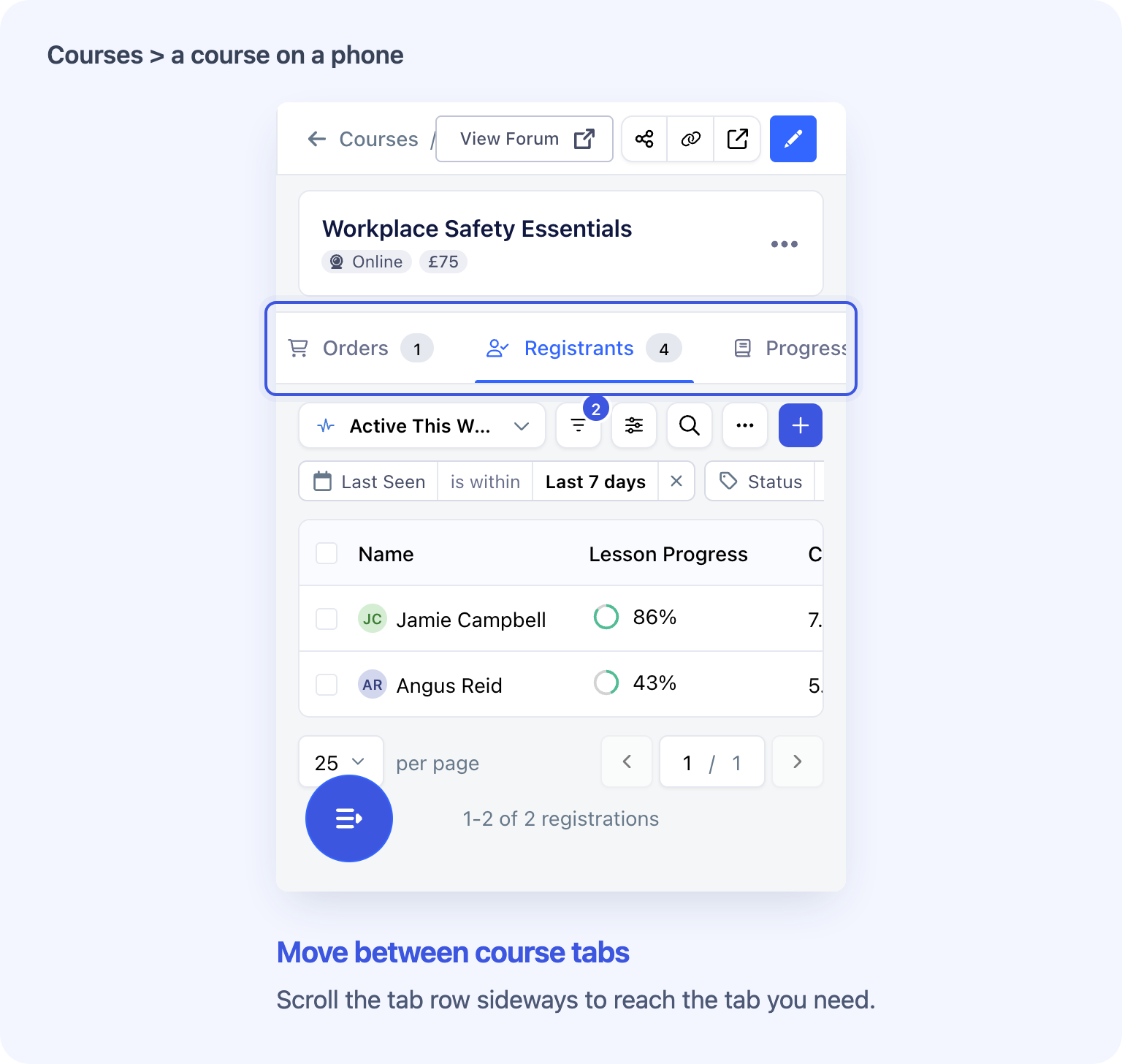
The course card and tab row stay available as you move through the course page.
Course tabs share a consistent layout across the course pages. On smaller screens, scroll the tab row sideways to reach the tab you need. The course card and tabs stay pinned while the page content scrolls.
Understand learning time and older records
Time Spent measures recorded activity in lessons. Time to Complete measures elapsed days from registration to completion, including time away. Neither is the course’s advertised duration.
Active-time tracking began on 20 October 2026; earlier study time is not reconstructed. A completed lesson’s Took value requires a lesson started from 21 October 2026. For a started lesson, Took shows days since its last recorded activity instead.
A dash means a value is unavailable. A ~ beside Last Seen marks an estimate from older progress records. Use these figures to understand activity, rather than as a precise attendance record.
Frequently asked questions
Why are no lessons showing in Progress?
Progress shows published lessons in on-demand and blended courses. Check that the intended lessons are published and that you have access to the course and selected dates. Draft and cancelled registrations are excluded. System Admins can check across the account; other staff are limited to their assigned courses and dates.
Where are the ready-made learning views?
Open the course’s Registrants tab and use the dropdown showing the current view name. The five learning views appear for on-demand or blended courses with published lessons. They are not on the main Registrations page.
Does “Not Started” mean the learner has never opened the course?
The Registrants view uses overall Completion, so it does not prove that. Check Current Lesson, Last Seen and individual lesson progress. The Not Started tab inside Progress refers only to the selected lesson.
Why is someone in Completed Last 30 Days no longer complete?
That view uses their first Completion Date, which can remain after a later change to progress. Add Completion is Completed when you need only currently completed registrations.
Does passing a quiz complete the lesson automatically?
No. The learner must still complete the lesson once its requirements are met. Reviewing answers or opening a learning view does not change the lesson’s completion rules.
Does leaving a lesson open keep adding time?
Hidden tabs do not accumulate active time. A visible lesson stops counting after two minutes without detected interaction, unless supported video playback or embedded-content interaction keeps it active. Offline study is not included.
Can I contact everyone matching a Current Lesson filter?
Yes. Check the matching people and your selection before sending. With a Current Lesson or Current Lesson Status filter, Send Email, Mark Attendance and Request Feedback support up to 2,500 people in one action. Narrow the filter for larger groups; each action’s usual requirements still apply.