👤 Let Learners Update Their Contact Details
Let learners keep the contact details held by your organisation up to date.
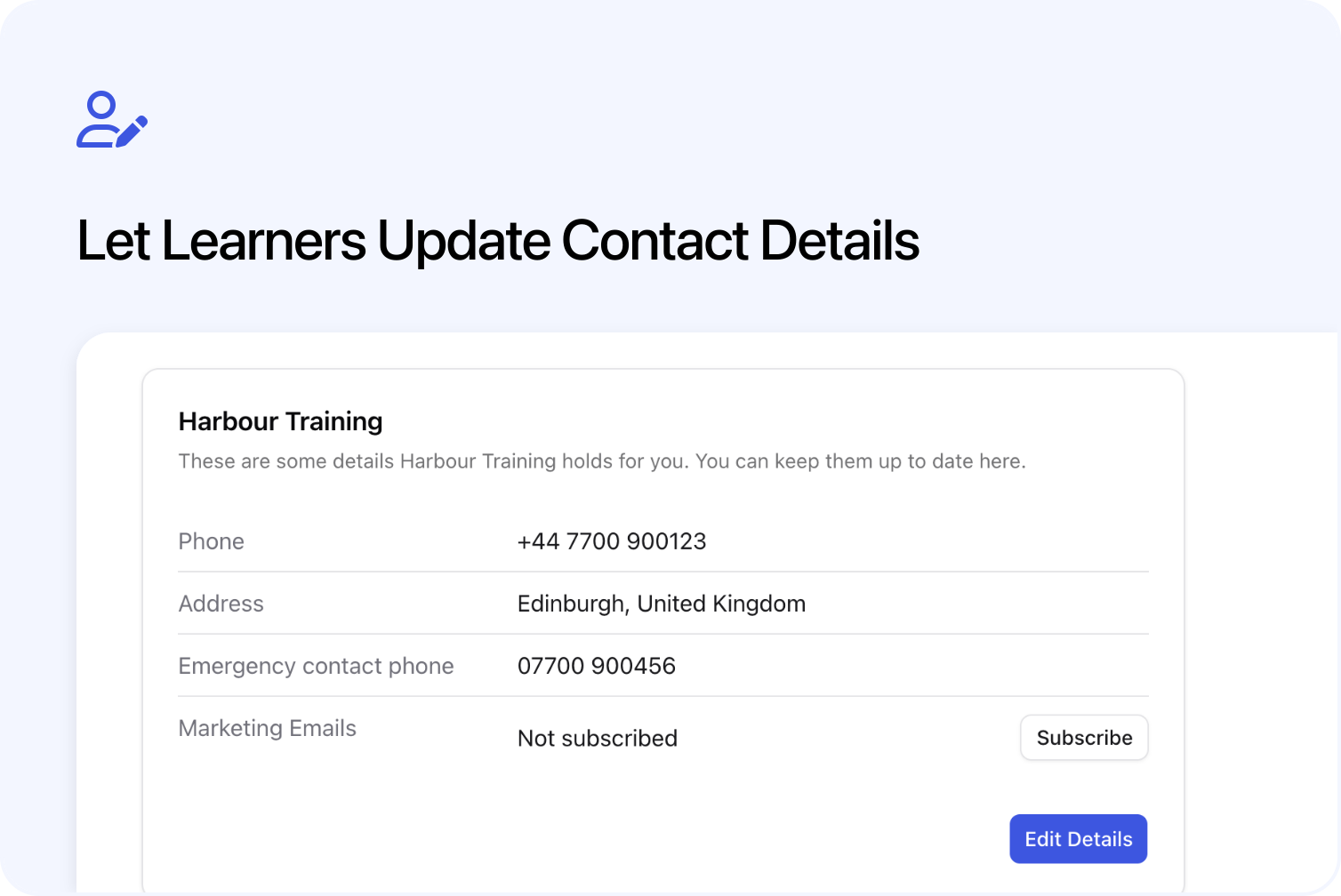
Learners can now update selected contact details held by your organisation from My Profile in Cademy. You choose which fields they can see and edit, such as their phone number, postal address or emergency contact details.
This gives learners a place to keep your contact record up to date, including after their course has finished. For example, someone who has moved house can correct their address before you post their certificate.
Learners Update Their Contact Details in My Profile
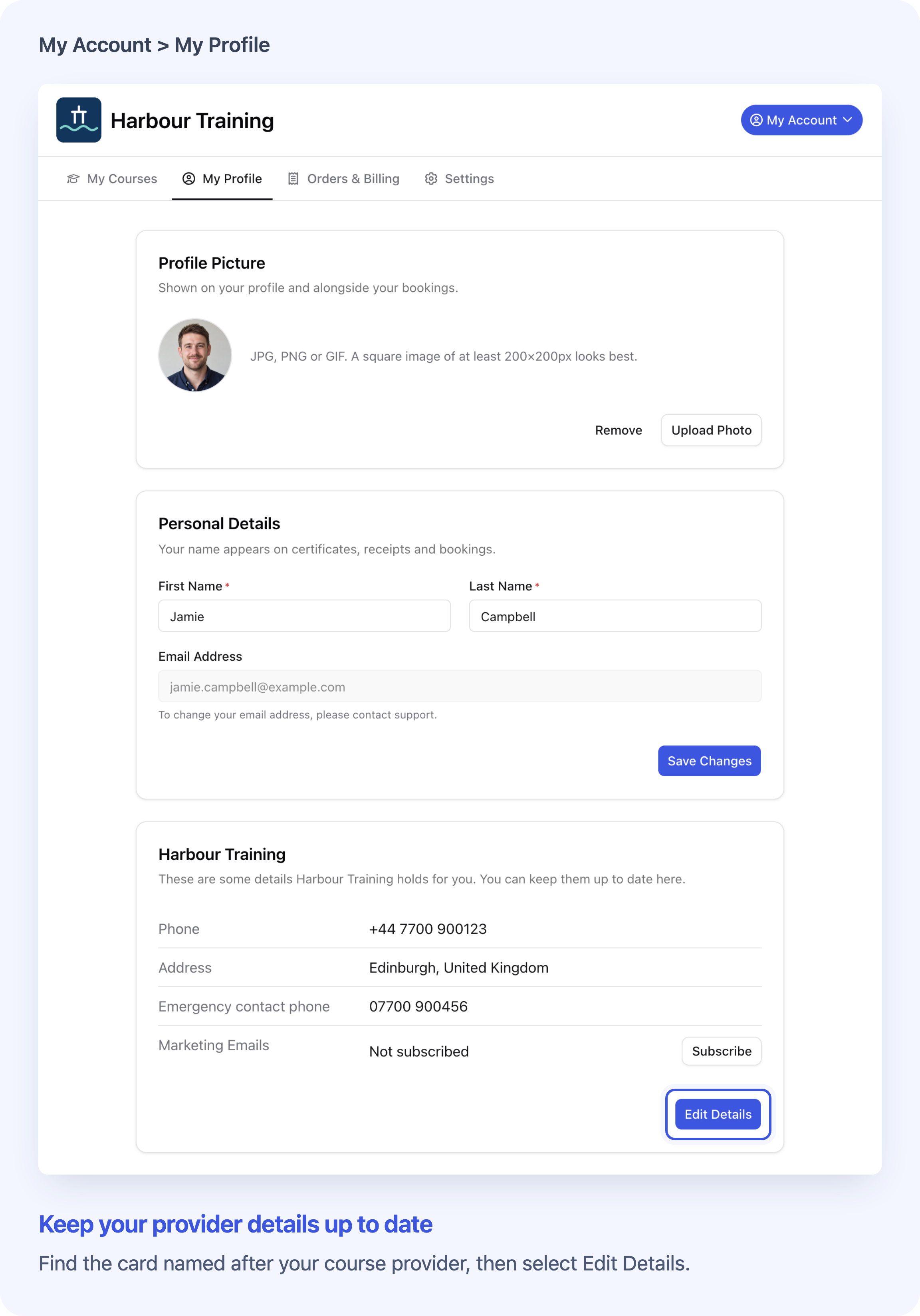
Learners can update the contact fields you enable on your provider card. Open full size
Learners can go to cademy.io/profile, sign in and select My Profile. Below Personal Details, they find the card named after your organisation. It shows only the contact fields you have enabled.
They can correct an existing value or fill in an enabled field shown as Not set. They select Edit Details, make their changes and select Save Changes. A successful save shows Your details have been saved, with the updated values on your card and your contact record. Only changed values are submitted; untouched details stay as they were.
This works after attendance or course completion, and for linked contacts whose places were added or imported by the provider. The learner does not need a current booking: they need a contact record linked to their login and fields you have enabled.
You can offer built-in Phone and Address alongside supported custom contact fields, such as dietary requirements or an emergency contact number. Changes are recorded as contact updates made by the learner and can be shared through configured contact-update webhooks.
For the full learner instructions, see Update Your Personal Profile and Password.
Choose Which Contact Fields Learners Can Edit
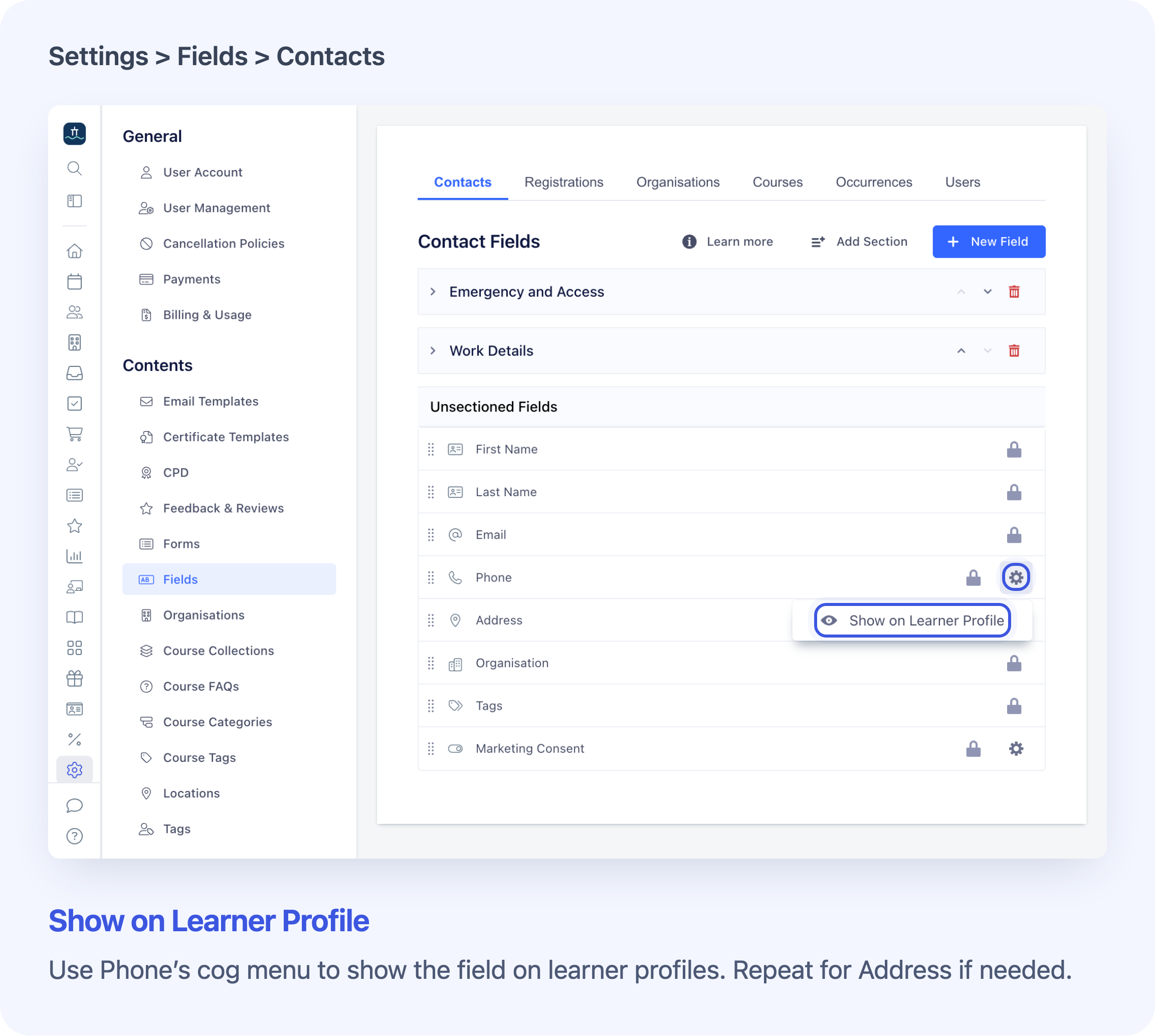
Use the built-in field's cog menu to choose whether learners can update it. Open full size
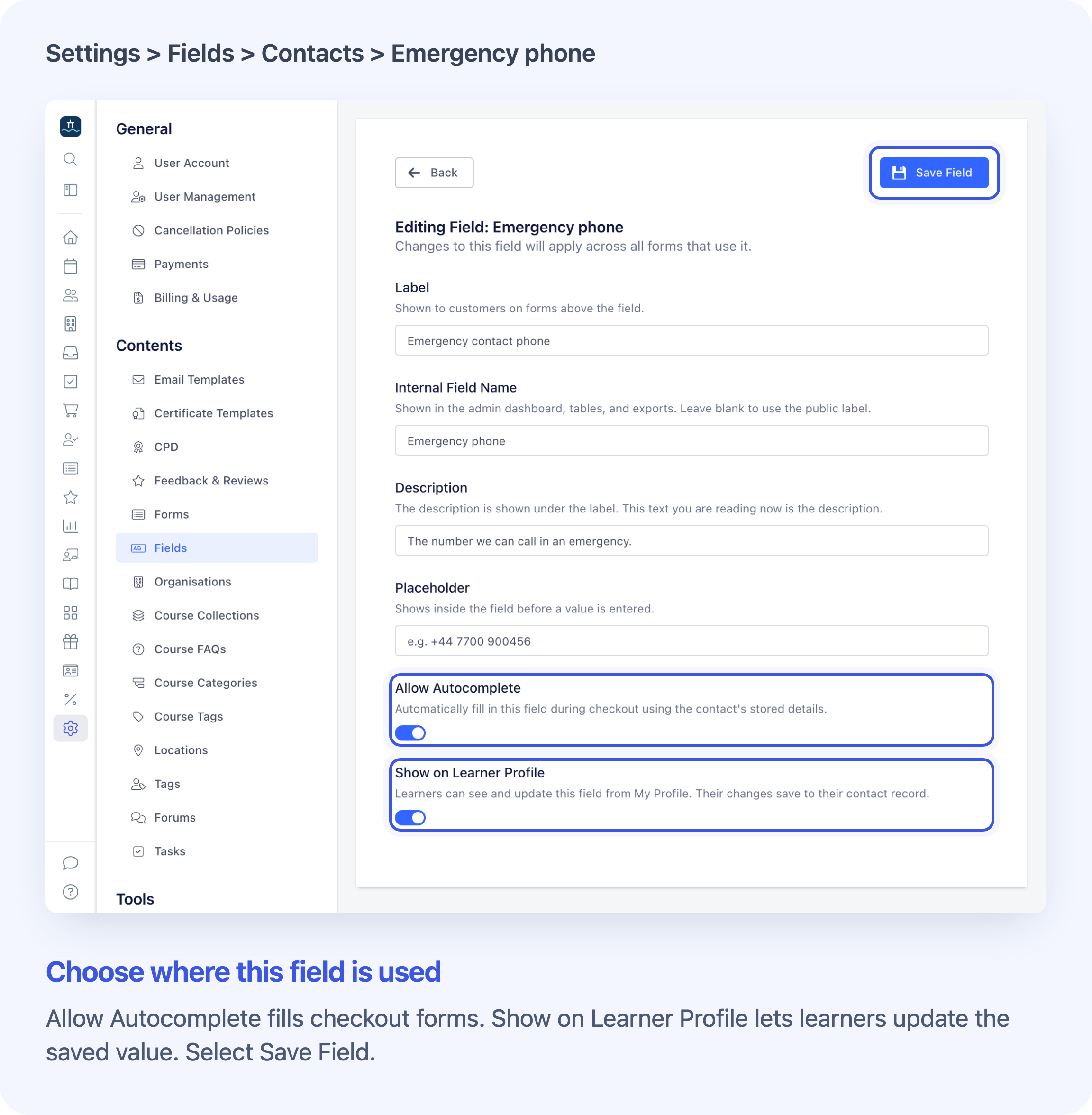
Custom contact fields have their own Show on Learner Profile switch. Open full size
In Settings > Fields > Contacts, choose which details learners can manage. Profile visibility is off by default, so you decide what to make available.
Built-in Phone and Address each have a cog menu with Show on Learner Profile. For a supported custom contact field, use its Show on Learner Profile switch and Save Field. Enabled fields have an eye icon in the field list.
You can hide a built-in field again with Hide from Learner Profile, or switch a custom field off and select Save Field. This does not delete its saved contact value. Enabled fields follow your configured Contact field order.
Marketing Consent has its own cog-menu setting. You can show marketing preferences without enabling any editable contact fields.
These controls affect My Profile only. They do not change the existing Edit Your Details action on a course page. They are also separate from the questions on your checkout forms and from Allow Autocomplete, which controls prefilling at checkout.
See Create Contact Fields and Manage Saved Details for setup and the supported field types.
Let Learners Change Their Marketing Preference
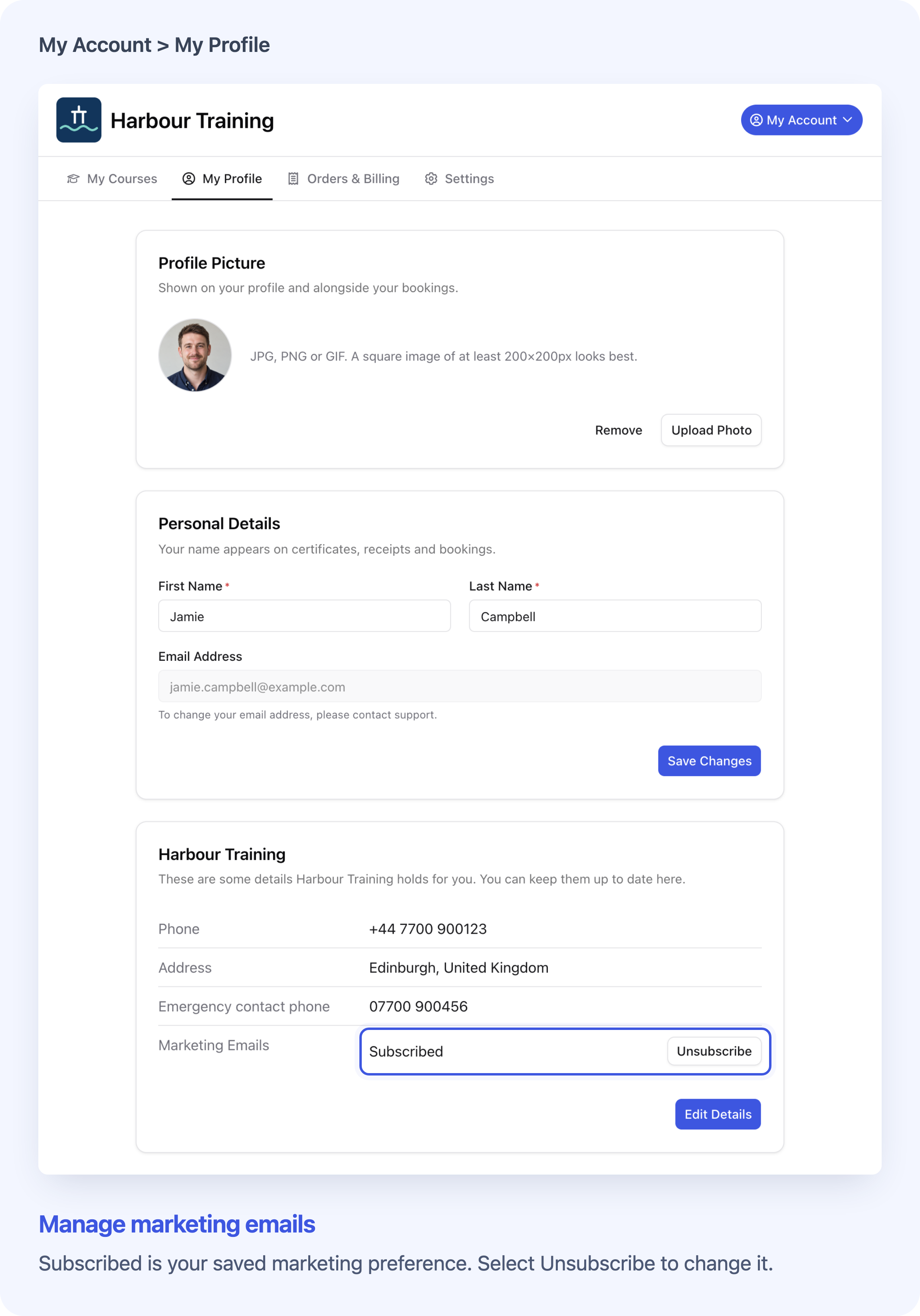
Marketing Emails shows the saved preference for this provider. Open full size
When you enable Marketing Consent, Marketing Emails shows the saved preference on your card. A learner who is Subscribed can select Unsubscribe; the status changes to Not subscribed. They can select Subscribe to opt back in.
This action saves the preference separately, without opening Edit Details or selecting Save Changes. It updates consent on your contact record without changing the learner's preference with another provider.
If you enable only marketing preferences, the card shows the subscription control without an Edit Details button.
Marketing Consent is a saved preference, not an automatic block on every email. Before a promotional manual send, filter recipients by Marketing Consent: Yes and check the selection. The manual email guide explains this.
Good to Know Before Enabling Profile Editing
- Staff permissions: System Admins can configure the built-in Phone, Address and Marketing Consent settings. Course Owners and System Admins can save supported custom contact fields.
- Separate records: Editing this card does not rewrite answers already saved on an order or registration, change another provider's record, or reissue certificates.
- Names, email and files: The provider-card editor does not change the learner's name, login email, uploaded files or organisation details. A custom email question is separate from login email. The existing Personal Details card remains the place to edit the personal account name.
- Provider websites: On your Cademy website, learners see your organisation's card. Their profile on the main Cademy website can show cards for several providers.
Frequently Asked Questions
Which contact fields can learners update?
You can enable built-in Phone and Address, plus these custom Contact field types: Text, Text Area, Date, Number, True/False (Boolean), Telephone, Email, Website, Address, Multiple Choice Checkboxes, Single Choice Options and Dropdown.
A custom Email question does not change login email. A Text question called Employer can be eligible, while an Organisation selector is not. Names, login email, files, organisation/user/tag selectors, statements, ratings, scales and date-and-time fields are excluded. Registration, course and other non-contact fields are outside this feature.
Can I hide a field without deleting its saved value?
Yes. Use Hide from Learner Profile on the built-in field's cog menu, or turn off the custom field's Show on Learner Profile switch and select Save Field. The saved contact value remains. This hides the field from My Profile; it does not hide it from the course-page editor.
Why can’t a learner see my provider card?
Ask them to check the account they used to sign in. Your contact record must be linked to that account, and you must have enabled at least one eligible field or Marketing Consent. Check both the contact and your field settings.
If they are on another provider's Cademy website, your card will not appear there. They can use cademy.io/profile to check the main profile. If sign-in and visibility settings look right but the card is still missing, contact Cademy Support to check the account link.
Why is one particular field missing?
Check that it is an eligible Contact field and that you have enabled it for My Profile. Adding a question to checkout does not automatically show it on a learner's profile. Unsupported field types do not offer the profile switch.
Why does the card show Marketing Emails but no Edit Details button?
You have enabled the marketing preference without any editable contact fields. The learner can still subscribe or unsubscribe. Enable an eligible contact field if you also want them to edit details.
Does the learner need a current course booking?
No. The learner needs a contact record linked to their login and at least one field or marketing preference you have enabled. They can use the available controls after their course and when their place was added or imported by you. If Edit Your Details on the course page says Provider only, that does not block this separate My Profile route.
What does changing a detail on My Profile update?
It updates your contact record for that learner. Changing one field does not blank untouched or hidden contact details. It does not rewrite answers already saved on an order or registration, change another provider's record, or correct a certificate name. For a provider-held name or course answer that needs correcting, the learner should contact the course provider.
Does hiding a field here change Edit Your Details on a course?
No. The profile setting does not control that separate course-page action. Existing course editing and attendance rules still apply there. See Manage Participants and View Their Course Progress and Certificates for that journey.
Do checkout-form settings carry over to the profile editor?
The profile editor does not apply a particular checkout form's Required, custom format/range rules or display overrides. It still checks supported field types and available choices.
Allow Autocomplete controls prefilling at checkout. Turning it off does not hide saved values when the learner opens Edit Details on My Profile.
How does a learner know their change was saved?
After Save Changes, they should see Your details have been saved and the updated values on your provider card. If an error appears, they should correct the stated problem and save again. Cancel closes the window without saving their edits.
Can a learner unsubscribe and subscribe again?
Yes. Unsubscribe changes Subscribed to Not subscribed. Subscribe opts them back in. The choice saves separately from editing contact details, so there is no extra Save Changes step. They should check the resulting status; an error means the change has not been confirmed.
Does Unsubscribe stop every email from my organisation?
No. It changes the consent saved with your organisation. Before a promotional manual send, apply and check Marketing Consent: Yes when selecting recipients. A person without consent can still be selected manually, so the preference alone does not block the send.
This choice does not cancel messages already queued, add a general unsubscribe link to manual emails, or introduce separate controls for different booking and course email categories. It does not change another provider's preferences or your staff account's Cademy email settings.