🗓️ Set Custom Cancellation and Rescheduling Policies
Set different course policies and let learners cancel or reschedule online.
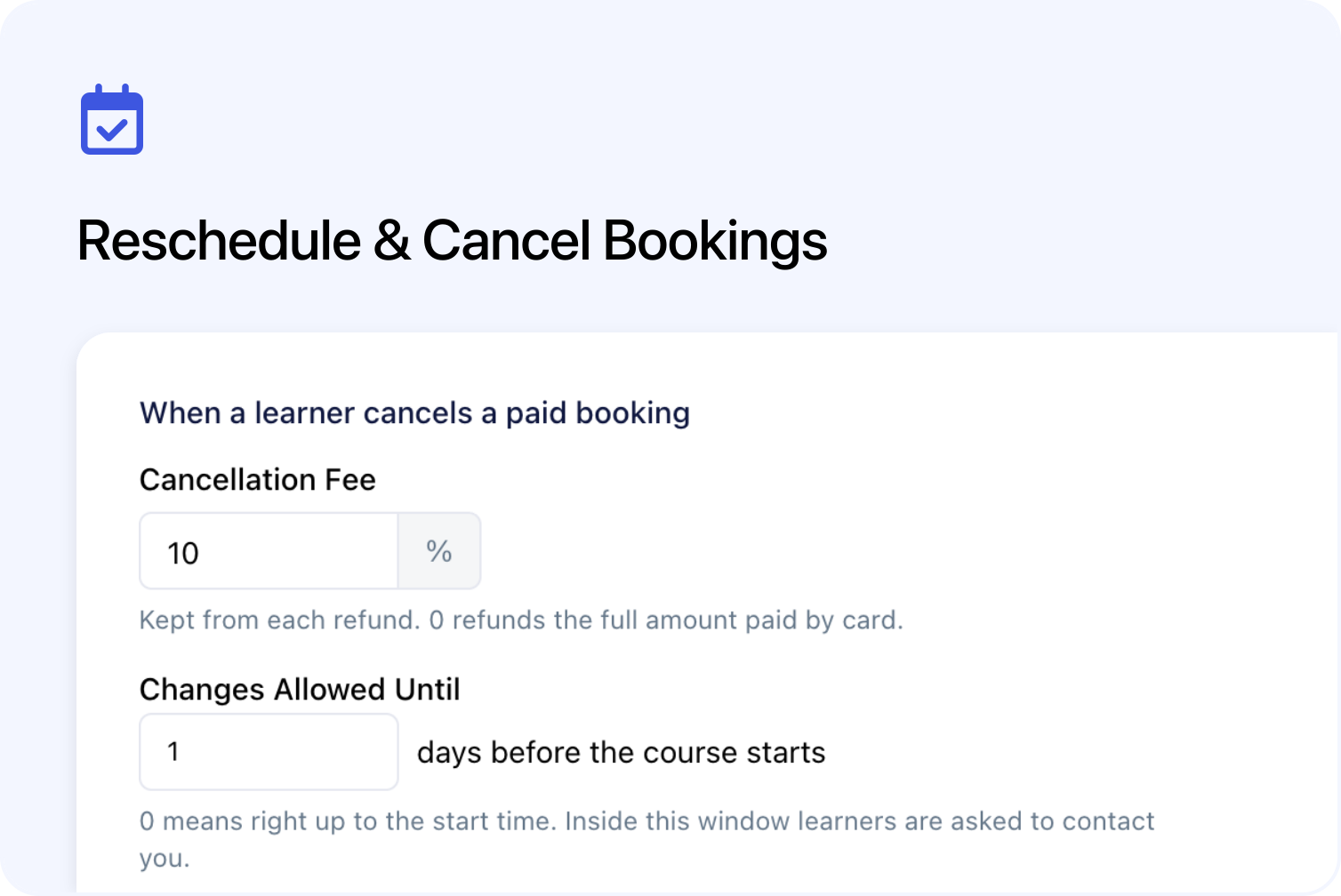
You can now create multiple cancellation and rescheduling policies for your courses. Give different courses different rules for deadlines, refunds and cancellation fees.
For each policy, choose whether learners can cancel their booking or move to another date of the same course. Learners with eligible bookings can make allowed changes online and review the new date, cancellation fee or refund before confirming.
Set your cancellation and rescheduling rules
Choose which booking changes learners can make, the cancellation fee and the deadline.
A policy is a saved set of rules. Create one in Settings → Cancellation Policies and choose:
- Rescheduling: let learners choose another date of the same course, or switch this off.
- Cancellation: let learners cancel online, or ask them to contact you.
- Refunds: choose Refund automatically for eligible card payments, with a percentage cancellation fee if needed, or choose No refund.
- Notice: set how many days before the course starts online changes must stop. Set 0 to allow changes until the start time.
- An optional learner note: add a short explanation to the full policy.
For example, a workshop policy could allow date changes and cancellations until one day before the course, with a 10% cancellation fee. Another policy could allow date changes but offer no online cancellation.
A new policy starts with rescheduling and cancelling enabled, automatic refunds, a 0% fee and a one-day deadline. Check those choices before saving.
Your first policy becomes the account default. Courses using the default follow those rules, including existing bookings. Without a policy, learners cannot cancel or reschedule online.
If you used the old cancellation setting, create a policy here. Your old setting is not converted into a named policy.
Choose different policies for different courses
Use the account default or select a different named policy for a course.
Use the account default or choose a different policy for a course. In the course editor, open Settings → Booking Options → Cancellation Policy, choose the policy and save the course.
For example, use flexible terms for a regular workshop and stricter cancellation rules for a longer programme. Save each policy once and reuse it across courses.
The policies list shows the default and how many courses use each policy. You can edit a policy, make it the default or delete it. The delete confirmation shows the number of affected courses and explains what will happen.
Policy changes apply immediately to existing bookings too. This applies when you edit the rules, change the default or choose another policy for a course. Check which courses will be affected before saving.
If you delete a policy that a course uses, the course switches to the account default. If you delete the default, Cademy does not select a replacement. Courses without their own remaining policy then stop offering online cancellation and rescheduling.
The policy setup guide covers creating, assigning and managing policies in full.
Show learners the policy before they book
Customers can read the cancellation policy before completing their booking.
Checkout shows a summary of the course's cancellation policy and a Cancellation Policy link to the full rules. Customers can see the deadline and cancellation terms while deciding whether to book.
After booking, learners can read the rules under Your Cancellation Policy and open the full details with View Policy. Your optional learner note appears with those details.
Only eligible card payments are refunded automatically. Your team must handle refunds for bank transfers and other payment methods.
Let learners change their bookings online
Eligible booking changes are available from the learner’s booking page.
Learners sign in and open their booking from My Courses & Bookings. The page shows the available actions. These depend on your policy, who made the booking and whether online changes are still allowed.
Reschedule to another course date
Learners choose from eligible dates with available spaces.
With Reschedule, learners choose another available date of the same course, review the move and confirm with Move My Booking.
Bookings on an order can only move to a date at the same price. The order total and invoices stay the same. The old space is released and a space is taken on the new date.
The list only shows future public dates with spaces left that meet the policy deadline. A booking for a whole block of sessions can move to another eligible whole block, rather than to a single session.
If no suitable date is available, the learner is asked to contact you. Your team can discuss another course, price or arrangement.
Cancel a place and review the refund first
The learner reviews the cancellation fee and refund before confirming.
Cancel Booking shows the outcome before the learner confirms. For an eligible card-paid booking, it shows the amount paid, cancellation fee and refund.
In the example shown, a £125 place paid fully by card has a 10% cancellation fee: £12.50 is kept and £112.50 is refunded. Earlier refunds or an unpaid balance can change the calculation. The customer booking fee is not refunded.
With Refund automatically, Cademy returns the eligible amount to the card used to pay. With No refund, the space is released and the paid money is kept. Payments made another way are not refunded automatically.
For unpaid or partly paid bookings, cancellation reduces the amount owed first. The FAQ below explains how this affects invoices and refunds.
Manage one person within a group booking
Removing a participant keeps the purchased space available for someone else.
The person who booked can reschedule or cancel a participant's eligible place from the Participants tab. The other places stay booked. Cancelling the last place cancels the order.
Remove Participant removes the person but keeps the purchased space for someone else. It asks for confirmation and leaves the money unchanged. Use Cancel Space to give the space back under the policy.
A guest booked by someone else can reschedule their own eligible place. The booker or your team must handle cancellation.
The learner booking changes guide explains each journey and the reasons a booking may need your help.
Control transfers to another person
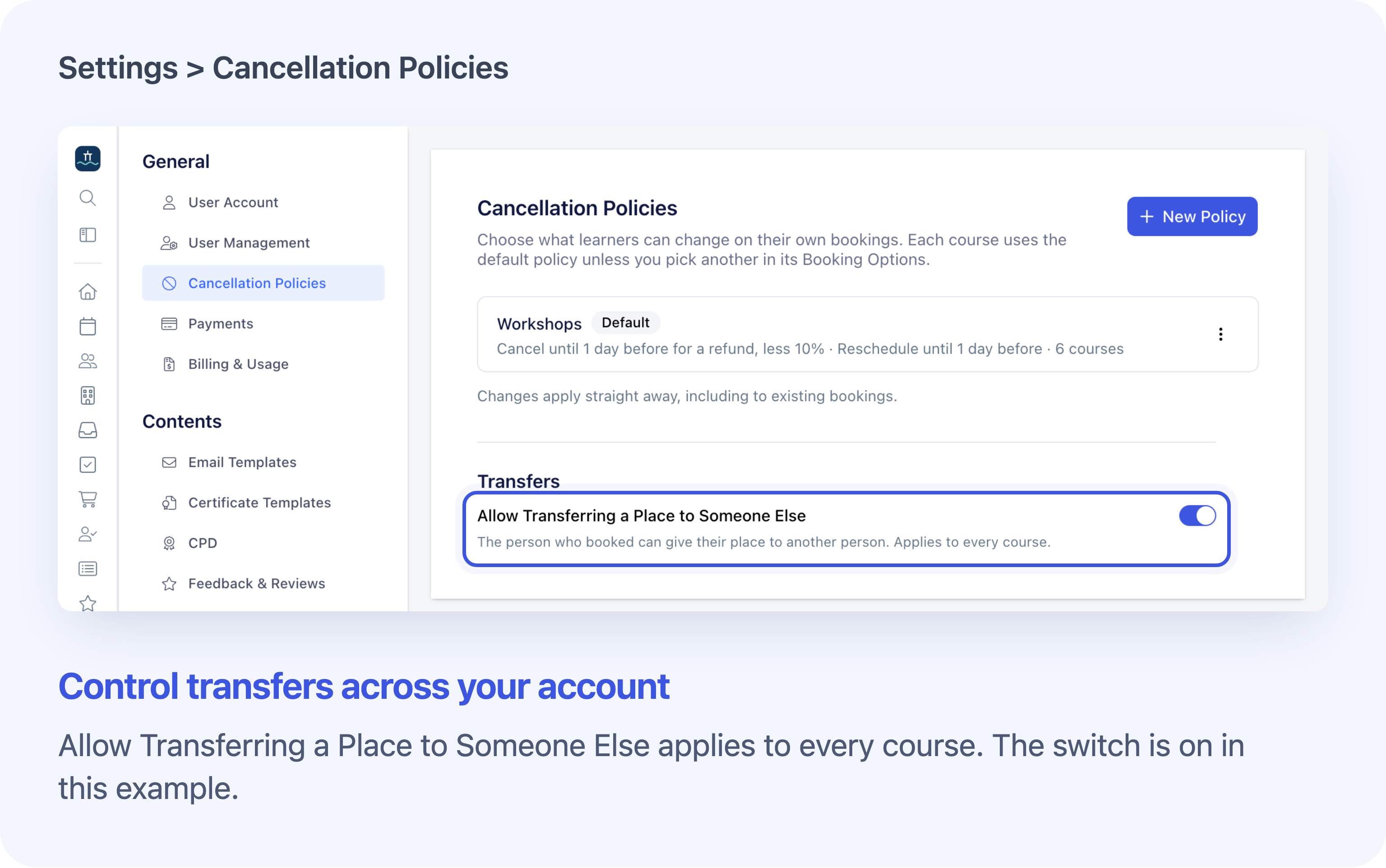
Moving to another date and giving a place to another person are separate choices. Allow Transferring a Place to Someone Else is an account-wide switch on Settings → Cancellation Policies, outside the individual policies.
The switch is on by default. Turn it off to stop bookers using Transfer Your Space to give their own places to someone else. This control works even if you have no cancellation policies.
A booker can still replace a guest on their order, subject to the booking's usual restrictions.
Receive booking-change confirmations
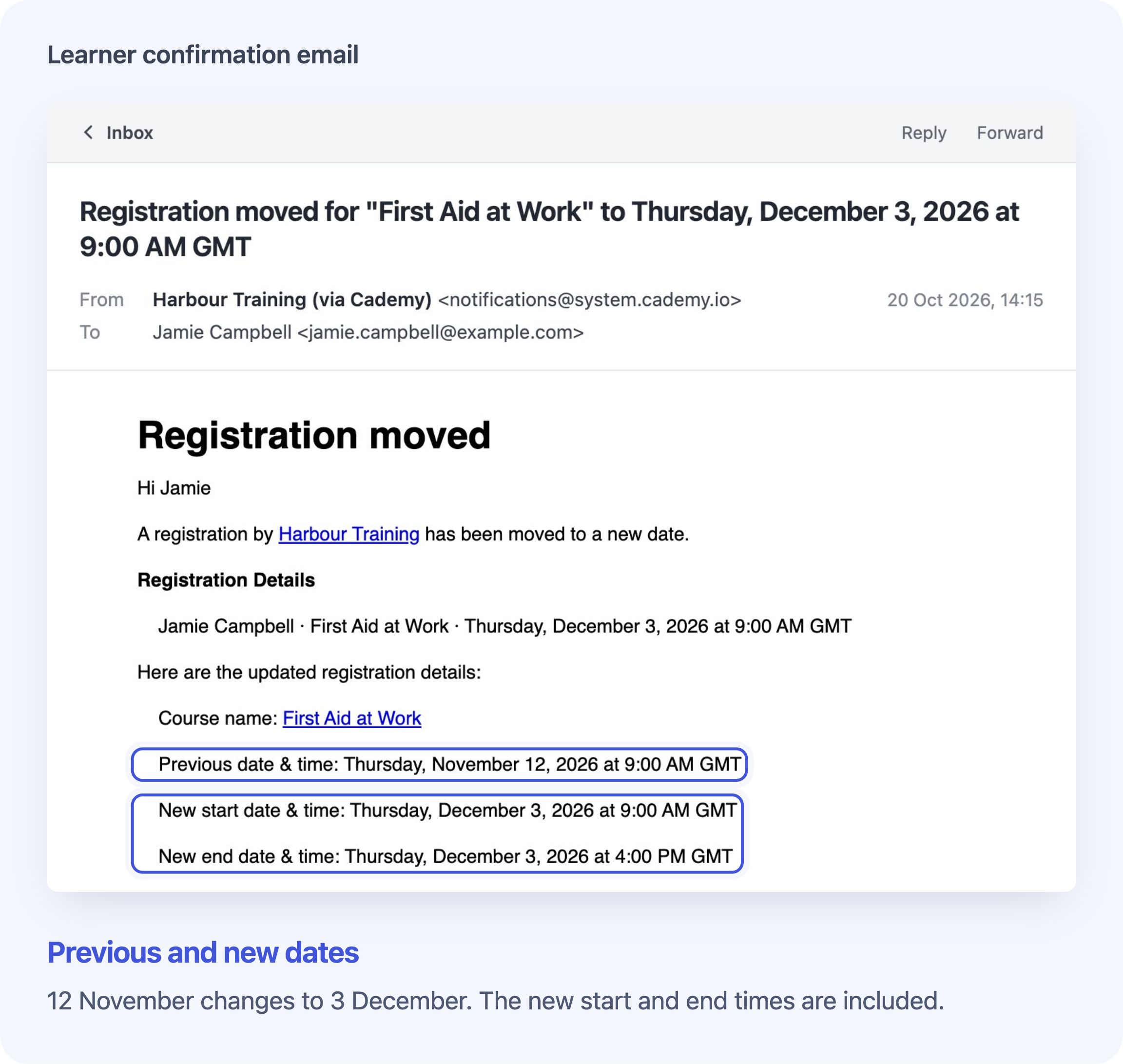
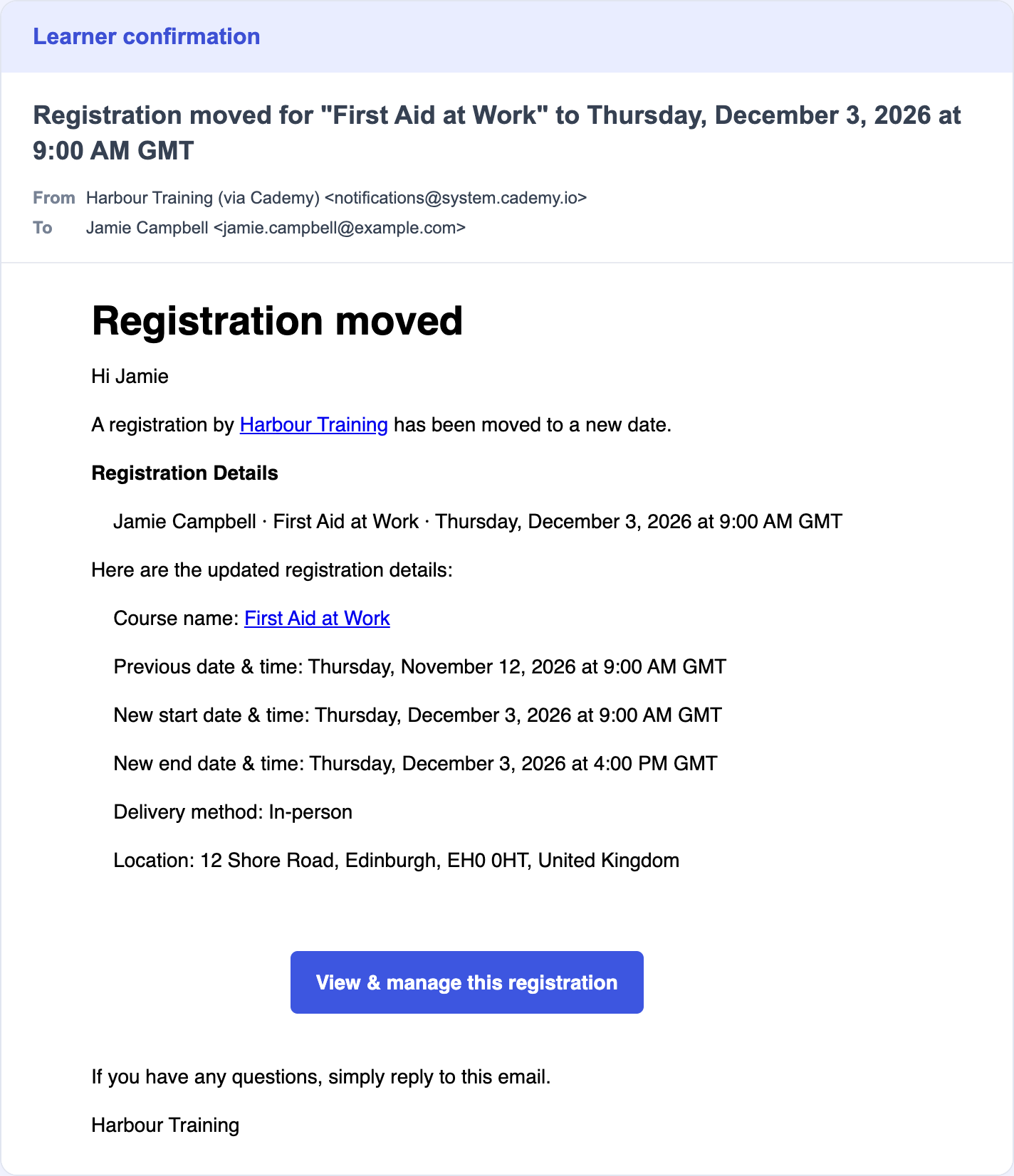
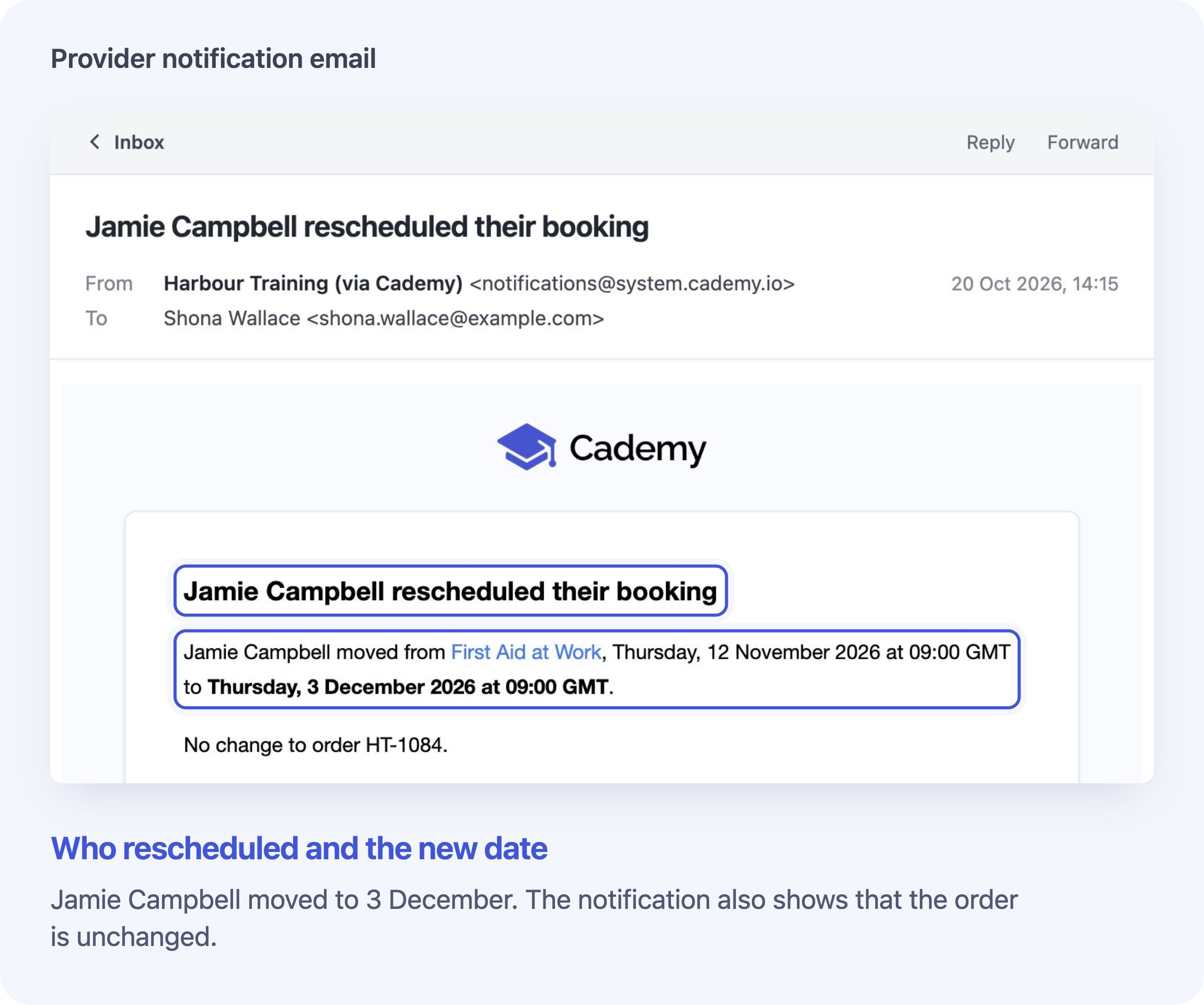
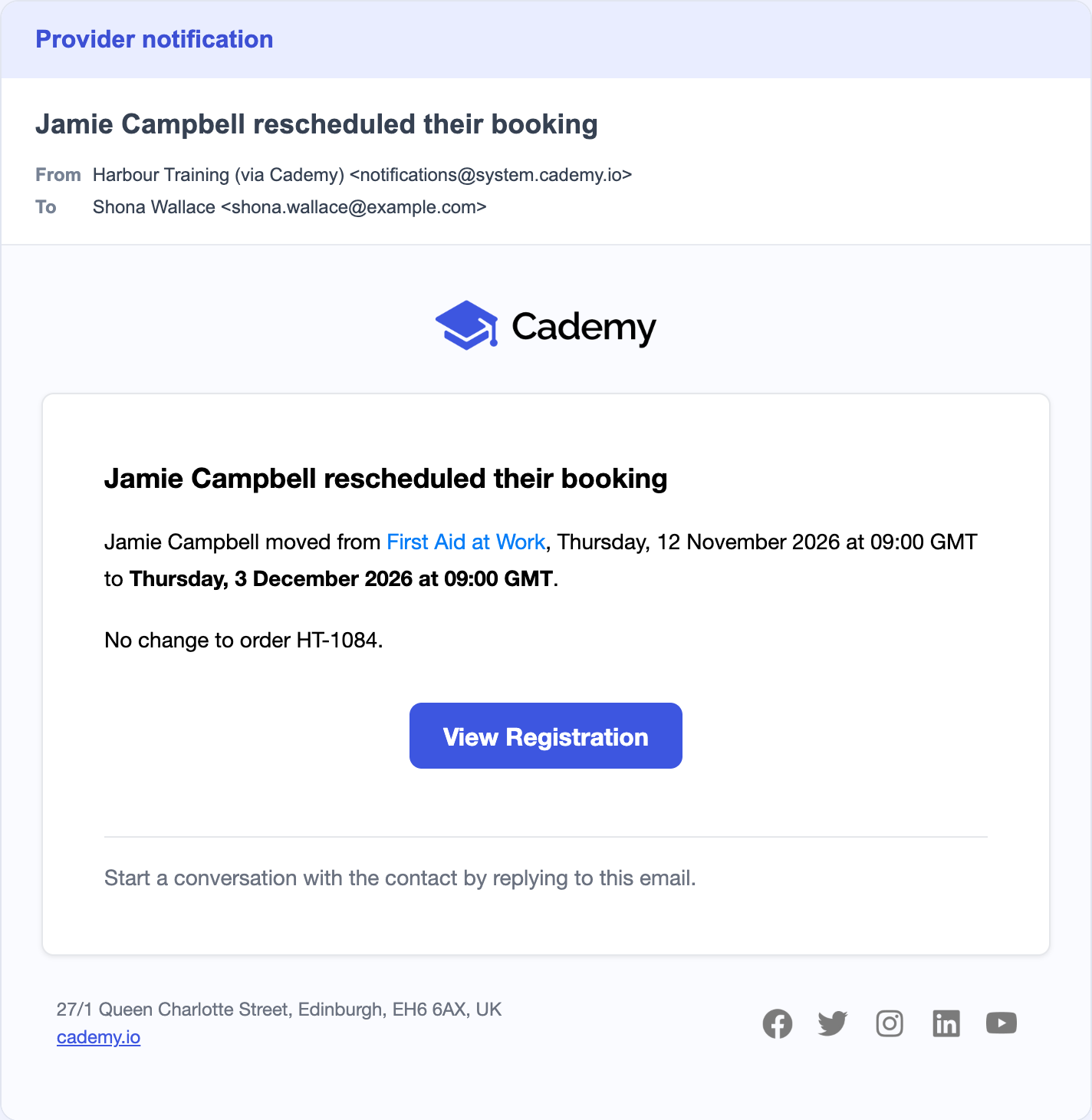
Cademy emails learners when they reschedule or cancel their own eligible places, and notifies your team.
Cademy uses the course's notification recipients. If none are set, it uses the account's recipients, then System Admins if neither list is set.
Cancellation emails explain what happened to the place and the money. When a guest reschedules their own place, the booker is told too. When the booker changes a guest's place, emails to the guest follow the course's guest-email setting.
These emails depend on your account's sending permissions, delivery settings and valid recipient addresses. They are not sent while account email sending is disabled.
Availability and booking limits
Cancellation policies and learner booking changes are available on every plan. System Admins manage policies and the transfer switch; System Admins and Course Owners can choose a course's policy.
The cancellation and rescheduling rules support On set dates and Blended course bookings, including whole blocks of sessions. They do not apply to on-demand courses, on-request courses or sessions booked individually within a block.
Online changes stop at the policy deadline. For a block of sessions, the deadline is measured from the first session.
Some bookings need your team's help:
- Bookings awaiting approval have no online change actions.
- Recorded attendance, started lessons, learning progress, completion, certificates or CPD awards can prevent changes.
- Custom charges on an order prevent online changes.
- Instalment plans and invoices split by course prevent learner cancellation.
Your team can still review requests and use the Admin Dashboard's move, replacement and cancellation tools. Learner policy fees and deadlines do not limit those staff actions.
Frequently asked questions
Will learners immediately be able to cancel every booking?
No. The policy must allow the action and the booking must meet the rules above. Your first policy becomes the default for courses using it, including their existing bookings, so check its rules before saving.
Can I allow date changes without refunds?
Yes. Allow rescheduling, then either switch online cancellation off or allow it with No refund. Choose whether you want learners to give up their places themselves.
Can different dates of the same course have different policies?
No. The policy applies to the course and its dates. You can choose different policies for different courses, but not for individual dates.
What happens to an unpaid or partly paid booking?
Cancelling a place removes the amount owed for that place, even under No refund:
- Nothing paid: the unpaid invoice is cancelled if this was the last place, or reduced if other places remain.
- Partly paid: the cancelled place's value reduces the unpaid balance first. Any remaining eligible card payment follows the refund rule.
- Already paid: the policy decides whether eligible card money is refunded, less any cancellation fee.
Instalment plans and invoices split by course prevent learner cancellation, so your team must handle those bookings.
Can I set several refund rates as the course gets closer?
Each policy has one percentage cancellation fee and one deadline. Tiered refund schedules and deadlines measured in hours are not supported. You can create different named policies for different courses.
Does a learner keep the policy that applied when they booked?
The booking follows the course's current policy. Changes to the rules, account default or course policy apply to existing bookings straight away. A booking does not keep a separate copy of the original policy.
What if the automatic card refund fails when the learner cancels?
The place stays cancelled and is released. The learner is told the automatic refund failed, and your team's notification explains which refund still needs handling. Check the order and payment before arranging that refund.
Can a learner cancel a place my team added without an order?
Yes, if the place meets the policy and booking rules. There is no order payment to refund. It can also be rescheduled without the same-price requirement because it has no order.
Can customers use this to switch to another course or pay a price difference?
Online rescheduling is for another eligible date of the same course. Bookings on an order need the same price. Customers should contact you to change course or arrange a different price.
Does turning off transfers stop a booker replacing a guest?
No. The switch controls the booker's own Transfer Your Space action. They can still replace a guest, subject to the booking's usual restrictions.
How do I get started?
Open Settings → Cancellation Policies, review the rules you want to offer and create your first policy. Then check which courses should follow the default and which need a different policy. The two Help Centre guides linked above cover provider setup and what learners see.