👥 Let Group Bookers Choose Each Participant’s Price Option
Bookers can assign course price options and edit participants on their order.
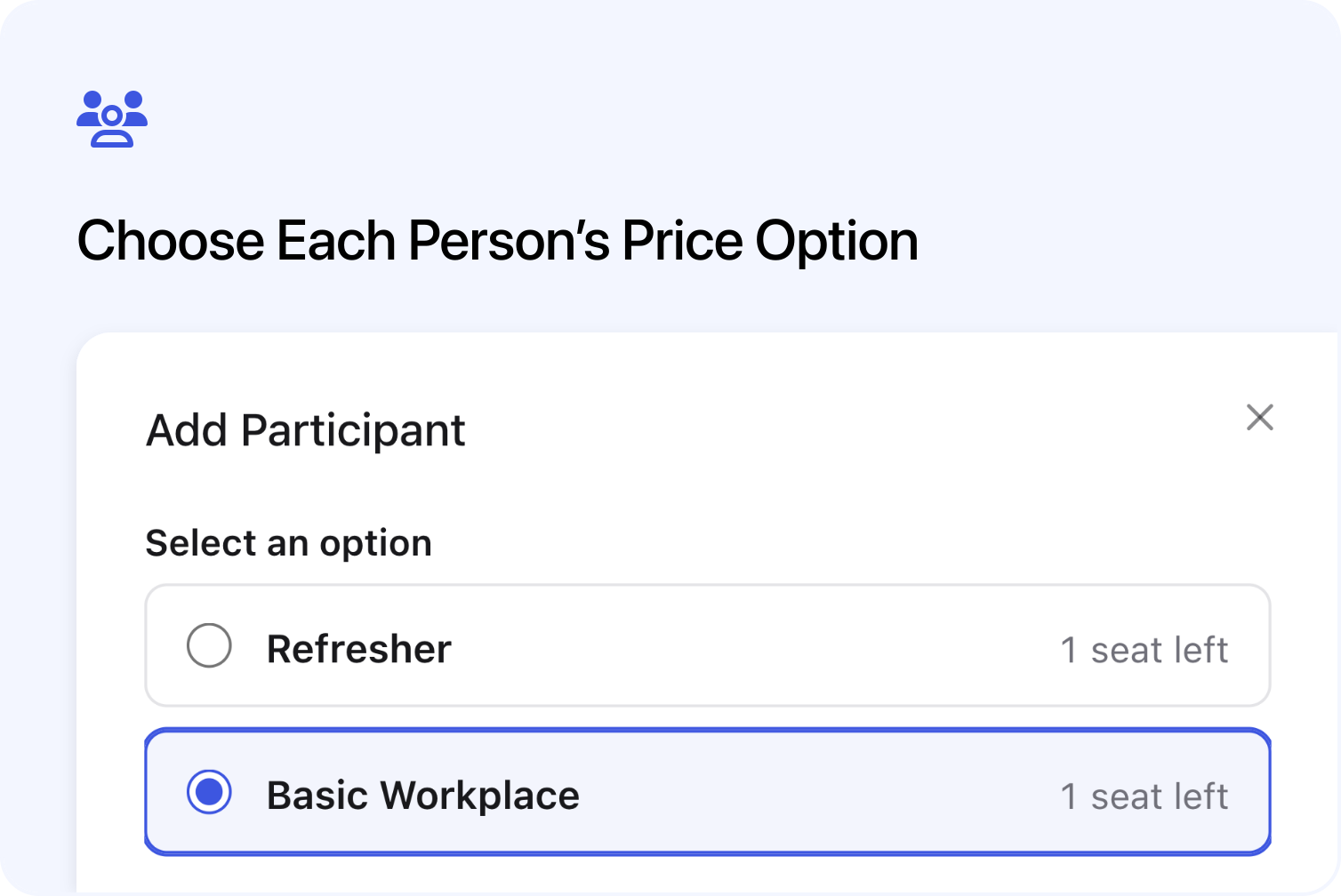
Customers who book a course for a group can now assign each person to one of the course price options they have bought. They can also add, edit, replace or remove participants directly on their order, with the same controls on the course page.
For example, a first aid provider might offer Refresher for people renewing their training and Basic Workplace for people taking the basic course. A company buys three Refresher spaces and two Basic Workplace spaces. Its organiser can now record who is taking each option and see which of the five spaces still need names.
The organiser can fill and update the group themselves, while your team can see each person's assigned price option. Changing an assignment uses a space already purchased and leaves the invoice unchanged.
Choose a course price option when adding a participant
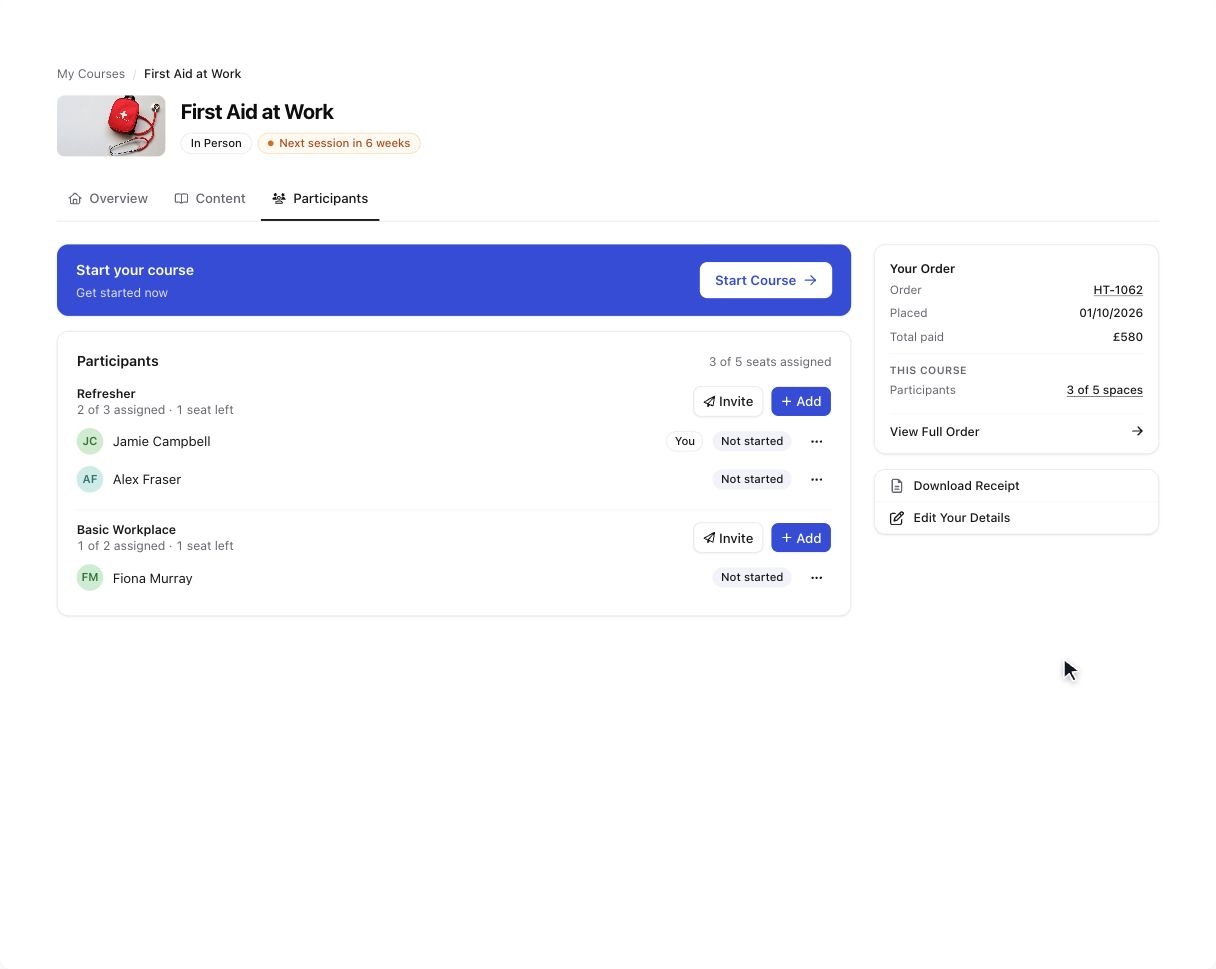
Choose a purchased price option and see the participant added to that group.
When several price options have been bought for a course date, the booker's participant list groups people under those option names. Each group shows how many purchased spaces are assigned and how many are left.
Selecting Add beside a group preselects that option. The booker can keep it or choose another purchased option with room. Add Yourself as Participant also lets the booker choose an option when they are joining the course themselves.
The choices come from the options already bought for that date. A full option cannot be selected. When only one option was purchased, Cademy assigns it automatically without showing an option picker.
Providers still create price offers in the course editor. See Create Price Offers and Add-ons for setup guidance.
Invite participants to a specific course price option
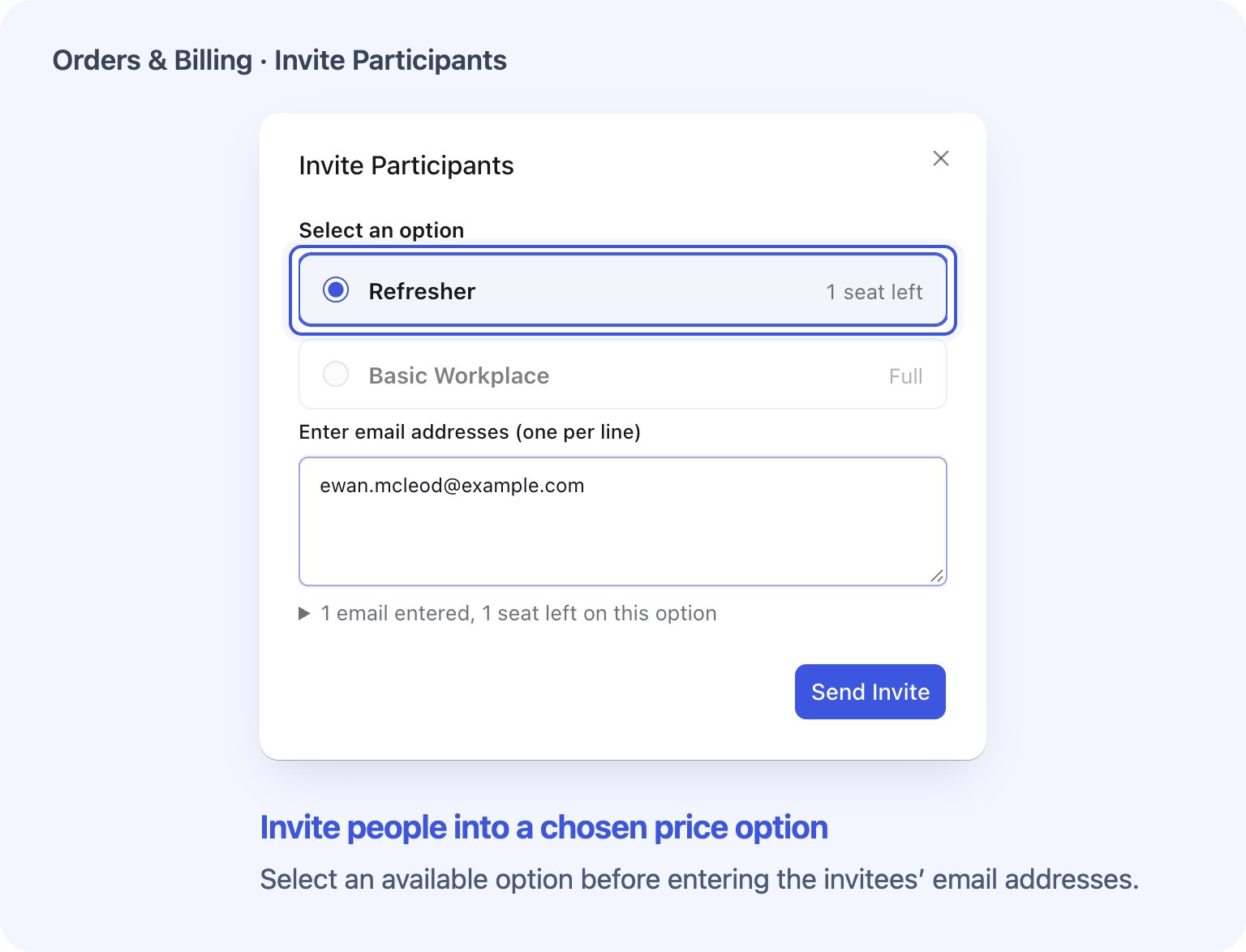
Invite a colleague to fill the remaining Refresher space.
Bookers can invite people by email into a chosen price option, so the invitees can complete their own required details. Each batch goes into one selected option and must fit its remaining spaces.
Invitation emails follow your account's email settings. If the warning “We won't email” appears, the booker can use Copy Link and send the course link themselves.
Switch a participant to another purchased price option
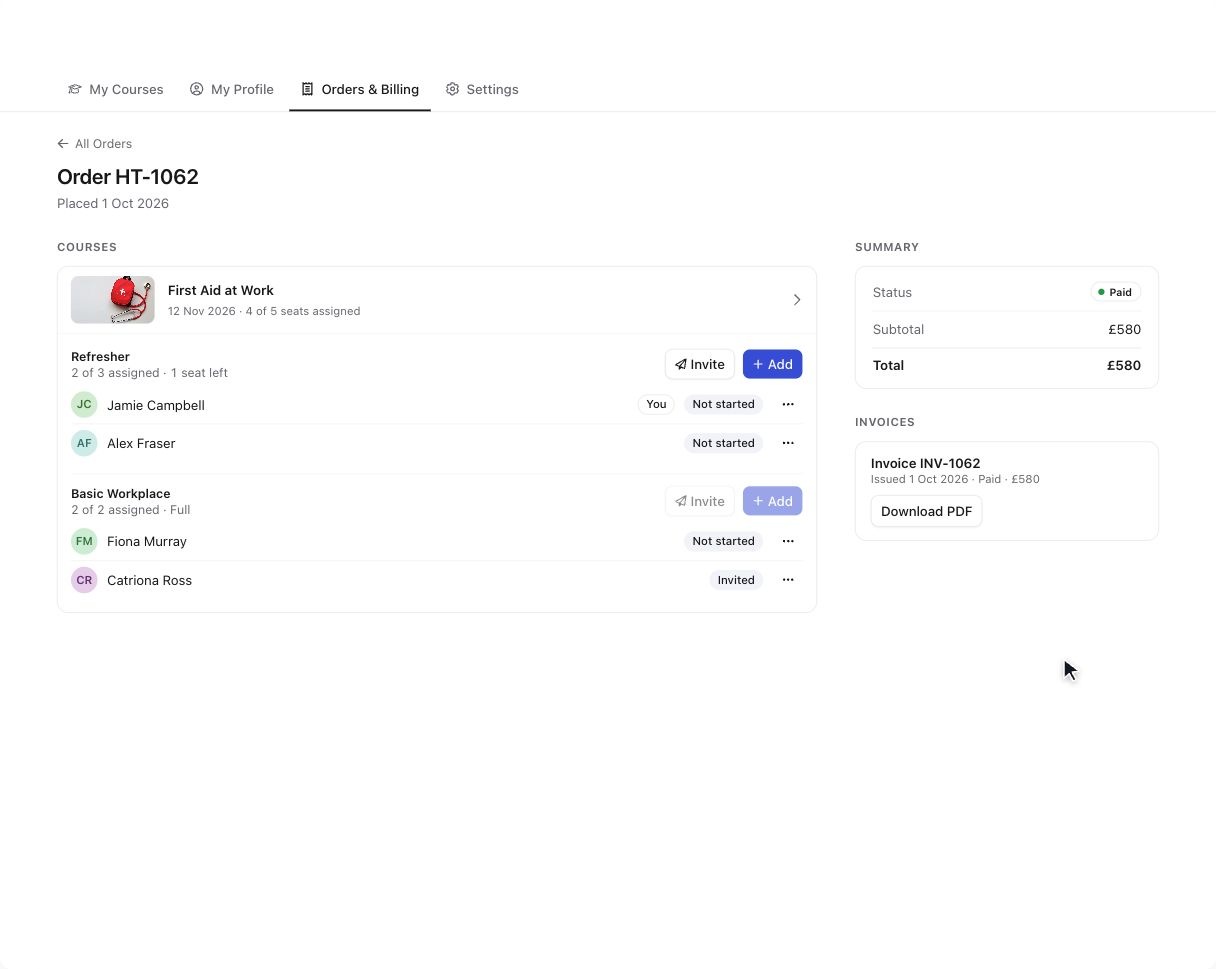
Switch Fiona's price option and see both groups' available spaces update.
Change Option… moves a participant into an available space under another purchased option for the same booked date. Their previous space becomes available to assign again.
This changes who uses the spaces already bought. It does not change the number purchased, order total, invoice or payment. To buy more spaces or a different allocation, the booker needs to contact you.
Add, edit, replace or remove participants directly on the order
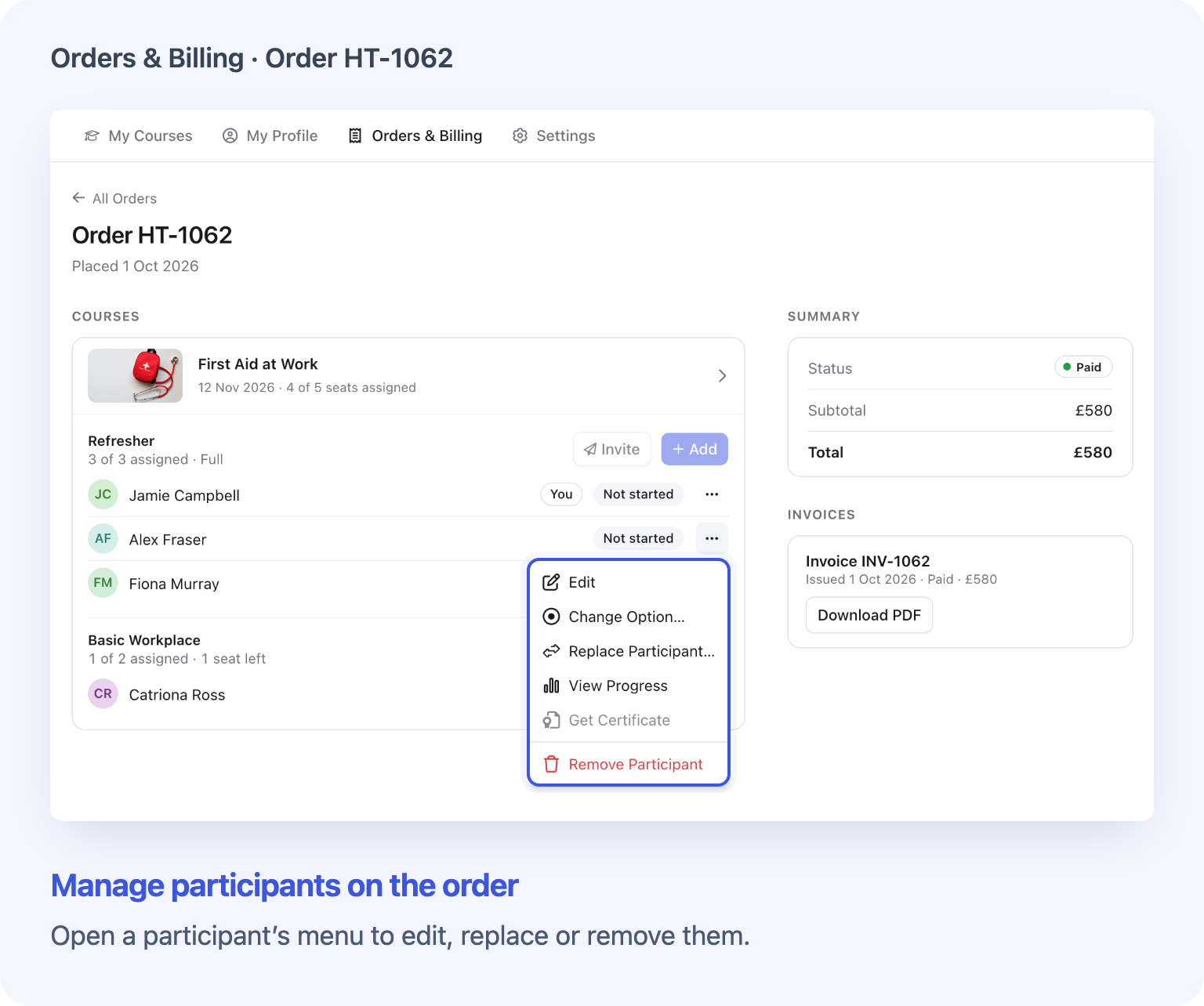
Update participants directly on the order, with their price options and available spaces in view.
The booker can now add and update participants directly on the order under Orders & Billing, as well as on the course's Participants tab. These controls belong to the person whose account owns the order.
From another participant's three-dot menu, the booker can:
- Edit their available details. Email stays read-only.
- Use Replace Participant… when someone else is taking their space.
- Use Remove Participant to leave the purchased space available for somebody else.
Removing a participant keeps the purchased space and does not change the invoice or create a refund.
For orders covering several dates of the same course, adding, inviting, replacing, removing and changing options affect the selected booked date. Editing the same person's details keeps those details together across that course's dates on the order. A whole-block booking is managed as the booked block.
Attendance or recorded learning progress can lock participant changes. Shared-detail edits also check the person's other dates of that course on the order. When a control is disabled, the booker should contact you.
View lesson progress and open participants' issued certificates
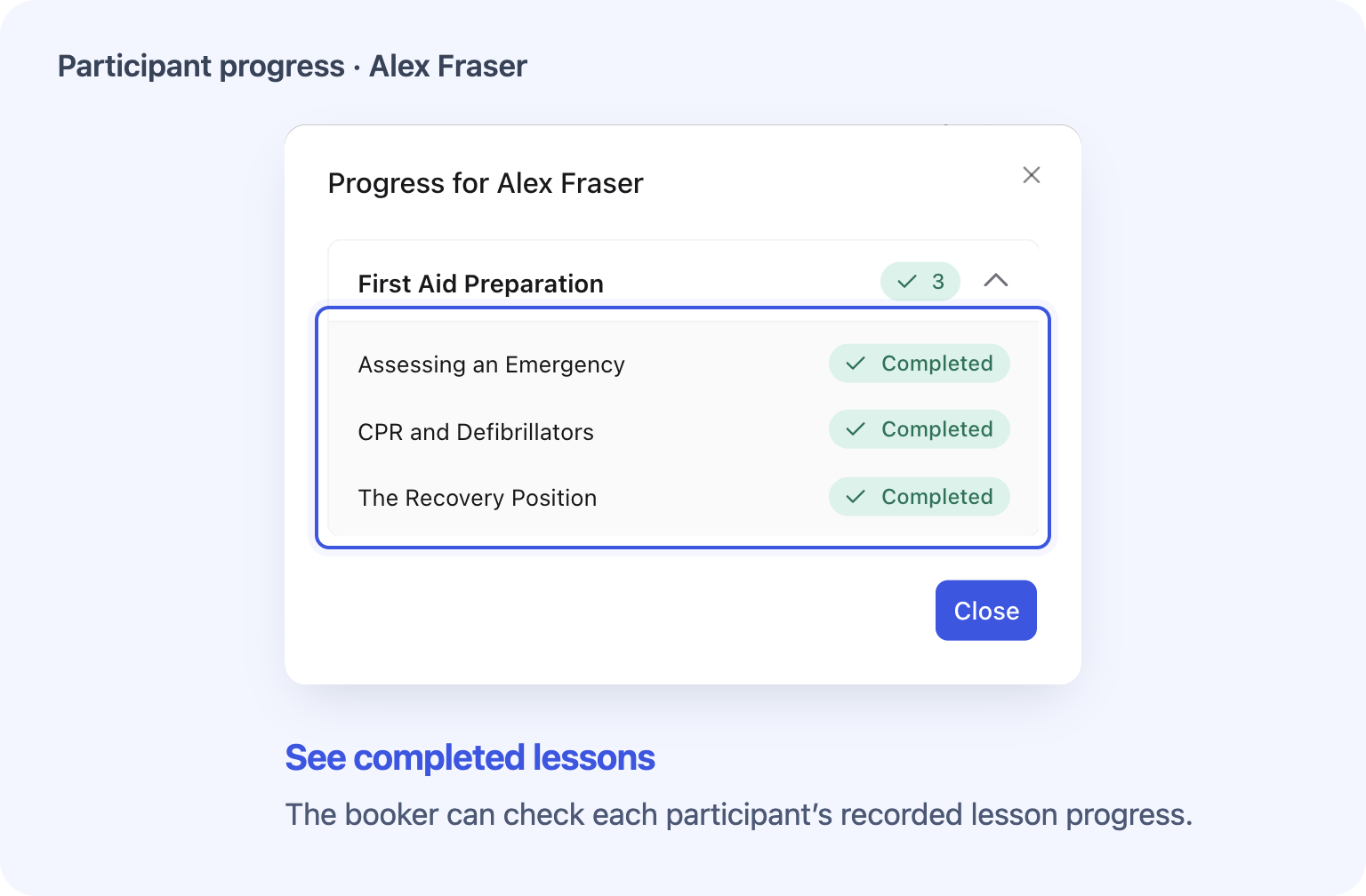

Check Alex's lesson progress and open his issued course certificate.
The compact list shows each person's current status, such as Invited, Missing Details, a progress percentage or Attended.
On courses with trackable lessons, View Progress opens the participant's lesson progress. Get Certificate opens their latest active certificate and stays disabled until one is available. These actions are available from the order as well as the course's Participants tab.
For the full booker instructions, see Manage Participants and View Their Course Progress and Certificates.
Include each participant's price option on printed class lists
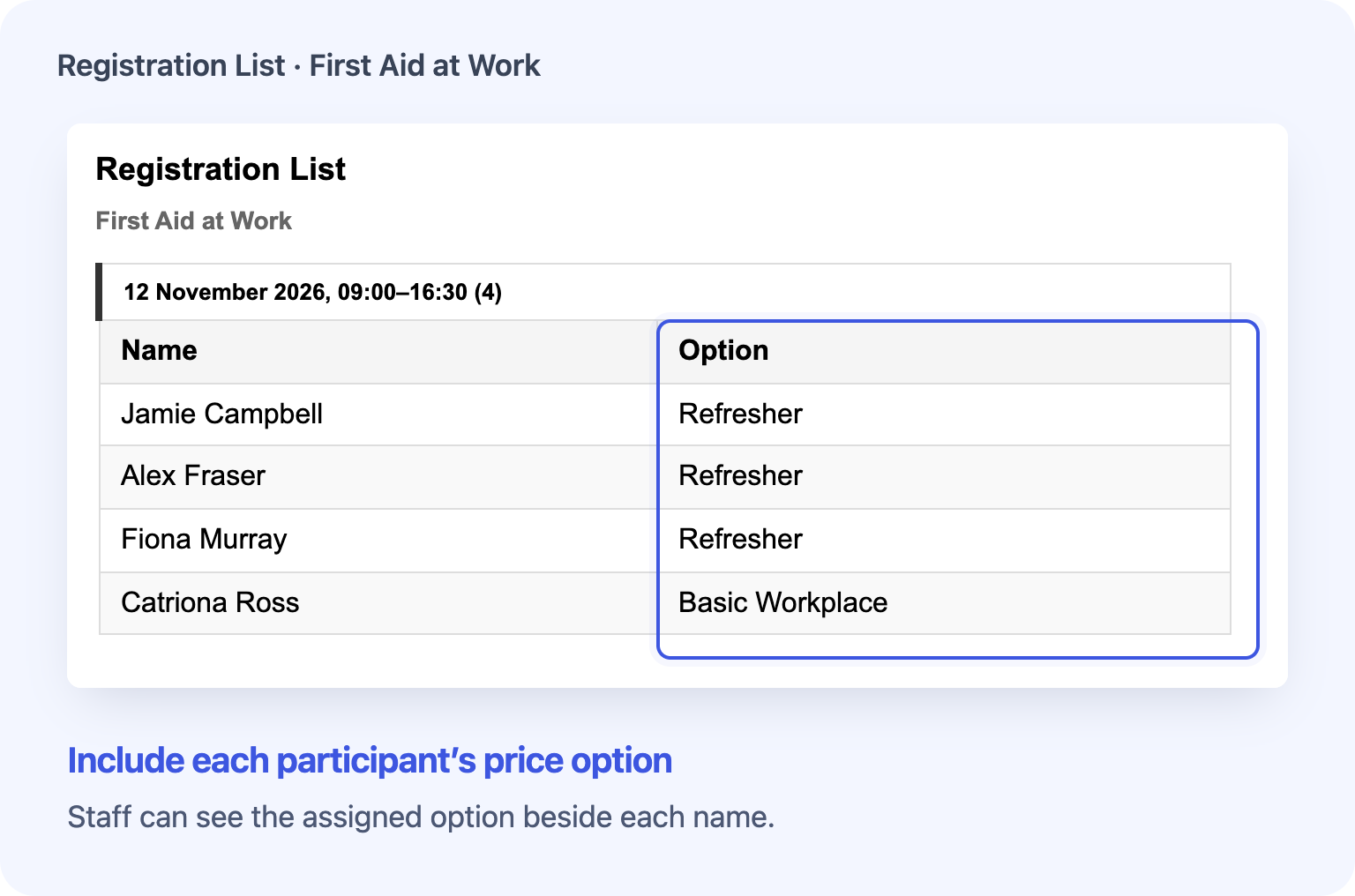
Give staff a printed list showing who is taking Refresher or Basic Workplace training.
Your team can include Option when printing a class list or register in the Admin Dashboard. It shows the assigned price-offer name, helping staff see which option each participant is taking. Prices are excluded.
With Option selected alongside other fields, the column appears when the printed rows contain more than one distinct option name. Your browser remembers the fields you select, so check the selection and preview before printing.
Printed block registers also have a dated section for each session. People booked for the whole block appear in each applicable section; people booked for a single session appear in that session's section.
See Find and Manage Course Registrations for the printing routes, field choices and which participants each route includes.
Frequently asked questions
Do providers need to enable participant option selection?
There is no separate switch for this update. Options appear when several options were purchased for the relevant booked date. Single-option orders use automatic assignment.
Can every participant manage the group?
No. The controls are for the order owner. People booked by somebody else can access their own course place and details. Older booking records and direct registrations may have a read-only participant list.
Does changing an option give someone a different certificate?
This update records their purchased-option assignment. It does not add separate certificate templates for each option. Certificate issuing still follows your course's certificate setup.
Can bookers cancel or reschedule from the order?
Those actions depend on separate self-service availability and your booking rules. Cancel Space, when available, releases a purchased space and adjusts the order. Use Remove Participant when keeping the space for somebody else.
What if an older participant appears under Option Not Chosen?
The booker can use Change Option… when available to assign a purchased option. If the choices or counts do not match the booking, they should contact you.
What if the provider cancels a guest's registration?
If the purchased space is retained on the order, it can be filled again, including with the same email as a fresh participant. This does not restore the old cancelled registration. If the booker's own place was cancelled, they need to contact the provider to rebook.
Does printing add Option to the registrations table or CSV export?
No. This addition is for printed lists. Option names can be blank for older unassigned participants. If Option is the only field selected, it prints even with a single option name or none.