📝 Add Forms to Online Lessons
Collect information and course feedback without leaving the lesson.
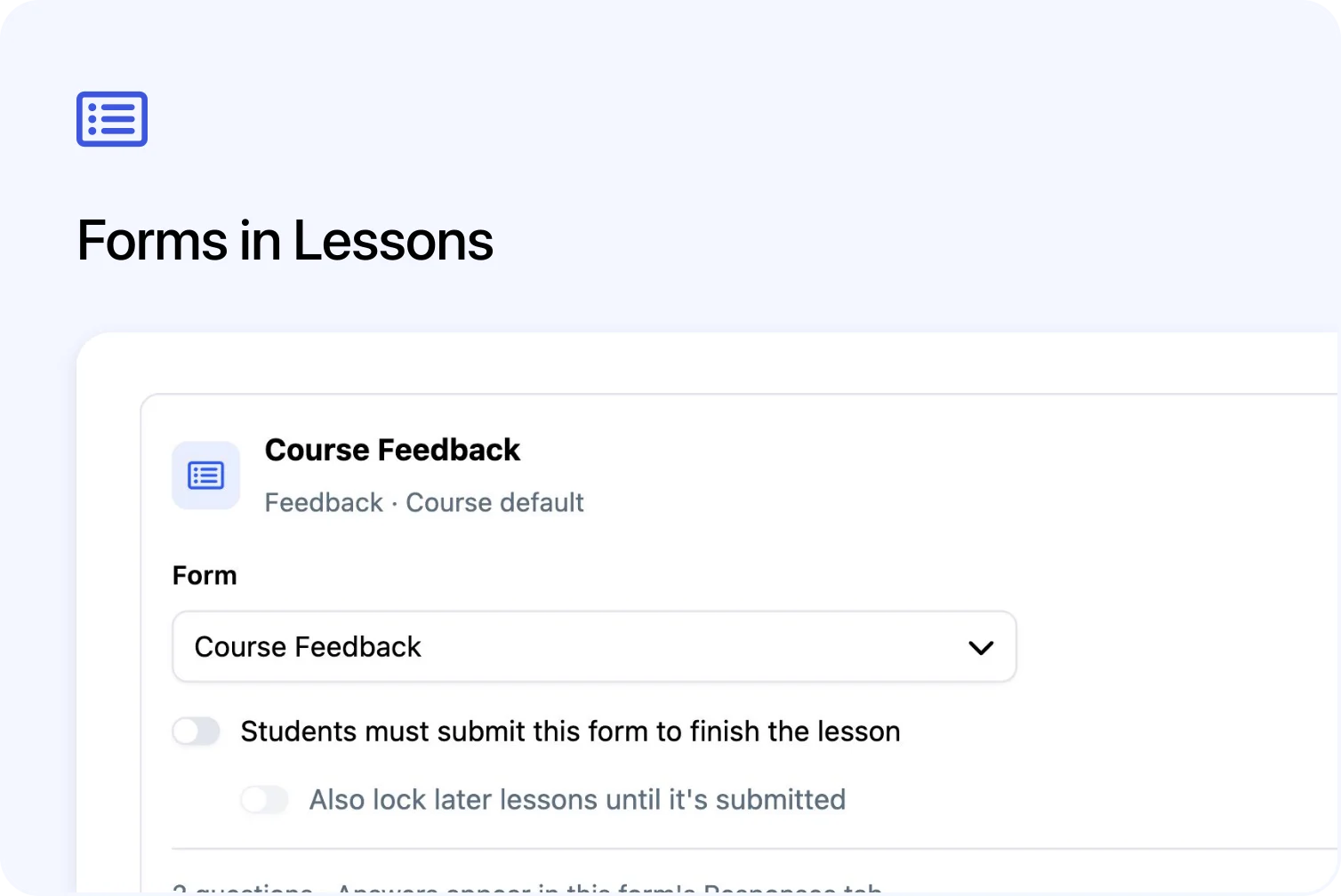
You can now collect information and course feedback through forms inside Cademy lessons. Learners answer without leaving the lesson, and you choose whether they must submit before completing it or moving on to later lessons.
This works in self-paced on-demand courses and in the online part of blended courses, which combine online learning with scheduled sessions. For example, collect learner information at the start of a course or make feedback part of its final lesson.
Add General and Feedback forms to online lessons

A Form block places an existing form inside a lesson. Use General forms for information and file uploads, or Feedback forms for course ratings and comments, without presenting them as scored quizzes.
General forms can stay in Draft: they do not need a public link, and lesson use does not use a published General-form slot. You can reuse a form across lessons; changes to its questions apply wherever it is used.
System Admins and Course Owners can add forms in the block-based course lesson editor. Older lesson editors and externally hosted lessons do not support these blocks. Feedback forms must be enabled for your account; Checkout forms are excluded.
Learn how to add a form to a lesson.
Require form submission and optionally lock later lessons

Forms are optional by default. You can require submission before the learner completes the lesson, and optionally keep later lessons locked until they submit and complete the lesson containing the form.
This lets you collect information before learners move further through a course, or require feedback in the final lesson. Submission alone does not complete the lesson or issue a certificate. Course completion, certificate settings and any required blended-course attendance still apply.
Requirements depend on the form remaining available: a missing or archived form does not block progress. Administrators can also correct lesson progress manually without creating a response.
Learners see saved answers after submitting a form

Learners receive a dated receipt showing their answers, which remains when they return to the lesson. They cannot edit or resubmit the response there.
General forms use saved contact details where available, so learners have fewer details to enter. Their account email is filled in and locked.
Find and export answers submitted in lessons

Your form's Responses tab brings lesson submissions together. You can filter for lesson responses, read their answers and course and lesson details, and export the filtered responses.
Lesson feedback follows your course-review publishing settings. Once recorded for the learner's course place, it also skips the automatic feedback request at course completion. Separate day-after email settings still apply. General-form answers stay separate from course reviews.
See form submissions in each learner's progress

A learner's Registration, the record of their place on the course, shows form submissions alongside lesson progress. System Admins and Course Owners can open the saved response from there, making it easier to check the answers as well as the learner's progress.
Learn how to find and export lesson responses.
Frequently asked questions
Will learners answer the same form again in another lesson?
No. Each form is answered once per Registration. Reusing it shows the saved response; use separate forms for fresh answers at different stages. Copying a lesson or course keeps the same shared form.
Do General-form emails and contact settings still apply?
Yes. Lesson submissions follow the form's notification, confirmation-email and contact-update settings. Learners see their saved answers instead of the public form's thank-you message or redirect. See Forms: General for those settings.
Can I try a submission in the course preview?
Preview shows the form but cannot save responses. A real test Registration is needed to check submission and completion requirements. See Test a Course as a Learner.