✏️ Learners Can Edit Their Own Course Details
Guests can update their answers and correct contact details after attendance.
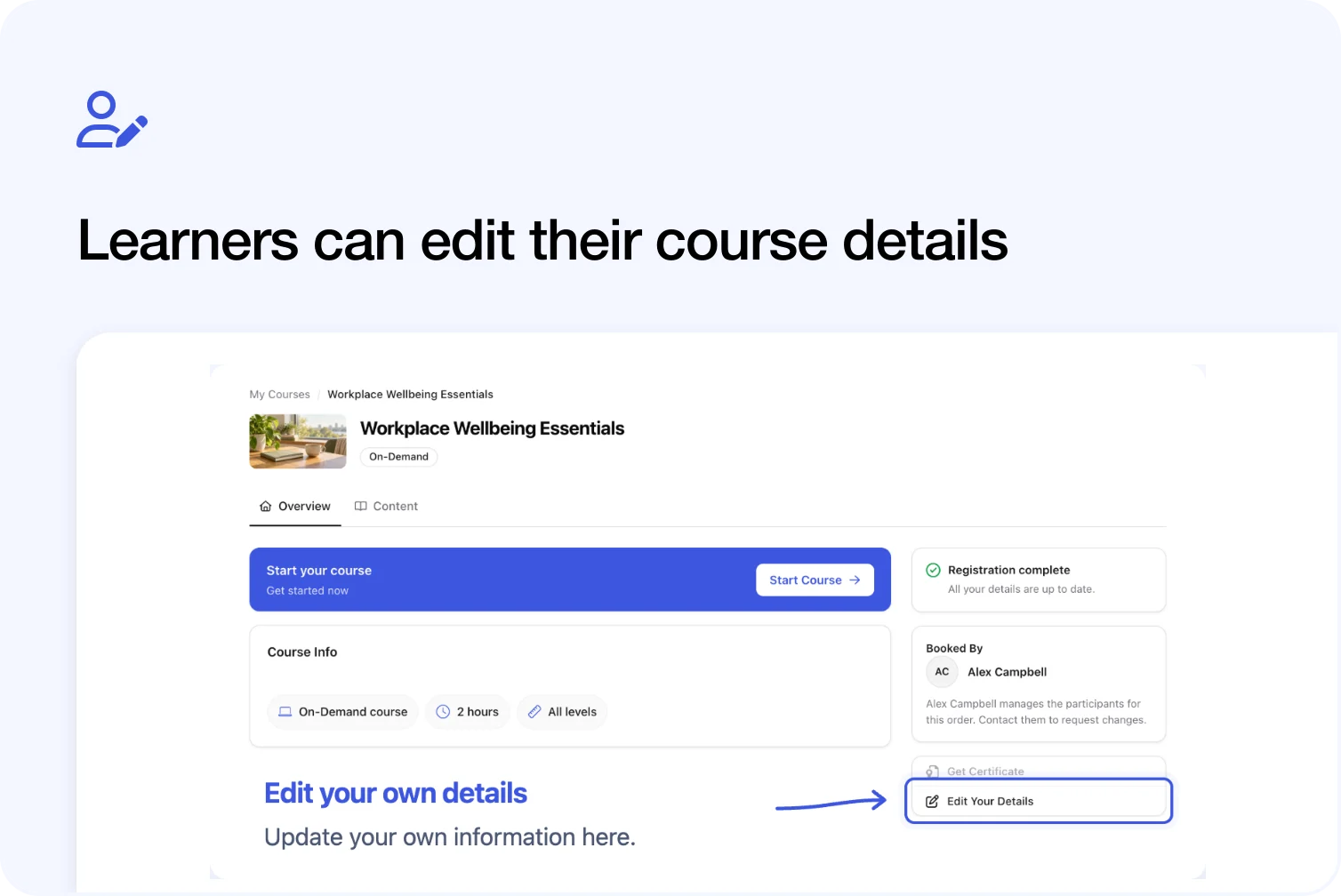
Learners can now return to their course page to update their own details, including when someone else booked their place. They can also correct available contact fields after attendance or learning progress has been recorded.
For course providers, this gives learners a direct way to fix a phone number, complete an unanswered question or update a postal address before you send a certificate.
Guests can edit their own course details
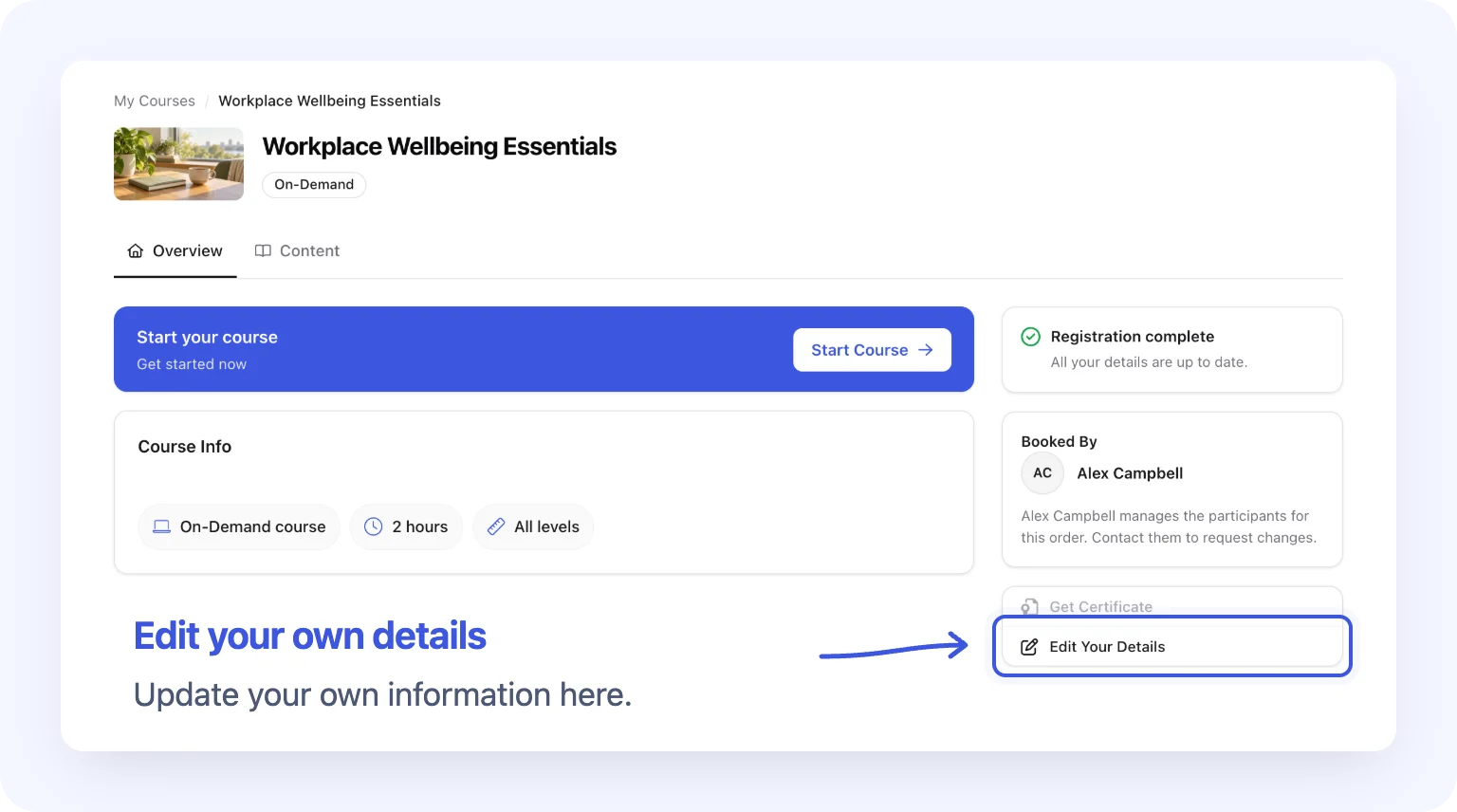
Learners can open their own details from the course page.
Someone booked onto a course by a colleague, employer or another person can select Edit Your Details from the course page. The form opens with their saved answers, ready to update.
Learners find the course under My Courses. People who booked and are attending use the same side-panel action, including on group bookings. An attending booker can open it from either Overview or Participants.
This keeps their own corrections separate from the order owner's options for managing other participants. A guest can edit their own available answers without gaining access to somebody else's order, payment information or participant details.
Return to missing registration answers
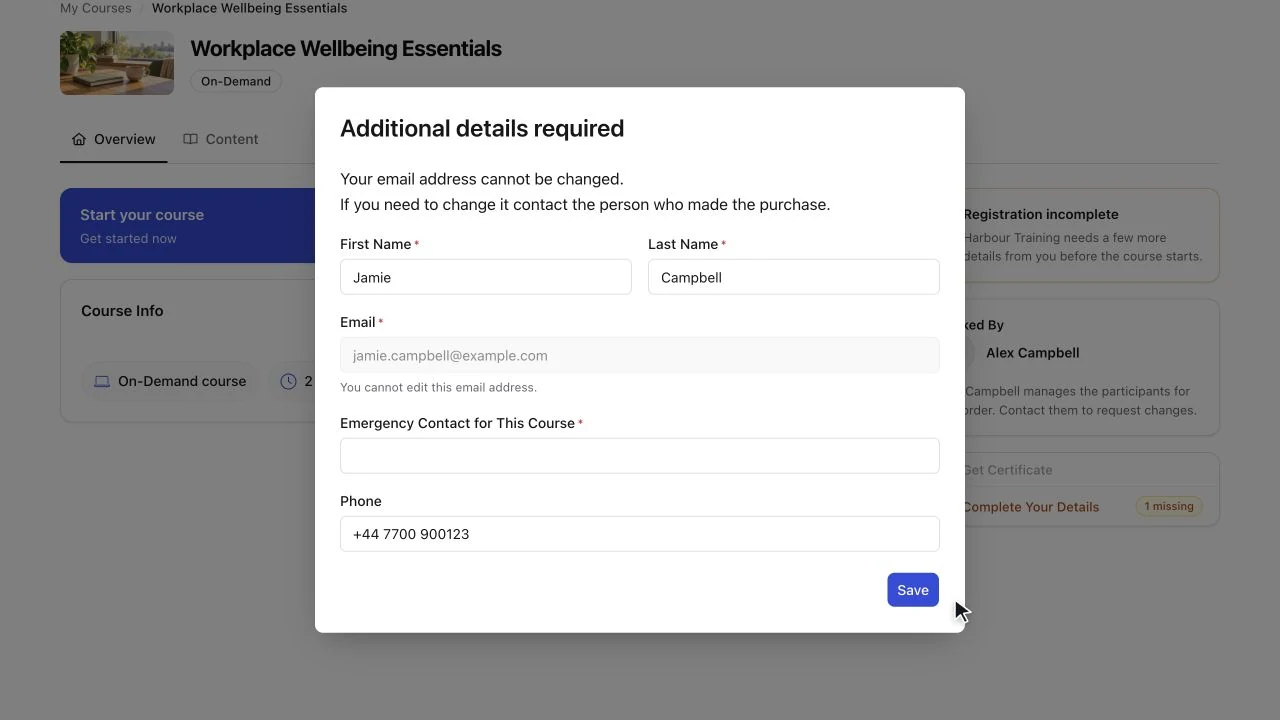
Complete Your Details provides a way back to missing personal answers.
When personal information is still needed, the action reads Complete Your Details and can show a count of missing answers. Learners can close the Additional details required prompt and come back through this action later.
The incomplete status also checks course answers on that booking. An answer supplied for a different booking no longer makes a blank required course answer look complete.
Learners complete the available required fields and select Save. If a required question is locked or unavailable, the course provider needs to help.
Correct contact details after attendance
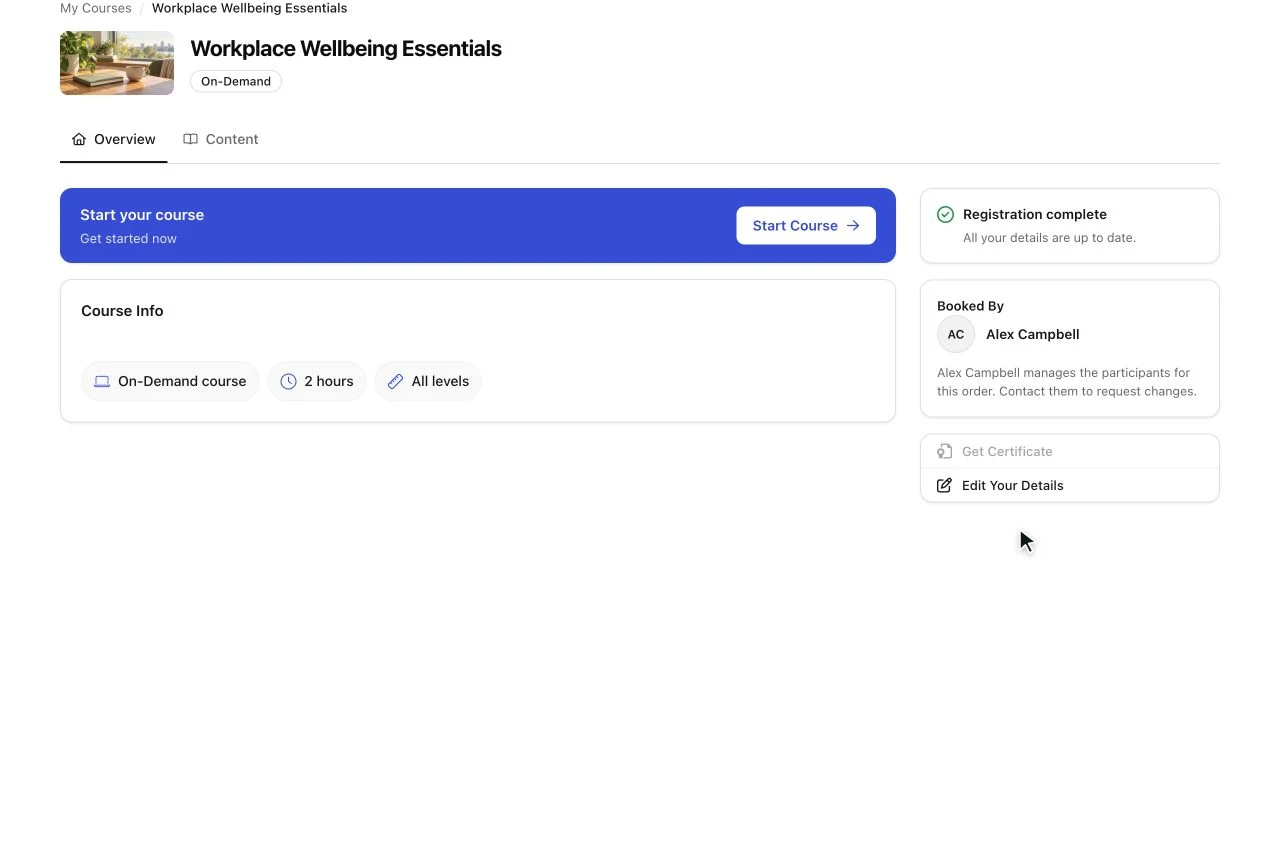
Contact fields can remain editable while the learner's name and course answers are locked.
Recording attendance or learning progress no longer removes the learner's own edit action. Contact fields such as phone number and postal address remain editable when they are included on the form.
For example, a learner who has moved house can correct the address held by your organisation before you post their certificate.
Their first name, last name and course-specific answers are locked once attendance or progress is recorded. The form explains the reason and shows a date when one is available. The provider can help with changes to locked answers. Email remains read-only.
Clearer reasons when course actions are unavailable
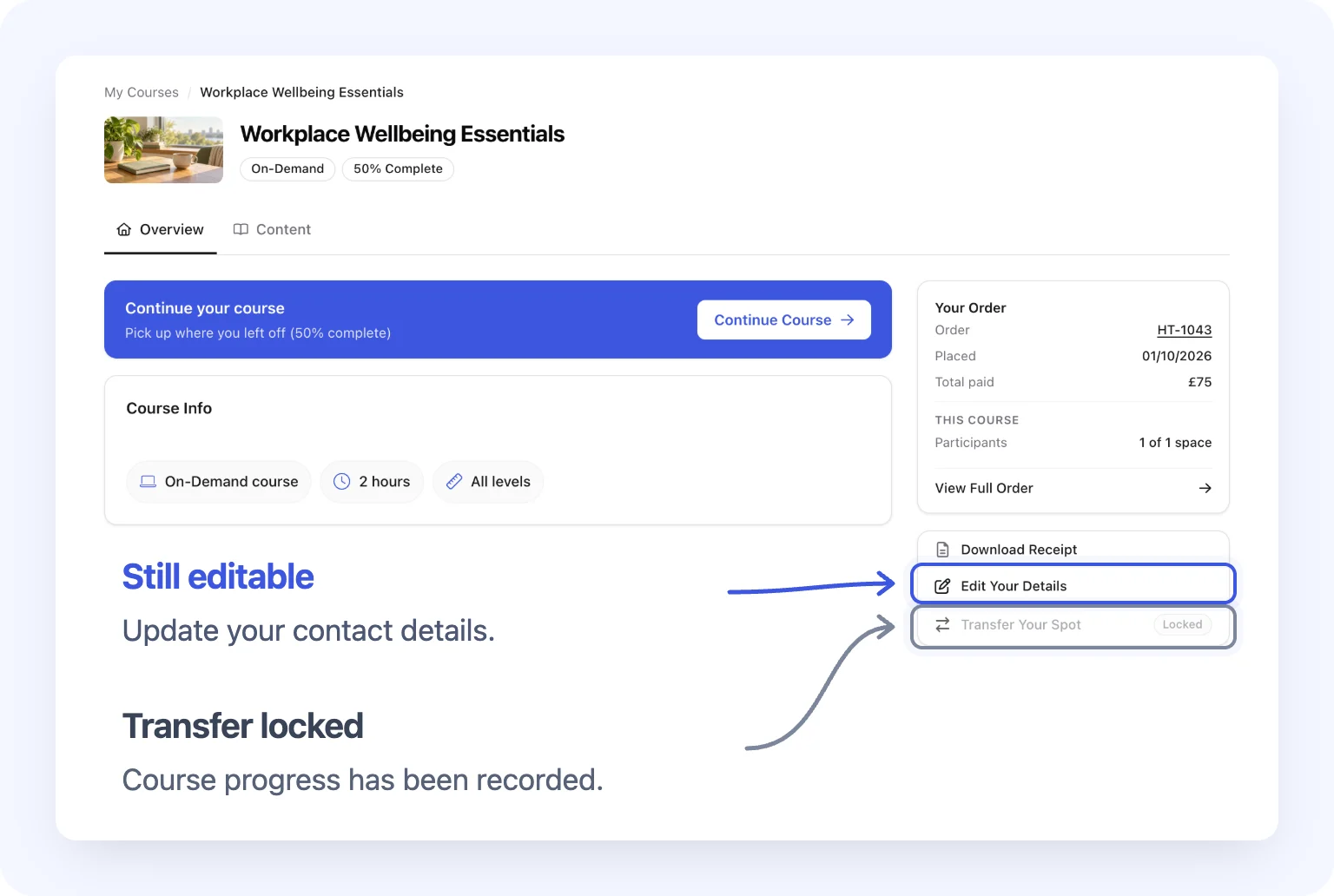
A locked transfer can appear alongside an available Edit Your Details action.
When recorded attendance or progress prevents an attending order owner from transferring their place, the side-panel Transfer Your Spot action shows Locked. They can still open their own editable contact details.
For registrations that do not support learner editing, Edit Your Details is disabled and labelled Provider only. This includes older bookings and directly added or imported registrations. It tells the learner to contact the course provider for changes. An order created by a provider is not automatically excluded; the available action depends on the learner's registration.
Frequently asked questions
Can learners change their email or give their place to someone else?
Email cannot be changed in this form. Changing the person attending is a separate action, using Replace Participant or Transfer Your Spot where available. The provider can help when those actions are unavailable.
Does this change how the order owner edits other participants?
No. The new contact-detail flexibility applies to learners editing their own details. The order owner's actions for editing, replacing or removing another participant remain subject to attendance and progress restrictions.
Will saved answers appear if Allow Autocomplete is switched off?
Yes. Reopening Edit Your Details loads the learner's saved values. Allow Autocomplete controls prefilling at checkout; it does not hide saved answers from this editor.
Can learners upload a requested document here?
Yes, if their form includes an editable file-upload question. They can use the existing upload control, follow its file limits and save. Course-specific file answers lock with other course answers after attendance or progress. This upload route is for their own details; it is not available to an order owner editing another participant.
Why might answers be locked before this course starts?
Attendance or progress on another course in the same order can cause the lock. Learners should contact the provider if a locked answer needs changing.
Can learners update company information in Edit Your Details?
The organisation section is not shown in this form. Company questions may still need completing in Additional details required when they appear there. The provider can help if a required question is unavailable.
For the full learner instructions, including saved files and unavailable actions, see Manage Participants and View Their Course Progress and Certificates.