🏷️ Set Usage Limits for Discounts
Choose how many course places can use a promo code or automatic discount.
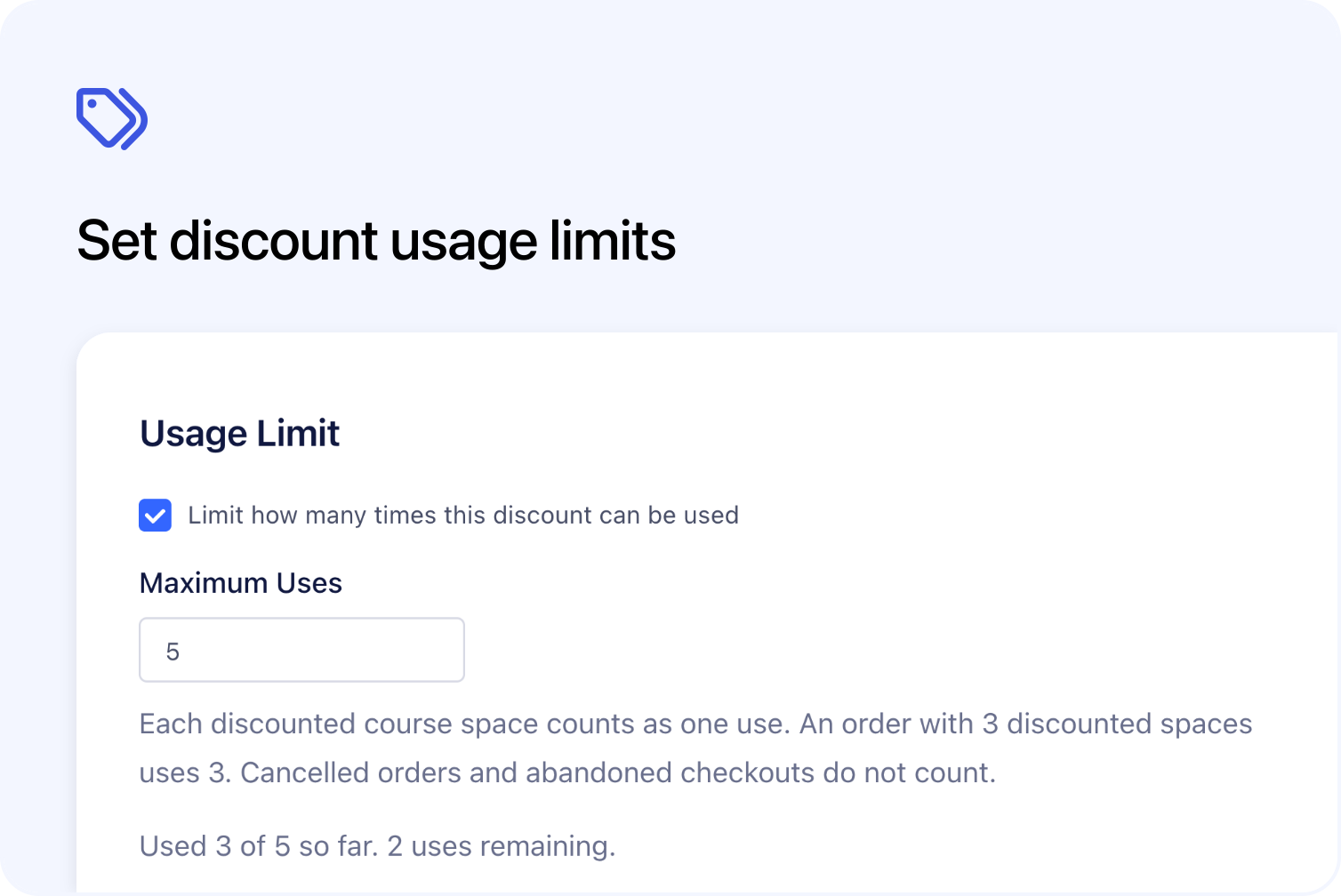
You can now set a usage limit for promo codes and automatic discounts in Cademy. Choose how many discounted course places you want to offer, then see how many uses have been taken and how many remain. This is useful for a promotion with a limited number of discounted places.
Set a limit for promo codes and automatic discounts
In Discounts in your Admin dashboard, the discount editor now includes Usage Limit. Tick Limit how many times this discount can be used and enter a whole number of at least 1 in Maximum Uses. You need System Admin access to manage discounts.
One use means one course place booked with the discount. If the limit is 5 and someone books 3 discounted places, that uses 3 of the allowance and leaves 2.
The allowance is shared across customers and the courses and dates covered by that discount. It works for both codes customers enter and discounts applied automatically. The discount's other course, date and eligibility rules still apply.
Usage limits are optional. Leaving the setting off keeps the discount unlimited.
See how many discount uses remain
The Uses column shows the current count against your limit, such as 3 / 5. A Limit reached label identifies discounts with no allowance left. Open a saved discount to see its usage and remaining allowance in the editor.
You can raise the limit to make more uses available or remove it to allow unlimited use. You can also lower it. If the new limit is at or below current usage, the discount becomes unavailable for new customer checkouts; existing orders stay as they are.
Adding a limit to an existing discount includes its qualifying existing orders. The count does not start again from zero when you switch the limit on.
What customers see when a discount runs out
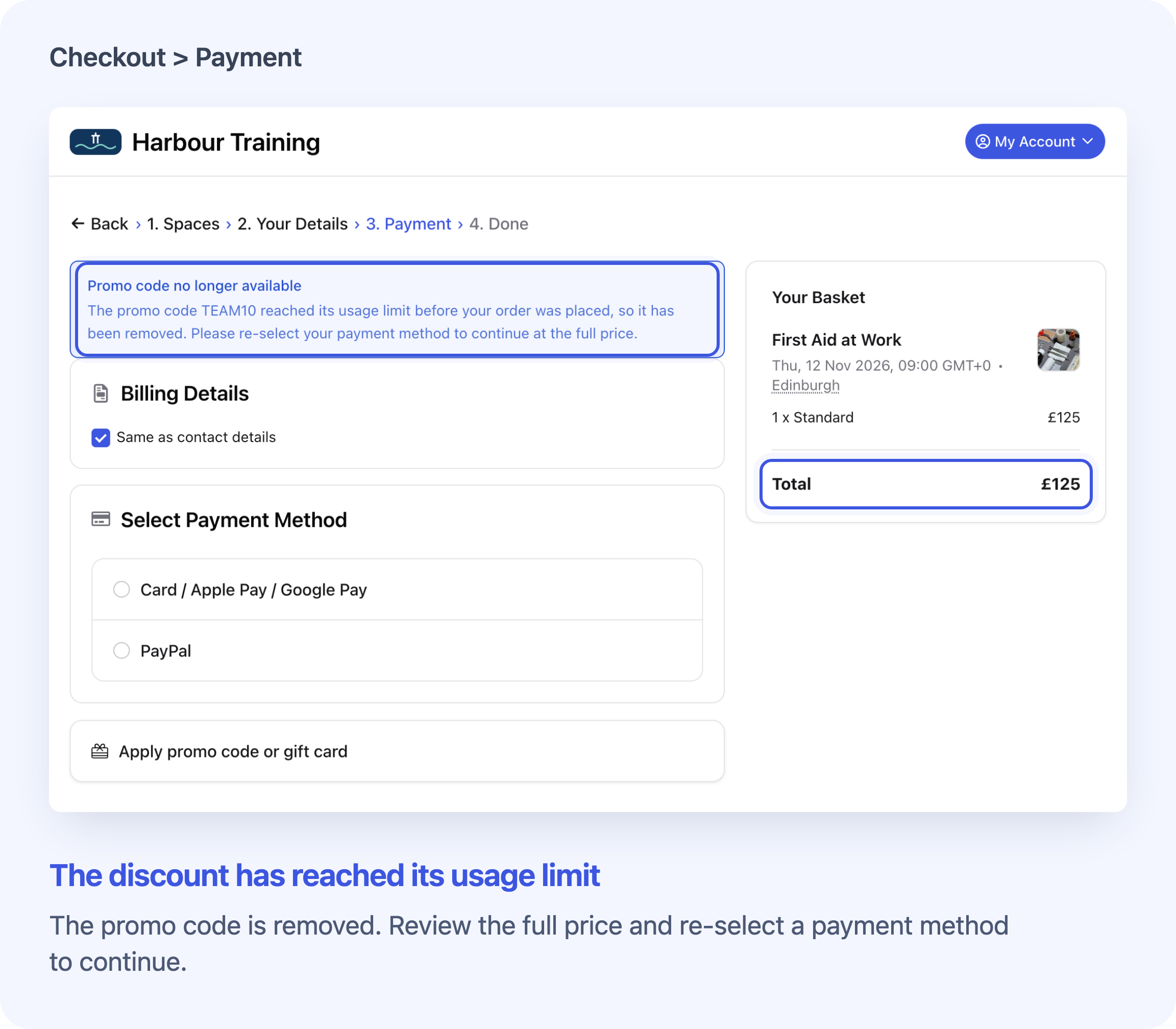
A limited discount needs enough remaining uses for the basket's total number of course places, even when the discount applies to only some of its courses. With 2 uses remaining, a basket of 3 places cannot use the code. Checkout explains why it cannot apply; it does not discount just the first 2 places.
Automatic discounts also apply only when the basket fits the remaining allowance. Once used up, an offer stops being advertised on course pages and in checkout's discount list.
Checkout checks the limit again when the customer submits their order at the Payment step. If the discount has run out, checkout removes it and shows a notice. The customer can review the revised total and select a payment method again. Other eligible discounts may still apply. If nothing remains to pay, they can continue with the free order.
Good to know
The limit controls customer checkout. Staff can still apply a discount while creating or editing an order after its limit is reached. Those discounted places count towards usage, so the total can exceed the limit. Orders created through an integration using the Public API, and accepted booking requests, also count without being blocked by this limit.
Frequently asked questions
Can I limit each student to using the code once?
No. The allowance is shared across all customers. The same student can use the code again while enough uses remain and the other discount rules are met.
Can I create a single-use code?
Yes. Set Maximum Uses to 1. That allows one discounted course place across customer checkouts. It does not allow a whole group booking or create a separate allowance for each person. If that purchased place is removed or its order is cancelled, the use becomes available again. The staff-order exception above still applies.
Does cancelling or refunding a booking give uses back?
Cancelling an order or removing a discounted course place from the order releases the corresponding uses. A refund on its own does not: an active order still holds its discounted places. Cancelling only the participant's registration also keeps the use if the purchased place remains on the order.
Why can an unpaid order count towards usage?
Pending orders can hold uses while checkout or payment is in progress. Uses are released when the order is marked abandoned or cancelled. Entering a promo code on its own does not reserve the remaining allowance.
Set up a discount usage limit
Open Discounts in your Admin dashboard to add a limit to a new or existing discount. For the full setup instructions and more detail on how uses are counted, see Create and Apply Discounts.