🔀 Show or Hide Form Fields with Conditions
Show follow-up questions when an earlier answer or booking detail matches.
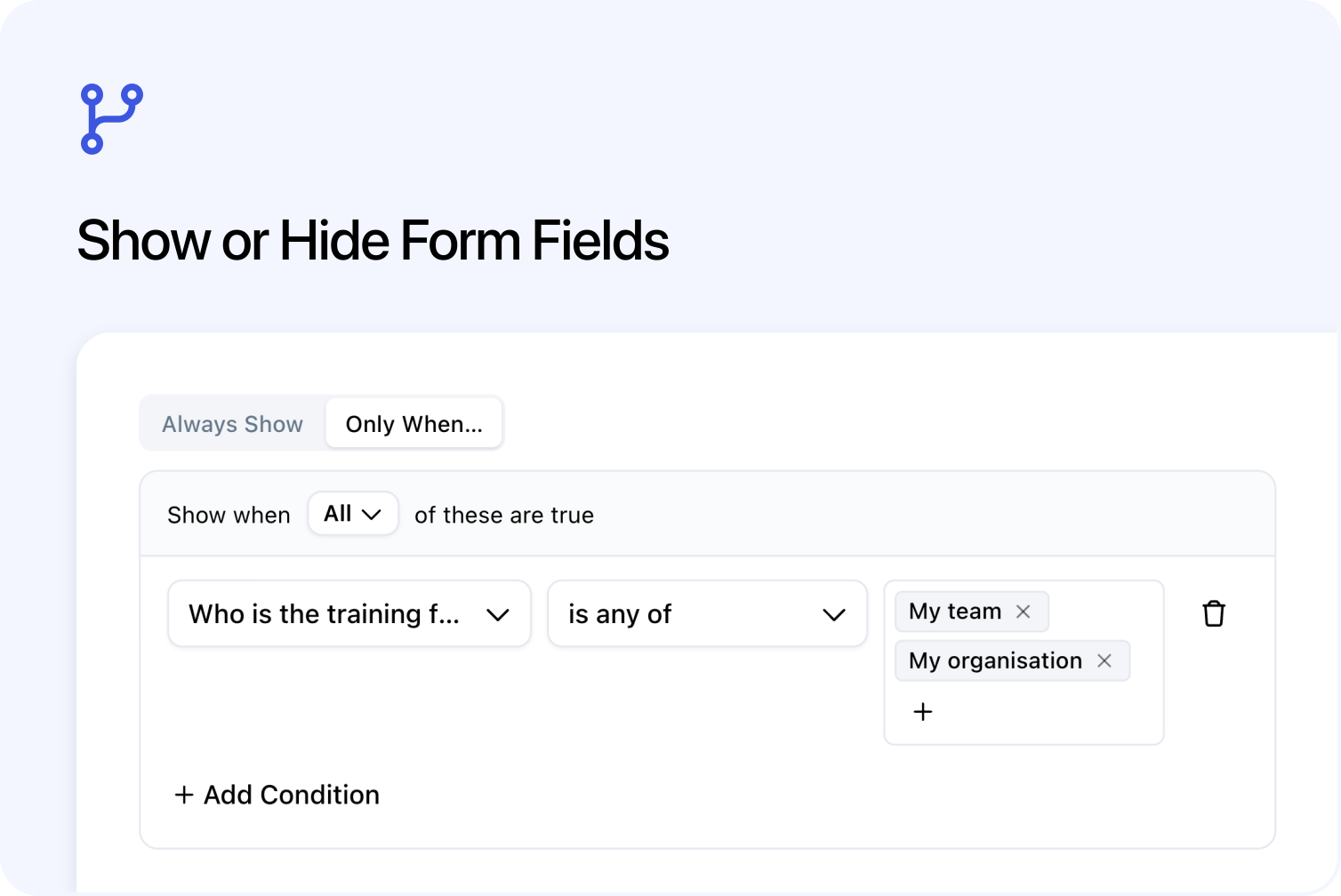
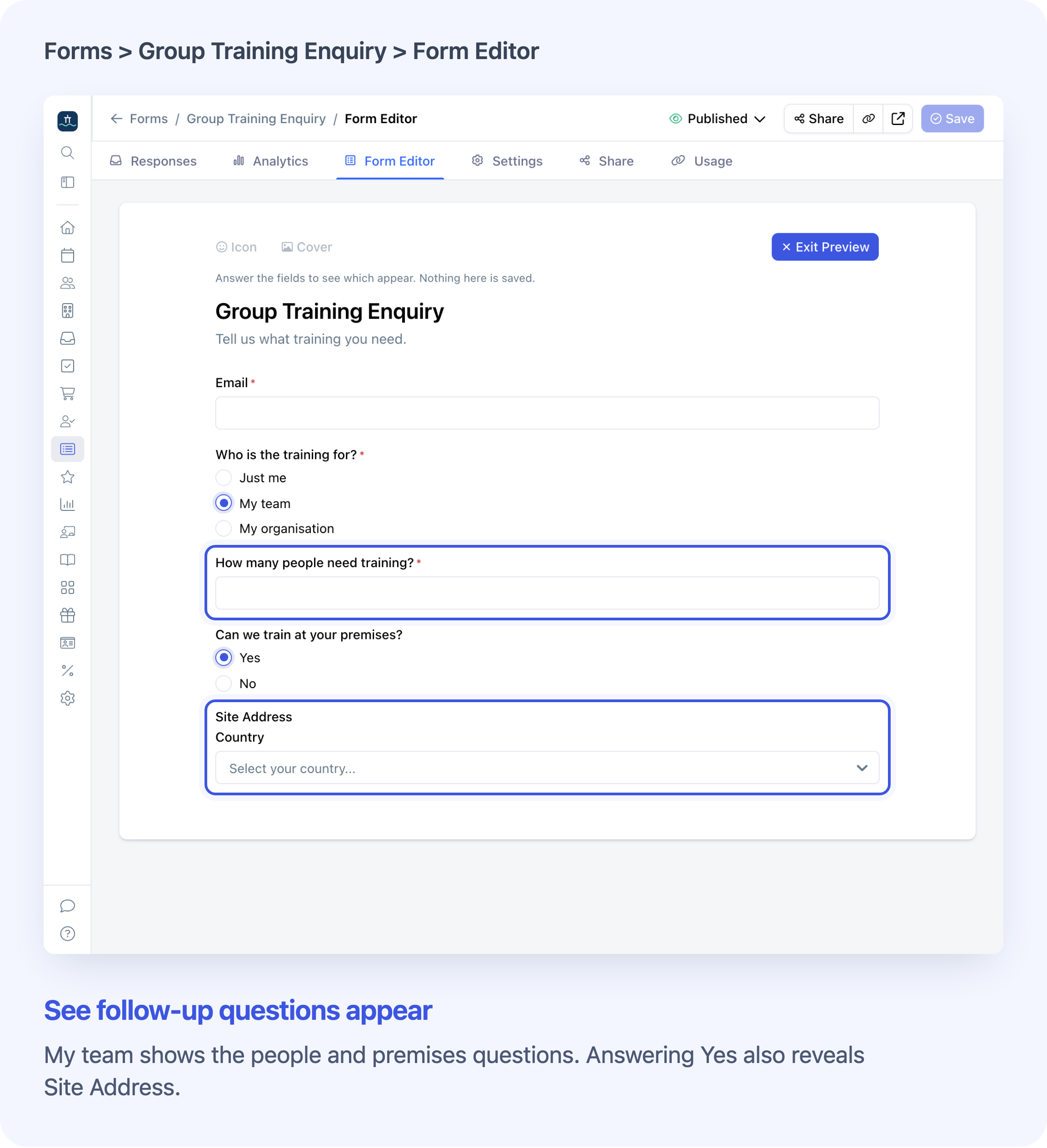
You can set a form question to appear only when an earlier answer or a booking detail matches a condition you choose. This is called a conditional field.
For example, someone enquiring about training for themselves can see a short form. Someone arranging team training can be asked about group size and where the training should take place.
Creating or changing conditions requires Teams or Custom, or an account with Conditional Fields specifically included. The feature must also be enabled for your account. If the controls are missing, contact Cademy Support to check access.
Key Takeaways
- Show follow-up questions based on earlier answers, including on forms embedded on your website or added to lessons.
- Use group size, order value and other booking details to decide which questions or business details to ask for.
- Let participants choose whether to leave a public review while still sending private feedback.
- Try your rules in the editor. Hidden questions do not require an answer.
Show Follow-up Questions Based on Earlier Answers
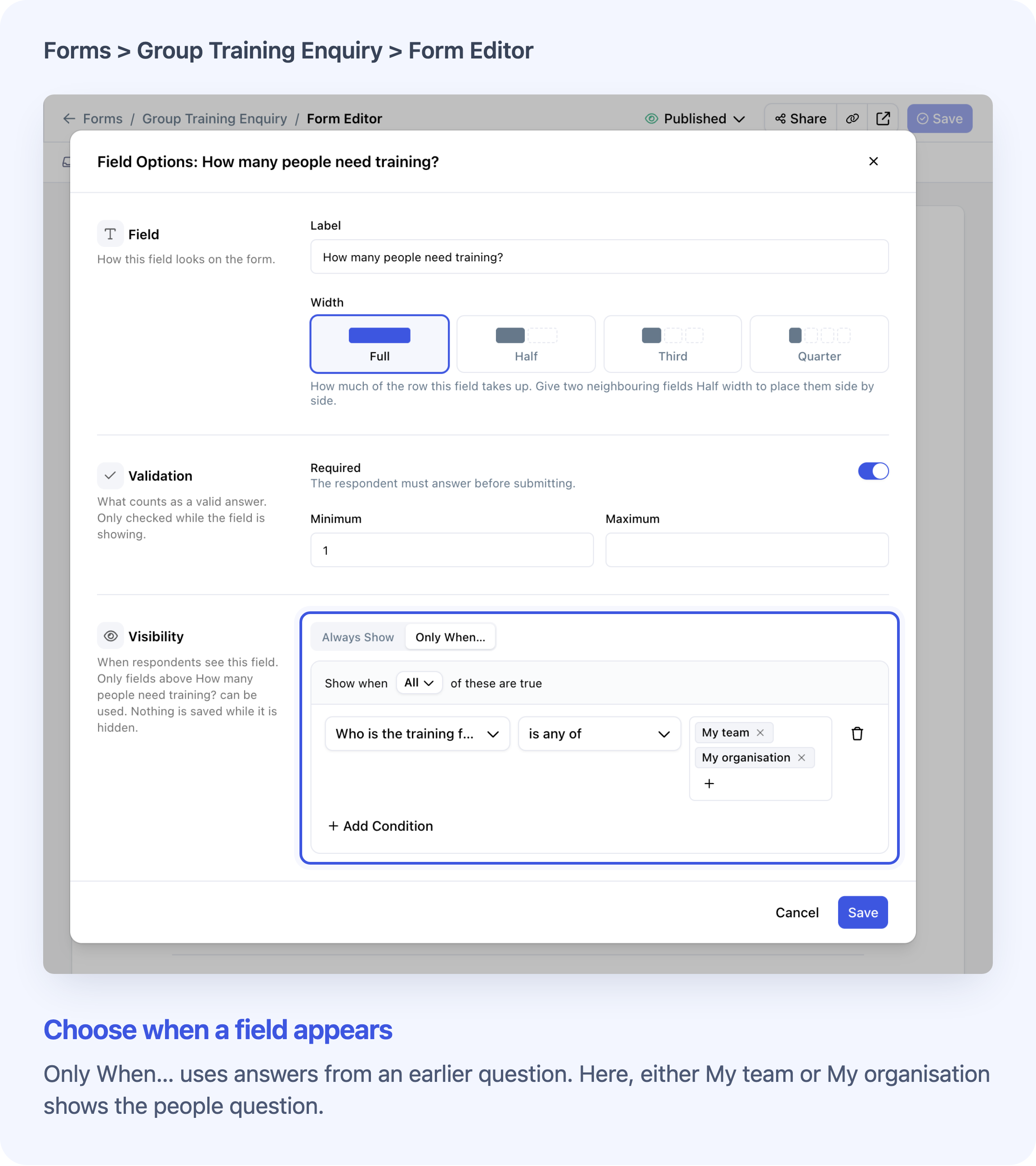
In Forms > your form > Form Editor, open the follow-up question's Field Options. Under Visibility, choose Only When…, then select the earlier question and the answer that should show the follow-up. Save the condition's options to return to the editor.
For example, ask Who is the training for? with Just me, My team and My organisation as the choices:
- Just me: keep the team-size question hidden.
- My team or My organisation: show How many people need training?
If the follow-up must be answered, turn on its Required setting too. It is required while visible; a hidden question does not block submission.
The comparison depends on the question being checked. You can match selected choices, check whether text contains a word, compare numbers or ratings, or compare dates. Where supported, you can also check whether an answer is empty.
You can combine conditions with All (every condition must match) or Any (at least one must match).
Follow-ups can lead to more follow-ups. For example, show Can we train at your premises? for a team enquiry, then show Site Address after Yes. If the premises question is hidden, the address is hidden too. Each follow-up must stay below the question it checks.
An answer to a hidden question is not saved with that submission. If someone types an answer and then changes an earlier answer so the question disappears, the typed answer is cleared. If the question saves to Contacts, hiding it leaves the person's previously saved contact detail unchanged.
Rules work on General forms for enquiries and other information, and on Feedback forms for course feedback. General forms can be shared by a link or embedded on a website. Both types can be added to lessons. If you reuse a saved field on several forms, you can choose a different rule on each form.
See Show or Hide Form Fields with Conditions for the full setup and supported comparisons.
Show Booking Questions and Business Details with Conditions
Checkout forms are the questions people complete when booking a course. Their rules can use earlier answers and details about the booking:
- Number of People: the total places across the course basket.
- Order Value: the value before discounts and fees.
- Primary Contact Attending: whether the person making the booking, called the booker, is attending.
- Booking as an Organisation: whether the customer is booking as a business.
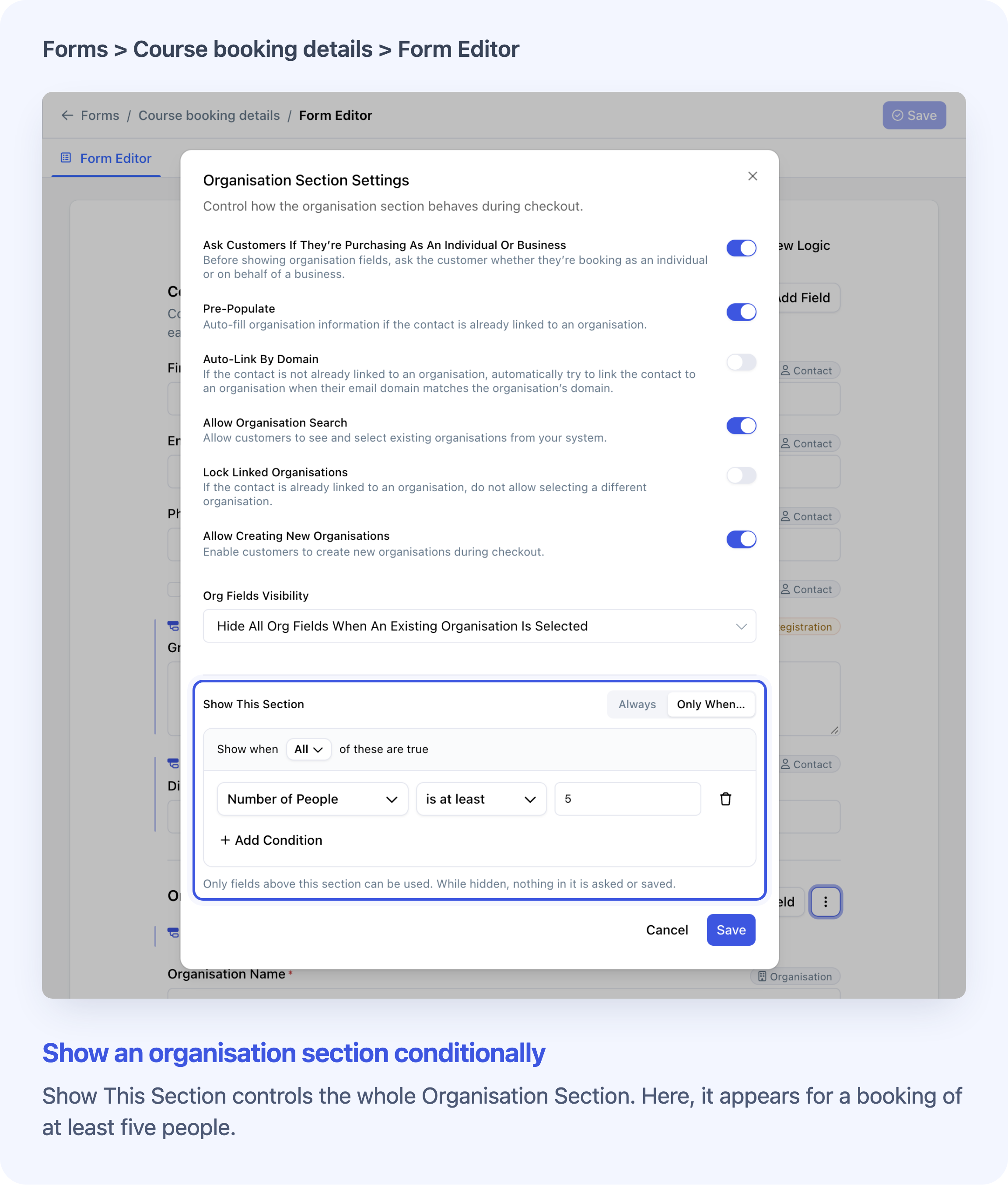
For example, show group-training questions for bookings of five or more places, or ask for a purchase order number above a chosen order value. A discount applied later does not change the value used by the rule.
You can also show or hide the whole Organisation Section, which collects business details. Open its Section Settings to add a rule, such as showing it only for bookings of five or more places. The settings for choosing an individual or business booking still apply. The section cannot use its own Booking as an Organisation choice to decide whether it appears.
Rules can apply to the booker and the other people attending, called guests. An attendance rule only hides the booker's copy of a question. Guests still get their questions when the booker is not attending, subject to any other conditions you have added.
The Checkout forms guide explains course assignments, guest forms, membership signup and booking-specific limits.
Let Participants Choose Whether to Leave a Public Review
On a Feedback form, you can make follow-up questions depend on earlier answers. For example, ask whether a participant wants a call after they give a low rating.
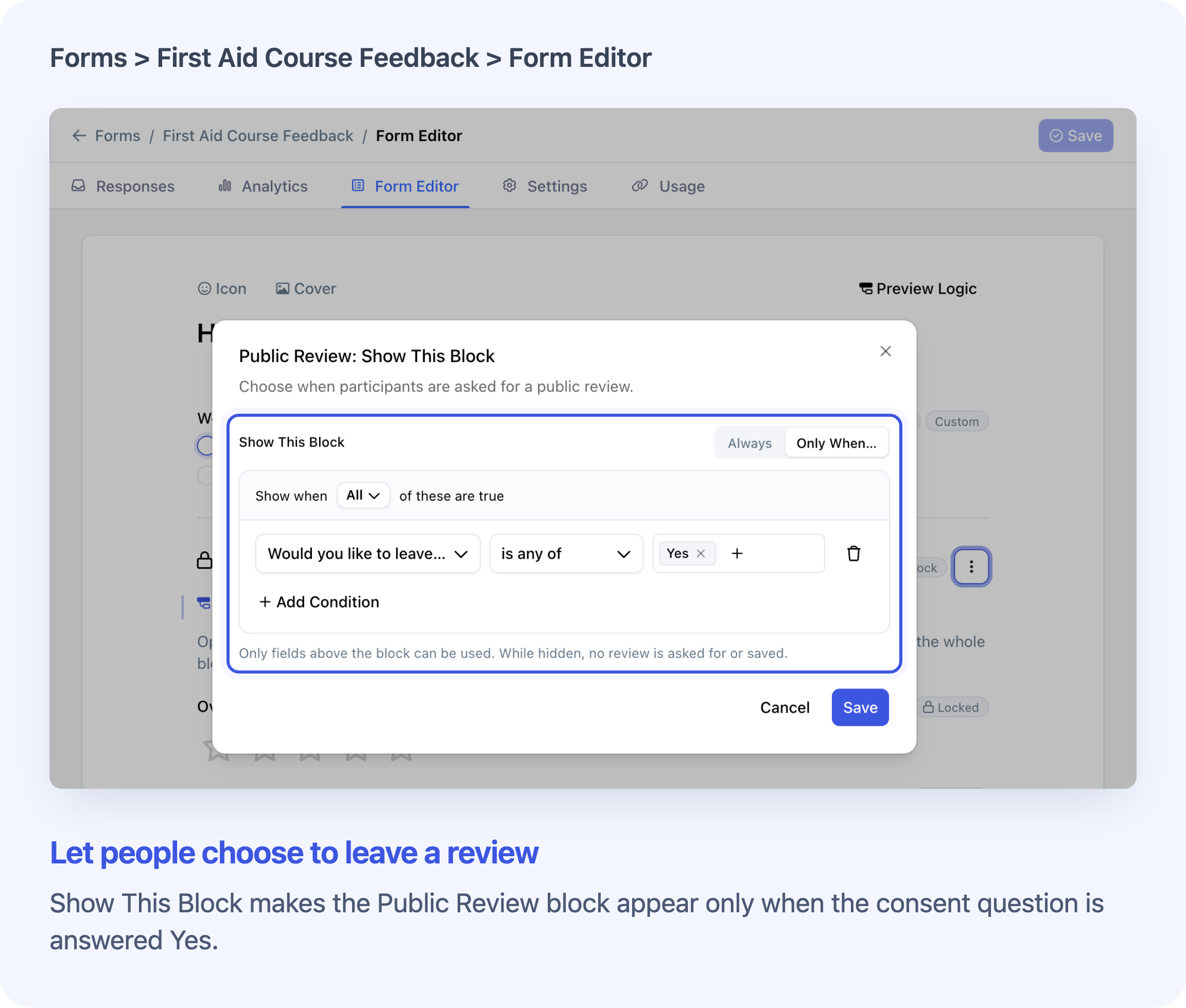
The whole Public Review block has its own Show This Block… setting. Ask Would you like to leave us a public review? and show the block when the participant answers Yes. Someone choosing No can still send their private feedback.
While the review block is hidden, no overall rating is required and no public review is created from it. While shown, the overall rating is required and the written review is optional.
Your course's review settings still apply. Publish public reviews: Never hides the block. If reviews need approval, a submitted review appears publicly only after it is approved.
See Set Up a Feedback Form for Your Courses for the form and course settings.
Try Form Rules Before Saving Changes
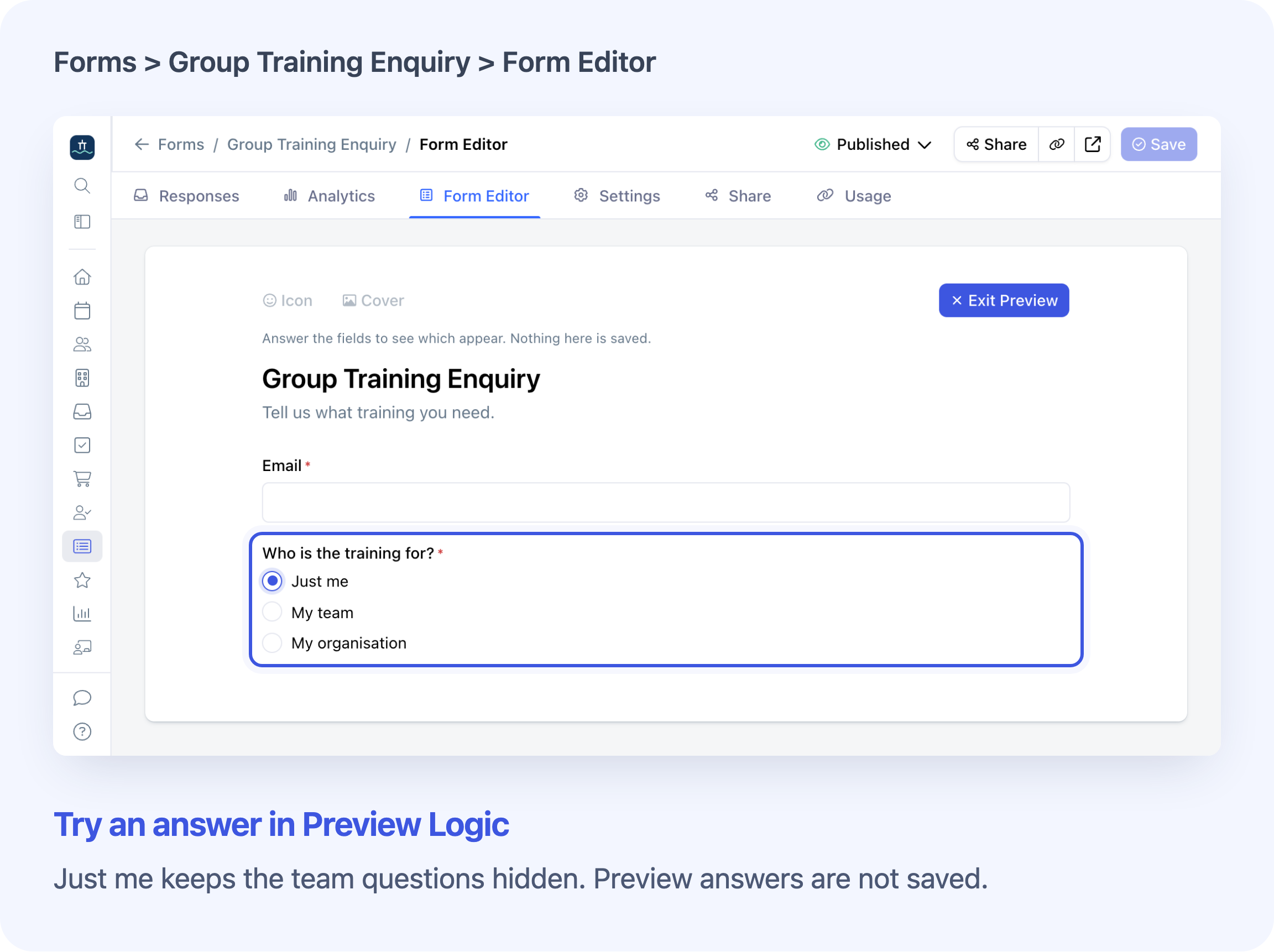
After adding a rule, select Preview Logic in the form editor. Try answers that should show the follow-up, then answers that should hide it. On Checkout forms, try different booking details too.
Previewing does not save a response. Select Exit Preview to return to editing, then Save at the top when you are ready to keep the rule changes.
During normal editing, all questions stay visible so you can work on them. Blue captions explain when each conditional question appears. A Controls label identifies a question that other fields depend on. The editor prevents moves that would put a follow-up above its controlling question.
Saving changes to a form already in use updates that same form wherever it is used. Preview before saving, and check the relevant booking, feedback or lesson journey too. Past submitted answers are not rewritten.
A new General form must also be published before sharing its public link or website embed. Checkout forms use Save without a separate publishing step.
Check Rules When Questions or Answer Choices Change
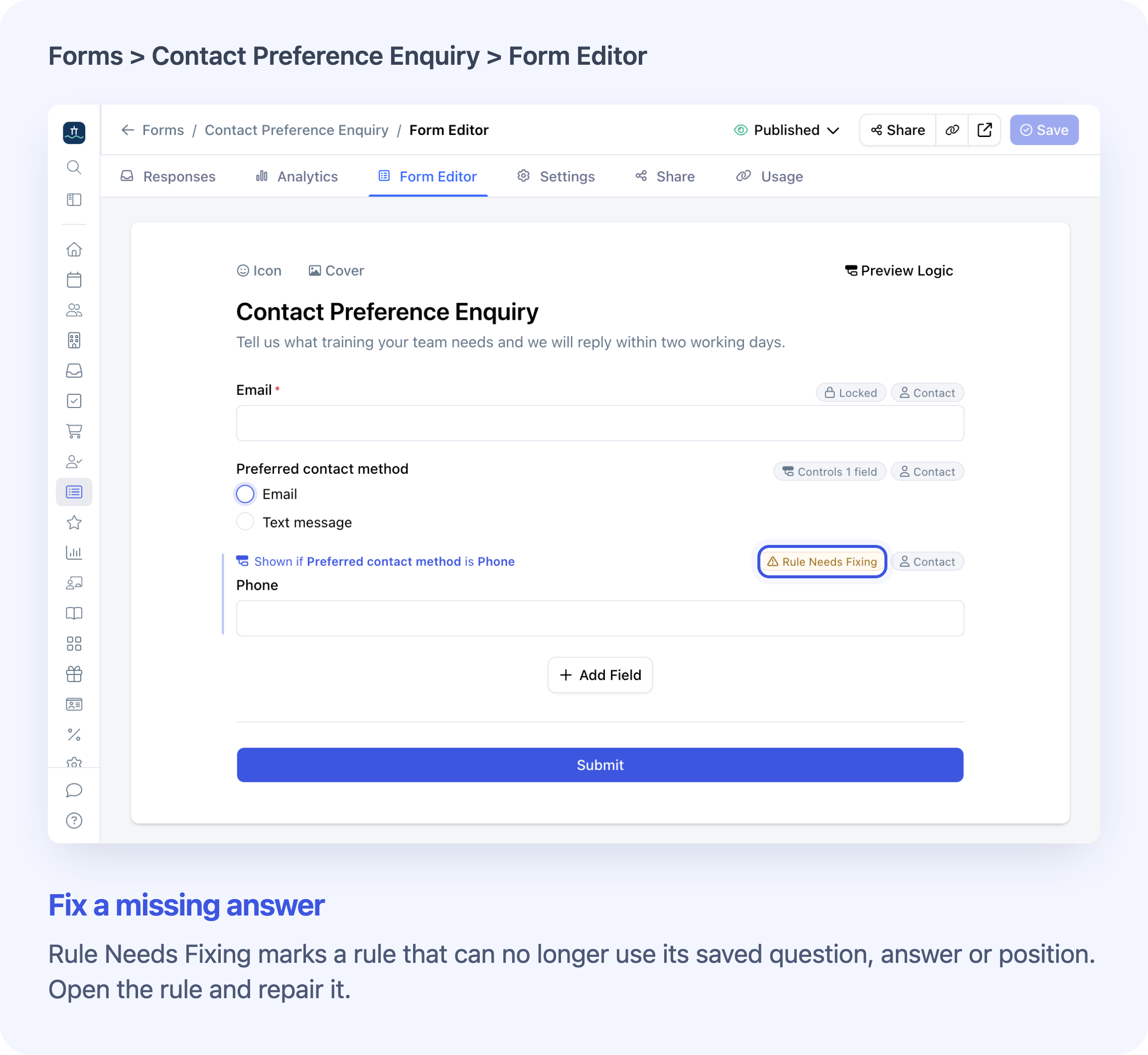
Read the warnings when you remove a controlling question or change an answer used by a rule. A condition using a missing answer may stop matching, so a follow-up may stay hidden.
When changing shared answer choices under Settings > Fields, the warning links to affected forms. Open them and fix any Rule Needs Fixing marker before relying on the form. The FAQs below explain the removal and answer-change choices.
To remove a question's rule, choose Always Show, then save the options and form.
Frequently Asked Questions
Will my existing forms become conditional automatically?
Questions without a rule keep showing as usual. You choose where to add conditions. Existing Hide If Primary Contact Is Not Attending behaviour continues to apply.
Why can't I select the question I want to use in a condition?
The question must be above the follow-up and have a supported answer type. Move it earlier if needed. Statements and file uploads cannot supply an answer for a condition, although an eligible statement or upload question can itself be shown conditionally.
Can I hide every question?
Locked fields and internal questions cannot be made conditional. Checkout still requires First Name, Last Name and Email, and a General form's required Email field remains visible.
Why is Only When… unavailable?
Check that there is a suitable question above the follow-up, or a booking detail available on a Checkout form. Your account also needs the feature enabled and included in its plan or specifically added. Contact Cademy Support if you need access checked.
Why is Preview Logic missing?
It appears when Conditional Fields is enabled for your account and the form has at least one rule or an existing attendance-hiding setting. Add a rule first. If it is still missing, ask Cademy Support to check access.
What if a question disappears after someone has already answered it?
The typed answer is cleared and is not saved in that submission. If the question appears again, check and complete it before submitting. Hiding a field does not delete details saved by an earlier submission or booking.
Can I tell whether a blank response was hidden or skipped?
No. A hidden answer appears blank, like an unanswered question. There is no separate “Not asked” marker. Check the form's rule if you need to understand when the question is shown.
What happens if I remove a question that other questions depend on?
The warning lists the affected follow-ups. Always show them is selected by default: it keeps those fields and removes conditions that read the deleted question. Other remaining conditions still apply; a field with none left always shows. Remove them as well removes the listed follow-ups too. Earlier submitted responses keep their answers.
Does renaming an answer automatically update the rules?
No. Update Rules removes the missing choice from affected conditions; it does not replace it with your new wording. Reopen the rule and choose the intended answer. If no conditions remain, the field becomes Always Show, so you must rebuild its rule if it should still be conditional.
Will changes affect a form I have already shared?
Yes. Saving changes to the same form updates its rules for people opening its existing links, embeds, lessons or assigned course forms. Earlier submitted answers are not rewritten. Choosing a different Feedback form for a course is separate: old feedback-request links still open the original form.
Do the rules still work when people add or edit attendee details after booking?
Yes. Booking-based conditions use the saved order, while question-based conditions use the answers on that form. Guests can get the appropriate questions without being shown the order's value or total headcount.
Can Order Value conditions use the final amount paid?
No. They use the value before discounts and fees. On-request courses priced on enquiry or as a range have no known value, so an Order Value condition does not match. After booking, these calculations use the course items on the order. Extra charges added as Custom Items, such as room hire, do not count.
Do conditions work on membership signup forms?
Yes. Question-based conditions work there too. For booking-based conditions, signup counts as one person, uses the membership price as Order Value and treats the primary contact as attending. A rule asking for at least two people therefore stays unmatched.
Can a form inside a lesson use the course's booking details?
No. General and Feedback forms inside lessons use their own question answers. Booking facts are available on Checkout forms.
Do these rules change the contact fields on My Profile?
No. Form conditions belong to the form. The fields learners can edit on My Profile are configured separately under Settings > Fields > Contacts.
What happens to my rules if my plan no longer includes conditional fields?
Saved rules continue working. While Conditional Fields remains enabled for your account, you can view an existing rule, preview it or remove it with Switch to Always Show. You need the feature included in your plan or account to add or change conditions.
Ready to add a follow-up question? Open your form's Form Editor and choose a suitable question's Field Options. Use the linked Help Centre guides for the complete procedure, then check the finished form before sharing it.