✍️ Collect Signatures on Forms
Let people draw or type a signature on forms and inside lessons.
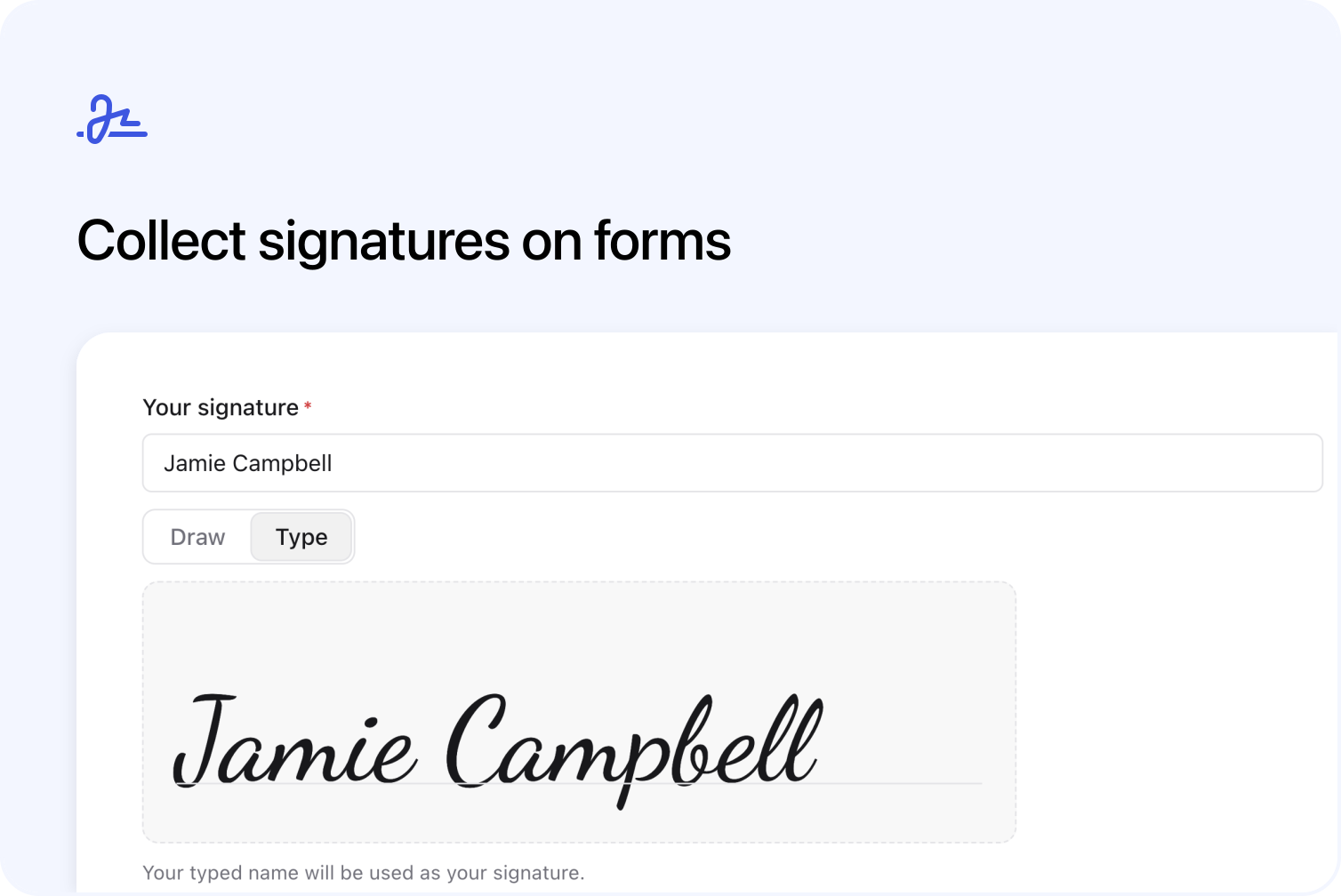
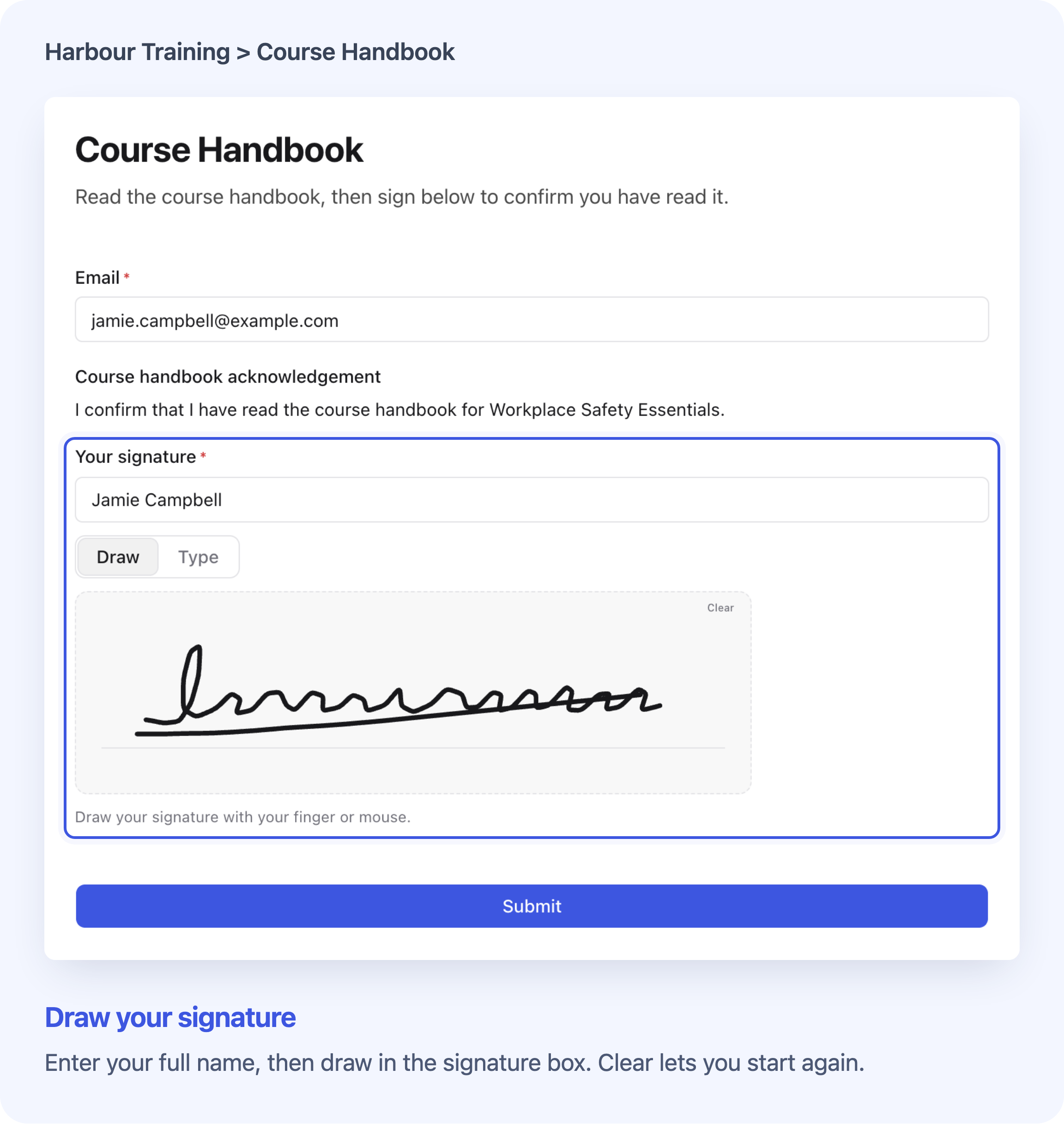
People enter their full name, then draw or type their signature. View full size
You can now collect a drawn or typed signature on a General form in Cademy. Use it when someone needs to acknowledge your course handbook, agree to a code of conduct or complete a consent form.
The person enters their full name, then chooses Draw or Type. The typed option displays their name in a handwriting style. Their signature is saved with the rest of their submitted answers.
A General form collects information separately from a booking. You can share it by link, embed it on your website or place it inside an online lesson.
Add a Signature Field to Your Form
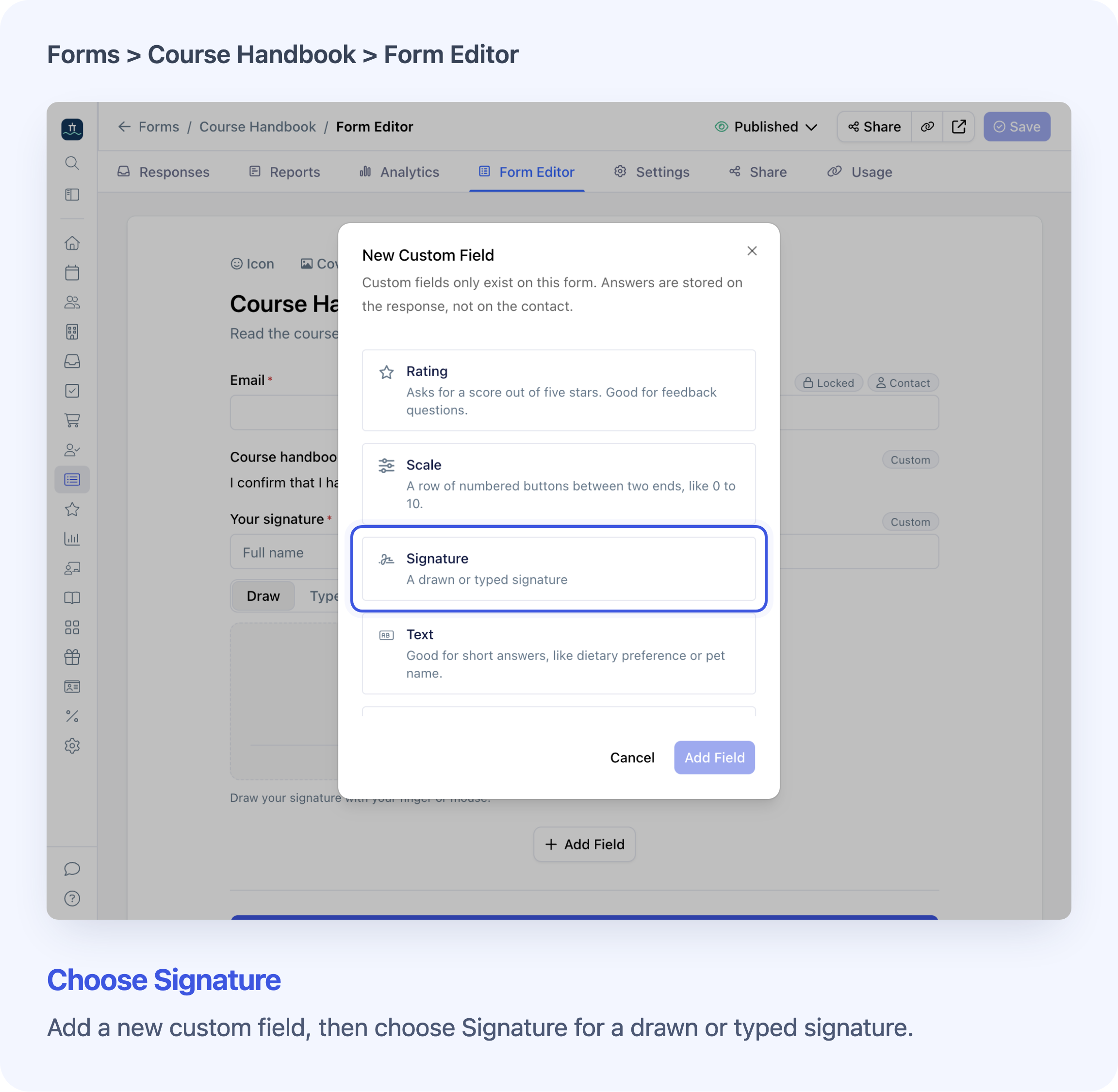
Add Signature as a custom field on a General form. View full size
Open Forms, choose a General form, then go to Form Editor → Add Field → New Custom Field… → Signature. Give it a label, such as “Your signature”. Add a Statement above it to explain what the person is signing, then save the form.
Turn on Required in the field’s options if everyone who sees it must sign. Leave it off to allow the signature to be skipped. If someone starts an optional signature, they must finish it or clear both their name and drawing before submitting.
For the complete setup and sharing instructions, see Collect Signatures on a Form.
Collect a Signature Inside an Online Lesson
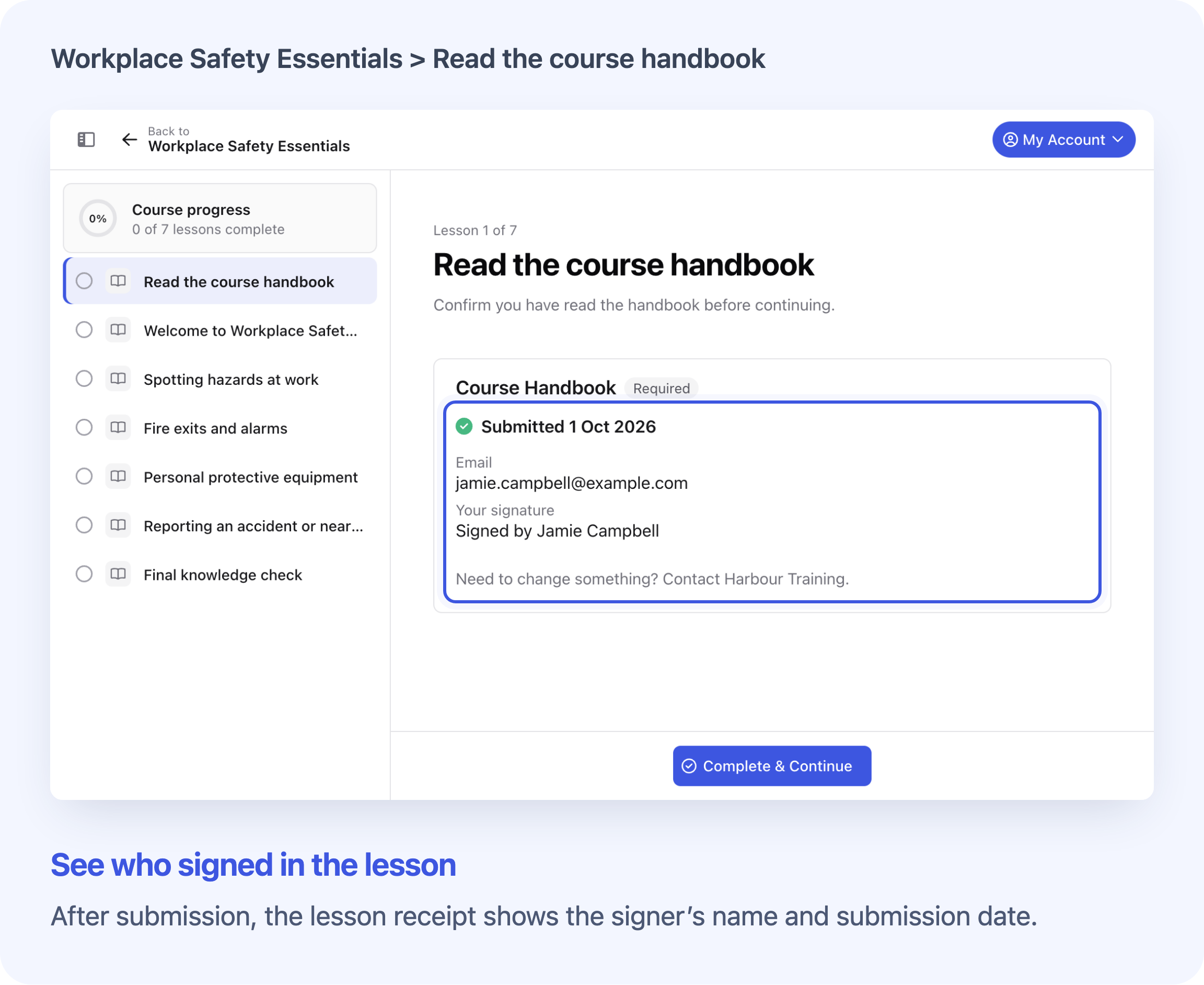
After submission, the lesson shows who signed and the submission date. View full size
Place the General form in a lesson using a Form block. For example, learners can read your course handbook and sign an acknowledgement without leaving the lesson.
You can require form submission before learners complete the lesson or move on. If every learner must sign, keep the Signature field visible and turn on Required. Signing and submitting the form does not complete the lesson by itself.
A form used only in lessons can stay in Draft and does not use a published-form slot. Follow Add Forms to Lessons for placement and completion settings.
View Signed Responses
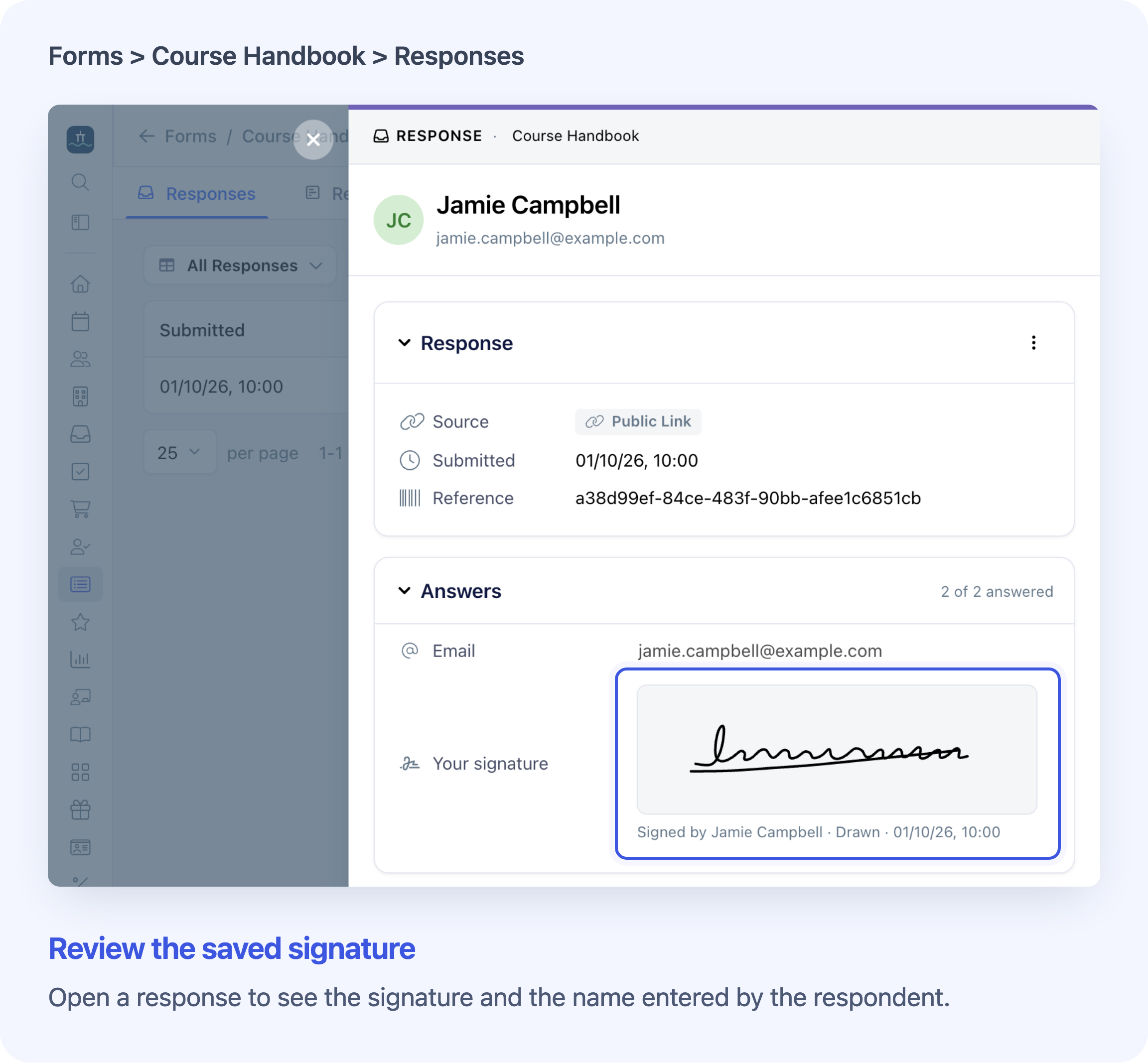
Open a response to see the signature and its submission details. View full size
Your form’s Responses table shows the signer’s name. Open a response and expand Answers to see the signature, the entered name, whether it was drawn or typed, and the submission date and time.
Submitted signatures are read-only. Your team cannot change the name, replace the drawing or clear the signature. Removing the Signature field from the form keeps signatures already saved in earlier responses.
CSV exports include the signer’s name and method, without the signature image. If your form sends new-response notifications to your team, those emails also identify who signed and how. An Inbox response summary shows the signer’s name.
Availability and the Saved Signature Record
Signature is available on every plan, with no separate setting to enable it. You need Course Owner or System Admin access to manage forms. Your plan’s existing limit on published General forms still applies.
Use a General form. Signature is not available on Checkout or Feedback forms, or as a shared Contact, Registration or Organisation field.
Keep a dated copy of the agreement wording. Cademy saves the signature, entered name, method and response time, but it does not save a copy of your Statement text with each signature. If you change that wording later, the response does not record which version the person saw. The signature field does not independently verify their identity.
Frequently Asked Questions
Does the person need a Cademy login to sign?
Not through a published General form link or website embed. They must provide an email address. Inside a lesson, they sign in through their course as usual.
Can someone clear a drawing and try again?
Yes, before submitting. Clear removes the drawing and keeps the entered name. They can draw again or choose Type to use that name as their signature.
Can I show the signature only after a particular answer?
Yes, with conditional fields. A hidden Signature field does not block submission, even when Required is on. A signature cannot itself control whether another question appears. Creating or changing conditions requires Teams, Custom or an account with Conditional Fields included. See Show or Hide Form Questions Based on Answers.
Can a learner change their signature after submitting a lesson form?
No. The lesson shows a saved receipt with the signer’s name and date. The learner cannot edit or resubmit that form for the same place on the course.
Does Cademy create a signed PDF or email a signed copy?
No. There is no signed PDF, signature-image download or automatic signed-copy email. A General form’s confirmation email is a separate setting and does not include a signed document. View the signature in the saved form response.
Why can’t I see signatures in Reports?
Signatures are shown in individual responses, not report charts. They are also excluded from answer filters, sorting and internal team columns. Open Responses → a response → Answers to see the signature. Find and Manage Form Responses explains the response and export options.