📅 Clearer Course and Date Pickers
See venues, spaces, session prices and course details before choosing.
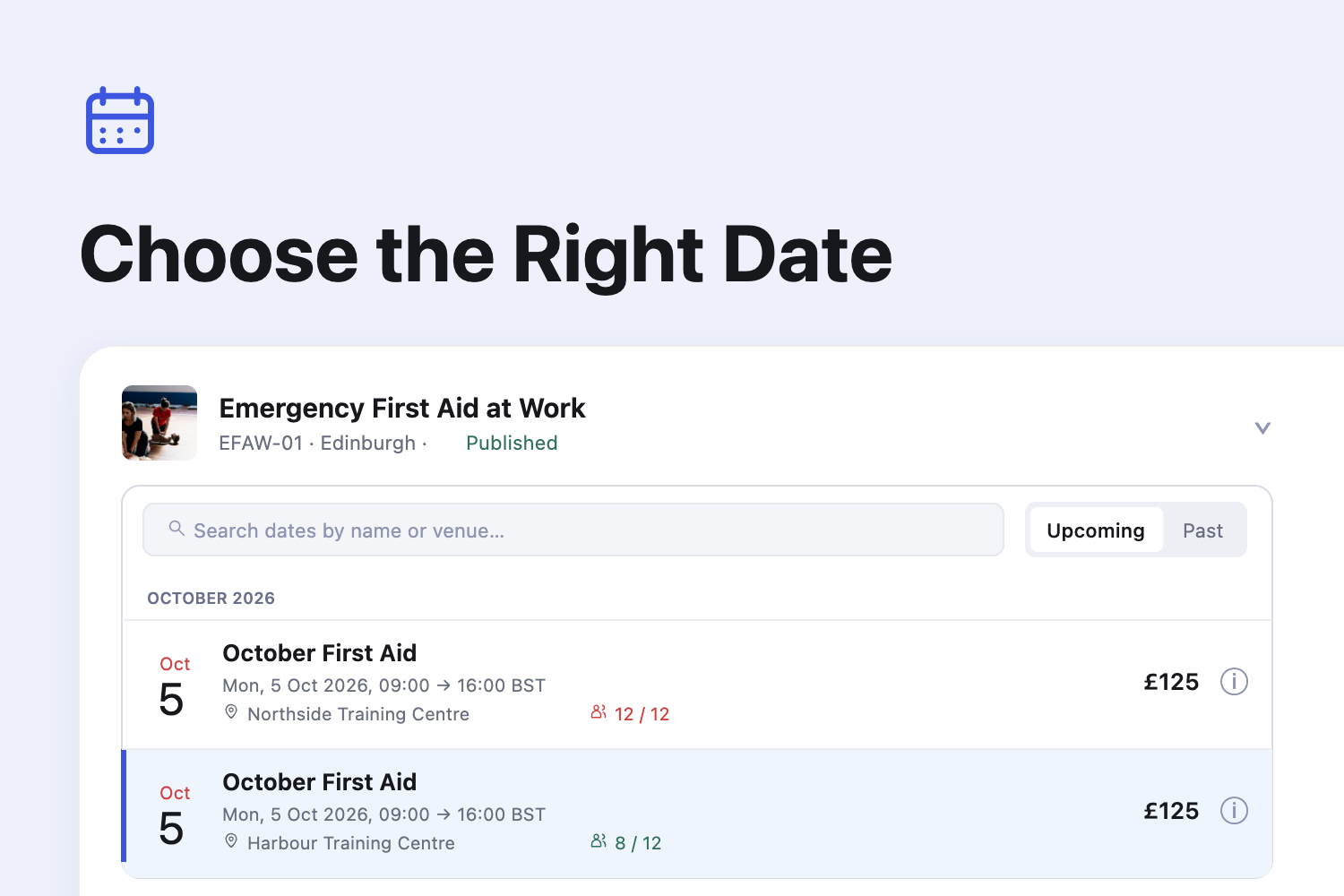
Choosing a course date is easier when you can see what makes each option different. Cademy's updated course and date pickers put course details, venues, spaces and prices alongside your choices when you create bookings, move registrations or add someone to a waitlist.
If you run several dates on the same day, or offer different sessions within a block, you can check the details before selecting one.
Recognise courses by image, code and delivery type
Each course now shows its image, name, course code and delivery details, such as its city, Online or On-demand. A Published or Unpublished label helps you distinguish courses with similar names.
Search by course name to narrow the list. Archived courses stay out of the choices, and your current selection is highlighted when you reopen the picker.
In New Order, the chosen course and date each show a summary you can check before continuing. The date field appears as soon as you choose a course with dates, with a loading indicator while its dates are fetched. On-demand courses use a single course field.
Compare dates by venue, spaces and price
Date choices show their name, date and time, venue, spaces, visibility and price. Facilitators and the organisation behind a private date appear where relevant.
Saved venues display their names, so you can tell two locations in the same city apart. Online dates are labelled Online, and hybrid dates include their in-person location and online delivery.
Spaces use a clear booked/total count, such as 8/12. Prices show a single amount or from when the available options differ in price.
Search dates and switch between Upcoming and Past
Dates are grouped by month in chronological order, with Upcoming selected first. Switch to Past when you need an earlier date, for example when recording a registration after a course has run.
Search by name, date, time, venue, city, address, facilitator, private organisation or date code. When a session matches, its block stays visible and expands to show the matching session, so you can see where it belongs.
Create a New Date stays at the bottom of the picker, ready when the date you need has not been added yet.
Check date details before selecting
Use the information button beside a date to see its full details. The panel includes the time zone, address or online joining-link status, spaces, visibility, facilitators, prices and date code. Offers with a limited sale period show their dates too.
For a session within a block, the details identify its parent block. Open Date in New Tab takes you to the full date page while keeping your current task open.
See block sessions and choose what to book
Blocks expand to show their sessions underneath, with each session's name, time and price. Single dates and blocks sit together in the same chronological list.
If your block allows individual bookings, select a session to book that session, or choose Whole Block. If it is sold only as a complete block, you can inspect its sessions while the block remains the booking choice.
Session prices and add-ons use the block's settings when needed
When creating or editing an order in the admin, a session uses its own prices first. If none are set, it uses the block's prices, then the course's prices if the block has none. Add-ons follow the same order, independently of prices.
For example, if a session has no price of its own and its block has a £175 offer, the admin uses £175 rather than skipping straight to the course's price. The price shown in the date picker follows the same rule.
Where to find the updated pickers
Open Orders → New Order and choose a course and date to see the updated pickers.
They also appear when adding a course to an order, changing its course or date, moving a registration, adding a registration manually or adding someone to a waitlist.
The updated course picker also appears when choosing a fixed course during an import, adding courses to a Course List, creating a date from Courses, the calendar or an organisation, and configuring a single-course embed.
Frequently asked questions
Does this change what learners see when booking online?
This update covers course and date selection in the admin. The session price and add-on changes described above apply to admin order creation and editing.
Can I select a full date?
Yes. Full dates remain selectable in the admin, and the spaces count makes their capacity clear. Check the count before adding or moving someone.
When does a date move into Past?
A date stays in Upcoming while it is running and for two hours after it finishes, then moves into Past.
Can I use the keyboard?
Yes. Use the up and down arrows to move through choices and Enter to select. In the date picker, the right arrow expands a block or opens details; the left arrow or Escape closes that view.
Do I need to change my block booking settings?
No. The picker follows your existing settings for booking whole blocks or individual sessions.