📅 More Control Over Certificate Dates
More date options when issuing certificates, plus corrections afterwards.
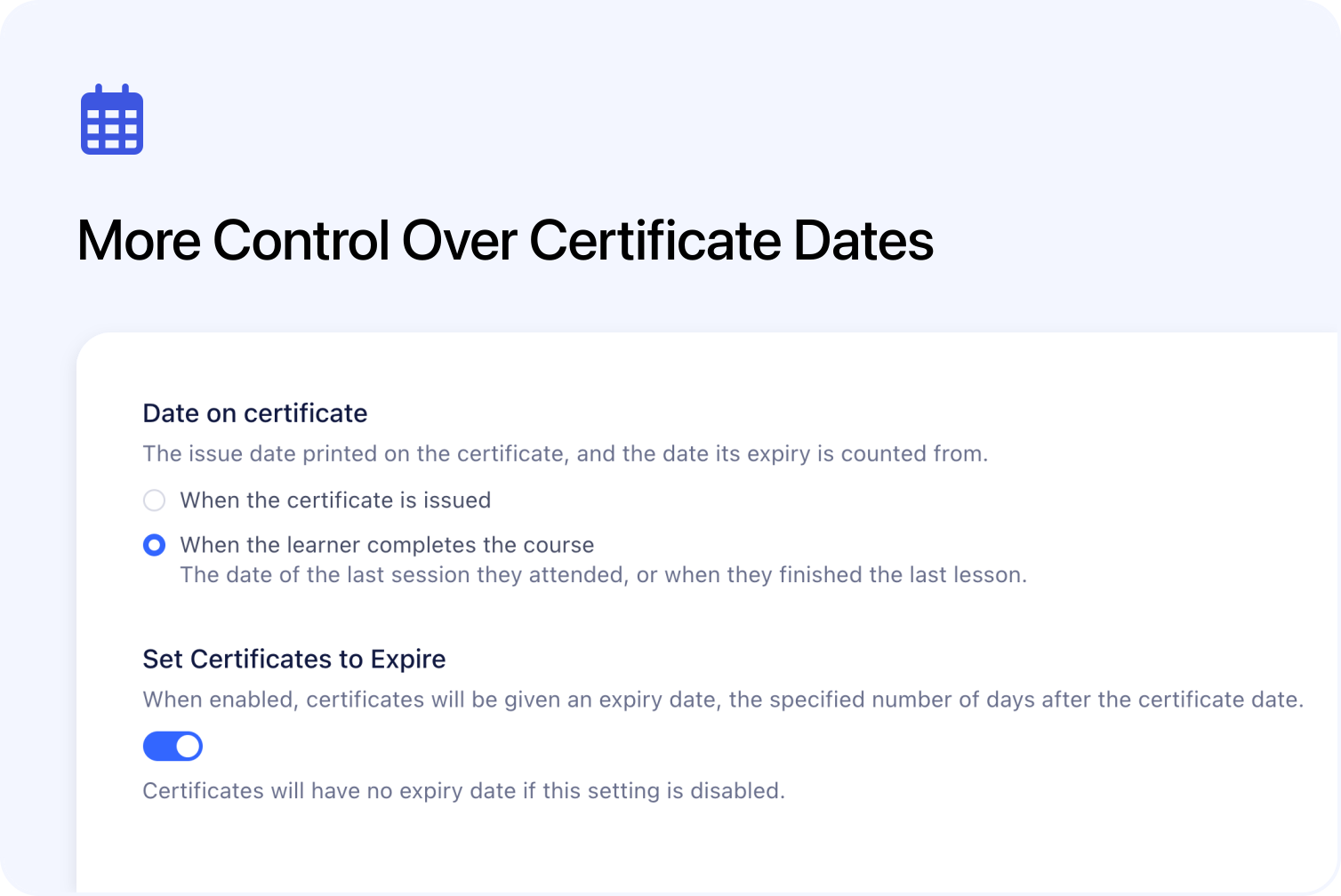
Certificates can now use the learner’s completion date or a date you choose. You can still date them on the day they’re issued, with the course’s expiry period calculated from the certificate date.
For certificates already issued, you can correct the issue date, expiry date or both while keeping the same certificate link. This gives you more flexibility when certificates are issued after a course finishes, attendance is recorded late, or a saved date needs correcting.
Use Completion Dates on Course Certificates
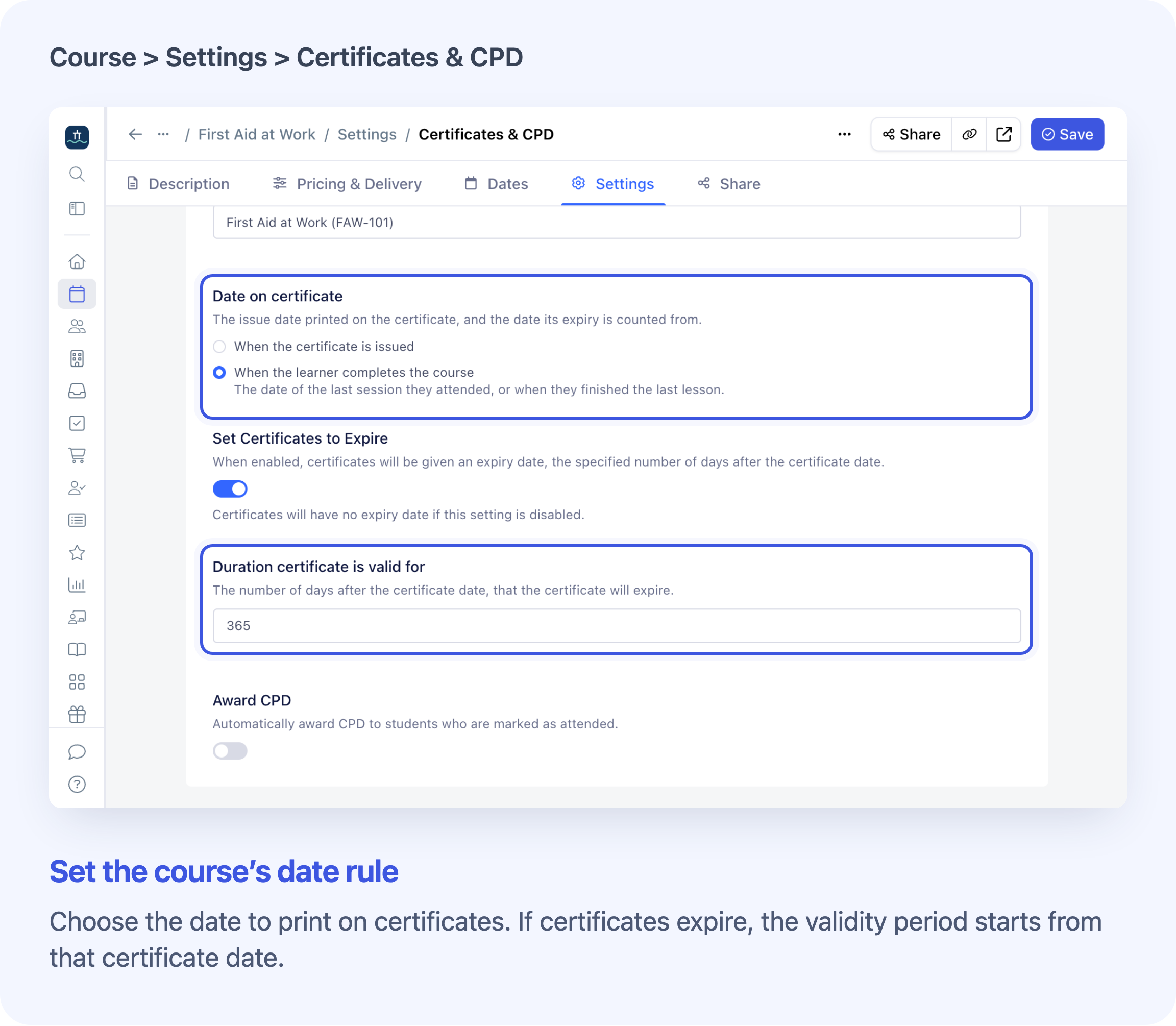
Choose the date rule and the validity period for course certificates.
Each course now has a Date on certificate setting in Edit Course → Settings → Certificates & CPD:
- When the certificate is issued keeps using the day Cademy issues it.
- When the learner completes the course uses the learner’s saved completion date.
For example, you run a Friday session, then mark attendance and issue the certificate on Monday. If this records the learner’s first completion, the completion rule dates their certificate Friday. The issue-day rule dates it Monday. A 365-day validity period starts from whichever certificate date is used.
New courses start with the completion rule. Existing courses without a saved rule continue to use the issue day, and duplicating a course keeps its chosen rule. You can switch between the two rules and save your choice. Changing the rule does not change certificates already issued.
The rule applies to automatic and manual issuing. It does not turn automatic issuing on: that remains a separate course setting.
For new completion records, attendance entered after a session ends can now use that session’s end date. On-demand completion uses lesson progress; blended completion uses both attendance and lessons. Completion dates already recorded are kept.
If there is no saved completion date, the completion rule uses the booked session or block’s end date once it has finished. Otherwise, it suggests today. A suggested date is never later than today.
See the course certificate settings guide.
Check or Change the Date Before Issuing a Certificate
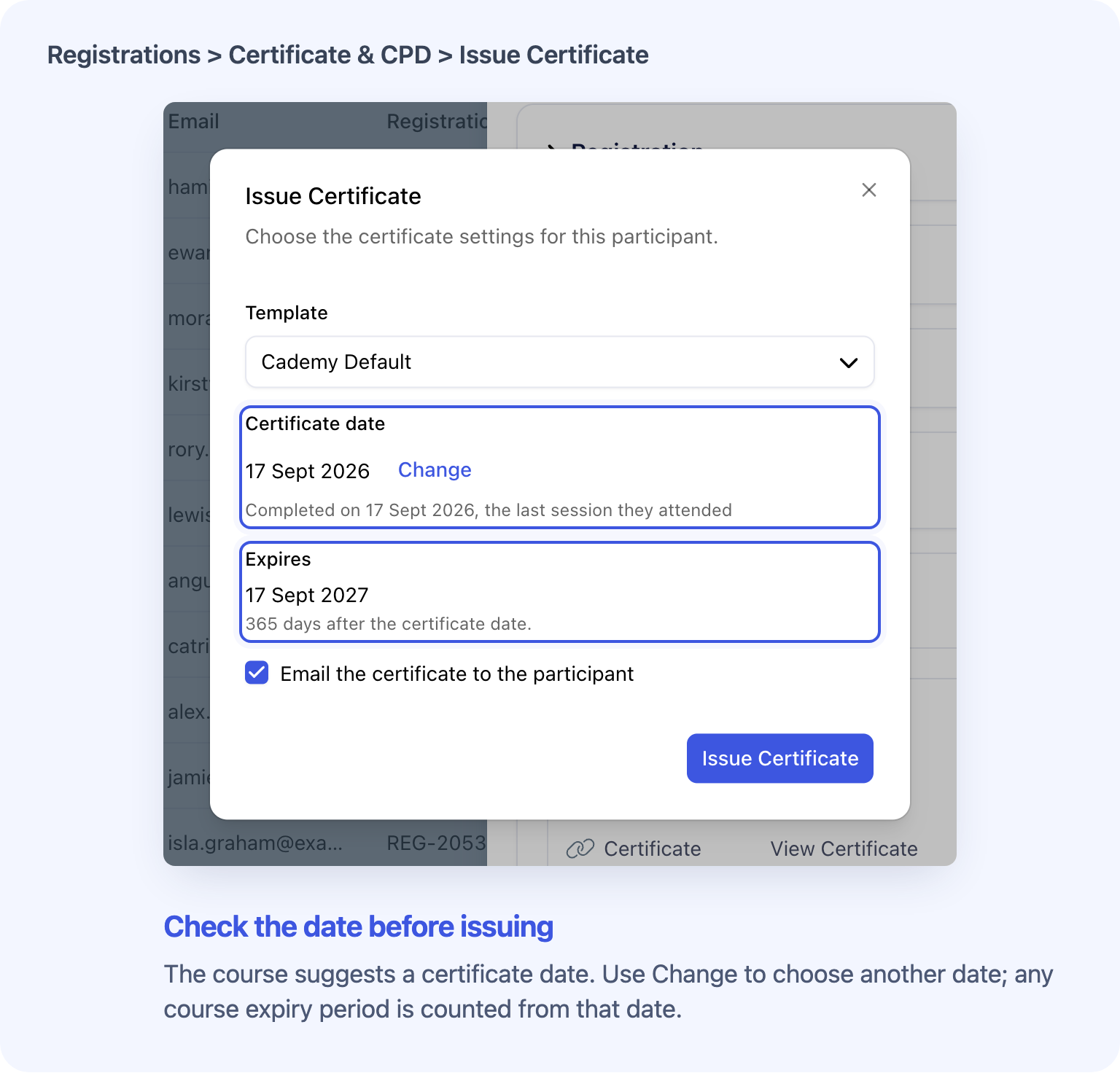
Review the certificate date and expiry before issuing.
The Issue Certificate window now shows the suggested certificate date, explains where it came from and shows the expiry. Select Change if you need a different date. The expiry updates using the course’s validity period, or stays Never if the course has no expiry.
Start from the learner’s Registration on the course’s Registrants tab. A Registration is one person’s place on a course or course date.
Reissuing a revoked certificate also opens this window, with its template selected. Check the recalculated date and expiry before issuing: reissuing uses the current course settings or your chosen date, rather than restoring the old dates automatically.
If the same learner has places on different courses within one Order, contact Cademy Support before issuing or reissuing individually. An individual issue can select another eligible course on that Order; choosing a template does not choose the course.
Read the manual issuing and reissuing guide.
Choose Certificate Dates When Issuing in Bulk
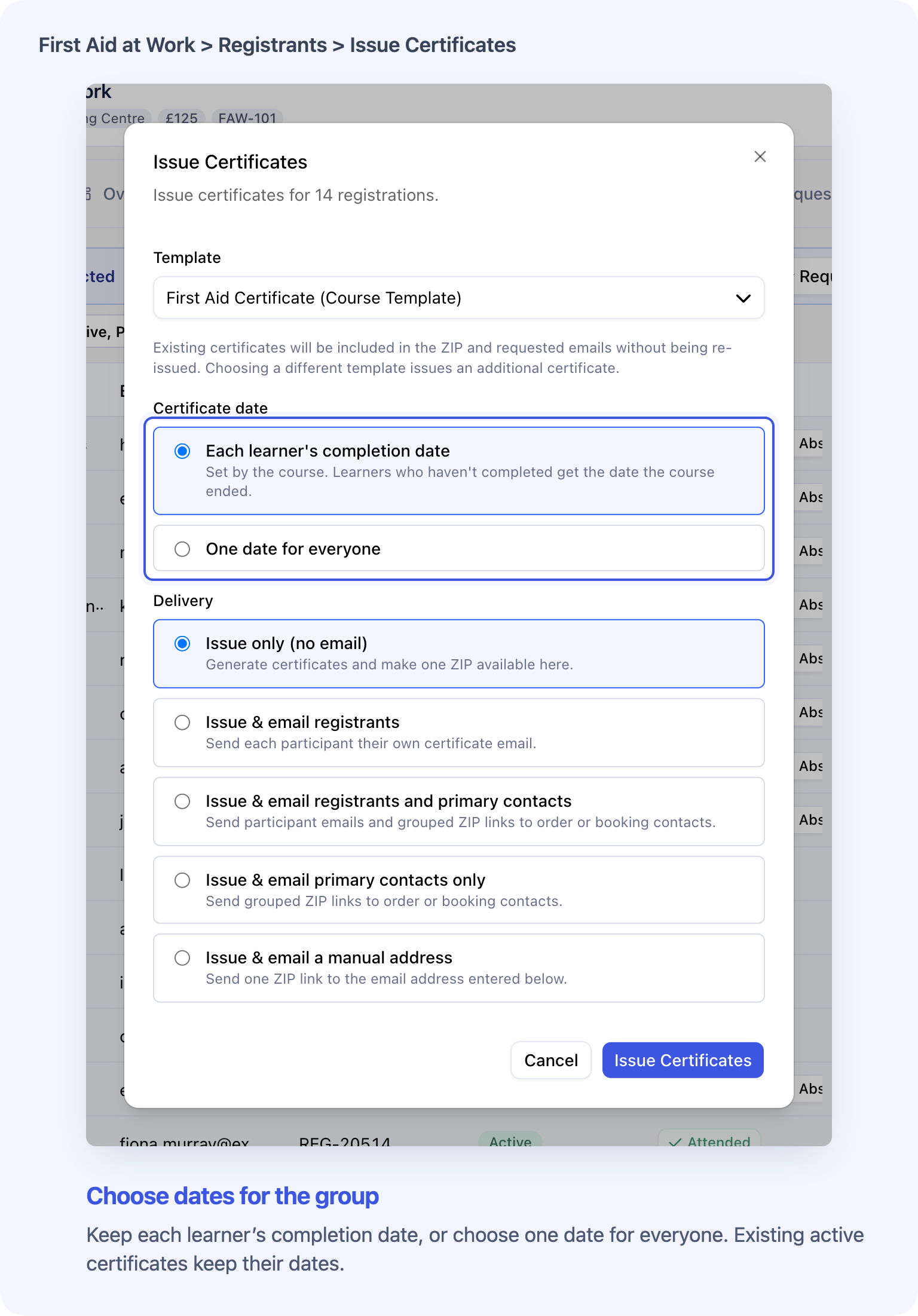
Use the course’s date rule or choose one date for certificates created or restored by the bulk job.
Bulk certificate issuing now includes a date choice. Keep the course’s date rule, or select One date for everyone and choose the date to use. You’ll find these options in Issue Certificates on a course’s Registrants tab, for up to 500 Registrations at a time.
That choice applies to certificates the job creates or restores from revoked status. Their expiry is calculated from the certificate date and the course’s settings. There is no separate bulk expiry picker.
Active certificates already issued with the selected template keep their saved dates. They can still be included in the ZIP and chosen email delivery. Bulk issuing does not edit their issue or expiry dates; use Edit Dates on each certificate that needs a correction.
The bulk window starts with Issue only (no email) selected. Choose an email delivery option if you want to send the certificates as well.
Correct the Dates on an Issued Certificate
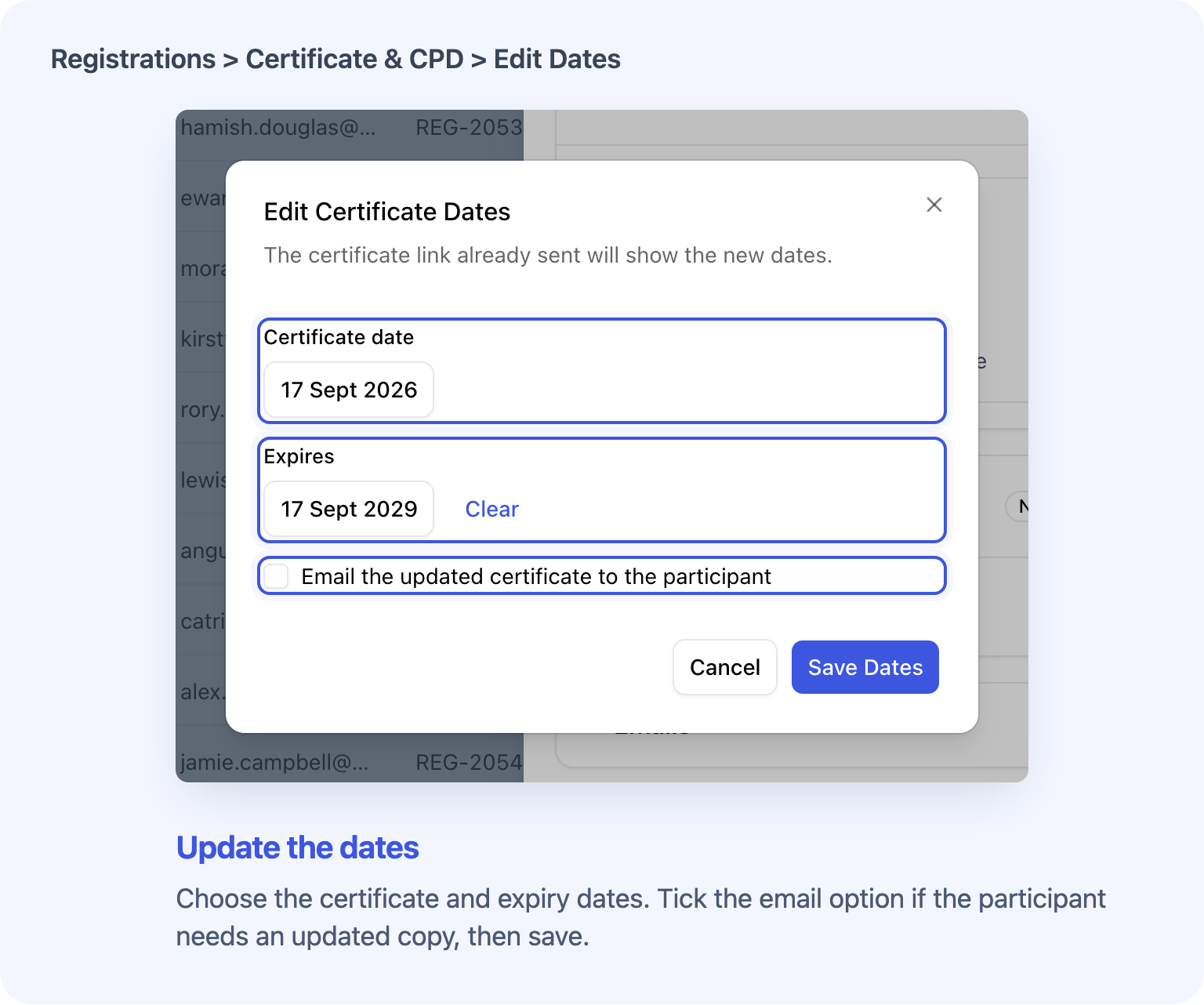
Correct the certificate date or expiry and choose whether to email the learner.
You can now change an active certificate’s issue date, expiry date or both without revoking it. Open the learner’s Registration, find the certificate and choose Issued → Edit Dates.
Choose the Certificate date, check Expires, then select Save Dates. You can set an expiry yourself or use Clear to remove it. An expiry must be on or after the certificate date.
If the saved expiry still follows the course’s current validity period, changing the certificate date moves the expiry with it. A custom expiry or no-expiry choice is preserved. Once you change or clear the expiry in the window, changing the certificate date again keeps that choice. Always check both fields before saving.
The certificate keeps the same link. The learner can reopen it and download a fresh PDF with the corrected dates. Copies downloaded earlier keep their old dates.
Email the updated certificate to the participant starts unticked. Select it to email the corrected certificate to the learner only, not the Order Contact who may have booked for them. If the learner has no email address or account emailing is switched off, you can still save the dates.
See how to correct an issued certificate.
Frequently Asked Questions
Can I change existing certificate dates in bulk?
No. Edit Dates changes one issued certificate at a time. The date choice in bulk issuing applies to certificates created or restored by that job, not existing active certificates.
Who can change certificate dates?
System Admins, Course Owners and Facilitators can edit certificates on Registrations they have access to. Course settings require a System Admin or Course Owner. Learners cannot edit their own certificate dates. Edit Dates has no additional paid-plan requirement; access to custom certificate templates is separate.
Will correcting a certificate change the learner’s completion record?
No. Editing certificate dates leaves attendance, lesson progress, the Registration’s Completion Date and CPD unchanged. Read how course completion is recorded.
Why do Certificate date and Issued show different days?
Certificate date is the date printed on the certificate. Issued shows the original creation time when that falls on a different calendar day. Editing dates does not change that creation time, and Issued is not the latest reissue time.
What if the corrected date does not appear on the PDF?
Open the certificate link again and download a fresh copy. A custom template also needs the relevant issue or expiry date field for that date to appear. See the certificate template guide.
Will the learner’s Get Certificate button still open the same certificate?
If the learner has several active certificates, Get Certificate opens the one with the latest certificate date. Backdating can change which one opens. Use the relevant certificate’s Issued → Copy link to share that specific certificate.
Can one date correction affect more than one Registration?
Yes. Some older certificates are shared across the same learner’s Registrations for the same course on one Order. Editing that shared certificate changes it wherever the same certificate is used.
Will Edit Dates update NetSuite too?
No. Arrange the corresponding correction with your NetSuite administrator. When certificates are sent to NetSuite, its mapped Issued date uses the saved certificate date; dates are converted to UTC, so the calendar day can differ from Cademy’s display. Read the NetSuite certificate guidance.
These changes are available in your Admin dashboard. Start by checking Date on certificate on the courses where certificates should reflect completion, or use Edit Dates for an individual correction.