📋 Account Activity Log
See who changed records, signed in or accessed data across your account.
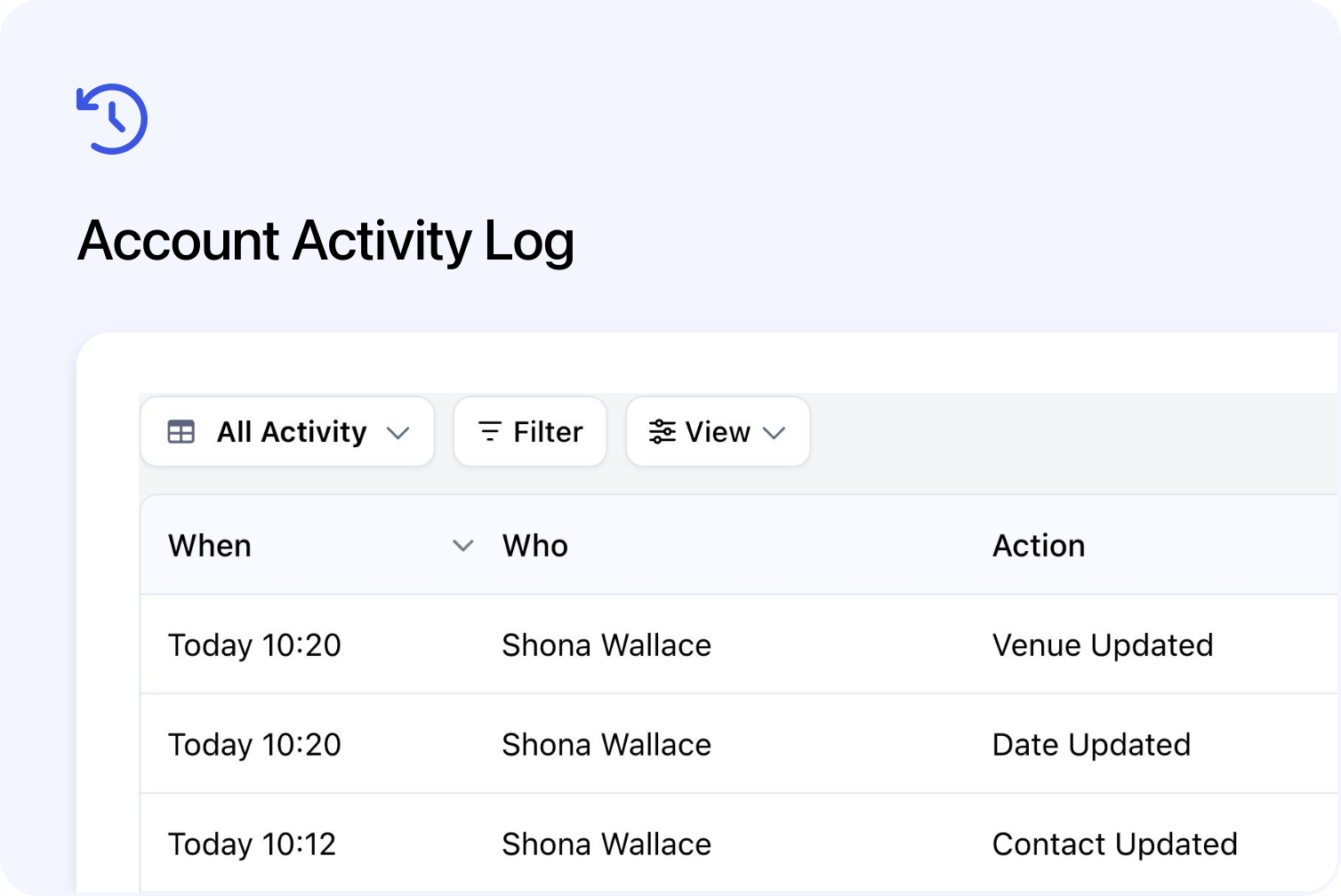
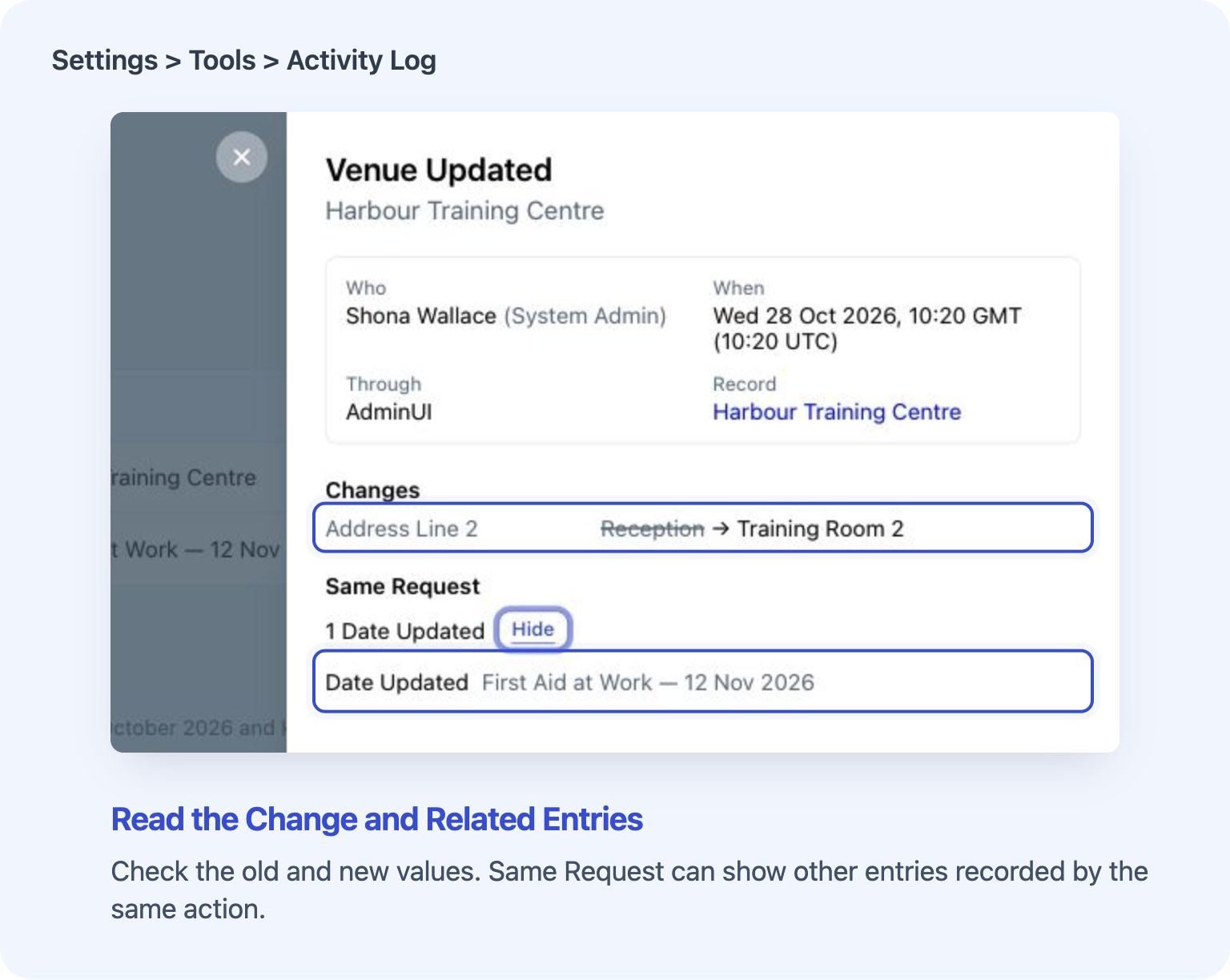
See who changed a record and compare the recorded values. View full size
You can now investigate recorded changes, sign-ins and data access across your business account in Cademy’s Activity Log. See who changed a venue or contact, when it happened and whether the action came through the Admin Dashboard or an integration.
Activity Log is available to System Admins on the Custom & Enterprise plan. Open Settings > Tools > Activity Log in the Admin Dashboard. There is no separate switch to turn on.
Open an entry to see its details, including old and new values where they were recorded. For example, if a shared venue address changes, you can inspect the venue edit and use Same Request to see related updates to course dates. The log also includes recorded changes to discounts and scheduled exports.
Filter the Activity Log and save views
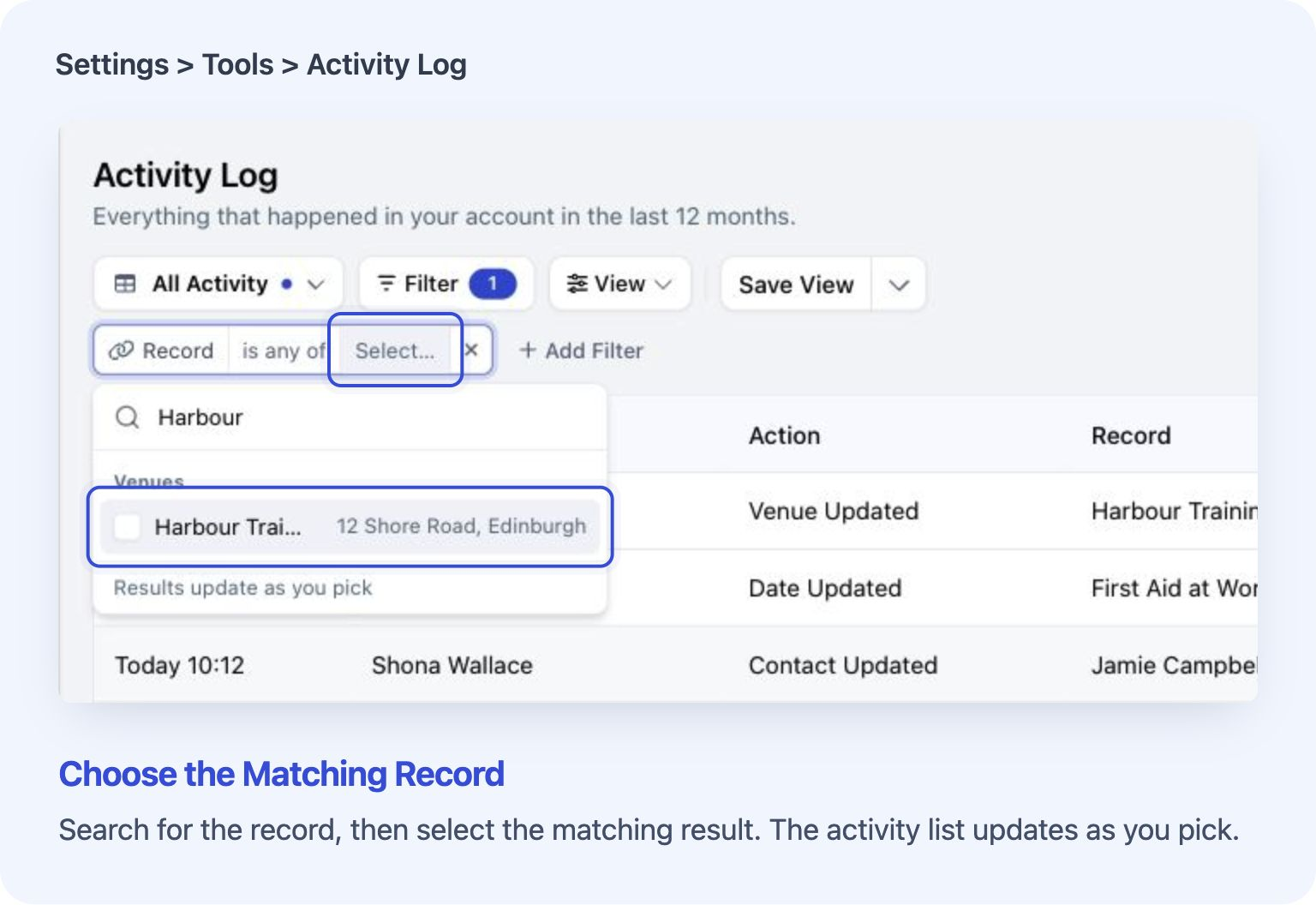
Choose a record to narrow the log to its activity. View full size
Use the Record filter to find activity linked to a particular contact, course, venue, order or other saved item. Add Person, Action, Date or Through to narrow the results further. Through identifies where an action came from, such as AdminUI or an integration.
This helps when you need to find out who edited a course or its dates, or check what one team member changed during a particular period. Different filters work together, so each entry must match all your selected conditions.
You can save a useful set of filters as a view, either for yourself or for other people with Activity Log access. Sharing a view does not give anyone extra permissions. There is no general text-search box; use the Record picker to search for a specific item.
Check sign-ins and access to account data
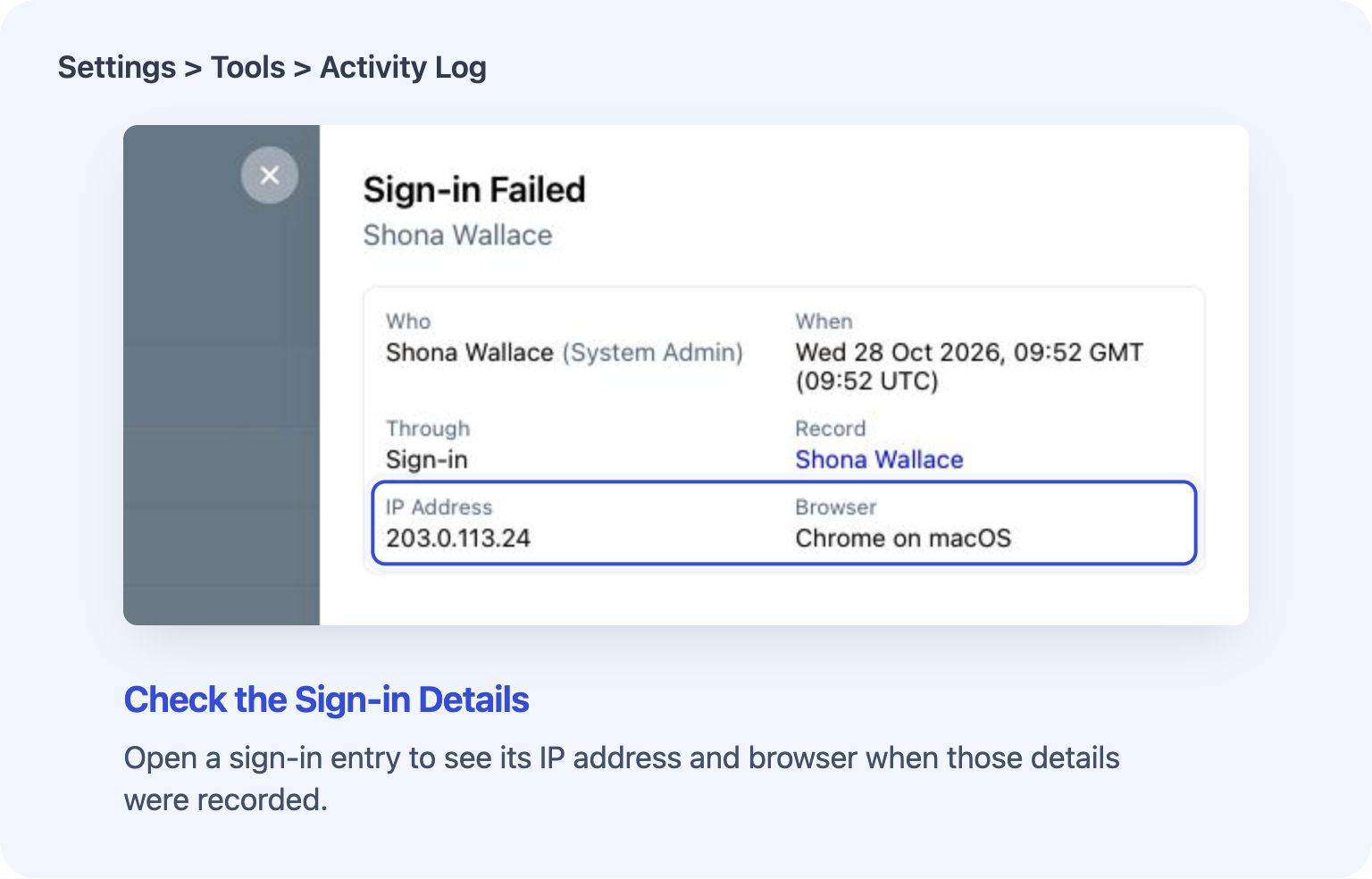
Inspect the details recorded for a sign-in attempt. View full size
Built-in views make common checks quicker:
- Sign-ins shows successful and failed admin sign-in entries.
- Data Access shows recorded exports and access to account data, including access by integrations or AI assistants.
- Team & Keys shows team-member and access-key changes, such as invitations and revoked connections.
- All Activity returns to the wider log.
You can narrow a view further with filters. For example, choose Sign-ins and edit its Action condition to keep only Sign-in Failed.
Sign-in and data-access entries can include an IP Address and Browser when those details were recorded. An IP address identifies a connection, rather than proving a person’s exact location.
One important distinction: Export Downloaded means a working download link was provided, including in an email. It does not prove that someone opened or downloaded the file.
Inspect changes made by an import or bulk action
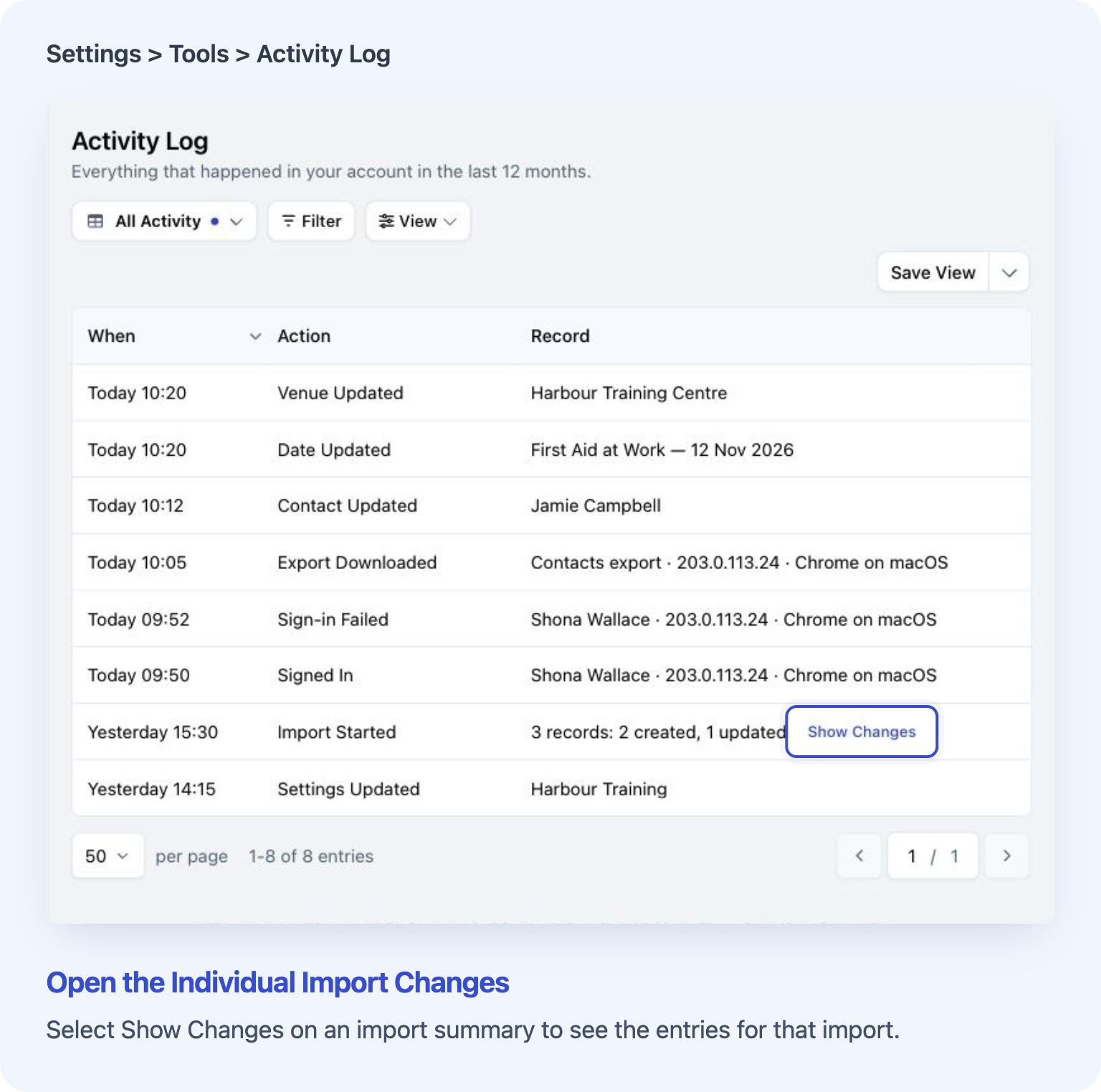
Open Show Changes to inspect the entries behind an import summary. View full size
Imports and bulk actions can appear as a single summary row, keeping the main log easier to scan. Choose Show Changes to see the entries associated with that operation, then open an entry to inspect it.
This is useful when a spreadsheet import has changed several contacts and you want to check what happened to one of them. Some imports record that a record was updated without retaining every old and new field value.
Show Changes adds an Import filter. Remove that condition when you want to return to the wider list.
Activity Log access and history
Activity Log is included in Custom & Enterprise, shown as Enterprise in Billing & Usage. Custom limits added to a Free, Starter, Pro or Teams account do not automatically include Activity Log. Course Owners and Facilitators cannot open it, even on an eligible plan.
The log shows up to the last 12 months. Recording began on 10 October 2026, with different kinds of action added at different times. Earlier activity is not added retrospectively, and the log does not cover every action. Learner lesson views and progress, and some automatic integration or background changes, are outside this log.
For the full instructions, including filters, saved views and missing entries, see View Your Account’s Activity History (Activity Log).
Frequently asked questions
Why is the Activity Log page locked?
Your account needs a plan that includes Activity Log. Select Compare Plans on the locked page to see the options. See Compare Cademy Plans and Prices if you are unsure which plan you have.
Why is Activity Log missing from Settings?
Only System Admins see it under Settings > Tools. If you are a Course Owner or Facilitator, ask a System Admin on your account to check the activity you need.
Why can’t I find an action I expected to see?
Check that you are in the right business account, choose All Activity and remove filters that could hide the entry. Widen the date range if needed. Times in the list use the account’s time zone, while calendar-day filters use UTC boundaries, so an action near midnight may fall on a neighbouring day. An empty result does not prove that the action never happened: it may fall outside the available history or recording coverage.
Why are some previous values hidden?
Sensitive values, such as payment instructions, stay hidden. Other values may be too long to show or may not have been stored. The entry explains the reason under Changes. A recorded update can therefore appear without a complete before-and-after comparison.
Can I undo a change or restore a deleted record?
No. Activity Log helps you investigate. It has no undo or restore action. A deleted record may still have a named entry with a Deleted badge, but that is not a recoverable copy. If a record still exists, open it and use its normal editing controls to make a correction.
Can I export the Activity Log?
No. Exporting or downloading the log is not currently available. Exports of contacts, orders and other records are separate features.
Can I share a link to an entry?
Yes. Open the entry and copy the page address from your browser. The person opening it still needs access to the same business account’s Activity Log. Reading and filtering the log do not create extra entries for those views.