
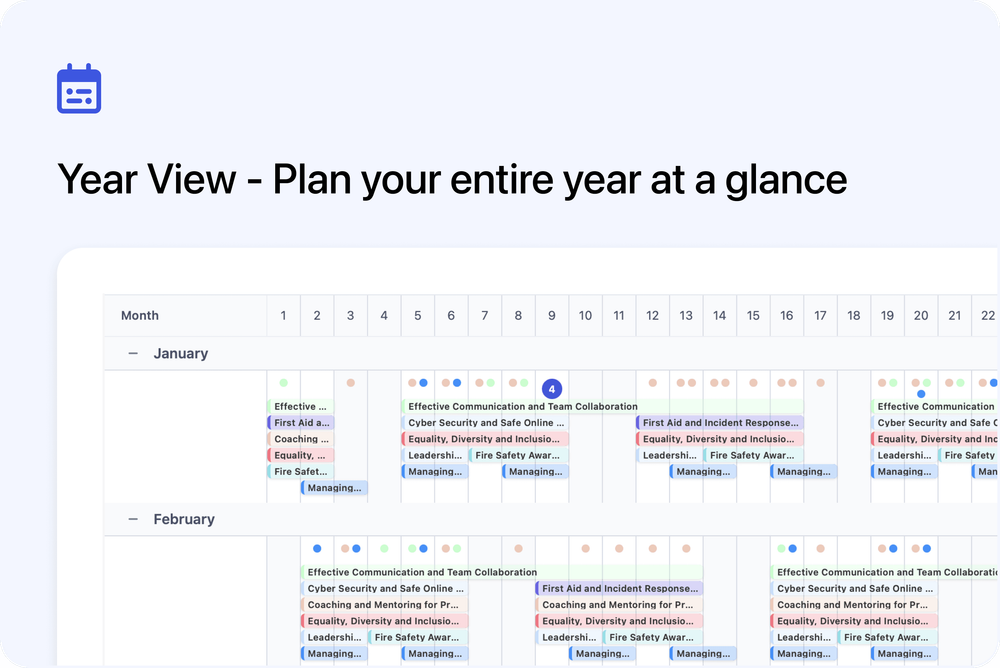
You can now switch to Year View in the Courses dashboard to see every session across all twelve months in one clear, scrollable layout.
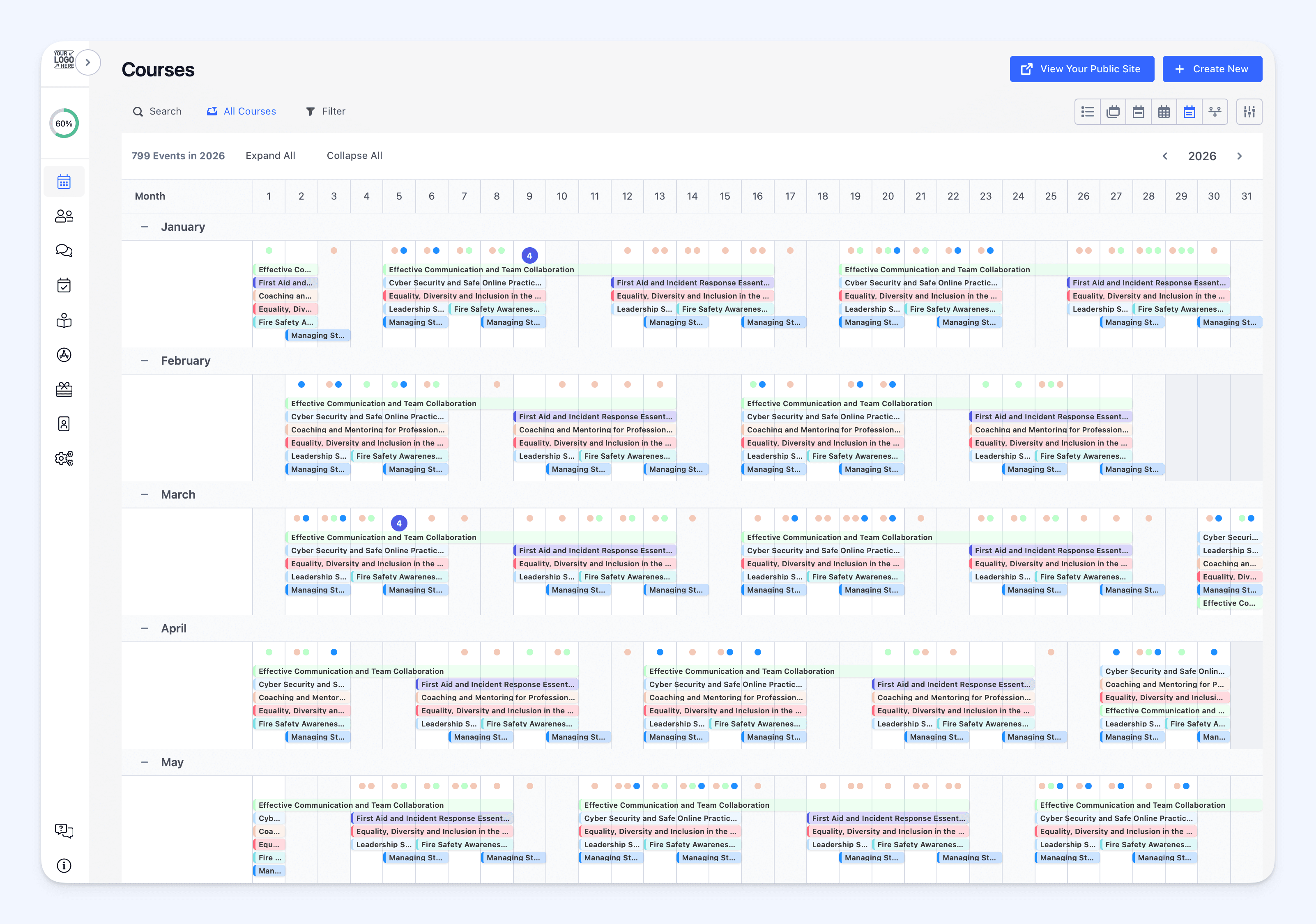
🗓️ A complete 12-month overview
See your entire training year in one view - each month appears as a row, with days displayed across the top. It’s the simplest way to spot busy periods, quiet months, or seasonal patterns at a glance.
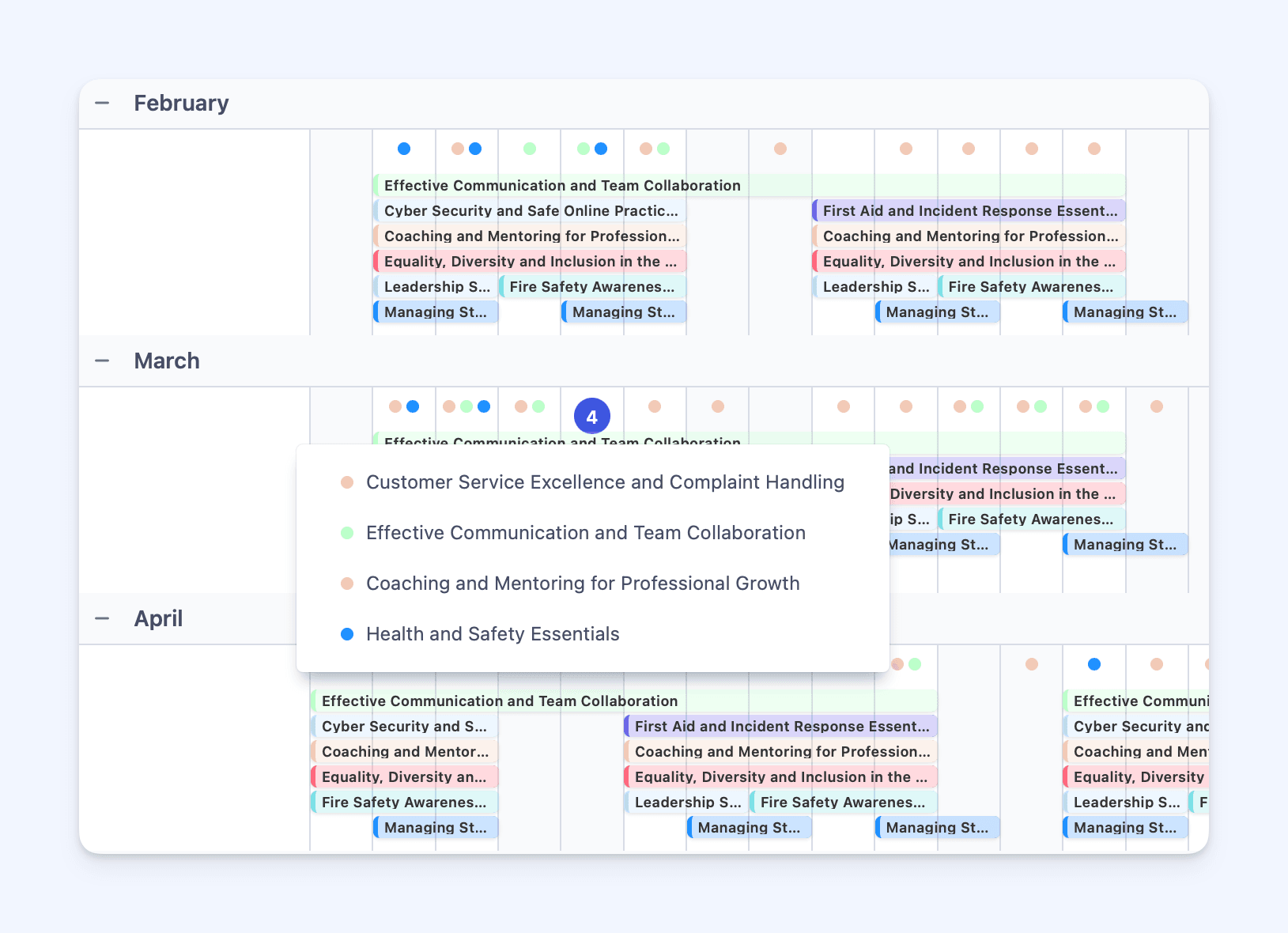
📅 Multi-day and single-day sessions made clear
Longer courses or multi-day sessions appear as extended highlighted bars, while single-day sessions show as neat dots on the calendar. When multiple events occur on the same day, they’re grouped automatically, helping you gauge your schedule density instantly.
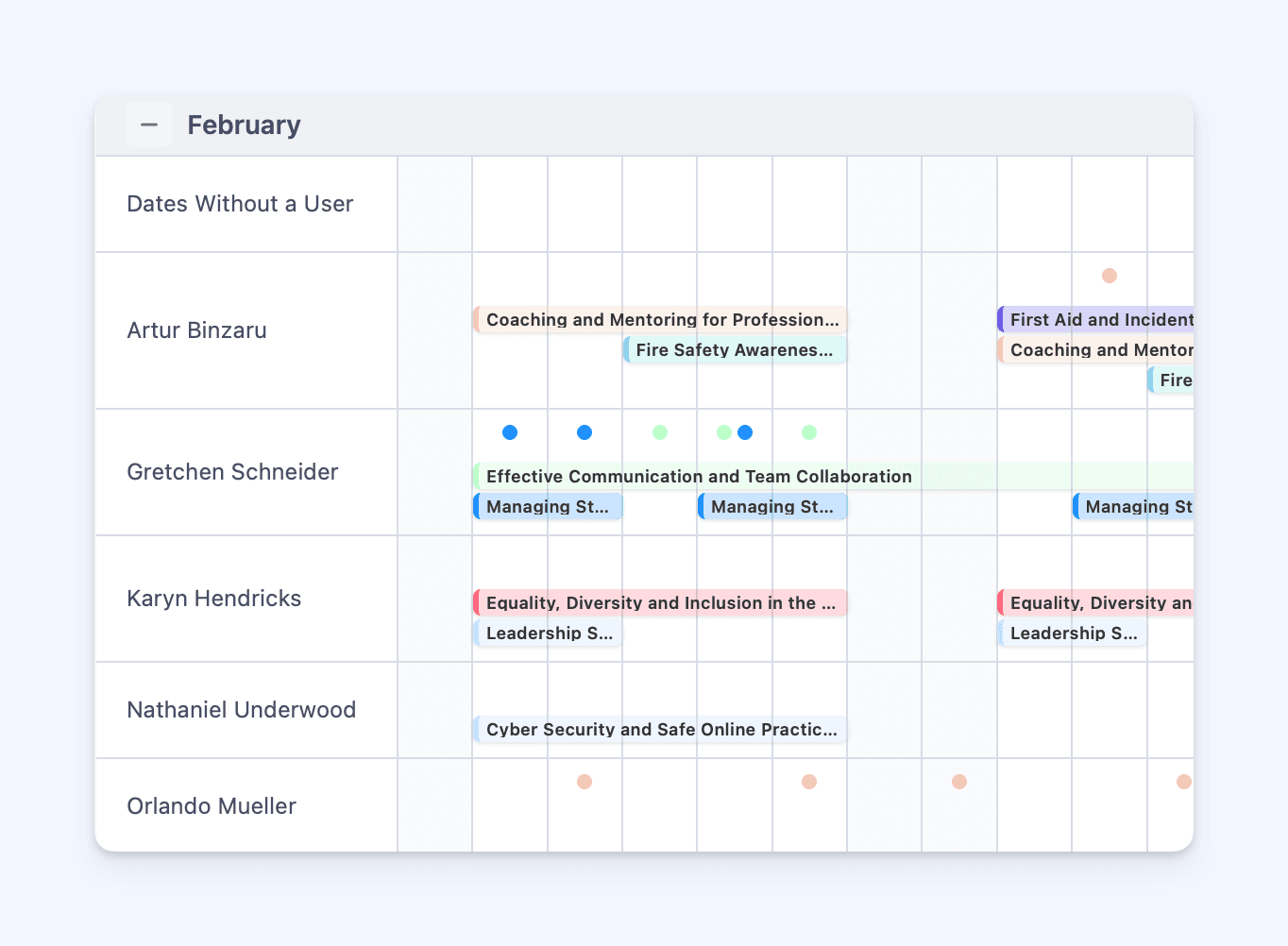
👥 Group by facilitator or team
Toggle grouping to view sessions by facilitator or team, making it easy to check who’s delivering which sessions and balance workloads across your instructors.
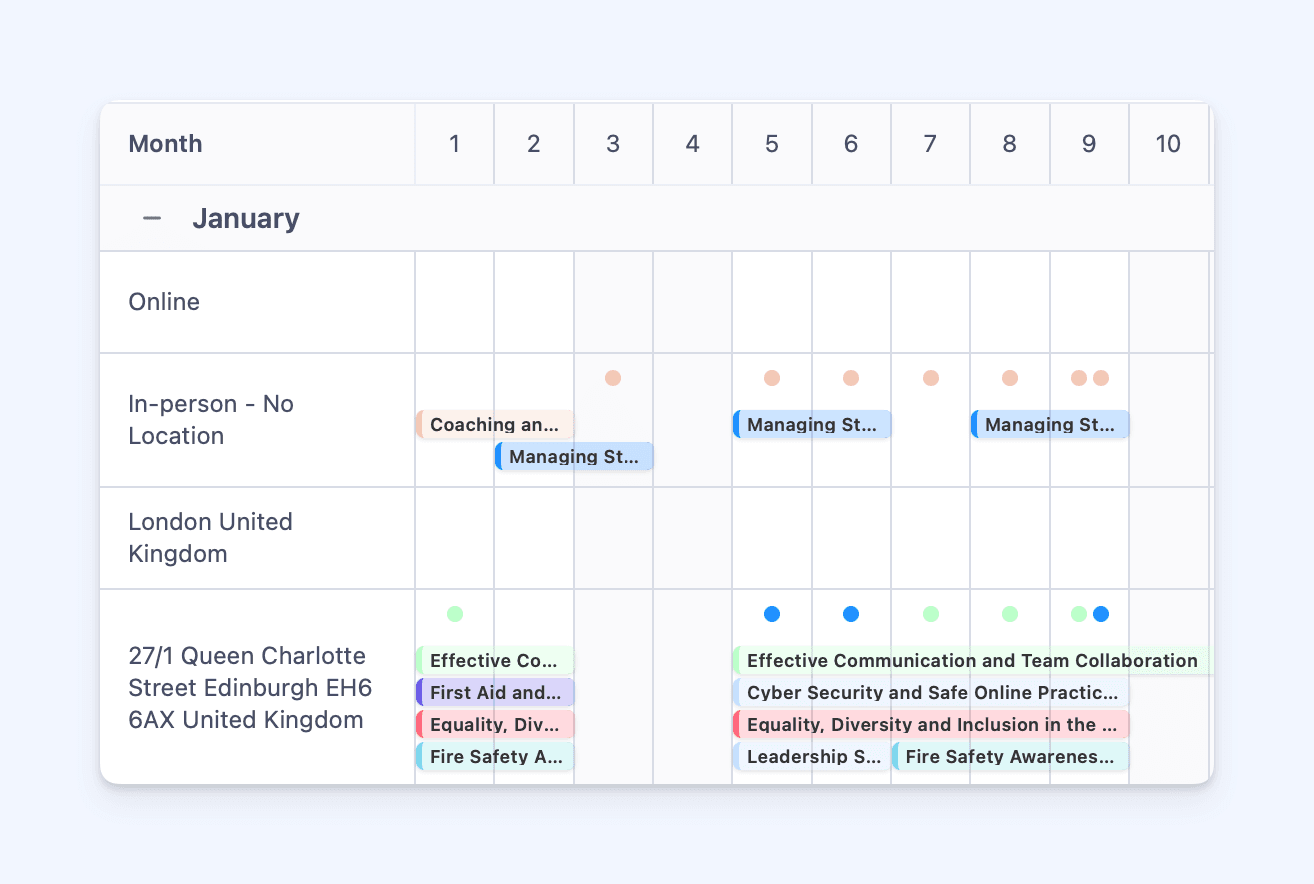
📍 Filter by location
Both Year View and Timeline View now let you filter sessions by online or by a specific address location. It’s an easy way to focus on where your sessions take place and keep your schedule clear and organised.
Whether you’re planning next quarter or mapping out the full year ahead, Year View gives you the big picture of your training schedule - helping you plan smarter and faster.
✨ Extra Calendar View Updates
We’ve also added several smaller enhancements across Week, Month, Timeline, and Year views to make scheduling smoother and more flexible:
• 🔍 Search in all calendar views - Quickly find any session by name.
• 🗓️ Hide weekends in Week View - Focus on your weekday sessions.
• 🎉 Highlight public holidays - Easily spot national holidays when planning across the