
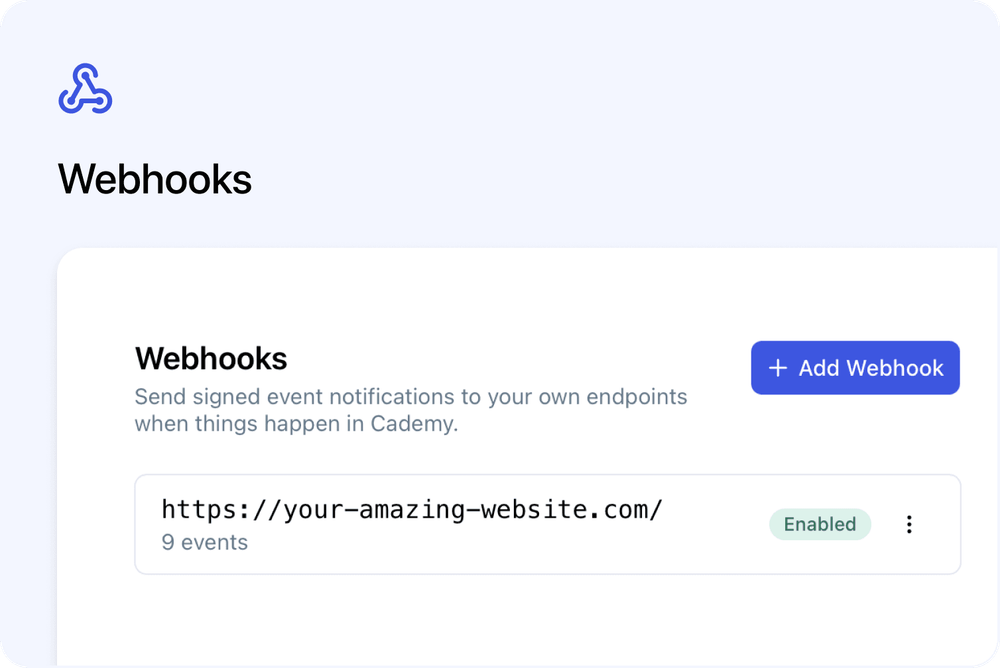
Cademy can now send signed webhook notifications to your other systems when selected events happen.
This lets a CRM, accounting platform, reporting tool, or internal app respond shortly after a course, course date, contact, Registration, or Order changes. Instead of repeatedly checking Cademy or relying on manual exports, your integration receives a structured notification at its HTTPS endpoint.
What’s new
Webhooks give your organisation a direct way to receive Cademy event updates.
You can:
- Create several webhook connections for different systems.
- Choose exactly which Cademy events each endpoint receives.
- Verify signed requests using a separate secret for each webhook.
- Review recent delivery attempts and errors.
- Edit, disable, re-enable, or delete a webhook at any time.
The available events cover:
- Courses: created, updated, and deleted.
- Course Dates: created, updated, and deleted.
- Contacts: created, updated, and deleted.
- Registrations: created and cancelled.
- Orders: created and updated.
That gives you 13 events to choose from, including course and contact deletion events.
How it works
Go to Settings > Webhooks and select Add Webhook.
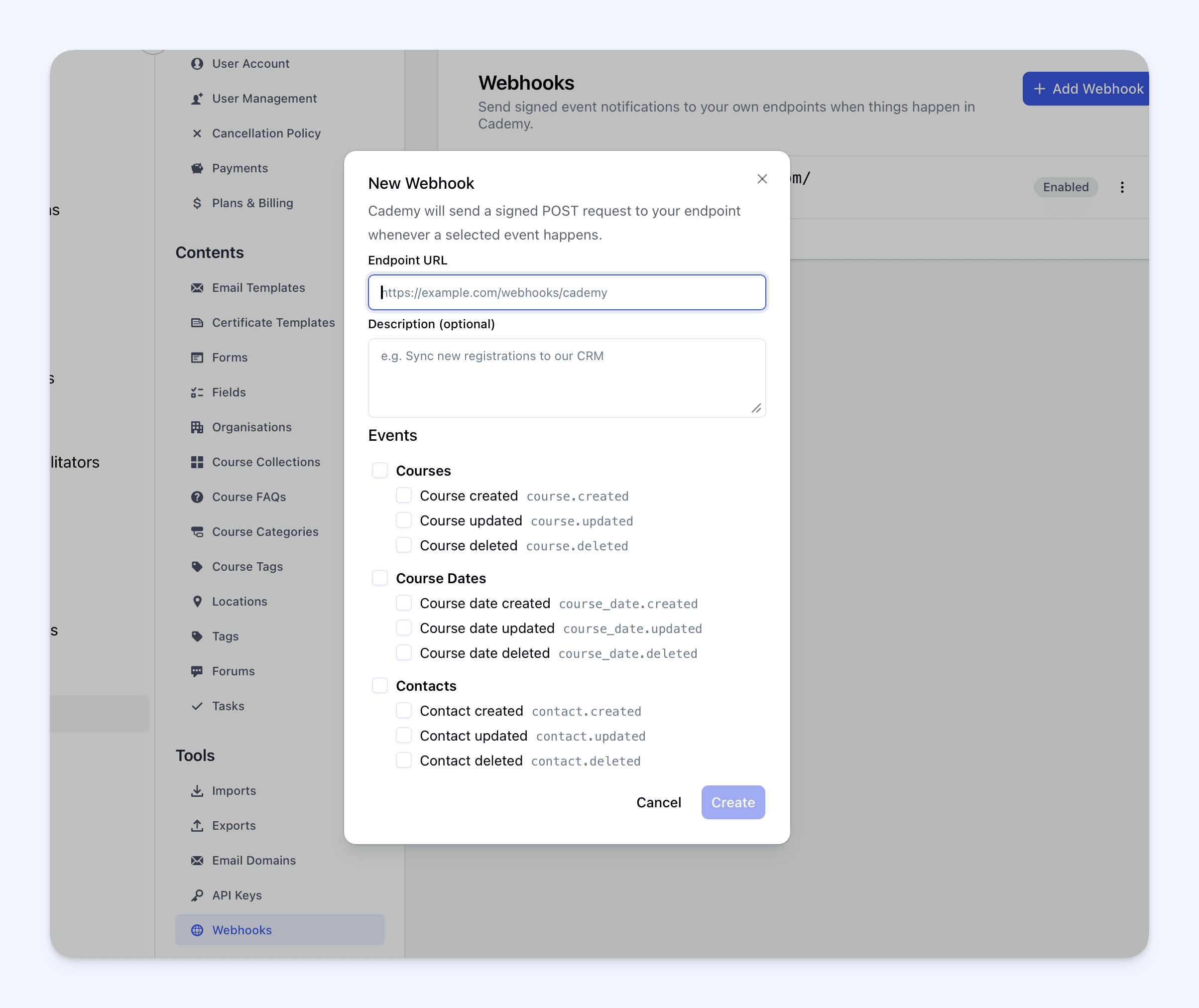
Enter the public HTTPS address supplied by your developer or integration provider in Endpoint URL. You can add a Description (optional), then select the events the endpoint should receive.
When you select Create, Cademy displays a Webhook Secret. Store this secret securely in the receiving system. It is used to verify that each signed request came from Cademy.
Shortly after a selected event happens, Cademy sends a signed JSON POST request to the endpoint. The request includes an event ID, event type, time, and information about the affected record.
You can use Reveal Secret… to view the current secret again or Regenerate Secret… to replace it. Regenerating the secret makes the previous secret stop working immediately.
Delivery history and retries
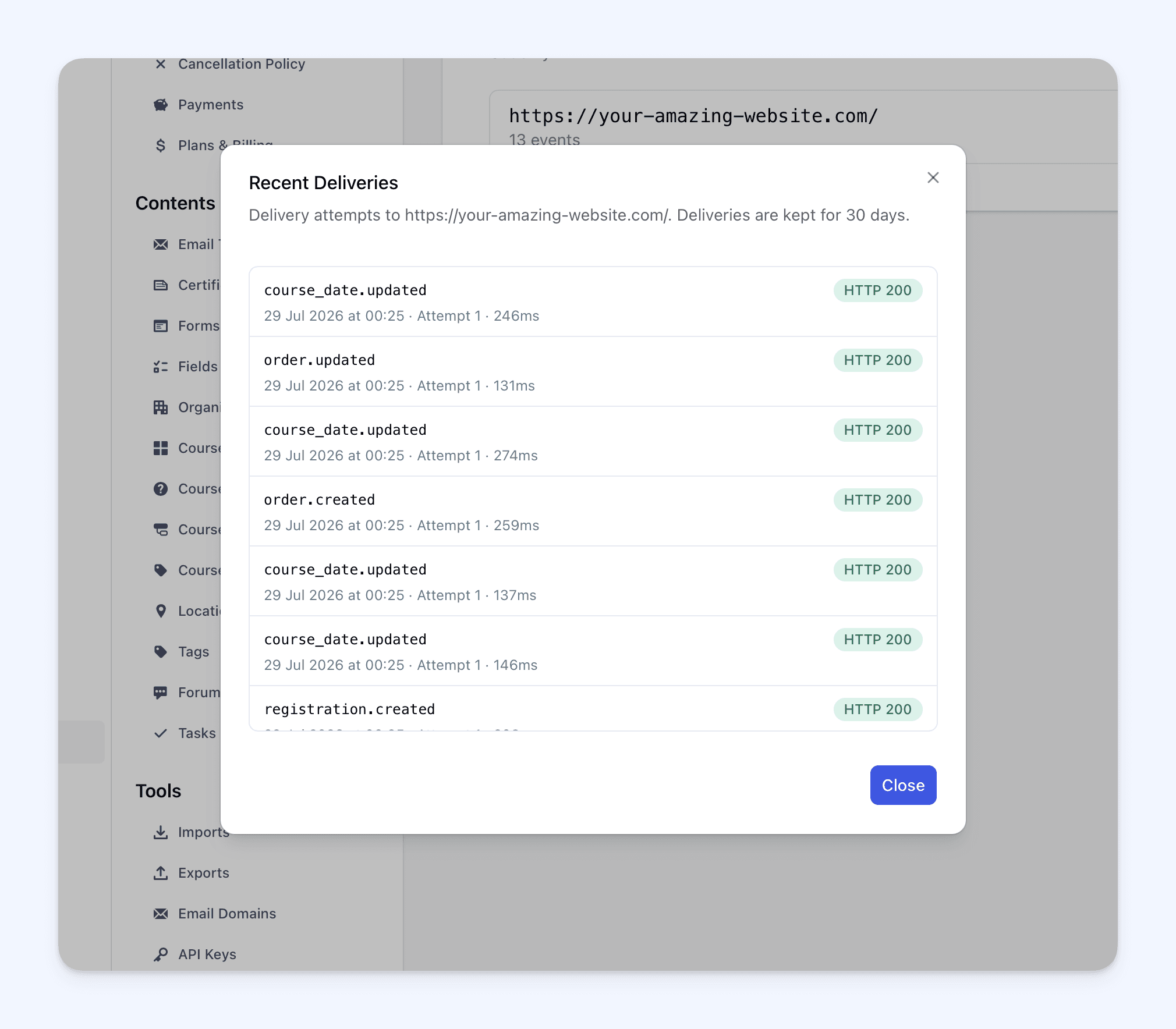
Use View Deliveries… to check the event, attempt number, result, time, response, and any error. Delivery records are kept for 30 days.
If an endpoint does not return a successful response, Cademy makes up to 5 attempts over about 30 minutes. An endpoint that keeps failing is automatically disabled so requests do not continue indefinitely. Fix the endpoint, then select Re-enable to start deliveries again.
Why this matters
Webhooks help your other systems respond to changes without waiting for a manual export or repeatedly asking Cademy for updates.
For example, your integration could:
- Add new Contacts or Registrations to a CRM workflow.
- Update internal reports when an Order changes.
- React when a course date is created, updated, or deleted.
- Remove or archive records when a course or Contact is deleted.
The action your other system takes is controlled by your integration. Cademy sends the event information, while your receiving system decides what happens next.
Good to know
- Webhooks are available on Teams and Custom plans.
- Only System Admins can manage Settings > Webhooks.
- Setting up the receiving endpoint will usually require a developer or integration provider.
- Endpoint URL must be a public HTTPS address. Localhost, private IP addresses, and internal addresses are rejected.
- The endpoint must return a successful
2xxresponse within 10 seconds. - Webhooks use at-least-once delivery, so the same event can arrive more than once. Receiving systems should use the event
idto ignore duplicates. - Events are not guaranteed to arrive in order.
- Delivery history does not store the JSON payload.
- Selecting Disable stops new deliveries and queued retries immediately. The webhook can be enabled again later.
Where to find it
Open the Admin dashboard and go to:
Settings > Webhooks
For complete setup instructions, event codes, signature verification, troubleshooting, and FAQs, read Webhooks: Send Cademy Events to Other Systems.
Frequently asked questions
Do I need a developer to use webhooks?
Usually, yes. A System Admin can create and manage the webhook in Cademy, but a developer or integration provider normally needs to create the receiving endpoint and decide what it does with each event.
Can I use my normal website address as Endpoint URL?
Usually not. Use an address that has been specifically built to receive Cademy webhook POST requests.
Can I choose more than one event?
Yes. Select one event, several events, or all 13 events. You can change the selection later with Edit….
Can I send a test webhook?
There is no separate test button. Create the webhook, perform one of its selected events in Cademy, then check View Deliveries….
What happens if my endpoint is temporarily unavailable?
Cademy makes up to 5 attempts over about 30 minutes. Check View Deliveries… for the result of each attempt.
Why was my webhook automatically disabled?
The endpoint repeatedly failed to receive its events. Fix the endpoint, then select Re-enable from Settings > Webhooks.
Can I pause a webhook without deleting it?
Yes. Select Disable to stop deliveries immediately. Select Enable when you are ready to start again.
How can my system confirm a request came from Cademy?
Verify the request signature using the webhook secret. The Webhooks help article explains the signature headers and verification process.