
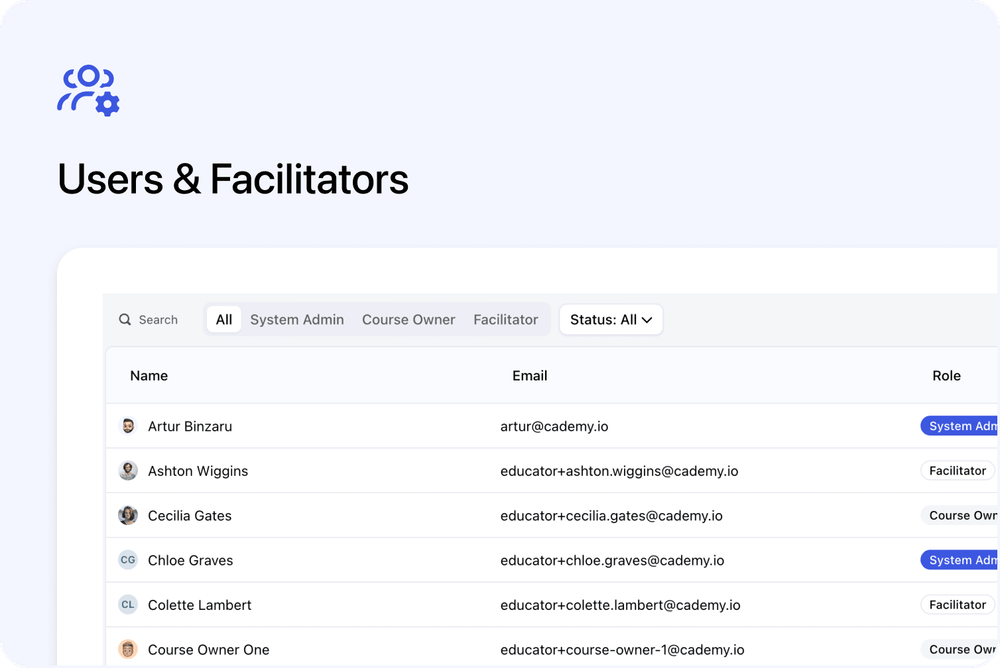
You can now manage your team from a dedicated Users & Facilitators page.
Instead of managing users from a basic list in Settings, System Admins now have a clearer place to view, invite, and manage the people who help run and deliver courses.
This includes System Admins, Course Owners, and Facilitators.
What’s new
👥 New Users & Facilitators page
A new Users & Facilitators page is available from the left-hand menu for System Admins.
From this page, you can see your team in one place, including:
- Name and avatar
- Role
- Status
- Phone
- Last login
You can also search by name or email, filter by role, filter by status, and adjust the table size.
🟡 Pending users are shown straight away
When you invite someone, they now appear in the Users & Facilitators list immediately with a Pending badge.
This makes it clearer who has already been invited and who still needs to accept.
For pending users, System Admins can also resend or cancel the invite from their profile.
✉️ Updated invite flow
The invite flow is now clearer and more consistent.
When inviting someone, you can enter their name, email, phone, and role.
The role defaults to Facilitator, and each role includes a short explanation to help you choose the right access level.
You can also choose whether to send the invitation email.
⚙️ Settings → User Management has been simplified
The old flat user table has been replaced by the new Users & Facilitators page.
Settings → User Management now focuses on:
- User Groups
- Admin Email Recipients
- Invite User
User Groups and Admin Email Recipients continue to work as before.
Why this matters
This update gives System Admins a clearer place to manage team access.
You can now view your users, check who is active or pending, invite new team members, filter by role or status, and manage pending invites from one dedicated page.
This is especially useful if you work with multiple facilitators, course owners, or admin team members.
Good to know
Access depends on role
Only System Admins can access the full Users & Facilitators page.
Course Owners and Facilitators can access My Profile, but cannot browse the full Users & Facilitators page.
User profiles have also been improved
Each team member now has a more complete profile, including profile details, assigned courses, tasks, notes, and custom user fields.
Read more about User Profiles & Custom Fields.
Where to find it
System Admins can open:
Users & Facilitators
from the left-hand menu.
Every user can open:
My Profile
from the top-right avatar menu.