
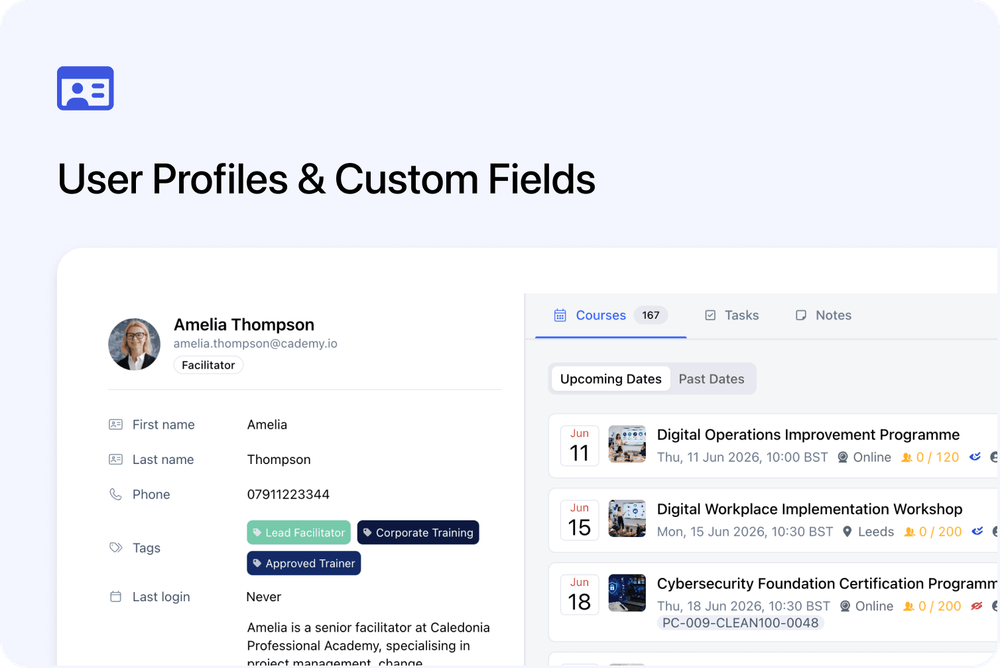
You can now use dedicated user profiles in Cademy.
Each team member has their own profile page, giving System Admins a clearer place to view their details, assigned work, notes, and custom user information.
Every user can also access their own My Profile page.
What’s new
👤 Profile pages for team members
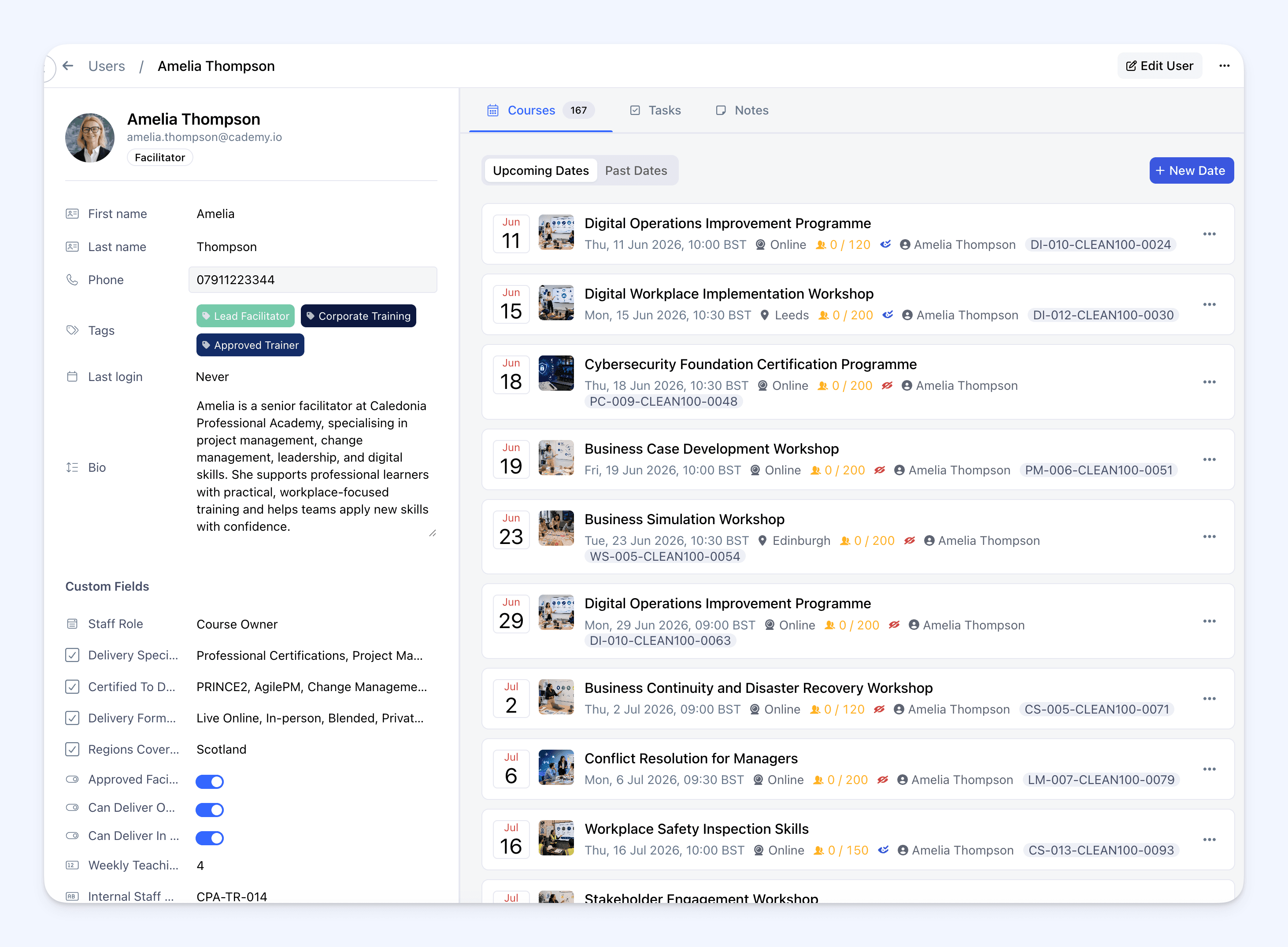
Each user now has their own profile page.
From the profile, you can review and manage details such as:
- Avatar
- Name
- Phone
- Bio
- Tags
- Last login
- Custom fields
This gives each team member a dedicated profile inside Cademy.
📚 Courses, Tasks, and Notes tabs
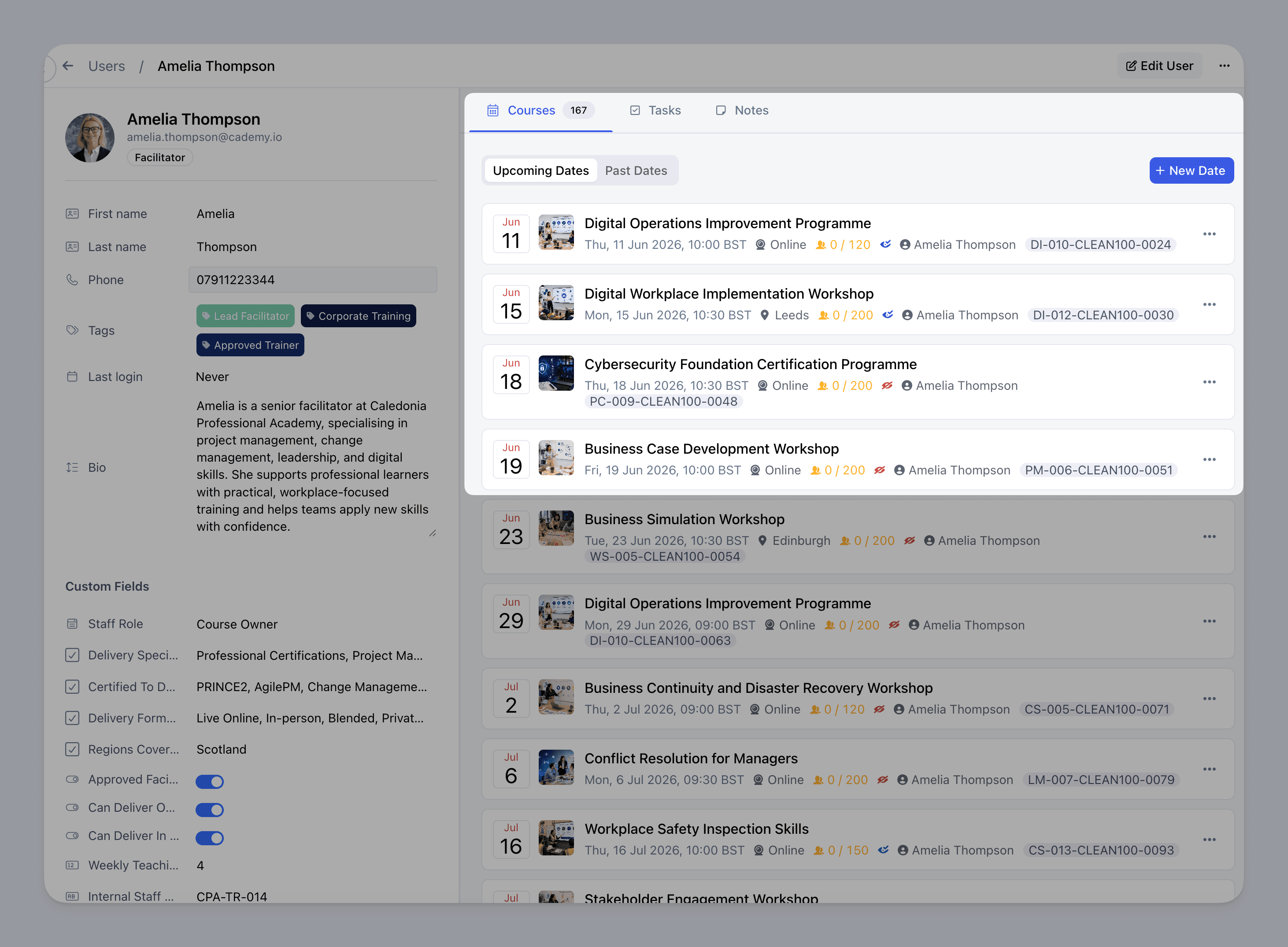
User profiles include dedicated tabs to help you understand what each person is connected to.
The profile can show:
- Courses — course dates directly assigned to that person
- Tasks — tasks linked to that person
- Notes — notes authored by that person
This makes it easier to see what someone is working on without checking several different areas.
🧑🏫 My Profile for every team member
Every user can open My Profile from the avatar menu in the top-right corner.
Course Owners and Facilitators can update their own profile details, such as:
- Avatar
- Name
- Phone
- Bio
- Custom field values
They can only access their own profile.
🧩 Custom fields for Users
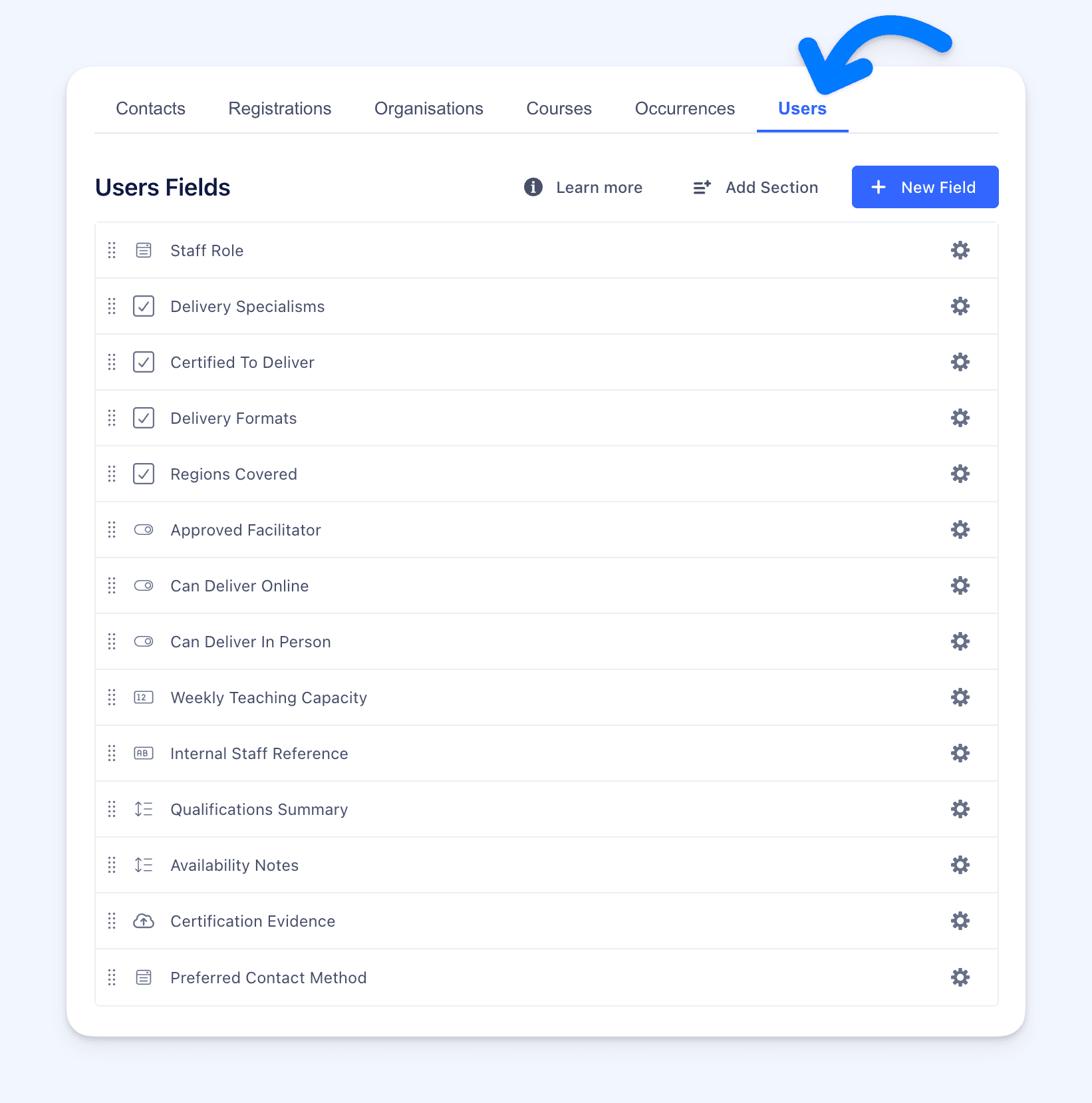
You can now create custom fields for Users.
Go to:
Settings → Fields → Users
Use this to store extra information about your team, such as:
- Staff role
- Delivery specialisms
- Certified courses they can deliver
- Delivery formats, such as online or in person
- Regions covered
- Approved facilitator status
- Weekly teaching capacity
- Internal staff reference
- Qualifications summary
- Availability notes
- Certification evidence
- Preferred contact method
These fields appear on user profiles and can be updated where permitted.
Why this matters
User profiles give team information a clearer place in Cademy.
System Admins can see key details about each person, including assigned course dates, linked tasks, authored notes, and custom user information.
Course Owners and Facilitators can also keep their own profile details up to date from My Profile.
This is especially useful when you work with multiple facilitators, presenters, assessors, or delivery team members.
Good to know
Access depends on role
System Admins can view team profiles from the Users & Facilitators page.
Course Owners and Facilitators can access their own My Profile page, but cannot browse other user profiles.
Notes are only shown where appropriate
The Notes tab is available for System Admins when reviewing team profiles.
A user’s own My Profile page does not show internal notes about them.
Where to find it
System Admins can open user profiles from:
Users & Facilitators
Every user can open their own profile from:
Top-right avatar menu → My Profile
To manage custom user fields, go to:
Settings → Fields → Users