
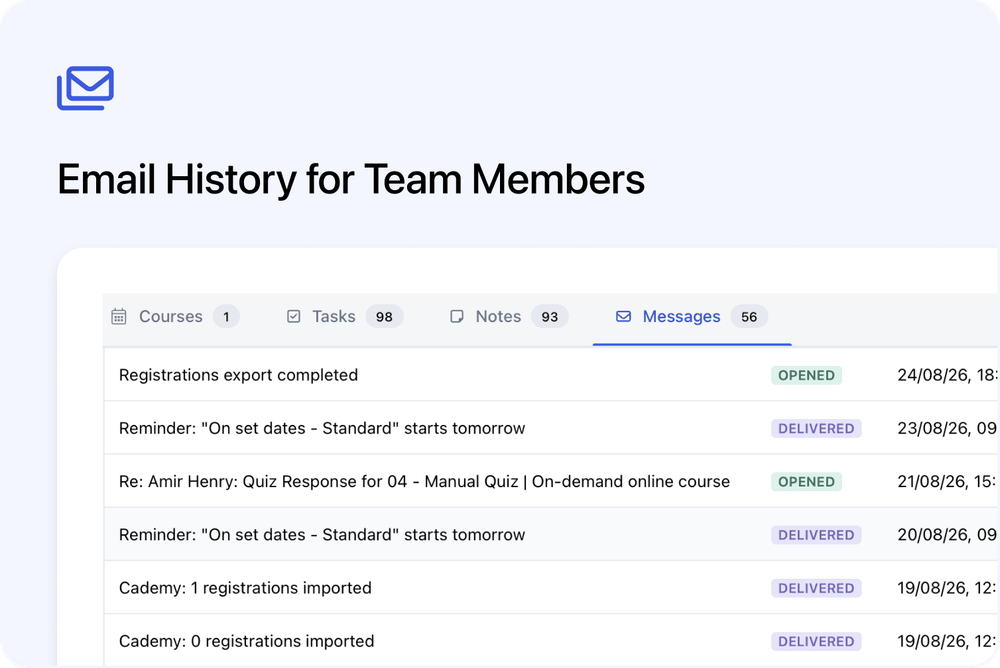
System Admins can now check the emails Cademy has recorded for each Facilitator, Course Owner or System Admin from their team-member page.
The new Messages tab shows the messages Cademy recorded, when each was sent or prepared and the latest delivery status. You can open the full email and resend it to the same address without leaving the team member's profile.
Check a team member's email history
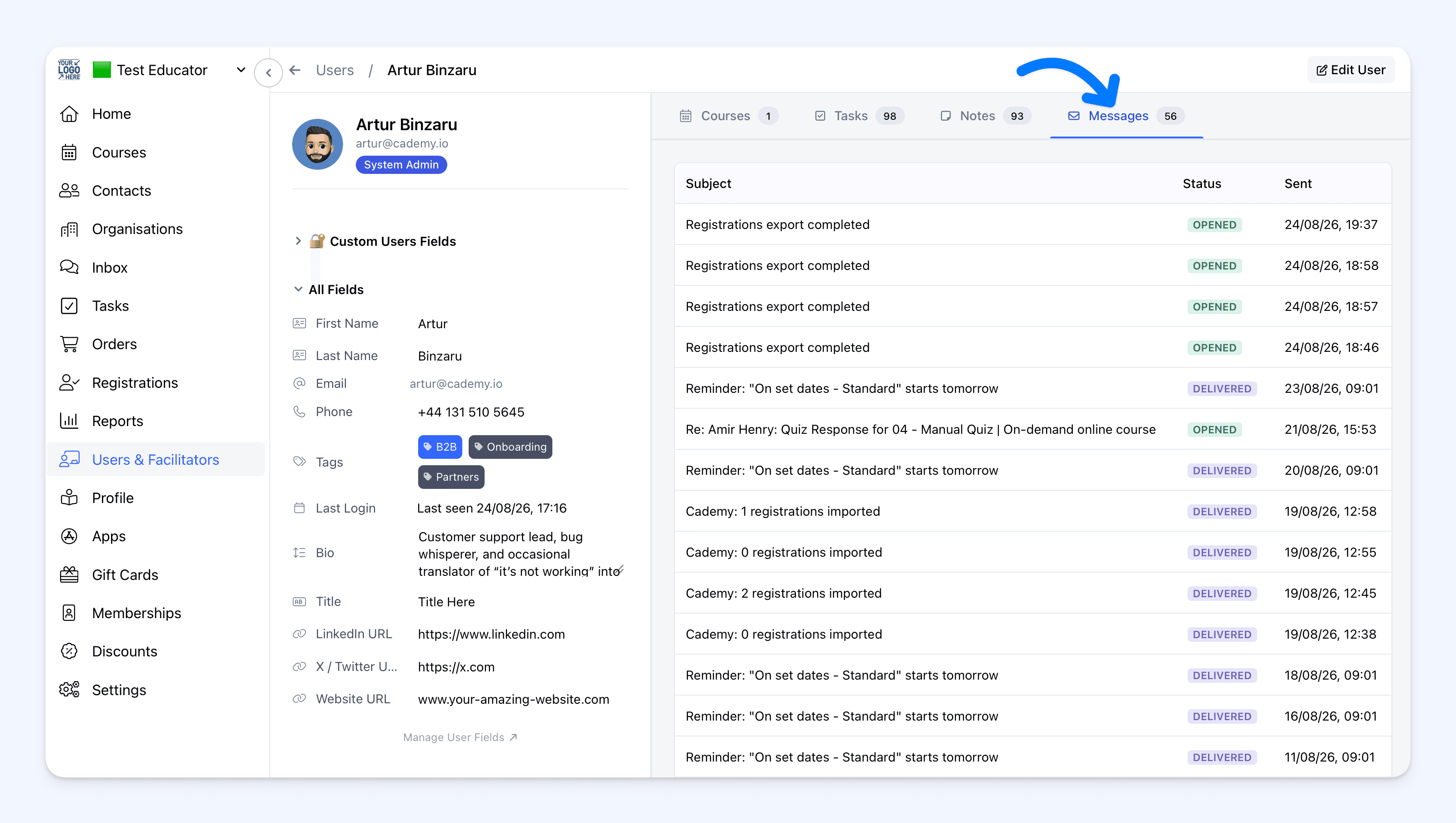 Open a person from Users & Facilitators, then select Messages.
The tab lists the recorded emails linked to that team member, with the newest first. Each row shows:
- the email subject
- its latest recorded status
- the date and time it was sent or prepared
When a team member has recorded messages, the number beside the Messages tab shows the total. Longer histories are split into pages, and you can choose how many messages to show at once.
This is useful when a facilitator says they did not receive an assignment notice, reminder or another operational email. Instead of relying only on their inbox, you can check the record Cademy has for that message.
Open the full message
Select any row to open View Message. The message view includes:
- To and From addresses
- the subject
- the latest recorded status
- the sent or prepared time
- the full email content
- attachment filenames, when attachments were recorded
Statuses can include Sent, Delivered, Opened, Clicked, Bounced or Blocked, along with other delivery events.
Delivered means the recipient's mail server accepted the email. It does not guarantee that the email reached the inbox or that the person read it. The message may still have been filtered into a spam or junk folder.
If Cademy recorded a delivery problem, the message view can also show the available reason. This can help you decide whether resending is useful or whether the email address needs to be checked first.
Resend an email
Select Resend in View Message to send a new copy of the email to the original address.
The original message stays in the history. The resent copy is recorded as a new message and appears at the top of the list, so you can keep a clear record of both attempts.
The team-member Messages tab does not include a Forward action. Resend uses the address shown beside To and does not let you choose a different recipient.
Why this matters
When somebody says an email never arrived, System Admins can now investigate from the team member's profile.
You can check whether the message was recorded, confirm the address it was sent to, review the latest delivery status, read the original content and resend it when appropriate. This gives your team a clearer starting point before asking the recipient to search their inbox or contacting Cademy Support.
Good to know
- System Admins only: Facilitators and Course Owners cannot see this Messages tab, including on their own profile.
- History starts on 28 July 2026: Older team-member emails were not backfilled and cannot appear in the tab.
- Invitation and account-access emails are not included: These emails do not appear in the team member's Messages history.
- Archived users keep their recorded history: System Admins can select Archived from the Status filter, open an archived team member and select Messages.
- There is no search or filtering: Use the page controls to move through longer histories or change how many messages are shown at once.
- This is an email history, not a composer: You can inspect and resend recorded messages, but you cannot write a new email from this tab.
- Emailing must be enabled to resend: You can still view recorded messages when emailing is disabled for the account, but Cademy cannot send the new copy.
- Opening a message sends nothing: A new email is sent only when you select Resend.
- Each account stays separate: If the same person belongs to more than one Cademy account, each account shows only the messages it recorded for that team member.
Where to find it
Go to:
Admin dashboard → Users & Facilitators → open a team member → Messages
The Messages tab appears only when you are logged in as a System Admin.
For the complete guide to delivery statuses, troubleshooting and resending, see View Email History for Contacts, Team Members, Orders and Registrations.
Frequently asked questions
Who can see a team member's Messages tab?
Only users with the System Admin role. Course Owners and Facilitators cannot open this email history.
Why is an email missing?
It may have been sent before 28 July 2026, it may be a user invitation or account-access email, or it may not have been recorded against that person's team-member account.
Can I resend an email to a different address?
No. Resend sends a new copy to the original address shown beside To. The team-member Messages tab does not include forwarding.
Does resending replace the original message?
No. The original stays in the history and the resent copy appears as a new item.
Why can I not resend a message?
Emailing may be disabled for the account. You can still view the recorded message, but Cademy cannot send a new copy until emailing is enabled.
Does Delivered mean the person read the email?
No. Delivered means the recipient's mail server accepted it. It does not confirm that the message reached their inbox or was opened.
Does opening a message send another email?
No. Opening View Message only shows the recorded email. A copy is sent only when you select Resend.