
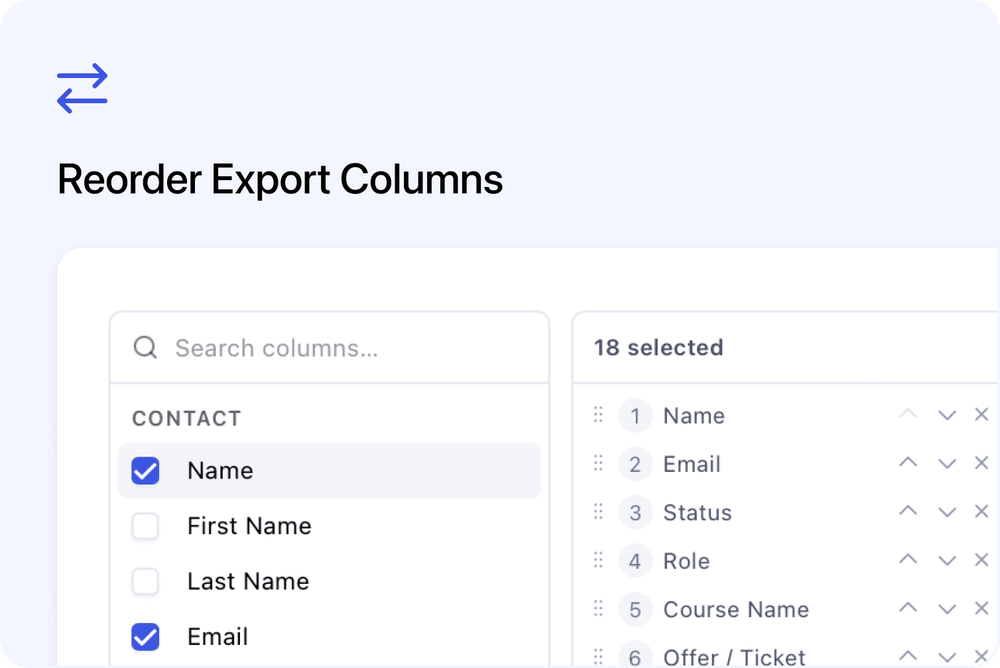
You can now choose the exact order of columns in a Cademy CSV export and reuse that selection the next time you export the same type of data.
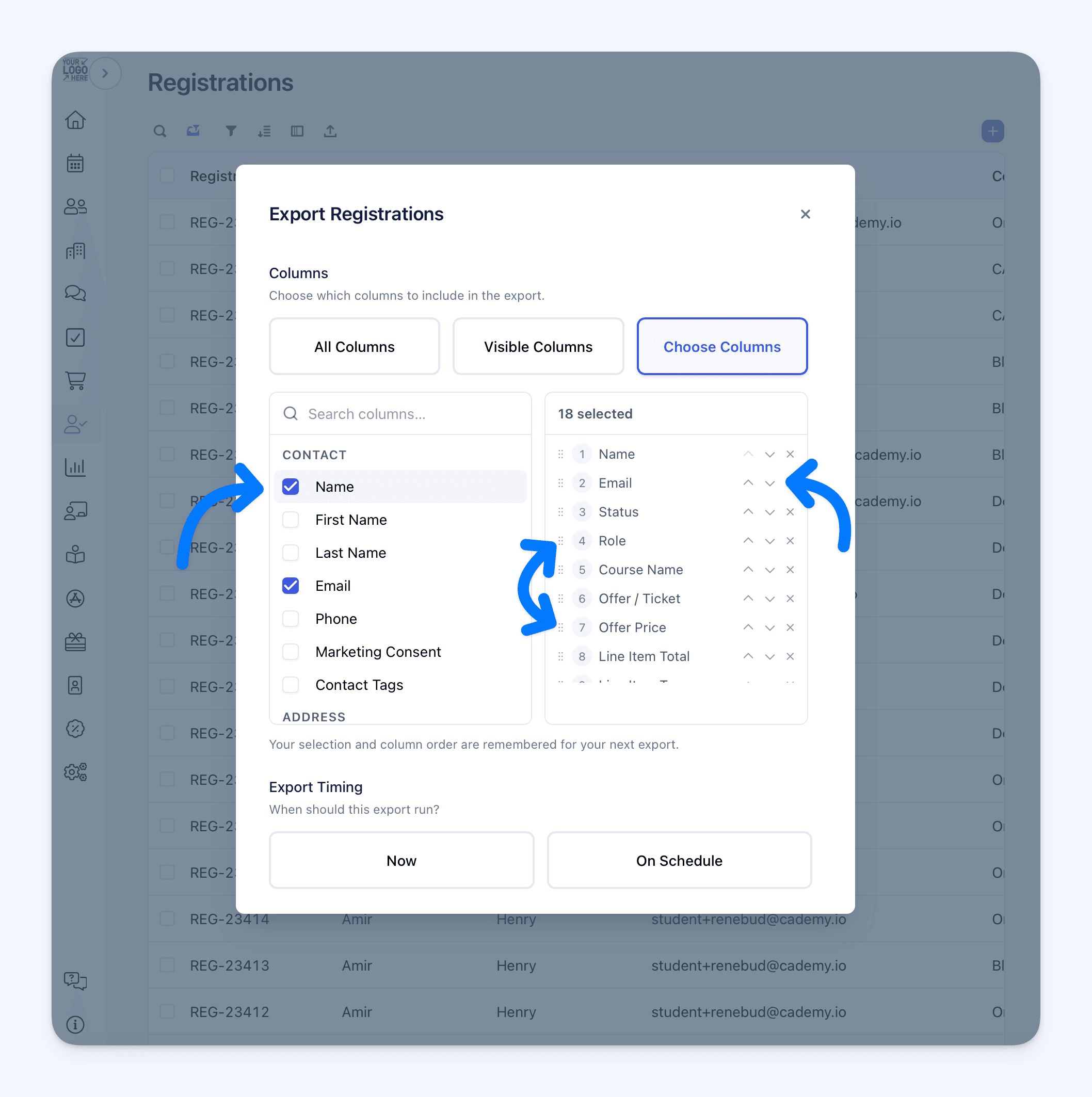 This is useful when a finance, reporting or integration process expects fields in a particular order. Arrange the columns once, submit the export and Cademy can reuse the setup in the current browser profile.
What's new
When Choose Columns is available in the Export dialog, you can now:
- search the available export fields
- select only the columns you need
- arrange them by dragging or using the up and down controls
- see the position of every selected column
- reuse the selection and order on your next export of the same type
The top-to-bottom order in the chosen list becomes the left-to-right order in the downloaded CSV.
How it works
Open an Admin table and select Export. Choose the required record type when the dialog offers more than one, then select Choose Columns.
The picker has two sides:
- the left side contains the available columns and a Search columns… field
- the right side contains the chosen columns in their export order
Tick a field to add it. New fields are added to the end of the chosen list. Untick a field or select its remove control to take it out.
To change the order, drag a chosen field using its handle or use the up and down controls. The position numbers update immediately.
You must select at least one column before exporting.
Remembered for next time
After Cademy accepts a manual export request, it saves the selected columns and their order for the next export of the same type.
The same applies when a scheduled export is created. The schedule uses its selected fields in the chosen order for future runs. Fields can change if a selected field is later removed or the person who created a scheduled Registration export no longer has permission to export the affected fields.
Different export and record types keep separate selections. For example, an Orders export can use a different column order from a Participants or Line Items export.
The remembered setup is stored for your Cademy organisation in the current browser profile. It does not automatically appear on another computer, browser or browser profile. Anyone using the same browser profile for the same organisation can see the same remembered setup.
Your browser must allow Cademy to store site data for the selection to be saved. If browser storage is blocked or unavailable, the export still works but the selection cannot be remembered.
Closing the dialog or leaving before Cademy accepts an export request does not replace the previously remembered selection. If a remembered custom field is later deleted, Cademy removes that unavailable column and keeps the remaining order.
Why this matters
A stable column order makes repeat reporting easier and reduces spreadsheet preparation.
It is particularly useful when CSV files are imported into accounting software, reporting templates or other systems that expect the same structure each time.
Good to know
- Custom ordering applies only when you select Choose Columns. All Columns and Visible Columns continue to use their normal export order.
- Some exports use a fixed set of columns and do not show Choose Columns.
- Participant exports always need enough information to identify each participant. Cademy automatically adds any missing required participant identity fields at the end of the file.
- Newly available export fields are not added automatically to a remembered custom selection. Select them when you want to include them.
- This is an Admin dashboard improvement. It does not change checkout or anything learners see.
Where to find it
Go to a supported Admin table and select:
Export → Choose Columns
Select the required columns, arrange them in the chosen list and complete the export.
For complete export instructions, supported pages and scheduled-export guidance, see Exporting Data and Scheduling Exports in Cademy.
Frequently asked questions
Does the chosen order match the CSV?
Yes. The top-to-bottom order of the chosen fields becomes their left-to-right order in the downloaded CSV.
Can I move columns without dragging them?
Yes. Use the up and down controls beside each chosen field.
When is my selection remembered?
After Cademy accepts a manual export request or creates a scheduled export. Closing the dialog without exporting does not replace the previous selection.
Does one selection apply to every export?
No. Each export and record type remembers its own selection. Orders, Participants, Registrations, Invoices and other supported exports can use different arrangements.
Will the same order appear on another computer?
No. The remembered setup stays in the browser profile where the export was submitted. It is stored for the organisation, so another admin using that same browser profile for the same organisation can see it.
Why are extra fields shown at the end of a Participants export?
Participants need identifying information in every row. Cademy automatically adds missing required participant identity fields at the end of the file.
Why was my selection not remembered?
Your browser must allow Cademy to store site data. If browser storage is blocked, unavailable or full, the export can still run but Cademy cannot save the selection in that browser profile.
Can I export with no columns selected?
No. Select at least one field before starting or scheduling the export.