
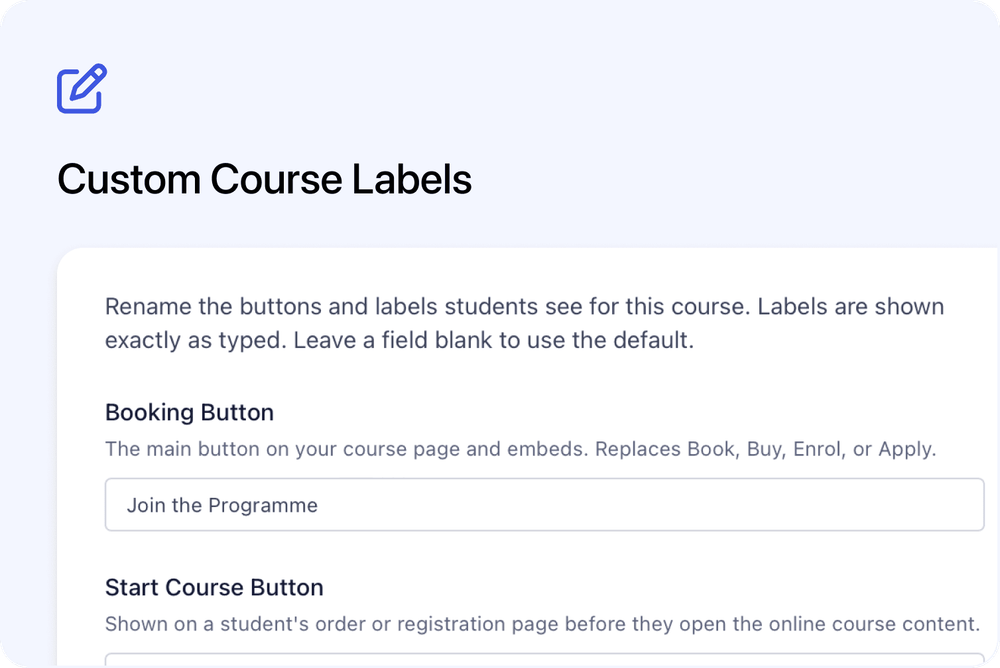
You can now choose the wording customers and learners see on key course buttons and in the course forum.
Custom Labels lets Course Owners set different wording for each course. You can rename the main booking button, the buttons learners use to start or continue online content, and the course's Forum name without changing what those controls do.
Choose wording that fits each course
The new section includes four fields:
- Booking Button changes the main action on the public course page, replacing wording such as Book, Buy, Enrol or Apply.
- Start Course Button changes the action learners see before they begin Cademy-hosted online content.
- Continue Course Button changes the action learners see after they have made progress.
- Forum Name changes the course forum's learner-facing name.
This is useful when different programmes use different language, or when the default wording does not match how your organisation describes a course journey.
How it works
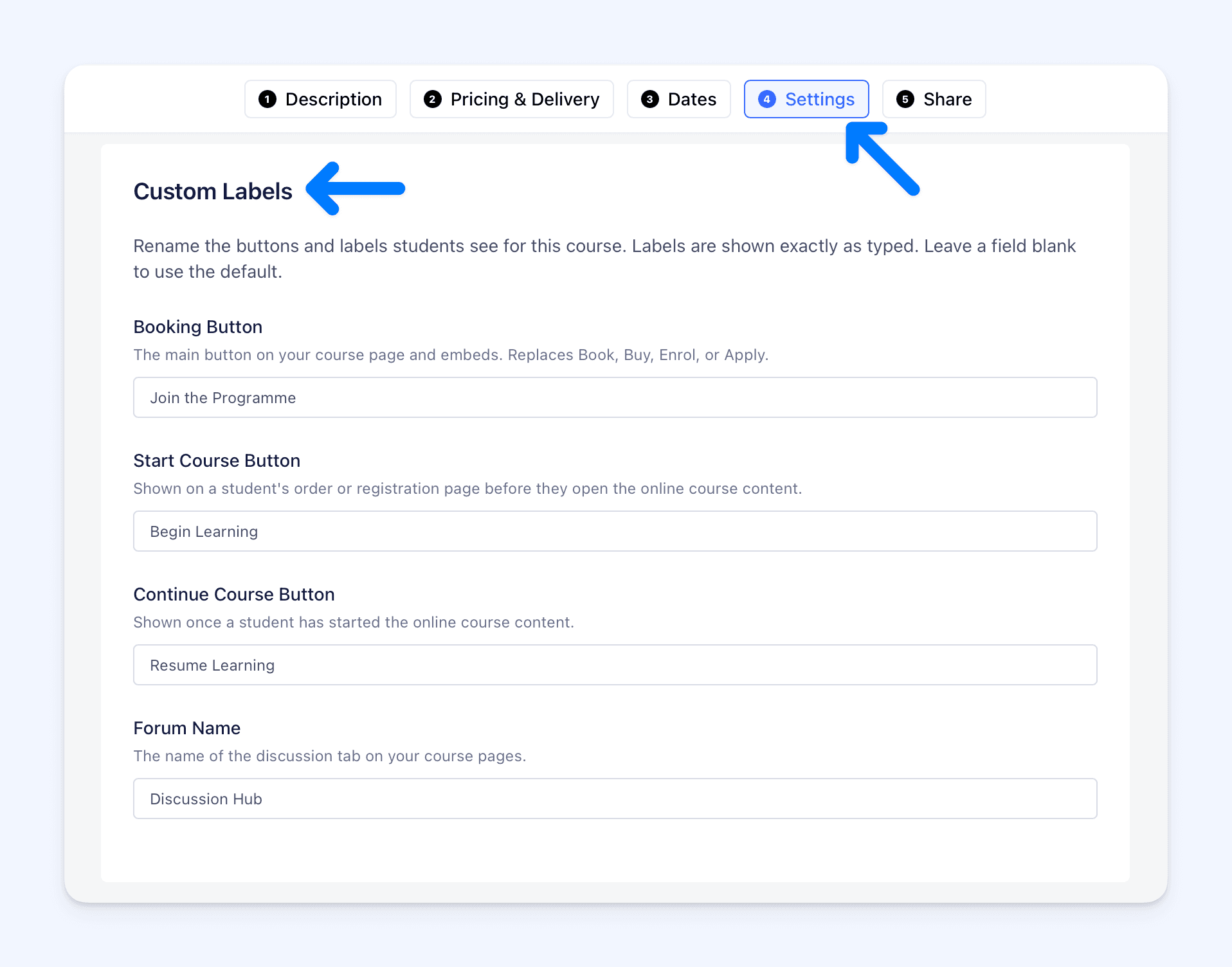 Open the Admin dashboard and go to:
Courses → course three-dot options menu → Settings → Advanced Settings → Custom Labels
Enter the wording you want in any of the four fields, then select Save. Leave a field blank to keep Cademy's normal wording for that course.
Labels appear with the capitalisation you enter. Spaces at the beginning and end are removed when you save, and each field can contain up to 50 characters.
Custom Labels are saved separately for each course, so one course can use different wording without changing any of your other courses.
What customers and learners see
The main booking button
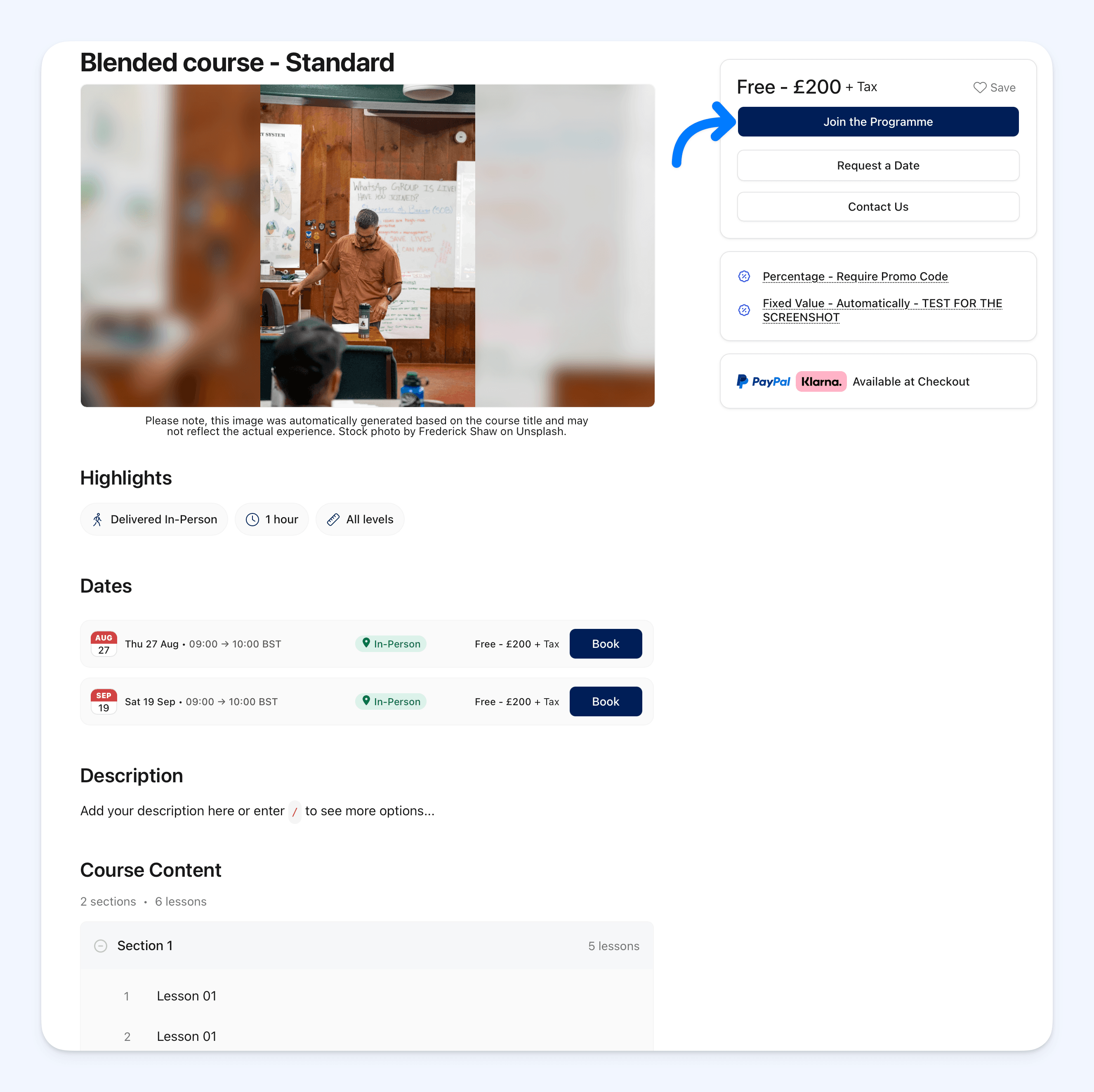 The custom Booking Button appears on the main public course page when the course has its normal booking action available. It works with scheduled, on-request, on-demand and blended courses.
The same wording appears on a Full Course Page website embed and on a Cademy for WordPress course-detail page.
Online course content
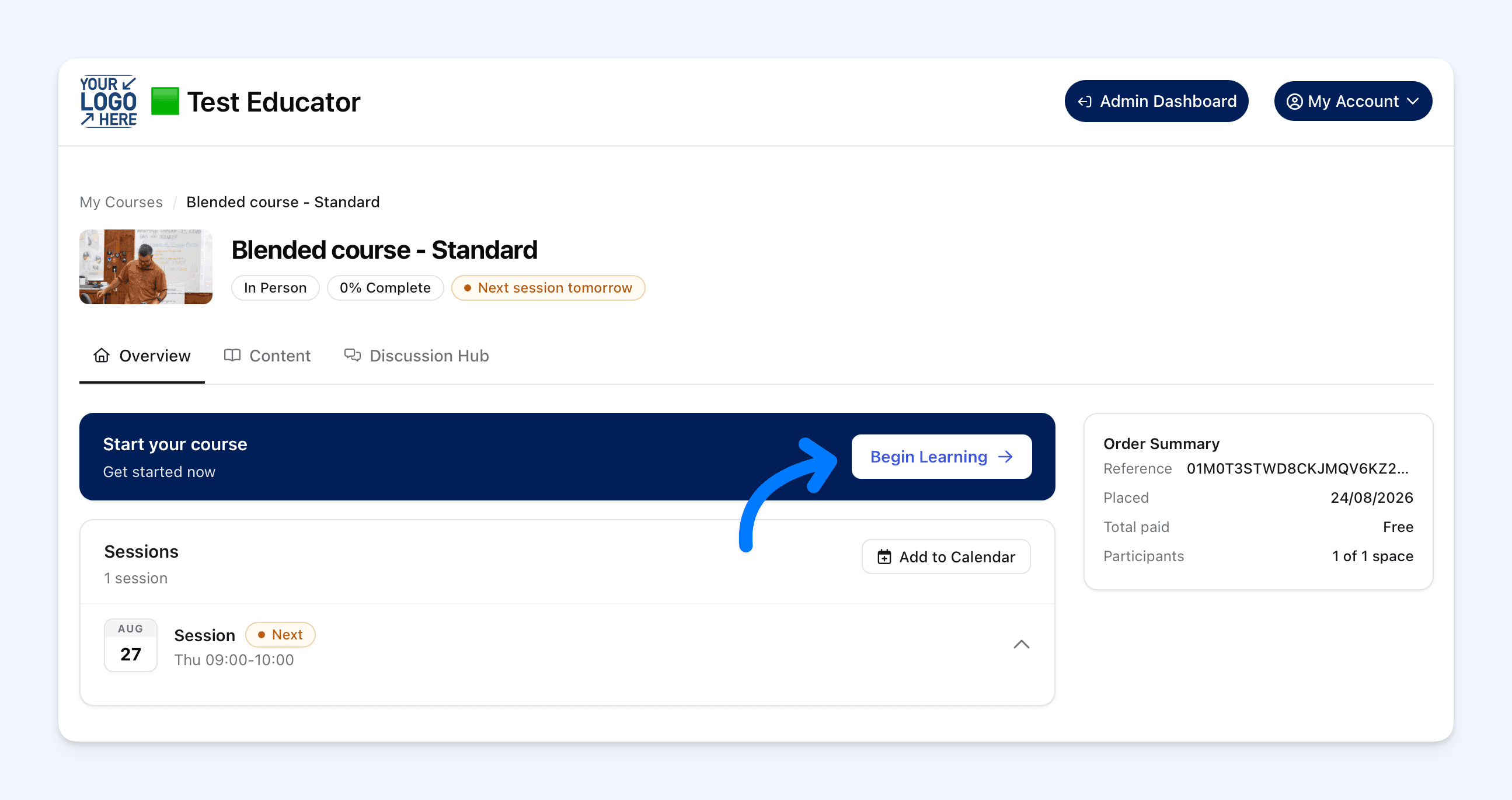 For an on-demand or blended course with Cademy-hosted lessons, the learner's progress decides which label appears:
- before any progress, the Start Course Button wording appears
- after the learner makes progress, the Continue Course Button wording appears
- after completion, the fixed View Course wording appears
The learner must have a confirmed place, be attending the course and still have access to its content. Custom wording does not make course content available to somebody who would not normally have access.
The course forum
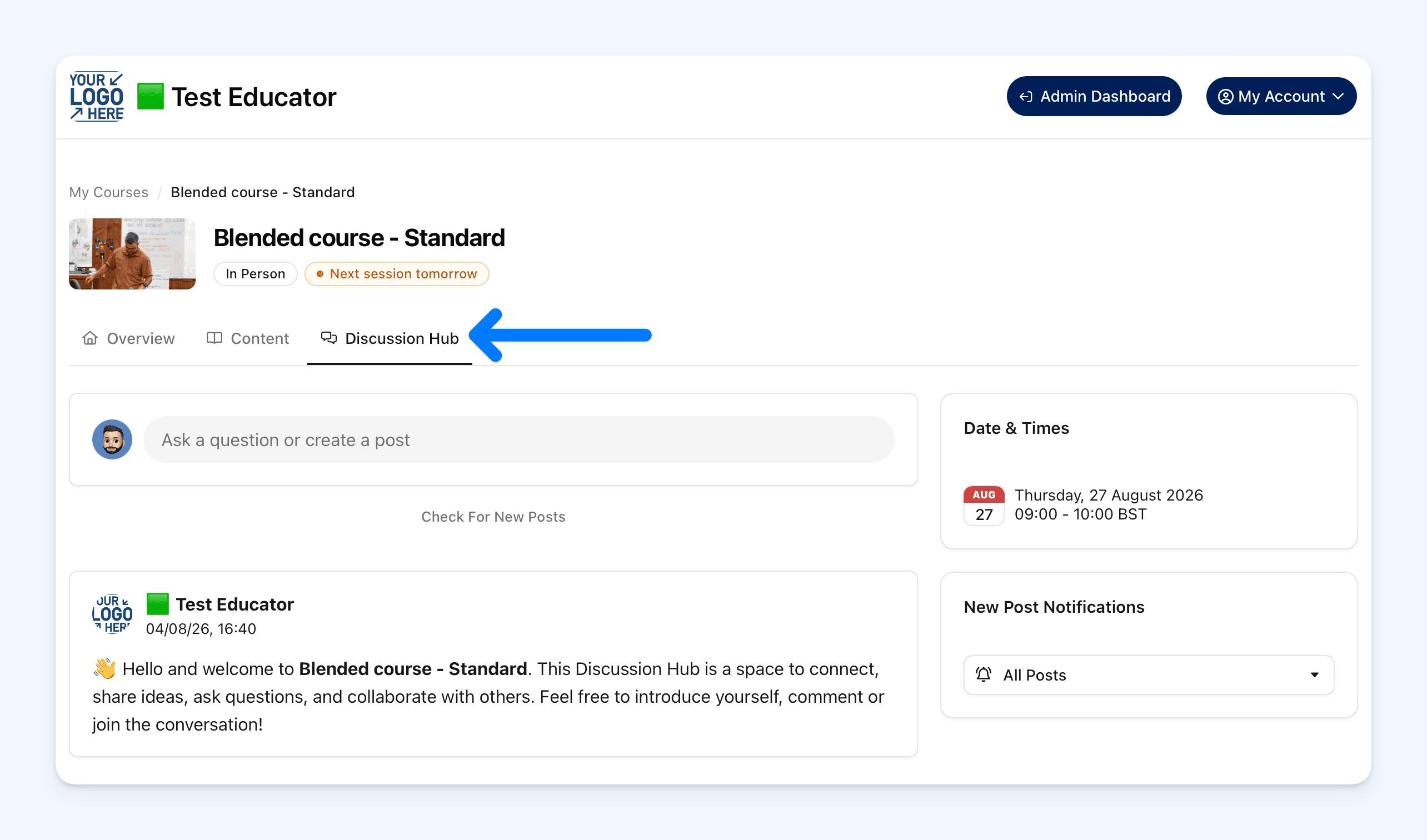 The custom Forum Name appears on the learner course tab, in the browser-page title, and in the forum's welcome and restricted-access messages.
Renaming the forum does not enable it or change who can use it. The course forum must still be enabled separately, and its normal access rules continue to apply.
Why this matters
Course language is not always one size fits all. A professional development programme, internal training course and public workshop may each need different calls to action.
Custom Labels helps you make those journeys clearer while keeping the underlying booking, learning and forum behaviour unchanged. Your team can choose wording that matches the course, and customers and learners still complete the same actions in Cademy.
Good to know
- Available on Pro, Teams and Custom: Free and Starter accounts can see the section, but it is disabled.
- Course Owner access is required: the labels are part of the course settings.
- The change is wording only: it does not change checkout, an external booking destination, course-content access or forum access.
- Some actions keep their normal wording: this includes View Course, Book All, Join Waitlist, Sold Out, Request a Date, Request Group Booking, and actions attached to individual course dates.
- Cards and list layouts are unchanged: course cards, search results, date layouts, compact Feature Card embeds and WordPress course listings keep their normal action wording.
- Admin wording is unchanged: the setting does not rename Admin dashboard controls or the Guest and Delegates fields.
- Saved wording is retained after a downgrade: if an account moves to Free or Starter, the default wording appears instead. The saved labels return after moving back to an eligible plan. Public wording can take up to one minute to reflect a plan change.
Where to find it
Open:
Admin dashboard → Courses → course three-dot options menu → Settings → Advanced Settings → Custom Labels
For complete setup instructions, supported locations and troubleshooting, read Rename Course Buttons and Forum Names in the Cademy Help Centre.
Frequently asked questions
Can I set one custom label for every course?
No. Custom Labels are saved separately for each course.
Which plans include Custom Labels?
Pro, Teams and Custom. The section is visible but disabled on Free and Starter.
Does changing the Booking Button change where it goes?
No. It changes the displayed wording only. The button keeps its existing booking or external destination.
Can I rename View Course?
No. View Course keeps its normal wording after the learner completes the online content.
Why does a card or individual date still show the usual wording?
Custom Booking Button wording applies to the main course button and supported full course pages. Book All, course cards, list layouts, compact Feature Card embeds and individual date actions keep their normal wording.
Does changing Forum Name turn the forum on?
No. Enable the course forum separately. Renaming it does not change forum access.
What happens if I clear a custom label?
Cademy restores the normal automatic wording for that field when you save.
What happens if I downgrade the account?
The default wording appears on Free or Starter, but the custom labels remain saved. They become active again if the account returns to Pro, Teams or Custom.