
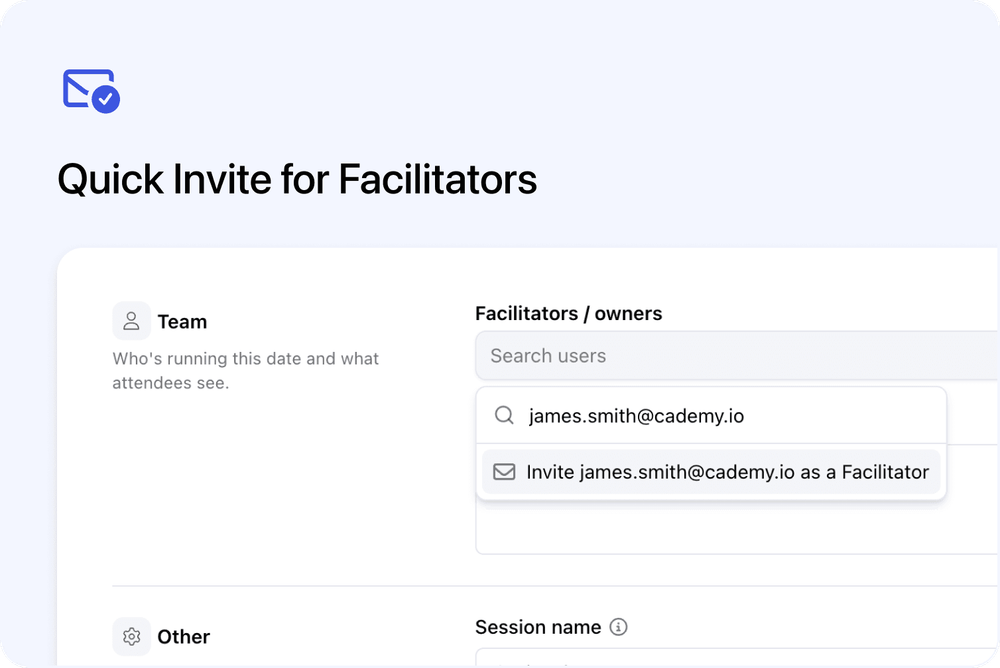
You can now invite a new Facilitator directly from the course setup flow.
When assigning Facilitators or Owners to a course or course date, you can type a new email address into the picker and invite that person as a Facilitator in one step.
This means you no longer need to leave the course editor, go to User Management, invite the person, and then return to assign them.
What’s new
✉️ Invite a Facilitator from the picker
When you are assigning Facilitators or Owners, you can now type an email address directly into the picker.
If the email address is valid and the person is not already in your team, you’ll see an option to:
Invite [email] as a Facilitator
When you select this option, Cademy will:
- Create the new user as a pending Facilitator
- Send the standard invite email
- Add them to the selected list straight away
You can then save the course or date and continue working.
✅ Added to the course or date immediately
The invited Facilitator is added to the picker immediately, even before they accept the invite.
Until they complete signup, they will appear using their email address.
Once they accept the invite and finish setting up their account, their name will appear instead.
📍 Available in course assignment fields
Quick Invite is available where you assign Facilitators or Owners inside the course flow, including:
- Course dates
- Course-level Facilitators / Owners
- Admin Email Recipients
This makes it faster to add people while you are setting up or updating a course.
🎨 Refreshed picker design
The Facilitators / Owners picker has also been refreshed.
It now includes:
- Search-as-you-type
- Clearer user and group icons
- Improved selected user pills
- An envelope icon for the invite option
This makes the picker easier to scan and use.
Why this matters
Quick Invite helps reduce interruptions when staffing courses.
If you need to add a contractor, guest speaker, one-off presenter, or new Facilitator while setting up a course or date, you can invite and assign them without leaving the page.
This keeps the setup flow faster and avoids switching back and forth between course settings and user management.
Good to know
Quick Invite creates Facilitators
Quick Invite adds the person as a Facilitator.
Facilitators do not use admin seats.
If you need to invite someone as a System Admin or Course Owner, use the full invite flow from Users & Facilitators.
The full invite flow is still available
You can still invite users from:
Users & Facilitators
Use this option when you want to enter more details upfront, such as name, phone number, or a different role.
Where to find it
Open a course and use one of the Facilitators / Owners fields.
Type a new email address into the picker, then choose:
Invite [email] as a Facilitator