
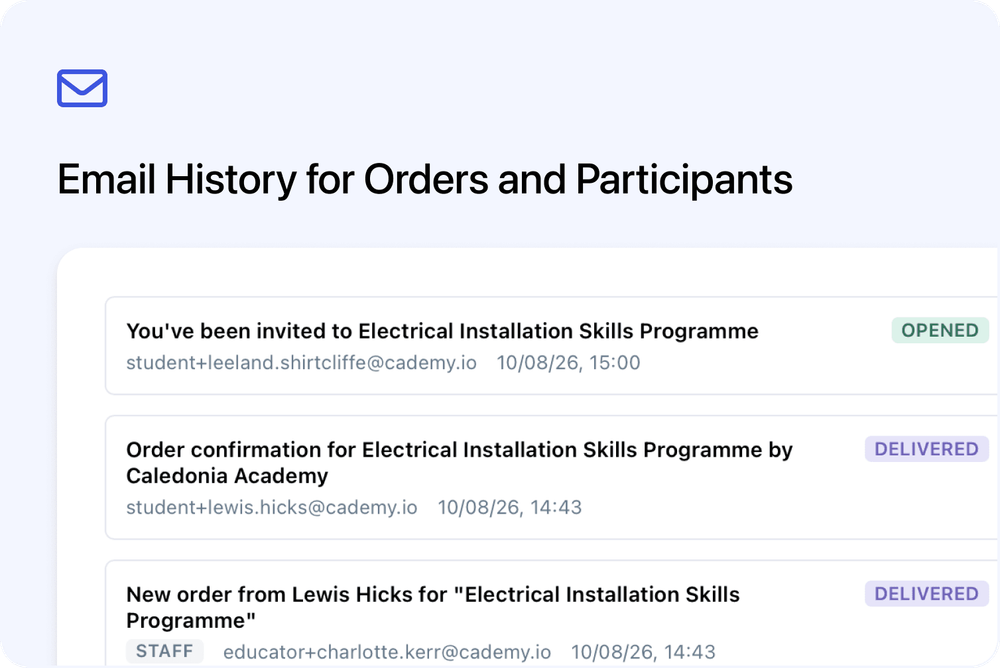
You can now view emails recorded against an order or an individual participant directly from Orders and Registrations in the Admin dashboard.
This gives System Admins one place to check what was sent, who received it and the latest recorded delivery status. You can also open the original message, resend it to the same address or forward it to another contact without leaving the order or Registration.
Check email history from the record you are working on
Emails for the whole order
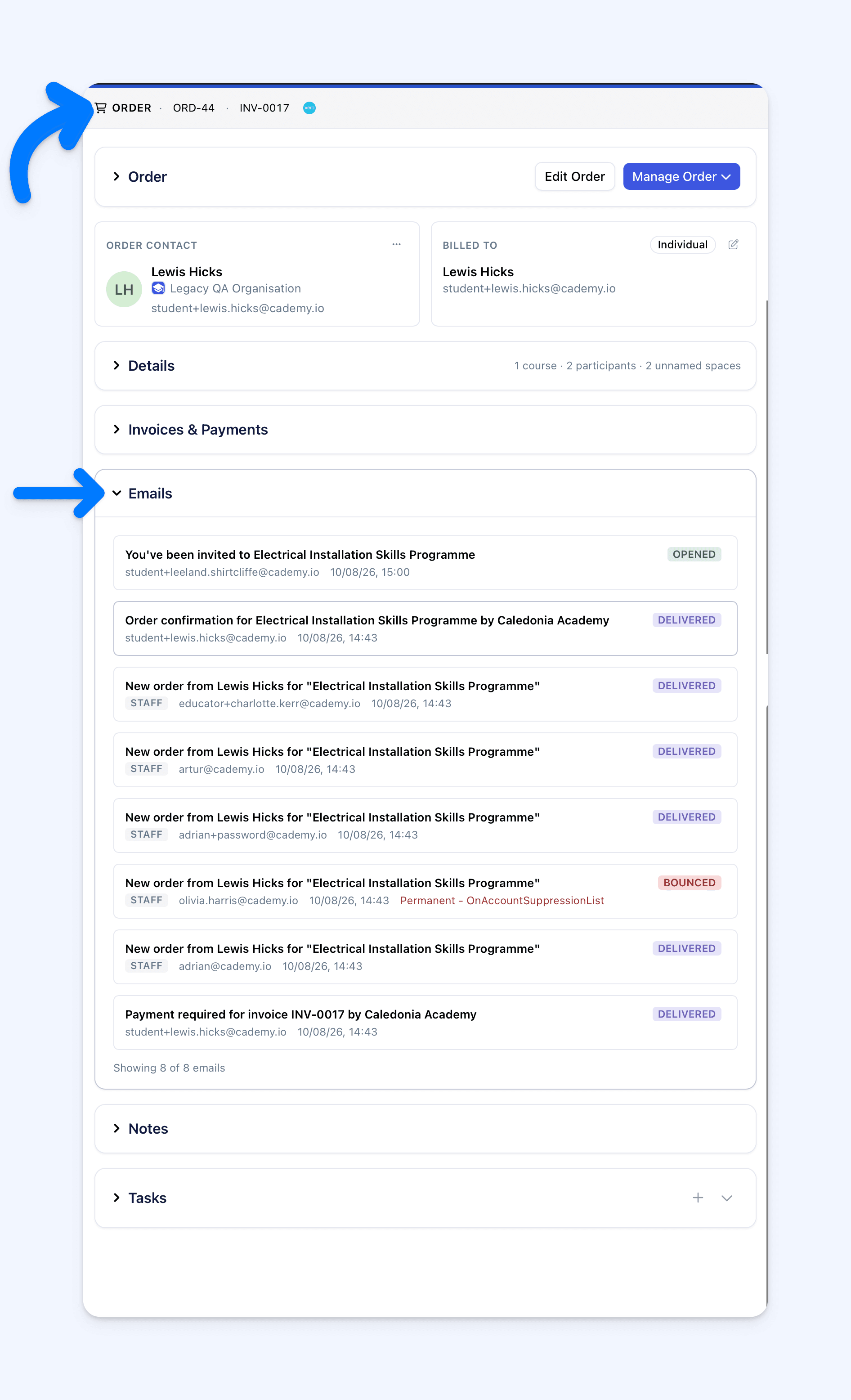
Open an order and expand Emails, below Invoices & Payments.
The order history brings together the messages recorded against that order. Depending on what was sent, this can include:
- order confirmations
- invoice and payment emails
- participant emails
- emails sent from selected Orders or Registrations
- internal staff notifications
The newest email appears first. Each row shows its subject, recipient's email address, date and time, and latest recorded status.
Most participant emails show only the email address. A small Billing label can appear when an email is recorded for an external recipient, while Staff can appear for an administrator. You may see no labels when the history contains only participant emails.
The first ten emails load when you open the section. Select Load More when more are available.
Emails for one participant
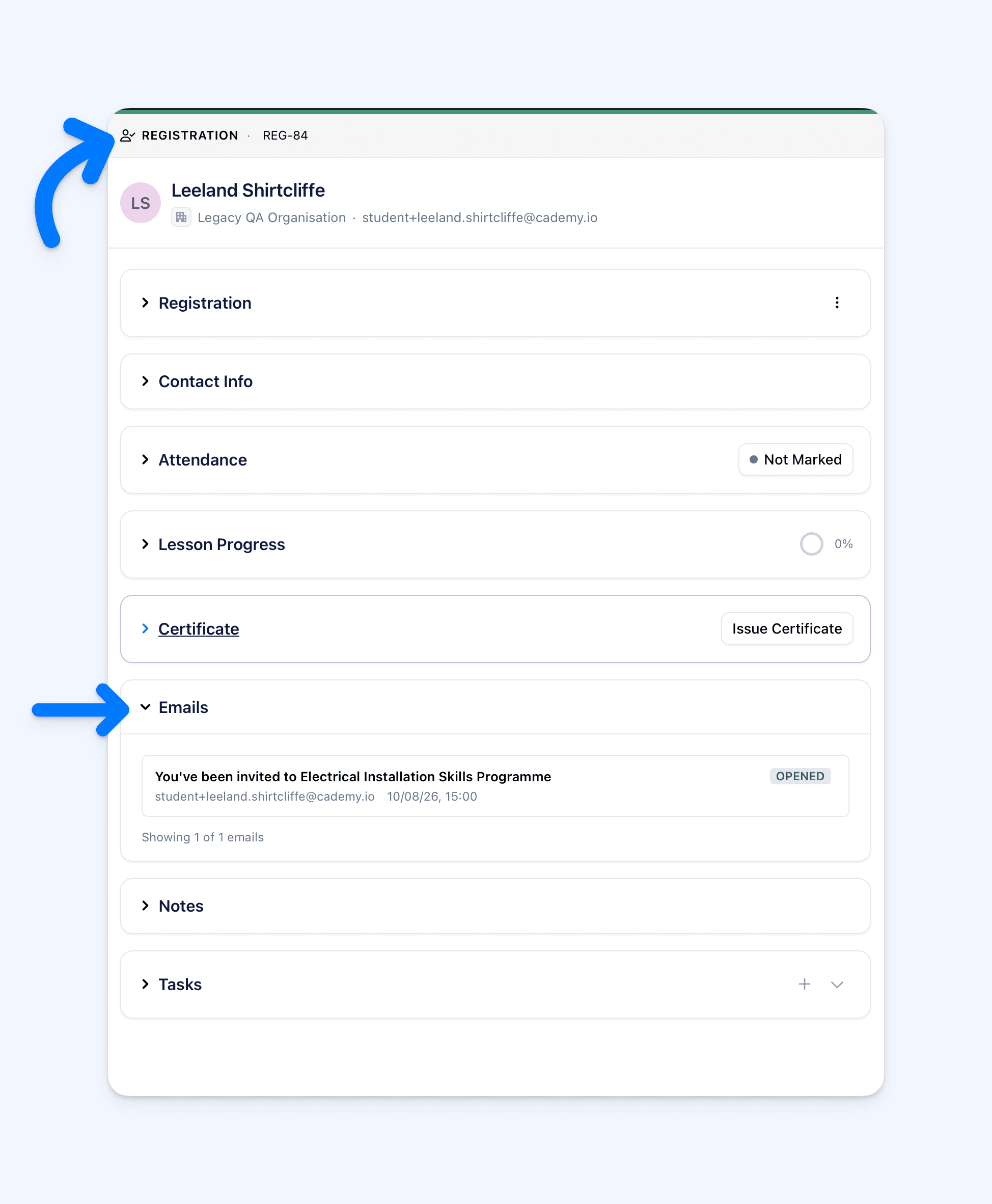
Open the participant's Registration from the order, or find them from Registrations, then expand Emails below Certificate.
This history is specific to that participant's place. It contains emails linked to the Registration and order emails sent to that participant. It does not include messages sent only to a separate billing address, a staff recipient or another participant on the order.
See what happened to an email
The status on each row is the latest email event Cademy recorded. For example:
- Sent means the sending request succeeded and delivery will be attempted.
- Delivered means the recipient's mail server accepted the email. It does not prove that the message reached their inbox or was read.
- Opened or Clicked means Cademy received the relevant tracking event.
- Bounced means the recipient's mail server rejected the message or delivery could not be completed.
- Blocked means the email was prepared but not delivered because emailing is disabled for the account.
Where Cademy has a recorded reason for an unsuccessful email, the reason also appears on the row. This can help you spot an incorrect address or delivery problem before trying again.
Select any row to open View Message. You can check the To, From, Subject, Status, sent time and message content. Attachment filenames also appear when the recorded message has attachments.
Resend or forward the message
Select Resend in View Message to send a new copy to the original address shown beside To. The resent copy appears as a separate item in the email history and the original remains available.
Use Forward when the message needs to go to somebody else. You can choose an existing contact or create a new contact with an email address before sending the forwarded copy.
Always check the address beside To before resending. Resend does not let you change the recipient; use Forward for a different address.
Why this matters
When somebody says they did not receive a confirmation, invoice or joining information, you can investigate from the order or Registration you are already viewing.
You can check whether the correct address was used, see the latest recorded status, read the original message and decide whether to resend it or forward it elsewhere. The participant-specific history also helps you avoid working through unrelated messages from the rest of the order.
Good to know
- System Admins only: Facilitators and Course Owners do not see the new Emails sections.
- The section starts collapsed: It loads the recorded history only after you open it, and there is no email count beside the section title.
- This is an email history, not a new composer: The section lets you inspect, resend and forward recorded messages. It does not add a control for composing a new email.
- Opening the section sends nothing: It only loads the recorded history. A new email is sent only when you use Resend or complete the Forward process.
- You can retry a longer history: If Load More cannot fetch the next page, the emails already displayed remain available. Select Try Again after restoring the connection.
- Older messages may be missing: Order and Registration email history was not backfilled. Emails sent before August 2026 may not appear.
- Contact-only emails stay with the contact: An email sent from Contacts without an order or Registration link remains in that contact's All Activity history.
- Sending behaviour has not changed: This update makes recorded email history available from more places. It does not change which automatic emails Cademy sends.
Where to find it
For a complete order history:
Admin dashboard → Orders → open an order → Emails
For one participant:
Admin dashboard → Registrations → open a Registration → Emails
You can also open a participant's Registration directly from the Details section of their order.
For complete instructions, status explanations and troubleshooting, read View, Resend and Forward Emails for Orders and Participants.
Frequently asked questions
Who can view email history on Orders and Registrations?
Users with the System Admin role. Facilitators and Course Owners can still open their normal Registration views, but they do not see the Emails section.
Does Delivered mean the person received or read the email?
No. Delivered means the recipient's mail server accepted the message. Their email provider can still filter it, and the status does not prove that the person read it.
Can I resend an email to a different address?
No. Resend uses the original address shown beside To. Use Forward when the message needs to go to another contact.
Why is an email missing from the order or Registration?
It may have been sent before August 2026, sent from Contacts without a link to the order or Registration, or recorded against a different record.
Why can the same guest invitation appear on more than one Registration?
An invitation recorded against the order but not a specific Registration can appear more than once when the same person holds multiple places on that order. Open View Message and compare the recipient and sent time.
Does opening the Emails section send another email?
No. Opening it only loads the recorded history.