
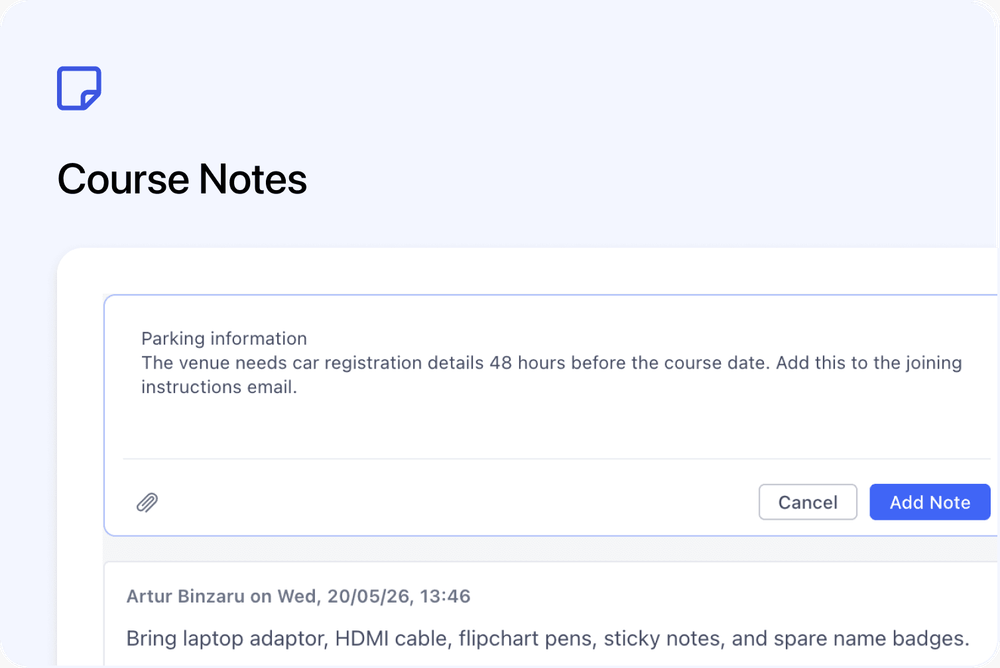
You can now add notes directly to courses and specific course dates.
This gives your team a shared place to keep course-level and date-specific notes, without attaching them to a contact, registration, or order.
What’s new
📝 Notes on courses
Courses now have their own notes.
Use course notes for information that applies to the whole course, such as:
- Venue reminders
- Equipment notes
- Internal delivery notes
- Course setup details
- Team handover information
These notes stay with the course, so they are easier to find later.
📅 Notes on specific course dates
You can also add notes to a specific course date.
This is useful for recording what happened on one occurrence, such as:
- Room changes
- Timing issues
- Facilitator notes
- Attendee feedback
- Things to improve next time
When you are viewing a specific course date, the Notes card only shows notes for that date.
🏠 Notes card on the Course Overview tab
A new Notes card is available on the course Overview tab, alongside Tasks.
From here, you can quickly add or review notes while working on the course.
If you are viewing the full course, you’ll see course-level notes and relevant date notes.
If you are viewing a specific course date, the Notes card focuses on that date.
📋 New Notes tab
Courses now also have a dedicated Notes tab.
This gives you a full list of notes for the course in one place.
The tab also includes a count badge, so you can quickly see how many notes are linked to the course.
📎 Attachments supported
Course and course date notes can include attachments.
This is useful for saving files such as:
- Venue floor plans
- Photos
- Signed documents
- Whiteboard images
- Internal reference files
Why this matters
Notes are now stored where they belong.
Course-level information can stay on the course, and date-specific information can stay on the right course date.
This makes it easier for your team to find useful context later, especially when a course runs across multiple dates, cohorts, or terms.
Good to know
Course notes do not appear on contact pages
Notes added to a course or course date stay with the course.
They do not appear on the contact pages of registrants.
If a note is about a specific person, the contact page is still the right place to add it.
Different roles may see different notes
Course Owners and System Admins can see notes across the course.
Facilitators can see and manage their own notes.
Where to find it
Go to a course and open:
Course → Overview tab → Notes card
Or open the full list from:
Course → Notes tab