
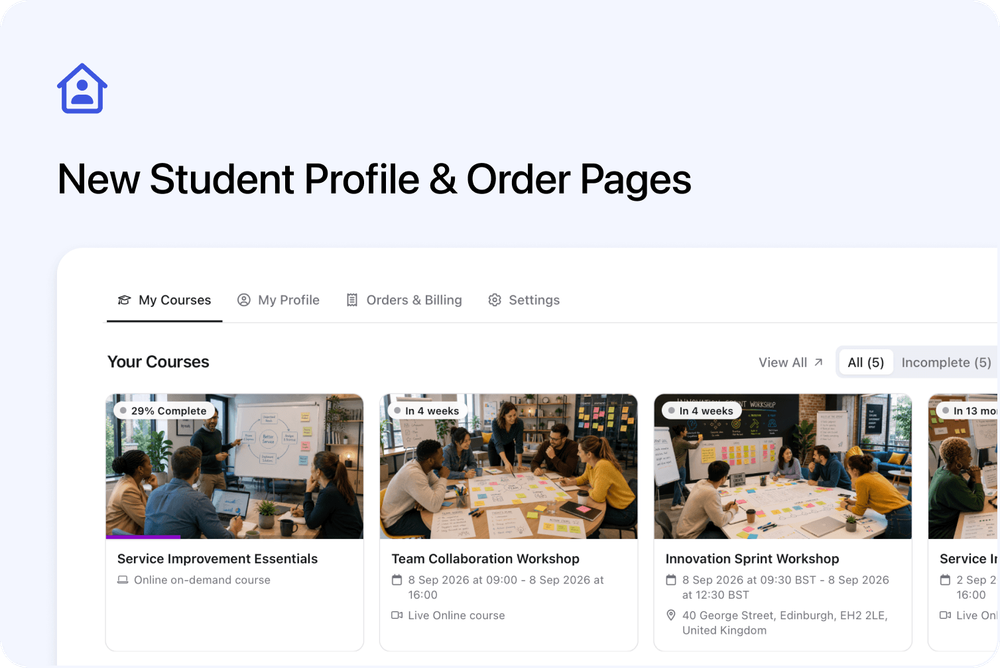
Your learners now have a clearer place to find their courses, check upcoming sessions, continue online learning, manage orders and keep their account details up to date. We have redesigned My Courses, My Profile, Orders & Billing, and the course and order pages connected to them.
The update also gives people who book on behalf of others practical tools for common participant changes within the places they have already purchased.
A clearer learner home
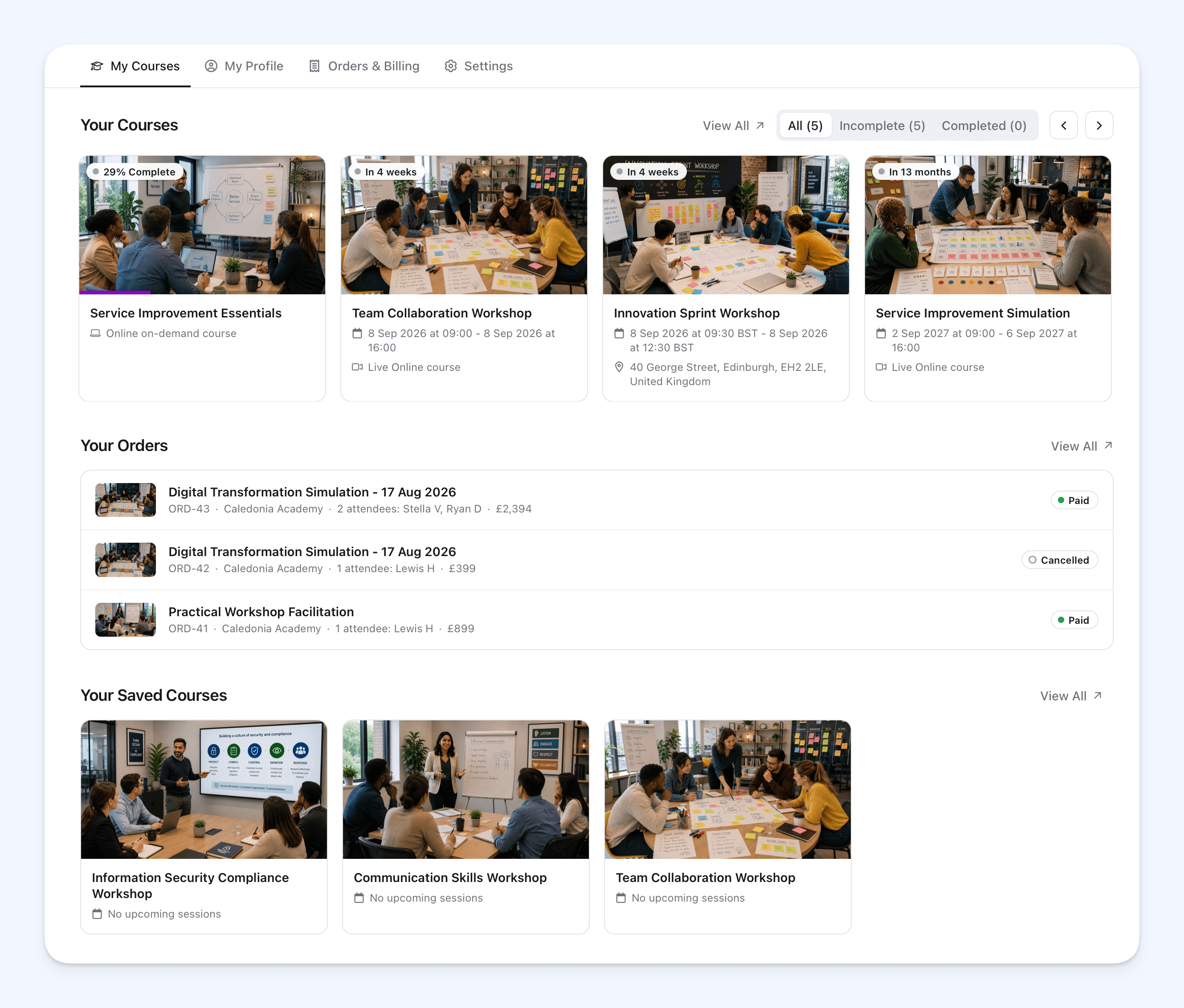 The student profile now has four simple tabs:
- My Courses for courses the learner is attending, recent orders and saved courses
- My Profile for uploading or removing a profile picture, editing their name and viewing their read-only email address
- Orders & Billing for orders they own, payment information and invoices
- Settings for login, security, memberships and subscriptions
My Courses organises the learner's current and completed course places, recent orders and saved courses. Course places can include ones booked by the learner, booked for them by somebody else, or added or imported by a course provider. Cancelled course places do not appear.
Course cards now show useful information at a glance, including the next session, delivery method, venue, progress and status where available. Learners can filter their courses by All, Incomplete or Completed, open the full course list, and find saved courses in their own section.
Learners can follow the complete journey in Log In and Find Courses You Are Attending or Bookings You Made.
Course pages built around what learners need
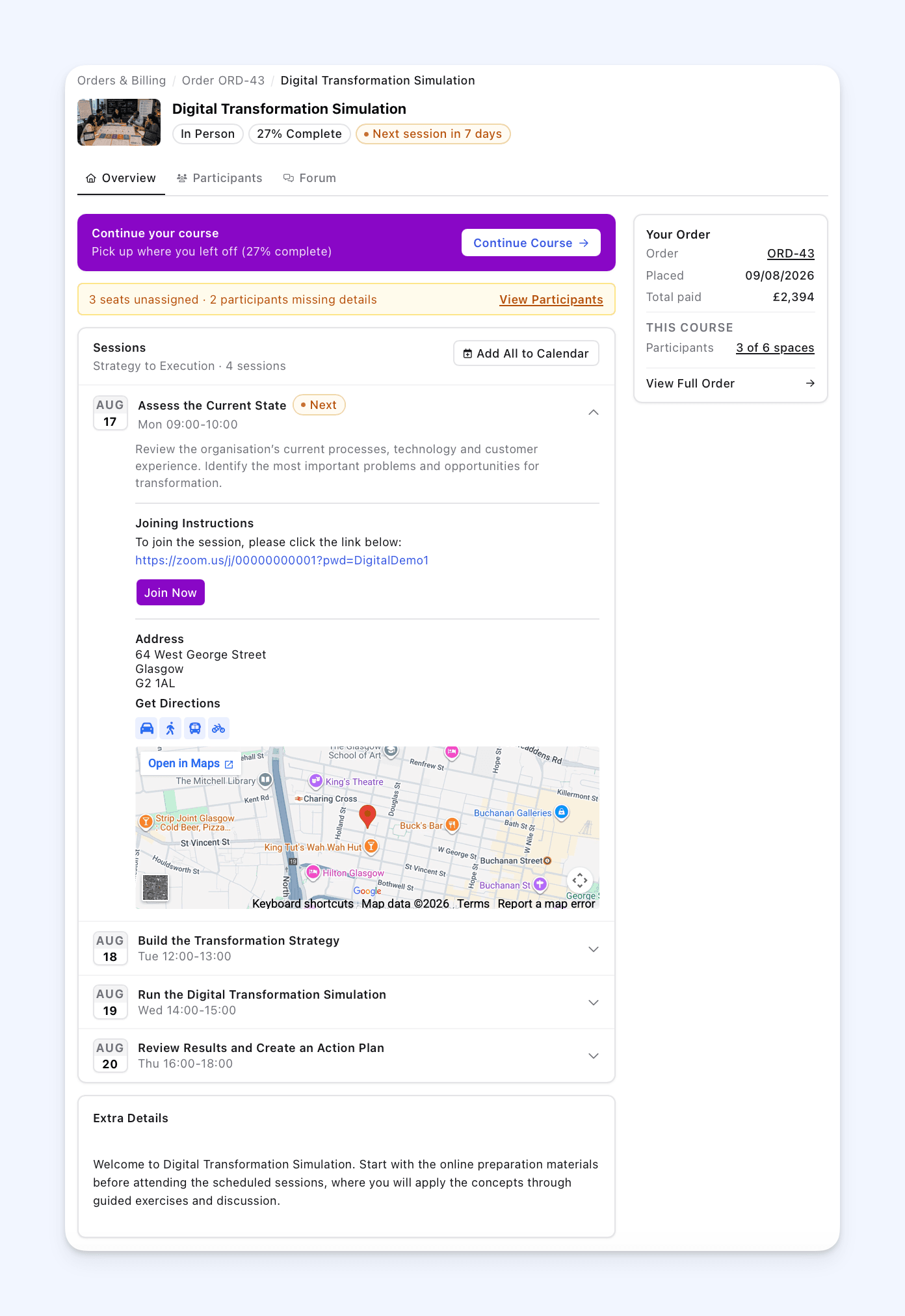 Scheduled, on-demand and blended courses now share one consistent layout. Each course page can bring together:
- the course status and next session where available
- dates, times, venues and online joining details
- learning progress and a Start, Continue or View Course action for on-demand courses
- an Overview tab for course information
- a Participants tab when the order owner has places to manage
- a Forum tab when a forum is available
For scheduled courses, learners can open every session to see its full details and add it to their calendar. For on-demand learning, the course action opens the lesson player where the learner can access the content.
Course links take learners to the relevant course or order page for their type of place, including places booked by somebody else or added by a course provider.
The page also respects each person's role. The order owner can see their order summary and available booking actions. A participant booked by somebody else can see their own course information, but not the order owner's prices, payments or invoices.
See Find Course Dates, Locations, Joining Instructions and Content for the full learner guide.
Orders and billing in one place
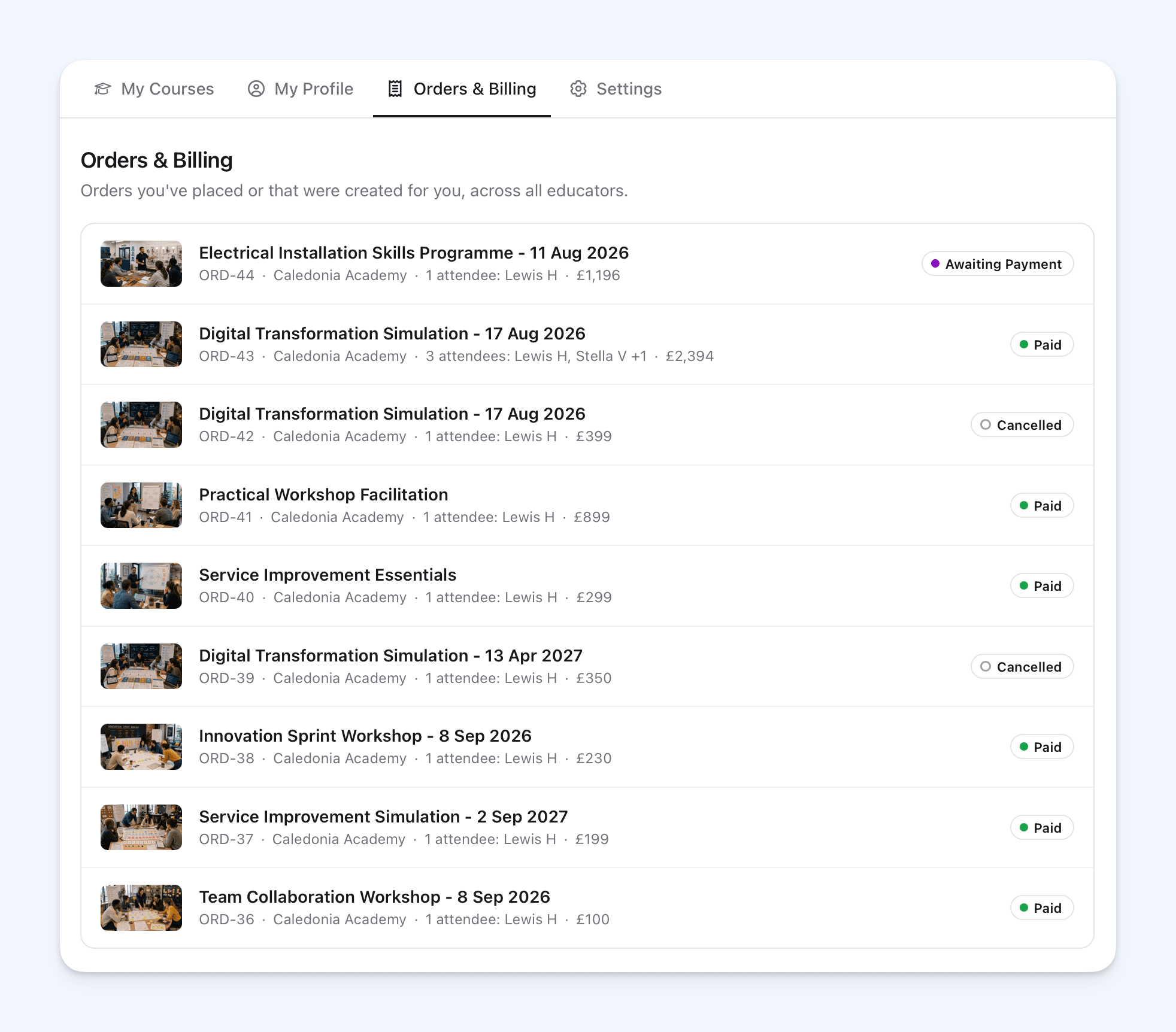 Recent orders appear on the My Courses home page, while Orders & Billing lists the learner's orders across course providers. Only orders the learner owns appear here, keeping somebody else's order and payment details private.
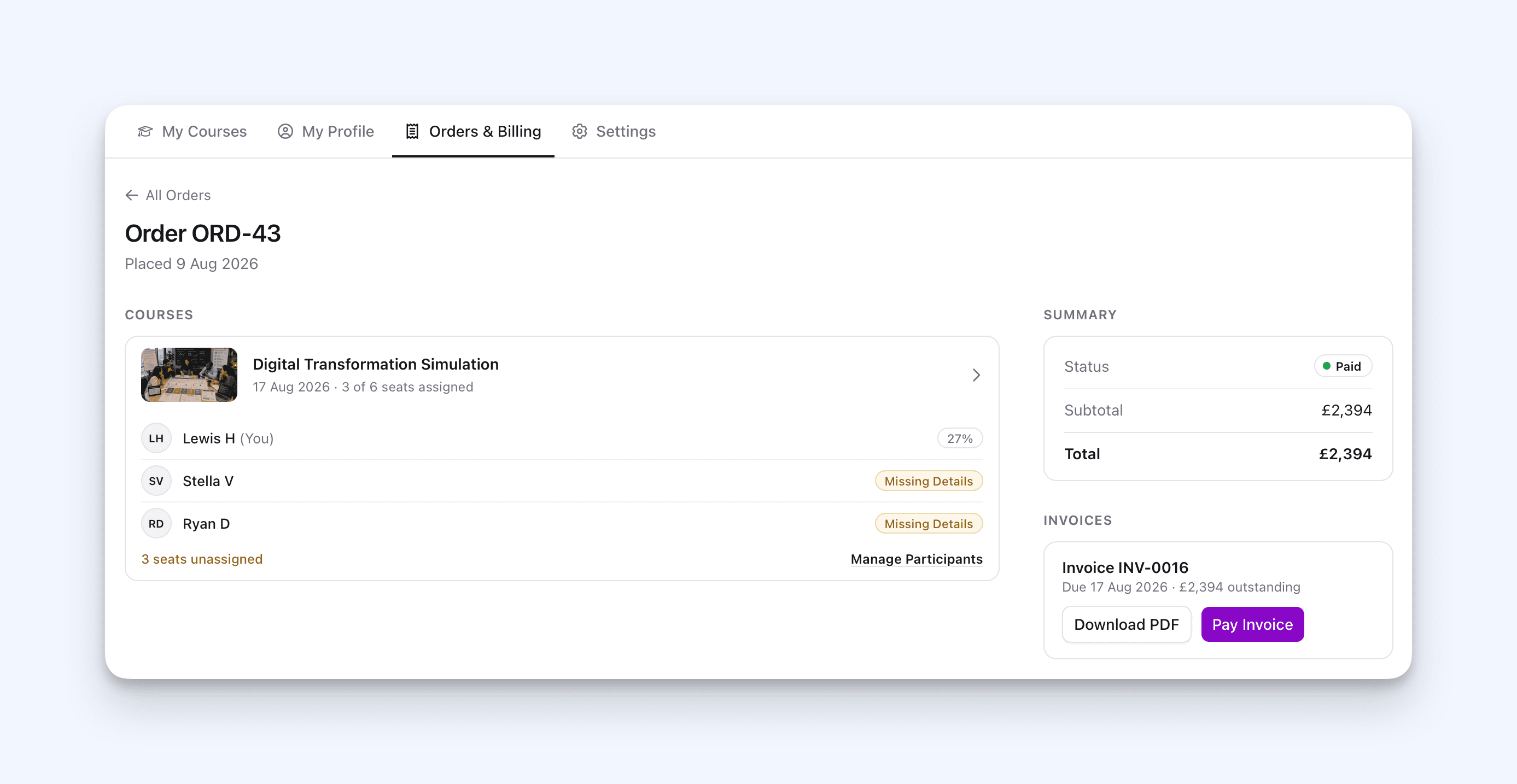 Each order opens a full page with:
- each active course included in the order
- assigned participants and any unassigned seats
- participant statuses such as Invited, Missing Details, Not started, progress, Completed or Attended
- subtotal, discounts, VAT, payments and refunds where relevant
- invoices with Download PDF and Pay Invoice actions when available
Learners can find step-by-step instructions in Find and Open Orders You Placed or That Were Created for You.
Let bookers manage participants
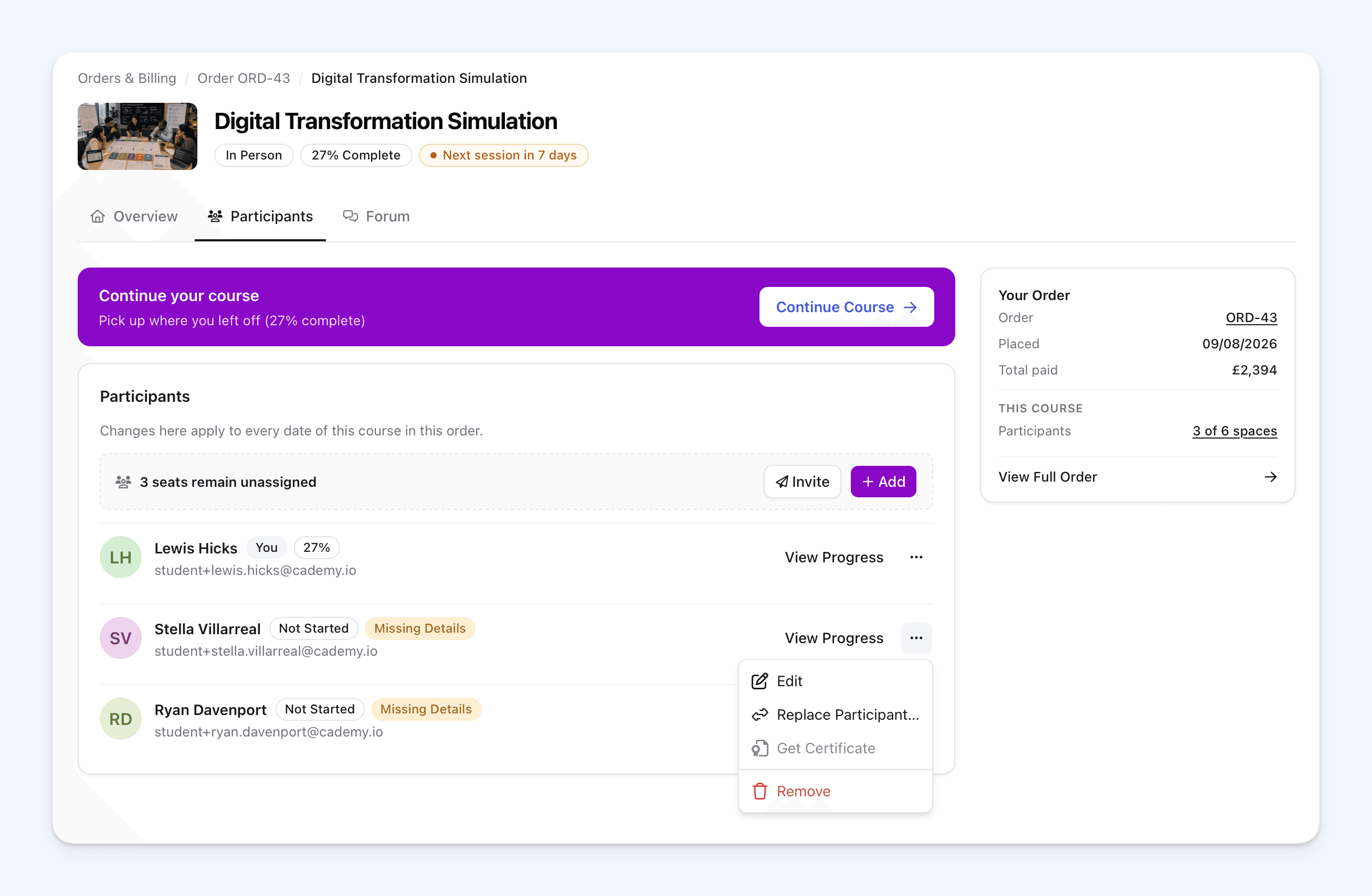 When somebody owns an order with several places, another participant or an unassigned seat, the course page now includes a Participants tab. From there, the order owner can:
- Add a participant and complete their details
- Invite participants by email so they can complete their own details
- Edit a participant's name and other registration information
- view a participant's progress and get their certificate when available
- Replace Participant to give a place to a different person
- Remove a participant and leave the purchased seat unassigned
- Transfer Your Spot if the order owner is attending and wants to give their own place to somebody else
- add themselves as a participant when a seat is unassigned
- remove themselves as a participant and leave their purchased seat unassigned
The participant's email address stays read-only when editing their details. To give the place to somebody else, the order owner uses Replace Participant or Transfer Your Spot instead. An attending order owner can also edit their own participant details when information is missing.
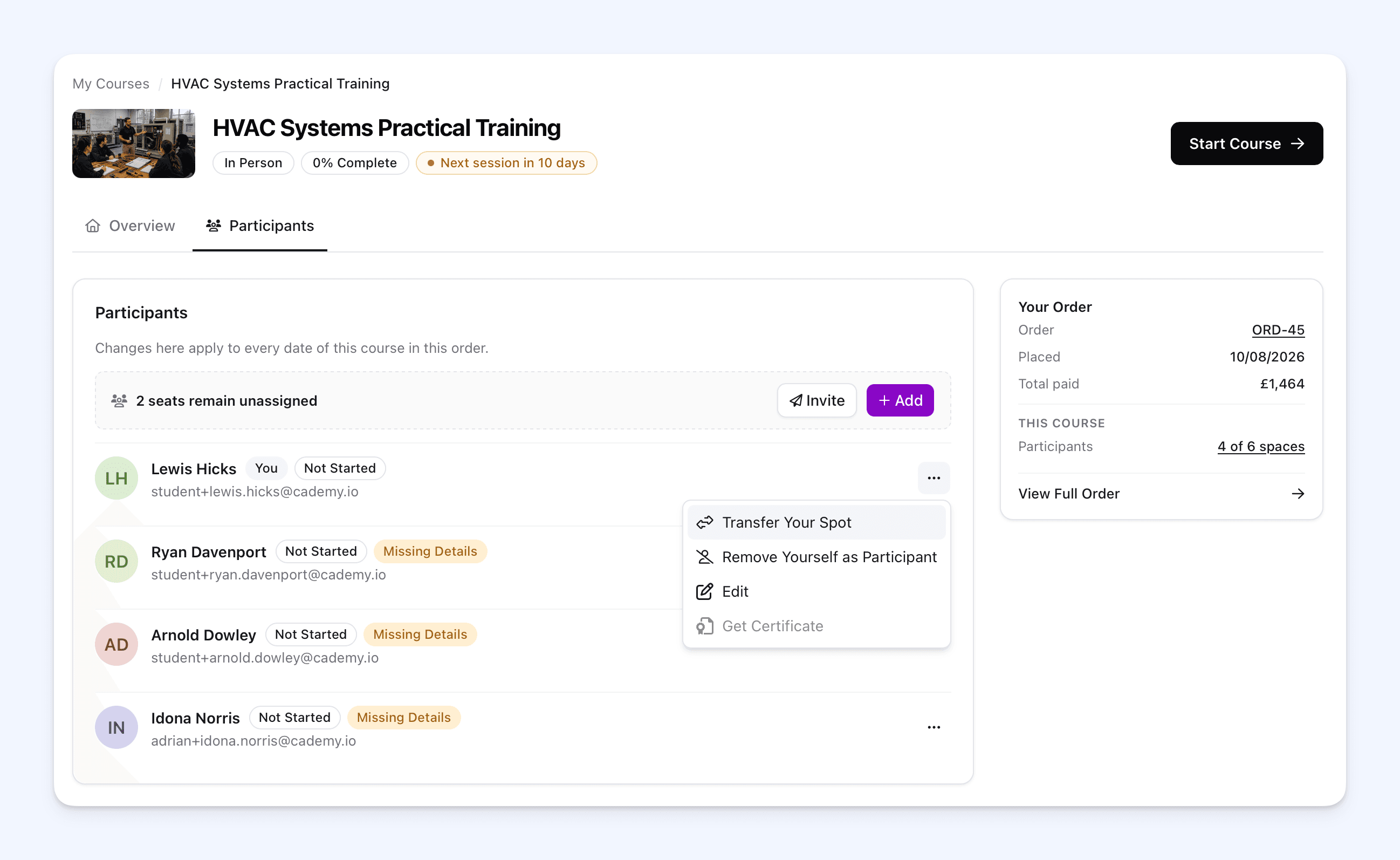 Removing or replacing a participant does not change the order total, alter a payment or create a refund. Participant actions can become unavailable after attendance or learning progress has been recorded. Some older bookings and manually added registrations remain read-only or keep their existing participant-management journey.
If the course provider's email settings prevent an invitation from being sent, the order owner can copy the course link and share it directly. The complete rules and steps are in Manage Participants and View Their Course Progress and Certificates.
Forums stay with the course
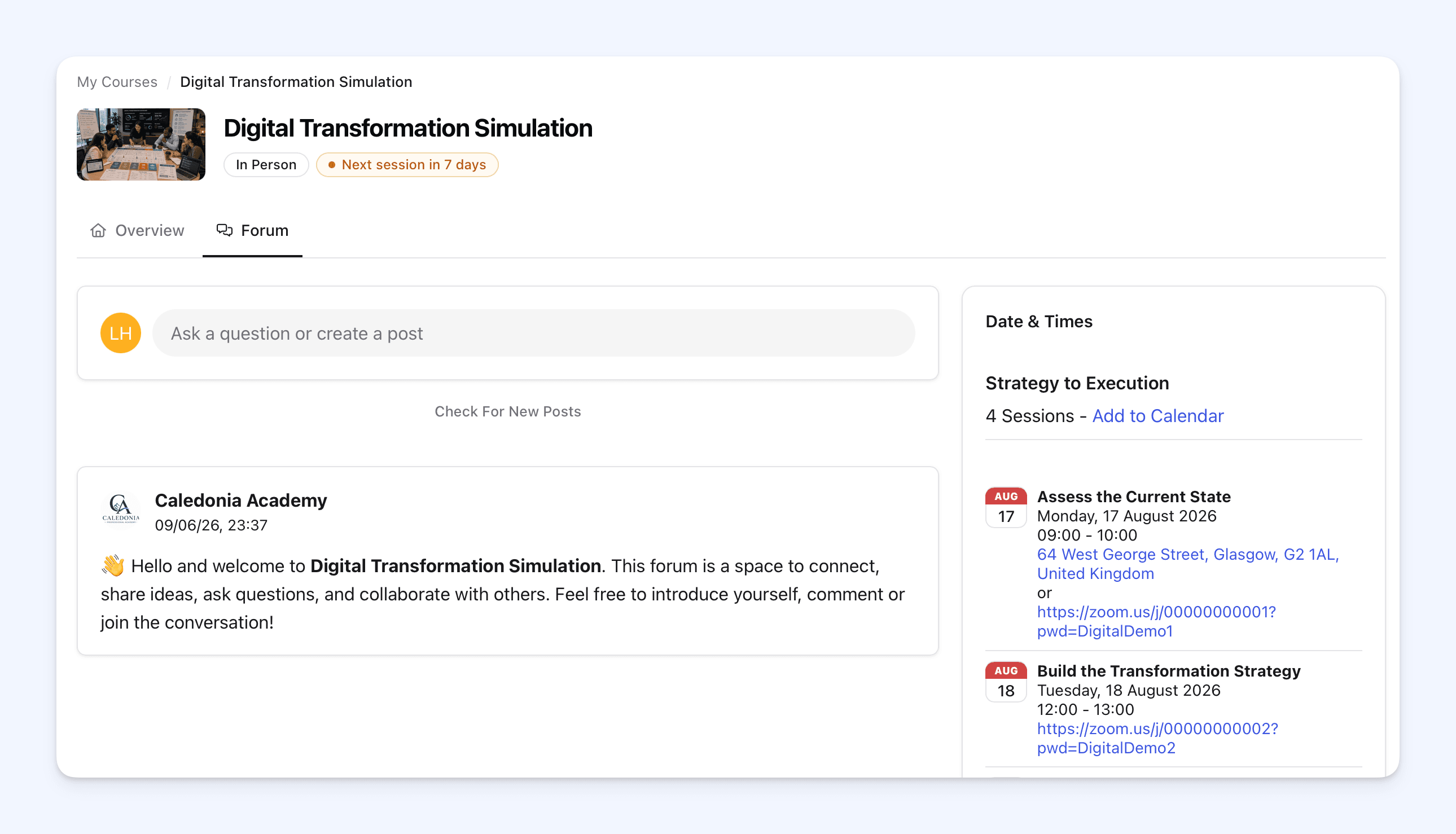 Course forums now open inside the same redesigned course layout, so learners can move between the tabs available to them without jumping to a separate page. Existing forum links from emails still open the correct course discussion.
Forum access remains private. Learners need an active or completed course place to read or post. Owning an order for somebody else does not give the order owner access to that participant's forum. Authorised members of the course provider's team can also access the forum.
See Read and Post in Your Course Forum for more information.
Where learners can find it
After logging in, learners select My Account, then My Courses & Bookings. They can then use the My Courses, My Profile, Orders & Billing and Settings tabs to move around their account.
Frequently asked questions
Can a participant see the order owner's payment details?
No. Participants booked by somebody else can see their own course information, progress and sessions, but not the order owner's prices, payments or invoices.
Why might the Participants tab be missing?
It is shown to the order owner only when there is something to manage, such as several seats, another participant or an unassigned seat. A one-seat order for the order owner alone normally does not need the tab. Participants booked by somebody else cannot open it.
Does removing or replacing a participant change the bill?
No. The order total, payment and invoice stay the same. Removing a participant leaves the purchased seat unassigned and does not create a refund.
Why can a participant no longer be edited or replaced?
Attendance may already have been recorded or the participant may have started the course content. The course provider can help when a change is still required.