
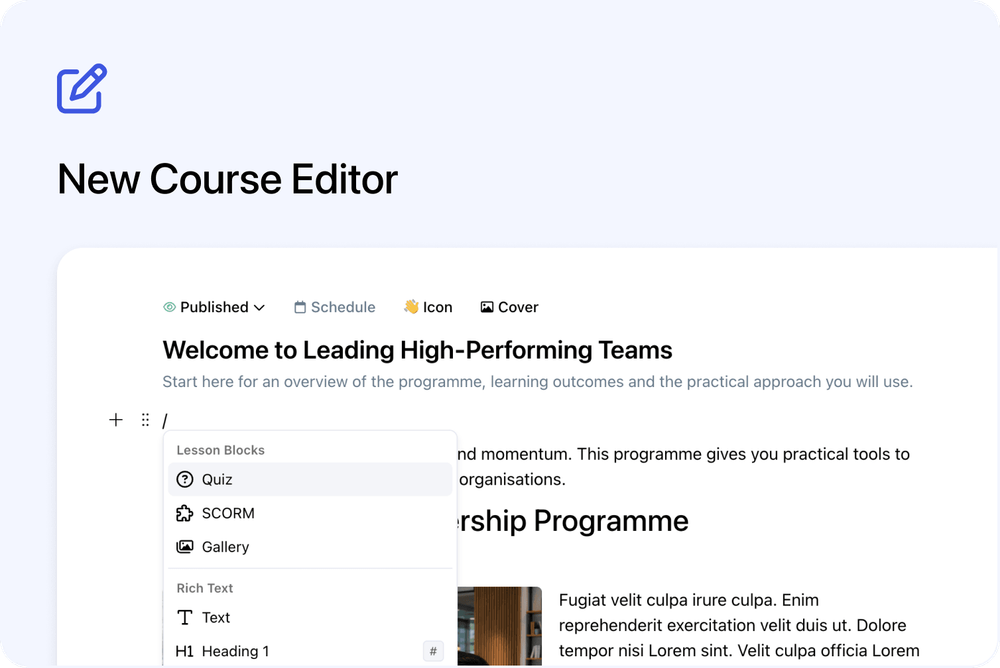
The new course editor is here for on-demand and blended courses.
This is the biggest update we have made to Cademy's course editor since it was first introduced. We rebuilt both the editing experience and the course pages learners use, making it faster to create, organise and check an online course.
Here are the highlights.
What's new
🧭 Breadcrumbs and keyboard saving
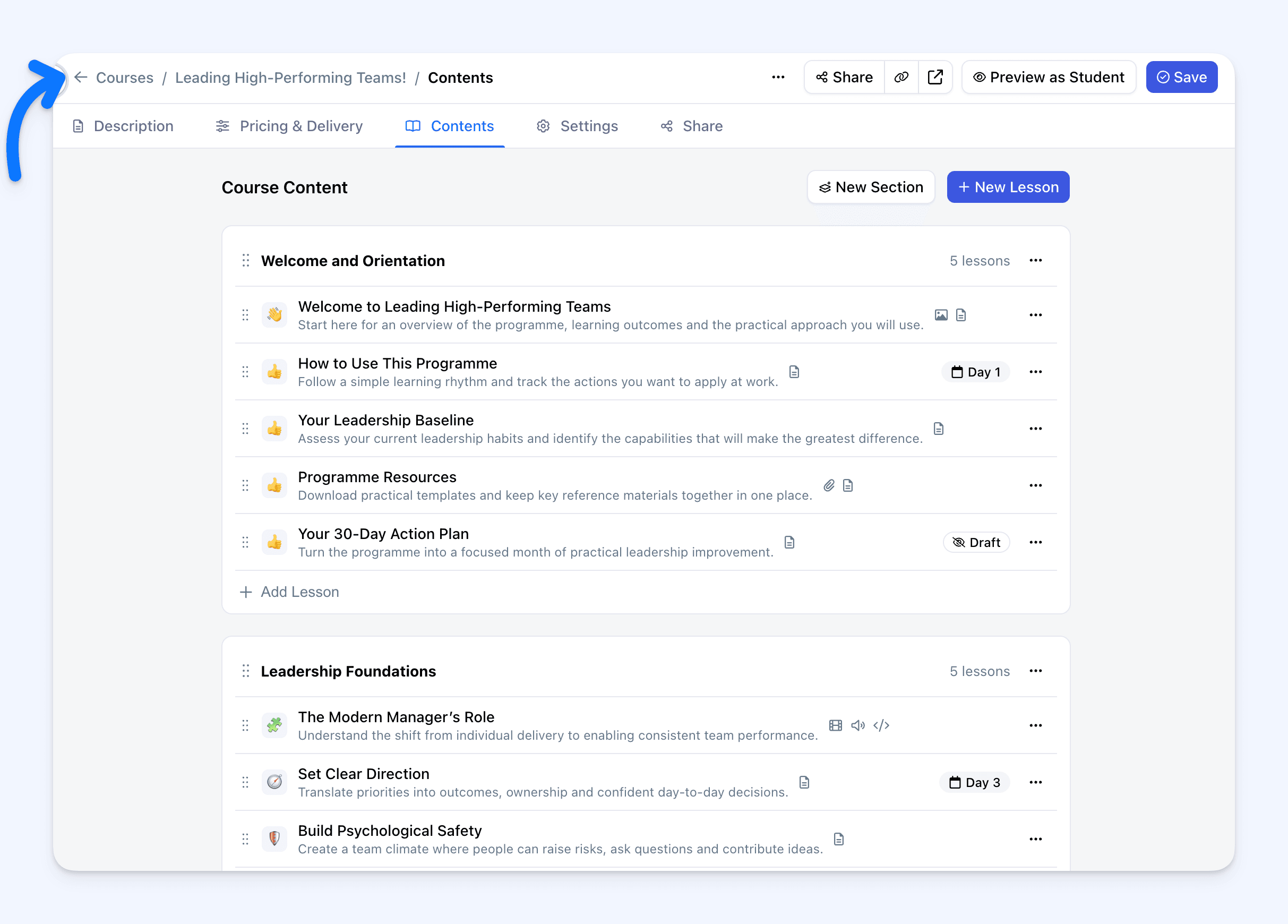 Breadcrumbs now show which course, page and lesson you are editing. You can move back through the course without losing track of where you are.
You can also save at any time by pressing Cmd+S on a Mac or Ctrl+S on Windows. The Save button is still there when you prefer to use it.
↕️ Reorder sections and lessons more easily
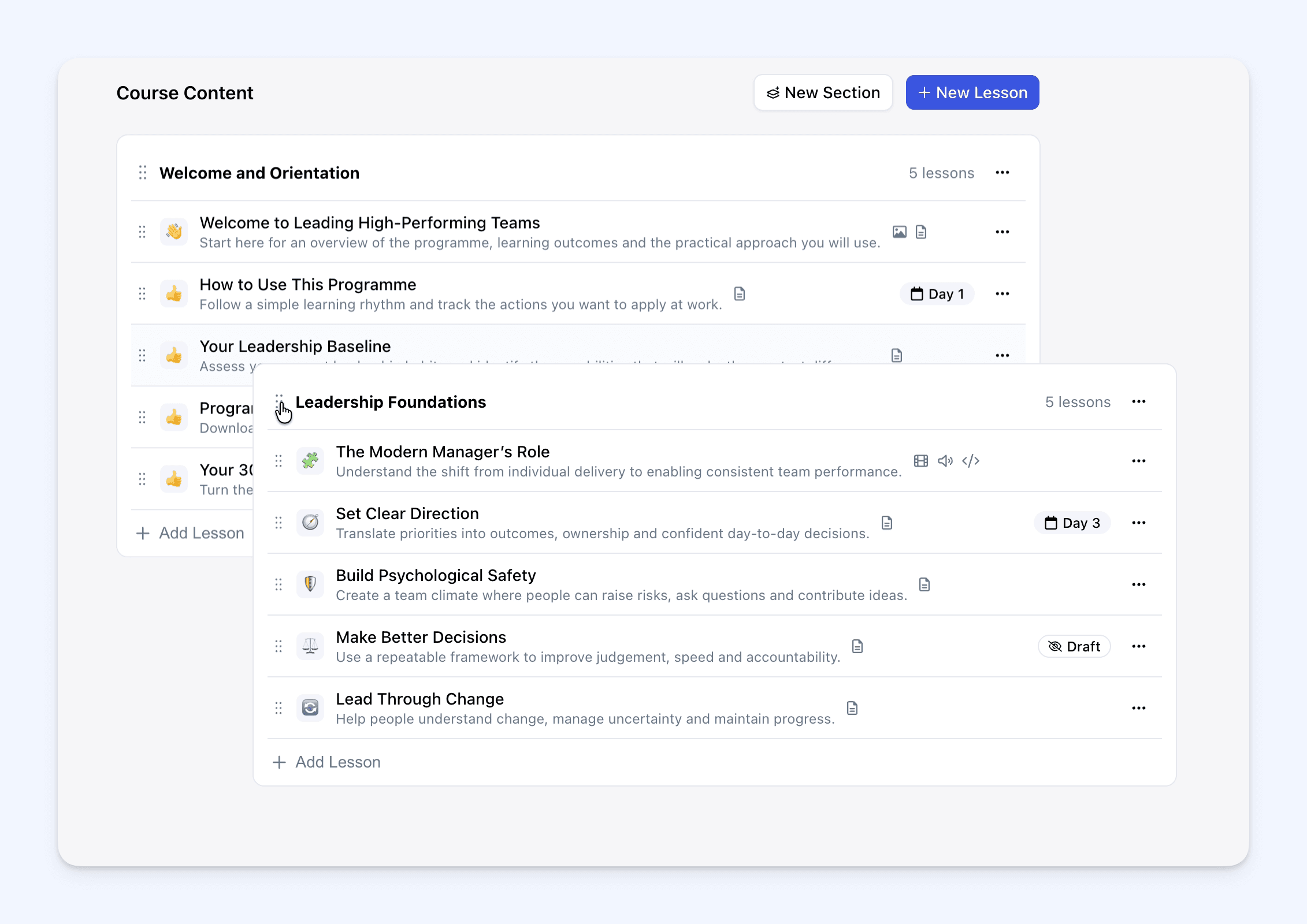 Moving sections and lessons into the right order now feels much smoother. Keep the lesson list open while you work, resize it when you need more context, or collapse it to give the lesson more space.
The Contents view makes the whole course easier to scan, including lesson icons, descriptions, content types, schedules and Draft lessons.
🖼️ Add covers, icons and descriptions to lessons
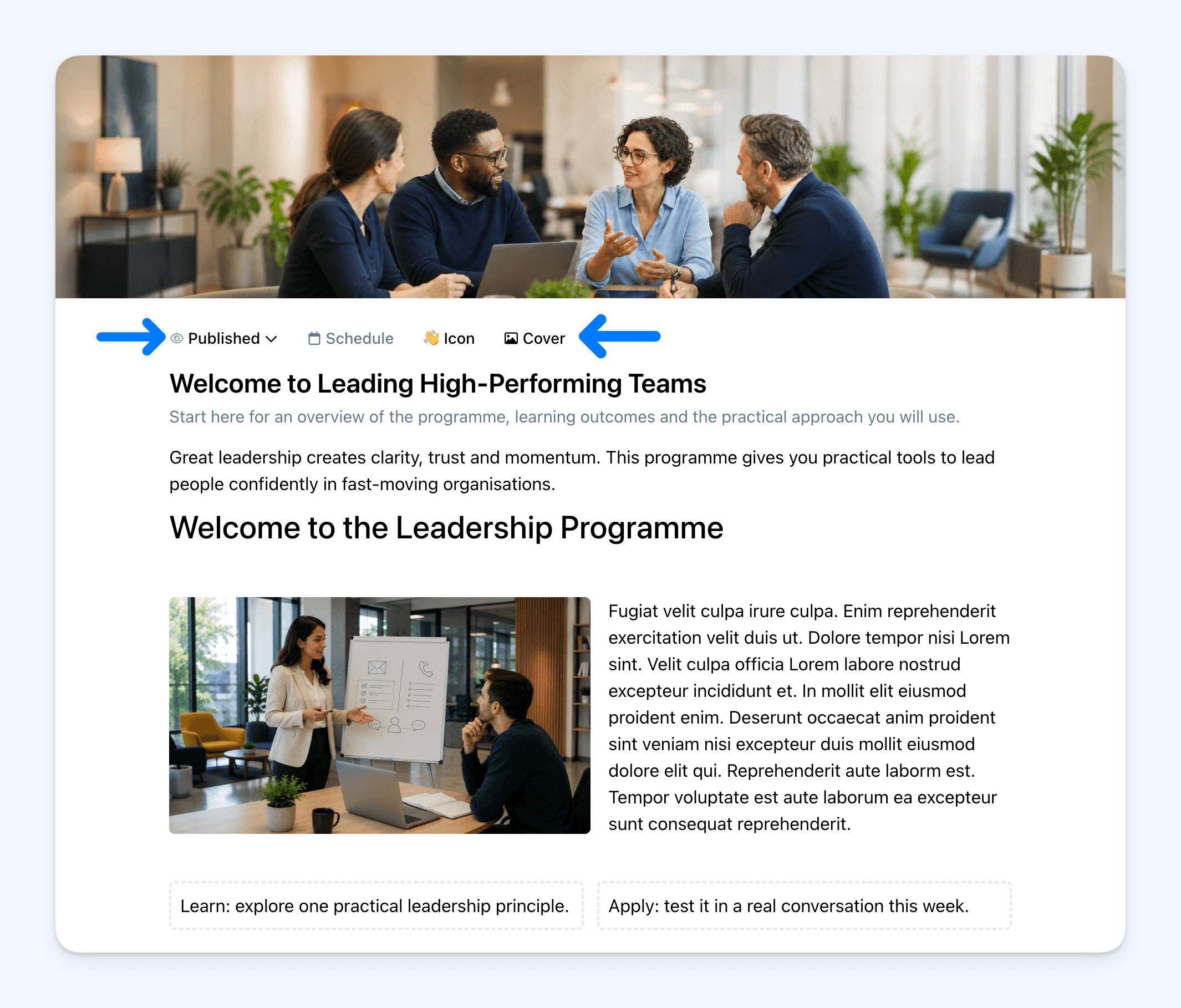 Add a wide cover image, an emoji or coloured icon, and a short description to any lesson. Learners see the cover when they open the lesson, while the icon and description help them understand what the lesson is about beforehand.
➕ Add content with the slash key or plus button
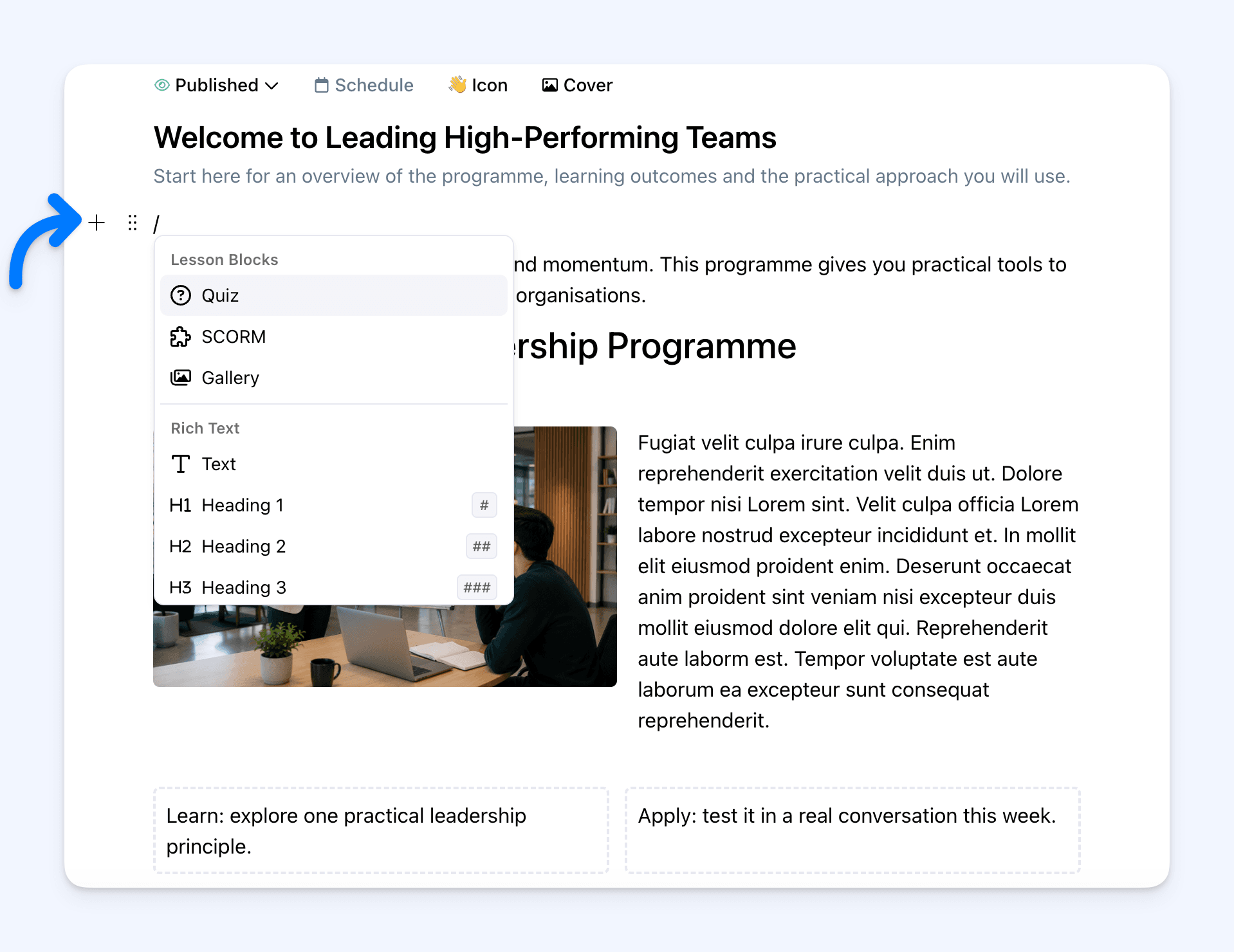 Press / on an empty line or select the plus button to open the block menu. From one place, you can add:
- text, headings, lists, tables, checklists and callouts
- images, galleries, video, audio, files, PDFs and embeds
- 2 Columns and 3 Columns layouts
- quizzes and SCORM packages
You can drag media straight into a lesson and move content blocks into the order you want. This makes it much easier to create a polished lesson without repeatedly leaving the page.
📄 Embed PDFs or offer them as downloads
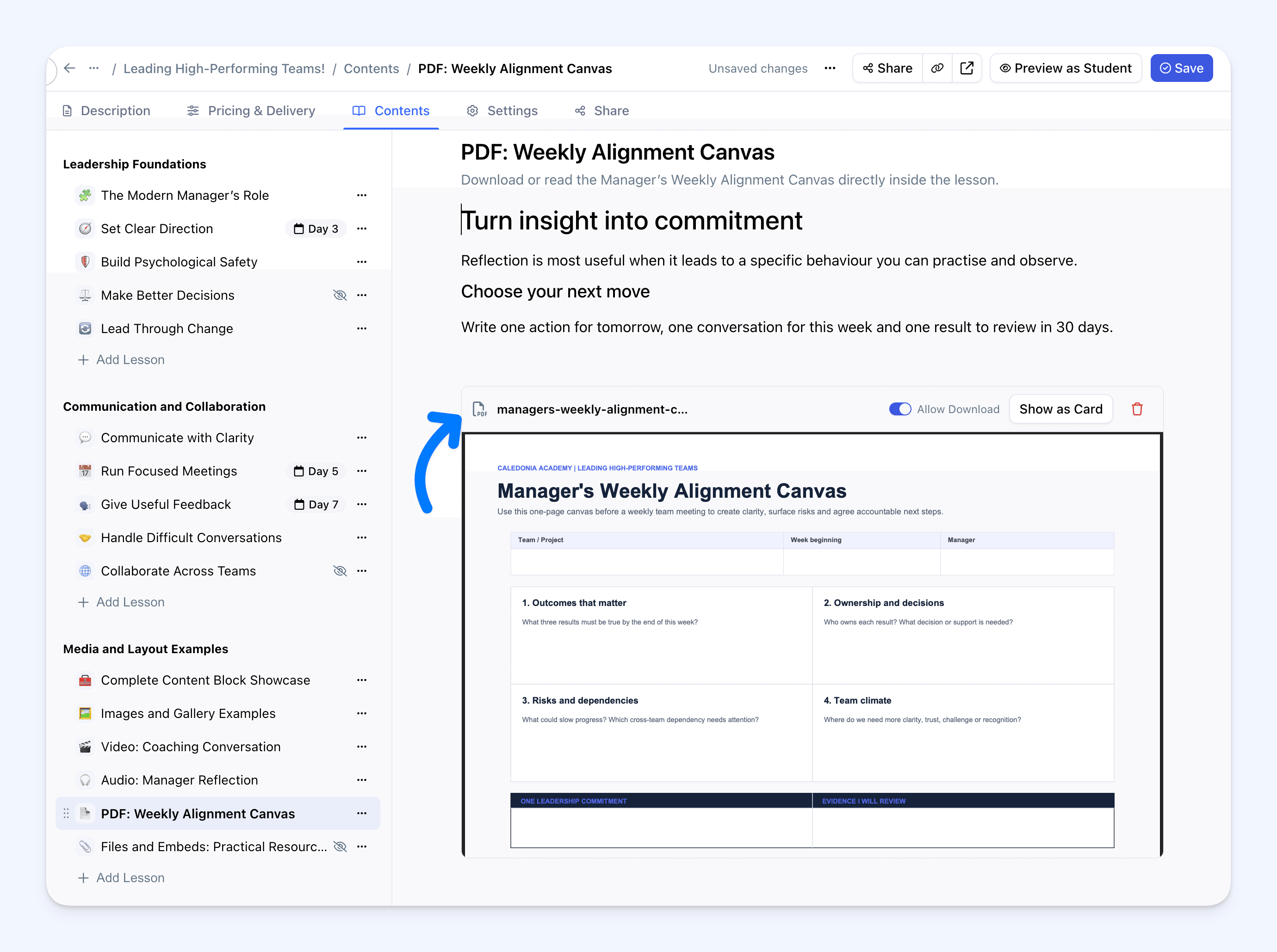 PDFs can now be displayed directly inside a lesson. Learners can read workbooks, handouts, slides or reference documents without leaving the course.
You can also show the PDF as a downloadable attachment when that suits the lesson better.
✅ Quizzes now have their own editor
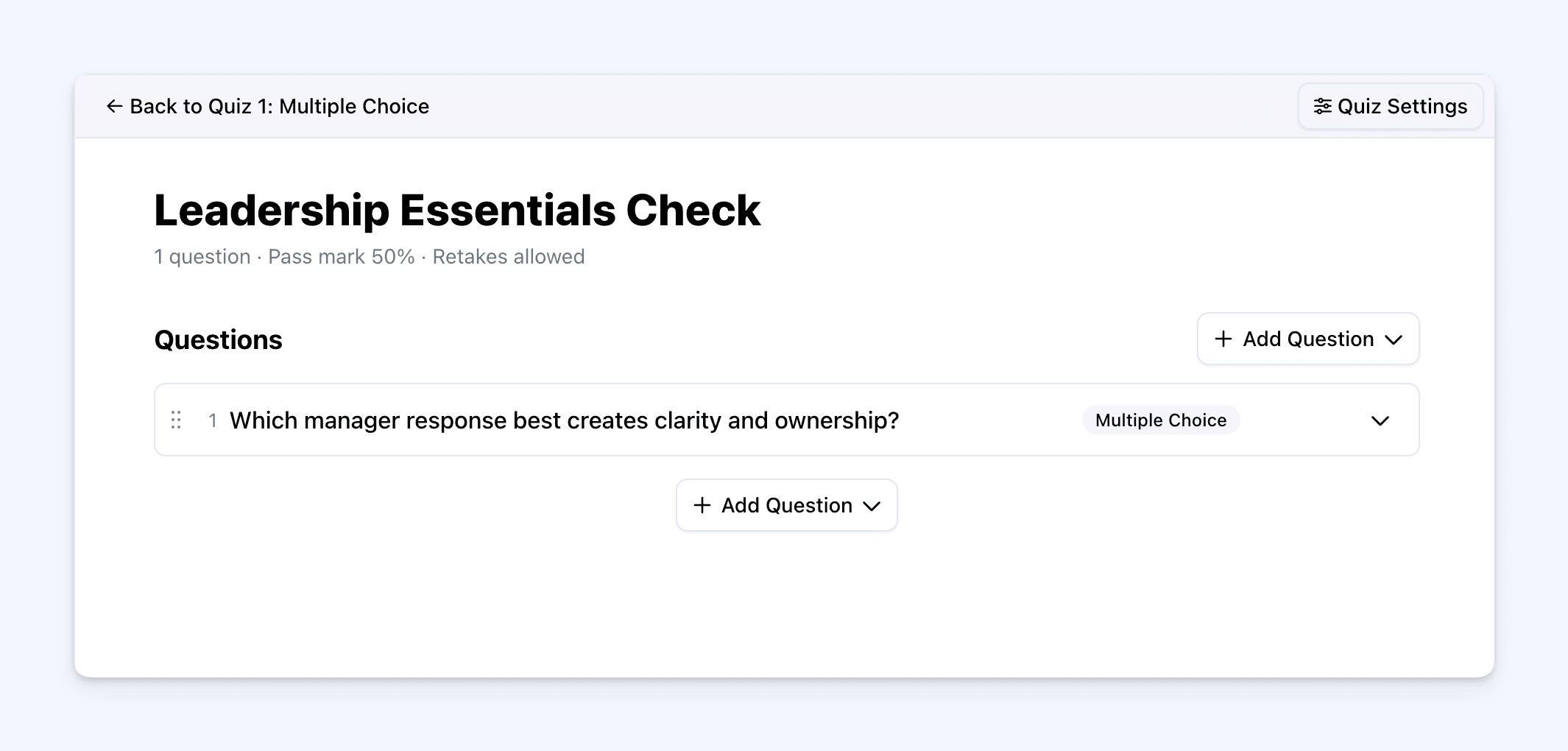 Quizzes have been completely rebuilt. Select a Quiz block to open a dedicated editor for its questions and settings, instead of fitting everything into the lesson page.
You can add Multiple Choice, Short Answer, Number, Long Text and File Upload questions, then manage the pass mark, marking, retakes and completion rules in Quiz Settings.
🖥️ Use Full Screen for SCORM packages
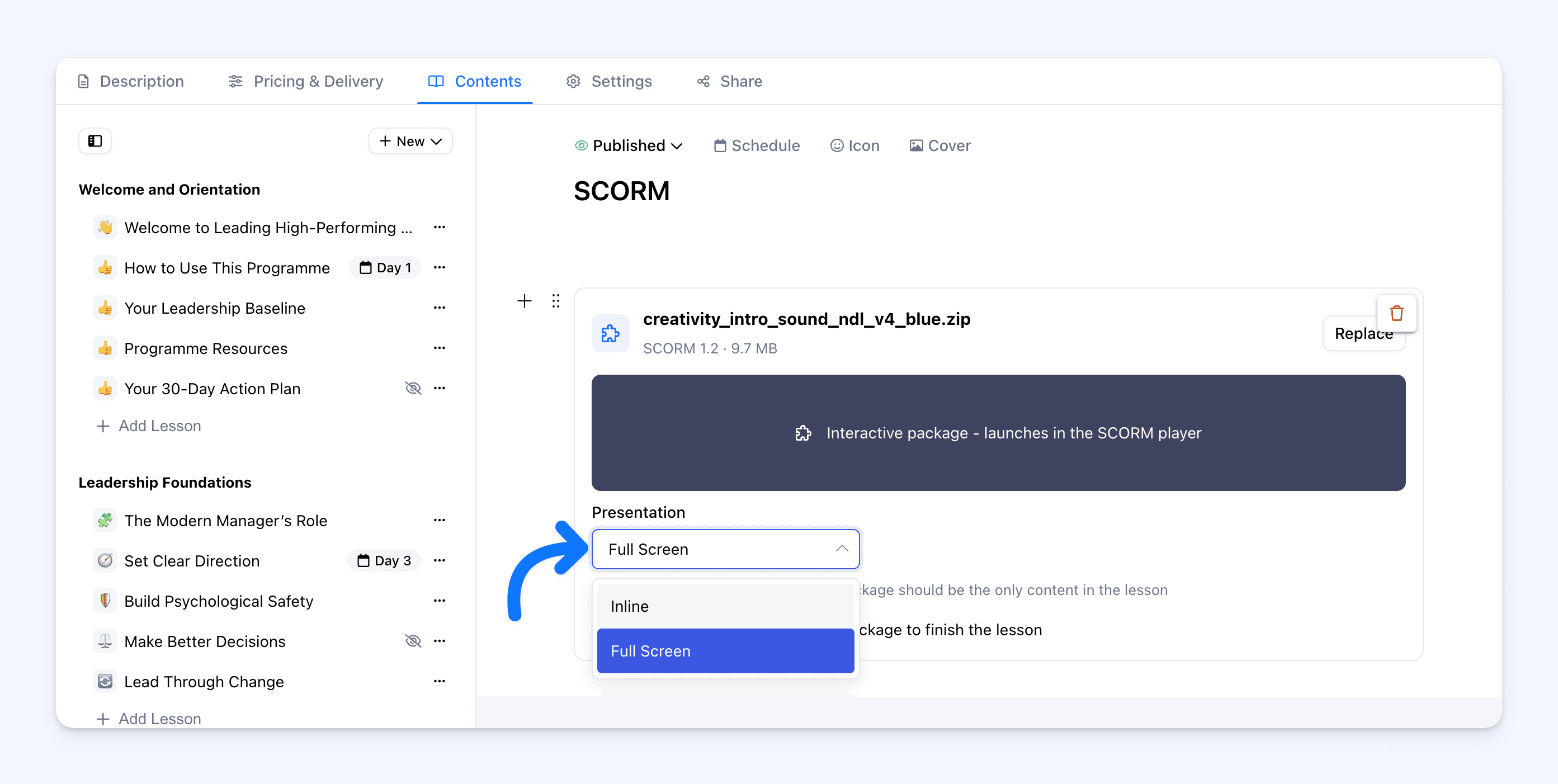 If your Cademy plan includes SCORM, you can place a package alongside other lesson content or choose the Full Screen presentation. With Full Screen, the package fills the available lesson viewer as soon as the learner opens it.
👀 Preview as Student
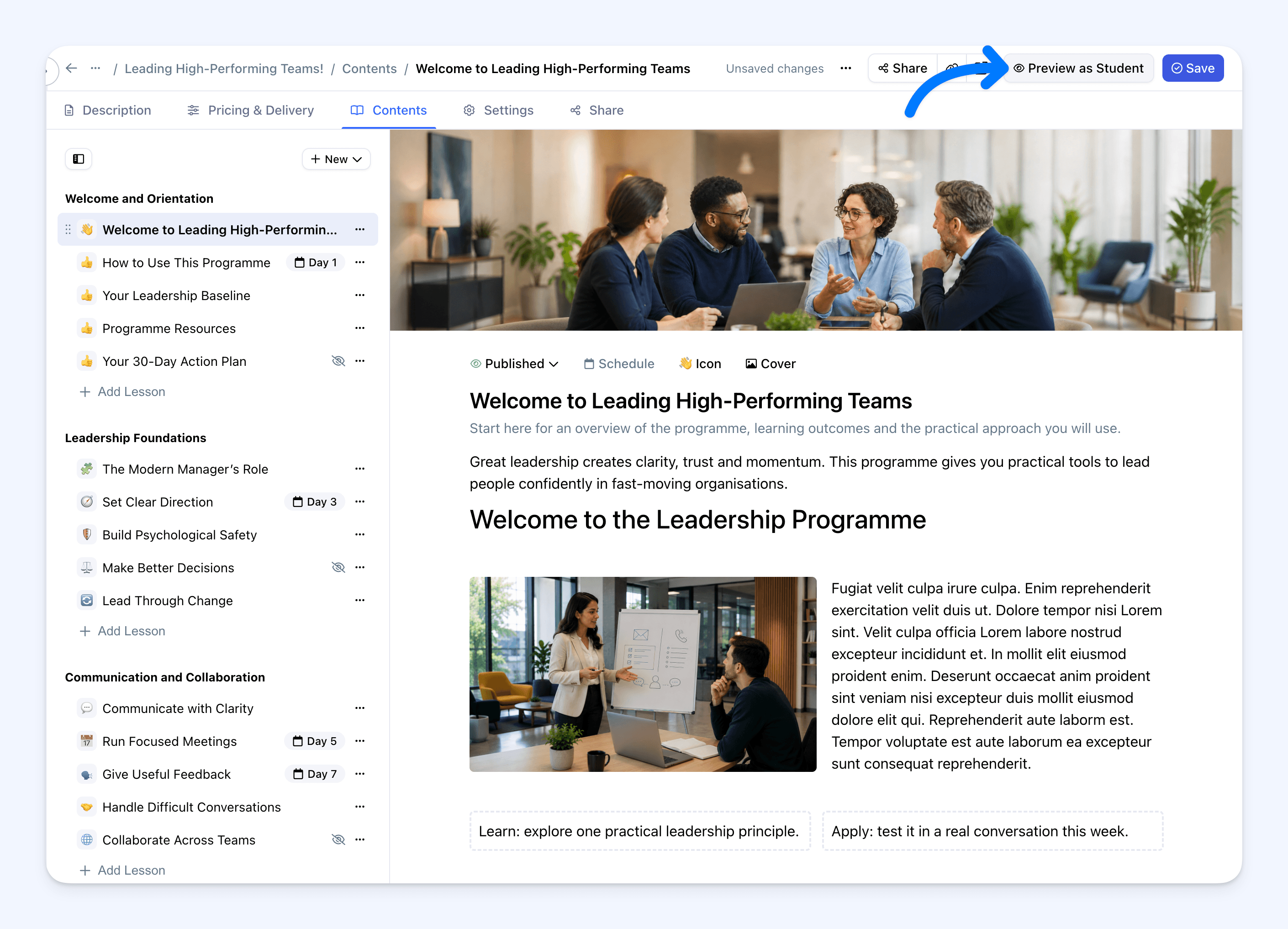 Select Preview as Student from the Contents tab or from a lesson to open the saved course from a learner's point of view.
You no longer need to register yourself on the course simply to check how it looks. Preview does not record learner progress, so you can move through the course while you polish the content.
📚 Cleaner navigation on learner course pages
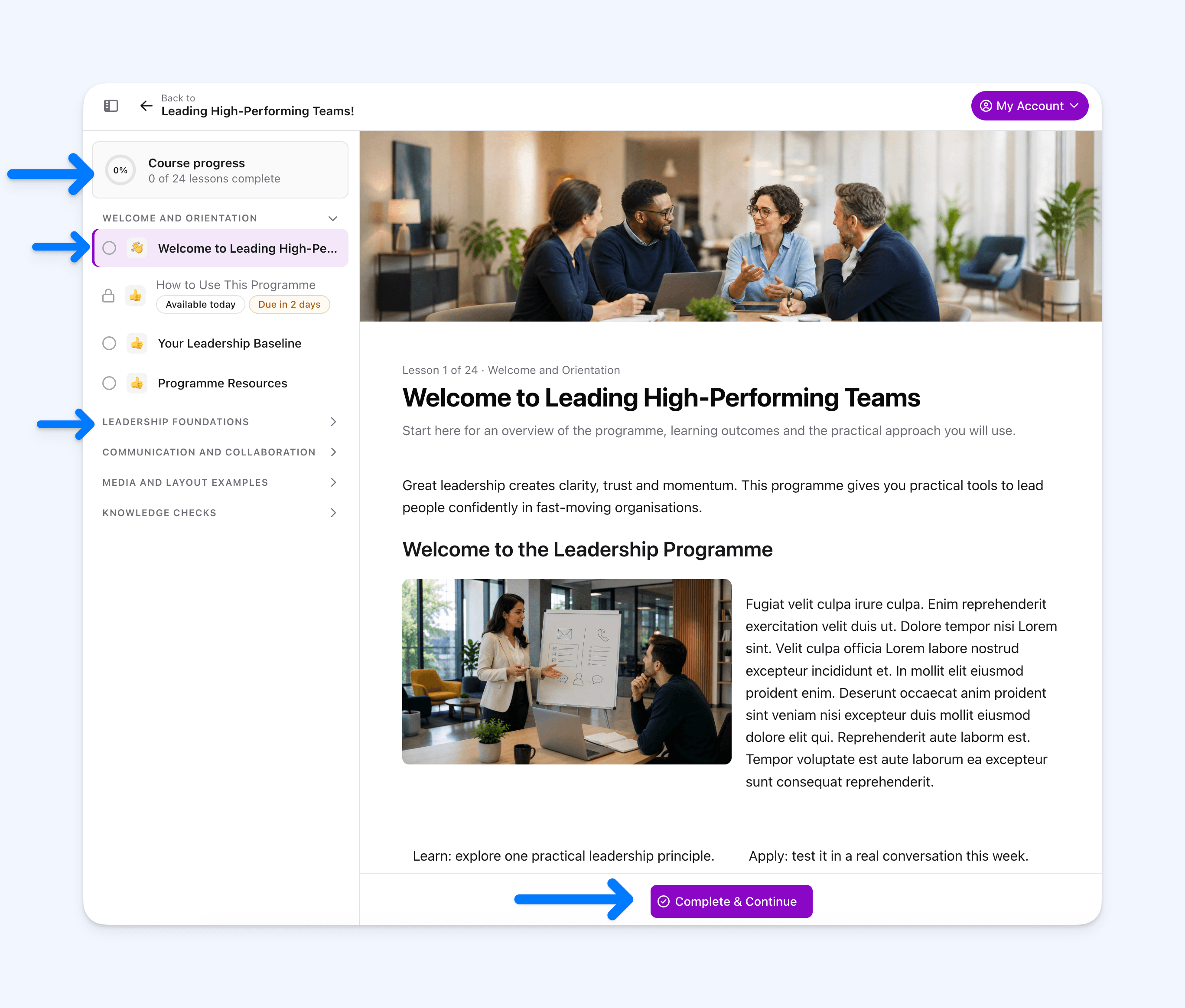 We also refreshed the pages learners use to complete a course. The lesson list is easier to follow on desktop and mobile, and it can be resized on larger screens.
Lessons with several headings now show clickable heading indicators when there is enough space. Learners can use them to jump straight to the part they need.
The public course outline is clearer too. It can show section and lesson totals, lesson icons, short descriptions and the types of content included, helping learners understand the course before they begin.
Where to find it
Go to:
Admin Dashboard → Courses → [course] → Edit Course → Contents
You can use the new editor for on-demand and blended courses.
Watch Adrian's video walkthrough, or read our complete Create and Edit Lessons and Course Content guide for step-by-step instructions: [Help article link]
We would love to see what you create. Send us your questions and feedback as you start using the new editor.
Frequently asked questions
Who can edit course content?
System Admins and Course Owners can open and edit course content. Facilitators cannot open the course editor.
Which courses use the new editor?
The Contents tab is used for on-demand and blended courses. Class-only courses do not use lesson content.
Does lesson content save automatically?
No. Select Save, press Cmd+S on a Mac or press Ctrl+S on Windows. Cademy warns you before leaving a lesson with unsaved changes.
Where is the AI Course Builder?
The AI Course Builder will be back soon. Keep an eye on our product update emails.