
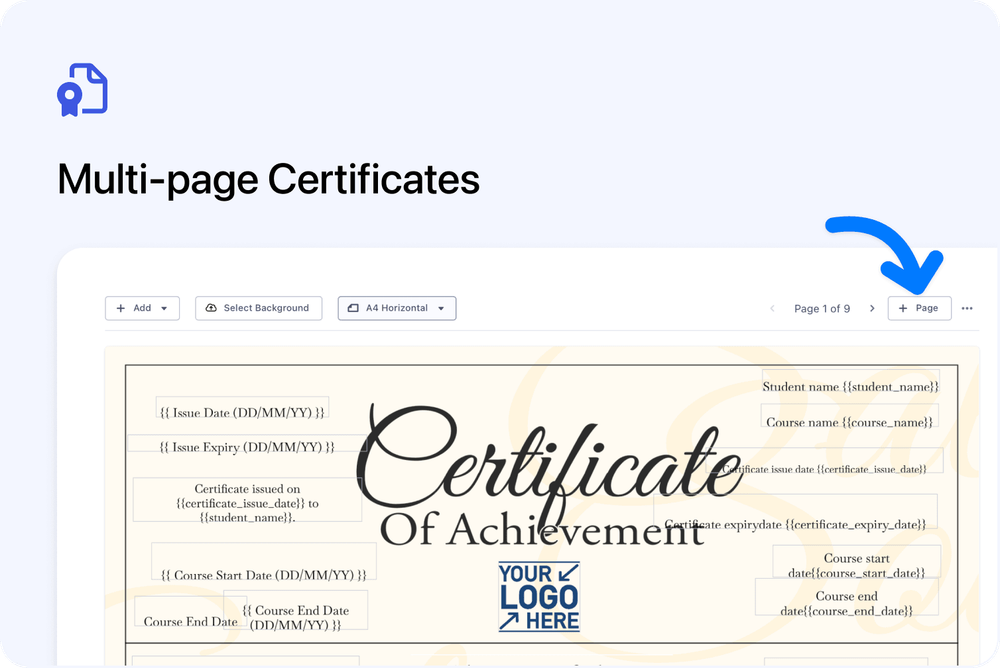
Custom certificate templates can now contain up to 10 pages. Create an award on the first page, then add a course syllabus, accreditation details, signatures, terms or any other supporting information your learners need.
Each page can have its own background and content. When the certificate is issued, Cademy combines every page into one PDF in the order you choose.
Build each page separately
Open Settings > Certificate Templates and select a custom certificate template. Use + Page to add a blank page after the page you are viewing.
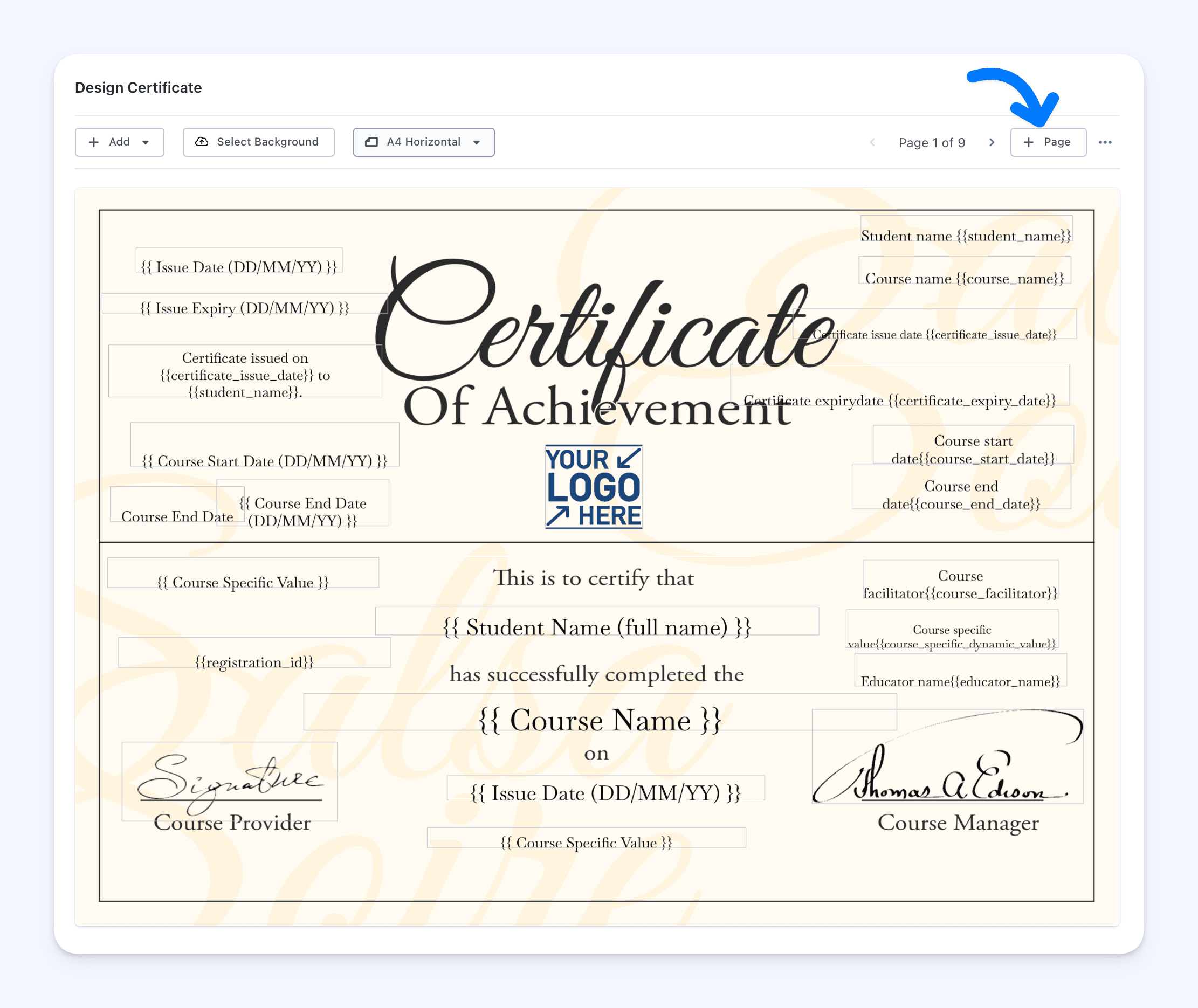
When a template contains more than one page, the editor shows Page X of Y with arrows for moving between pages. The background picker and Add menu always apply to the page currently open, so every page can have its own:
- background image
- text and images
- student and course details
- certificate dates
- course dates and facilitator details
- other dynamic values
Mail-merge values work on every page, including the student name, course name, Registration ID and dates.
Duplicate, arrange or remove pages
Open Page Options to manage the page currently shown:
- Duplicate Page copies its background and content into a new page.
- Move Left and Move Right change where it appears in the certificate.
- Delete Page removes it after confirmation.
A template must always contain at least one page, so the final remaining page cannot be deleted. You can add or duplicate pages until the template reaches the 10-page limit.
Keep one consistent document format
Each page can have a different background and layout, but the paper size and orientation belong to the complete template. All pages use the same A4, Letter or Legal size and the same horizontal or vertical orientation.
This keeps the final PDF consistent while still giving you freedom to design each page for a different purpose.
Issue one complete PDF
Certificates continue to be issued in the usual ways, including automatically from a course or manually from a Registration. If a custom template contains several pages, the learner receives one PDF containing every page in the order shown in the editor.
Existing single-page templates continue to work as before. You can leave them as they are or add more pages when needed.
Ideas for multi-page certificates
Use extra pages for information that belongs with the award but does not fit comfortably on one page, such as:
- modules or learning outcomes
- assessment results or credits
- accreditation and verification details
- facilitator or assessor signatures
- renewal or expiry information
- terms, guidance or next steps
Where to start
Go to Settings > Certificate Templates, open a custom template and select + Page.
For the complete guide to creating templates, using dynamic values and issuing certificates, see Certificates.
Frequently asked questions
How many pages can a certificate have?
Up to 10 pages.
Can every page have a different background?
Yes. Each page has its own background and content.
Can pages use different paper sizes or orientations?
No. Paper size and orientation apply to the complete template, so every page uses the same format.
Do dynamic values work on every page?
Yes. Student, course, certificate and date values are filled in on every page where you add them.
What happens to existing single-page templates?
They continue to look and work as before. You only need to edit them if you want to add more pages.
Will editing a template change certificates that were already issued?
Yes. Issued certificates are rendered from their linked template, so adding, removing or changing pages can also change certificates previously issued with that template.
Which plans include multi-page certificates?
Multi-page templates are part of Custom Certificates, available on Pro and Teams plans. The Cademy default certificate remains available on every plan.