
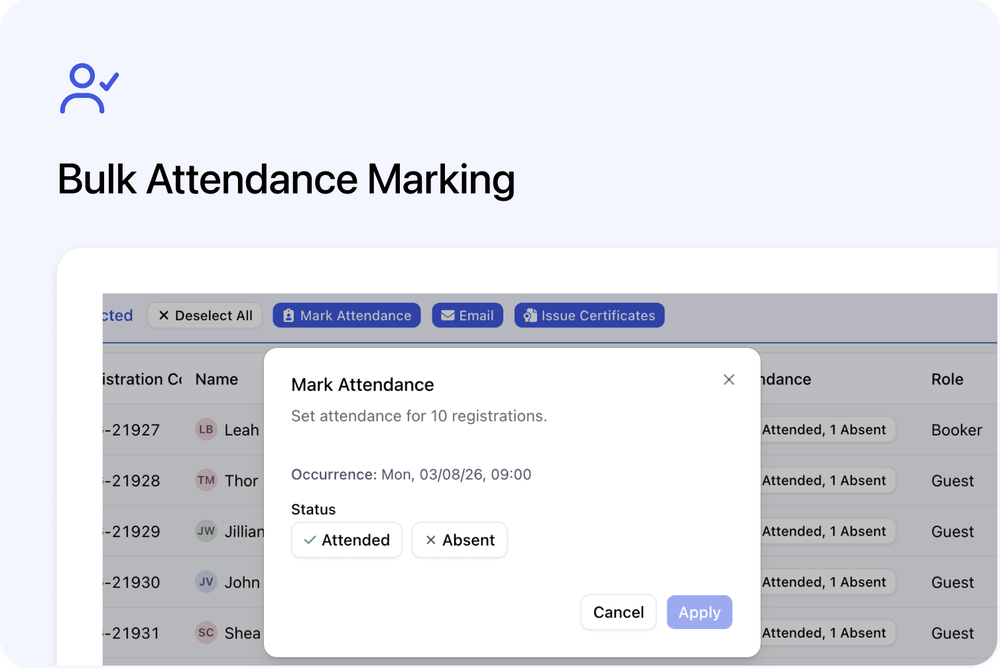
You can now mark attendance for multiple registrants at once from the Registrants tab.
Select the registrants you need, click Mark Attendance, and choose whether they should be marked as Attended or Absent.
This makes it faster to update attendance after a course date, especially when working with larger groups.
What’s new
✅ Mark multiple registrants at once
From the Registrants tab, you can now select multiple registrants and update their attendance in one bulk action.
You can use filters first to find the right group, then select the registrants you want to update.
This is useful when you need to mark attendance for:
- A full course date
- A filtered group of registrants
- Selected individuals from a larger list
📍 Where to find it
To mark attendance in bulk:
- Go to the Registrants tab
- Filter or select the registrants you want
- Click Mark Attendance
- Choose Attended or Absent
- Confirm the update
Attendance options
✅ Attended
Mark the selected registrants as attended.
Use this when the selected people joined or completed the course session.
❌ Absent
Mark the selected registrants as absent.
Use this when the selected people did not attend the course session.
Why this matters
Bulk attendance marking saves time when managing course dates.
Instead of updating each registration one by one, you can select the right registrants and mark them as Attended or Absent in one action.
This is especially helpful for larger course dates or teams managing attendance after delivery.