
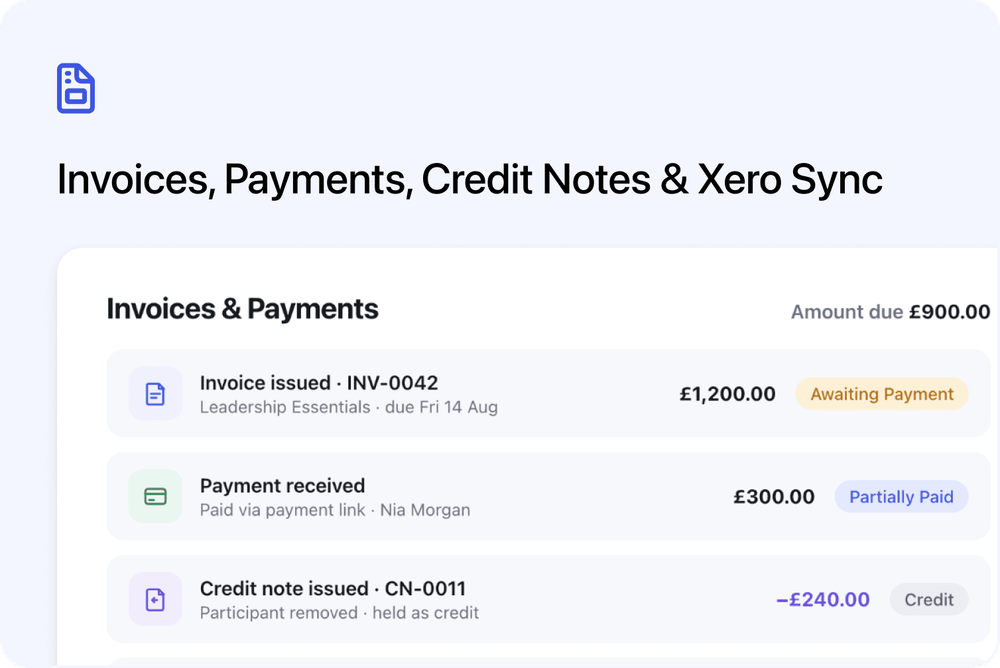
Invoicing and payments in Cademy have been rebuilt. This update covers invoices, payment links, refunds, cancellations, credit notes, and Xero. This post explains each change and where to find it.
Everything is already live on your account. There is nothing to switch on.
What's new
- A new invoicing interface. Every invoice is now its own record, with a status you can see at a glance: Draft, Awaiting Payment, Partially Paid, Overdue, Paid, or Void.
- A billing area with four tabs. Orders, Invoices, Payments, and Credit Notes. You can search and filter each one - for example, to see every overdue invoice in one list.
- Easier order editing. Editing an order now uses the same layout as creating one. Change quantities, prices, discounts, and VAT, and Cademy shows you what will change before anything is applied.
- Partial refunds. You can now refund any amount, up to what the customer paid. For example, refund £70 of a £100 payment. Before, you could only refund in full.
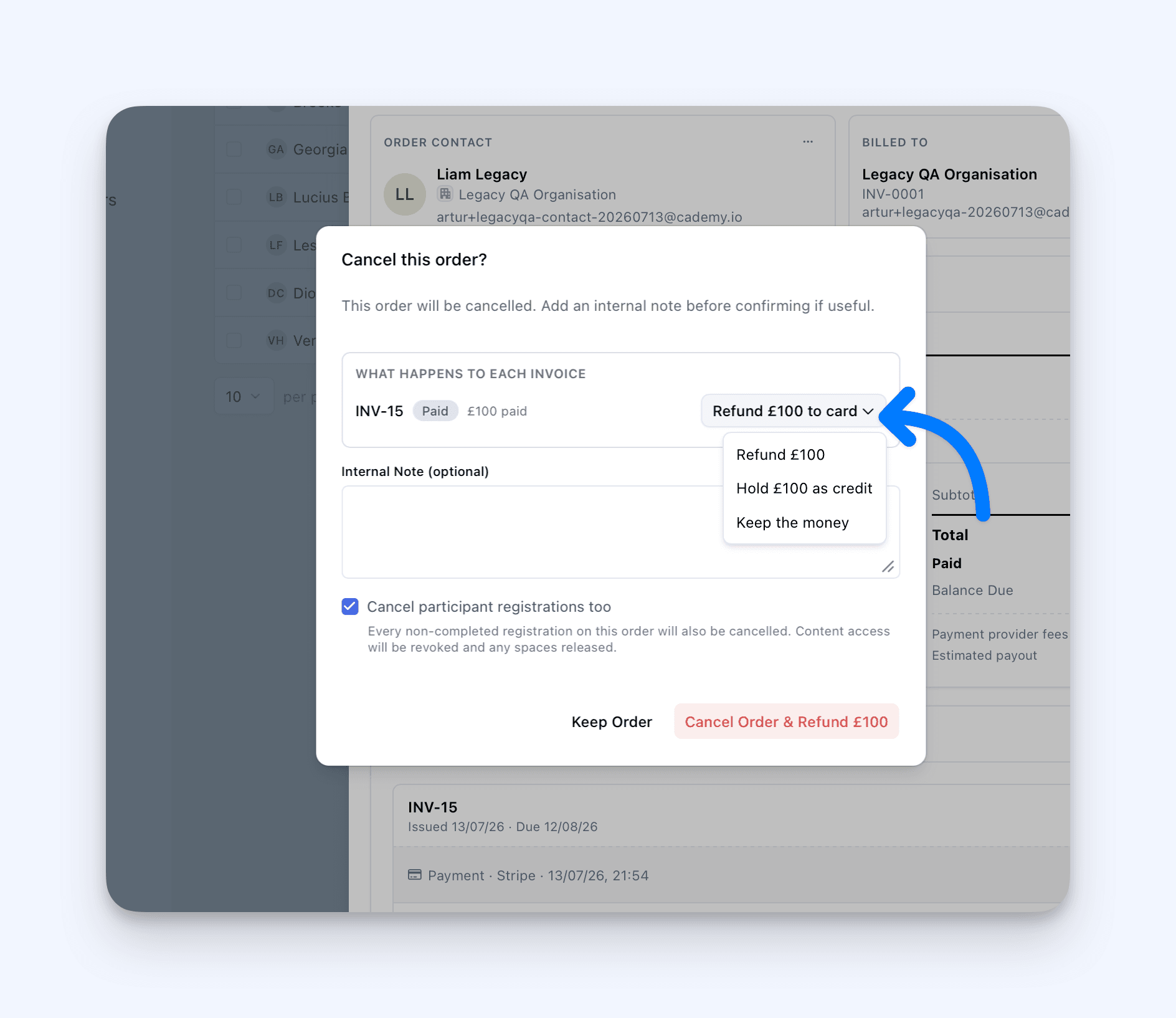
- A choice of what happens to the money when you cancel. For each paid invoice on a cancelled order, you choose one of three options: refund the money, keep it as credit on the customer's account, or keep it.
- Payment links for any amount. Copy a payment link for an invoice's full balance, or create a link for a smaller amount that you choose.
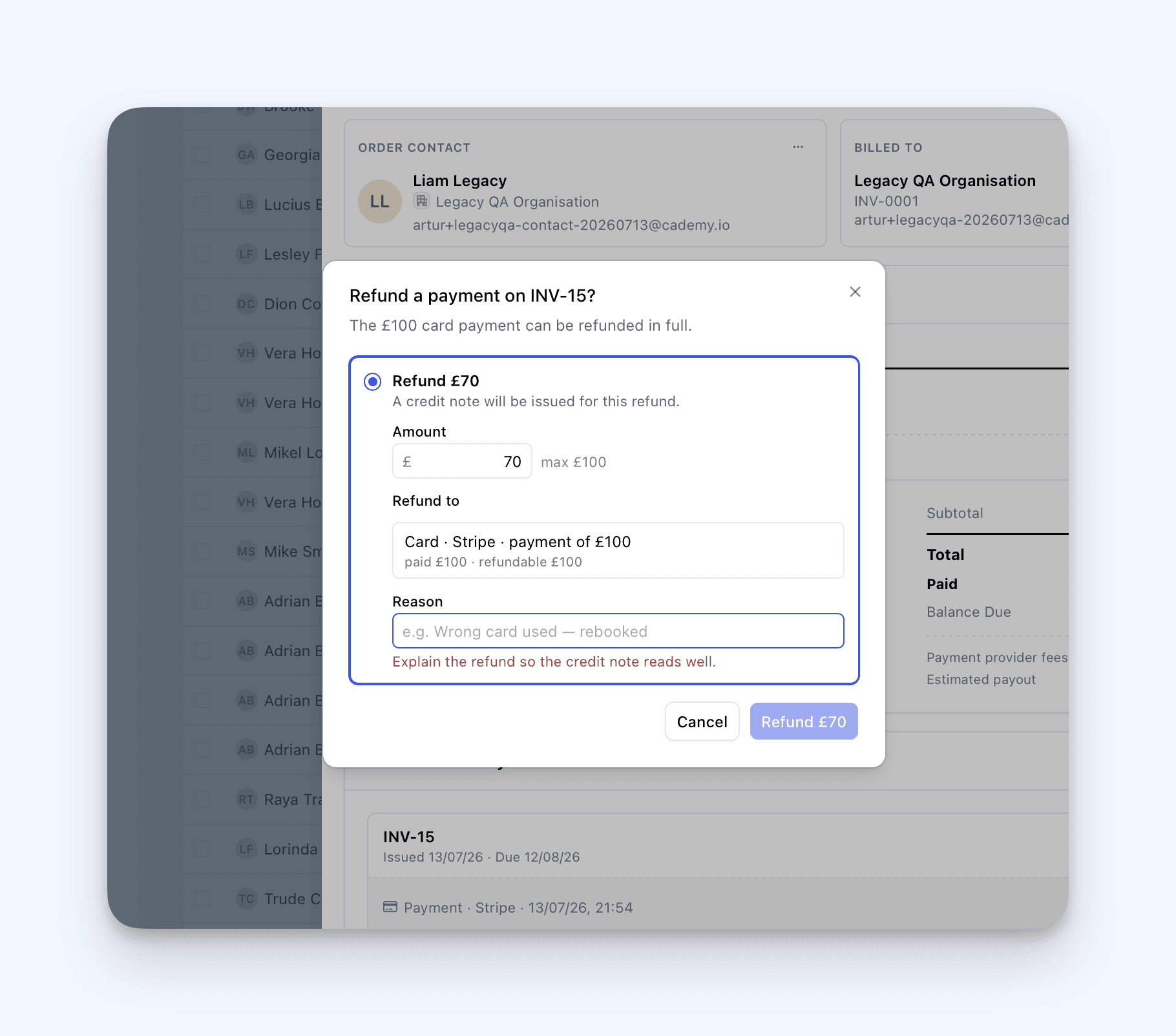
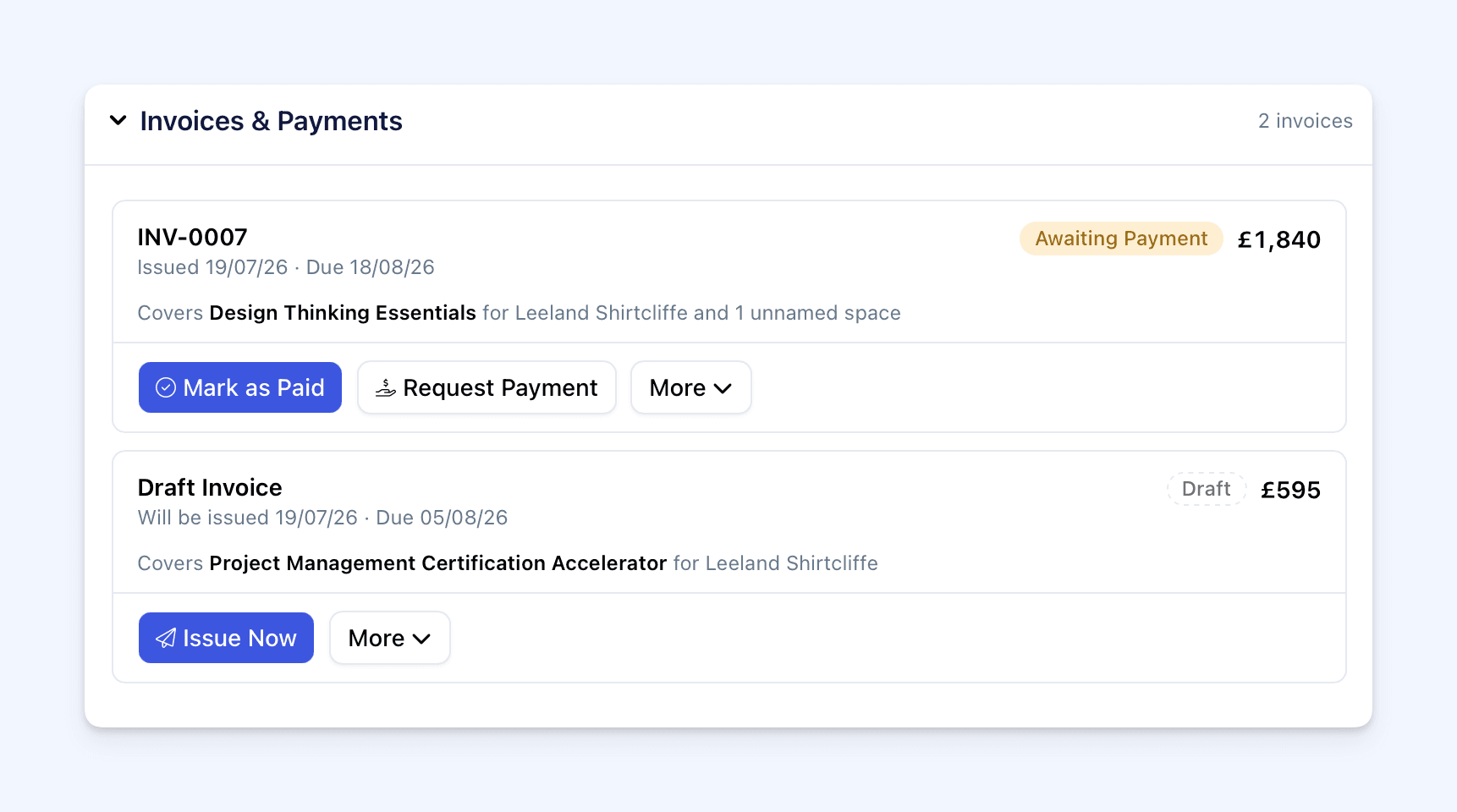
- A separate invoice for each course. When a customer books several courses in one order and pays by invoice, you can send one invoice for everything, or a separate invoice for each course. Each course's invoice is issued automatically a set number of days before that course starts.
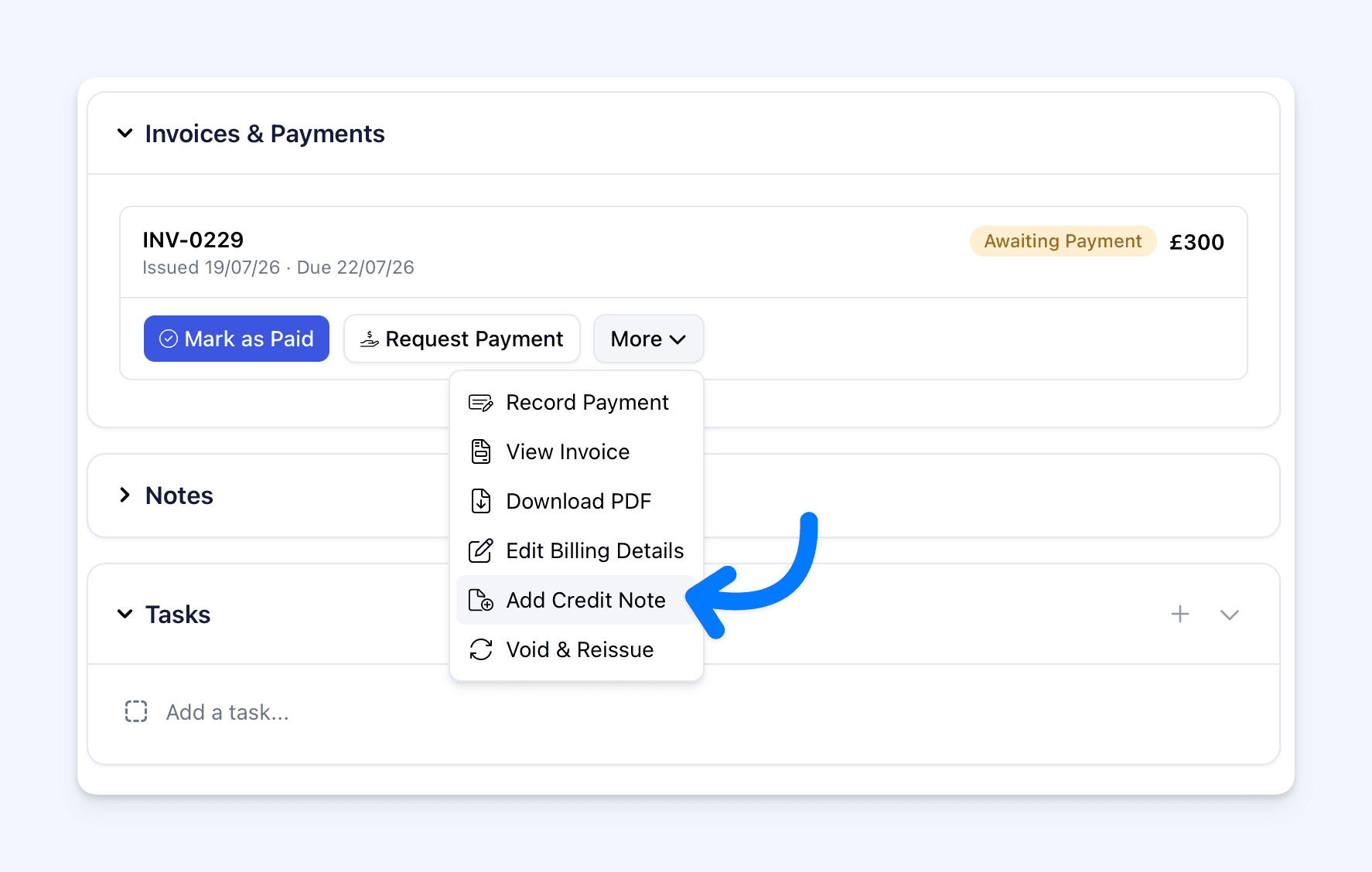
- Credit notes. When you refund a customer or reduce what they owe, Cademy creates a credit note - the record of that correction - and emails it to the customer as a PDF.
- Customer credit. Money you owe a customer can stay on their account as credit, and be used to pay their next invoice, instead of being refunded.
- An improved Xero integration. Each Cademy invoice now becomes its own invoice in Xero, and payments, credit notes, and cancellations sync too.
[IMAGE: the New Order document - keep the current hero screenshot here]
How it works
Orders. An order is one page that shows everything: who placed it, who pays, each participant and their price, and the invoices with their payments and refunds. You create, view, and edit orders on the same page. Before any change that affects money is applied, Cademy shows a preview in plain English of what will be charged, credited, or emailed.
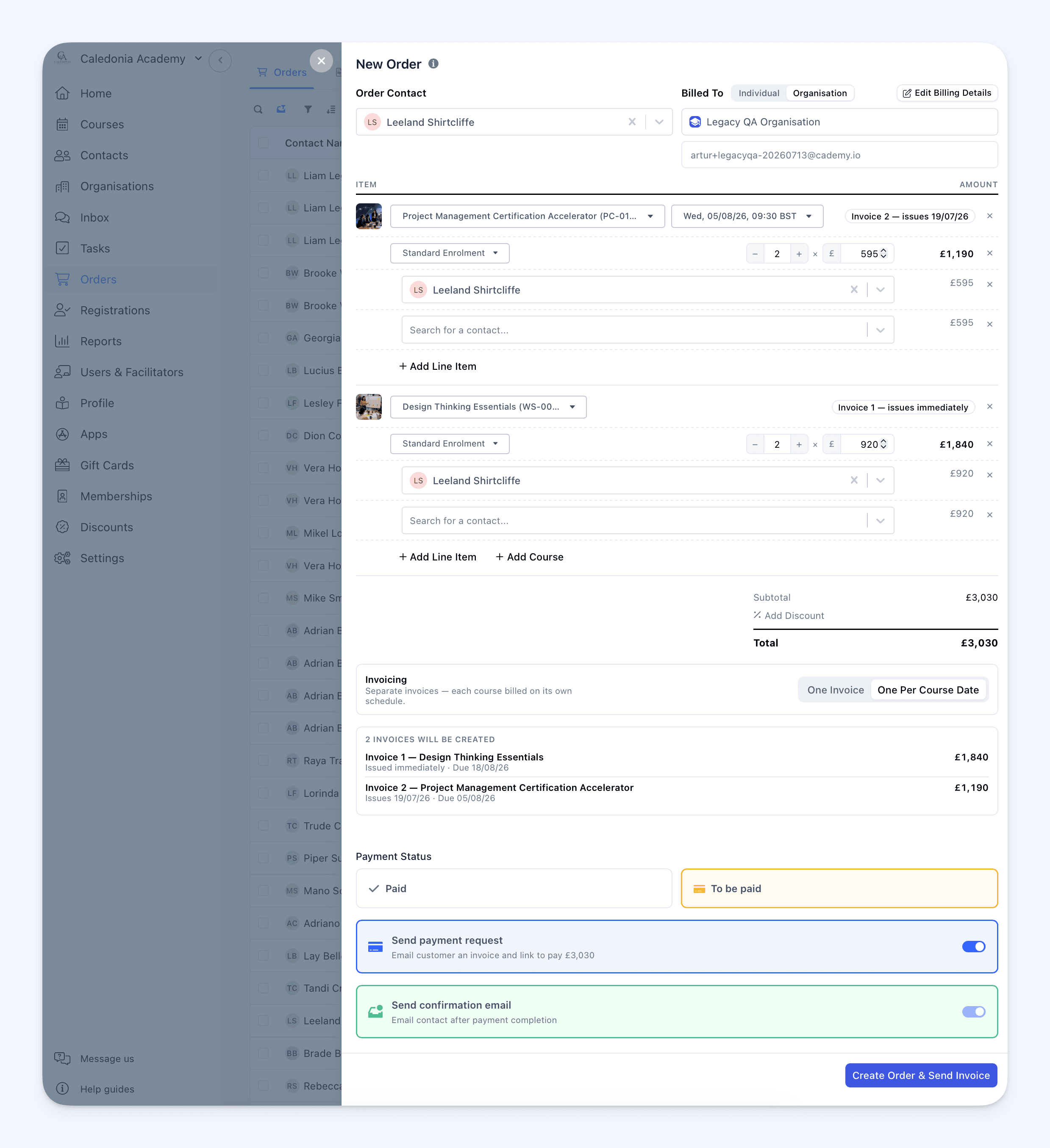
Payment links. Open an invoice and click Request Payment. You can copy the invoice's own link, which always collects whatever is still unpaid. Or you can create a link for a smaller amount - useful when a customer wants to pay part now and the rest later. When a partial payment comes in, the invoice shows as Partially Paid, and its link keeps collecting the rest. (How payment links work)
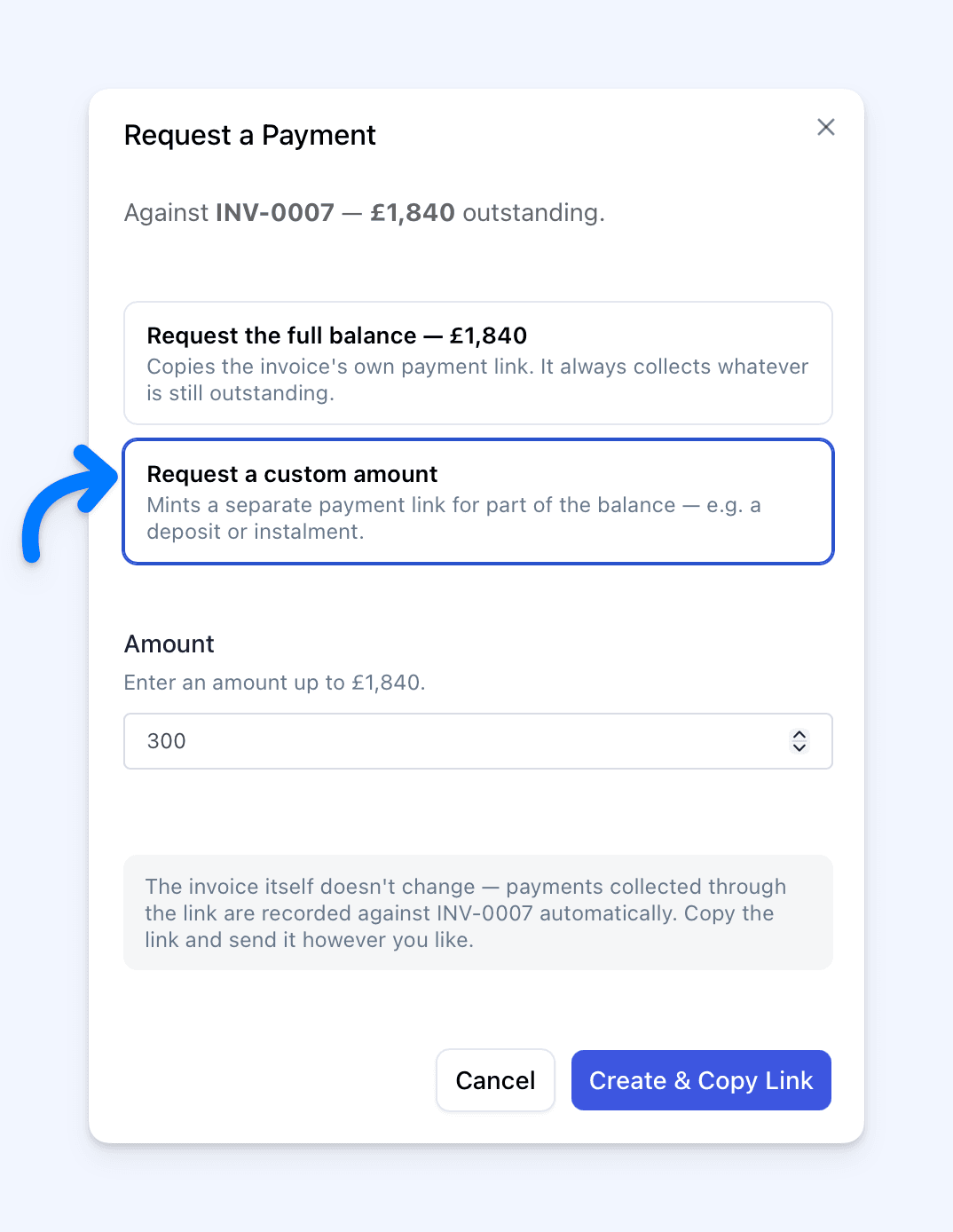
Refunds. Find the payment on the order, open its ⋯ menu, and click Refund. Choose the amount - all of it, or just part. Cademy asks for a short reason, which is shown on the customer's credit note. Card and PayPal refunds are sent back to the customer automatically. Payments you recorded manually are marked as refunded, and you transfer the money yourself. (Cancellations and refunds)
Cancelling an order. The cancel screen lists each invoice and what will happen to it. Unpaid invoices are voided. For each paid invoice, you choose: refund the money, keep it as credit on the customer's account, or keep it. The confirm button spells out the result, for example "Cancel Order & Refund £240".
Splitting an order into invoices. When a customer books several courses in one order and pays by invoice, you choose: one invoice for the whole order, or one invoice per course. With one per course, the first invoice is sent when the order is placed, and each later invoice is sent automatically a set number of days before its course starts. (Split and scheduled invoices)
Editing an order. You can change an order after it is created: add or remove people, change prices, add discounts, change VAT. If an unpaid invoice needs to change, Cademy voids it and issues a new one with a new number. The old payment link redirects to the new invoice, so a customer with an older email can still pay. (Editing an order)
Credit notes and customer credit. Every refund or reduction is recorded on a credit note, which the customer receives by email as a PDF. If you choose to keep money as customer credit instead of refunding it, that credit shows on the contact or organisation, and you can apply it to any of their unpaid invoices. (Credit notes and customer credit)
Xero. Every Cademy invoice becomes its own invoice in Xero, and payments sync at their real amounts. Refunds, credit notes, and cancellations sync too. (Xero)
Good to know
- Your customers' checkout has not changed.
- Payment pages now live on your own minisite address. Old payment links redirect automatically, so nothing your customers already have will break.
- Your existing orders are shown in the new format too, with their invoices and payment history in place.
- If you handle payments outside Cademy (manual payment handling), that works as before. You also get invoice records in your admin area, a Record Payment button, and a one-click Mark as Paid. None of these email your customer. (Manual payment handling)
- Invoicing and manual payments are available on Pro plans and higher. The Xero integration is available on the Teams plan.
Where to find it
In your Admin dashboard, go to Orders. The four tabs at the top - Orders, Invoices, Payments, and Credit Notes - are the billing area. There is a help guide for each part:
- Invoices & receipts
- Creating orders manually and requesting payment
- Editing an order
- Payment requests and partial payments
- Split and scheduled invoices
- Credit notes and customer credit
- Cancellations and refunds
- Xero
Frequently asked questions
Do I need to do anything? No. Everything is already live, and new orders use it automatically.
Can I refund part of a payment? Yes. Open the payment's ⋯ menu, click Refund, and enter the amount. You can refund anything up to what the customer paid.
Can I take a refund back to the customer's card? Yes, for card and PayPal payments - the refund is sent back automatically. For payments you recorded manually, Cademy records the refund and you transfer the money yourself.
What happens when I cancel an order the customer has paid? You choose, per invoice: refund the money, keep it as credit on the customer's account, or keep it. Nothing happens until you confirm.
Can a customer pay part of an invoice now and the rest later? Yes. Create a payment link for the first amount. When it is paid, the invoice shows as Partially Paid, and its own link collects the rest.
Does my customers' checkout change? No. Checkout is the same. Payment pages now live on your minisite address, and old links redirect automatically.
What about my existing orders? They are shown in the new format too, with their invoices and payment history in place.
I take payments outside Cademy. Does this affect me? No. Manual payment handling works as before. You also get invoice records, Record Payment, and Mark as Paid - none of which email your customer.
Which plans include this? Invoicing and manual payments: Pro plans and higher. Xero integration: Teams plan.