
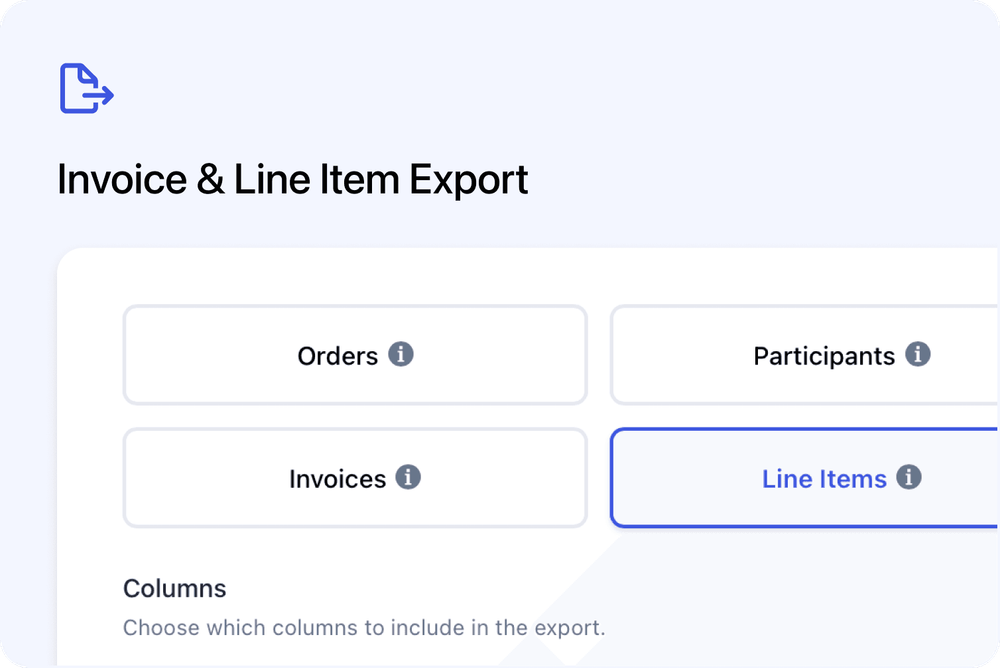
Finance reporting often needs two different views of the same data: one row per invoice for totals and payment status, or one row per invoice line for detailed course and course-date analysis.
You can now create both from any Orders table in Cademy. Your current filters and saved views determine what is included, so you can turn the exact records you are working with into an accounting-friendly CSV.
Choose what each row represents
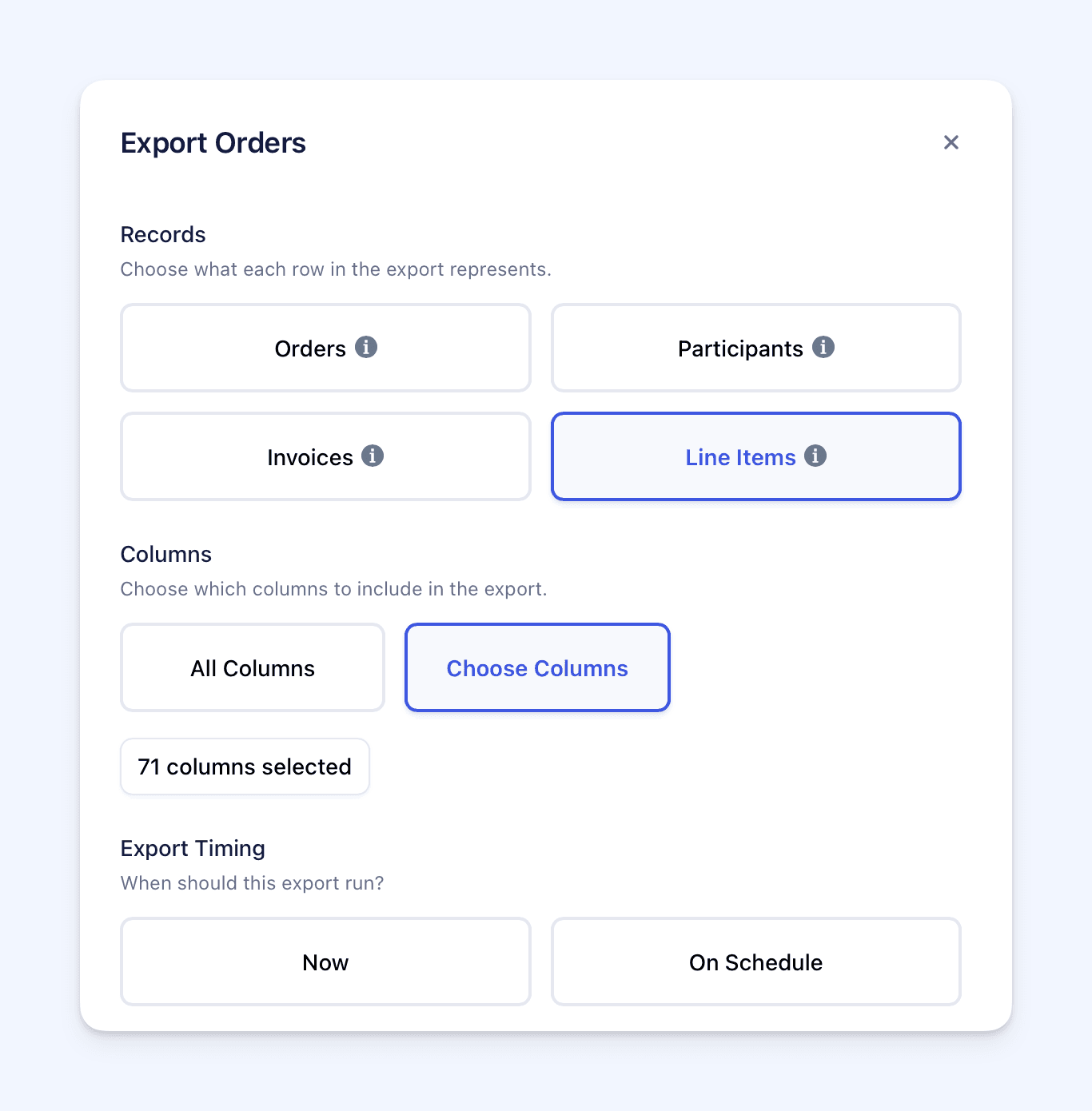
Open Export from an Orders table and choose what each row in the CSV should represent:
- Orders - one row for each Order
- Participants - one row for each participant on an Order
- Invoices - one row for each invoice linked to the matching Orders
- Line Items - one row for each invoice line linked to the matching Orders
Invoice exports
Choose Invoices when you need one row per invoice, including its customer details, dates, payment status and full totals.
If an Order has several invoices, each invoice gets its own row. Draft and void invoices can also be included and are identified by the Status column. Orders without an invoice do not add an empty row.
Line Item exports
Choose Line Items when you need a more detailed breakdown. Each row represents one invoice line and can include the invoice details, customer, description, course, course date, spaces, VAT and line amounts.
This is useful when finance or operations teams need to analyse revenue by course or course date rather than only reviewing the invoice total.
Keep the scope you are already working with
Invoice and Line Item exports use the filters from the Orders table. This includes saved views and filters such as course, course date, payment status, contact and tags.
The new options are available from:
- the main Orders page
- a course's Orders tab
- the Orders view for a specific course date
Course and course-date filters work differently for the two export types:
- Invoices includes the complete invoice when at least one line matches the selected course or date. The row keeps the invoice's full totals, including any lines for other courses or dates.
- Line Items includes only the individual lines that match the selected course or date.
For example, if one invoice contains Course A and Course B, an Invoice export filtered to Course A includes the whole invoice. A Line Item export using the same filter includes only the Course A lines.
This lets you choose between complete accounting totals and a precise course-level breakdown.
Choose columns or schedule the export
For Invoice and Line Item exports from Orders, choose:
- All Columns to include the full set of available fields
- Choose Columns to select only the fields needed for the report
These two export types have their own invoice fields, so Visible Columns is not shown when exporting them from an Orders table.
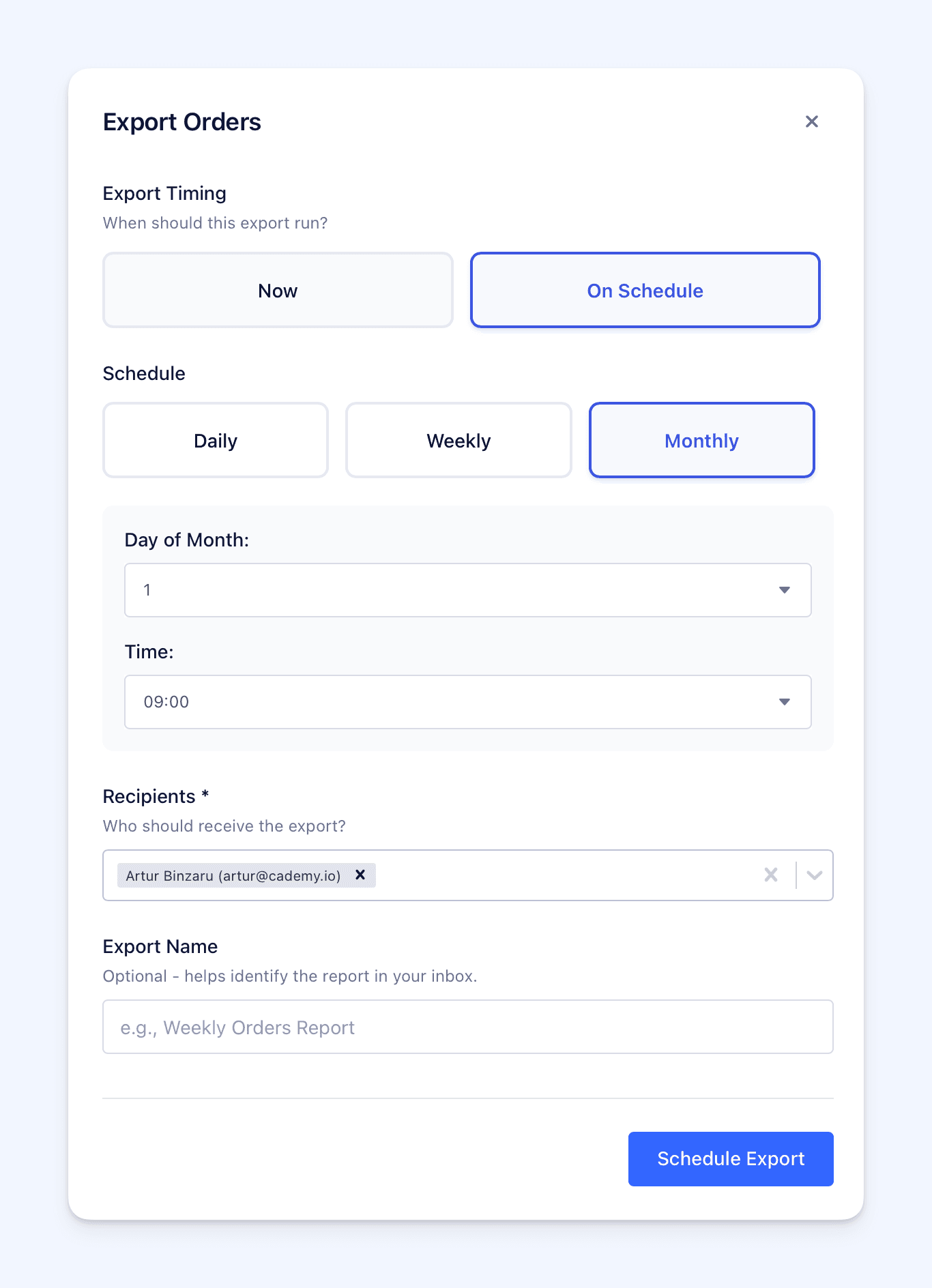
If your account includes scheduled exports, you can also select On Schedule and choose the frequency, recipients and export name. The saved schedule keeps the selected record type, filters and columns.
When an immediate export is ready, you can download the CSV directly from the dialog. Cademy also emails a copy, so you can close the dialog while a larger export is still processing.
Improved exports from the Invoices page
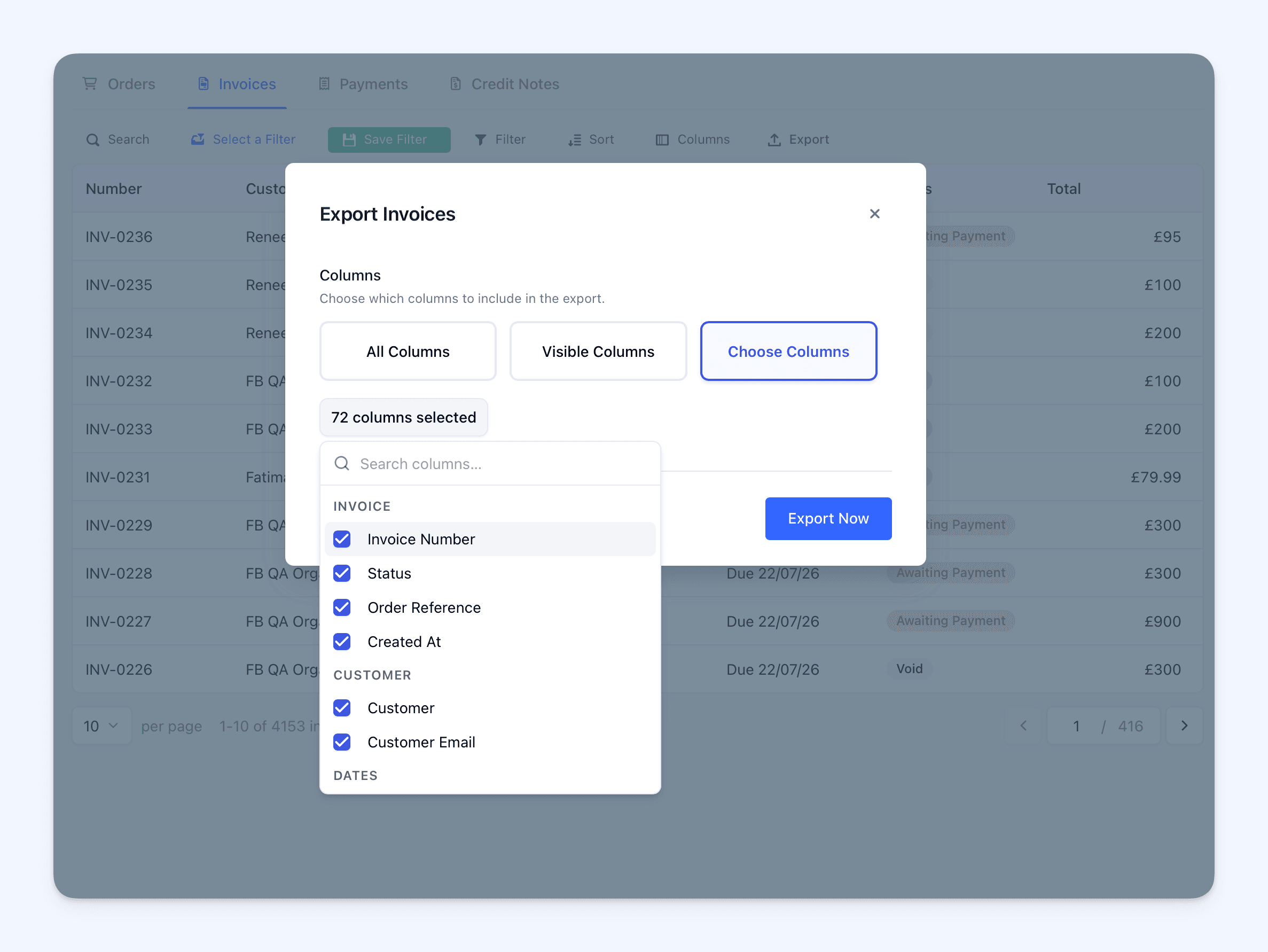
The standalone Invoices page also has more flexible column options. You can choose:
- All Columns
- Visible Columns
- Choose Columns
Visible Columns follows the invoice columns currently shown in the table. Scheduled exports are not offered from the standalone Invoices page.
Good to know
- Existing Orders and Participants exports continue to work as before.
- Filters and saved views determine what is included. Text entered in the Orders search box is not applied to the export.
- A course-scoped Line Item export may add up to less than the invoice total because unrelated lines and invoice-level adjustments are excluded from that scoped export.
- Scheduling is only shown where the account includes scheduled exports.
- This is an Admin dashboard update. It does not change checkout or anything customers and learners see.
Where to find it
To create an Invoice or Line Item export:
- Open Orders in the Admin dashboard, or open the Orders view for a course or course date.
- Apply any filters or saved view needed for the report.
- Click Export.
- Choose Invoices or Line Items.
- Choose All Columns or Choose Columns.
- Select Now or, where available, On Schedule.
For the complete guide to exports and scheduled exports, see Exporting Data and Scheduling Exports in Cademy.
Frequently asked questions
Should I choose Invoices or Line Items? Choose Invoices for one row per invoice with complete totals. Choose Line Items for one row per invoice line and a detailed course or course-date breakdown.
Why does my filtered Line Item export add up to less than the invoice total? A course or course-date filter includes only matching lines. Lines for other courses, other dates and invoice-level adjustments are excluded. Use an Invoice export when you need the complete invoice total.
Does the Orders search box limit the export? No. Use filters or a saved view to limit the exported records. Text in the search box is not applied.
Can I export only the columns visible on the Orders table? Not for Invoice or Line Item exports from Orders, because they use their own invoice fields. Use Choose Columns instead. Visible Columns is available on the standalone Invoices page.
Can I schedule Invoice and Line Item exports? Yes, from an Orders table when the account includes scheduled exports. Scheduling is not offered from the standalone Invoices page.
What happens if one Order has several invoices? Each qualifying invoice has its own row in an Invoice export. Its invoice lines each have their own rows in a Line Item export.
Are draft and void invoices included? They can be included when they belong to the matching Orders. Use the Status column to identify them.
Have the existing Orders and Participants exports changed? No. They continue to work as before.