
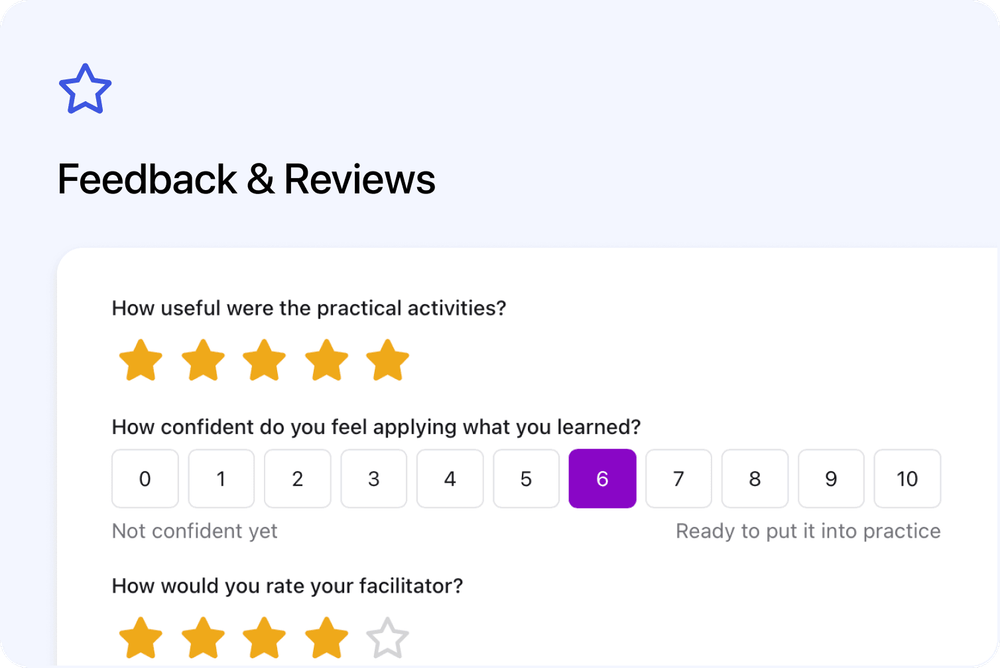
 Feedback and course reviews are now part of Forms, alongside Checkout and General forms.
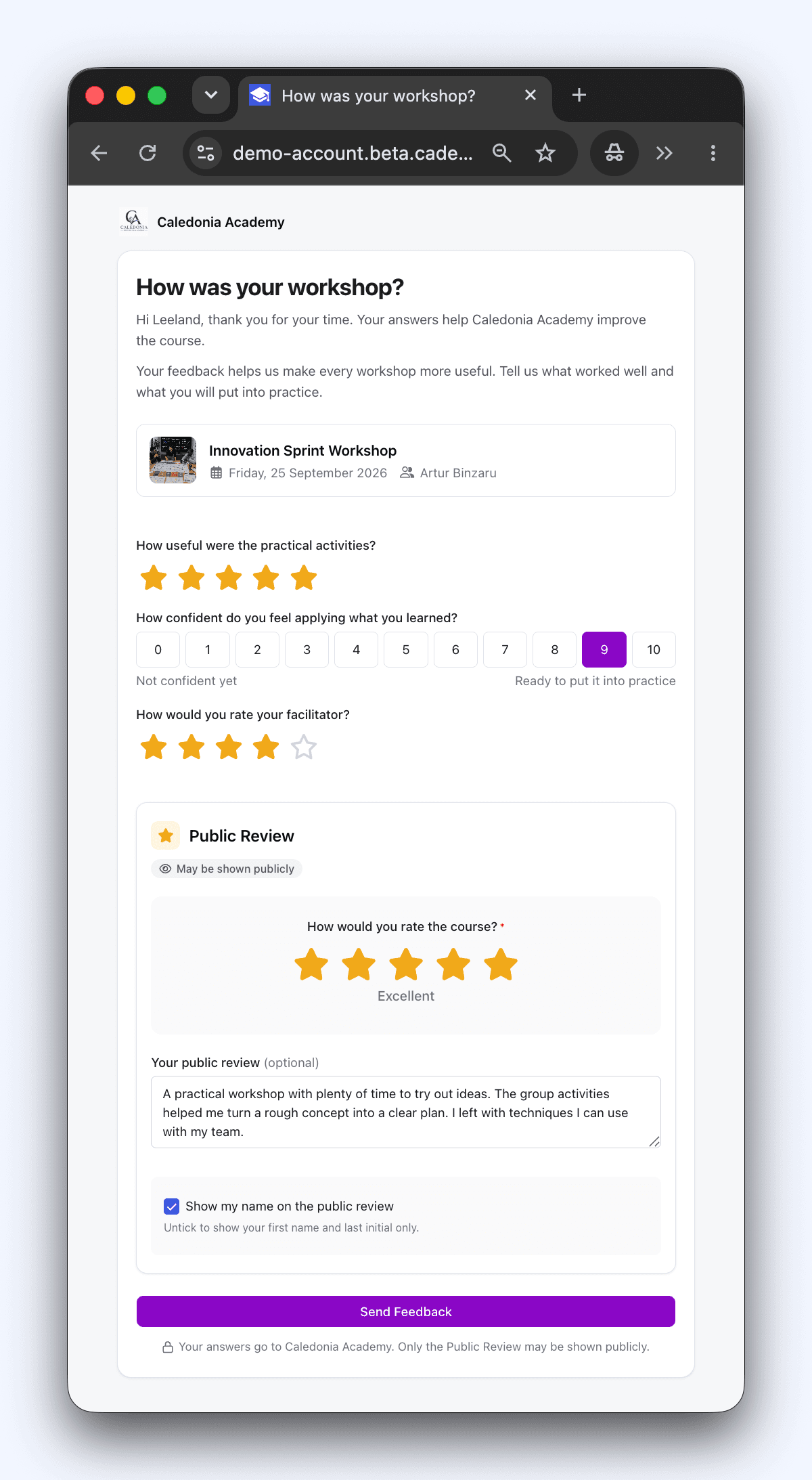
Participants can now answer your course feedback questions and leave a public review in the same form. Your team can manage the responses, choose which reviews to publish and export the results.
Custom feedback forms
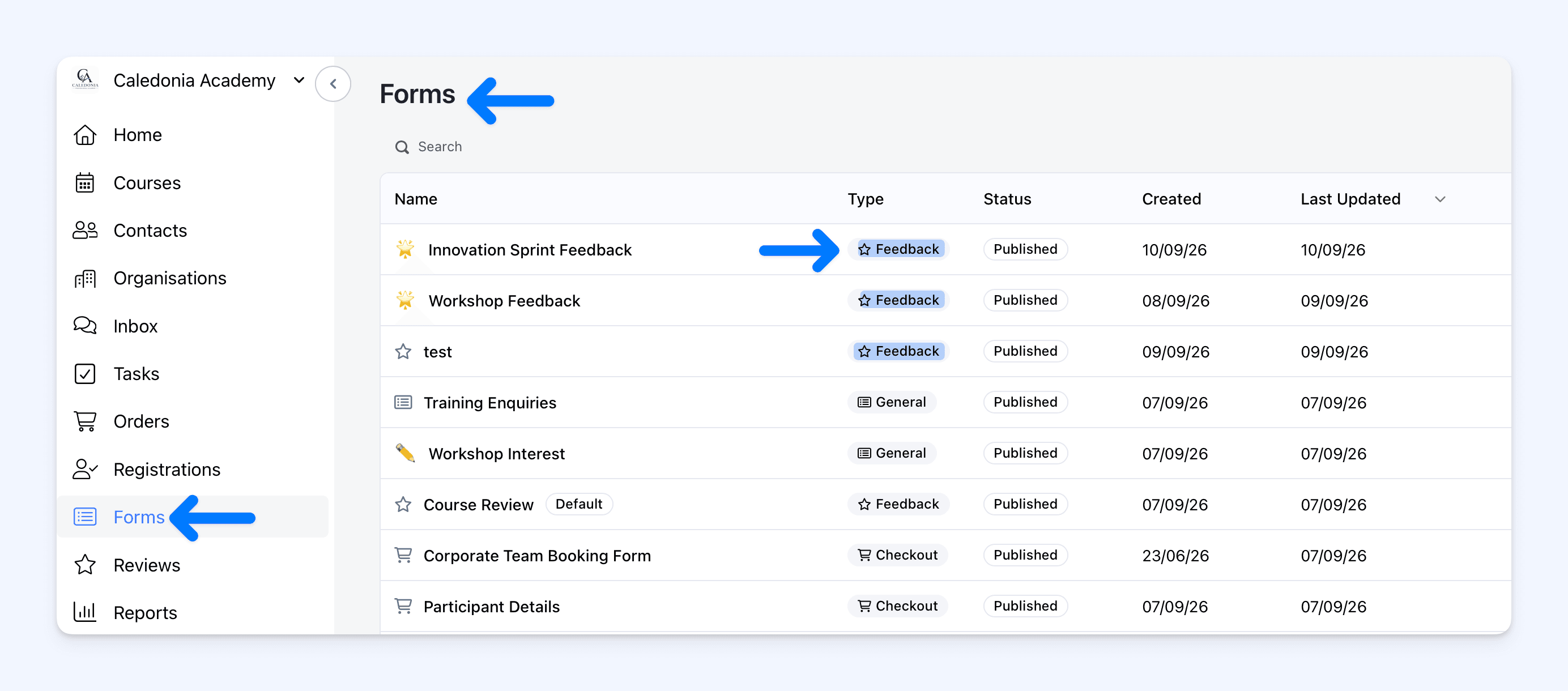 Create a questionnaire for your course. Ask questions such as “What was most useful?” or “What would you change?” Participants can write an answer or choose from options you provide.
You can change the title and introduction, arrange the questions and decide which answers are required. Use one form across your courses, or copy it and adapt the questions for a particular course.
You can also use Cademy’s ready-made Course Review form and add your own questions to it. Your existing reviews are kept under this form.
Star ratings and numbered scores
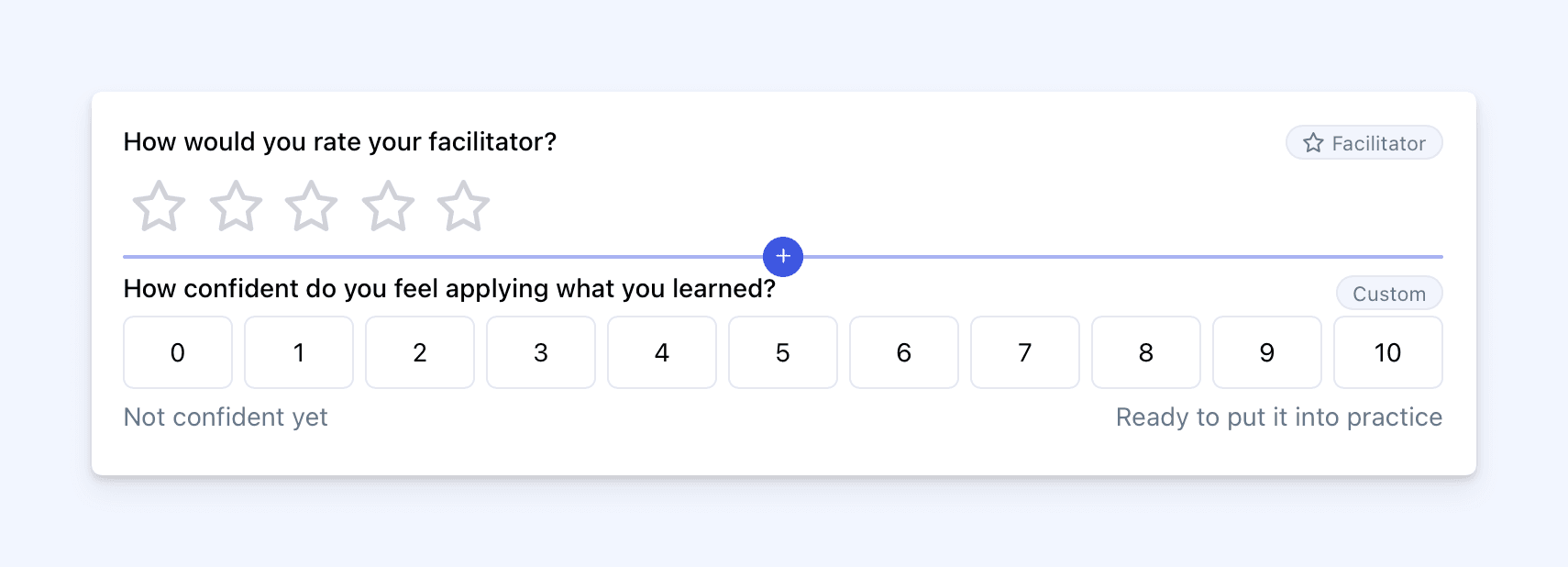 Two new question types let participants give a score:
- Rating: one to five stars, for questions such as “How useful were the practical activities?”
- Scale: a numbered range, such as 0 to 10. You can label the ends, for example “Not confident yet” and “Very confident”.
These question types are available on other Cademy forms too.
Feedback and reviews in one form
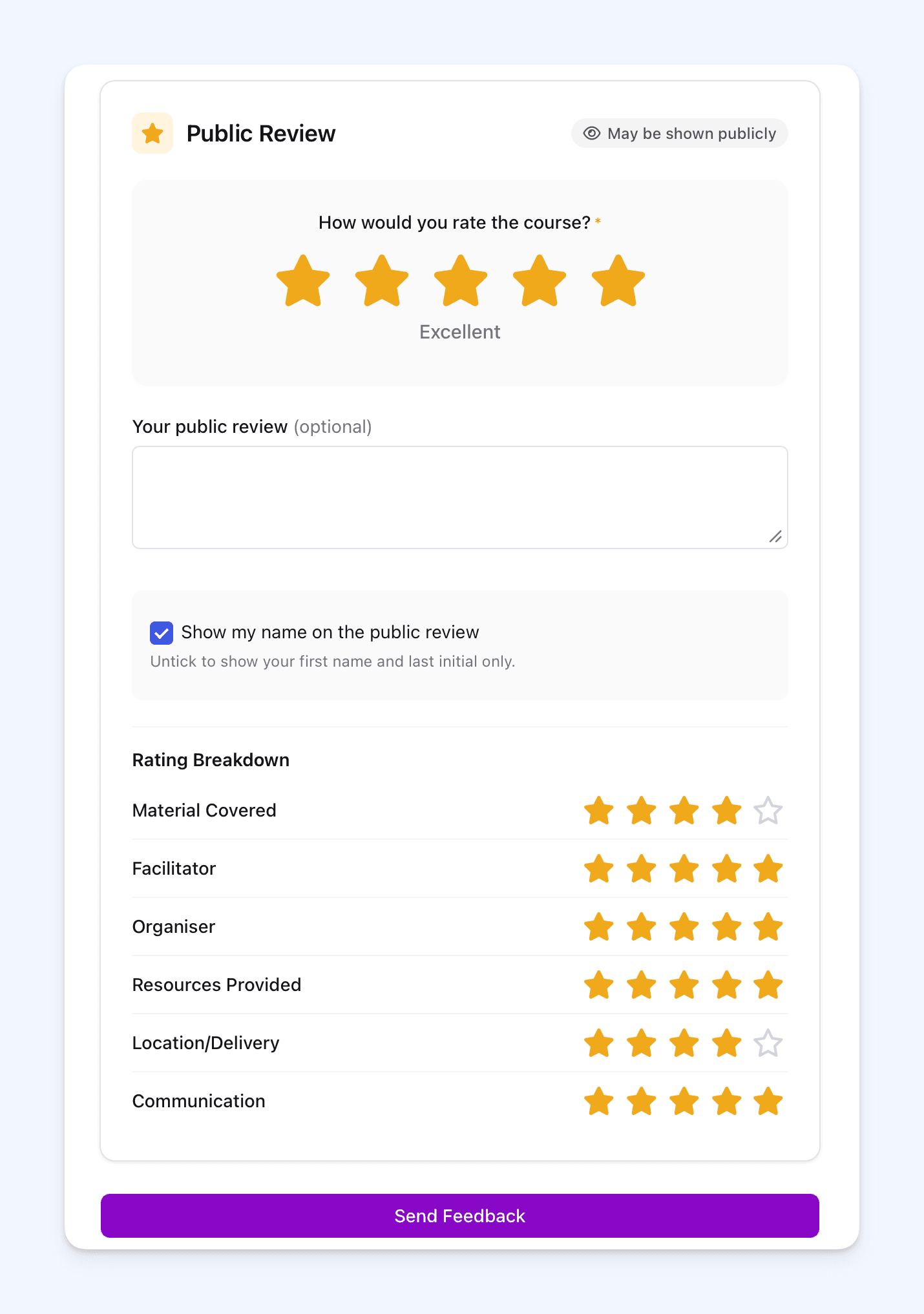 The answers to your custom questions are only visible to your team. You can also include a Public Review section in the same form, with an overall star rating and an optional written review for your course pages and provider profile.
This section can include six additional ratings covering areas such as teaching, materials and communication. Participants choose whether their public review shows their full name or their first name and last initial.
If you only want feedback for your team, you can leave out the Public Review section.
Automatic and manual feedback requests
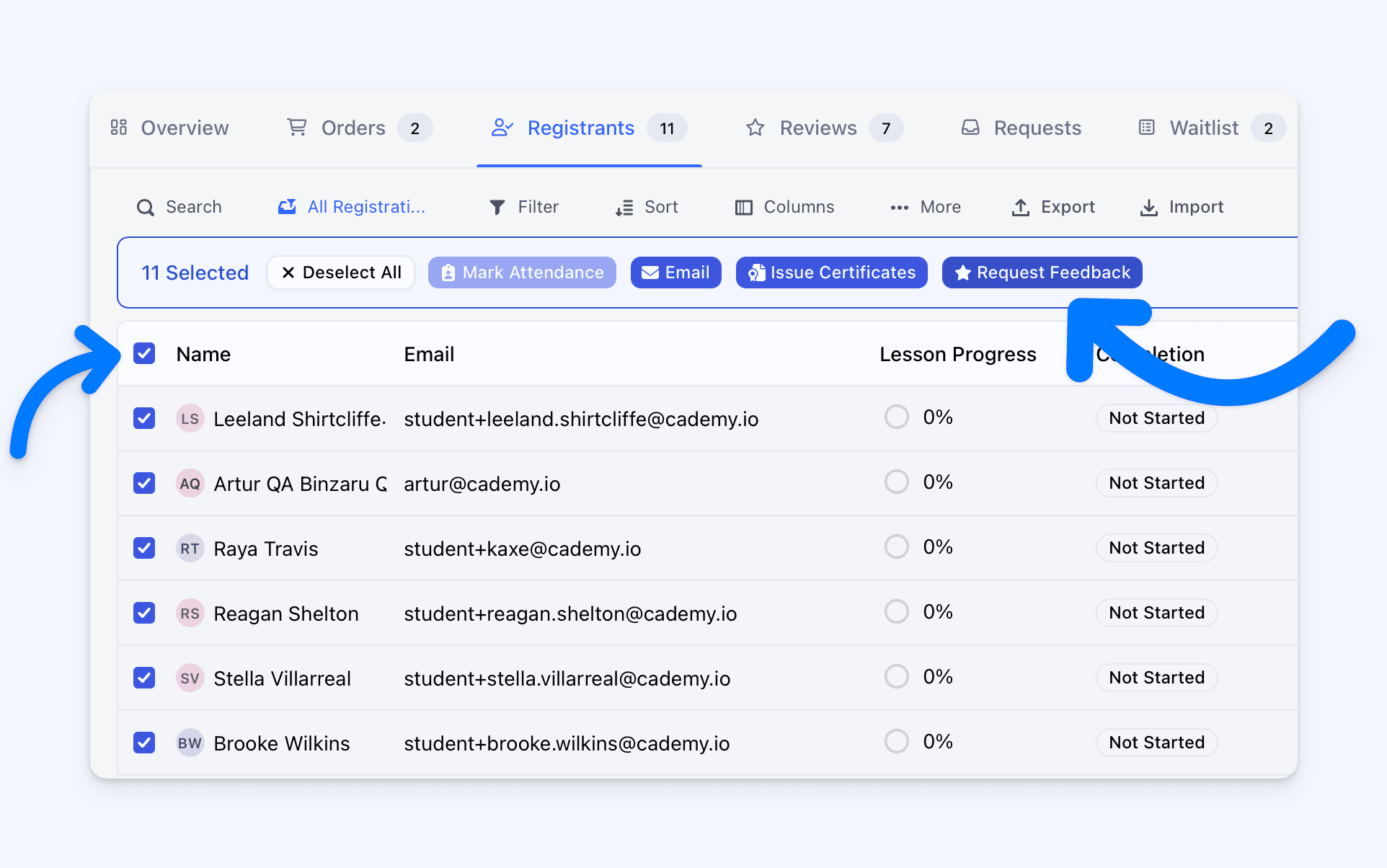 Cademy can ask for feedback automatically when a participant completes their course:
- Scheduled courses: after they are marked as attended for every required session.
- On-demand courses: after they complete all published online lessons.
- Blended courses: after both the required attendance and online lessons are complete.
Marking attendance a few days after the course can still send the automatic request.
You can also send requests yourself, to one participant or several at once, and resend unanswered requests. Each participant receives their own link and can answer without logging in. The request email can use your own wording.
For existing courses: emails that previously asked for a review the day after a session will instead be sent when the participant completes the course. Day-after emails without a review link keep their existing timing.
Approve, hide or republish reviews
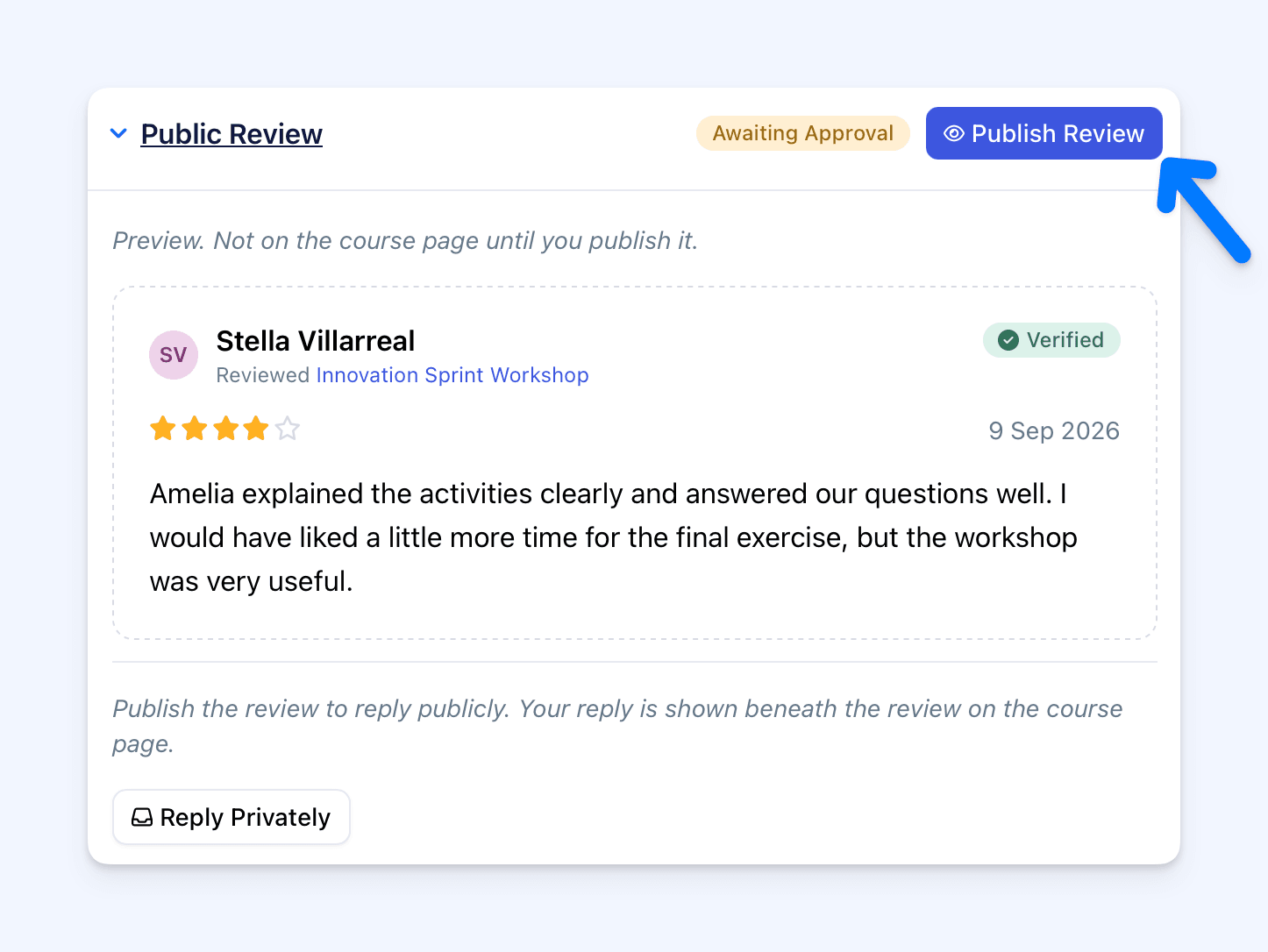 You can publish reviews automatically or approve them before they appear publicly. Hiding a review removes it from your public pages but keeps the response for your team. You can publish it again later.
You can set the usual publishing rule for your account and choose a different rule for individual courses. You can also decide whether someone needs a course booking to leave a review from its public page.
Manage feedback in your Admin dashboard
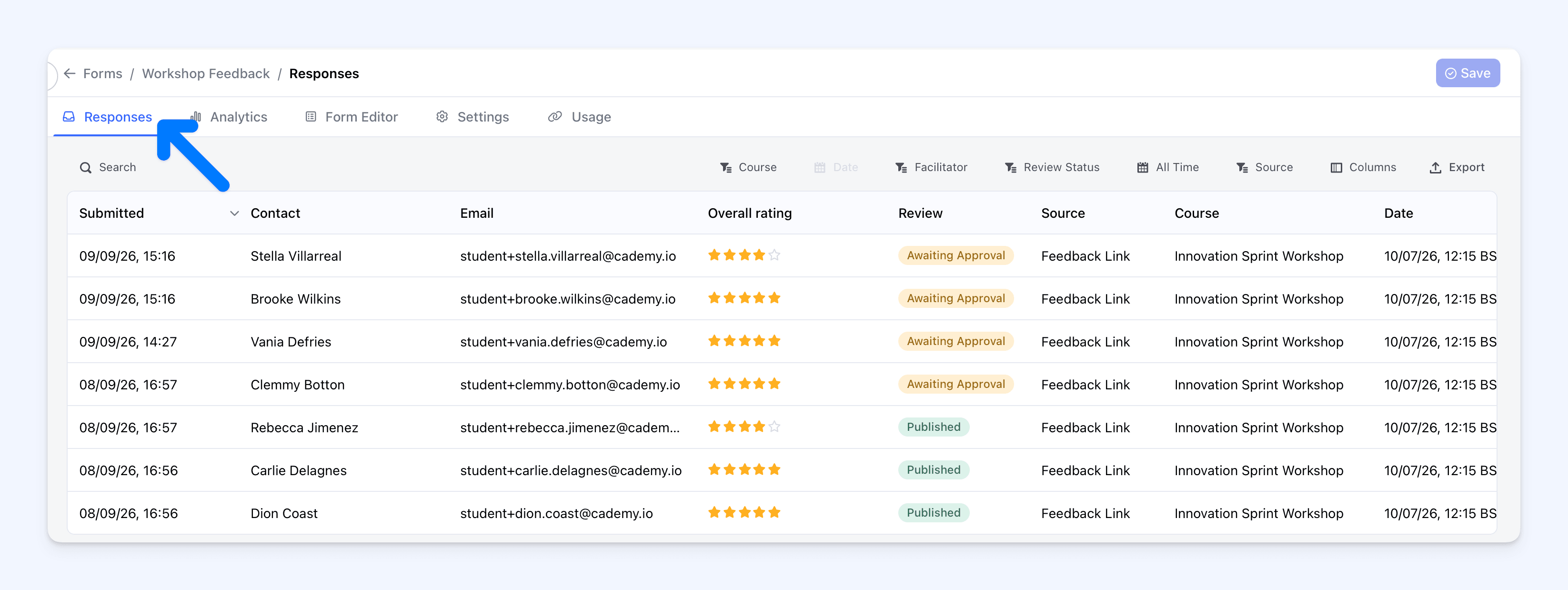 The Reviews page shows feedback across your account. Each course also has a Reviews tab. The course’s participant list shows who has been asked for feedback, who has responded, their rating and whether their review is published.
Your team can add internal notes and statuses to responses, such as “Needs follow-up” and “Done”, to keep track of what needs attention.
After someone submits feedback, Cademy can notify your team, send the participant a thank-you email and add their response to Inbox.
Reply to reviews
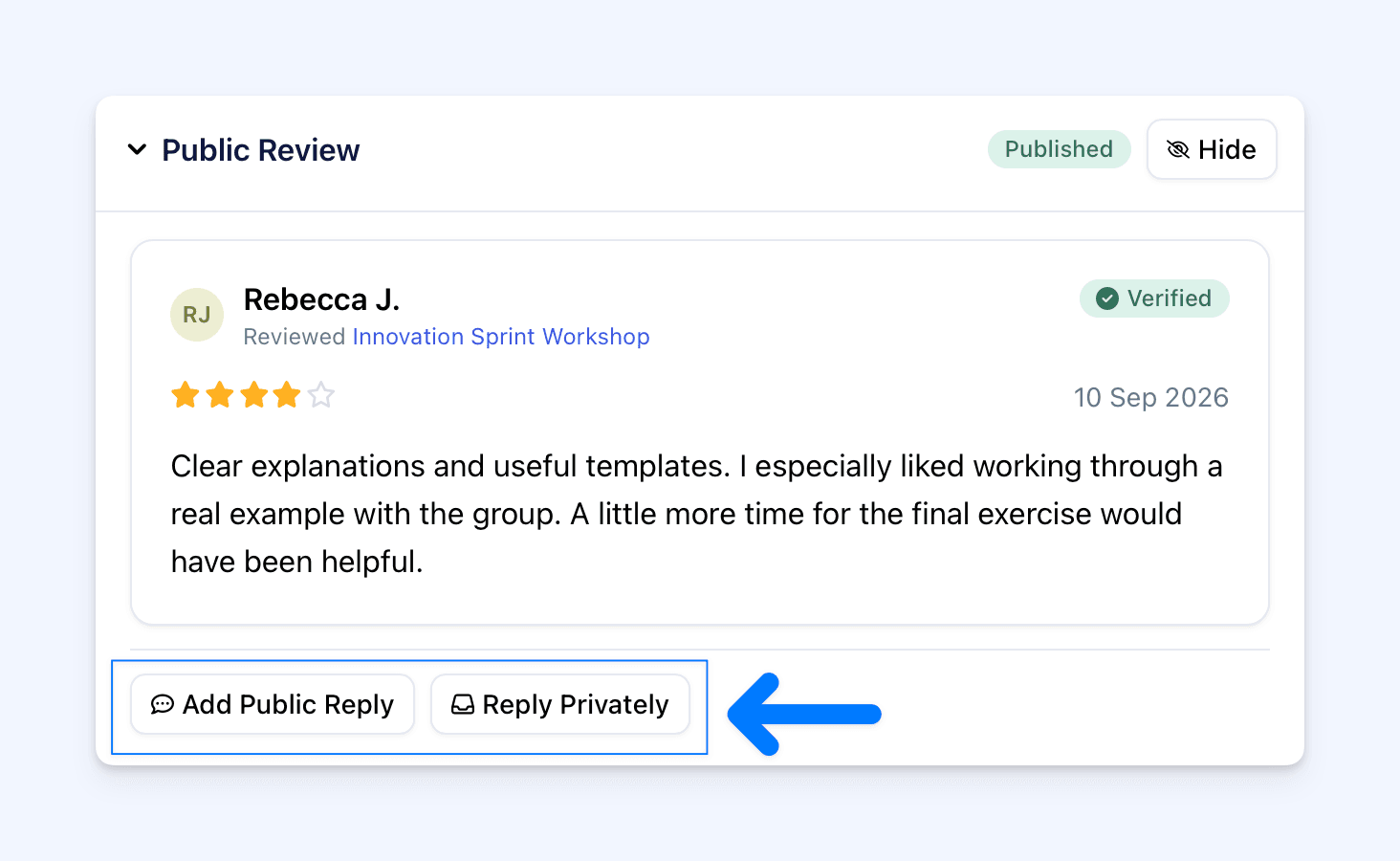 You can post a reply beneath a published review and edit it later. Other visitors can read it alongside the participant’s comments.
If you need to discuss something directly with the reviewer, Reply Privately opens a conversation with them in Cademy Inbox.
Facilitator feedback
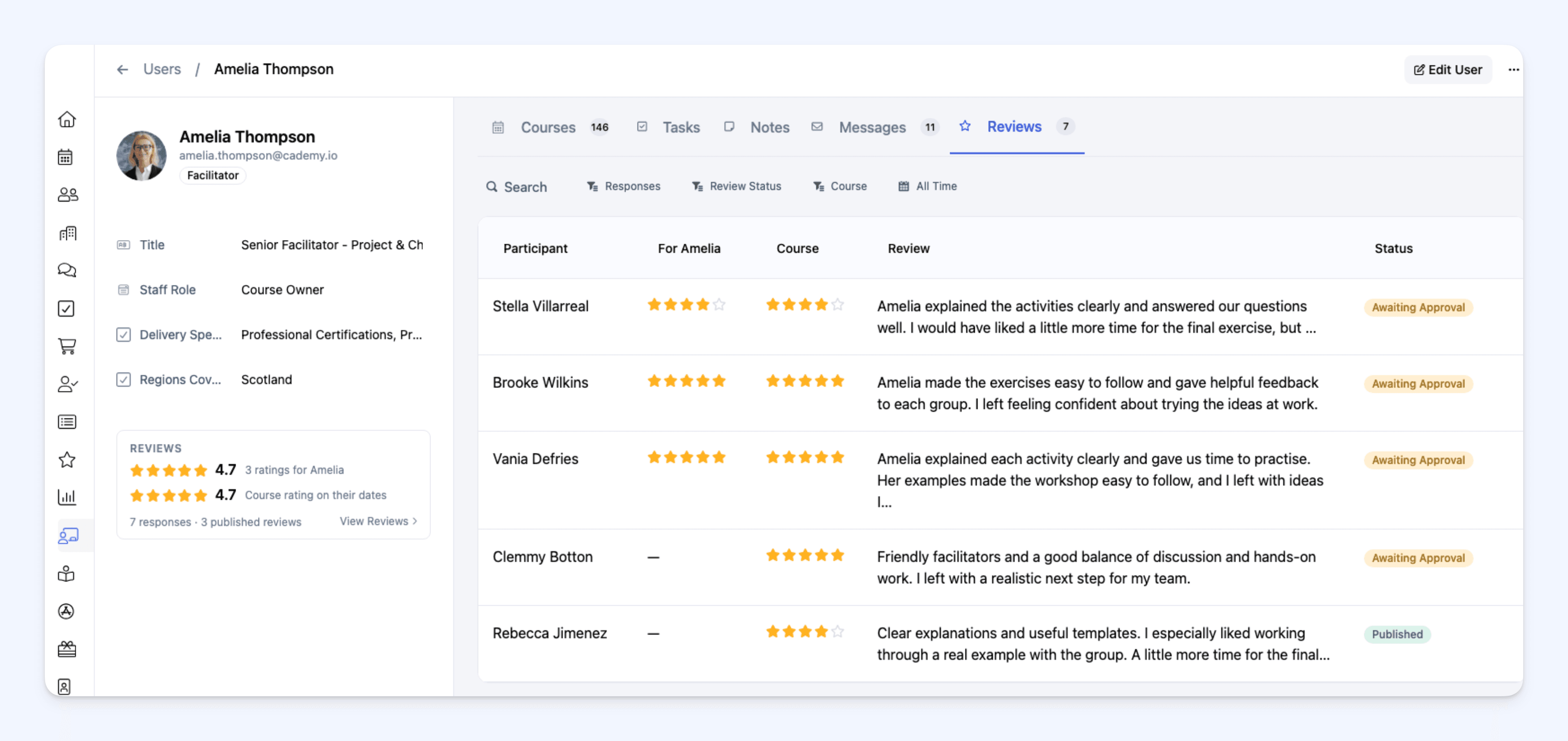 You can see a trainer’s rating alongside the overall course rating. In Cademy, the trainer or teacher delivering the course is called the facilitator.
Participants can rate the facilitator in the Public Review section, or answer a separate Facilitator Rating question for feedback that stays with your team. You only need one of these questions.
System Admins, who have full account access, can view these ratings and feedback from the course dates that person taught.
View and export responses
 See participants’ answers in a table, with a separate column for each question. Filter responses by course, course date or facilitator.
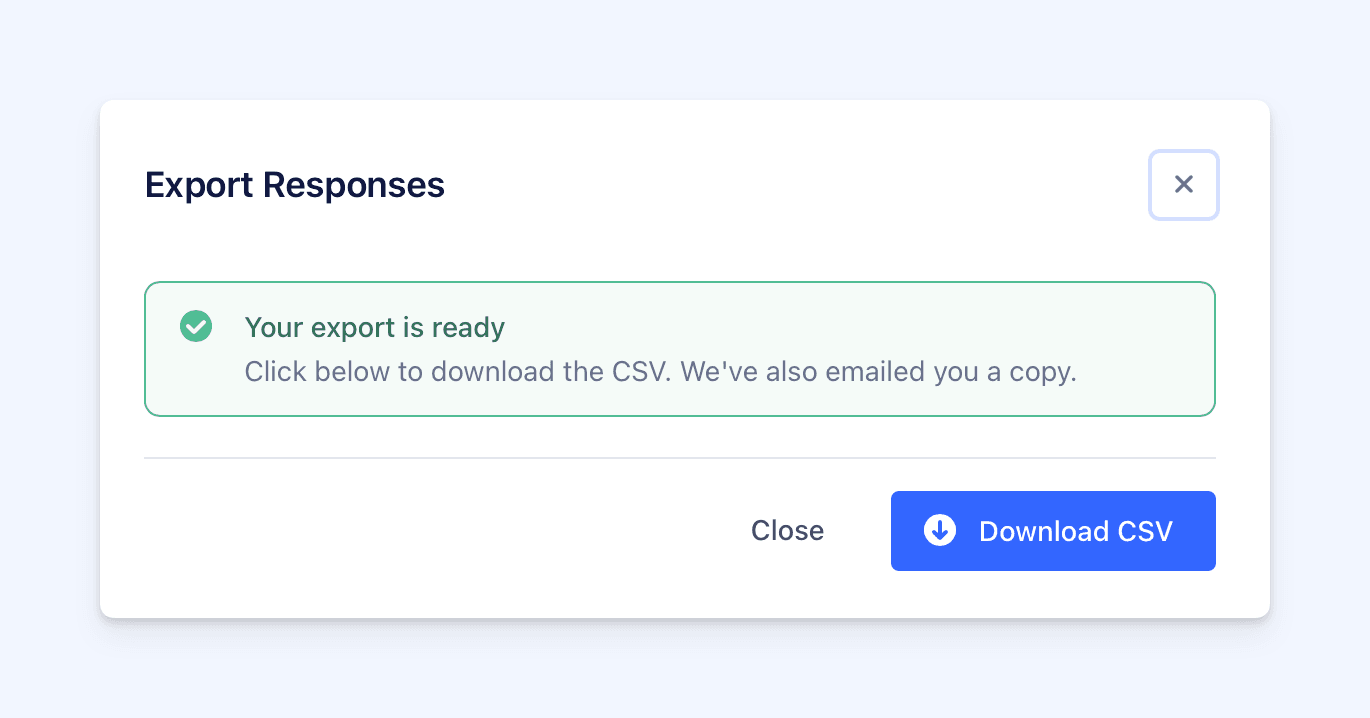
You can export a form’s responses or reviews from across your forms to a spreadsheet. Ratings and scores are exported as numbers for analysis in Excel or Google Sheets.
Form Analytics
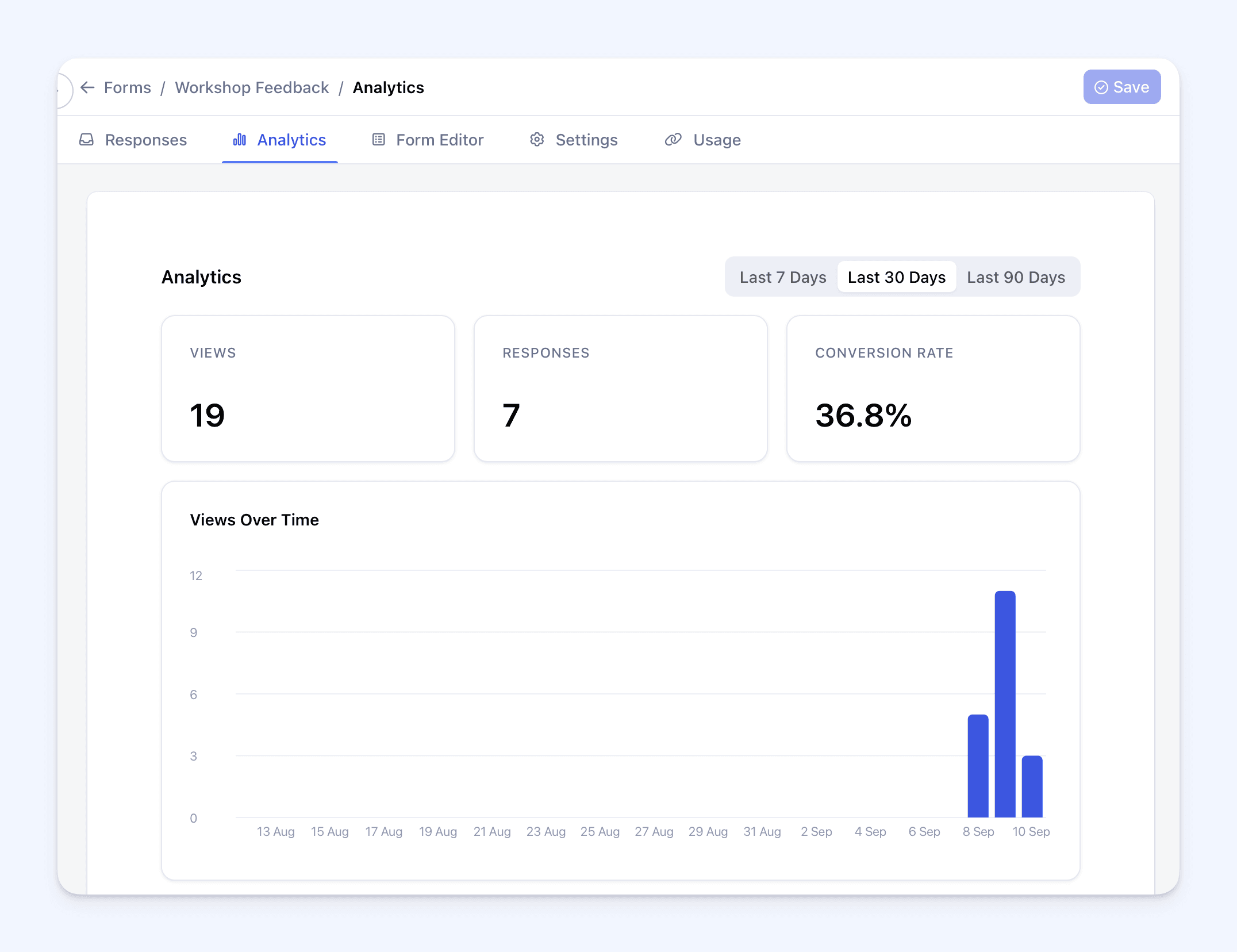 Each feedback form has an Analytics tab showing views, submitted responses and conversion rate: the percentage of form views that resulted in a response.
You can see totals for the last 7, 30 or 90 days, with daily charts showing how views, responses and conversion rate change over time.
Read the Forms: Feedback and Course Reviews help guide for setup instructions.