
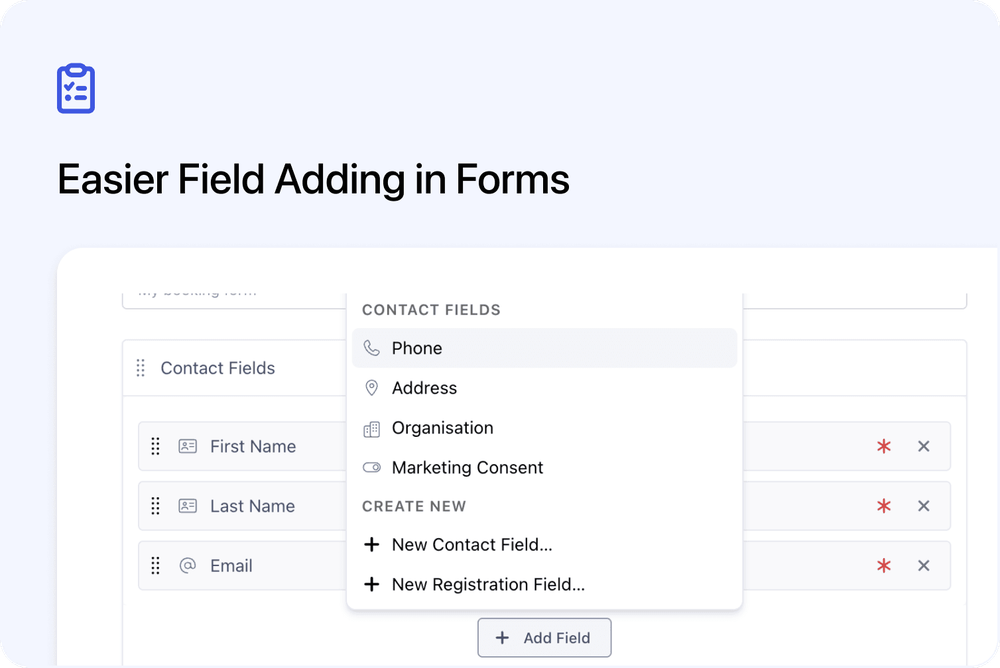
We’ve updated how fields are added to forms in the Admin dashboard.
The Add Field flow is now easier to search, easier to scan, and clearer when adding Contact, Registration, or Organisation fields.
Your existing forms and fields have not changed. This update only makes the setup experience easier.
What’s changed
🔎 Searchable Add Field menu
The old field picker has been replaced with a cleaner searchable menu.
When editing a form, you can now click Add Field and search for the field you need.
The search is more direct, so typing something like “phone” will only show fields with “phone” in the name.
This makes it much easier to find the right field when you have a longer list.
🧑 Contact and Registration fields in one place
In the Contact section, the button is now called Add Field.
From the same menu, you can now:
- Add an existing Contact field
- Add an existing Registration field
- Create a new Contact field
- Create a new Registration field
This means you no longer need to leave the form editor when you want to create a Registration field for the form.
➕ Create new fields from the form editor
The new menu includes clear options to create fields directly:
- New Contact Field
- New Registration Field
- New Org Field
When creating a new field, you first choose the field type, then complete the normal field settings.
The field is then added to the form as part of the same flow.
✅ Only valid field types are shown
When creating a Registration field or Organisation field, the type picker now only shows field types that are supported for that field.
This helps avoid choosing a field type that cannot be saved for that area.
For example, Organisation fields only show the field types that Organisation fields support.
🏢 Organisation fields use the same improved flow
The Add Org Field button has been updated with the same cleaner menu.
From there, you can:
- Search existing Organisation fields
- Add supported system Organisation fields
- Add custom Organisation fields
- Create a new Organisation field
This keeps the Organisation section clearer when building forms that collect organisation details.
🏷️ Clearer field setup
The field create and edit form has also been tidied up.
Label now appears before Internal Field Name.
This makes setup clearer because the customer-facing label is usually the first thing you want to define.
Why this matters
Adding fields to forms is now faster and less confusing.
You can search for the field you need, create new fields without leaving the form editor, and choose from clearer field options.
This is especially helpful if your account has many fields, or if you regularly build forms with Contact, Registration, and Organisation information.
Good to know
Existing forms are unchanged
Your current forms, fields, and checkout experience have not changed.
This update only improves the admin setup flow when adding or creating fields.
Where to find it
Go to:
Settings → Forms
Open a form and use Add Field or Add Org Field in the relevant section.