
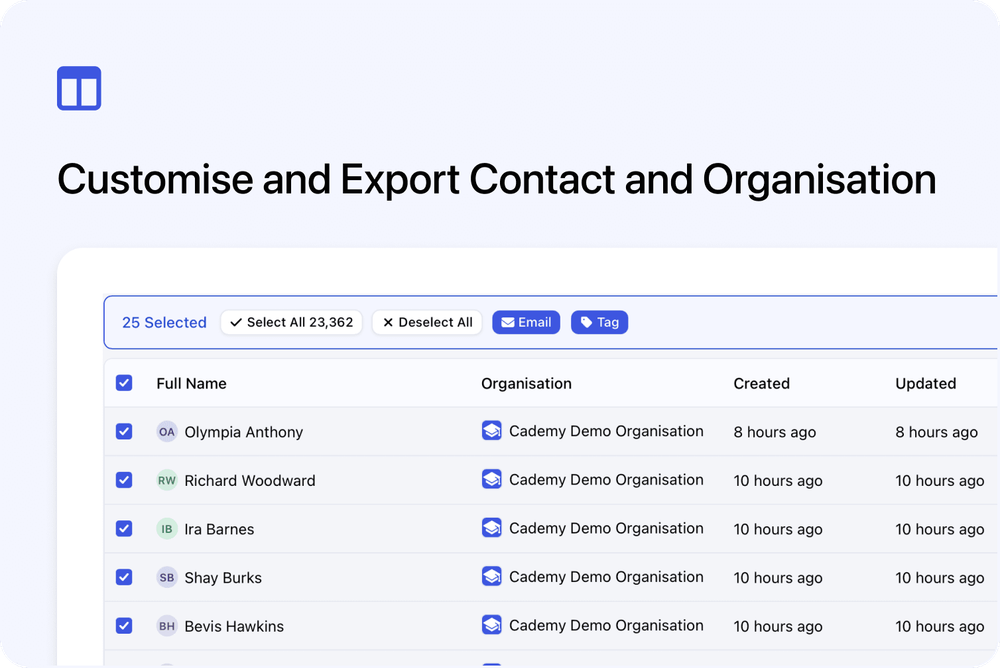
The main Contacts and Organisations pages are now easier to use, especially when you have a long list of people or organisations to manage.
Each page displays your records in a table. This simply means that every Contact or Organisation is shown as a row, while details such as names, email addresses, tags and dates are shown in columns, much like a spreadsheet.
These tables are now more flexible. You can choose which details appear, move and resize columns, sort the complete list and keep your preferred layout for the next time you return. Search, saved views and everyday actions are still available.
Choose what appears in your lists
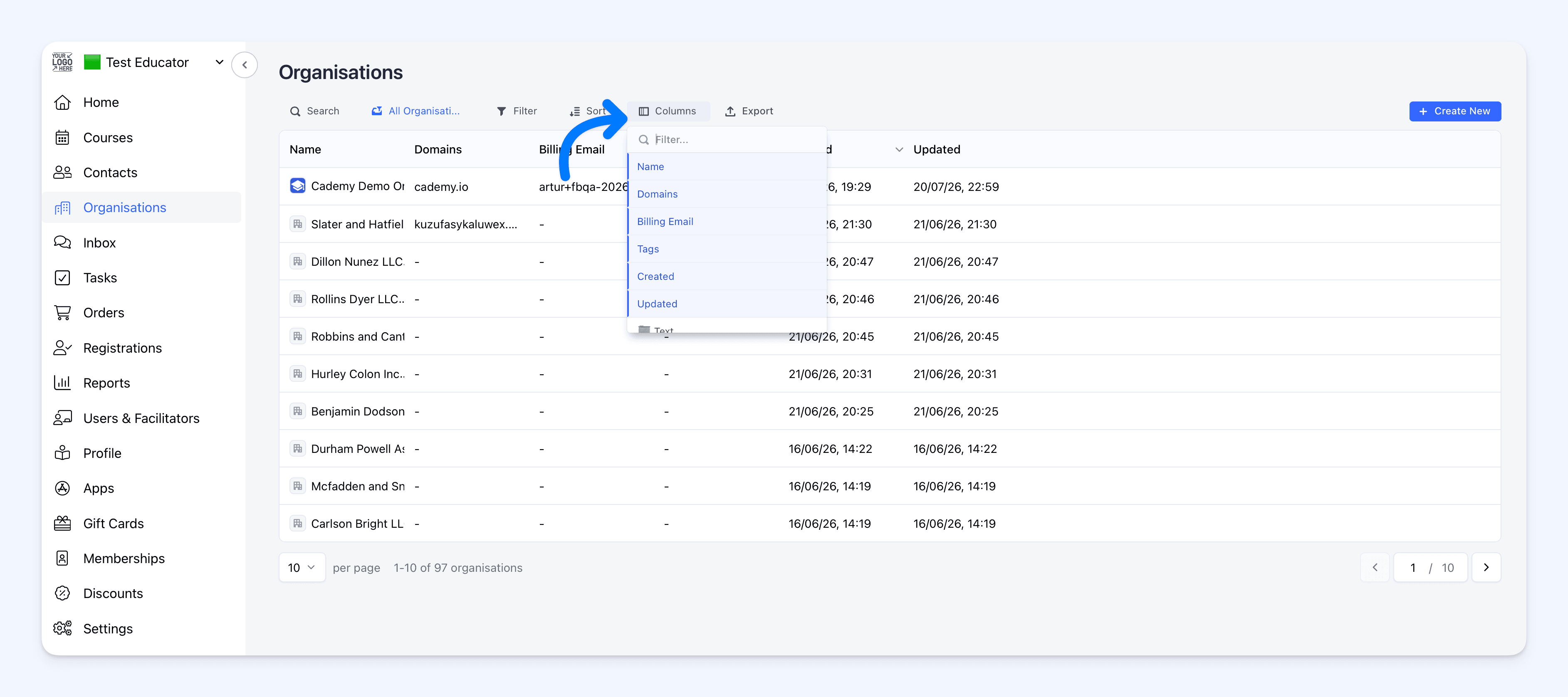 Select Columns to choose the information you want to see. Standard details and eligible custom fields can be added to the table whenever you need them.
You can then:
- drag columns into the order that suits your work
- resize columns to give important details more space
- use a column header menu to sort, move or hide that column
- choose how many records to show on each page
Cademy remembers your visible columns, their order and width, and your chosen page size. If you had already customised either list before this update, your previous column choices carry over automatically.
This means less time rebuilding the same view and less scrolling through information you do not need.
Review large lists more easily
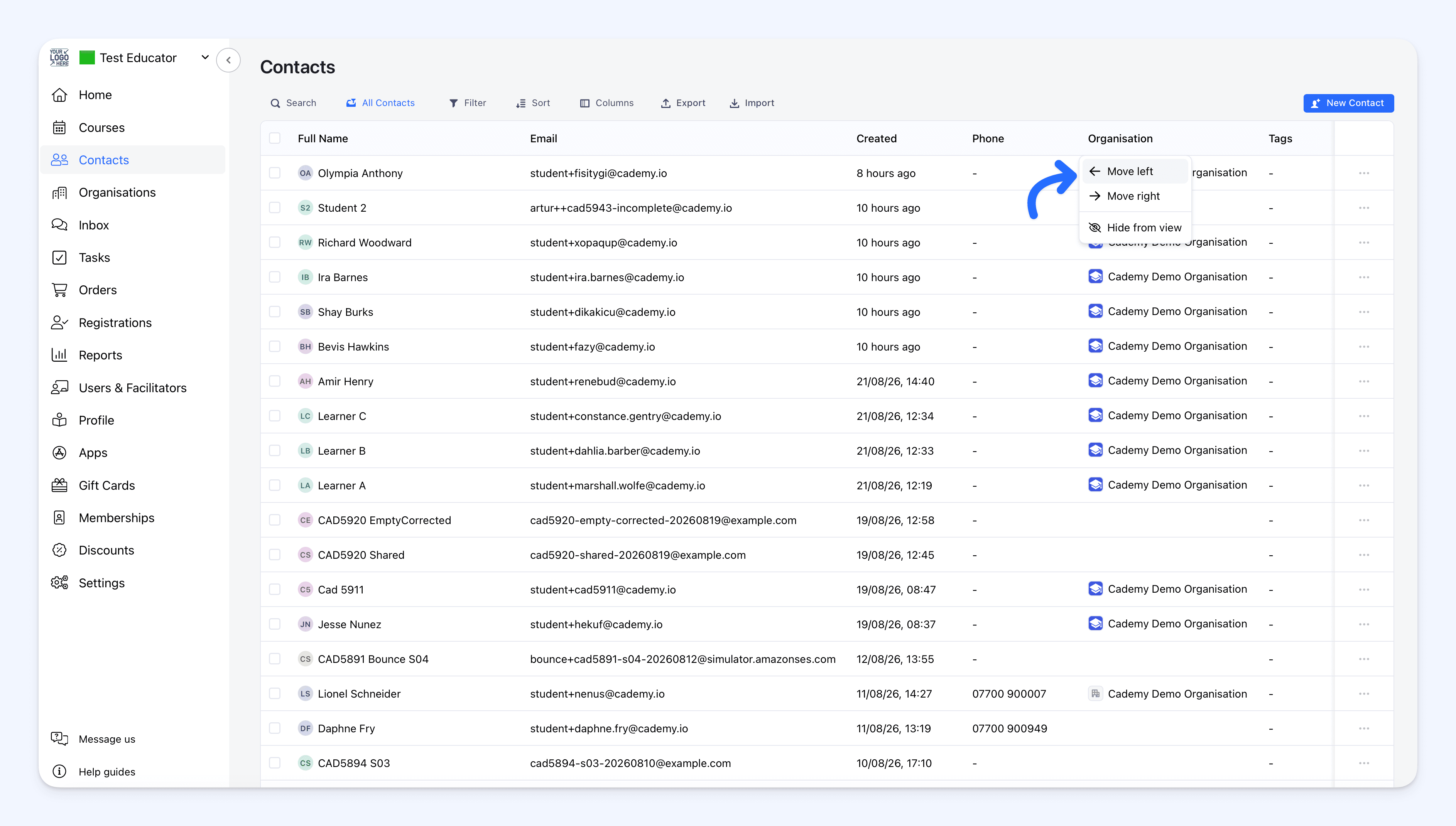 Sorting from a supported column header reorders the complete result set, not only the records on the current page. Search, saved views and consistent pagination make it easier to move between focused lists and your complete database.
On Contacts:
- Full Name, Email and Tags appear by default
- 25 contacts are shown per page by default
- a contact without a name is shown using their email address, so the row is still easy to identify
- the ... actions menu stays pinned at the right edge, even when the table is wider than the screen
On Organisations:
- Name, Tags and Created appear by default, with the newest organisations first
- tags appear as compact icons with their names available in a tooltip
- Created and Updated use clear relative dates, with the exact date available in a tooltip
- custom organisation fields become available from Columns
- valid web addresses in web-link custom fields open in a new browser tab
Keep everyday actions close
The refreshed tables keep the workflows you already use while making them easier to reach.
From Contacts, you can:
- open Quick Edit, View Contact, Email or Delete from the pinned row menu
- select every contact matching the current list and use the bulk Email or Tag actions across all result pages
- import contacts or create a New Contact
- copy a filtered and sorted Contacts URL to reopen the same view later
The same Contacts table is used on an organisation's Contacts tab. It shows only people linked to that organisation and keeps Add Contact and Remove from Organisation available without adding a redundant Organisation column.
From Organisations, select Create New to add an organisation, or open an organisation directly from its row. The organisation name is also a normal link, so you can open it in a new browser tab when needed.
Export the data you need
Select Export from either page and choose:
- All Columns for the complete export field set
- Visible Columns to match the data columns currently shown in the table
- Choose Columns to build a separate export layout
Visible Columns includes the data columns shown in the table, including visible date fields such as Created and Updated, and leaves out utility columns such as checkboxes and row actions.
With Choose Columns, you can tick the fields to include and arrange them in the order they should appear from left to right in the CSV. Cademy remembers that selection and order for your next export of the same data.
The export keeps the current saved-view filters and active sort. You can run it using Now, or choose On Schedule where scheduled exports are included in your account. Schedules can run daily, weekly or monthly.
Cademy prepares exports in the background, so you do not need to keep the page open. When an export is ready, it can be downloaded from Settings → Exports. Cademy also emails a copy to you, or to the recipients chosen for a schedule.
Why this matters
Contact and Organisation records often contain far more information than one task needs. The refreshed lists let each administrator bring the right details forward, keep useful layouts and work across every matching record without repeatedly setting up the page.
That makes everyday jobs such as reviewing records, preparing a targeted list, updating contacts and producing regular reports quicker and more consistent.
Good to know
- Your records have not changed: This update changes how Contacts and Organisations are displayed and managed, not the information stored in them.
- Your layouts are remembered: Column visibility, order, width and page size stay as you left them when you return.
- Previous column choices carry over: Existing table customisations are migrated automatically.
- Custom fields are supported: Eligible Contact and Organisation custom fields can be added from Columns and included in exports.
- Scheduled exports depend on account access: On Schedule appears only where scheduled exports are included.
- Customer-facing pages are unchanged: These improvements are for administrators working in the Cademy dashboard.
Where to find it
Go to either:
Admin dashboard → Contacts
or:
Admin dashboard → Organisations
Use Columns to customise the table and Export when you need a downloadable or scheduled copy of the data.
Frequently asked questions
Will my existing Contact or Organisation data change?
No. This update changes the table experience only. Your records, fields, tags and organisation links remain in place.
Do I need to rebuild my old column layout?
No. Previous column selections carry over automatically, and any new changes are remembered when you return.
Can I add custom fields to the tables?
Yes. Eligible custom Contact and Organisation fields appear in Columns and can also be included in exports.
Does sorting apply to the complete list?
Yes. Sorting from supported column headers reorders the complete result set, not only the current page.
Can I export exactly the columns shown on screen?
Yes. Select Export → Visible Columns. The export includes the visible data columns while excluding checkboxes and row actions.
Can I choose different columns without changing my table?
Yes. Select Export → Choose Columns to build a separate column set and arrange its left-to-right CSV order. Your selection and order are remembered for your next export of the same data.
Can I schedule a Contact or Organisation export?
Yes, where scheduled exports are included in your account. Select On Schedule, then choose a daily, weekly or monthly frequency and the recipient.
Where can I find an export after leaving the page?
Go to Settings → Exports. Cademy also sends a copy to you, or to the recipients chosen for a schedule, when the file is ready.
Did anything change for learners or customers?
No. These are admin table improvements and do not change customer-facing pages.