
Course providers can now offer percentage deposits at public checkout. Customers can pay part of an eligible order when they book, then pay the remaining balance before its due date.
You control the default deposit percentage, when the balance is due and whether individual courses should use different deposit rules. Cademy then keeps the customer, your team and the order record up to date through checkout, payment links, emails and reminders.
What’s new
Deposits bring the full part-payment journey into Cademy. You can:
- Turn deposits on for your account and set a default percentage from 1% to 95%.
- Make the balance due a set number of days before the course starts or after the order is placed.
- Add an optional message for customers at checkout.
- Use the account default on a course, set a different percentage or turn deposits off for that course.
- Let customers choose between Pay in Full and Pay X% Deposit at public checkout.
- Collect the deposit by card, Apple Pay, Google Pay or PayPal.
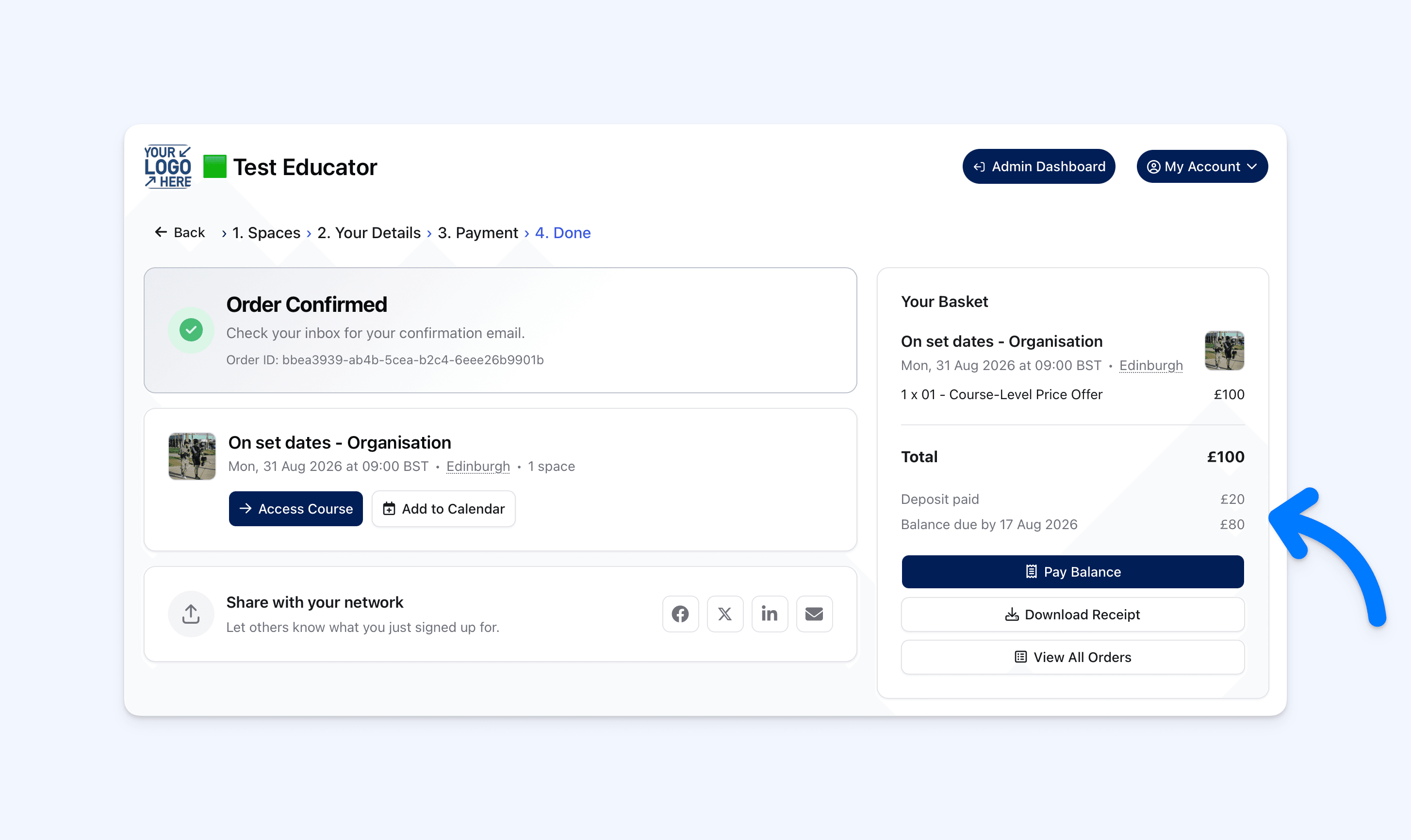
- Show the deposit paid, remaining balance and due date on the confirmation page.
- Let customers pay the remaining balance early from their confirmation, email or order page.
- Send deposit confirmations, balance reminders and paid-in-full confirmations automatically.
- See deposit and balance information on the Admin order and invoice.
How it works
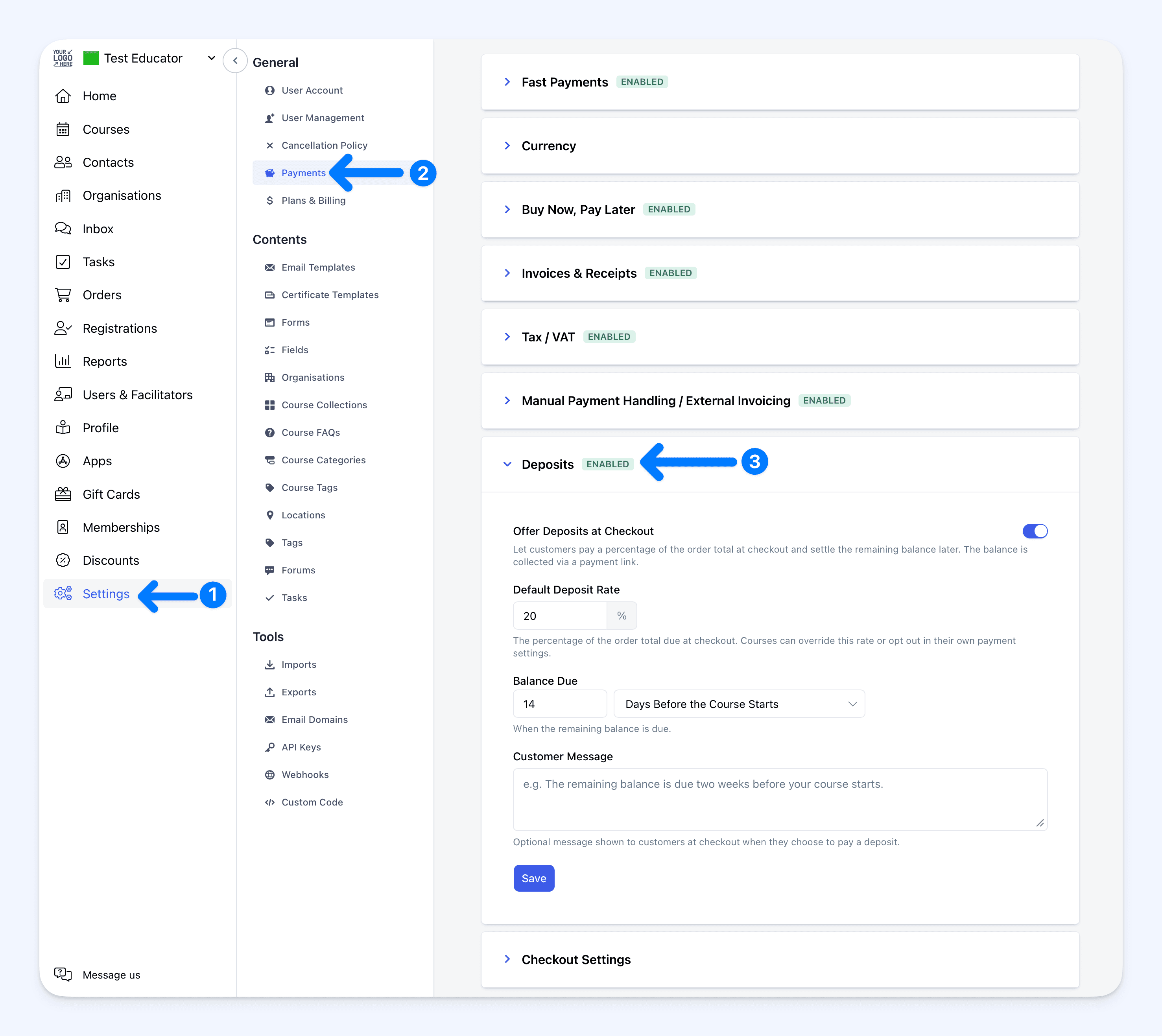
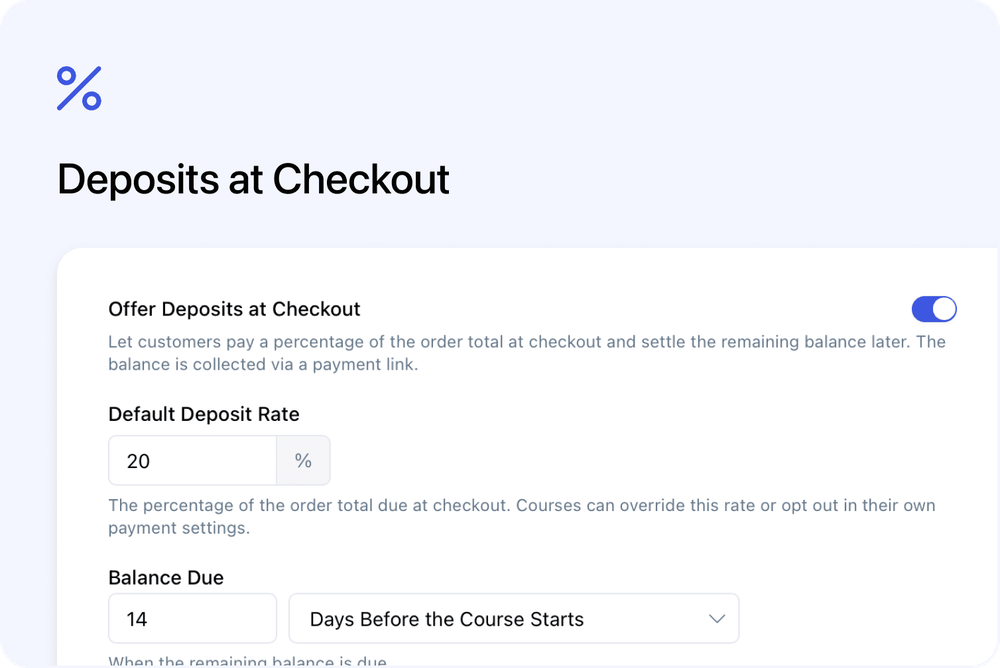
Go to Settings > Payments > Deposits and turn on Offer Deposits at Checkout. Set the default deposit percentage, choose when the remaining balance is due and add an optional message if customers need more information.
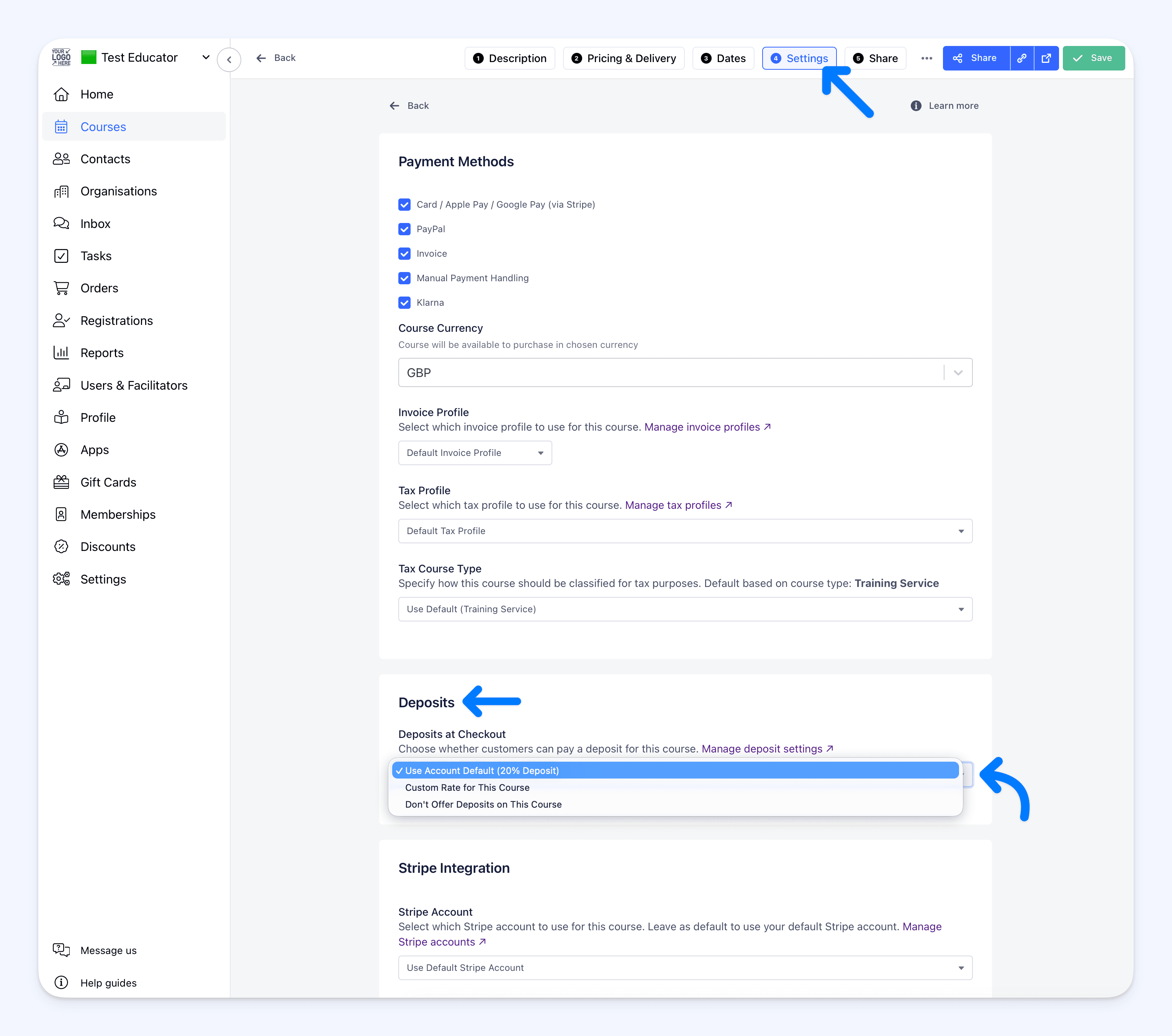
For an individual course, go to Course > Settings > Payments > Deposits. Choose Use Account Default, Custom Rate or Don’t Offer Deposits.
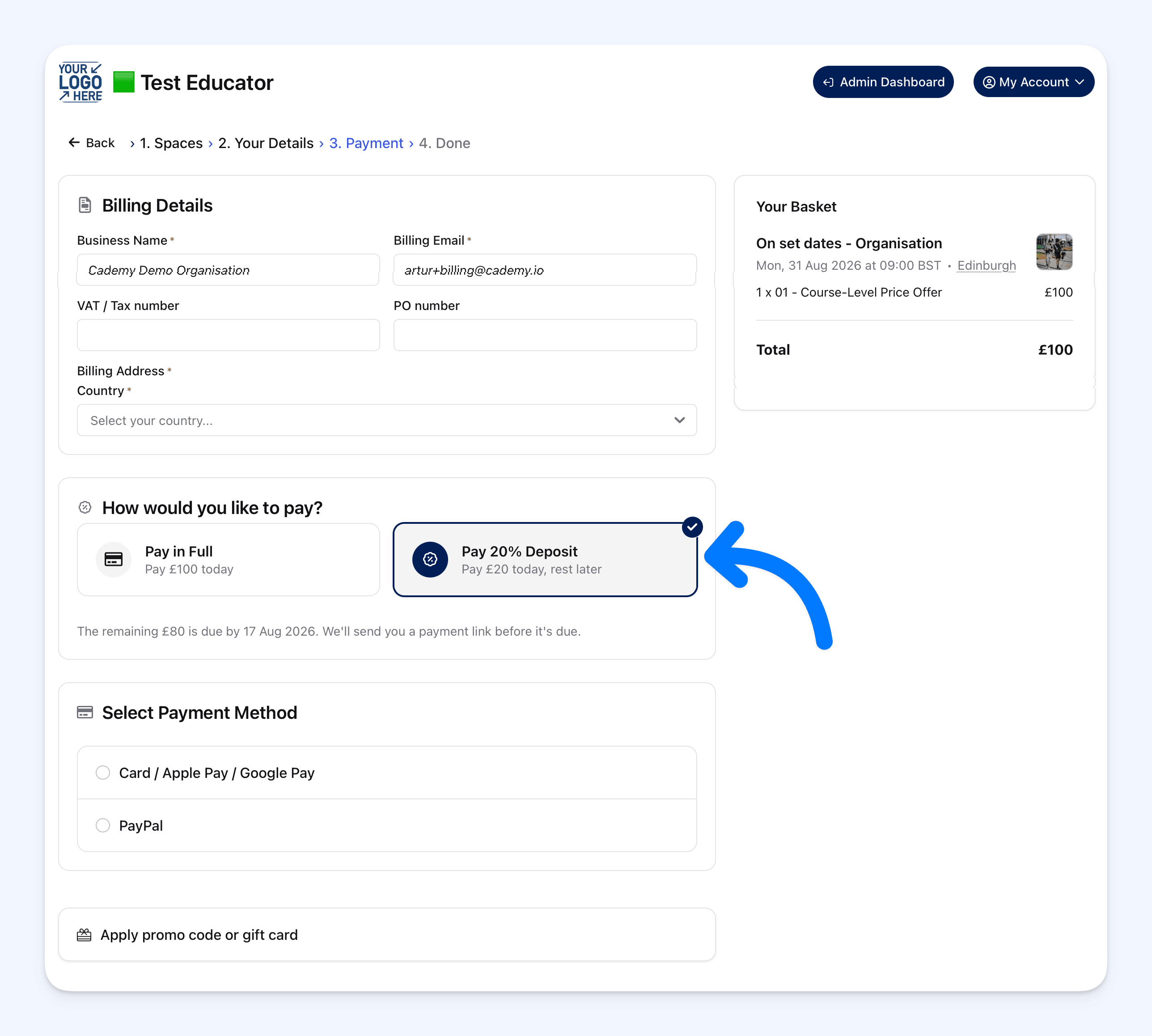
When an eligible customer reaches the payment step, they see How would you like to pay? They can select Pay in Full or Pay X% Deposit. The deposit is calculated from the final order total after discounts.
After the deposit succeeds, Cademy confirms the order and creates one invoice for the full value. The deposit is recorded as the first payment. The customer can use Pay Balance at any time to make the second payment and settle the same invoice.
The customer receives a Deposit received email with the live balance, due date and payment link. Your educator notification confirms that a deposit order was created and includes the courses and attendees in the order.
Cademy sends a Balance due soon reminder seven days before the due date and a Balance due today reminder on the due date. A reminder is not sent after the order is fully paid or cancelled, and each reminder is sent at most once. If the balance remains unpaid after the due date, the existing overdue process continues as normal.
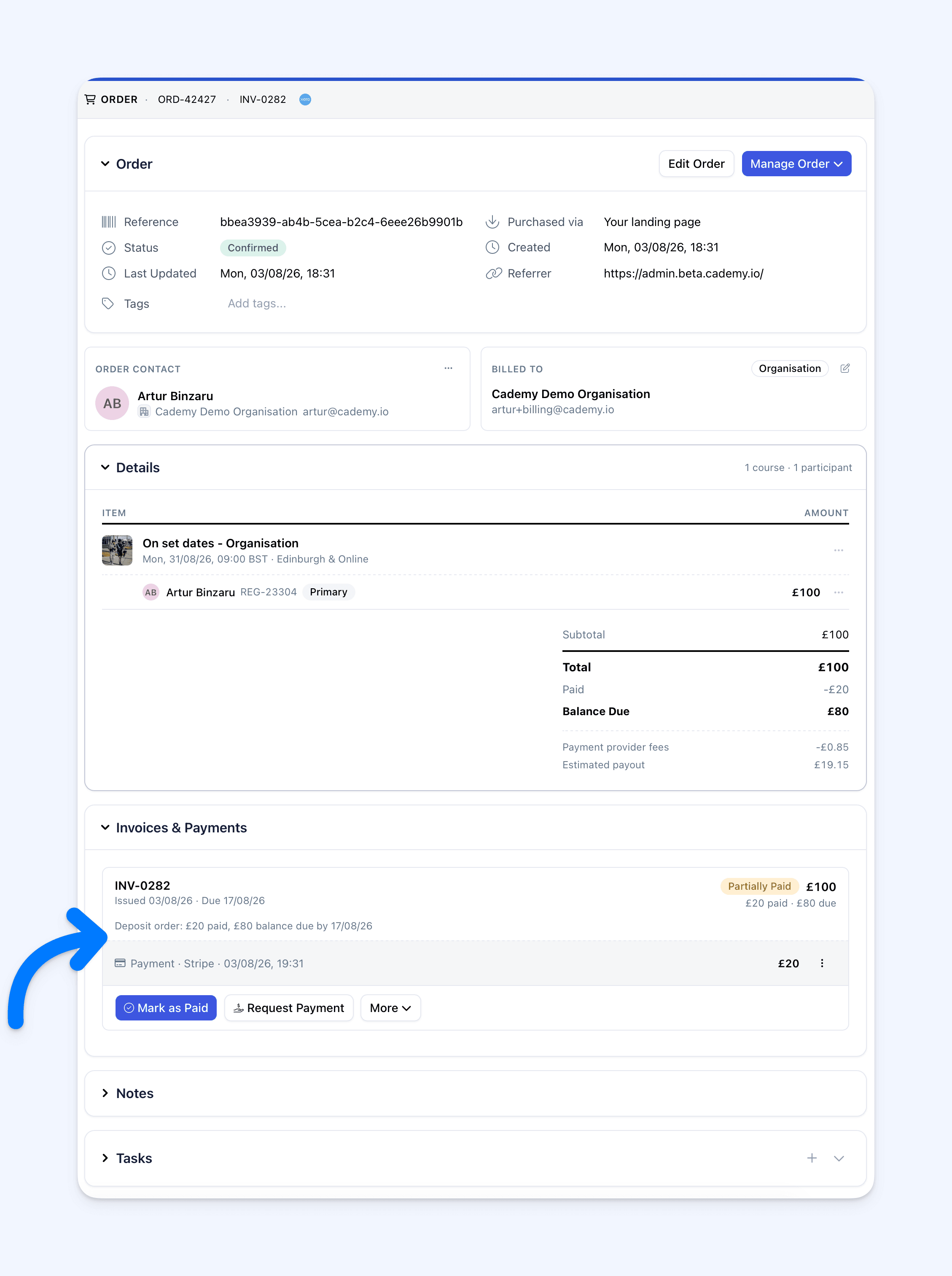
In the Admin dashboard, the order and invoice show the original total, deposit payment, remaining balance and due date. If you use Xero, the deposit and remaining payment are recorded against the same invoice.
Why this matters
A deposit can make higher-value or advance bookings easier for customers without creating a separate manual payment process for your team.
Customers get a clear choice and always know what they have paid, what remains and when it is due. Your team can see the same live figures in Cademy, while automatic emails and payment links reduce the need to chase balances manually.
Good to know
- Deposits are available on Teams and Custom plans.
- Deposits are percentage-based. Fixed amounts and customer-chosen amounts are not supported.
- Cademy does not automatically charge the remaining balance. The customer pays it using a payment link.
- Deposits can be paid by card, Apple Pay, Google Pay or PayPal. Invoice, manual payment methods and Klarna remain available only with Pay in Full.
- A basket must contain only deposit-eligible courses. If one course does not offer deposits, the whole order must be paid in full.
- If eligible courses use different deposit percentages, the lowest percentage applies to the whole basket.
- For a basket with several dated courses, the earliest course start date is used to calculate the balance due date.
- The deposit option is not shown if the balance would be due within one day or either payment would be below the payment provider’s minimum amount.
- Changing or disabling deposit settings affects new checkouts only. Existing deposit orders keep their original terms.
- Admin-created orders do not use the public checkout deposit option. Use the existing payment request and partial payment tools instead.
Where to find it
Open the Admin dashboard and go to:
Settings > Payments > Deposits
For complete setup instructions, basket rules, payment details, reminders and troubleshooting, read Deposits at Checkout.
Frequently asked questions
Which plans include deposits?
Deposits are available on Teams and Custom plans. Free and Starter accounts can see the setting but need to upgrade before they can turn it on.
Can I use a different deposit percentage for one course?
Yes. Open the course, go to Settings > Payments > Deposits, select Custom Rate and enter a percentage from 1% to 95%. You can also select Don’t Offer Deposits for that course.
What happens if a customer books more than one course?
Every course in the basket must allow deposits. If they do, the lowest deposit percentage in the basket applies to the whole order. The earliest dated course is used to calculate a balance due date based on course start.
Which payment methods can customers use for a deposit?
They can use card, Apple Pay, Google Pay or PayPal. Klarna, Invoice and manual payment methods require Pay in Full.
Is the remaining balance charged automatically?
No. Cademy does not store the deposit payment method to charge it later. The customer pays the balance through Pay Balance in their confirmation, email or order page.
Can a customer pay the balance before it is due?
Yes. Pay Balance is available as soon as the deposit order is confirmed.
Does Cademy create two invoices?
No. Cademy creates one invoice for the full order. The deposit and remaining balance are recorded as two payments against that invoice. The same payment records are added to the invoice in Xero when Xero is connected.
Why can’t a customer see the deposit option?
Check that deposits are enabled for the account and every course in the basket. The option is also hidden if the balance is due within one day or the deposit or remaining payment is below the payment provider’s minimum amount.
What happens if I change the settings after somebody has booked?
The change applies to new checkouts. Existing deposit orders keep the percentage, due date and balance shown when the customer booked.
Can I create a deposit order from the Admin dashboard?
No. The deposit choice is part of public checkout. For an Admin-created order, use the existing payment request or partial payment tools.