
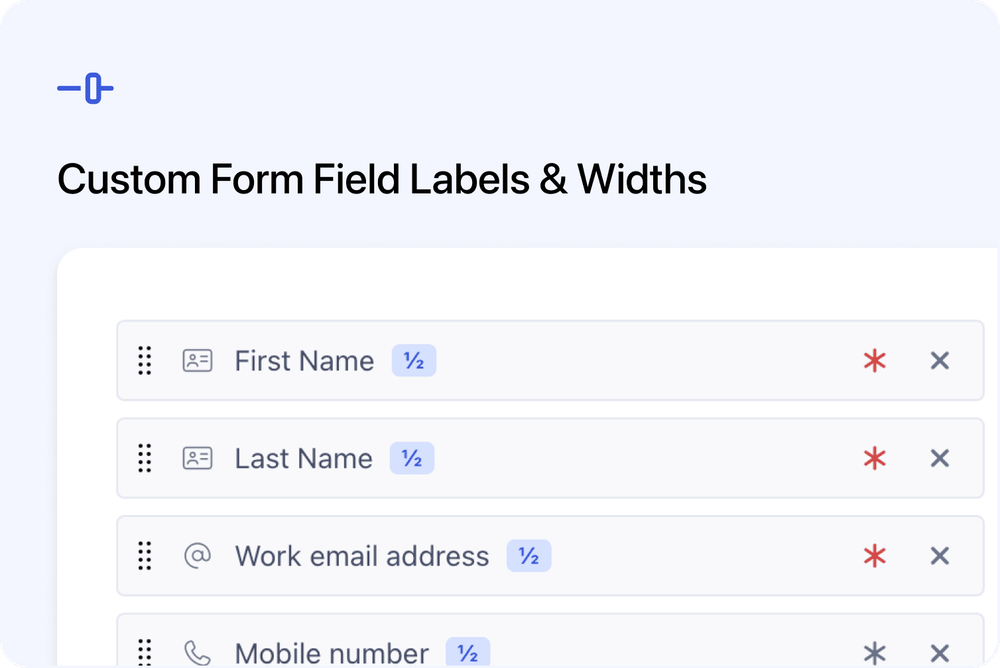
You can now customise the labels and display widths of standard fields on individual registration and booking forms.
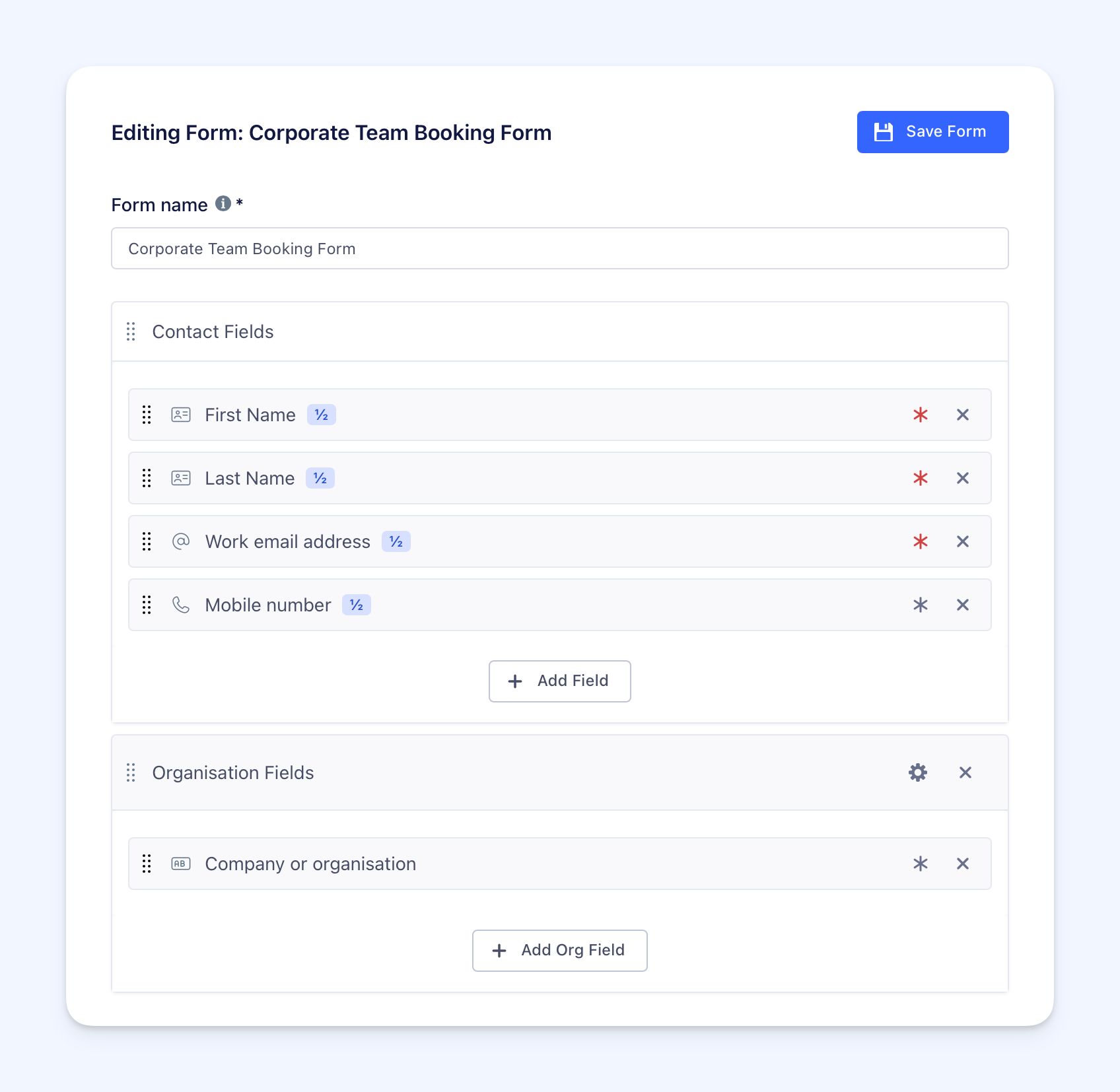
For example, you can rename Email to Work email address, or place First Name and Last Name side by side on the same row.
These changes apply only to the form you are editing. They do not affect your other forms or any information that has already been collected.
What’s new
✏️ Use a different label on each form
Standard Contact and Organisation fields normally use a fixed name, such as:
- First Name
- Last Name
- Phone
- Address
- Company or organisation
You can now give these fields a custom label on a specific form.
For example, you could change:
- Email to Work email address
- Phone to Mobile number
- Company or organisation to Employer
- First Name to Delegate first name
The custom label appears wherever that form is shown.
Validation messages also use the same label, so the wording matches what the person completing the form can see.
↔️ Choose how much space a field uses
Eligible standard fields can now be displayed at one of four widths:
- Full width
- Half width
- Third width
- Quarter width
Fields placed next to each other can share the same row when there is enough space.
For example, setting First Name and Last Name to half width lets them appear side by side instead of on separate rows.
⚙️ Manage both options from Field Options
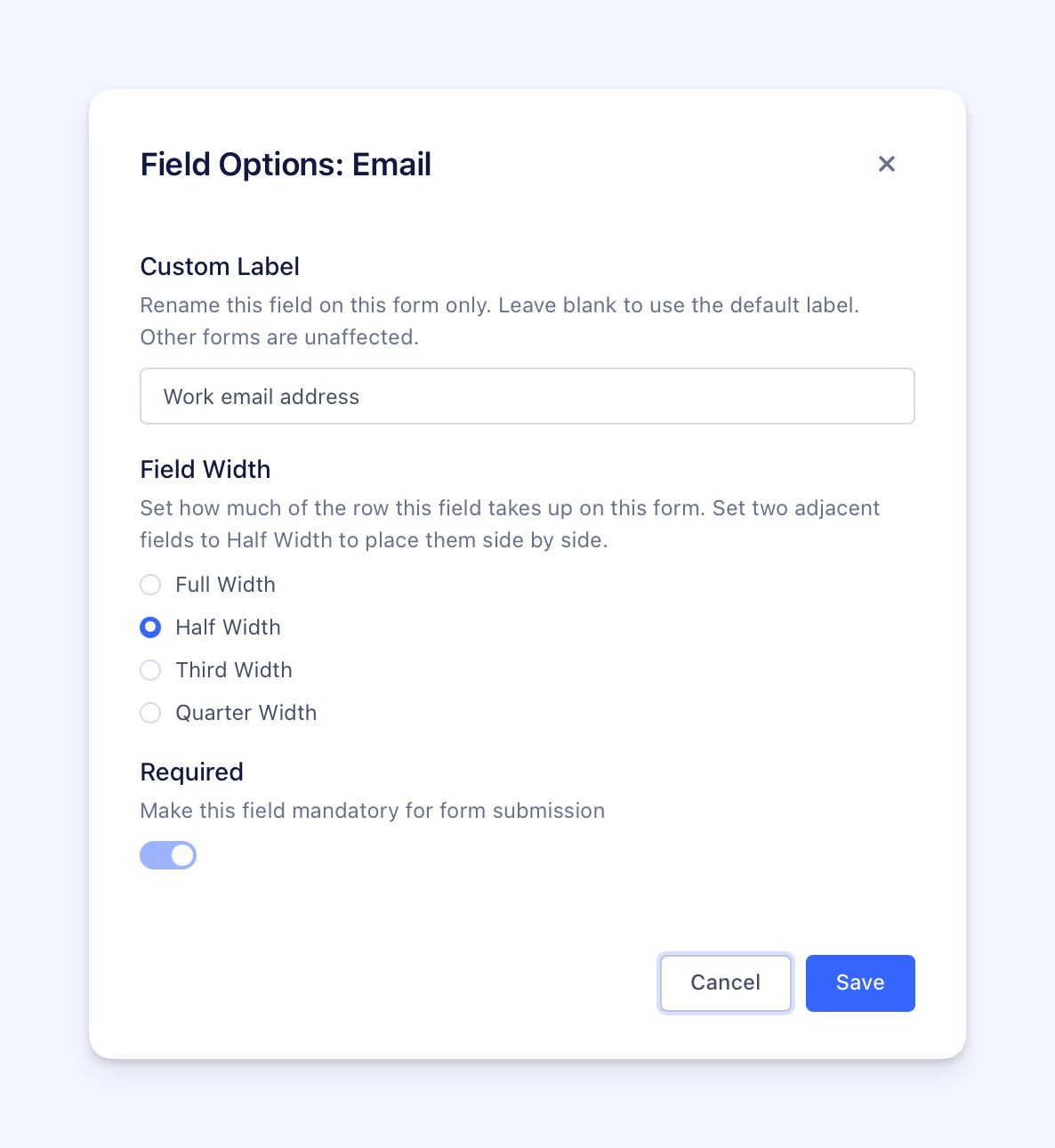 Each standard field now has a Field Options panel.
From the same panel, you can:
- Enter a custom label
- Choose an available display width
- Review or manage whether the field is required
This keeps the main display settings together when building the form.
How it works
Changes apply to one form only
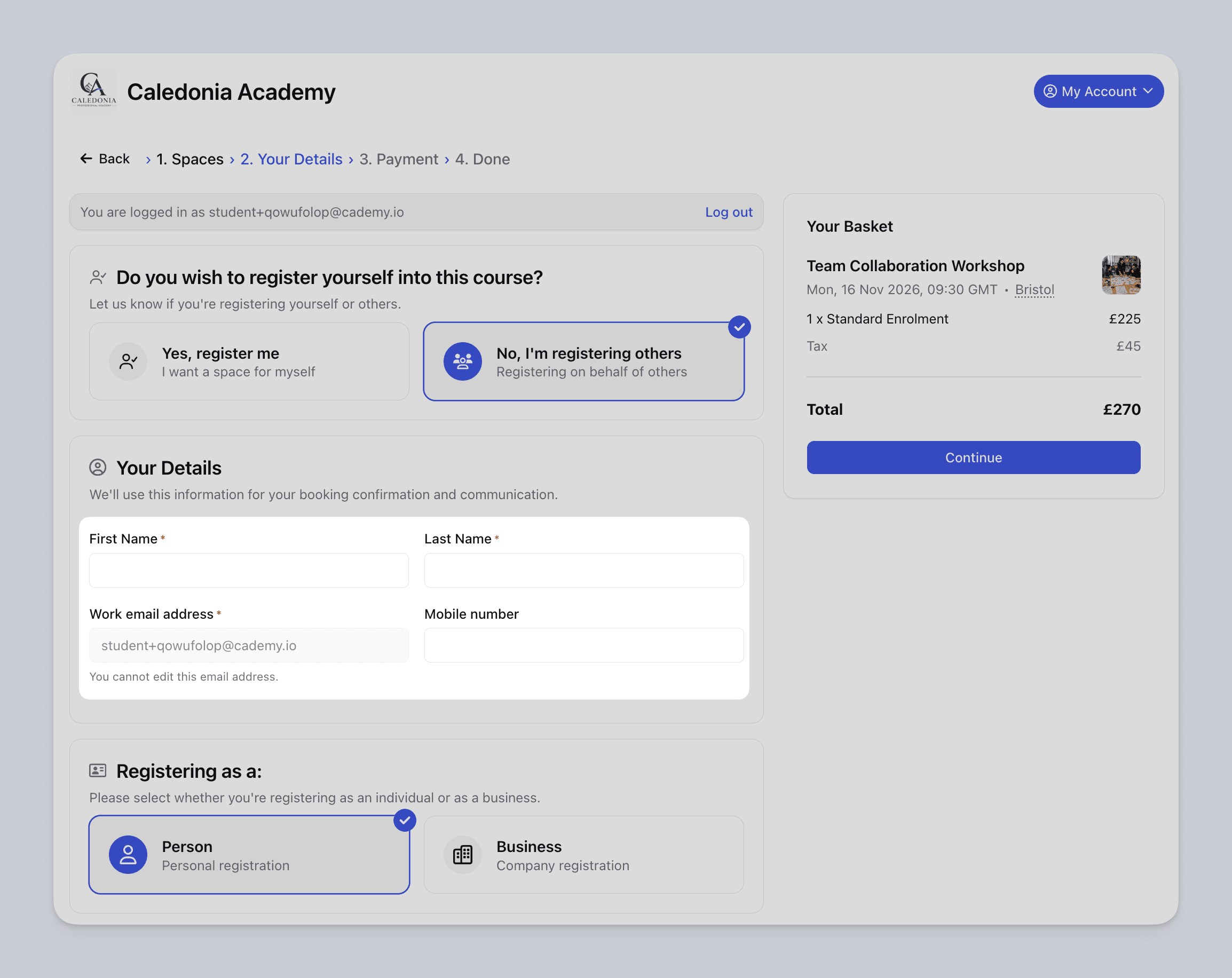 Custom labels and widths are saved against the individual form.
Changing Email to Work email address on one form does not rename it on any other form.
This means you can adjust the wording and layout for different courses, customers, or booking processes without changing the standard field across your account.
Required fields remain required
Changing a field’s label or width does not change its validation rules.
Standard fields that must be completed, such as required name or email fields, remain required after they have been renamed.
Where a standard field is always required, the Required setting remains locked on.
Forms remain clear on mobile
Width settings control how fields are arranged when there is enough screen space.
On mobile, every field is shown at full width, regardless of the width selected in the form builder.
This prevents fields from becoming too narrow or difficult to complete on a smaller screen.
Widths are only available for suitable fields
Not every standard field includes a width option.
Fields that need more room to remain clear and easy to complete, such as Address fields, continue to use a suitable full-width layout.
Why this matters
Different forms often need different wording.
A public course booking form may ask for a Personal email address, while an in-house training form may need a Work email address and Employer.
Custom labels let you make the wording clearer without creating duplicate custom fields.
Width controls can also make forms shorter and easier to scan. Related fields can sit together on one row, reducing unnecessary scrolling while keeping the form usable on mobile.
Good to know
Existing submissions are not changed
Custom labels and widths only change how the form is displayed.
Information that has already been collected is unaffected. Cademy continues to store each answer against the same underlying field, even when the visible label changes.
Clear the custom label to restore the default
To return to the field’s original name, open Field Options, remove the text from the Custom Label box, and save your changes.
Leaving the Custom Label box blank tells Cademy to use the standard field label.
Some areas continue to use the standard field name
The custom label is specific to the form.
Other areas continue to use the main field name configured in Cademy. This includes:
- Emails
- Certificates
- Registration and attendee tables
- CSV exports
For example, a form may show Work email address, while an export continues to use the standard email field name.
Custom labels do not create new fields
Renaming Email to Work email address does not create a separate email field.
It only changes the wording shown on that form. Responses still belong to the existing standard field.
Where to find it
Go to:
Settings → Forms
Open the form you want to edit, then open Field Options for the relevant standard field.
Add a custom label or choose an available width, then save the field options and the form.
Frequently asked questions
Will changing a label affect my other forms?
No.
Labels are customised separately for each form. The same standard field can use different wording on different forms.
Will existing registrations be updated?
No.
This is a display-only change. Existing Registrations and previously collected answers remain unchanged.
Does renaming a required field make it optional?
No.
Required fields remain required. Changing the label does not change the field’s validation rules.
Will validation messages use my custom label?
Yes.
Validation messages use the custom label shown on that form, so the message matches what the person completing the form can see.
How do I return to the original field name?
Open Field Options, clear the Custom Label box, and save your changes.
When the box is blank, Cademy uses the standard label again.
Why can’t I change the width of some fields?
Width options are only available for fields that remain clear and usable at narrower sizes.
Fields that need more space, such as Address fields, do not offer narrower width settings.
What happens to the layout on mobile?
All fields display at full width on mobile, regardless of the width selected in the form builder.
Will the custom label appear in emails and exports?
No.
Emails, certificates, admin tables, and CSV exports continue to use the standard field name.
The custom label applies only where that individual form is displayed.