
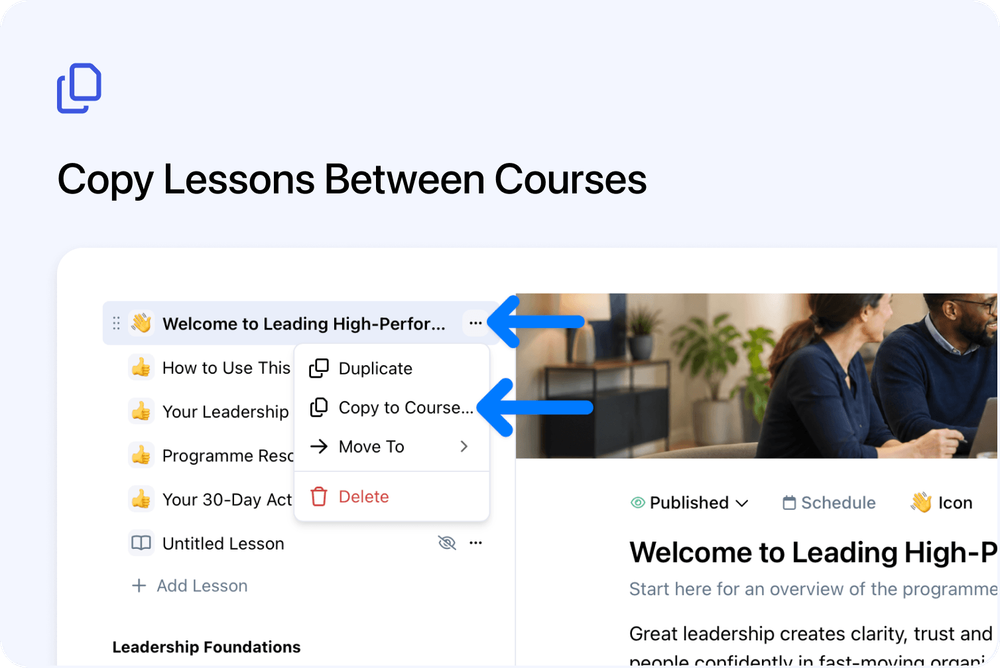
You can now copy a complete lesson from one course to another from the course editor.
This is useful when several courses need the same induction, safety briefing, introduction or other shared material. Instead of rebuilding the lesson, you can copy it and then adapt the new version for its destination course.
The copy arrives as a separate Draft, so you can check it before learners see it.
How it works
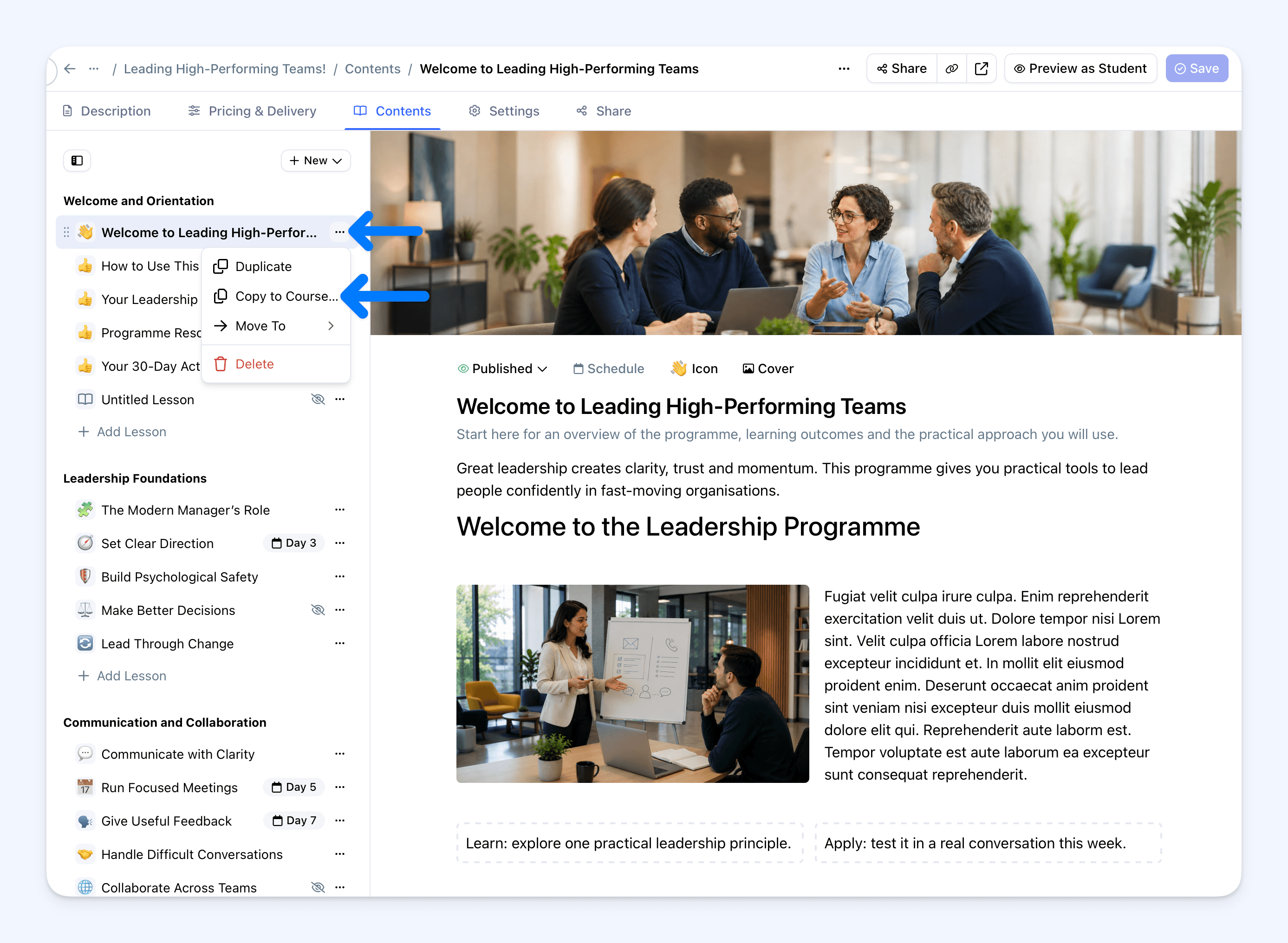 To copy a lesson:
- Open the course's Contents tab.
- Open the … menu beside the lesson.
- Select Copy to Course….
- Search for and select the destination course.
- Select Copy Lesson.
Cademy confirms which course received the lesson. The copy is added to the end of that course's final section. If the destination course has no sections yet, Cademy creates Section 1 for it.
What gets copied
The new lesson keeps the source lesson's name and saved content, including its text, images, files, quizzes and SCORM content.
The copied lesson and its quizzes are independent from the source. You can edit either version without changing the other, and learners' quiz answers and progress stay with the correct course.
Existing media is reused, so you do not need to upload the same files again.
Why this matters
Reusing a complete lesson saves time when you deliver related courses or repeat the same core material across several programmes.
Each copy can then be adjusted for its own audience while the original lesson remains unchanged.
Good to know
- The copy is a Draft: Learners in the destination course cannot see it until you publish it.
- Only saved changes are copied: Save the source lesson before copying if you want its latest edits included.
- The destination must support lessons: You can copy to another on-demand or blended course that you can access. The course you are copying from is not shown.
- The lesson name stays the same: Rename the copy afterwards if the destination needs different wording.
- Check lesson schedules: Any schedule on the source lesson is also copied and may need changing for the destination course.
- Check lesson links: A button created with Link to Lesson keeps its original target. Review these links before publishing the copy.
- Editor permissions still apply: System Admins and Course Owners can edit course content. Facilitators cannot use the course editor.
Where to find it
Go to:
Admin dashboard → Courses → select an on-demand or blended course → Edit Course → Contents
Open the … menu beside a lesson and select Copy to Course…. The same action is available from the Contents overview and from the lesson list beside an open lesson.
For step-by-step guidance and troubleshooting, read Create and Edit Lessons and Course Content.
Frequently asked questions
Can I copy a lesson into the same course?
Use Duplicate when you want another copy in the same course. Copy to Course… is for a different on-demand or blended course.
Does changing the copy affect the original lesson?
No. The lesson and its quizzes are separate from the source, so edits, quiz answers and learner progress do not carry between them.
Can learners see the copied lesson immediately?
No. It arrives as a Draft and remains hidden from learners until you publish it.
Why can I not see a course in the destination list?
The current course is excluded. The list only includes on-demand and blended courses that you can access. Use the search field when you have a longer course list.
Are unsaved lesson changes included?
No. Cademy copies the most recently saved version of the lesson. Save any changes before starting the copy.
What should I check before publishing the copy?
Review the lesson content, schedule and any buttons that use Link to Lesson. These links continue to point to their original target until you update them.
What happens if the copy fails?
The dialog stays open and shows an error so you can try again. Cademy does not leave a partial lesson in the destination course.