
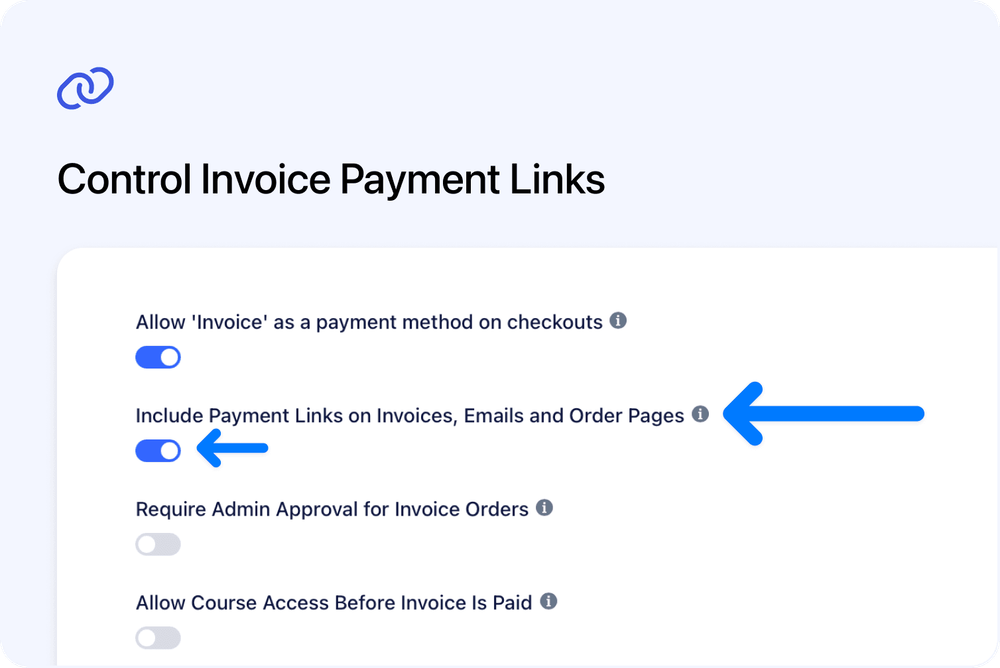
You can now choose whether Cademy automatically shows customers links to pay invoices online.
Turn the new setting off to hide automatic payment links from invoices, emails and customer pages. Your team can still request payment or share a payment link when you decide the time is right.
Put payment links under your control
 Automatic payment links are useful when customers should be able to pay straight away. However, there are times when you may want to manage the payment request yourself, use an external invoicing process or decide exactly when the customer receives the link.
The new Include Payment Links on Invoices, Emails and Order Pages setting gives you one place to control this across Cademy.
When you turn it off, Cademy removes automatic payment buttons and links from:
- invoice PDFs
- invoice and payment emails sent after the setting is changed
- checkout confirmation pages
- customer order and course pages
- deposit confirmation and balance emails
- deposit due reminders
- monthly instalment confirmation and due emails
- overdue payment reminders
Customers can still see the payment information they need, including amounts, due dates, payment schedules and invoice downloads.
How it works
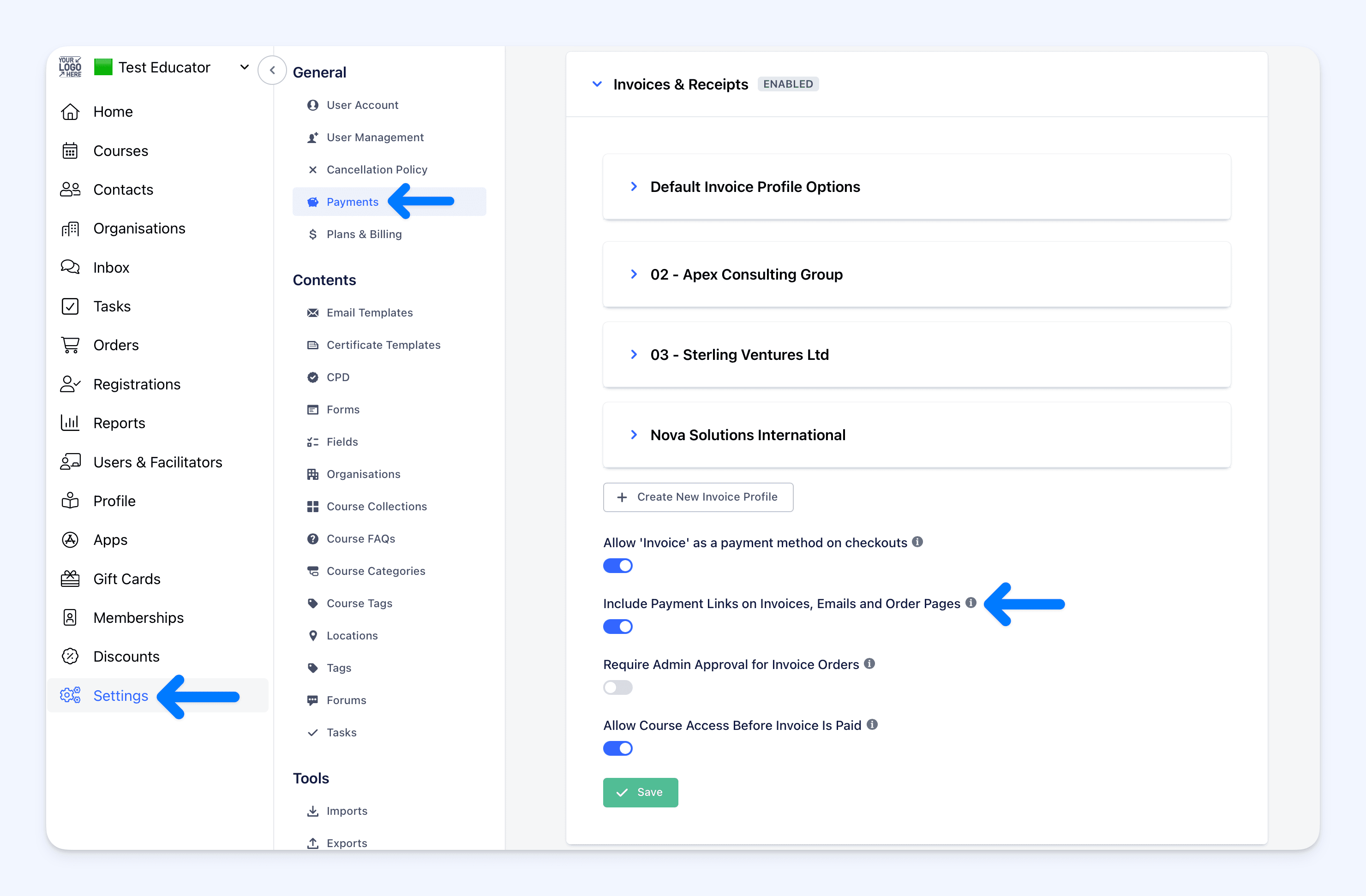
Go to:
Admin dashboard → Settings → Payments → Invoices & Receipts
Find Include Payment Links on Invoices, Emails and Order Pages, then turn the switch off.
The setting is enabled by default, so your existing payment journey does not change unless you choose to turn it off. You can turn it back on at any time to restore automatic links on current pages and invoice PDFs, and in future emails.
Keep manual payment requests available
Hiding automatic links does not disable online payments. Stripe, PayPal and any other payment methods you already offer remain available.
Your team can also continue to:
- use Request Payment… from an order in Cademy
- copy a payment link and send it directly to the customer
- create and share a payment request when payment is ready to be collected
This means you can remove automatic prompts without losing the option to collect payment online.
Why this matters
You now have more control over how and when customers are invited to pay. This is especially useful when you:
- handle invoicing outside Cademy
- want your team to review an order before requesting payment
- need to send payment instructions as part of a separate customer process
- want customers to keep access to their invoice without seeing an immediate online payment prompt
Instead of removing online payment options altogether, you can decide when a payment link should be shared.
Good to know
- The setting controls automatic links: it does not disable your online payment methods.
- Staff payment tools remain available: your team can still request payment or share a link deliberately.
- Previously shared links still work: turning the setting off does not invalidate a direct payment link that has already been sent.
- Previously sent emails cannot be changed: the setting applies to emails sent after it is updated.
- Current invoices follow the current setting: old and new invoice PDFs and customer pages use the setting that is active when they are viewed.
- Checkout payment methods are separate: turning this setting off does not remove the payment methods offered during the customer's initial checkout.
Where to find it
Open:
Admin dashboard → Settings → Payments → Invoices & Receipts
For the complete guidance, see Invoices & Receipts in the Cademy Help Centre.
Frequently asked questions
Does turning this setting off disable online payments?
No. It hides automatic customer-facing payment links. Your configured payment methods and staff payment-request tools remain available.
Can staff still send a payment link?
Yes. Staff can still use Request Payment… or copy and share a payment link directly.
Will a payment link I already sent stop working?
No. Direct links that have already been shared remain valid.
Does this remove payment options from checkout?
No. The setting controls payment links shown after an order exists. It does not disable the payment methods offered during the initial checkout.
Does it affect invoices that already exist?
Yes. Current customer pages and invoice PDFs follow the setting that is active when they are viewed. Emails already sent cannot be changed.
Can I show the automatic links again later?
Yes. Turn the setting back on to restore them on current pages and invoice PDFs, and in future emails.