
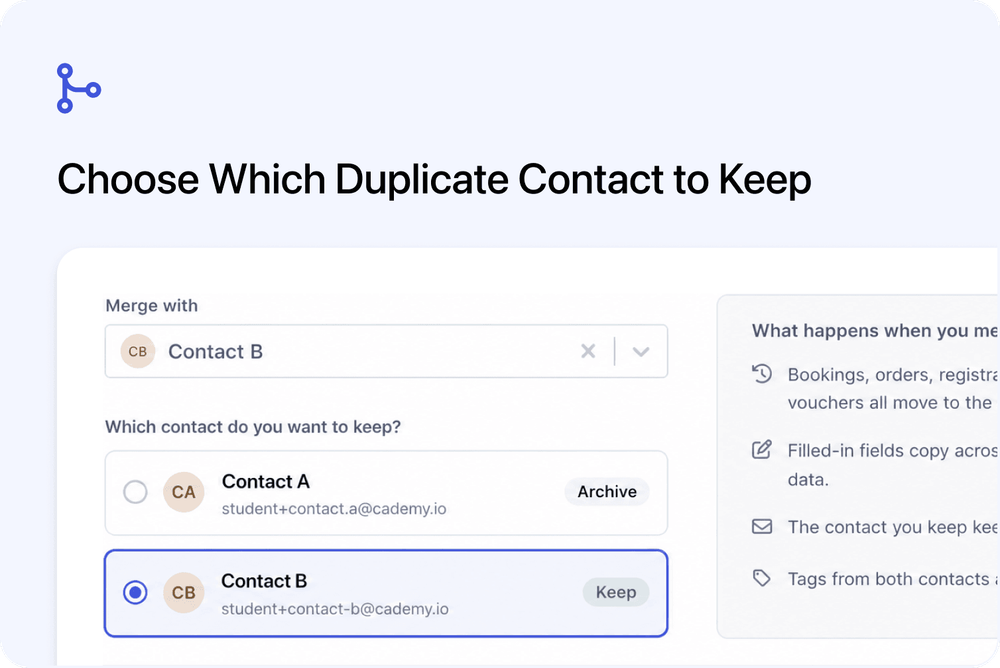
You can now choose exactly which Contact to keep when combining duplicate records in Cademy.
The redesigned Merge Duplicate Contact dialog shows both Contacts clearly, labels which one will be kept or archived, and explains what will move before you confirm.
See both Contacts before merging
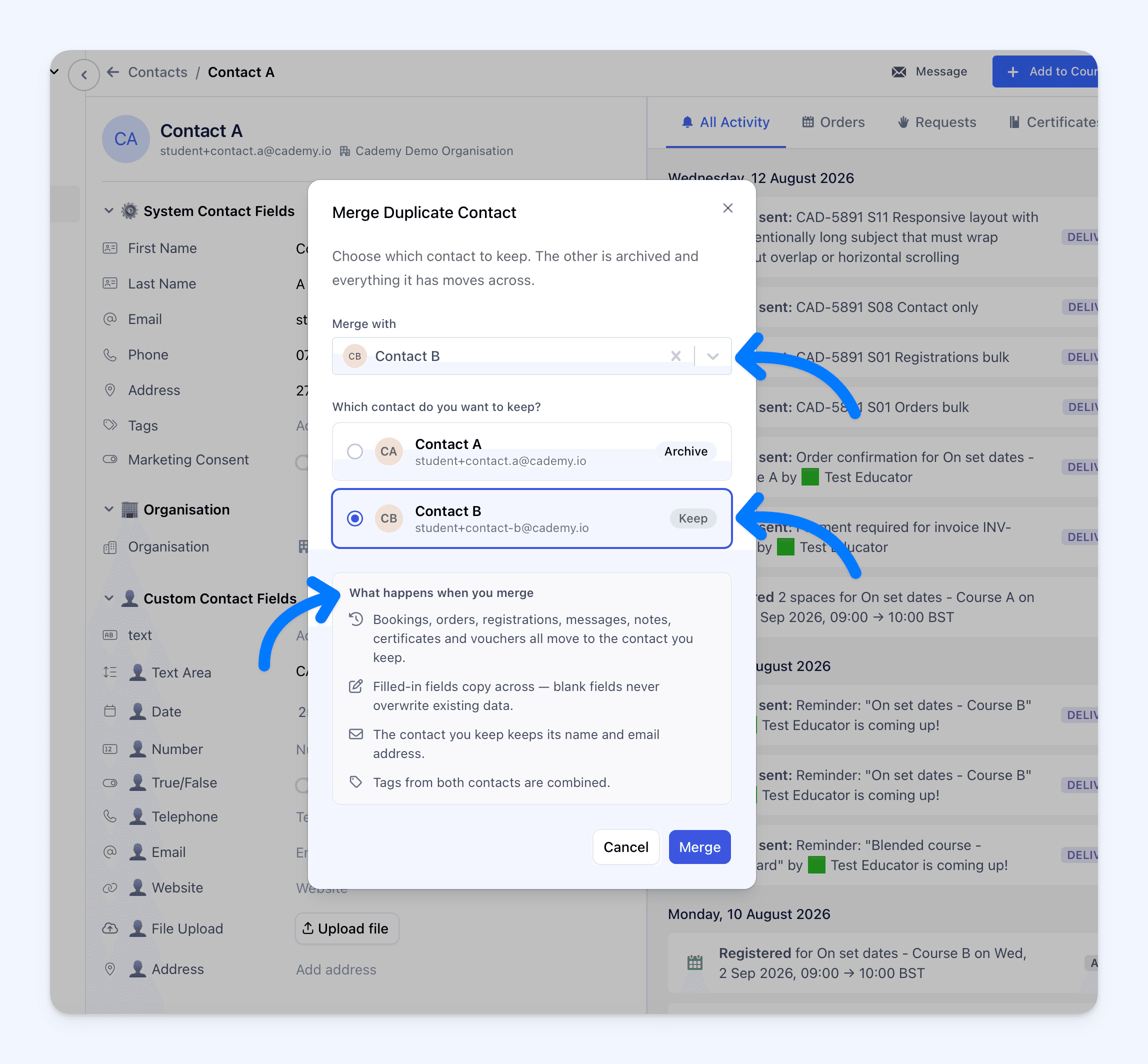 After selecting a duplicate in Merge with, both Contact records appear together under Which contact do you want to keep?
Each card shows the Contact's name, email address and avatar where available. The decision is clearly marked:
- Keep identifies the Contact that will remain
- Archive identifies the Contact that will be combined into the kept record
The Contact selected in Merge with is kept by default. Select the other card when you want to keep the Contact page you started from instead.
Understand what will happen
The previous long warning has been replaced by a short What happens when you merge summary.
Before confirming, the dialog explains that:
- bookings, orders, registrations, messages, notes, certificates and vouchers move to the Contact you keep
- filled-in fields copy across, while blank fields do not overwrite existing information
- the Contact you keep retains its name and email address
- tags from both Contacts are combined
This makes the result easier to review without having to interpret a large block of warning text.
Merge in either direction
Previously, the Contact page you started from always merged into the Contact selected in the dialog. The selected Contact was always the one that remained.
You can now reverse that direction directly in the dialog:
- keep the selected Contact and archive the Contact you started from, or
- keep the Contact you started from and archive the selected Contact
If you choose a different Contact in Merge with, Cademy safely resets the choice so the newly selected Contact is marked Keep. Check the badges again before selecting Merge.
After a successful merge, Cademy takes you to the Contact you kept. If you kept the Contact page you started from, its details and activity refresh on the same page.
How to use it
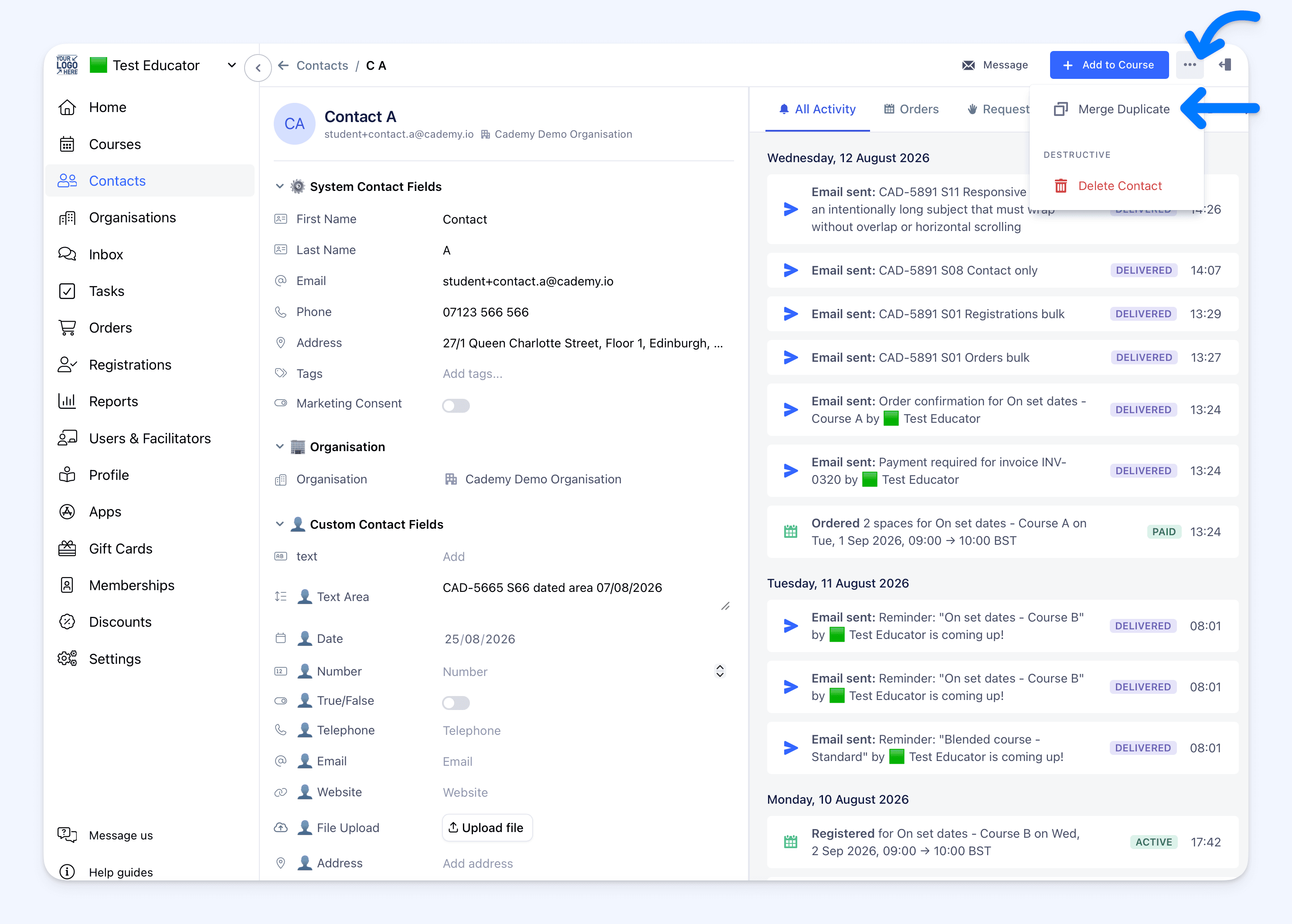 Go to:
Admin dashboard → Contacts → select a Contact → top-right ... menu → Merge Duplicate
Then:
- Select the other existing Contact in Merge with.
- Under Which contact do you want to keep?, select the correct Contact card.
- Confirm the Keep and Archive badges.
- Review What happens when you merge.
- Select Merge.
Why this matters
Duplicate Contacts can hold different pieces of important history. Making the merge direction obvious helps administrators avoid keeping the wrong record or archiving the Contact with the name and email address they need.
The updated dialog makes it easier to:
- compare both Contacts before making a decision
- preserve the correct name and email address
- understand which history and fields will move
- merge in the direction that suits the records
- confirm the result with less uncertainty
Good to know
- This update applies to Contacts: Organisation merging continues to use its existing merge process.
- Both Contacts must already exist: the merge dialog cannot create a new Contact.
- The Merge button starts unavailable: select a valid existing Contact in Merge with first.
- The selected Contact is the default: choose the other card if you want to keep the Contact page you started from.
- Changing the duplicate resets the choice: check the Keep and Archive badges again.
- System Admin access is required: the Contacts page is available to System Admins.
Where to find it
Open:
Admin dashboard → Contacts → select a Contact → top-right ... menu → Merge Duplicate
For complete guidance, see Merge Duplicate Contacts in the Cademy Help Centre.
Frequently asked questions
Which Contact is kept by default?
The Contact selected in Merge with. Select the other Contact card if you want to reverse the direction.
Can I keep the Contact page I started from?
Yes. Select that Contact's card so it shows Keep before you merge.
What happens to the other Contact?
The Contact marked Archive is archived and its related history moves to the Contact marked Keep.
Which name and email address remain?
The Contact marked Keep retains its name and email address.
Can I create a Contact from the merge dialog?
No. Merge with lets you select an existing Contact only.
Does this also change Organisation merging?
No. This update is for the Merge Duplicate Contact dialog.