
You can now archive a team member in Cademy without deleting the history connected to them, then reactivate the same person later if they return.
Archiving removes their access to your account immediately and stops them counting towards the relevant plan limit. Past course dates, tasks, orders, bookings, registrations, notes, messages and audit history remain connected to the same person.
This gives System Admins a safer way to manage people who leave your team, finish a temporary role or no longer need access.
What's new
 System Admins can now:
- review what will be removed and kept before archiving somebody
- remove access immediately without deleting the person's identity or history
- keep past and already-started course dates connected to the archived person
- automatically remove future assignments and operational responsibilities
- see whether cleanup is processing, complete or needs to be retried
- reactivate the same person later with a selected role
- choose whether to send an access email during reactivation
Archived people stop counting towards the relevant System Admin or Facilitator seat limit. Reactivation checks the current limit again before restoring access.
Review the impact before archiving
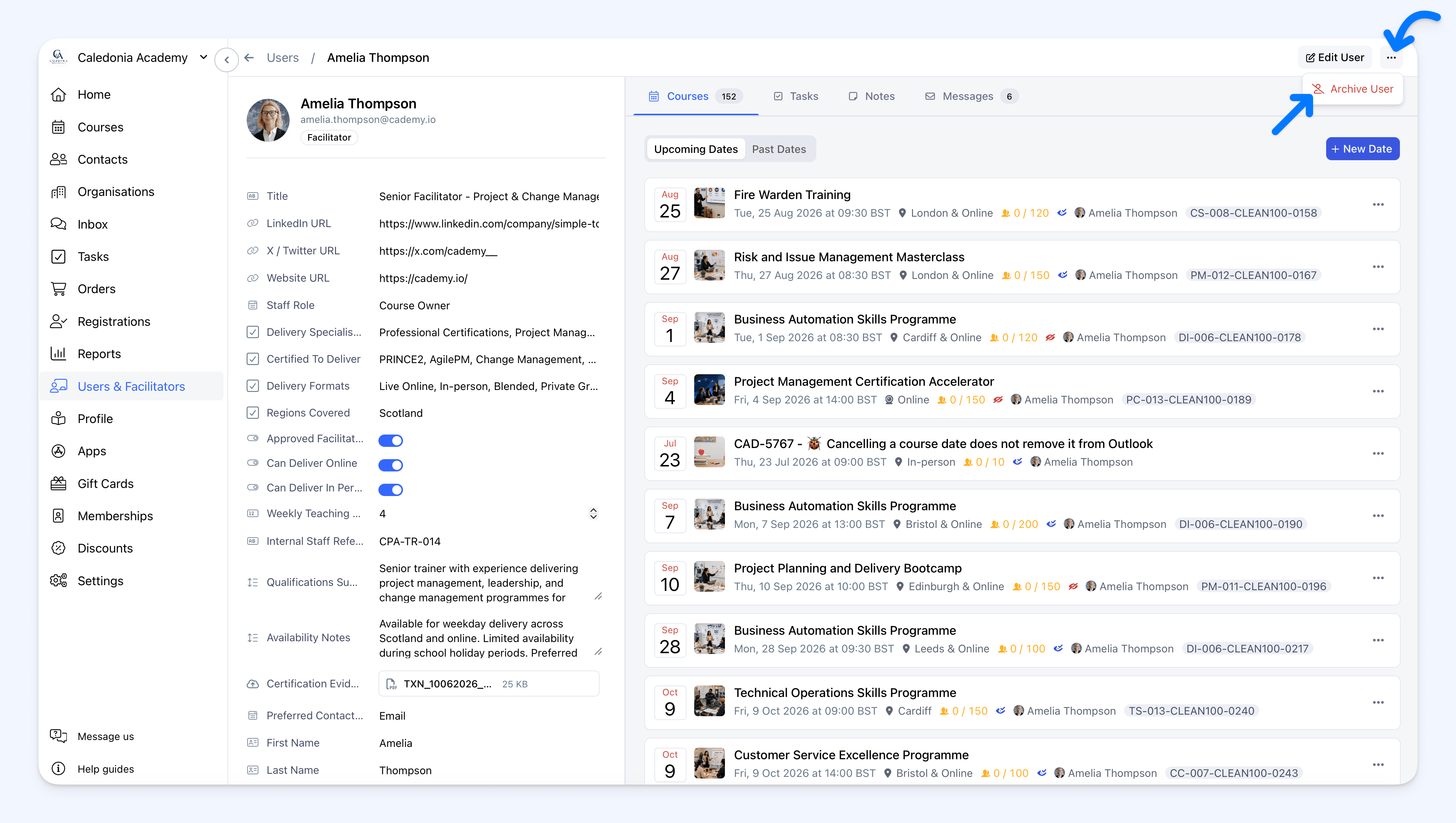
 Open the team member's profile and select Archive User from the user actions menu.
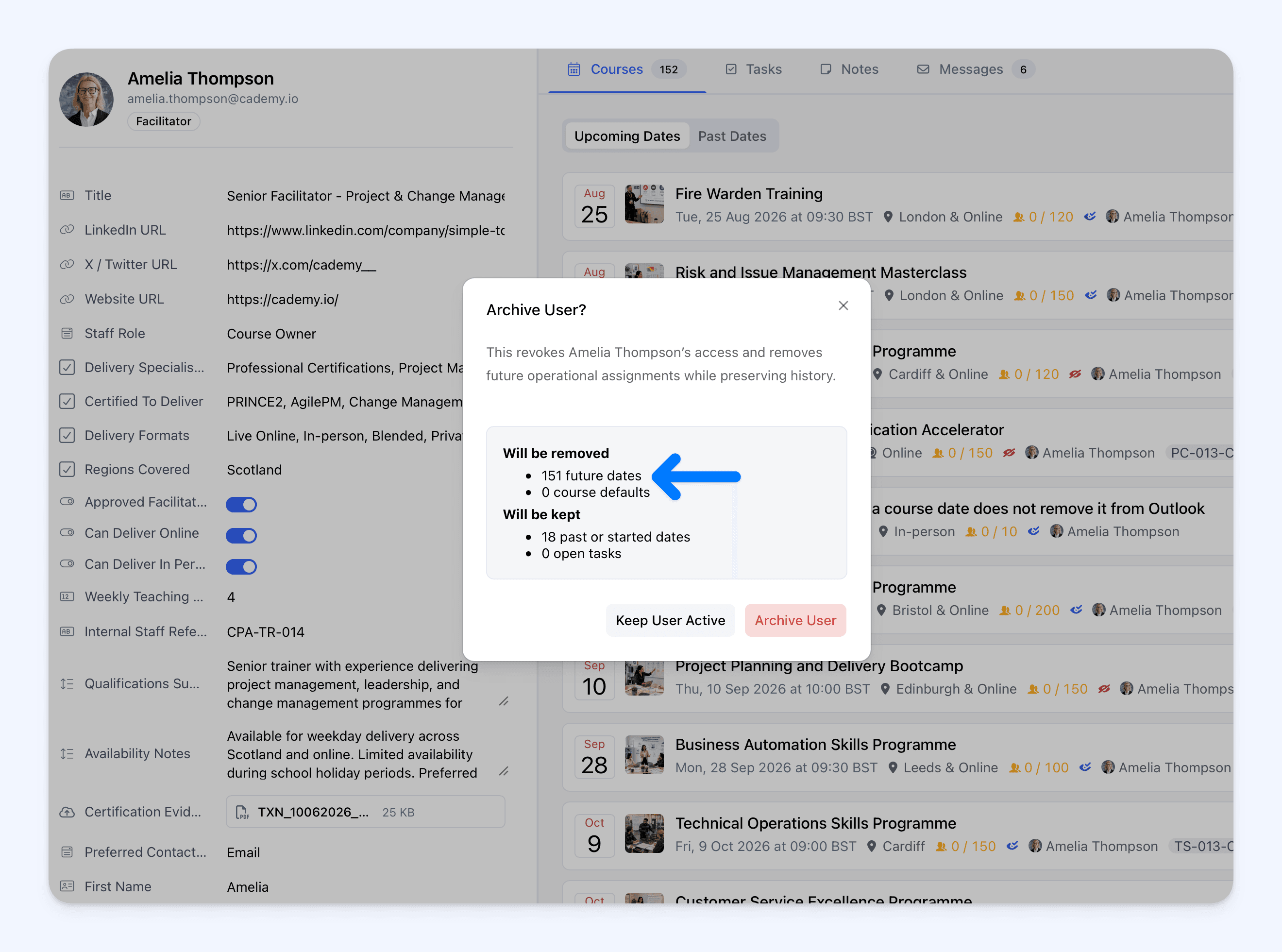
Before you confirm, Cademy checks the person's current work and shows a summary under Will be removed and Will be kept.
The confirmation includes:
- future course-date assignments that will be removed
- course-level Facilitator or Owner defaults that will be removed
- past or already-started course dates that will remain
- open tasks that will remain
- dates without a valid start time that will remain for review
The future-date count includes assignments added directly to a course date and assignments inherited from a course or block.
If Cademy cannot complete the impact check, the archive cannot be confirmed. Close the confirmation and try again so you always know what will happen before access is removed.
Access is removed immediately
When you confirm Archive User, the person's access to your account is revoked immediately. They also stop counting towards the relevant plan limit straight away.
Cademy then removes their future operational work in the background. The user list shows Processing Cleanup while this happens and Archived when it is complete.
If the same Cademy identity has access to another organisation or has a learner profile, that separate access is unchanged. Archiving only removes access to the organisation where the action was taken.
An archived person cannot be selected for new work or receive future operational notifications for that organisation.
What Cademy removes
Archiving is designed to remove future responsibility without rewriting the past.
Cademy removes the person from future operational areas connected to your account, including:
- future course-date assignments
- course and block Facilitator or Owner defaults
- user groups
- conversation ownership
- Admin Email Recipient lists and contact-form routing
- default calendar attendance
- scheduled exports where the person was selected as a team-member recipient
Removing these connections helps prevent an archived person from continuing to receive new work, notifications or scheduled information after their access has ended.
What remains connected
Archiving does not delete the person's identity or historical records.
Their name remains connected to information such as:
- past or already-started course dates
- open tasks
- orders
- bookings
- registrations
- notes
- messages
- audit history
Historical screens can show the person's name with (Archived) so you can understand who completed an action or was responsible at the time.
Open tasks are kept but are not reassigned automatically. If somebody else needs to complete them, open the tasks and assign them to another team member.
Dates without a valid start time are also kept because Cademy cannot safely determine whether they are in the past or future. The archived profile shows how many dates need review so a System Admin can check their start times and assignments manually.
Reactivate the same person later
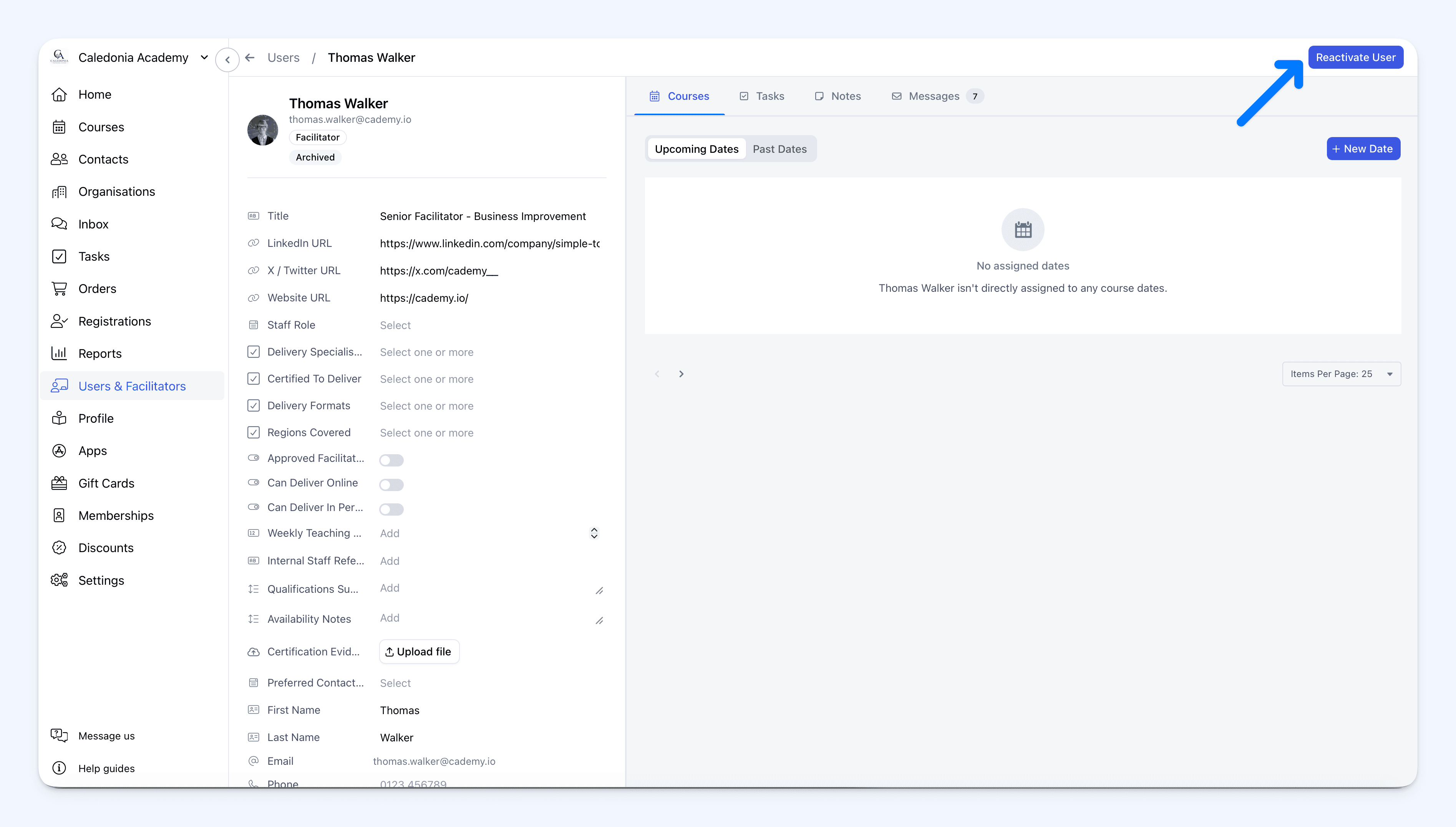 When an archived team member returns, you can restore the same identity instead of creating a duplicate user.
Go to Users & Facilitators, open the Status filter and select Archived. Open the person, select Reactivate User, choose their role and decide whether Cademy should send an access email.
Cademy checks the current plan limit for the selected role before restoring access. If no seat is available, change the selected role, archive another user or update the plan before trying again.
You can also invite the person's existing email address from Invite User. When cleanup is complete, Cademy recognises the archived identity and reactivates the same person using the role selected in the invitation.
If more than one archived record uses the same email address, Cademy cannot choose one automatically. Use the Archived filter and reactivate the correct profile directly.
Previous assignments are not restored
Reactivation restores the person's access and selected role. It does not restore future work removed during archiving.
After reactivating somebody, add them back to any future areas they need, such as:
- courses and course dates
- groups
- Admin Email Recipient lists
- conversation ownership
- calendar attendance
- scheduled export recipients
This prevents somebody from automatically regaining responsibilities that may have been reassigned while they were away.
What to check after the change
After archiving somebody, review the work that still needs an active owner.
Check any open tasks kept on the archived profile and reassign the ones another team member must complete. Review dates flagged as needing attention, especially when their start time is missing or invalid. It is also worth confirming that future course dates still have the right Facilitators or Owners after the archived person's assignments have been removed.
If the person was responsible for operational communication, check your Admin Email Recipients, contact-form routing, conversations and scheduled exports. Add another team member or email address wherever information still needs to be received.
After reactivation, decide what the returning person needs now instead of recreating their previous setup automatically. Assign only the required courses, dates, groups and recipient settings. If you did not send an access email during reactivation, let them know separately when and how they should sign in.
This short review helps make sure that work continues smoothly while keeping the archived person's historical records intact.
Pending invitations and imported facilitators
For somebody whose invitation is still pending, open their profile and select Cancel Invite. This removes the pending access and moves the person into the same archived lifecycle, so the record can be reactivated later.
If a Facilitator was created by an import without login access, Send an access email is off by default during direct reactivation. This preserves their no-login setup.
If they now need login access, use Invite User with the same email address and leave Send invitation email turned on.
Imports and synchronisation cannot automatically reactivate or assign an archived team member. A System Admin must reactivate the correct person first.
Built-in safety checks
Only System Admins can archive or reactivate another team member.
You cannot:
- archive your own user
- archive the final System Admin
- reactivate somebody before cleanup is complete
- reactivate somebody when the selected role has no available plan seat
If you need to archive the final System Admin, assign another System Admin first.
These checks help prevent an account from losing all administrative access and stop incomplete cleanup from being interrupted by reactivation.
Where to find it
To archive an active user:
Admin dashboard → Users & Facilitators → open a user → User actions → Archive User
To cancel a pending invitation:
Admin dashboard → Users & Facilitators → open a pending user → User actions → Cancel Invite
To review or reactivate an archived user:
Admin dashboard → Users & Facilitators → Status → Archived → open a user
For complete instructions and troubleshooting, read Archive and Reactivate a User or Facilitator.
Frequently asked questions
Do archived users count towards plan limits?
No. Archiving removes their active access to your organisation, so they stop counting towards the relevant System Admin or Facilitator seat limit. Reactivation checks the current limit before restoring access.
Can an archived user still log in?
They cannot access the organisation where they were archived. Access to another Cademy organisation or a separate learner profile remains unchanged.
Why can I not see Archive User?
Only System Admins can archive other team members. The option is also unavailable on your own profile and for the final System Admin.
Are open tasks deleted or reassigned?
No. Open tasks remain connected to the archived person and are not reassigned automatically. Reassign any task that another team member needs to complete.
Does reactivation restore previous assignments?
No. Reactivation restores the same identity with the selected role. Add the person back to any future courses, dates, groups, recipient lists, calendar settings or scheduled exports they need.
Will an import reactivate an archived team member?
No. Imports and synchronisation cannot recreate active access, reactivate or assign an archived team member automatically.