
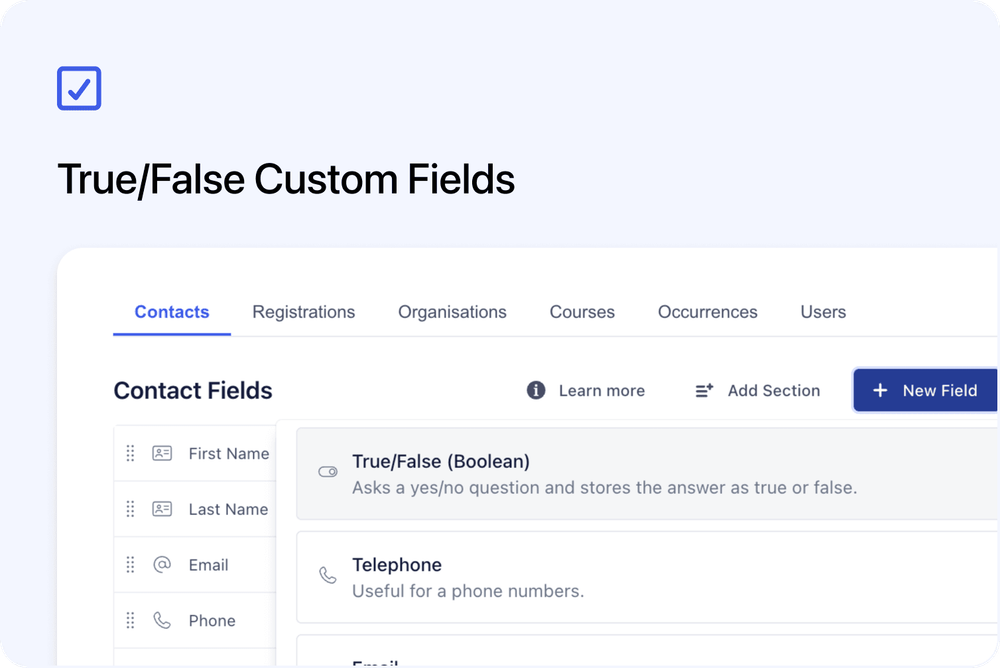
You can now create True/False custom fields in Cademy.
This gives you a simple way to collect or store yes/no information on forms, including checkout forms.
What’s new
✅ New True/False field type
A new field type is now available when creating custom fields:
True/False (Boolean)
You can find it from:
Settings → Fields
Use this field type when the answer should be either true or false, yes or no, or checked or unchecked.
☑️ Use True/False fields on forms
True/False fields can be added to supported custom forms.
On forms and checkout pages, they appear as a checkbox.
This is useful for questions or confirmations such as:
- Requires accessibility support
- Has previous experience
- Needs printed materials
- Is attending with an assistant
- Agrees to a specific internal requirement
- Has completed a prerequisite
- Needs follow-up after the course
🛒 Supported during checkout
True/False fields are supported on checkout forms.
This means you can collect yes/no information from learners or bookers during the order process.
The selected value is saved as a true or false value, so it can be handled consistently inside Cademy.
Why this matters
True/False fields make it easier to collect simple answers without using text fields or dropdowns.
They are useful when you need a clear yes/no response, a checkbox confirmation, or a simple flag on a record.
This helps keep form data cleaner and easier to review.
Good to know
Required True/False fields work correctly
If a True/False field is required, both checked and unchecked answers are treated as valid responses.
Only a missing answer will fail required validation.
False values are saved correctly
Unchecked values are saved as false, not ignored or treated as empty.
This means both true and false answers are preserved correctly.
Where to find it
Go to:
Settings → Fields
Create a new field and choose:
True/False (Boolean)